

Quick Deployment of Nginx Application
Updated at:2025-10-27
This document explains how to quickly deploy an Nginx application using Baidu AI Cloud Container Engine (CCE) and make it accessible to the public network via a Load Balancer service.
Operation steps
Create an Nginx workload
- Sign in to the Baidu AI Cloud official website and enter the management console.
- Select Product Tour - Containers - Baidu Container Engine and click to enter the CCE management console.
- Click Cluster Management - Cluster List in the left navigation pane.
- Click on the target cluster name in the Cluster List page to navigate to the cluster management page.
- On the cluster management page, click Workloads - Stateless to access the stateless workload list page.
- Click the Create Stateless Workload button to enter the workload creation page. Set the basic workload information as follows.
| ConfigMap | Configuration | Example |
|---|---|---|
| Workload name | Provide a name for the workload. | nginx |
| Namespace | Specify the namespace in which the workload will be deployed. | Keep the default settings |
| Workload type | Choose the type of workload. | Keep the default settings |
| K8s labels | Input the label information for the workload. | Keep the default configuration: app = nginx |
| Annotation | Input the annotation information for the workload. | Keep the default settings (empty) |
| Desired pod count | Specify the number of pod instances for the stateless workload. | Keep the default settings (2) |
- Set up the container. The key parameters include:
| ConfigMap | Configuration | Example |
|---|---|---|
| Container name | Provide the container name. | nginx |
| Image address | Either enter an image address without the image version (tag), or click Select Image to choose an image uploaded to the Cloud Container Registry. | registry.baidubce.com/cce/nginx-alpine-go |
| Image version (tag) | Select the image version. If not selected, the latest version will be pulled by default. | latest |
| Container resources | Set CPU and memory requests/limits according to your business requirements. | Keep the default settings |
- Click the Complete button to finish creating the workload.
Create an Nginx service
A Service specifies the access policies for pods. Backend pods can be reached through the service’s fixed address. Services support various access methods; in this example, a Load Balancer-type service is used to expose the application to the public network.
- On the cluster management page, click Network - Services to access the service list page.
- Click the Create Service button to enter the service creation page. Select Sample Templates - LoadBalancer. Set the selector to app: nginx. Keep other configurations unchanged.
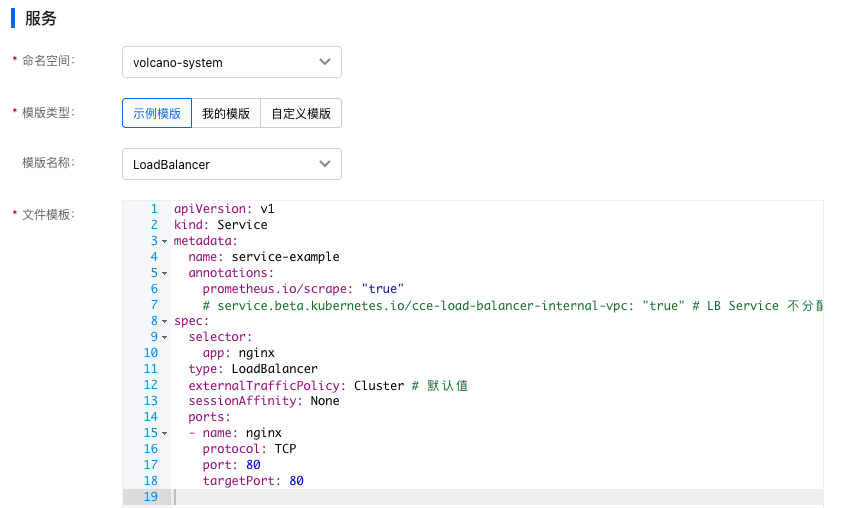
- Click OK button to complete service creation.
- After the service is created successfully, you can view the Nginx service in the service list.
- Access the Nginx application using the external endpoint associated with the service in the service list.