Image Registry Basic Operations

CCE CCE

  • Function Release Records
  • Common Tools
    • Command Line Scenario Examples
  • API Reference
    • Overview
    • Common Headers and Error Responses
    • General Description
  • Product Announcement
    • Announcement on the Discontinuation of CCE Standalone Clusters
    • CCE New Cluster Management Release Announcement
    • Upgrade Announcement for CCE Cluster Audit Component kube-external-auditor
    • CCE Console Upgrade Announcement
    • Announcement on Management Fees for CCE Managed Clusters
    • Container Runtime Version Release Notes
    • Announcement on the Decommissioning of CCE Image Repository
    • Kubernetes Version Release Notes
      • CCE Release of Kubernetes v1_26 History
      • CCE Kubernetes Version Update Notes
      • CCE Release of Kubernetes v1_24 History
      • CCE Release of Kubernetes v1_30 History
      • CCE Release of Kubernetes v1_22 History
      • CCE Release of Kubernetes v1_18 History
      • CCE Release of Kubernetes v1_20 History
      • CCE Release of Kubernetes v1_28 History
      • Release Notes for CCE Kubernetes 1_31 Version
      • Kubernetes Version Overview and Mechanism
    • Security Vulnerability Fix Announcement
      • Vulnerability CVE-2019-5736 Fix Announcement
      • Vulnerability CVE-2021-30465 Fix Announcement
      • CVE-2025-1097, CVE-2025-1098, and Other Vulnerabilities Fix Announcement
      • CVE-2020-14386 Vulnerability Fix Announcement
      • Impact Statement on runc Security Issue (CVE-2024-21626)
  • Service Level Agreement (SLA)
    • CCE Service Level Agreement SLA (V1_0)
  • Typical Practices
    • Pod Anomaly Troubleshooting
    • Adding CGroup V2 Node
    • Common Linux System Configuration Parameters Description
    • Encrypting etcd Data Using KMS
    • Configuring Container Network Parameters Using CNI
    • CCE - Public Network Access Practice
    • Practice of using private images in CCE clusters
    • Unified Access for Virtual Machines and Container Services via CCE Ingress
    • User Guide for Custom CNI Plugins
    • CCE Cluster Network Description and Planning
    • Cross-Cloud Application Migration to Baidu CCE Using Velero
    • CCE Resource Recommender User Documentation
    • Continuous Deployment with Jenkins in CCE Cluster
    • CCE Best Practice-Guestbook Setup
    • CCE Best Practice-Container Network Mode Selection
    • CCE Usage Checklist
    • VPC-ENI Mode Cluster Public Network Access Practice
    • CCE Container Runtime Selection
    • Cloud-native AI
      • Elastic and Fault-Tolerant Training Using CCE AITraining Operator
      • Deploy the TensorFlow Serving inference service
      • Best Practice for GPU Virtualization with Optimal Isolation
  • FAQs
    • How do business applications use load balancer
    • Using kubectl on Windows
    • Cluster management FAQs
    • Common Questions Overview
    • Auto scaling FAQs
    • Create a simple service via kubectl
  • Operation guide
    • Prerequisites for use
    • Identity and access management
    • Permission Management
      • Configure IAM Tag Permission Policy
      • Permission Overview
      • Configure IAM Custom Permission Policy
      • Configure Predefined RBAC Permission Policy
      • Configure IAM Predefined Permission Policy
      • Configure Cluster OIDC Authentication
    • Configuration Management
      • Configmap Management
      • Secret Management
    • Traffic access
      • BLB ingress annotation description
      • Use K8S_Service via CCE
      • Use K8S_Ingress via CCE
      • Implement Canary Release with CCE Based on Nginx-Ingress
      • Create CCE_Ingress via YAML
      • LoadBalancer Service Annotation Description
      • Service Reuses Existing Load Balancer BLB
      • Use Direct Pod Mode LoadBalancer Service
      • NGINX Ingress Configuration Reference
      • Create LoadBalancer_Service via YAML
      • Use NGINX Ingress
    • Virtual Node
      • Configuring BCIPod
      • Configuring bci-profile
      • Managing virtual nodes
    • Node management
      • Add a node
      • Managing Taints
      • Setting Node Blocking
      • Setting GPU Memory Sharing
      • Remove a node
      • Customizing Kubelet Parameters
      • Kubelet Container Monitor Read-Only Port Risk Warning
      • Managing Node Tag
      • Drain node
    • Component Management
      • CCE CSI CDS Plugin Description
      • CCE Fluid Description
      • CCE CSI PFS L2 Plugin
      • CCE Calico Felix Description
      • CCE Ingress Controller Description
      • CCE QoS Agent Description
      • CCE GPU Manager Description
      • CCE Ingress NGINX Controller Description
      • CCE P2P Accelerator Description
      • CCE Virtual Kubelet Component
      • CoreDNS Description
      • CCE Log Operator Description
      • CCE Node Remedier Description
      • CCE Descheduler Description
      • CCE Dynamic Scheduling Plugin Description
      • Kube Scheduler Documentation
      • CCE NPU Manager Description
      • CCE CronHPA Controller Description
      • CCE LB Controller Description
      • Kube ApiServer Description
      • CCE Backup Controller Description
      • CCE Network Plugin Description
      • CCE CSI PFS Plugin Description
      • CCE Credential Controller Description
      • CCE Deep Learning Frameworks Operator Description
      • Component Overview
      • CCE Image Accelerate Description
      • CCE CSI BOS Plugin Description
      • CCE Onepilot Description
      • Description of Kube Controller Manager
      • CCE_Hybrid_Manager Description
      • CCE NodeLocal DNSCache Description
      • CCE Node Problem Detector Description
      • CCE Ascend Mindx DL Description
      • CCE RDMA Device Plugin Description
      • CCE AI Job Scheduler Description
    • Image registry
      • Image Registry Basic Operations
      • Using Container Image to Build Services
    • Helm Management
      • Helm Template
      • Helm Instance
    • Cluster management
      • Upgrade Cluster Kubernetes Version
      • CCE Node CDS Dilatation
      • Managed Cluster Usage Instructions
      • Create cluster
      • CCE Supports GPUSharing Cluster
      • View Cluster
      • Connect to Cluster via kubectl
      • CCE Security Group
      • CCE Node Resource Reservation Instructions
      • Operate Cluster
      • Cluster Snapshot
    • Serverless Cluster
      • Product overview
      • Using Service in Serverless Cluster
      • Creating a Serverless Cluster
    • Storage Management
      • Using Cloud File System
      • Overview
      • Using Parallel File System PFS
      • Using RapidFS
      • Using Object Storage BOS
      • Using Parallel File System PFS L2
      • Using Local Storage
      • Using Cloud Disk CDS
    • Inspection and Diagnosis
      • Cluster Inspection
      • GPU Runtime Environment Check
      • Fault Diagnosis
    • Cloud-native AI
      • Cloud-Native AI Overview
      • AI Monitoring Dashboard
        • Connecting to a Prometheus Instance and Starting a Job
        • NVIDIA Chip Resource Observation
          • AI Job Scheduler component
          • GPU node resources
          • GPU workload resources
          • GPUManager component
          • GPU resource pool overview
        • Ascend Chip Resource Observation
          • Ascend resource pool overview
          • Ascend node resource
          • Ascend workload resource
      • Task Management
        • View Task Information
        • Create TensorFlow Task
        • Example of RDMA Distributed Training Based on NCCL
        • Create PaddlePaddle Task
        • Create AI Training Task
        • Delete task
        • Create PyTorch Task
        • Create Mxnet Task
      • Queue Management
        • Modify Queue
        • Create Queue
        • Usage Instructions for Logical Queues and Physical Queues
        • Queue deletion
      • Dataset Management
        • Create Dataset
        • Delete dataset
        • View Dataset
        • Operate Dataset
      • AI Acceleration Kit
        • AIAK Introduction
        • Using AIAK-Training PyTorch Edition
        • Deploying Distributed Training Tasks Using AIAK-Training
        • Accelerating Inference Business Using AIAK-Inference
      • GPU Virtualization
        • GPU Exclusive and Shared Usage Instructions
        • Image Build Precautions in Shared GPU Scenarios
        • Instructions for Multi-GPU Usage in Single-GPU Containers
        • GPU Virtualization Adaptation Table
        • GPU Online and Offline Mixed Usage Instructions
        • MPS Best Practices & Precautions
        • Precautions for Disabling Node Video Memory Sharing
    • Elastic Scaling
      • Container Timing Horizontal Scaling (CronHPA)
      • Container Horizontal Scaling (HPA)
      • Implementing Second-Level Elastic Scaling with cce-autoscaling-placeholder
      • CCE Cluster Node Auto-Scaling
    • Network Management
      • How to Continue Dilatation When Container Network Segment Space Is Exhausted (VPC-ENI Mode)
      • Container Access to External Services in CCE Clusters
      • CCE supports dual-stack networks of IPv4 and IPv6
      • Using NetworkPolicy Network Policy
      • Traffic Forwarding Configuration for Containers in Peering Connections Scenarios
      • CCE IP Masquerade Agent User Guide
      • Creating VPC-ENI Mode Cluster
      • How to Continue Dilatation When Container Network Segment Space Is Exhausted (VPC Network Mode)
      • Using NetworkPolicy in CCE Clusters
      • Network Orchestration
        • Container Network QoS Management
        • VPC-ENI Specified Subnet IP Allocation (Container Network v2)
        • Cluster Pod Subnet Topology Distribution (Container Network v2)
      • Network Connectivity
        • Container network accesses the public network via NAT gateway
      • Network Maintenance
        • Common Error Code Table for CCE Container Network
      • DNS
        • CoreDNS Component Manual Dilatation Guide
        • DNS Troubleshooting Guide
        • DNS Principle Overview
    • Namespace Management
      • Set Limit Range
      • Set Resource Quota
      • Basic Namespace Operations
    • Workload
      • CronJob Management
      • Set Workload Auto-Scaling
      • Deployment Management
      • Job Management
      • View the Pod
      • StatefulSet Management
      • Password-Free Pull of Container Image
      • Create Workload Using Private Image
      • DaemonSet Management
    • Monitor Logs
      • Monitor Cluster with Prometheus
      • CCE Event Center
      • Cluster Service Profiling
      • CCE Cluster Anomaly Event Alerts
      • Java Application Monitor
      • Cluster Audit Dashboard
      • Logging
      • Cluster Audit
      • Log Center
        • Configure Collection Rules Using CRD
        • View Cluster Control Plane Logs
        • View Business Logs
        • Log Overview
        • Configure Collection Rules in Cloud Container Engine Console
    • Application management
      • Overview
      • Secret
      • Configuration dictionary
      • Deployment
      • Service
      • Pod
    • NodeGroup Management
      • NodeGroup Management
      • NodeGroup Node Fault Detection and Self-Healing
      • Configuring Scaling Policies
      • NodeGroup Introduction
      • Adding Existing External Nodes
      • Custom NodeGroup Kubelet Configuration
      • Adding Alternative Models
      • Dilatation NodeGroup
    • Backup Center
      • Restore Management
      • Backup Overview
      • Backup Management
      • Backup repository
  • Quick Start
    • Quick Deployment of Nginx Application
    • CCE Container Engine Usage Process Overview
  • Product pricing
    • Product pricing
  • Product Description
    • Application scenarios
    • Introduction
    • Usage restrictions
    • Features
    • Advantages
    • Core concepts
  • Solution-Fabric
    • Fabric Solution
  • Development Guide
    • EFK Log Collection System Deployment Guide
    • Using Network Policy in CCE Cluster
    • Creating a LoadBalancer-Type Service
    • Prometheus Monitoring System Deployment Guide
    • kubectl Management Configuration
  • API_V2 Reference
    • Overview
    • Common Headers and Error Responses
    • Cluster Related Interfaces
    • Instance Related Interfaces
    • Service domain
    • General Description
    • Kubeconfig Related Interfaces
    • RBAC Related Interfaces
    • Autoscaler Related Interfaces
    • Network Related Interfaces
    • InstanceGroup Related Interfaces
    • Appendix
    • Component management-related APIs
    • Package adaptation-related APIs
    • Task Related Interfaces
  • Solution-Xchain
    • Hyperchain Solution
  • SDK
    • Go-SDK
      • Overview
      • NodeGroup Management
      • Initialization
      • Install the SDK Package
      • Cluster management
      • Node management
All documents
menu
No results found, please re-enter

CCE CCE

  • Function Release Records
  • Common Tools
    • Command Line Scenario Examples
  • API Reference
    • Overview
    • Common Headers and Error Responses
    • General Description
  • Product Announcement
    • Announcement on the Discontinuation of CCE Standalone Clusters
    • CCE New Cluster Management Release Announcement
    • Upgrade Announcement for CCE Cluster Audit Component kube-external-auditor
    • CCE Console Upgrade Announcement
    • Announcement on Management Fees for CCE Managed Clusters
    • Container Runtime Version Release Notes
    • Announcement on the Decommissioning of CCE Image Repository
    • Kubernetes Version Release Notes
      • CCE Release of Kubernetes v1_26 History
      • CCE Kubernetes Version Update Notes
      • CCE Release of Kubernetes v1_24 History
      • CCE Release of Kubernetes v1_30 History
      • CCE Release of Kubernetes v1_22 History
      • CCE Release of Kubernetes v1_18 History
      • CCE Release of Kubernetes v1_20 History
      • CCE Release of Kubernetes v1_28 History
      • Release Notes for CCE Kubernetes 1_31 Version
      • Kubernetes Version Overview and Mechanism
    • Security Vulnerability Fix Announcement
      • Vulnerability CVE-2019-5736 Fix Announcement
      • Vulnerability CVE-2021-30465 Fix Announcement
      • CVE-2025-1097, CVE-2025-1098, and Other Vulnerabilities Fix Announcement
      • CVE-2020-14386 Vulnerability Fix Announcement
      • Impact Statement on runc Security Issue (CVE-2024-21626)
  • Service Level Agreement (SLA)
    • CCE Service Level Agreement SLA (V1_0)
  • Typical Practices
    • Pod Anomaly Troubleshooting
    • Adding CGroup V2 Node
    • Common Linux System Configuration Parameters Description
    • Encrypting etcd Data Using KMS
    • Configuring Container Network Parameters Using CNI
    • CCE - Public Network Access Practice
    • Practice of using private images in CCE clusters
    • Unified Access for Virtual Machines and Container Services via CCE Ingress
    • User Guide for Custom CNI Plugins
    • CCE Cluster Network Description and Planning
    • Cross-Cloud Application Migration to Baidu CCE Using Velero
    • CCE Resource Recommender User Documentation
    • Continuous Deployment with Jenkins in CCE Cluster
    • CCE Best Practice-Guestbook Setup
    • CCE Best Practice-Container Network Mode Selection
    • CCE Usage Checklist
    • VPC-ENI Mode Cluster Public Network Access Practice
    • CCE Container Runtime Selection
    • Cloud-native AI
      • Elastic and Fault-Tolerant Training Using CCE AITraining Operator
      • Deploy the TensorFlow Serving inference service
      • Best Practice for GPU Virtualization with Optimal Isolation
  • FAQs
    • How do business applications use load balancer
    • Using kubectl on Windows
    • Cluster management FAQs
    • Common Questions Overview
    • Auto scaling FAQs
    • Create a simple service via kubectl
  • Operation guide
    • Prerequisites for use
    • Identity and access management
    • Permission Management
      • Configure IAM Tag Permission Policy
      • Permission Overview
      • Configure IAM Custom Permission Policy
      • Configure Predefined RBAC Permission Policy
      • Configure IAM Predefined Permission Policy
      • Configure Cluster OIDC Authentication
    • Configuration Management
      • Configmap Management
      • Secret Management
    • Traffic access
      • BLB ingress annotation description
      • Use K8S_Service via CCE
      • Use K8S_Ingress via CCE
      • Implement Canary Release with CCE Based on Nginx-Ingress
      • Create CCE_Ingress via YAML
      • LoadBalancer Service Annotation Description
      • Service Reuses Existing Load Balancer BLB
      • Use Direct Pod Mode LoadBalancer Service
      • NGINX Ingress Configuration Reference
      • Create LoadBalancer_Service via YAML
      • Use NGINX Ingress
    • Virtual Node
      • Configuring BCIPod
      • Configuring bci-profile
      • Managing virtual nodes
    • Node management
      • Add a node
      • Managing Taints
      • Setting Node Blocking
      • Setting GPU Memory Sharing
      • Remove a node
      • Customizing Kubelet Parameters
      • Kubelet Container Monitor Read-Only Port Risk Warning
      • Managing Node Tag
      • Drain node
    • Component Management
      • CCE CSI CDS Plugin Description
      • CCE Fluid Description
      • CCE CSI PFS L2 Plugin
      • CCE Calico Felix Description
      • CCE Ingress Controller Description
      • CCE QoS Agent Description
      • CCE GPU Manager Description
      • CCE Ingress NGINX Controller Description
      • CCE P2P Accelerator Description
      • CCE Virtual Kubelet Component
      • CoreDNS Description
      • CCE Log Operator Description
      • CCE Node Remedier Description
      • CCE Descheduler Description
      • CCE Dynamic Scheduling Plugin Description
      • Kube Scheduler Documentation
      • CCE NPU Manager Description
      • CCE CronHPA Controller Description
      • CCE LB Controller Description
      • Kube ApiServer Description
      • CCE Backup Controller Description
      • CCE Network Plugin Description
      • CCE CSI PFS Plugin Description
      • CCE Credential Controller Description
      • CCE Deep Learning Frameworks Operator Description
      • Component Overview
      • CCE Image Accelerate Description
      • CCE CSI BOS Plugin Description
      • CCE Onepilot Description
      • Description of Kube Controller Manager
      • CCE_Hybrid_Manager Description
      • CCE NodeLocal DNSCache Description
      • CCE Node Problem Detector Description
      • CCE Ascend Mindx DL Description
      • CCE RDMA Device Plugin Description
      • CCE AI Job Scheduler Description
    • Image registry
      • Image Registry Basic Operations
      • Using Container Image to Build Services
    • Helm Management
      • Helm Template
      • Helm Instance
    • Cluster management
      • Upgrade Cluster Kubernetes Version
      • CCE Node CDS Dilatation
      • Managed Cluster Usage Instructions
      • Create cluster
      • CCE Supports GPUSharing Cluster
      • View Cluster
      • Connect to Cluster via kubectl
      • CCE Security Group
      • CCE Node Resource Reservation Instructions
      • Operate Cluster
      • Cluster Snapshot
    • Serverless Cluster
      • Product overview
      • Using Service in Serverless Cluster
      • Creating a Serverless Cluster
    • Storage Management
      • Using Cloud File System
      • Overview
      • Using Parallel File System PFS
      • Using RapidFS
      • Using Object Storage BOS
      • Using Parallel File System PFS L2
      • Using Local Storage
      • Using Cloud Disk CDS
    • Inspection and Diagnosis
      • Cluster Inspection
      • GPU Runtime Environment Check
      • Fault Diagnosis
    • Cloud-native AI
      • Cloud-Native AI Overview
      • AI Monitoring Dashboard
        • Connecting to a Prometheus Instance and Starting a Job
        • NVIDIA Chip Resource Observation
          • AI Job Scheduler component
          • GPU node resources
          • GPU workload resources
          • GPUManager component
          • GPU resource pool overview
        • Ascend Chip Resource Observation
          • Ascend resource pool overview
          • Ascend node resource
          • Ascend workload resource
      • Task Management
        • View Task Information
        • Create TensorFlow Task
        • Example of RDMA Distributed Training Based on NCCL
        • Create PaddlePaddle Task
        • Create AI Training Task
        • Delete task
        • Create PyTorch Task
        • Create Mxnet Task
      • Queue Management
        • Modify Queue
        • Create Queue
        • Usage Instructions for Logical Queues and Physical Queues
        • Queue deletion
      • Dataset Management
        • Create Dataset
        • Delete dataset
        • View Dataset
        • Operate Dataset
      • AI Acceleration Kit
        • AIAK Introduction
        • Using AIAK-Training PyTorch Edition
        • Deploying Distributed Training Tasks Using AIAK-Training
        • Accelerating Inference Business Using AIAK-Inference
      • GPU Virtualization
        • GPU Exclusive and Shared Usage Instructions
        • Image Build Precautions in Shared GPU Scenarios
        • Instructions for Multi-GPU Usage in Single-GPU Containers
        • GPU Virtualization Adaptation Table
        • GPU Online and Offline Mixed Usage Instructions
        • MPS Best Practices & Precautions
        • Precautions for Disabling Node Video Memory Sharing
    • Elastic Scaling
      • Container Timing Horizontal Scaling (CronHPA)
      • Container Horizontal Scaling (HPA)
      • Implementing Second-Level Elastic Scaling with cce-autoscaling-placeholder
      • CCE Cluster Node Auto-Scaling
    • Network Management
      • How to Continue Dilatation When Container Network Segment Space Is Exhausted (VPC-ENI Mode)
      • Container Access to External Services in CCE Clusters
      • CCE supports dual-stack networks of IPv4 and IPv6
      • Using NetworkPolicy Network Policy
      • Traffic Forwarding Configuration for Containers in Peering Connections Scenarios
      • CCE IP Masquerade Agent User Guide
      • Creating VPC-ENI Mode Cluster
      • How to Continue Dilatation When Container Network Segment Space Is Exhausted (VPC Network Mode)
      • Using NetworkPolicy in CCE Clusters
      • Network Orchestration
        • Container Network QoS Management
        • VPC-ENI Specified Subnet IP Allocation (Container Network v2)
        • Cluster Pod Subnet Topology Distribution (Container Network v2)
      • Network Connectivity
        • Container network accesses the public network via NAT gateway
      • Network Maintenance
        • Common Error Code Table for CCE Container Network
      • DNS
        • CoreDNS Component Manual Dilatation Guide
        • DNS Troubleshooting Guide
        • DNS Principle Overview
    • Namespace Management
      • Set Limit Range
      • Set Resource Quota
      • Basic Namespace Operations
    • Workload
      • CronJob Management
      • Set Workload Auto-Scaling
      • Deployment Management
      • Job Management
      • View the Pod
      • StatefulSet Management
      • Password-Free Pull of Container Image
      • Create Workload Using Private Image
      • DaemonSet Management
    • Monitor Logs
      • Monitor Cluster with Prometheus
      • CCE Event Center
      • Cluster Service Profiling
      • CCE Cluster Anomaly Event Alerts
      • Java Application Monitor
      • Cluster Audit Dashboard
      • Logging
      • Cluster Audit
      • Log Center
        • Configure Collection Rules Using CRD
        • View Cluster Control Plane Logs
        • View Business Logs
        • Log Overview
        • Configure Collection Rules in Cloud Container Engine Console
    • Application management
      • Overview
      • Secret
      • Configuration dictionary
      • Deployment
      • Service
      • Pod
    • NodeGroup Management
      • NodeGroup Management
      • NodeGroup Node Fault Detection and Self-Healing
      • Configuring Scaling Policies
      • NodeGroup Introduction
      • Adding Existing External Nodes
      • Custom NodeGroup Kubelet Configuration
      • Adding Alternative Models
      • Dilatation NodeGroup
    • Backup Center
      • Restore Management
      • Backup Overview
      • Backup Management
      • Backup repository
  • Quick Start
    • Quick Deployment of Nginx Application
    • CCE Container Engine Usage Process Overview
  • Product pricing
    • Product pricing
  • Product Description
    • Application scenarios
    • Introduction
    • Usage restrictions
    • Features
    • Advantages
    • Core concepts
  • Solution-Fabric
    • Fabric Solution
  • Development Guide
    • EFK Log Collection System Deployment Guide
    • Using Network Policy in CCE Cluster
    • Creating a LoadBalancer-Type Service
    • Prometheus Monitoring System Deployment Guide
    • kubectl Management Configuration
  • API_V2 Reference
    • Overview
    • Common Headers and Error Responses
    • Cluster Related Interfaces
    • Instance Related Interfaces
    • Service domain
    • General Description
    • Kubeconfig Related Interfaces
    • RBAC Related Interfaces
    • Autoscaler Related Interfaces
    • Network Related Interfaces
    • InstanceGroup Related Interfaces
    • Appendix
    • Component management-related APIs
    • Package adaptation-related APIs
    • Task Related Interfaces
  • Solution-Xchain
    • Hyperchain Solution
  • SDK
    • Go-SDK
      • Overview
      • NodeGroup Management
      • Initialization
      • Install the SDK Package
      • Cluster management
      • Node management
  • Document center
  • arrow
  • CCECCE
  • arrow
  • Operation guide
  • arrow
  • Image registry
  • arrow
  • Image Registry Basic Operations
Table of contents on this page
  • Introduction
  • Enable image registry
  • Create namespace
  • Create an image
  • Delete image
  • Push the image to the image registry
  • Use DockerHub accelerator
  • How to use the DockerHub image accelerator
  • Build docker image

Image Registry Basic Operations

Updated at:2025-10-27

Starting from February 1, 2021, the Cloud Container Engine (CCE) image registry will only support read-only mode (existing image can still be pulled, but new image cannot be pushed). Please migrate to the Cloud Container Registry (CCR) as soon as possible (refer to Image Migration Documentation). CCR will provide you with more secure, reliable, and fast services. For other requests or questions, please Submit a Ticket.

Introduction

The image registry delivers secure, dependable, and user-friendly container image management services, minimizing the setup and maintenance overhead of the registry while improving the delivery capacity and user experience of cloud-native applications.

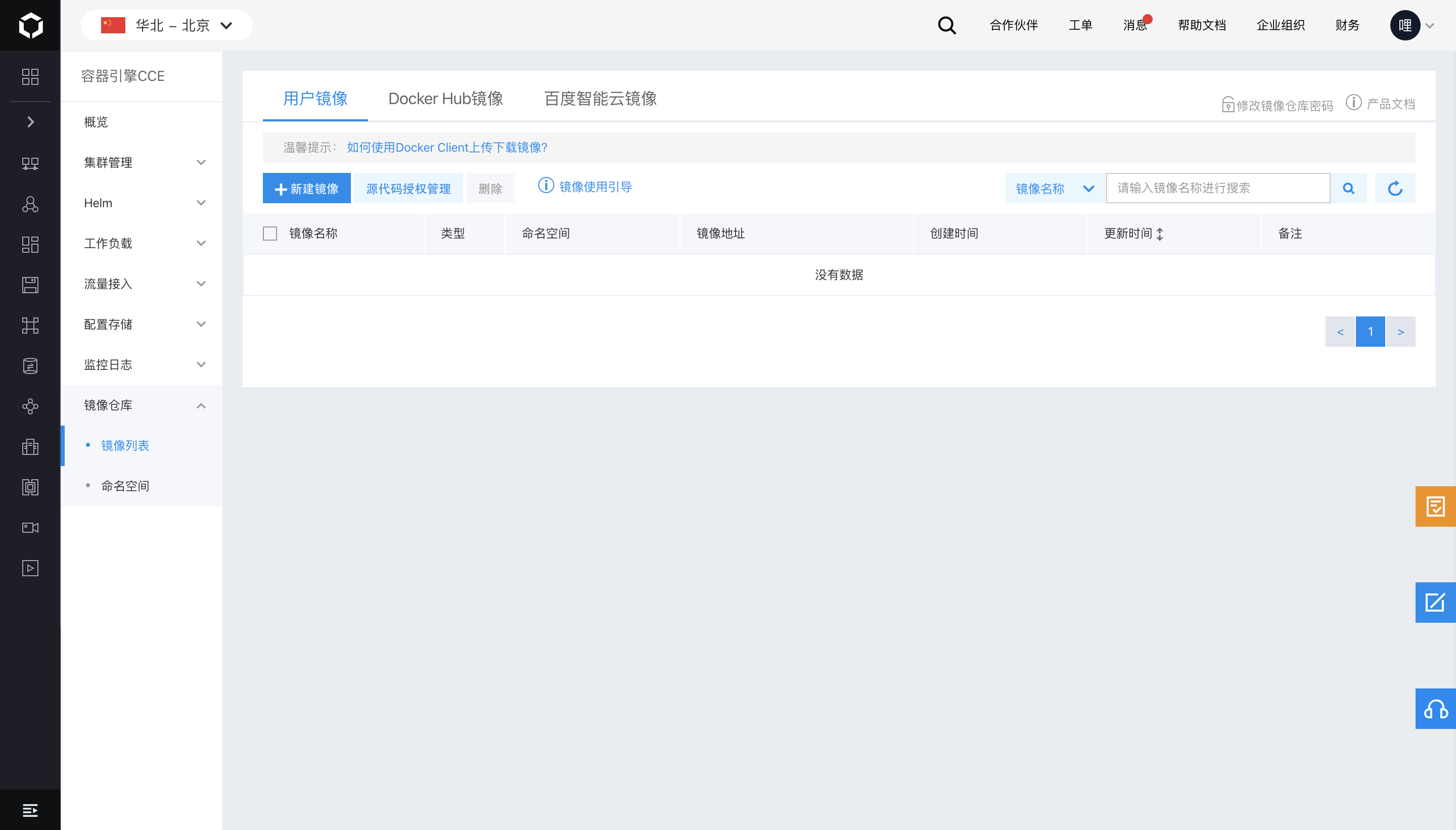
You can use the image registry function provided by the Cloud Container Engine (CCE) Cloud Container Engine - Image Registry image.png
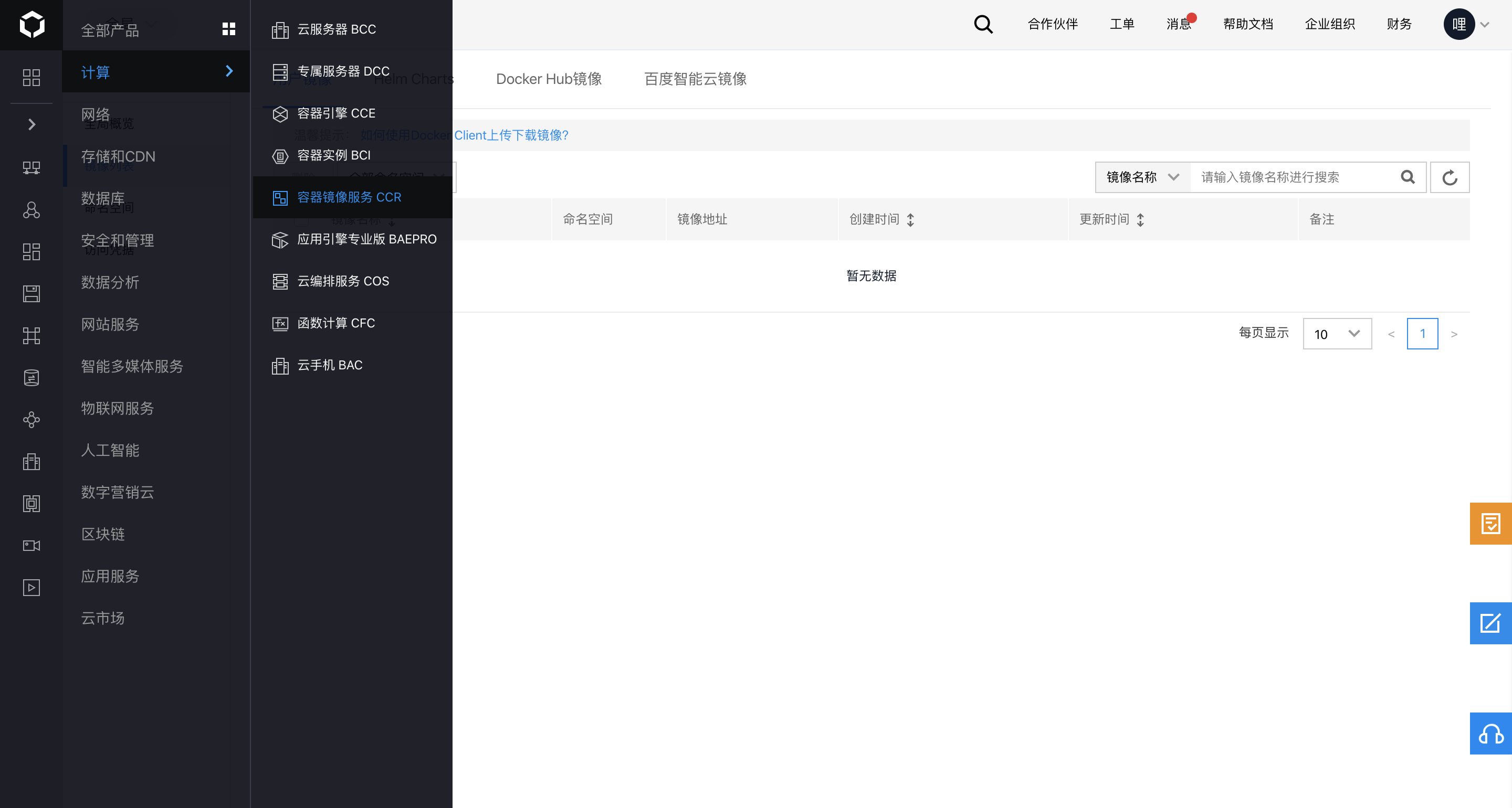
You can also use the more function-rich and user-friendly Cloud Container Registry (CCR) Container Image Registry Console image.png
Note: This document is specific to the image registry in the Cloud Container Engine (CCE), with the image registry domain name of hub.baidubce.com. To refer to this document to use the Cloud Container Registry (CCR), replace the image registry domain name with registry.baidubce.com.

Enable image registry

When accessing the image registry for the first time, a setup page will appear. Enter the username and set a password as prompted.
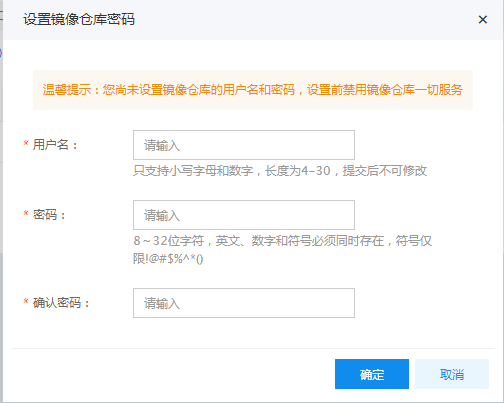
Note:

Username: Naming rules of image registry username: lowercase letters and numbers only, with a length of 4-30, unmodifiable after submission.

Password: This is the credential for users to sign in to the docker image registry. Password creation rules: 8-32 characters; it must contain English letters, numbers, and symbols (limited to !@#^*()) simultaneously

Create namespace

  1. Within the image registry section, choose a namespace, then click Create Namespace in the namespace list.
  2. Provide the new namespace name, select the namespace type, and click OK to finish creating the namespace.

Note:

Namespace naming rules are as follows: Names must be between 1 and 65 characters long, using lowercase letters, numbers, and the special characters -\_. Special characters cannot begin or end the name, nor appear consecutively.

Create an image

  1. On the Image List page, click the Create button.
  2. Select the namespace, enter the image name and version number, then click OK.
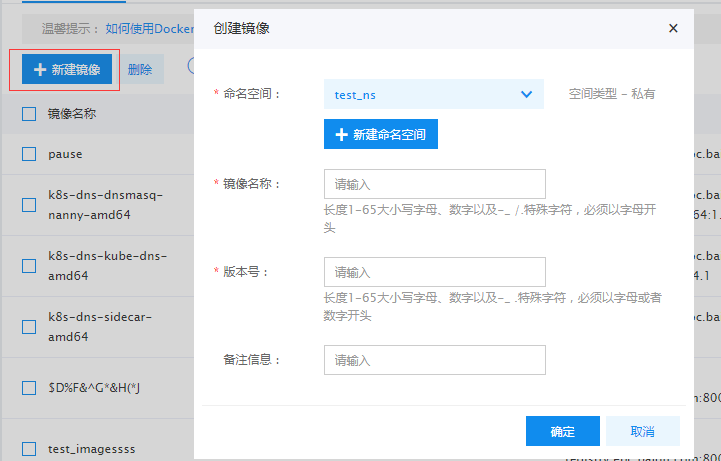
Note:

  1. The image name must consist of lowercase letters, numbers, and the special characters -_ /., with a length of 1-65 characters. Special characters cannot start or end the name, nor appear consecutively.
  2. The version name must consist of lowercase letters, numbers, and the special characters -_ ., with a length of 1-65 characters. Special characters cannot start or end the name, nor appear consecutively.
  3. If the user opts not to create a new image, the above basic details will also be generated automatically upon completing the image push to the corresponding namespace.

Delete image

Select the image name to delete, click the Delete button, and confirm the action in the pop-up deletion window.

Note: Deleted image cannot be recovered or used.

Push the image to the image registry

Starting from February 1, 2021, the Cloud Container Engine (CCE) image registry will only support read-only mode (existing image can still be pulled, but new image cannot be pushed). Please migrate to the Cloud Container Registry (CCR) as soon as possible (refer to Image Migration Documentation). CCR will provide you with more secure, reliable, and fast services. For other requests or questions, please Submit a Ticket.

Note: This document is specific to the image registry in the Cloud Container Engine (CCE), with the image registry domain name of hub.baidubce.com. To refer to this document to use the Cloud Container Registry (CCR), replace the image registry domain name with registry.baidubce.com.

Sign in to Baidu AI Cloud Image Registry

Plain Text
1    >$ sudo docker login --username=[username] hub.baidubce.com

Username: The image registry name corresponds to the username input during registry activation. Complete the login process by entering the password.

Upload images

Plain Text
1    $ sudo docker tag [ImageId] hub.baidubce.com/[namespace]/[ImageName]: [Image Version No.]
2 $ sudo docker push hub.baidubce.com/[namespace]/[ImageName]:[Image Version No.]
  • Fill in the ImageId and image version No. based on the image information
  • Namespace refers to the namespace entered when activating the image registry
  • ImageName refers to the image name created in the console

Download Image

To sign in to the Image Registry, you need to enter the password

Plain Text
1    $ sudo docker pull hub.baidubce.com/[namespace]/[ImageName]:[Image Version No.]

Use DockerHub accelerator

How to use the DockerHub image accelerator

Docker software repository address: https://mirror.baidubce.com

CCE Cluster Baidu Cloud Compute

No manual configuration is required. The docker service will be automatically installed when creating a node, and the mirror image will be configured as follows:

Plain Text
1    [root@VM_1_2_centos ~]# cat /etc/systemd/system/docker.service
2    IPTABLES="--iptables=false"
3    STORAGE_DRIVER="--storage-driver=overlay2"
4    IP_MASQ="--ip-masq=false"
5    LOG_LEVEL="--log-level=warn"
6    REGISTRY_MIRROR="--registry-mirror=https://mirror.baidubce.com"

BCC and server configuration

Linux:

  1. Applicable to Ubuntu14.04, Debian, CentOS6, Fedora and OpenSUSE. Other versions may have slight differences

Modify the docker configuration file /etc/default/docker as follows:

Plain Text
1     DOCKER_OPTS="--registry-mirror=https://mirror.baidubce.com"
  1. For CentOS7: Modify docker configuration file vi /etc/sysconfig/docker by adding the following

    Plain Text
    1OPTIONS='--registry-mirror=https://mirror.baidubce.com'

Note

The DockerHub mirror mechanism is supported only in Docker version 1.3.2 or higher. If Docker is not installed or if the version is outdated, please install Docker or upgrade to a newer version.

Windows

If Boot2Docker is used, the configuration command is: Enter the Boot2Docker Start Shell and execute

Plain Text
1    sudo su echo "EXTRA_ARGS=\"–registry-
2 mirror=http://https://mirror.baidubce.com"">> /var/lib/boot2docker/profile  exit #  RebootBoot2Docker

Start docker

Execute the following commands to start docker

Plain Text
1    sudo service docker start

Build docker image

DockerHub has provided developers with a vast collection of high-quality available images. For details, visit the DockerHub Official Website.

Given the variety of practical scenarios, not all applications can find suitable images for use on DockerHub. You can follow the tutorial below to learn how to build custom Docker images.

Docker currently supports two methods for generating images:

  • Automatically build an image using Dockerfile;
  • Create and generate an image by running the commit command on an existing container.

Automatically compiled and generated by Dockerfile

Take Dockerhub's official WordPress as an example. Refer to GitHub for details

The relevant Dockerfile source code is as follows:

Plain Text
1        FROM php:5.6-apache
2        
3        # install the PHP extensions we need
4        RUN apt-get update && apt-get install -y libpng12-dev libjpeg-dev && rm -rf /var/lib/apt/lists/* \
5            && docker-php-ext-configure gd --with-png-dir=/usr --with-jpeg-dir=/usr \
6            && docker-php-ext-install gd mysqli opcache
7        
8        # set recommended PHP.ini settings
9        # see https://secure.php.net/manual/en/opcache.installation.php
10        RUN { \
11                echo 'opcache.memory_consumption=128'; \
12                echo 'opcache.interned_strings_buffer=8'; \
13                echo 'opcache.max_accelerated_files=4000'; \
14                echo 'opcache.revalidate_freq=2'; \
15                echo 'opcache.fast_shutdown=1'; \
16                echo 'opcache.enable_cli=1'; \
17            } > /usr/local/etc/php/conf.d/opcache-recommended.ini
18        
19        RUN a2enmod rewrite expires
20        
21        VOLUME /var/www/html
22        
23        ENV WORDPRESS_VERSION 4.6.1
24        ENV WORDPRESS_SHA1 027e065d30a64720624a7404a1820e6c6fff1202
25        
26        RUN set -x \
27            && curl -o wordpress.tar.gz -fSL "https://wordpress.org/wordpress-${WORDPRESS_VERSION}.tar.gz" \
28            && echo "$WORDPRESS_SHA1 *wordpress.tar.gz" | sha1sum -c - \
29        # upstream tarballs include ./wordpress/ so this gives us /usr/src/wordpress
30            && tar -xzf wordpress.tar.gz -C /usr/src/ \
31            && rm wordpress.tar.gz \
32            && chown -R www-data:www-data /usr/src/wordpress
33        
34        COPY docker-entrypoint.sh /usr/local/bin/
35        RUN ln -s usr/local/bin/docker-entrypoint.sh /entrypoint.sh # backwards compat
36        
37        # ENTRYPOINT resets CMD
38        ENTRYPOINT ["docker-entrypoint.sh"]
39        CMD ["apache2-foreground"]

The Dockerfile above explains how to set up the basic environment needed for a WordPress application.

Open a terminal, create a folder to store the Dockerfile, and use the docker build command to create the image.

Plain Text
1    [root@instance-hlf45x1g-1 worldpress]# docker build ./
2    Sending build context to Docker daemon 3.072 kB
3    Step 1 : FROM php:5.6-apache
4    Trying to pull repository docker.io/library/php ...
5    5.6-apache: Pulling from docker.io/library/php
6    386a066cd84a: Pull complete
7    269e95c6053a: Pull complete
8    ......

Use the docker images command to check the created image.

Plain Text
1    [root@instance-hlf45x1g-1 worldpress]# docker images
2    REPOSITORY                                     TAG                 IMAGE ID            CREATED             SIZE
3    worldpress                                     latest              9f0b470b5ddb        13 minutes ago      420 MB
4    docker.io/php                                  5.6-apache          eb8333e24502        7 days ago          389.7 MB

The following recommendations apply when using Dockerfile to build images:

  • It is recommended to use official Docker base images as the starting point.
  • The initial instructions in the Dockerfile should focus on general and versatile commands for installing and managing dependencies to improve cache efficiency.
  • Install only the necessary packages to minimize the image size.
  • Use multiple RUN commands linked with '\' to improve readability and simplify maintenance.
  • Use the -t tag when building images to make managing the created images easier.
  • Clear annotations help improve readability.
  • After building, run a local startup to verify functionality.

Execute commit to package and generate the image

The Dockerfile allows for fast image creation, while the commit command helps convert an existing container into an image.

The steps to build an image via commit are as follows:

  1. Run and access the container based on the base image.

    Plain Text
    1[root@instance-hlf45x1g-1 ~]# docker run -i -t centos
  2. Install the required software and apply configurations.

    Plain Text
    1    [root@c4f1basa4w76 /]# yum update && yum install  openssh-server
    2    Loaded plugins: fastestmirror, ovl
    3    base                                                                                                                                                                    | 3.6 kB  00:00:00     
    4    extras                                                                                                                                                                  | 3.4 kB  00:00:00     
    5    updates                                                                                                                                                                 | 3.4 kB  00:00:00     
    6    (1/4): base/7/x86_64/group_gz                                                                                                                                           | 155 kB  00:00:00     
    7    (2/4): extras/7/x86_64/primary_db                                                                                                                                       | 166 kB  00:00:00     
    8    (3/4): base/7/x86_64/primary_db                                                                                                                                         | 5.3 MB  00:00:00     
    9    (4/4): updates/7/x86_64/primary_db
    10    ......
    11    ......
    12    ......
    13    Dependency Installed:
    14    fipscheck.x86_64 0:1.4.1-5.el7     fipscheck-lib.x86_64 0:1.4.1-5.el7              openssh.x86_64 0:6.6.1p1-25.el7_2  tcp_wrappers-libs.x86_64 0:7.6-77.el7
  3. Once configuration is complete, open a new terminal to save the image.

    Plain Text
    1[root@instance-hlf45x1g-1 ~]# docker ps
    2    CONTAINER ID    IMAGE       COMMAND       CREATED          STATUS        PORTS       NAMES
    3    c4f1basa4w76   centos     "/bin/bash"   13 minutes ago   Up 13 minutes            fashion_surl
    4[root@instance-hlf45x1g-1 ~]# docker commit c4f1basa4w76 my_centos:1.0      
    5    sha256:65325ffd2af9d574afca917a8ce81cf8a710e6d1067ee611a87087e1aa88e4a4
    6[root@instance-hlf45x1g-1 ~]# docker images
    7    REPOSITORY      TAG       IMAGE ID            CREATED             SIZE
    8    my_centos       1.0     65325ffd2af9        16 seconds ago      307.8 MB

Previous
Component Management
Next
Using Container Image to Build Services