kubectl Management Configuration
Connect the Kubernetes cluster via kubectl
At present, the Baidu AI Cloud container service is based on kubernetes v1.8.6. To connect to Baidu AI Cloud Kubernetes Cluster from a local personal computer, use the Kubernetes command-line client kubectl. The installation steps are as follows:
Operation step
Download the corresponding kubectl client from the Kubernetes Version Download Page. For additional kubectl information, please refer to the official Kubernetes Install and Set up Kubectl Documentation.
Note:
The operational steps in this guide are based on a Linux environment.
-
Extract the downloaded file, grant execution permission to kubectl, and place it under PATH
chmod +x ./kubectl sudo mv ./kubectl /usr/local/bin/kubectl
-
Configure kubectl and download cluster credentials. Retrieve the cluster configuration file from the cluster interface and place it in the default configuration path of kubectl.
mv kubectl.conf ~/.kube/config
-
After configuration is complete, you can use kubectl to access the Kubernetes cluster from your local computer
kubectl get node
Create a simple service via kubectl
Create an Nginx application
This command assumes that the kubectl command-line interface is already in the PATH and that you have permissions to operate the Kubernetes cluster (i.e., you have completed the setup to connect to the Kubernetes cluster via kubectl). Enter the following commands:
1kubectl run my-nginx --image=nginx --replicas=3 --port=80This command will create three nginx containers, each exposing port 80.
The command to check the status of the created nginx container is as follows:
1$ kubectl get pods
2NAME                       READY     STATUS    RESTARTS   AGE
3my-nginx-858393261-pfjdn   1/1       Running   0          14s
4my-nginx-858393261-sn7g5   1/1       Running   0          14s
5my-nginx-858393261-spv8w   1/1       Running   0          14s
Note: The symbol "$" represents the input command, while other lines represent the container information displayed after entering the command.
Expose service to the internet
Create service
In a public cloud environment, you can create a service of LoadBalancer by entering a command. This will also trigger the public cloud to create a load balancer and a public IP. The specific operation command is as follows:
1kubectl expose deployment my-nginx --port=80 --type=LoadBalancerNote:
Load Balancer: virtualizes multiple Baidu Cloud Computes in the same region into a group, assigns an intranet or internet service address, and distributes concurrent front-end access to multiple real cloud servers, thus achieving balancing application traffic. You can obtain the public network IP of the service by querying the service. Then, find the BLB instance you created on the Baidu Load Balance (BLB) page in the Baidu AI Cloud console. For its pricing standards, refer to Baidu Load Balance (BLB) Pricing. Public IP: A standalone service that provides users with public network bandwidth. You can query the public IP address you created by [viewing the service](CCE/Development Guide/kubectl Management Configuration.md#View service). For its pricing standards, refer to [Elastic Public IP (EIP) Pricing](EIP/Product pricing/EIP Instance Billing.md). By default, the billing method is postpay.
View service
Run the command to check the service, along with its status and the assigned public IP.
1$ kubectl get services
2NAME         CLUSTER-IP    EXTERNAL-IP      PORT(S)        AGE
3kubernetes   172.17.0.1    <none>           443/TCP        1h
4my-nginx     172.17.44.5   180.76.139.247   80:30356/TCP   47s
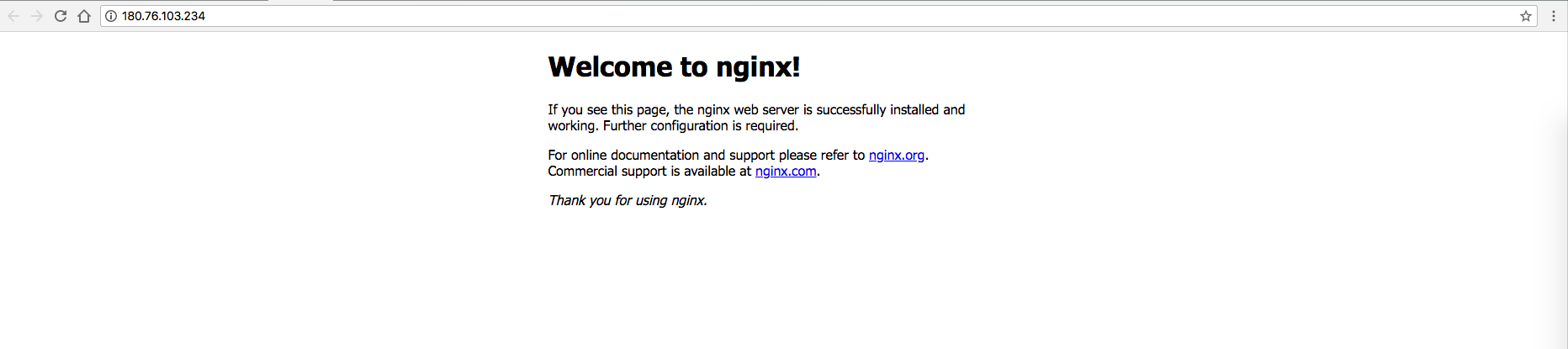
By accessing the link 180.76.139.247, the created service can be viewed as shown in the figure:
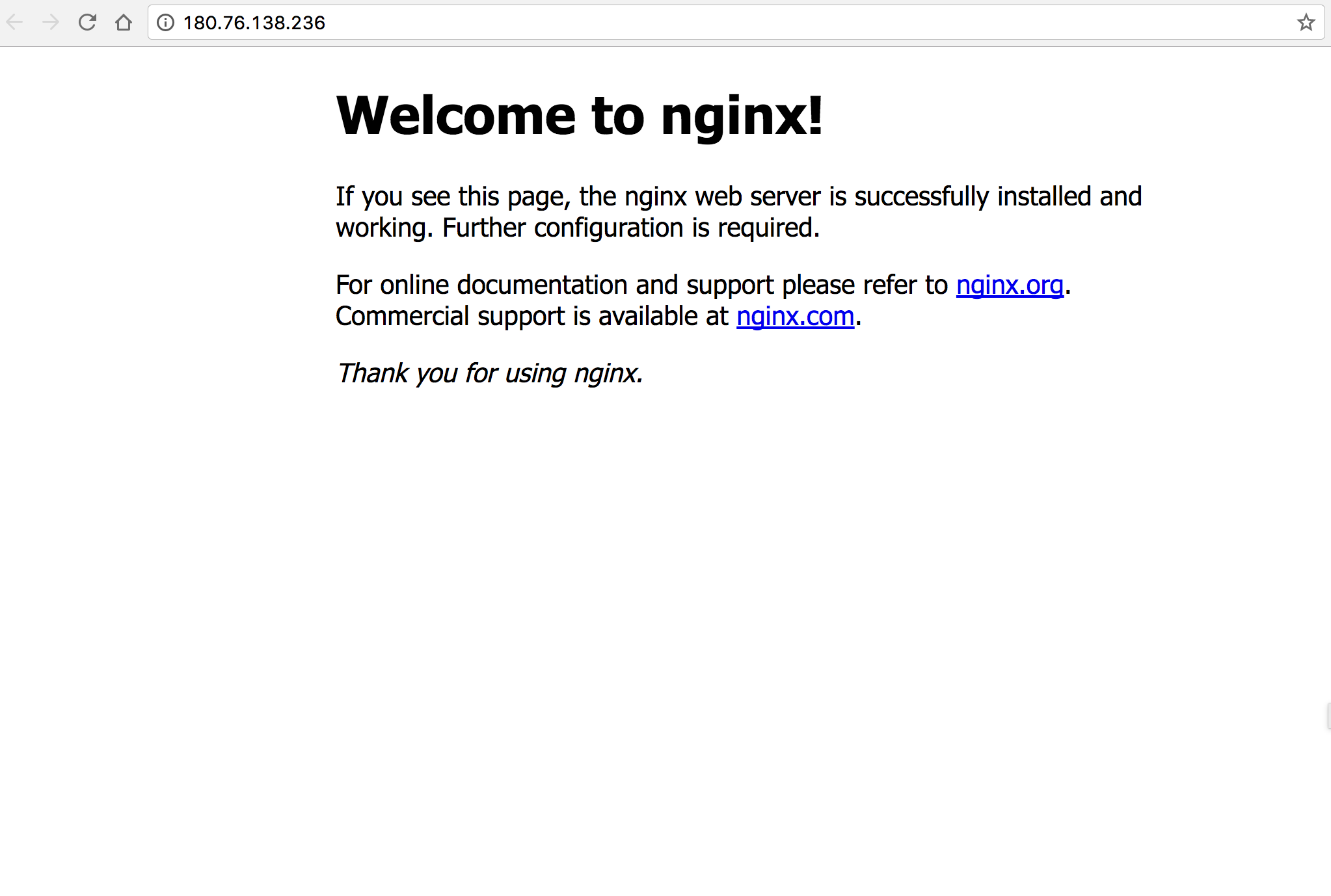
Note: The symbol "$" represents the input command, while other lines display the service information after entering the command. Here, 180.76.139.247 is the internet service URL. In addition to using the above commands to enable load balancing for the service, you can also create the service via the dashboard. For detailed operations, refer to [Create a Service via Kubernetes Dashboard](CCE/Development Guide/kubectl Management Configuration.md#Create a service via Kubernetes dashboard).
Delete service
If you need to delete the service and ensure it is not exposed to the public network, you can directly remove it.
1kubectl delete svc my-nginxNote:
Kubernetes will delete the newly generated public IP and load balancer, followed by the removal of the service.
Access the Kubernetes dashboard (Web UI) locally
Prerequisites
Before using the Kubernetes dashboard locally, users must configure kubectl to connect to the Baidu AI Cloud Kubernetes cluster.
Operation step
Create the dashboard service locally by using the kubectl tool to set up a dashboard application within the Kubernetes cluster.
1$ kubectl create -f dashboard.yaml
2secret "kubernetes-dashboard-certs" created
3serviceaccount "kubernetes-dashboard" created
4clusterrolebinding "kubernetes-dashboard" created
5deployment "kubernetes-dashboard" created
6service "kubernetes-dashboard" created
The corresponding dashboard.yaml file is:
1apiVersion: v1
2kind: Secret
3metadata:
4  labels:
5    k8s-app: kubernetes-dashboard
6  name: kubernetes-dashboard-certs
7  namespace: kube-system
8type: Opaque
9
10---
11
12apiVersion: v1
13kind: ServiceAccount
14metadata:
15  labels:
16    k8s-app: kubernetes-dashboard
17  name: kubernetes-dashboard
18  namespace: kube-system
19
20---
21
22apiVersion: rbac.authorization.k8s.io/v1beta1
23kind: ClusterRoleBinding
24metadata:
25  name: kubernetes-dashboard
26  labels:
27    k8s-app: kubernetes-dashboard
28roleRef:
29  apiGroup: rbac.authorization.k8s.io
30  kind: ClusterRole
31  name: cluster-admin
32subjects:
33- kind: ServiceAccount
34  name: kubernetes-dashboard
35  namespace: kube-system
36
37---
38
39kind: Deployment
40apiVersion: apps/v1beta2
41metadata:
42  labels:
43    k8s-app: kubernetes-dashboard
44  name: kubernetes-dashboard
45  namespace: kube-system
46spec:
47  replicas: 1
48  revisionHistoryLimit: 10
49  selector:
50    matchLabels:
51      k8s-app: kubernetes-dashboard
52  template:
53    metadata:
54      labels:
55        k8s-app: kubernetes-dashboard
56    spec:
57      containers:
58      - name: kubernetes-dashboard
59        image: hub.baidubce.com/public/dashboard:v1.8.3-caas
60        ports:
61        - containerPort: 8443
62          protocol: TCP
63        args:
64          - --auto-generate-certificates
65        volumeMounts:
66        - name: kubernetes-dashboard-certs
67          mountPath: /certs
68        - mountPath: /tmp
69          name: tmp-volume
70        livenessProbe:
71          httpGet:
72            scheme: HTTPS
73            path: /
74            port: 8443
75          initialDelaySeconds: 30
76          timeoutSeconds: 30
77      volumes:
78      - name: kubernetes-dashboard-certs
79        secret:
80          secretName: kubernetes-dashboard-certs
81      - name: tmp-volume
82        emptyDir: {}
83      serviceAccountName: kubernetes-dashboard
84      tolerations:
85      - key: node-role.kubernetes.io/master
86        effect: NoSchedule
87
88---
89kind: Service
90apiVersion: v1
91metadata:
92  labels:
93    k8s-app: kubernetes-dashboard
94  name: kubernetes-dashboard
95  namespace: kube-system
96spec:
97  ports:
98    - port: 443
99      targetPort: 8443
100  selector:
101    k8s-app: kubernetes-dashboard
After creating the dashboard, use the kubectl proxy command to start a proxy and establish a connection to the Kubernetes API Server.
kubectl proxy
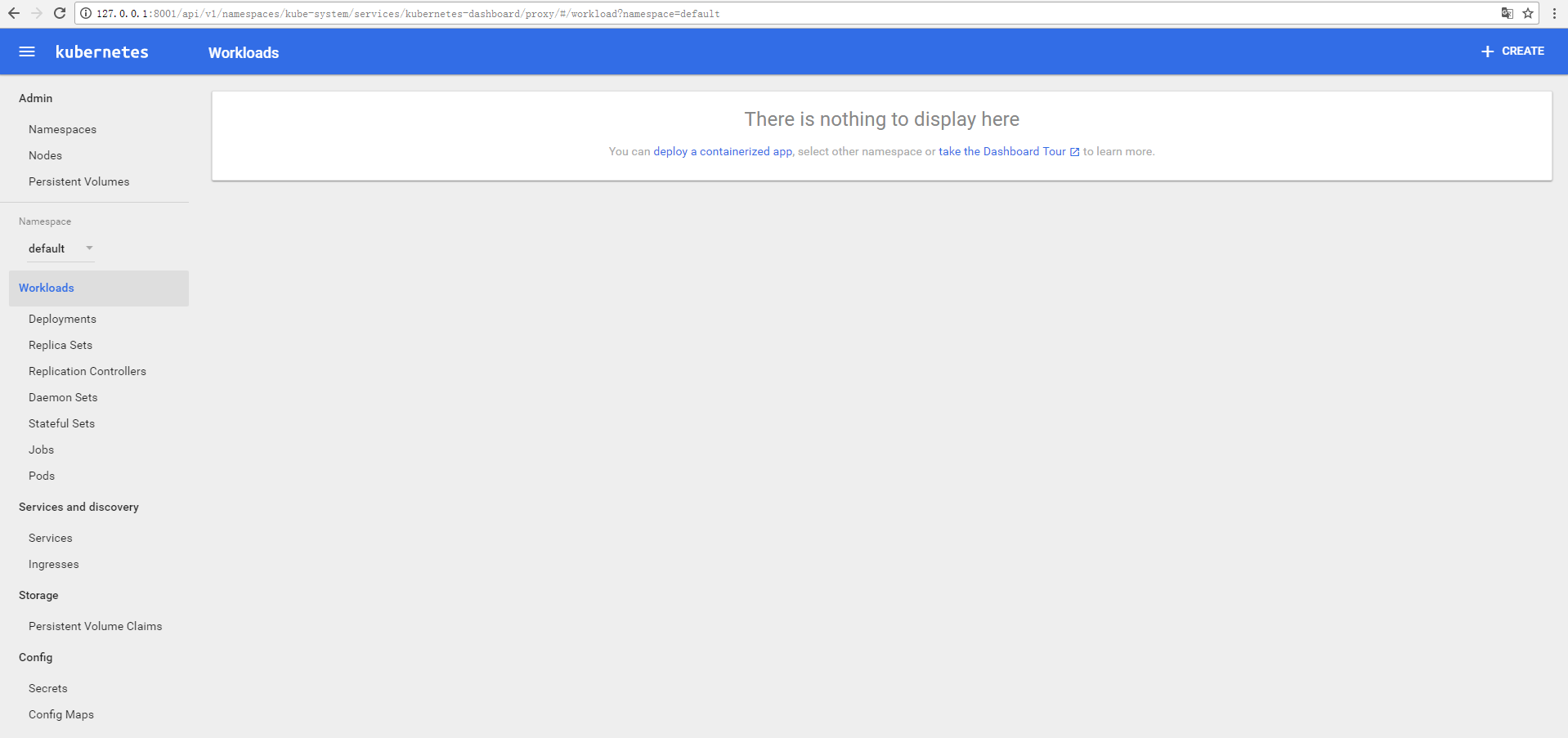
After successfully enabling the proxy, you can access http://127.0.0.1:8001/api/v1/namespaces/kube-system/services/https:kubernetes-dashboard:/proxy/#!/login in a local browser to connect to the dashboard.
Note:
Localhost refers to the user's local machine (not a virtual machine), with the corresponding IP address of 127.0.0.1
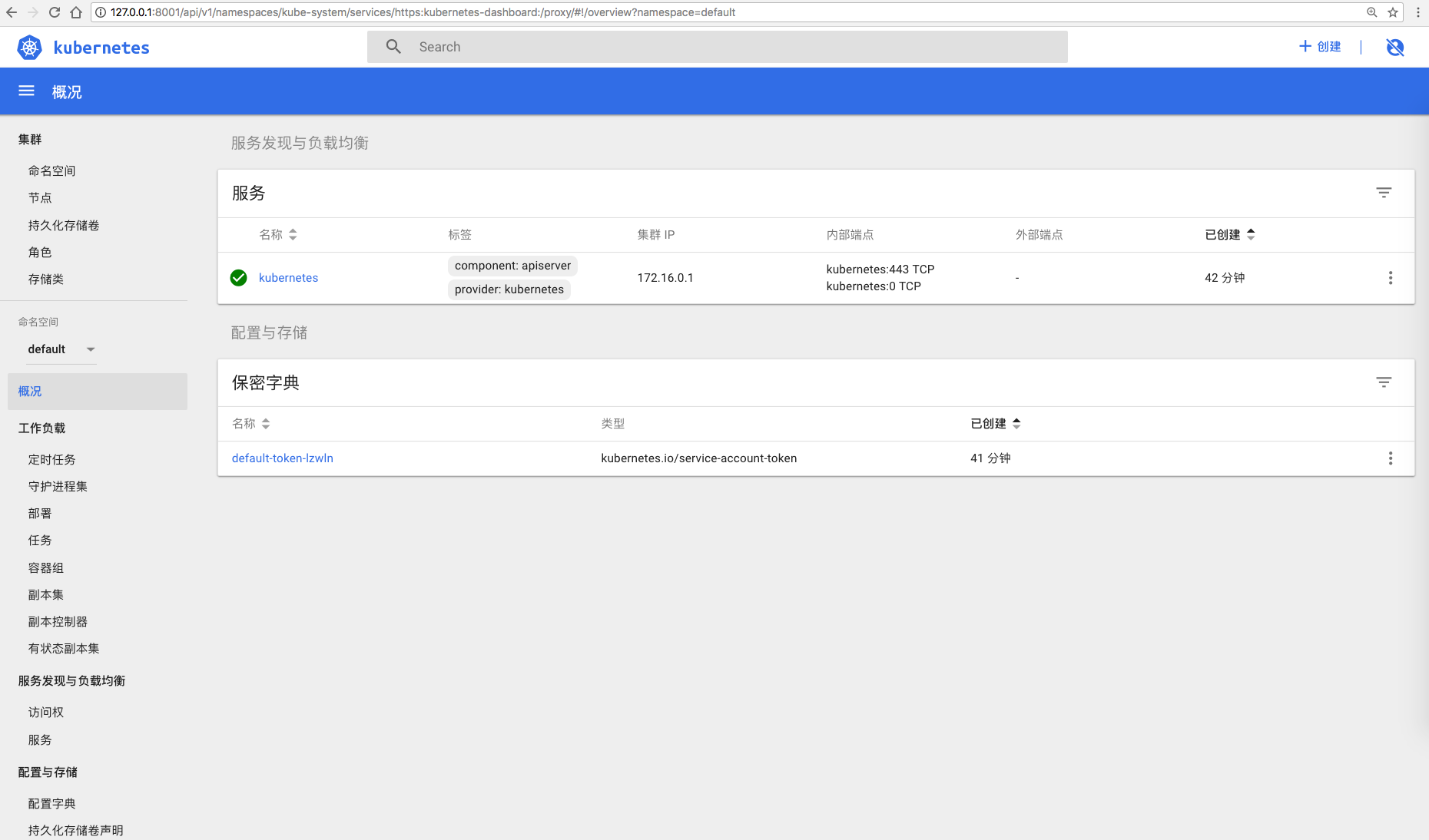
Create a service via Kubernetes dashboard
-
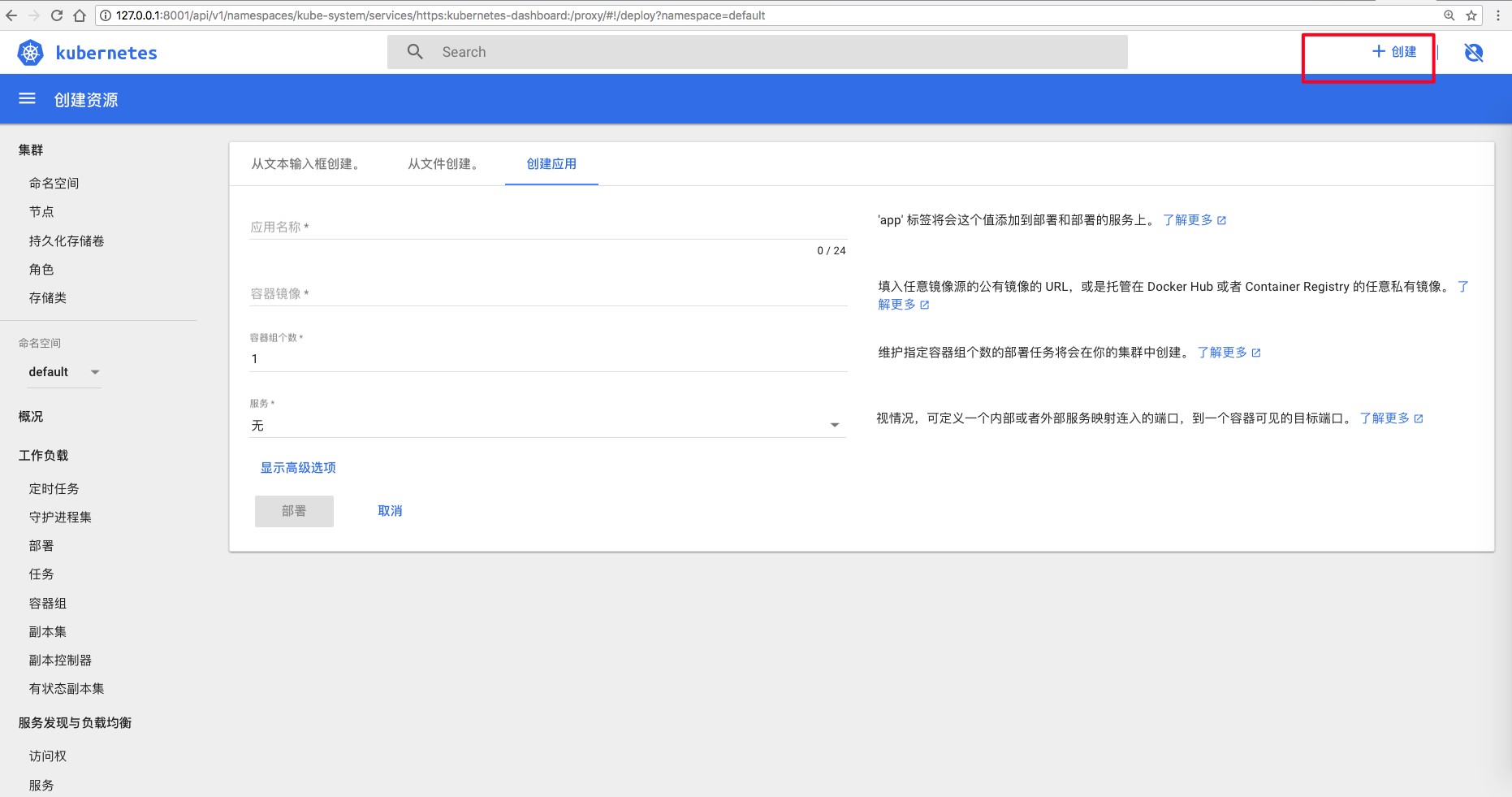
After completing the setup for local access to the Kubernetes dashboard (Web UI), go to the Dashboard page and click Create in the upper right corner to start creating the service;
-
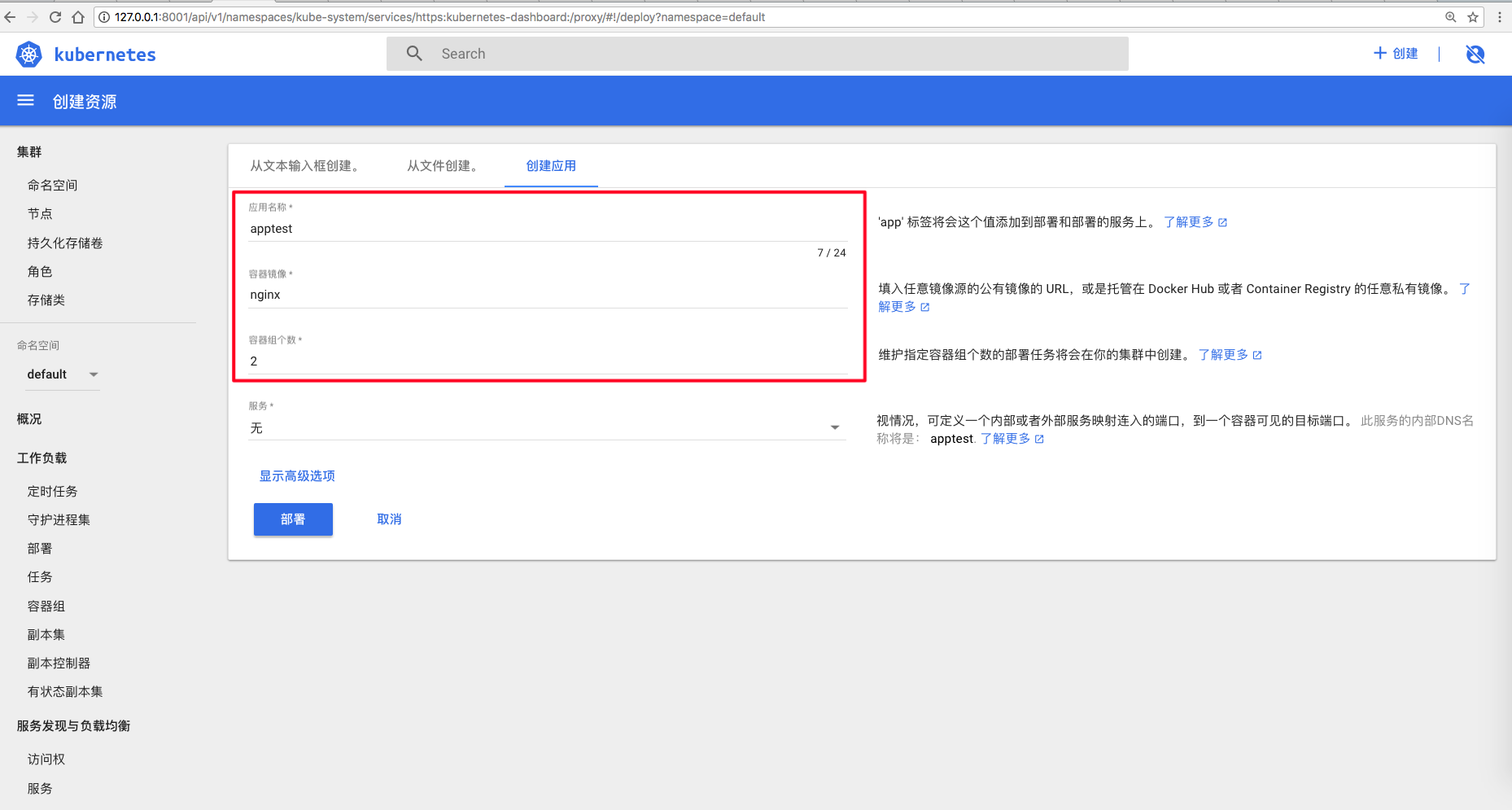
On the Create Application page, enter the name of the application to be created, the container image, and the number of pods;
-
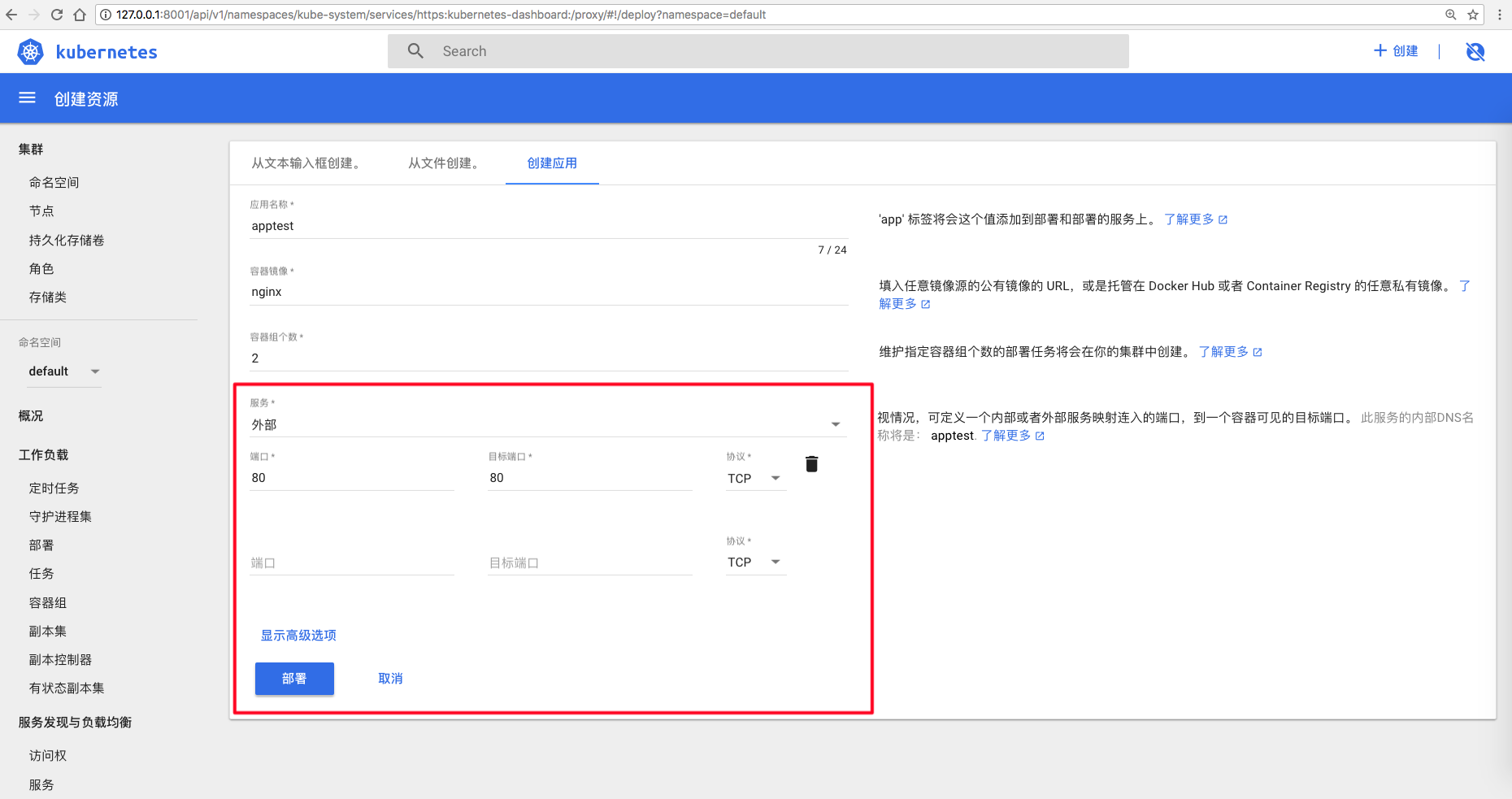
For the service type, select External. The system will automatically create an EIP and a BLB in the background. Configure ports: Enter 80 for both the service port and target port; select TCP as the protocol. Click the Deploy button to start creating the service;
-
Wait for the service to be created successfully (you need to refresh the page manually);

-
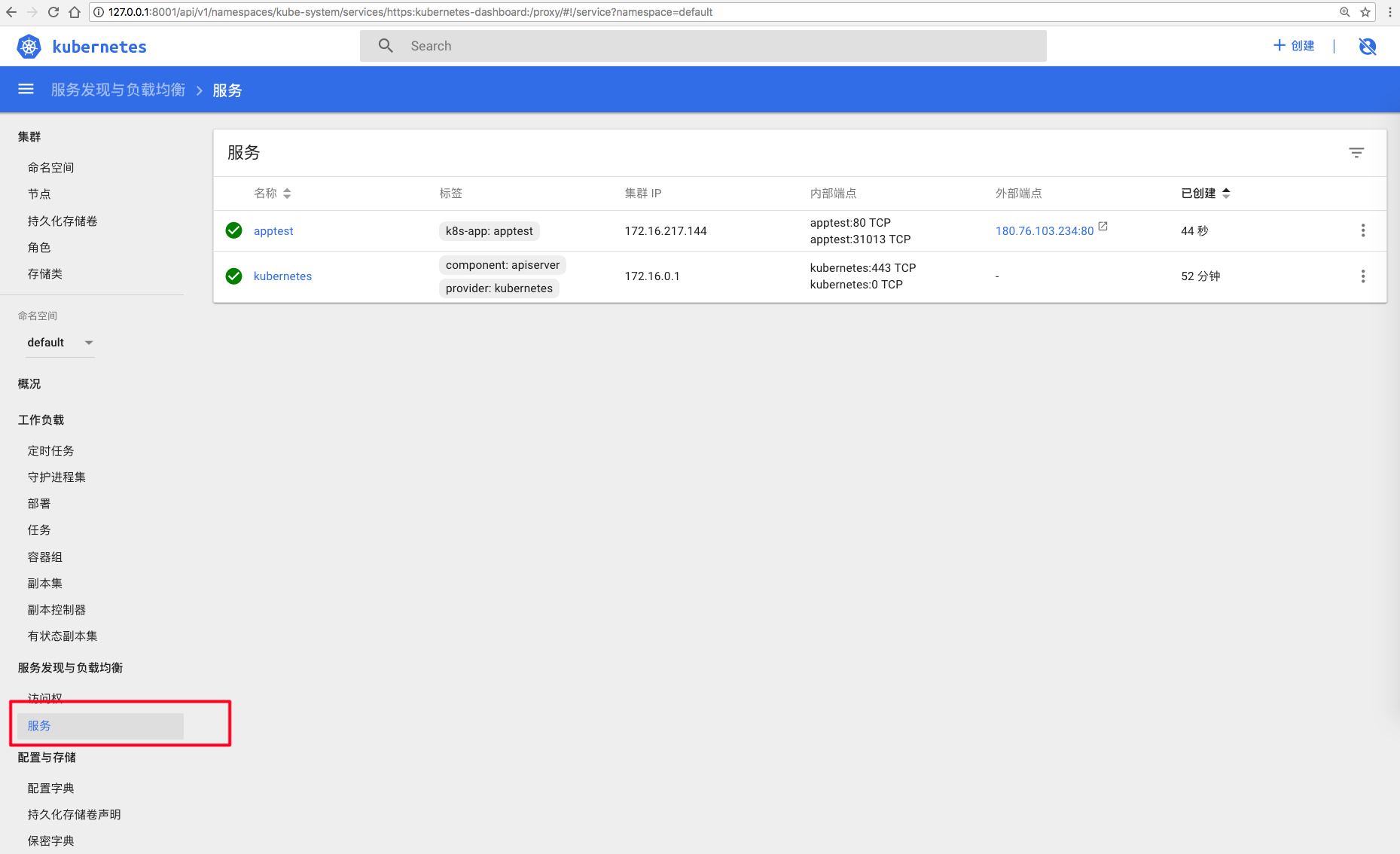
On the success page, click Services to enter the service page;
-
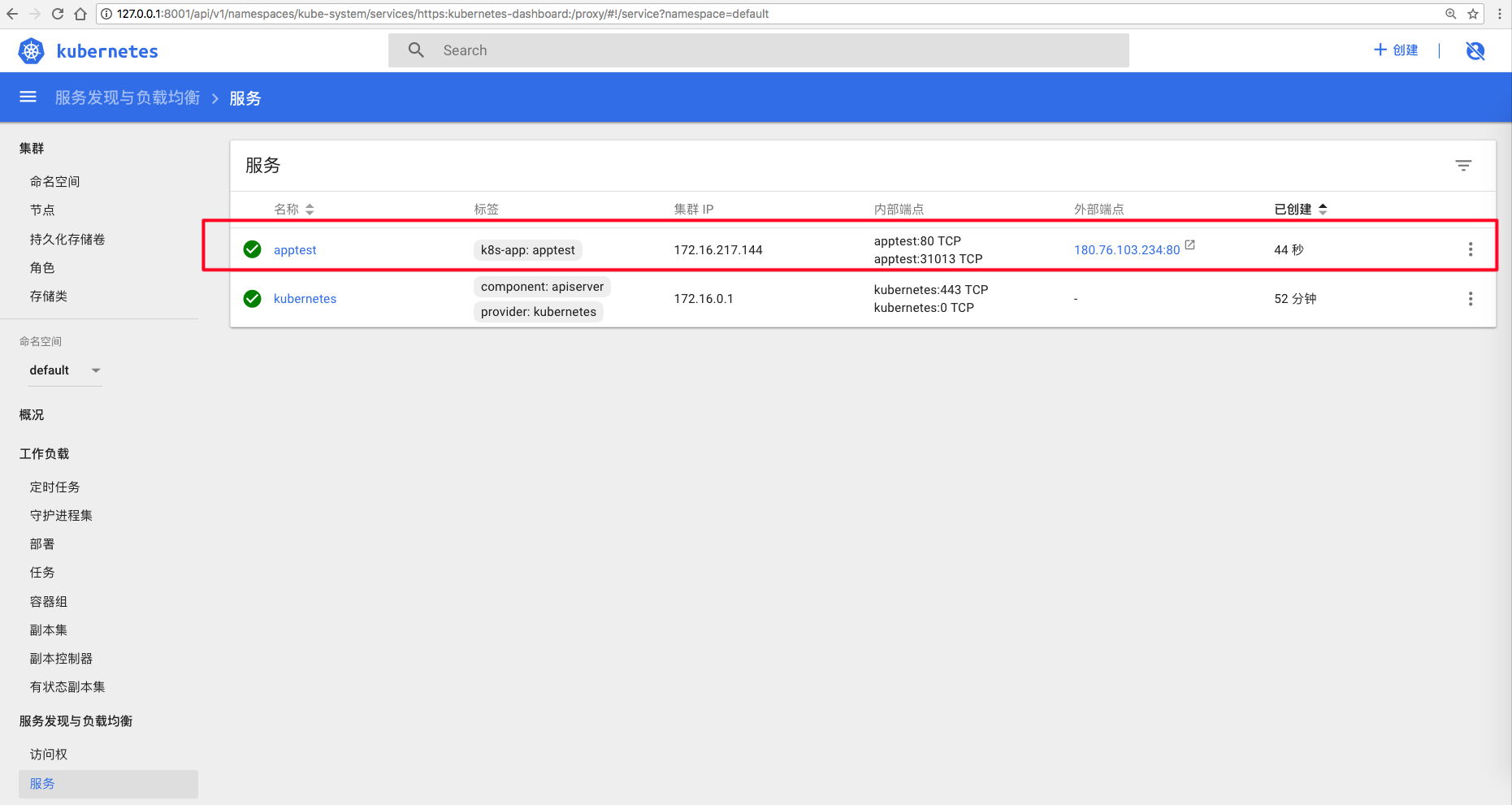
This page will display the Internet address of the service;
-
Enter the Internet address in a browser - if the service page is displayed, the service is created successfully;
Create a service using a private image
If you need to use a private image, you must first configure ImagePullSecrets, and specify this ImagePullSecrets in the resource to be created. The following is a brief introduction to the creation steps. For more detailed information about ImagePullSecrets, refer to the official Kubernetes documentation.
-
Create ImagePullSecrets via kubectl
First, you need the username and password for your private registry. Use the following command to create an ImagePullSecret named
myregistrykeyPlain Text1 $ kubectl create secret docker-registry myregistrykey --docker-server=DOCKER_REGISTRY_SERVER --docker-username=DOCKER_USER --docker-password=DOCKER_PASSWORD --docker-email=DOCKER_EMAIL 2 3 secret "myregistrykey" created. -
Use the ImagePullSecret in the resource to be created
For example, the following pod YAML file specifies that the pod uses the private image
hub.baidubce.com/private-online/awesomeapp:v1, and pulls the image from the registry using the imagePullSecretsmyregistrykey.Plain Text1 apiVersion: v1 2 kind: Pod 3 metadata: 4 name: foo 5 namespace: awesomeapps 6 spec: 7 containers: 8 - name: foo 9 image: hub.baidubce.com/private-online/awesomeapp:v1 10 imagePullSecrets: 11 - name: myregistrykey -
Specify ImagePullSecrets for service creation in the dashboard
After successfully creating ImagePullSecrets via kubectl, you can also select to use the ImagePullSecret when creating an application in the dashboard. For example, in the following scenario:
Plain Text1 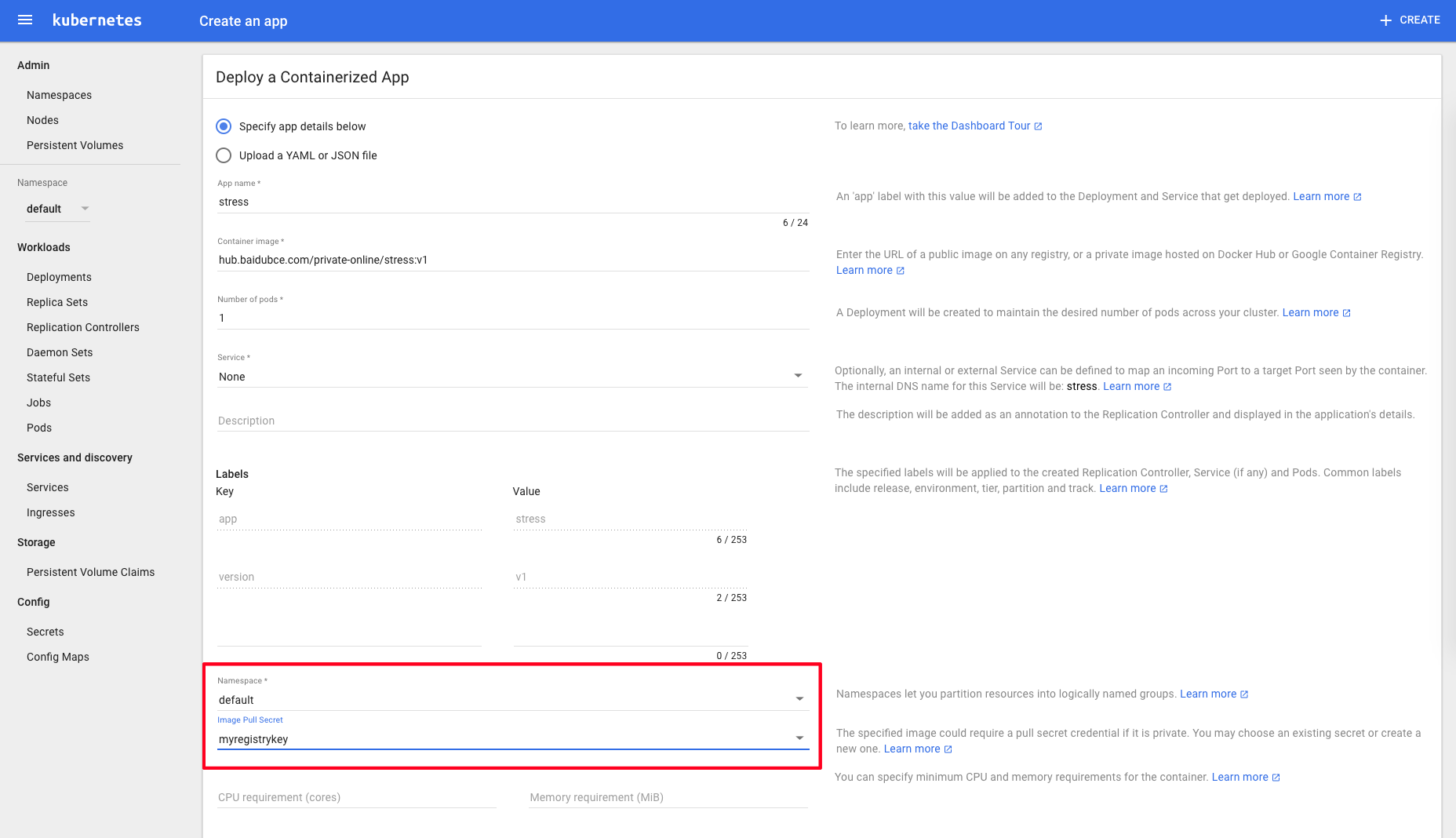We selected the previously created
myregistrykeyfor the application to be created. This allows Kubernetes to have permission to pull the image from the private registry.
Use kubectl on Windows
-
After creating a cluster, download the Windows version of the kubectl tool, such as the 64-bit tool as follows:
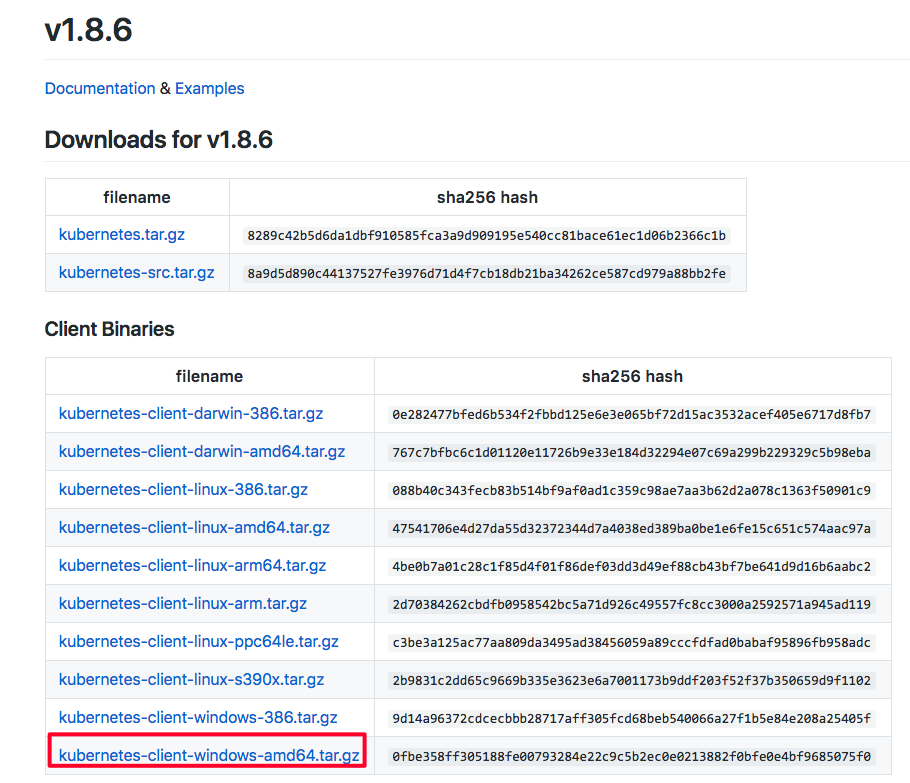
Note: Before downloading kubectl, users need to sign in to their server and use the command
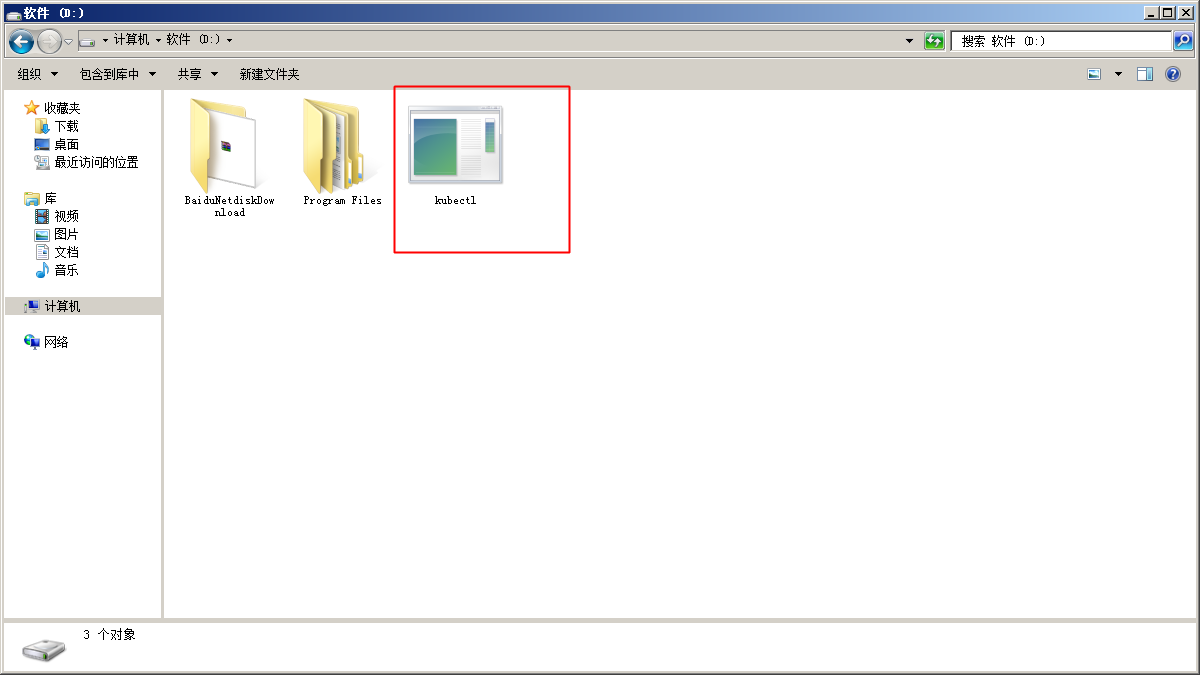
kubectl versionto check the version No. of their created cluster, and then select the corresponding kubectl version to download. For example, if the user's cluster version is 1.8, the kubectl to be downloaded should also be version 1.8. The download link is https://github.com/kubernetes/kubernetes/blob/master/CHANGELOG.md?spm=5176.app53755.3.2.2uYdIN&file=CHANGELOG.md#client-binaries-17. Users should download the corresponding version of the tool based on their cluster version. - After downloading, extract it to any directory, such as placing it under the D drive
-
Navigate to the user folder under the directory
C:\users\. For example, if the user name is foo, the folder should beC:\users\foo. And then, enter this directory and create the folder.kube
-
On the cluster list page, download the cluster configuration file, place it in the
.kubefolder created in the previous step, and rename it toconfig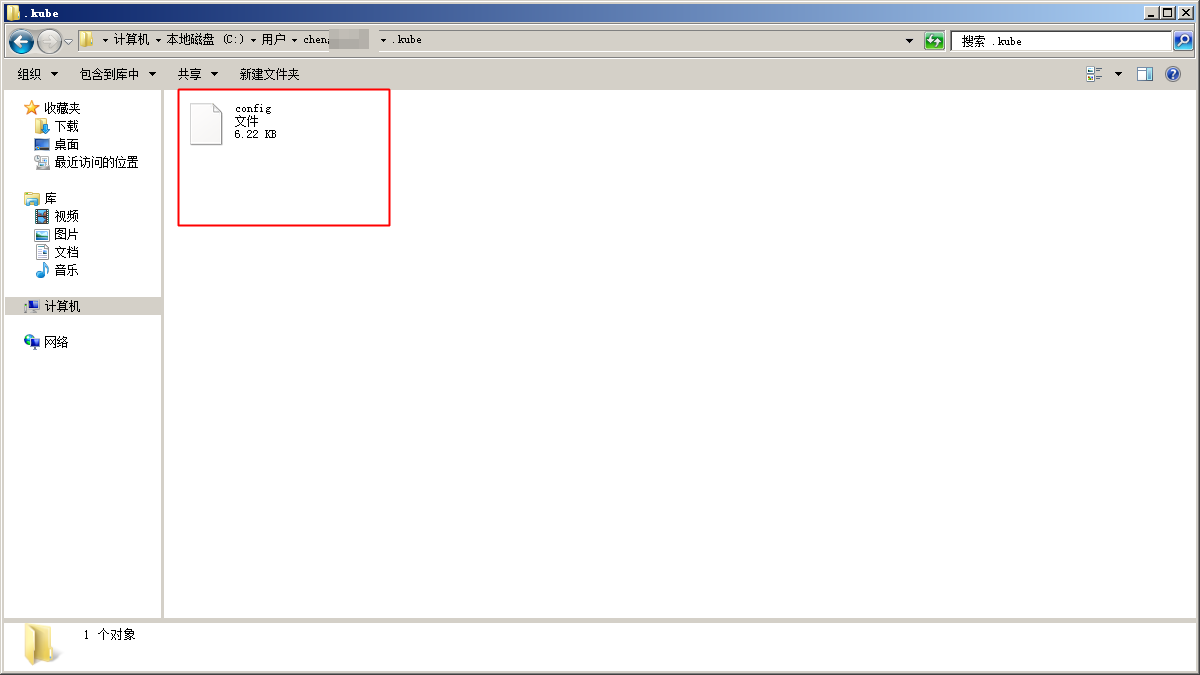
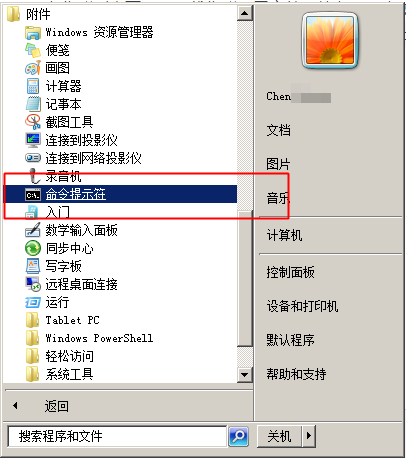
- Open the Windows command prompt
-
Navigate to the directory containing kubectl files and run
kubectl.exe get nodeto view cluster nodes.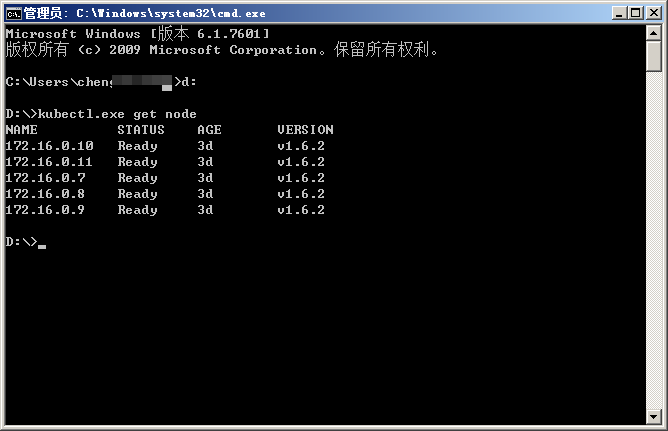
-
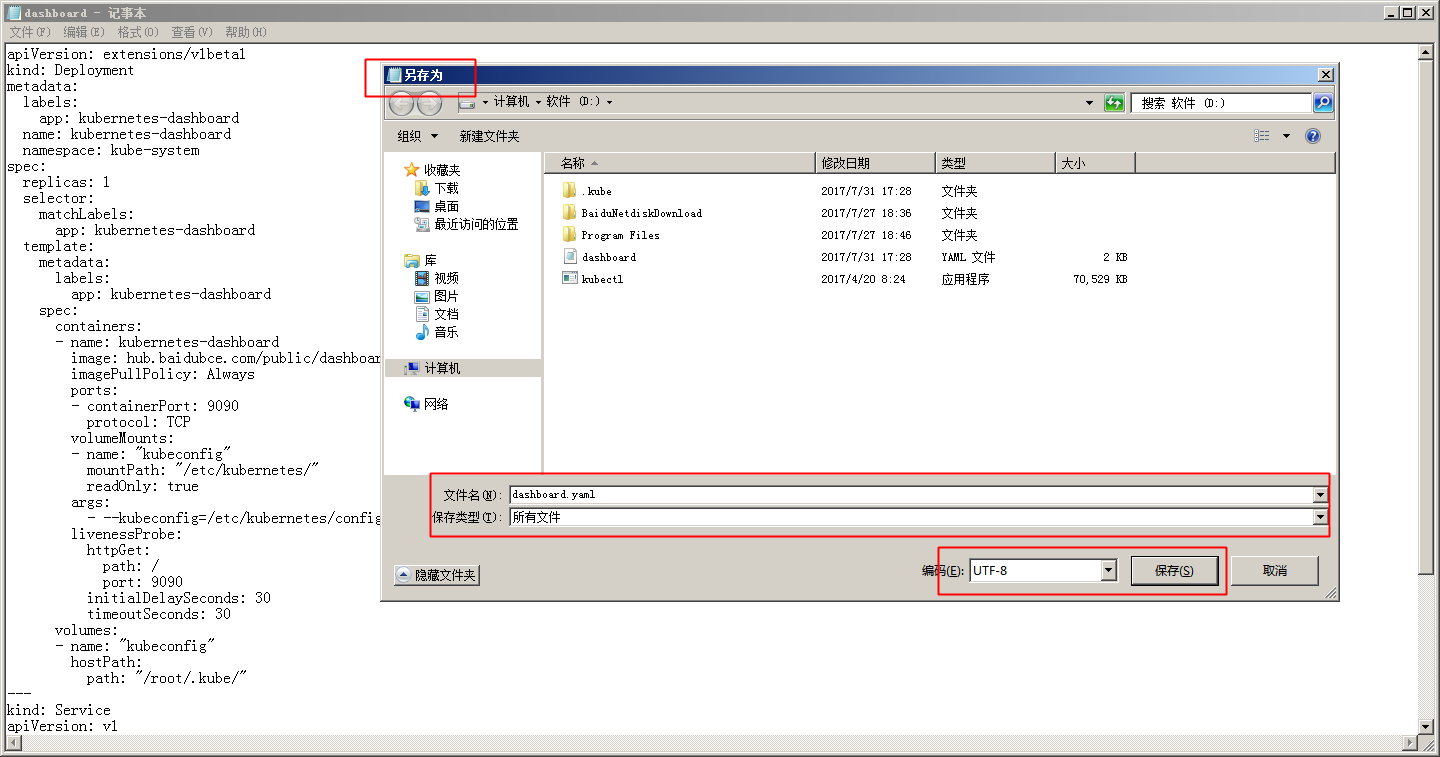
In the same directory, create a dashboard.yaml file with the content from the aforementioned dashboard.yaml, for example, it can be created using text editor:
-
And then enter
kubectl.exe create -f dashboard.yamlto create dashboard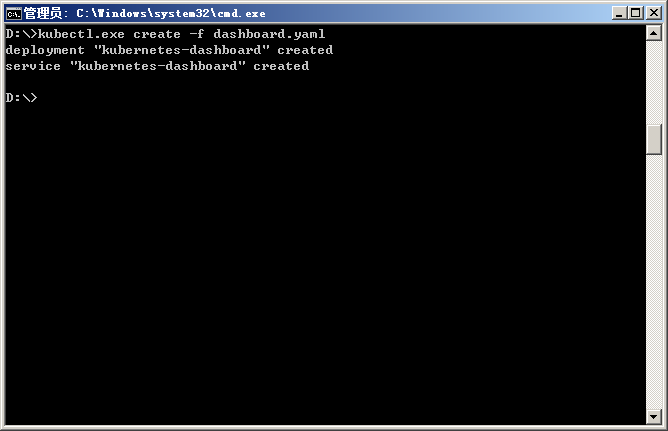
-
Use the
kubectl.exe get pod --all-namespacescommand to check if the creation is successful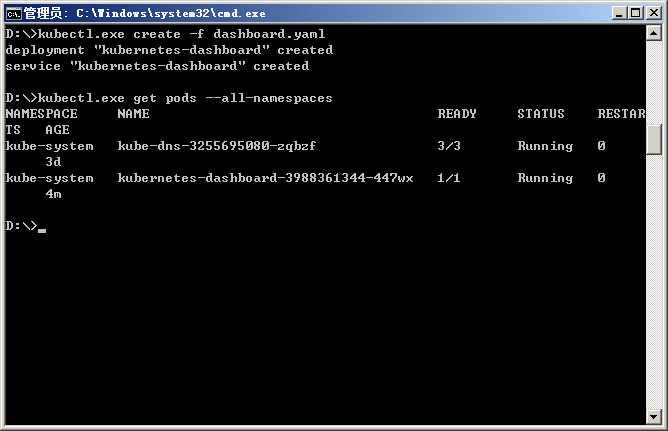
-
Enter
kubectl.exe proxyto open proxy, and then access dashboard via127.0.0.1:8001/uiin browsers