Pod
Updated at:2025-10-27
Pod
Operate pods
-
Navigate to Product Services > Cloud Container Engine (CCE), click Application Management > Pods, and access the pod list page.
View the pod list: First select a cluster and namespace; the list will then display the pods under the chosen cluster and namespace. Additional information includes:
- Status Overview: Displays the total number of pods, categorized as pending, running, or deployment failed.
- CPU usage: Shows the current CPU utilization in cores.
- Memory Usage: Shows the current memory usage in bytes (e.g., 100 Mi).
- List data: Displays details of all Pods, including container statuses and logs.

-
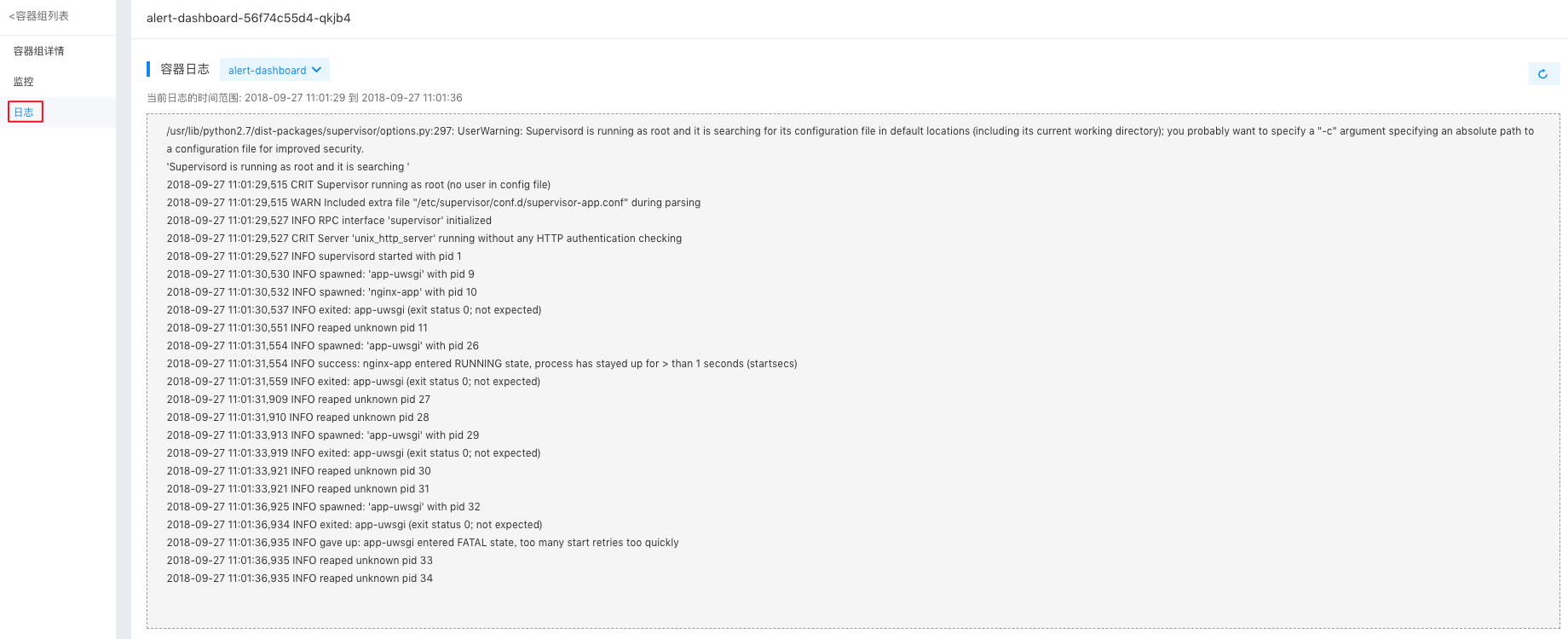
Click the Logs button to access the container log page and view pod details.
-
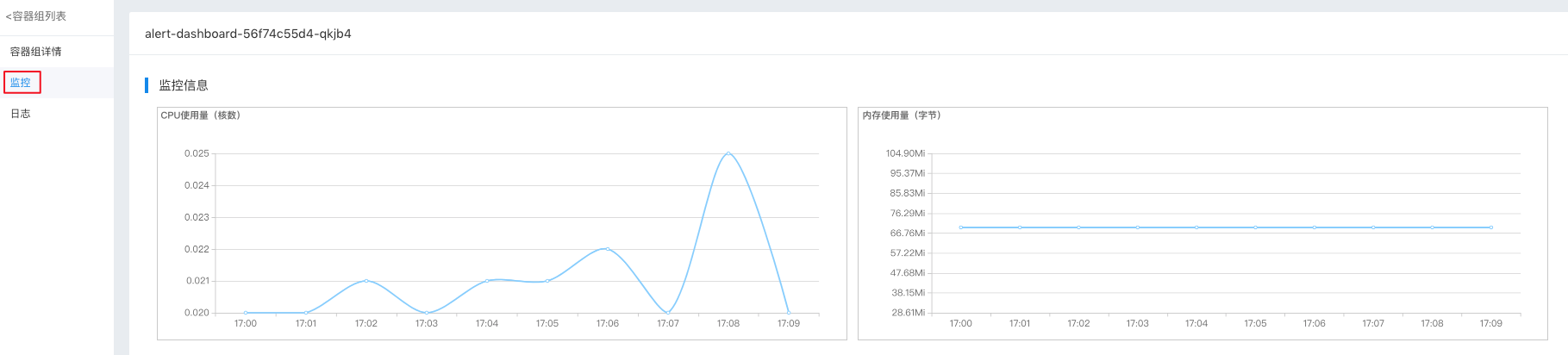
Click on Monitoring in the navigation bar to access the container monitoring page and review pod details.
-
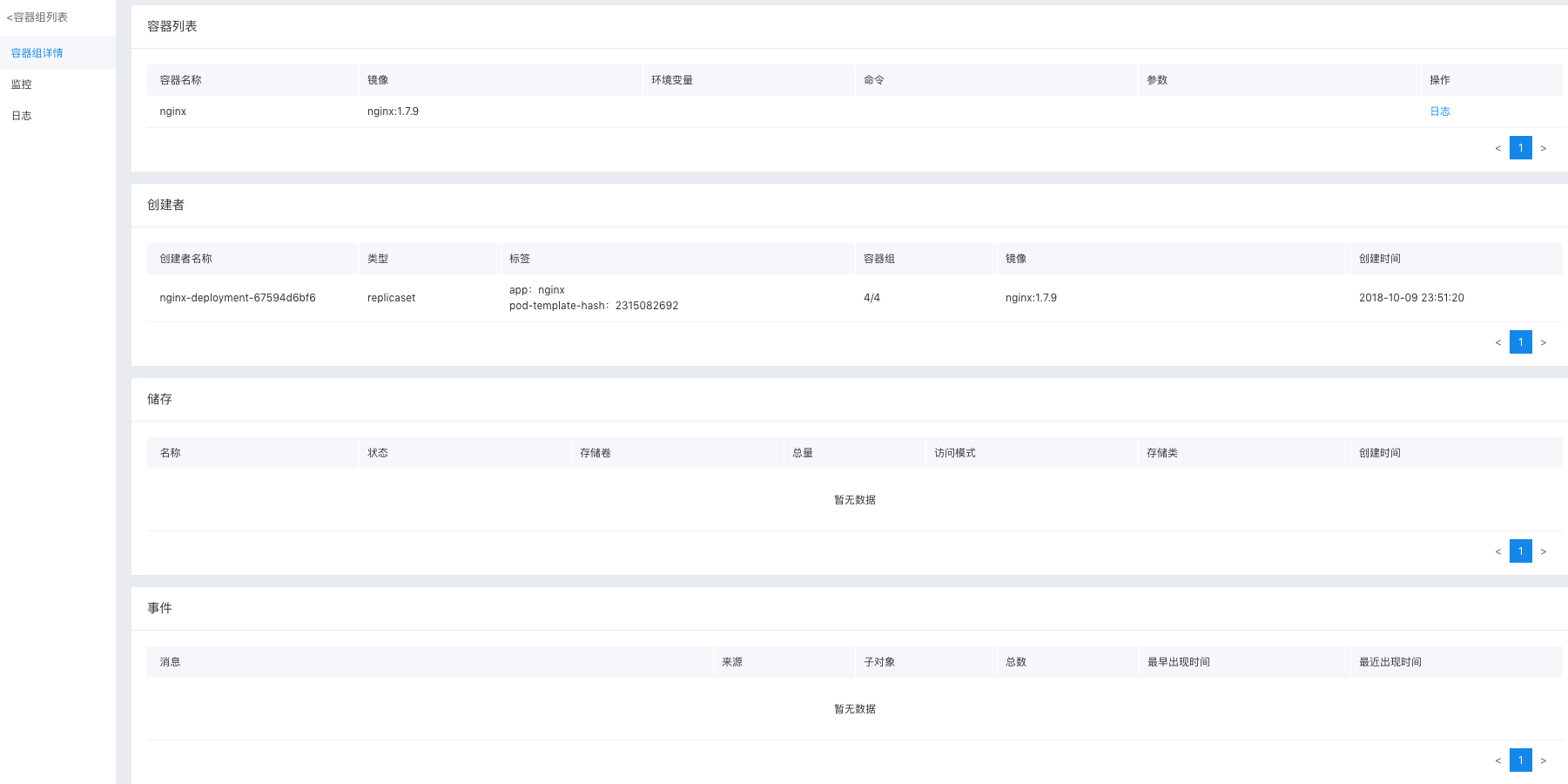
Click the name of any pod in the list to enter its details page, which includes:
- Basic Information: Name, Namespace, Status, QoS, Labels, Annotations, Creation Time.
- Network details: Node IP and Pod IP.
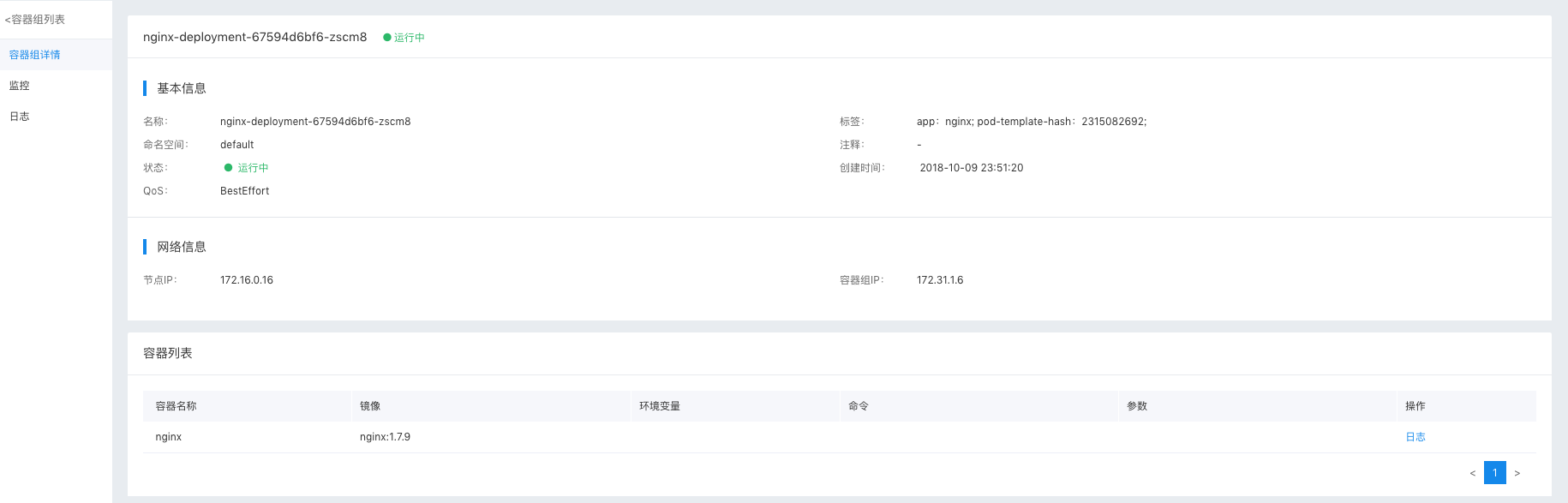
- Additional Information: Container List, Creator, Storage, Events.
Relevant operations
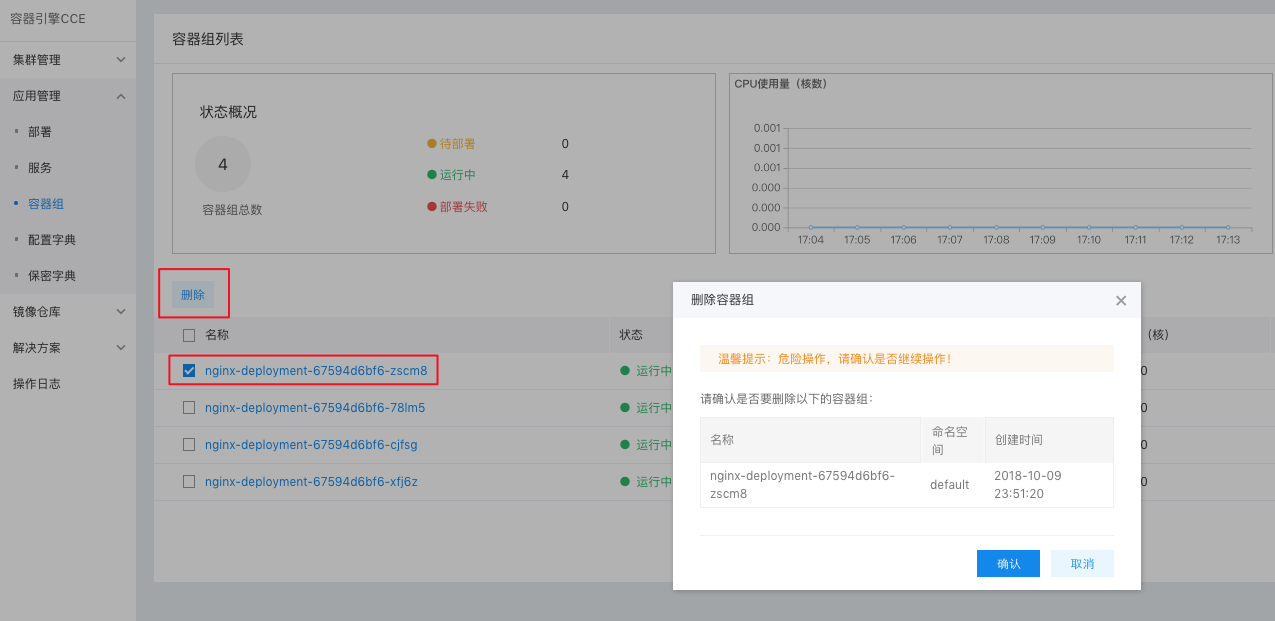
Delete a Pod: On the pods list page, select the pod to delete, click the Delete button, confirm the details, and then click OK.