StatefulSet Management

CCE CCE

  • Function Release Records
  • Common Tools
    • Command Line Scenario Examples
  • API Reference
    • Overview
    • Common Headers and Error Responses
    • General Description
  • Product Announcement
    • Announcement on the Discontinuation of CCE Standalone Clusters
    • CCE New Cluster Management Release Announcement
    • Upgrade Announcement for CCE Cluster Audit Component kube-external-auditor
    • CCE Console Upgrade Announcement
    • Announcement on Management Fees for CCE Managed Clusters
    • Container Runtime Version Release Notes
    • Announcement on the Decommissioning of CCE Image Repository
    • Kubernetes Version Release Notes
      • CCE Release of Kubernetes v1_26 History
      • CCE Kubernetes Version Update Notes
      • CCE Release of Kubernetes v1_24 History
      • CCE Release of Kubernetes v1_30 History
      • CCE Release of Kubernetes v1_22 History
      • CCE Release of Kubernetes v1_18 History
      • CCE Release of Kubernetes v1_20 History
      • CCE Release of Kubernetes v1_28 History
      • Release Notes for CCE Kubernetes 1_31 Version
      • Kubernetes Version Overview and Mechanism
    • Security Vulnerability Fix Announcement
      • Vulnerability CVE-2019-5736 Fix Announcement
      • Vulnerability CVE-2021-30465 Fix Announcement
      • CVE-2025-1097, CVE-2025-1098, and Other Vulnerabilities Fix Announcement
      • CVE-2020-14386 Vulnerability Fix Announcement
      • Impact Statement on runc Security Issue (CVE-2024-21626)
  • Service Level Agreement (SLA)
    • CCE Service Level Agreement SLA (V1_0)
  • Typical Practices
    • Pod Anomaly Troubleshooting
    • Adding CGroup V2 Node
    • Common Linux System Configuration Parameters Description
    • Encrypting etcd Data Using KMS
    • Configuring Container Network Parameters Using CNI
    • CCE - Public Network Access Practice
    • Practice of using private images in CCE clusters
    • Unified Access for Virtual Machines and Container Services via CCE Ingress
    • User Guide for Custom CNI Plugins
    • CCE Cluster Network Description and Planning
    • Cross-Cloud Application Migration to Baidu CCE Using Velero
    • CCE Resource Recommender User Documentation
    • Continuous Deployment with Jenkins in CCE Cluster
    • CCE Best Practice-Guestbook Setup
    • CCE Best Practice-Container Network Mode Selection
    • CCE Usage Checklist
    • VPC-ENI Mode Cluster Public Network Access Practice
    • CCE Container Runtime Selection
    • Cloud-native AI
      • Elastic and Fault-Tolerant Training Using CCE AITraining Operator
      • Deploy the TensorFlow Serving inference service
      • Best Practice for GPU Virtualization with Optimal Isolation
  • FAQs
    • How do business applications use load balancer
    • Using kubectl on Windows
    • Cluster management FAQs
    • Common Questions Overview
    • Auto scaling FAQs
    • Create a simple service via kubectl
  • Operation guide
    • Prerequisites for use
    • Identity and access management
    • Permission Management
      • Configure IAM Tag Permission Policy
      • Permission Overview
      • Configure IAM Custom Permission Policy
      • Configure Predefined RBAC Permission Policy
      • Configure IAM Predefined Permission Policy
      • Configure Cluster OIDC Authentication
    • Configuration Management
      • Configmap Management
      • Secret Management
    • Traffic access
      • BLB ingress annotation description
      • Use K8S_Service via CCE
      • Use K8S_Ingress via CCE
      • Implement Canary Release with CCE Based on Nginx-Ingress
      • Create CCE_Ingress via YAML
      • LoadBalancer Service Annotation Description
      • Service Reuses Existing Load Balancer BLB
      • Use Direct Pod Mode LoadBalancer Service
      • NGINX Ingress Configuration Reference
      • Create LoadBalancer_Service via YAML
      • Use NGINX Ingress
    • Virtual Node
      • Configuring BCIPod
      • Configuring bci-profile
      • Managing virtual nodes
    • Node management
      • Add a node
      • Managing Taints
      • Setting Node Blocking
      • Setting GPU Memory Sharing
      • Remove a node
      • Customizing Kubelet Parameters
      • Kubelet Container Monitor Read-Only Port Risk Warning
      • Managing Node Tag
      • Drain node
    • Component Management
      • CCE CSI CDS Plugin Description
      • CCE Fluid Description
      • CCE CSI PFS L2 Plugin
      • CCE Calico Felix Description
      • CCE Ingress Controller Description
      • CCE QoS Agent Description
      • CCE GPU Manager Description
      • CCE Ingress NGINX Controller Description
      • CCE P2P Accelerator Description
      • CCE Virtual Kubelet Component
      • CoreDNS Description
      • CCE Log Operator Description
      • CCE Node Remedier Description
      • CCE Descheduler Description
      • CCE Dynamic Scheduling Plugin Description
      • Kube Scheduler Documentation
      • CCE NPU Manager Description
      • CCE CronHPA Controller Description
      • CCE LB Controller Description
      • Kube ApiServer Description
      • CCE Backup Controller Description
      • CCE Network Plugin Description
      • CCE CSI PFS Plugin Description
      • CCE Credential Controller Description
      • CCE Deep Learning Frameworks Operator Description
      • Component Overview
      • CCE Image Accelerate Description
      • CCE CSI BOS Plugin Description
      • CCE Onepilot Description
      • Description of Kube Controller Manager
      • CCE_Hybrid_Manager Description
      • CCE NodeLocal DNSCache Description
      • CCE Node Problem Detector Description
      • CCE Ascend Mindx DL Description
      • CCE RDMA Device Plugin Description
      • CCE AI Job Scheduler Description
    • Image registry
      • Image Registry Basic Operations
      • Using Container Image to Build Services
    • Helm Management
      • Helm Template
      • Helm Instance
    • Cluster management
      • Upgrade Cluster Kubernetes Version
      • CCE Node CDS Dilatation
      • Managed Cluster Usage Instructions
      • Create cluster
      • CCE Supports GPUSharing Cluster
      • View Cluster
      • Connect to Cluster via kubectl
      • CCE Security Group
      • CCE Node Resource Reservation Instructions
      • Operate Cluster
      • Cluster Snapshot
    • Serverless Cluster
      • Product overview
      • Using Service in Serverless Cluster
      • Creating a Serverless Cluster
    • Storage Management
      • Using Cloud File System
      • Overview
      • Using Parallel File System PFS
      • Using RapidFS
      • Using Object Storage BOS
      • Using Parallel File System PFS L2
      • Using Local Storage
      • Using Cloud Disk CDS
    • Inspection and Diagnosis
      • Cluster Inspection
      • GPU Runtime Environment Check
      • Fault Diagnosis
    • Cloud-native AI
      • Cloud-Native AI Overview
      • AI Monitoring Dashboard
        • Connecting to a Prometheus Instance and Starting a Job
        • NVIDIA Chip Resource Observation
          • AI Job Scheduler component
          • GPU node resources
          • GPU workload resources
          • GPUManager component
          • GPU resource pool overview
        • Ascend Chip Resource Observation
          • Ascend resource pool overview
          • Ascend node resource
          • Ascend workload resource
      • Task Management
        • View Task Information
        • Create TensorFlow Task
        • Example of RDMA Distributed Training Based on NCCL
        • Create PaddlePaddle Task
        • Create AI Training Task
        • Delete task
        • Create PyTorch Task
        • Create Mxnet Task
      • Queue Management
        • Modify Queue
        • Create Queue
        • Usage Instructions for Logical Queues and Physical Queues
        • Queue deletion
      • Dataset Management
        • Create Dataset
        • Delete dataset
        • View Dataset
        • Operate Dataset
      • AI Acceleration Kit
        • AIAK Introduction
        • Using AIAK-Training PyTorch Edition
        • Deploying Distributed Training Tasks Using AIAK-Training
        • Accelerating Inference Business Using AIAK-Inference
      • GPU Virtualization
        • GPU Exclusive and Shared Usage Instructions
        • Image Build Precautions in Shared GPU Scenarios
        • Instructions for Multi-GPU Usage in Single-GPU Containers
        • GPU Virtualization Adaptation Table
        • GPU Online and Offline Mixed Usage Instructions
        • MPS Best Practices & Precautions
        • Precautions for Disabling Node Video Memory Sharing
    • Elastic Scaling
      • Container Timing Horizontal Scaling (CronHPA)
      • Container Horizontal Scaling (HPA)
      • Implementing Second-Level Elastic Scaling with cce-autoscaling-placeholder
      • CCE Cluster Node Auto-Scaling
    • Network Management
      • How to Continue Dilatation When Container Network Segment Space Is Exhausted (VPC-ENI Mode)
      • Container Access to External Services in CCE Clusters
      • CCE supports dual-stack networks of IPv4 and IPv6
      • Using NetworkPolicy Network Policy
      • Traffic Forwarding Configuration for Containers in Peering Connections Scenarios
      • CCE IP Masquerade Agent User Guide
      • Creating VPC-ENI Mode Cluster
      • How to Continue Dilatation When Container Network Segment Space Is Exhausted (VPC Network Mode)
      • Using NetworkPolicy in CCE Clusters
      • Network Orchestration
        • Container Network QoS Management
        • VPC-ENI Specified Subnet IP Allocation (Container Network v2)
        • Cluster Pod Subnet Topology Distribution (Container Network v2)
      • Network Connectivity
        • Container network accesses the public network via NAT gateway
      • Network Maintenance
        • Common Error Code Table for CCE Container Network
      • DNS
        • CoreDNS Component Manual Dilatation Guide
        • DNS Troubleshooting Guide
        • DNS Principle Overview
    • Namespace Management
      • Set Limit Range
      • Set Resource Quota
      • Basic Namespace Operations
    • Workload
      • CronJob Management
      • Set Workload Auto-Scaling
      • Deployment Management
      • Job Management
      • View the Pod
      • StatefulSet Management
      • Password-Free Pull of Container Image
      • Create Workload Using Private Image
      • DaemonSet Management
    • Monitor Logs
      • Monitor Cluster with Prometheus
      • CCE Event Center
      • Cluster Service Profiling
      • CCE Cluster Anomaly Event Alerts
      • Java Application Monitor
      • Cluster Audit Dashboard
      • Logging
      • Cluster Audit
      • Log Center
        • Configure Collection Rules Using CRD
        • View Cluster Control Plane Logs
        • View Business Logs
        • Log Overview
        • Configure Collection Rules in Cloud Container Engine Console
    • Application management
      • Overview
      • Secret
      • Configuration dictionary
      • Deployment
      • Service
      • Pod
    • NodeGroup Management
      • NodeGroup Management
      • NodeGroup Node Fault Detection and Self-Healing
      • Configuring Scaling Policies
      • NodeGroup Introduction
      • Adding Existing External Nodes
      • Custom NodeGroup Kubelet Configuration
      • Adding Alternative Models
      • Dilatation NodeGroup
    • Backup Center
      • Restore Management
      • Backup Overview
      • Backup Management
      • Backup repository
  • Quick Start
    • Quick Deployment of Nginx Application
    • CCE Container Engine Usage Process Overview
  • Product pricing
    • Product pricing
  • Product Description
    • Application scenarios
    • Introduction
    • Usage restrictions
    • Features
    • Advantages
    • Core concepts
  • Solution-Fabric
    • Fabric Solution
  • Development Guide
    • EFK Log Collection System Deployment Guide
    • Using Network Policy in CCE Cluster
    • Creating a LoadBalancer-Type Service
    • Prometheus Monitoring System Deployment Guide
    • kubectl Management Configuration
  • API_V2 Reference
    • Overview
    • Common Headers and Error Responses
    • Cluster Related Interfaces
    • Instance Related Interfaces
    • Service domain
    • General Description
    • Kubeconfig Related Interfaces
    • RBAC Related Interfaces
    • Autoscaler Related Interfaces
    • Network Related Interfaces
    • InstanceGroup Related Interfaces
    • Appendix
    • Component management-related APIs
    • Package adaptation-related APIs
    • Task Related Interfaces
  • Solution-Xchain
    • Hyperchain Solution
  • SDK
    • Go-SDK
      • Overview
      • NodeGroup Management
      • Initialization
      • Install the SDK Package
      • Cluster management
      • Node management
All documents
menu
No results found, please re-enter

CCE CCE

  • Function Release Records
  • Common Tools
    • Command Line Scenario Examples
  • API Reference
    • Overview
    • Common Headers and Error Responses
    • General Description
  • Product Announcement
    • Announcement on the Discontinuation of CCE Standalone Clusters
    • CCE New Cluster Management Release Announcement
    • Upgrade Announcement for CCE Cluster Audit Component kube-external-auditor
    • CCE Console Upgrade Announcement
    • Announcement on Management Fees for CCE Managed Clusters
    • Container Runtime Version Release Notes
    • Announcement on the Decommissioning of CCE Image Repository
    • Kubernetes Version Release Notes
      • CCE Release of Kubernetes v1_26 History
      • CCE Kubernetes Version Update Notes
      • CCE Release of Kubernetes v1_24 History
      • CCE Release of Kubernetes v1_30 History
      • CCE Release of Kubernetes v1_22 History
      • CCE Release of Kubernetes v1_18 History
      • CCE Release of Kubernetes v1_20 History
      • CCE Release of Kubernetes v1_28 History
      • Release Notes for CCE Kubernetes 1_31 Version
      • Kubernetes Version Overview and Mechanism
    • Security Vulnerability Fix Announcement
      • Vulnerability CVE-2019-5736 Fix Announcement
      • Vulnerability CVE-2021-30465 Fix Announcement
      • CVE-2025-1097, CVE-2025-1098, and Other Vulnerabilities Fix Announcement
      • CVE-2020-14386 Vulnerability Fix Announcement
      • Impact Statement on runc Security Issue (CVE-2024-21626)
  • Service Level Agreement (SLA)
    • CCE Service Level Agreement SLA (V1_0)
  • Typical Practices
    • Pod Anomaly Troubleshooting
    • Adding CGroup V2 Node
    • Common Linux System Configuration Parameters Description
    • Encrypting etcd Data Using KMS
    • Configuring Container Network Parameters Using CNI
    • CCE - Public Network Access Practice
    • Practice of using private images in CCE clusters
    • Unified Access for Virtual Machines and Container Services via CCE Ingress
    • User Guide for Custom CNI Plugins
    • CCE Cluster Network Description and Planning
    • Cross-Cloud Application Migration to Baidu CCE Using Velero
    • CCE Resource Recommender User Documentation
    • Continuous Deployment with Jenkins in CCE Cluster
    • CCE Best Practice-Guestbook Setup
    • CCE Best Practice-Container Network Mode Selection
    • CCE Usage Checklist
    • VPC-ENI Mode Cluster Public Network Access Practice
    • CCE Container Runtime Selection
    • Cloud-native AI
      • Elastic and Fault-Tolerant Training Using CCE AITraining Operator
      • Deploy the TensorFlow Serving inference service
      • Best Practice for GPU Virtualization with Optimal Isolation
  • FAQs
    • How do business applications use load balancer
    • Using kubectl on Windows
    • Cluster management FAQs
    • Common Questions Overview
    • Auto scaling FAQs
    • Create a simple service via kubectl
  • Operation guide
    • Prerequisites for use
    • Identity and access management
    • Permission Management
      • Configure IAM Tag Permission Policy
      • Permission Overview
      • Configure IAM Custom Permission Policy
      • Configure Predefined RBAC Permission Policy
      • Configure IAM Predefined Permission Policy
      • Configure Cluster OIDC Authentication
    • Configuration Management
      • Configmap Management
      • Secret Management
    • Traffic access
      • BLB ingress annotation description
      • Use K8S_Service via CCE
      • Use K8S_Ingress via CCE
      • Implement Canary Release with CCE Based on Nginx-Ingress
      • Create CCE_Ingress via YAML
      • LoadBalancer Service Annotation Description
      • Service Reuses Existing Load Balancer BLB
      • Use Direct Pod Mode LoadBalancer Service
      • NGINX Ingress Configuration Reference
      • Create LoadBalancer_Service via YAML
      • Use NGINX Ingress
    • Virtual Node
      • Configuring BCIPod
      • Configuring bci-profile
      • Managing virtual nodes
    • Node management
      • Add a node
      • Managing Taints
      • Setting Node Blocking
      • Setting GPU Memory Sharing
      • Remove a node
      • Customizing Kubelet Parameters
      • Kubelet Container Monitor Read-Only Port Risk Warning
      • Managing Node Tag
      • Drain node
    • Component Management
      • CCE CSI CDS Plugin Description
      • CCE Fluid Description
      • CCE CSI PFS L2 Plugin
      • CCE Calico Felix Description
      • CCE Ingress Controller Description
      • CCE QoS Agent Description
      • CCE GPU Manager Description
      • CCE Ingress NGINX Controller Description
      • CCE P2P Accelerator Description
      • CCE Virtual Kubelet Component
      • CoreDNS Description
      • CCE Log Operator Description
      • CCE Node Remedier Description
      • CCE Descheduler Description
      • CCE Dynamic Scheduling Plugin Description
      • Kube Scheduler Documentation
      • CCE NPU Manager Description
      • CCE CronHPA Controller Description
      • CCE LB Controller Description
      • Kube ApiServer Description
      • CCE Backup Controller Description
      • CCE Network Plugin Description
      • CCE CSI PFS Plugin Description
      • CCE Credential Controller Description
      • CCE Deep Learning Frameworks Operator Description
      • Component Overview
      • CCE Image Accelerate Description
      • CCE CSI BOS Plugin Description
      • CCE Onepilot Description
      • Description of Kube Controller Manager
      • CCE_Hybrid_Manager Description
      • CCE NodeLocal DNSCache Description
      • CCE Node Problem Detector Description
      • CCE Ascend Mindx DL Description
      • CCE RDMA Device Plugin Description
      • CCE AI Job Scheduler Description
    • Image registry
      • Image Registry Basic Operations
      • Using Container Image to Build Services
    • Helm Management
      • Helm Template
      • Helm Instance
    • Cluster management
      • Upgrade Cluster Kubernetes Version
      • CCE Node CDS Dilatation
      • Managed Cluster Usage Instructions
      • Create cluster
      • CCE Supports GPUSharing Cluster
      • View Cluster
      • Connect to Cluster via kubectl
      • CCE Security Group
      • CCE Node Resource Reservation Instructions
      • Operate Cluster
      • Cluster Snapshot
    • Serverless Cluster
      • Product overview
      • Using Service in Serverless Cluster
      • Creating a Serverless Cluster
    • Storage Management
      • Using Cloud File System
      • Overview
      • Using Parallel File System PFS
      • Using RapidFS
      • Using Object Storage BOS
      • Using Parallel File System PFS L2
      • Using Local Storage
      • Using Cloud Disk CDS
    • Inspection and Diagnosis
      • Cluster Inspection
      • GPU Runtime Environment Check
      • Fault Diagnosis
    • Cloud-native AI
      • Cloud-Native AI Overview
      • AI Monitoring Dashboard
        • Connecting to a Prometheus Instance and Starting a Job
        • NVIDIA Chip Resource Observation
          • AI Job Scheduler component
          • GPU node resources
          • GPU workload resources
          • GPUManager component
          • GPU resource pool overview
        • Ascend Chip Resource Observation
          • Ascend resource pool overview
          • Ascend node resource
          • Ascend workload resource
      • Task Management
        • View Task Information
        • Create TensorFlow Task
        • Example of RDMA Distributed Training Based on NCCL
        • Create PaddlePaddle Task
        • Create AI Training Task
        • Delete task
        • Create PyTorch Task
        • Create Mxnet Task
      • Queue Management
        • Modify Queue
        • Create Queue
        • Usage Instructions for Logical Queues and Physical Queues
        • Queue deletion
      • Dataset Management
        • Create Dataset
        • Delete dataset
        • View Dataset
        • Operate Dataset
      • AI Acceleration Kit
        • AIAK Introduction
        • Using AIAK-Training PyTorch Edition
        • Deploying Distributed Training Tasks Using AIAK-Training
        • Accelerating Inference Business Using AIAK-Inference
      • GPU Virtualization
        • GPU Exclusive and Shared Usage Instructions
        • Image Build Precautions in Shared GPU Scenarios
        • Instructions for Multi-GPU Usage in Single-GPU Containers
        • GPU Virtualization Adaptation Table
        • GPU Online and Offline Mixed Usage Instructions
        • MPS Best Practices & Precautions
        • Precautions for Disabling Node Video Memory Sharing
    • Elastic Scaling
      • Container Timing Horizontal Scaling (CronHPA)
      • Container Horizontal Scaling (HPA)
      • Implementing Second-Level Elastic Scaling with cce-autoscaling-placeholder
      • CCE Cluster Node Auto-Scaling
    • Network Management
      • How to Continue Dilatation When Container Network Segment Space Is Exhausted (VPC-ENI Mode)
      • Container Access to External Services in CCE Clusters
      • CCE supports dual-stack networks of IPv4 and IPv6
      • Using NetworkPolicy Network Policy
      • Traffic Forwarding Configuration for Containers in Peering Connections Scenarios
      • CCE IP Masquerade Agent User Guide
      • Creating VPC-ENI Mode Cluster
      • How to Continue Dilatation When Container Network Segment Space Is Exhausted (VPC Network Mode)
      • Using NetworkPolicy in CCE Clusters
      • Network Orchestration
        • Container Network QoS Management
        • VPC-ENI Specified Subnet IP Allocation (Container Network v2)
        • Cluster Pod Subnet Topology Distribution (Container Network v2)
      • Network Connectivity
        • Container network accesses the public network via NAT gateway
      • Network Maintenance
        • Common Error Code Table for CCE Container Network
      • DNS
        • CoreDNS Component Manual Dilatation Guide
        • DNS Troubleshooting Guide
        • DNS Principle Overview
    • Namespace Management
      • Set Limit Range
      • Set Resource Quota
      • Basic Namespace Operations
    • Workload
      • CronJob Management
      • Set Workload Auto-Scaling
      • Deployment Management
      • Job Management
      • View the Pod
      • StatefulSet Management
      • Password-Free Pull of Container Image
      • Create Workload Using Private Image
      • DaemonSet Management
    • Monitor Logs
      • Monitor Cluster with Prometheus
      • CCE Event Center
      • Cluster Service Profiling
      • CCE Cluster Anomaly Event Alerts
      • Java Application Monitor
      • Cluster Audit Dashboard
      • Logging
      • Cluster Audit
      • Log Center
        • Configure Collection Rules Using CRD
        • View Cluster Control Plane Logs
        • View Business Logs
        • Log Overview
        • Configure Collection Rules in Cloud Container Engine Console
    • Application management
      • Overview
      • Secret
      • Configuration dictionary
      • Deployment
      • Service
      • Pod
    • NodeGroup Management
      • NodeGroup Management
      • NodeGroup Node Fault Detection and Self-Healing
      • Configuring Scaling Policies
      • NodeGroup Introduction
      • Adding Existing External Nodes
      • Custom NodeGroup Kubelet Configuration
      • Adding Alternative Models
      • Dilatation NodeGroup
    • Backup Center
      • Restore Management
      • Backup Overview
      • Backup Management
      • Backup repository
  • Quick Start
    • Quick Deployment of Nginx Application
    • CCE Container Engine Usage Process Overview
  • Product pricing
    • Product pricing
  • Product Description
    • Application scenarios
    • Introduction
    • Usage restrictions
    • Features
    • Advantages
    • Core concepts
  • Solution-Fabric
    • Fabric Solution
  • Development Guide
    • EFK Log Collection System Deployment Guide
    • Using Network Policy in CCE Cluster
    • Creating a LoadBalancer-Type Service
    • Prometheus Monitoring System Deployment Guide
    • kubectl Management Configuration
  • API_V2 Reference
    • Overview
    • Common Headers and Error Responses
    • Cluster Related Interfaces
    • Instance Related Interfaces
    • Service domain
    • General Description
    • Kubeconfig Related Interfaces
    • RBAC Related Interfaces
    • Autoscaler Related Interfaces
    • Network Related Interfaces
    • InstanceGroup Related Interfaces
    • Appendix
    • Component management-related APIs
    • Package adaptation-related APIs
    • Task Related Interfaces
  • Solution-Xchain
    • Hyperchain Solution
  • SDK
    • Go-SDK
      • Overview
      • NodeGroup Management
      • Initialization
      • Install the SDK Package
      • Cluster management
      • Node management
  • Document center
  • arrow
  • CCECCE
  • arrow
  • Operation guide
  • arrow
  • Workload
  • arrow
  • StatefulSet Management
Table of contents on this page
  • Overview
  • Introduction to StatefulSet
  • Prerequisites
  • Create a stateful workload (StatefulSet)
  • Create via console form
  • Method II: Create via YAML
  • Method III: Create via kubectl
  • View stateful deployment details
  • Update Pod count
  • Update stateful workloads
  • Label and annotation management
  • View monitor
  • View logs
  • Delete stateful workloads

StatefulSet Management

Updated at:2025-10-27

Overview

A workload that retains data or state during operation is called a stateful workload, corresponding to "StatefulSet" in Kubernetes. For instance, MySQL saves the data generated during its operation. Users can create a stateful deployment based on images using forms or manage it via YAML templates provided by Baidu AI Cloud to control Pods, events, and other aspects of the stateful deployment.

Introduction to StatefulSet

Similar to deployments, StatefulSet also ensures that a specified number of Pods remain running. However, StatefulSet retains the identity of Pods through certain mechanisms:

  • Ordered and stable naming: Each Pod in a StatefulSet is named sequentially as -. For example, if the StatefulSet is "db-app," the Pods will be named "db-app-0" and "db-app-1." When a Pod is deleted and recreated, the new Pod retains the same name.
  • Stable network identity: A StatefulSet often needs to be associated with a Headless Service (specified via spec.serviceName). This Headless Service does not provide load balancing like ClusterIP but is used to assign fixed domain names to Pods (DNS queries for the Headless Service return all matching Pod IPs). After associating with a Headless Service, the domain name of a Pod is formatted as ...svc. For example: "db-app-01.db-app.default.svc.cluster.local." When a Pod is recreated, its domain name automatically resolves to the new Pod.
  • Stable persistent storage: StatefulSet allows you to specify a PVC template (via spec.volumeClaimTemplates). A separate PersistentVolumeClaim (PVC) is created for each Pod using this template, following the naming convention -. Even if a Pod is deleted, the PVC is retained and automatically linked to the new Pod with the same identifier.

The above measures ensure that the Pod of StatefulSet can inherit the original network and storage status after reconstruction, enabling the application to recover and run from persistent data. For more information about StatefulSet, please refer to Official Documentation.

Prerequisites

  • A K8S Cluster CCE has been created successfully. For specific operations, refer to Create a K8S Cluster CCE.

Create a stateful workload (StatefulSet)

Users can create a new stateful workload in the CCE console using forms, YAML files, or kubectl commands.

Create via console form

  1. Sign in to Cloud Container Engine Console (CCE).
  2. In the left navigation bar, click Cluster Management -> Cluster List to enter the cluster list page. Click the Cluster Name to enter the Cluster Management page.
  3. In the left navigation bar of the Cluster Management page, click Workload > Stateful.
  4. Click Create Stateless in the upper left corner of the stateful workload list to enter the Workload Creation page.
  5. Complete the configuration in the basic information module and click Next to proceed to container configuration.
Parameters Description
Workload name Name the workload as prompted by the system. Ensure the name is unique within the same namespace.
Namespace Select the namespace for workload deployment (default: default). Custom namespaces are supported; for details, refer to Namespace Operations.
Workload type Choose the "StatefulSet" deployment type.
Desired Pod count Specify the number of Pod instances for the workload.
K8S label Specify labels for the workload (corresponding to labels in Kubernetes) to identify the key-value pairs of workloads, and help Kubernetes quickly filter target workloads combined with selectors. For details, refer to K8S Label Description.
Annotation Specify annotation information for the workload (corresponding to annotations in Kubernetes) to mainly record additional information for application deployment, security policies and scheduling policies, and fail to identify or distinguish resources. For details, refer to K8S Annotation Description.
  1. In the container configuration section, input the container name and image address. Then, click Select the Image to choose the image address in CCR from the pop-up window. Click Next to proceed to the advanced configuration section.

    Description

    • Multiple containers can be added to a Pod. Click Add Container on the right to configure additional containers for the Pod.
    • If using a private image from CCR, configure repository access credentials in the advanced settings on the current page.
Parameters Description
Container name Name the container following the system's rules. Each container name must be unique within the same workload.
Image address Click Select Image to pick the image for the container. Two types of images are supported.
  • Enterprise container image: You can select an enterprise image hosted in the Cloud Container Registry (CCR). For more information about CCR, refer to CCR Enterprise Quick Start.
  • Personal container image: You can select a personal image hosted in the container image service CCR. For more information about CCR, refer to CCR Personal Description.
  • Image version Choose the image version to deploy.
    Image pull policy Select an image pull policy. CCE provides three pull policies (imagePullPolicy):
  • Prefer local image (IfNotPresent): Use the local image if it's available on the node; otherwise, pull the image when it is not found locally.
  • Always pull image (Always) (default): Always fetch the image from the cloud container registry during deployment or scaling, without relying on local images.
  • Only use local image (Never): Use only local images, and fail if the image is not available locally.
  • Container resources Configure resources.limits and resources.requests for container resources. If the request value and limit value are not filled in, the quota is not limited. For instructions and recommendations for configuration of request value and limit value, please refer to Requests and Limits.
  • CPU quota:
    • Request: The minimum CPU required by the container (default: 0.25 Core).
    • Limit: Maximum CPU allocated to the container to avoid excessive resource usage.
  • Memory quota:
    • Request: Minimum CPU needed by the container (default: 512 MiB).
    • Limit: Maximum memory allocated to the container. If this limit is exceeded, the container will be terminated.
  • Accelerator card resource request: For clusters with GPU/NPU compute nodes, configure GPU/NPU resources. Once enabled, choose the appropriate GPU and NPU settings as required.
    • Note: To support GPU-aware scheduling and GPU computing power/memory sharing/isolation, the CCE GPU Manager Component must be installed in the cluster. To support NPU-aware scheduling and NPU resource allocation by computing power and memory, install the CCE NPU Manager Component first.
    • Disabled: No GPU will be used.
    • Exclusive GPU: A single container will exclusively use one GPU.
  • Container ports Define the port name, protocol, and port number for the container.
  • Port name: Only serves as an identifier for the port and has no functional role.
  • Protocol: Specifies the Layer-4 transport protocol (TCP or UDP) used by the container ports.
  • The exposed port must be within the range of 1 to 65535. Containers must expose ports to communicate externally or with other containers in the Pod. All containers within a Pod share the Pod's network protocol stack, so port numbers cannot conflict when configuring multiple containers within the same Pod.
  • Environment variables Click Add Environment Variable to set up environment variables. Kubernetes automatically injects these variables into containers when creating Pods. Supported types include:
  • Custom: Use "env" to directly define environment variables in the workload. You can input variable names and values to create custom environment variables.
  • ConfigMap: Use "envFrom" to fetch non-sensitive configuration data stored in ConfigMaps. This supports both partial and full references to ConfigMap variables. For partial references, each rule allows defining one environment variable per key.
  • Secret: Use "envFrom" to access sensitive information (e.g., passwords, API keys) stored in Secrets. This supports both partial and full references to Secret variables. For partial references, each rule allows defining one environment variable per key.
  • Container startup item Add startup parameters to the container, and currently support the following container startup parameters:
  • stdin: Enable standard input for the container, allowing input from external sources (e.g., terminals or other input streams).
  • tty: Allocate a virtual terminal for the container, and enable command sending similar to a local terminal. Typically, stdin and tty are enabled to bind the terminal (tty) to standard input (stdin), supporting interactive operations like the kubectl exec -i -t command (configured during Pod startup).
  • Privileged container Default: Disabled. When enabled, the container gains elevated privileges similar to the host OS of the worker node, such as accessing hardware devices or mounting file systems.
    Init container Default: disable. Select whether the container is used as an Init container. Init containers do not support health checks. The Init container is a special container that can run before other application containers in the Pod start. Each Pod can contain multiple containers, and there can also be one or more Init containers in the Pod that start before the application container. The application container in the Pod will only start and run when all Init containers have completed running. For details, refer to Init Container.
  • Note: A Pod must include at least one non-Init container; it cannot consist solely of Init containers. If there are multiple Init containers, they will run sequentially in the order they are defined.
  • Health check Support configuring Liveness Check Readiness Check and Startup Check. Detect whether the load in the container is normal based on HTTP request check, TCP port check, command execution check and GRCP check. Taking the configuration liveness check as an example, the following introduces configuration parameters.
  • HTTP request check: Sends an HTTP GET request to the container using either HTTP or HTTPS protocols to determine the container's status. The following checks should be configured:
    • Check protocol: Supports either HTTP or HTTPS.
    • Check path: Specifies the path for accessing the HTTP server.
    • Check port: The access port number or port name that the container exposes.
    • Host address: The desired host address, which defaults to the Pod instance's IP address if left empty.
    • HTTP Header: Custom headers for HTTP requests. Click Add Request Header to configure a key-value pair.
  • TCP port check: Sends a TCP Socket request to the container, and Kubelet tries to open the container's Socket on the designated port. If a connection is successfully established, the container is considered healthy; otherwise, it's marked as unhealthy. Ensure the following checks are performed for proper configuration:
    • Check port: The access port number or port name that the container exposes.
    • Host address: The desired host address, which defaults to the Pod instance's IP address if left empty.
  • Command execution check: Runs a specified command in the container and determines its status based on the command's execution result. The following configuration checks are required:
    • Execution command: The command that the probe uses to assess the container's health. Separate multiple commands with line breaks.
  • GRPC check: Utilizes the gRPC protocol to determine if the server application is healthy by issuing POST or GET requests.
    • Check port: The access port number or port name that the container exposes.
    • GRPC service: Specify the gRPC service name; leave it empty to check the overall service.
  • Public parameter description:
    • Startup delay: The amount of time to wait before performing the first probe after the container has started.
    • Interval: The duration between two consecutive checks.
    • Timeout: The maximum time to wait for a response after sending a check request.
    • Health threshold: The number of successful responses required to consider the system healthy.
    • Unhealthy threshold: The number of failed responses required to consider the system unhealthy.
  • Lifecycle Set operations to be performed at specific stages of the container's lifecycle, such as startup commands, tasks after starting up, and procedures before shutdown. For details, see Set the Container Lifecycle.
  • Startup command: Define the pre-startup commands and parameters for the container. These commands initialize application services and are suitable for deployment scenarios requiring specific environment variables, mount points, or port mappings.
  • Post-startup processing: Set commands to execute after the container starts. These commands handle tasks such as configuring settings and running scripts, and are ideal for scenarios where initialization is required before the main application runs.
  • Pre-shutdown processing: Set commands to execute before the container stops. These commands ensure the safe termination of application processes, promoting data consistency and proper service closure. They are crucial in scenarios requiring safe shutdowns to prevent data loss or service disruption.
  • Volume Support mounting various types of volumes for containers for data persistence, including subpath mounting via subPath and extended path mounting via subPathExpr:
  • Host directory: Create a volume using the directory on the host and mount it.
  • Temporary directory: Create a volume using a temporary directory.
  • ConfigMap: Create a volume using an existing ConfigMap, and support full or partial mounting. When mounting specific data, support configuring multiple data items separated by semicolons (;). Example: cm1:path1;cm2:path2.
  • Secret: Create a volume using an existing secret, and support full or partial mounting. When mounting specific data, support configuring multiple data items separated by semicolons (;). Example: sc1:path1;sc2:path2.
  • Persistent volume claim: Use an existing PVC to create a volume.
  • Repository access credentials If a container uses a private image, be sure to add the corresponding access credentials for the image repository. Support creating credentials or selecting existing ones. For details, refer to Configure Access Credentials.
    1. In the advanced settings section, set the scheduling policies and click Finish to create the workload.
    Parameters Description
    Autoscaler configuration Two autoscaler configuration types are supported: Horizontal Pod Autoscaler and Cron Horizontal Pod Autoscaler.
  • Horizontal Pod Autoscaler: Automatically trigger scaling by monitoring container performance metrics. Metric scaling helps you automatically adjust the total resource usage of workloads when service loads fluctuate, scale up during high loads to relieve pressure, and scale down during low loads to save resources. For more information, please refer to Use Horizontal Pod Autoscaler (HPA).
  • Cron Horizontal Pod Autoscaler: By triggering workload scaling at scheduled times, it is suitable for scenarios where service loads change periodically (e.g., periodic traffic peaks on social media after lunch and dinner). For more information, please refer to Use Container Scheduled Horizontal Pod Autoscaler (CronHPA).
    • Note: To use Cron Horizontal Pod Autoscaler (CronHPA), you need to install the CCE CronHPA Controller component. For details, refer to Introduction to CCE CronHPA Controller.
  • Scheduling policies Enable flexible workload scheduling by defining affinity and anti-affinity rules, which support both load and node affinity.
  • Node Affinity: Configure affinity scheduling between workloads and nodes. Including: Required satisfaction and preferred satisfaction.
    • No configuration: No node affinity rules have been applied.
    • Mandatory scheduling: Scheduling decisions are based on tag matching. Six types of relationships can be configured (In, NotIn, Exists, DoesNotExist, gt, and lt).
    • Preferred scheduling: Scheduling decisions are based on tag matching, with options for weight configuration. Six types of relationships can be configured (In, NotIn, Exists, DoesNotExist, gt, and lt).
  • Pod Affinity: Deploy Pods in the same topology domain as those Pods, set mandatory/preferred conditions, and ensure that labels in multiple rules are present in the same workload simultaneously. Including: Required satisfaction and preferred satisfaction.
    • No configuration: No Pod affinity rules have been applied.
    • Mandatory affinity: Based on namespace and topology domain. Selector configurations (MatchExpressions and MatchLabels) are supported. Scheduling decisions are based on tag matching. Four types of relationships can be configured (In, NotIn, Exists, and DoesNotExist).
    • Preferred affinity: Based on namespace and topology domain. Selector configurations (MatchExpressions and MatchLabels) are supported. Scheduling decisions are based on tag matching, with options for weight configuration. Four types of relationships can be configured (In, NotIn, Exists, and DoesNotExist).
  • Pod Anti-affinity: Deploy Pods in the same topology domain as those Pods, set mandatory/preferred conditions, and ensure that labels in multiple rules are present in the same workload simultaneously. Including: Required satisfaction and preferred satisfaction.
    • No configuration: No Pod anti-affinity rules have been applied.
    • Mandatory affinity: Based on namespace and topology domain. Selector configurations (MatchExpressions and MatchLabels) are supported. Scheduling decisions are based on tag matching. Four types of relationships can be configured (In, NotIn, Exists, and DoesNotExist).
    • Preferred affinity: Based on namespace and topology domain. Selector configurations (MatchExpressions and MatchLabels) are supported. Scheduling decisions are based on tag matching, with options for weight configuration. Four types of relationships can be configured (In, NotIn, Exists, and DoesNotExist).
  • Tolerations: Tolerance policy is used in conjunction with the node taint capability, allowing (not mandatory) load scheduling to nodes with matching taints. It can also be used to control the eviction strategy of the load after the node where the load is located is marked with a taint. For details, please refer to Stain and Tolerance Description.
  • Pod labels Add labels to each Pod belonging to the workload (corresponding to labels in Kubernetes), to identify key-value pairs of Pods, and use selectors to help Kubernetes quickly filter target Pods. For details, refer to K8S Label Description.
    Pod annotations Add annotations to each Pod belonging to this workload (corresponding to annotations in Kubernetes) to mainly record additional information for application deployment, security policies and scheduling policies, and fail to identify or distinguish resources. For details, refer to K8S Annotation Description.

    Method II: Create via YAML

    1. Click Create via YAML in the upper left corner of the deployment list to enter the New Workload page.
    2. Select a namespace from the drop-down list, fill in the YAML file, and click OK.

    Note:

    • Template type: Create using either the example template or "My Template."
    • Replication: Duplicate the content of the current YAML file.
    • Save as: Save the current file template under the name "My Template."
    • Cancel: Return to the list page.

    Workload YAML Example

    Plain Text
    1apiVersion: apps/v1
    2kind: StatefulSet
    3metadata:
    4  name: statefulset-example
    5spec:
    6  serviceName: "nginx"
    7  replicas: 2
    8  selector:
    9    matchLabels:
    10      app: nginx # has to match .spec.template.metadata.labels
    11  template:
    12    metadata:
    13      labels:
    14        app: nginx
    15    spec:
    16      containers:
    17      - name: nginx
    18        image: registry.baidubce.com/cce/nginx-alpine-go:latest
    19        livenessProbe:
    20          httpGet:
    21            path: /
    22            port: 80
    23          initialDelaySeconds: 20
    24          timeoutSeconds: 5
    25          periodSeconds: 5
    26        readinessProbe:
    27          httpGet:
    28            path: /
    29            port: 80
    30          initialDelaySeconds: 5
    31          timeoutSeconds: 1
    32          periodSeconds: 5
    33        ports:
    34        - containerPort: 80
    35          name: web
    36      updateStrategy:
    37        type: RollingUpdate

    Method III: Create via kubectl

    1. Prepare the YAML file for the StatefulSet.
    2. Install kubectl and connect to the cluster. For details, refer to Connect to a Cluster via Kubectl.
    3. Copy the YAML file provided below and save it as statefulset.yaml.
    Plain Text
    1apiVersion: apps/v1
    2kind: StatefulSet
    3metadata:
    4  name: statefulset-example
    5spec:
    6  serviceName: "nginx"
    7  replicas: 2
    8  selector:
    9    matchLabels:
    10      app: nginx # has to match .spec.template.metadata.labels
    11  template:
    12    metadata:
    13      labels:
    14        app: nginx
    15    spec:
    16      containers:
    17      - name: nginx
    18        image: registry.baidubce.com/cce/nginx-alpine-go:latest
    19        livenessProbe:
    20          httpGet:
    21            path: /
    22            port: 80
    23          initialDelaySeconds: 20
    24          timeoutSeconds: 5
    25          periodSeconds: 5
    26        readinessProbe:
    27          httpGet:
    28            path: /
    29            port: 80
    30          initialDelaySeconds: 5
    31          timeoutSeconds: 1
    32          periodSeconds: 5
    33        ports:
    34        - containerPort: 80
    35          name: web
    36      updateStrategy:
    37        type: RollingUpdate
    1. Run the following command to create the StatefulSet.

      Bash
      1kubectl apply -f statefulset.yaml

      Expected output:

      Bash
      1service/nginx created
      2statefulset.apps/statefulset-example created
    2. Execute the following command to view the public IP address of the service.

      Bash
      1kubectl get svc
    3. Execute the following command to verify whether the StatefulSet is created successfully:

      Bash
      1 kubectl get statefulset

    View stateful deployment details

    Click the name of any workload in the list to enter its details page, which includes: workload details, associated Pods, updates/upgrades, scaling policies, scheduling policies, monitoring data, events, etc.
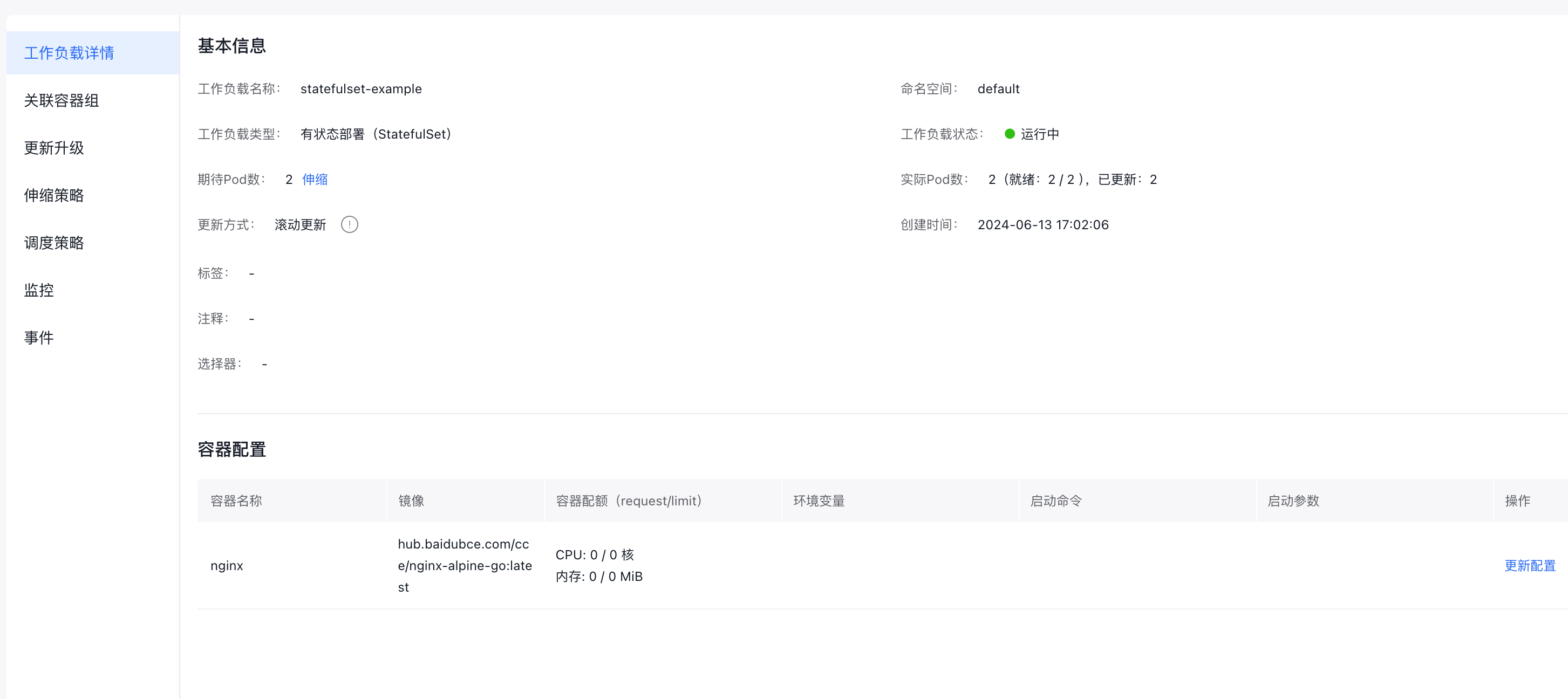
    image.png

    Update Pod count

    Enable efficient updates to the Pod count for a stateless workload using the console.

    1. Log in to the Stateful Workload Management page.

      a. Sign in to Cloud Container Engine Console (CCE).
      b. In the left navigation bar, click Cluster Management -> Cluster List to enter the Cluster List page. Click the Cluster Name to enter the Cluster Management page.
      c. In the left navigation bar of the Cluster Management page, click Workload > Stateful.

    2. In the target stateful workload list, click Scale in the row of the stateful workload to be adjusted. In the scaling pop-up window, enter the required Pod count and click OK.

    Update stateful workloads

    You can edit the created stateful workload through the console interface or directly via the YAML file.

    1. Log in to the Stateful Workload Management page.

      a. Sign in to Cloud Container Engine Console (CCE).
      b. In the left navigation bar, click Cluster Management -> Cluster List to enter the Cluster List page. Click the Cluster Name to enter the Cluster Management page.
      c. In the left navigation bar of the Cluster Management page, click Workload > Stateful Workload.

    2. In the operation column of the target stateful workload, click Update and Upgrade or Edit YAML.

    Description:
    Neither console interface updates nor YAML file editing support updating the stateful workload name or namespace.

    Plain Text
    1a. Update: Update configuration information on the console. For detailed parameter descriptions, please refer to [Create via Console] (https://cloud.baidu.com/doc/CCE/s/cjxpoxrgi). <br>
    2 b. Edit YAML: Update configuration information by editing the YAML file. For detailed YAML configuration descriptions, please refer to [Create via YAML] (https://cloud.baidu.com/doc/CCE/s/cjxpoxrgi). <br>
    1. Click Submit after completing the update.

    Label and annotation management

    Labels are applied to stateful workloads as key-value pairs. Once added, they allow you to manage and select workloads using labels. You can assign labels to specific workloads or multiple workloads at the same time.

    Description:
    Label format requirements: Labels must start and end with letters or numbers, contain letters, numbers, hyphens (-), underscores (_) or dots (.), and be within 63 characters. For details, refer to K8S Label Description.

    1. Log in to the Stateful Workload Management page.

      a. Sign in to Cloud Container Engine Console (CCE).
      b. In the left navigation bar, click Cluster Management -> Cluster List to enter the Cluster List page. Click the Cluster Name to enter the Cluster Management page.
      c. In the left navigation bar of the Cluster Management page, click Workload > Stateful.

    2. Select the Stateful tab, and click More > Labels and Annotations next to the workload.
    3. Click Add Label, enter the key and value, and then click Update.

    View monitor

    Check the CPU and memory usage of workloads and Pods in the CCE console to assess the required resource specifications.

    Description:
    Viewing workload monitoring information depends on the cluster being connected to the Cloud Managed Service for Prometheus. If the cluster is not connected to the Cloud Managed Service for Prometheus, please follow the prompts on the interface to connect. For details, refer to Monitor Clusters with Prometheus.

    1. Log in to the Stateful Workload Management page.

      a. Sign in to Cloud Container Engine Console (CCE).
      b. In the left navigation bar, click Cluster Management -> Cluster List to enter the Cluster List page. Click the Cluster Name to enter the Cluster Management page.
      c. In the left navigation bar of the Cluster Management page, click Workload > Stateful.

    2. In the target stateful workload list, click Monitor in the row of the stateful workload to be monitored.
    3. View the monitor data of the stateful workload on the Monitor page. For descriptions of container-related monitor metrics, please refer to Monitor Metrics Description.

    View logs

    Use the "Log" function to examine log information for stateless workloads.

    Description:
    Currently displayed logs are container standard output logs, which do not support persistence or advanced operation and maintenance capabilities. For more comprehensive logging, enable the Log Center Function.

    1. Log in to the Stateful Workload Management page.

      a. Sign in to Cloud Container Engine Console (CCE).
      b. In the left navigation bar, click Cluster Management -> Cluster List to enter the Cluster List page. Click the Cluster Name to enter the Cluster Management page.
      c. In the left navigation bar of the Cluster Management page, click Workload > Stateful.

    2. In the target stateful workload list, click More > Log next to the workload.
    3. Examine container log data on the log page.

    Delete stateful workloads

    If a workload is no longer required, you can remove it.

    Description:
    Deleting a stateful workload may cause service unavailability; please proceed with caution.

    1. Log in to the Stateful Workload Management page.

      a. Sign in to Cloud Container Engine Console (CCE).
      b. In the left navigation bar, click Cluster Management -> Cluster List to enter the Cluster List page. Click the Cluster Name to enter the Cluster Management page.
      c. In the left navigation bar of the Cluster Management page, click Workload > Stateful.

    2. In the target stateful workload list, click More > Delete next to the workload.
    3. In the secondary confirmation dialog box that pops up in the system, confirm the information and click OK.
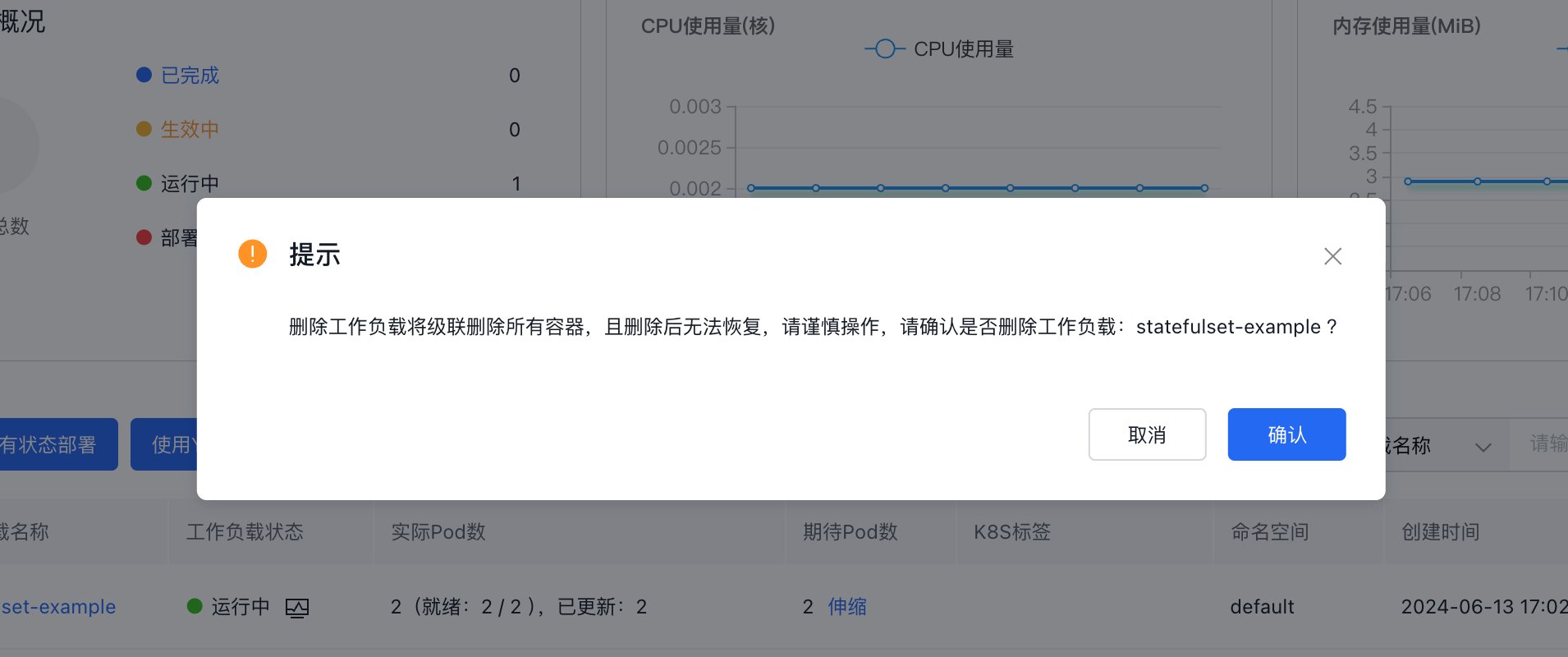
    image.png

    Previous
    View the Pod
    Next
    Password-Free Pull of Container Image