Best Practice for GPU Virtualization with Optimal Isolation

CCE CCE

  • Function Release Records
  • Common Tools
    • Command Line Scenario Examples
  • API Reference
    • Overview
    • Common Headers and Error Responses
    • General Description
  • Product Announcement
    • Announcement on the Discontinuation of CCE Standalone Clusters
    • CCE New Cluster Management Release Announcement
    • Upgrade Announcement for CCE Cluster Audit Component kube-external-auditor
    • CCE Console Upgrade Announcement
    • Announcement on Management Fees for CCE Managed Clusters
    • Container Runtime Version Release Notes
    • Announcement on the Decommissioning of CCE Image Repository
    • Kubernetes Version Release Notes
      • CCE Release of Kubernetes v1_26 History
      • CCE Kubernetes Version Update Notes
      • CCE Release of Kubernetes v1_24 History
      • CCE Release of Kubernetes v1_30 History
      • CCE Release of Kubernetes v1_22 History
      • CCE Release of Kubernetes v1_18 History
      • CCE Release of Kubernetes v1_20 History
      • CCE Release of Kubernetes v1_28 History
      • Release Notes for CCE Kubernetes 1_31 Version
      • Kubernetes Version Overview and Mechanism
    • Security Vulnerability Fix Announcement
      • Vulnerability CVE-2019-5736 Fix Announcement
      • Vulnerability CVE-2021-30465 Fix Announcement
      • CVE-2025-1097, CVE-2025-1098, and Other Vulnerabilities Fix Announcement
      • CVE-2020-14386 Vulnerability Fix Announcement
      • Impact Statement on runc Security Issue (CVE-2024-21626)
  • Service Level Agreement (SLA)
    • CCE Service Level Agreement SLA (V1_0)
  • Typical Practices
    • Pod Anomaly Troubleshooting
    • Adding CGroup V2 Node
    • Common Linux System Configuration Parameters Description
    • Encrypting etcd Data Using KMS
    • Configuring Container Network Parameters Using CNI
    • CCE - Public Network Access Practice
    • Practice of using private images in CCE clusters
    • Unified Access for Virtual Machines and Container Services via CCE Ingress
    • User Guide for Custom CNI Plugins
    • CCE Cluster Network Description and Planning
    • Cross-Cloud Application Migration to Baidu CCE Using Velero
    • CCE Resource Recommender User Documentation
    • Continuous Deployment with Jenkins in CCE Cluster
    • CCE Best Practice-Guestbook Setup
    • CCE Best Practice-Container Network Mode Selection
    • CCE Usage Checklist
    • VPC-ENI Mode Cluster Public Network Access Practice
    • CCE Container Runtime Selection
    • Cloud-native AI
      • Elastic and Fault-Tolerant Training Using CCE AITraining Operator
      • Deploy the TensorFlow Serving inference service
      • Best Practice for GPU Virtualization with Optimal Isolation
  • FAQs
    • How do business applications use load balancer
    • Using kubectl on Windows
    • Cluster management FAQs
    • Common Questions Overview
    • Auto scaling FAQs
    • Create a simple service via kubectl
  • Operation guide
    • Prerequisites for use
    • Identity and access management
    • Permission Management
      • Configure IAM Tag Permission Policy
      • Permission Overview
      • Configure IAM Custom Permission Policy
      • Configure Predefined RBAC Permission Policy
      • Configure IAM Predefined Permission Policy
      • Configure Cluster OIDC Authentication
    • Configuration Management
      • Configmap Management
      • Secret Management
    • Traffic access
      • BLB ingress annotation description
      • Use K8S_Service via CCE
      • Use K8S_Ingress via CCE
      • Implement Canary Release with CCE Based on Nginx-Ingress
      • Create CCE_Ingress via YAML
      • LoadBalancer Service Annotation Description
      • Service Reuses Existing Load Balancer BLB
      • Use Direct Pod Mode LoadBalancer Service
      • NGINX Ingress Configuration Reference
      • Create LoadBalancer_Service via YAML
      • Use NGINX Ingress
    • Virtual Node
      • Configuring BCIPod
      • Configuring bci-profile
      • Managing virtual nodes
    • Node management
      • Add a node
      • Managing Taints
      • Setting Node Blocking
      • Setting GPU Memory Sharing
      • Remove a node
      • Customizing Kubelet Parameters
      • Kubelet Container Monitor Read-Only Port Risk Warning
      • Managing Node Tag
      • Drain node
    • Component Management
      • CCE CSI CDS Plugin Description
      • CCE Fluid Description
      • CCE CSI PFS L2 Plugin
      • CCE Calico Felix Description
      • CCE Ingress Controller Description
      • CCE QoS Agent Description
      • CCE GPU Manager Description
      • CCE Ingress NGINX Controller Description
      • CCE P2P Accelerator Description
      • CCE Virtual Kubelet Component
      • CoreDNS Description
      • CCE Log Operator Description
      • CCE Node Remedier Description
      • CCE Descheduler Description
      • CCE Dynamic Scheduling Plugin Description
      • Kube Scheduler Documentation
      • CCE NPU Manager Description
      • CCE CronHPA Controller Description
      • CCE LB Controller Description
      • Kube ApiServer Description
      • CCE Backup Controller Description
      • CCE Network Plugin Description
      • CCE CSI PFS Plugin Description
      • CCE Credential Controller Description
      • CCE Deep Learning Frameworks Operator Description
      • Component Overview
      • CCE Image Accelerate Description
      • CCE CSI BOS Plugin Description
      • CCE Onepilot Description
      • Description of Kube Controller Manager
      • CCE_Hybrid_Manager Description
      • CCE NodeLocal DNSCache Description
      • CCE Node Problem Detector Description
      • CCE Ascend Mindx DL Description
      • CCE RDMA Device Plugin Description
      • CCE AI Job Scheduler Description
    • Image registry
      • Image Registry Basic Operations
      • Using Container Image to Build Services
    • Helm Management
      • Helm Template
      • Helm Instance
    • Cluster management
      • Upgrade Cluster Kubernetes Version
      • CCE Node CDS Dilatation
      • Managed Cluster Usage Instructions
      • Create cluster
      • CCE Supports GPUSharing Cluster
      • View Cluster
      • Connect to Cluster via kubectl
      • CCE Security Group
      • CCE Node Resource Reservation Instructions
      • Operate Cluster
      • Cluster Snapshot
    • Serverless Cluster
      • Product overview
      • Using Service in Serverless Cluster
      • Creating a Serverless Cluster
    • Storage Management
      • Using Cloud File System
      • Overview
      • Using Parallel File System PFS
      • Using RapidFS
      • Using Object Storage BOS
      • Using Parallel File System PFS L2
      • Using Local Storage
      • Using Cloud Disk CDS
    • Inspection and Diagnosis
      • Cluster Inspection
      • GPU Runtime Environment Check
      • Fault Diagnosis
    • Cloud-native AI
      • Cloud-Native AI Overview
      • AI Monitoring Dashboard
        • Connecting to a Prometheus Instance and Starting a Job
        • NVIDIA Chip Resource Observation
          • AI Job Scheduler component
          • GPU node resources
          • GPU workload resources
          • GPUManager component
          • GPU resource pool overview
        • Ascend Chip Resource Observation
          • Ascend resource pool overview
          • Ascend node resource
          • Ascend workload resource
      • Task Management
        • View Task Information
        • Create TensorFlow Task
        • Example of RDMA Distributed Training Based on NCCL
        • Create PaddlePaddle Task
        • Create AI Training Task
        • Delete task
        • Create PyTorch Task
        • Create Mxnet Task
      • Queue Management
        • Modify Queue
        • Create Queue
        • Usage Instructions for Logical Queues and Physical Queues
        • Queue deletion
      • Dataset Management
        • Create Dataset
        • Delete dataset
        • View Dataset
        • Operate Dataset
      • AI Acceleration Kit
        • AIAK Introduction
        • Using AIAK-Training PyTorch Edition
        • Deploying Distributed Training Tasks Using AIAK-Training
        • Accelerating Inference Business Using AIAK-Inference
      • GPU Virtualization
        • GPU Exclusive and Shared Usage Instructions
        • Image Build Precautions in Shared GPU Scenarios
        • Instructions for Multi-GPU Usage in Single-GPU Containers
        • GPU Virtualization Adaptation Table
        • GPU Online and Offline Mixed Usage Instructions
        • MPS Best Practices & Precautions
        • Precautions for Disabling Node Video Memory Sharing
    • Elastic Scaling
      • Container Timing Horizontal Scaling (CronHPA)
      • Container Horizontal Scaling (HPA)
      • Implementing Second-Level Elastic Scaling with cce-autoscaling-placeholder
      • CCE Cluster Node Auto-Scaling
    • Network Management
      • How to Continue Dilatation When Container Network Segment Space Is Exhausted (VPC-ENI Mode)
      • Container Access to External Services in CCE Clusters
      • CCE supports dual-stack networks of IPv4 and IPv6
      • Using NetworkPolicy Network Policy
      • Traffic Forwarding Configuration for Containers in Peering Connections Scenarios
      • CCE IP Masquerade Agent User Guide
      • Creating VPC-ENI Mode Cluster
      • How to Continue Dilatation When Container Network Segment Space Is Exhausted (VPC Network Mode)
      • Using NetworkPolicy in CCE Clusters
      • Network Orchestration
        • Container Network QoS Management
        • VPC-ENI Specified Subnet IP Allocation (Container Network v2)
        • Cluster Pod Subnet Topology Distribution (Container Network v2)
      • Network Connectivity
        • Container network accesses the public network via NAT gateway
      • Network Maintenance
        • Common Error Code Table for CCE Container Network
      • DNS
        • CoreDNS Component Manual Dilatation Guide
        • DNS Troubleshooting Guide
        • DNS Principle Overview
    • Namespace Management
      • Set Limit Range
      • Set Resource Quota
      • Basic Namespace Operations
    • Workload
      • CronJob Management
      • Set Workload Auto-Scaling
      • Deployment Management
      • Job Management
      • View the Pod
      • StatefulSet Management
      • Password-Free Pull of Container Image
      • Create Workload Using Private Image
      • DaemonSet Management
    • Monitor Logs
      • Monitor Cluster with Prometheus
      • CCE Event Center
      • Cluster Service Profiling
      • CCE Cluster Anomaly Event Alerts
      • Java Application Monitor
      • Cluster Audit Dashboard
      • Logging
      • Cluster Audit
      • Log Center
        • Configure Collection Rules Using CRD
        • View Cluster Control Plane Logs
        • View Business Logs
        • Log Overview
        • Configure Collection Rules in Cloud Container Engine Console
    • Application management
      • Overview
      • Secret
      • Configuration dictionary
      • Deployment
      • Service
      • Pod
    • NodeGroup Management
      • NodeGroup Management
      • NodeGroup Node Fault Detection and Self-Healing
      • Configuring Scaling Policies
      • NodeGroup Introduction
      • Adding Existing External Nodes
      • Custom NodeGroup Kubelet Configuration
      • Adding Alternative Models
      • Dilatation NodeGroup
    • Backup Center
      • Restore Management
      • Backup Overview
      • Backup Management
      • Backup repository
  • Quick Start
    • Quick Deployment of Nginx Application
    • CCE Container Engine Usage Process Overview
  • Product pricing
    • Product pricing
  • Product Description
    • Application scenarios
    • Introduction
    • Usage restrictions
    • Features
    • Advantages
    • Core concepts
  • Solution-Fabric
    • Fabric Solution
  • Development Guide
    • EFK Log Collection System Deployment Guide
    • Using Network Policy in CCE Cluster
    • Creating a LoadBalancer-Type Service
    • Prometheus Monitoring System Deployment Guide
    • kubectl Management Configuration
  • API_V2 Reference
    • Overview
    • Common Headers and Error Responses
    • Cluster Related Interfaces
    • Instance Related Interfaces
    • Service domain
    • General Description
    • Kubeconfig Related Interfaces
    • RBAC Related Interfaces
    • Autoscaler Related Interfaces
    • Network Related Interfaces
    • InstanceGroup Related Interfaces
    • Appendix
    • Component management-related APIs
    • Package adaptation-related APIs
    • Task Related Interfaces
  • Solution-Xchain
    • Hyperchain Solution
  • SDK
    • Go-SDK
      • Overview
      • NodeGroup Management
      • Initialization
      • Install the SDK Package
      • Cluster management
      • Node management
All documents
menu
No results found, please re-enter

CCE CCE

  • Function Release Records
  • Common Tools
    • Command Line Scenario Examples
  • API Reference
    • Overview
    • Common Headers and Error Responses
    • General Description
  • Product Announcement
    • Announcement on the Discontinuation of CCE Standalone Clusters
    • CCE New Cluster Management Release Announcement
    • Upgrade Announcement for CCE Cluster Audit Component kube-external-auditor
    • CCE Console Upgrade Announcement
    • Announcement on Management Fees for CCE Managed Clusters
    • Container Runtime Version Release Notes
    • Announcement on the Decommissioning of CCE Image Repository
    • Kubernetes Version Release Notes
      • CCE Release of Kubernetes v1_26 History
      • CCE Kubernetes Version Update Notes
      • CCE Release of Kubernetes v1_24 History
      • CCE Release of Kubernetes v1_30 History
      • CCE Release of Kubernetes v1_22 History
      • CCE Release of Kubernetes v1_18 History
      • CCE Release of Kubernetes v1_20 History
      • CCE Release of Kubernetes v1_28 History
      • Release Notes for CCE Kubernetes 1_31 Version
      • Kubernetes Version Overview and Mechanism
    • Security Vulnerability Fix Announcement
      • Vulnerability CVE-2019-5736 Fix Announcement
      • Vulnerability CVE-2021-30465 Fix Announcement
      • CVE-2025-1097, CVE-2025-1098, and Other Vulnerabilities Fix Announcement
      • CVE-2020-14386 Vulnerability Fix Announcement
      • Impact Statement on runc Security Issue (CVE-2024-21626)
  • Service Level Agreement (SLA)
    • CCE Service Level Agreement SLA (V1_0)
  • Typical Practices
    • Pod Anomaly Troubleshooting
    • Adding CGroup V2 Node
    • Common Linux System Configuration Parameters Description
    • Encrypting etcd Data Using KMS
    • Configuring Container Network Parameters Using CNI
    • CCE - Public Network Access Practice
    • Practice of using private images in CCE clusters
    • Unified Access for Virtual Machines and Container Services via CCE Ingress
    • User Guide for Custom CNI Plugins
    • CCE Cluster Network Description and Planning
    • Cross-Cloud Application Migration to Baidu CCE Using Velero
    • CCE Resource Recommender User Documentation
    • Continuous Deployment with Jenkins in CCE Cluster
    • CCE Best Practice-Guestbook Setup
    • CCE Best Practice-Container Network Mode Selection
    • CCE Usage Checklist
    • VPC-ENI Mode Cluster Public Network Access Practice
    • CCE Container Runtime Selection
    • Cloud-native AI
      • Elastic and Fault-Tolerant Training Using CCE AITraining Operator
      • Deploy the TensorFlow Serving inference service
      • Best Practice for GPU Virtualization with Optimal Isolation
  • FAQs
    • How do business applications use load balancer
    • Using kubectl on Windows
    • Cluster management FAQs
    • Common Questions Overview
    • Auto scaling FAQs
    • Create a simple service via kubectl
  • Operation guide
    • Prerequisites for use
    • Identity and access management
    • Permission Management
      • Configure IAM Tag Permission Policy
      • Permission Overview
      • Configure IAM Custom Permission Policy
      • Configure Predefined RBAC Permission Policy
      • Configure IAM Predefined Permission Policy
      • Configure Cluster OIDC Authentication
    • Configuration Management
      • Configmap Management
      • Secret Management
    • Traffic access
      • BLB ingress annotation description
      • Use K8S_Service via CCE
      • Use K8S_Ingress via CCE
      • Implement Canary Release with CCE Based on Nginx-Ingress
      • Create CCE_Ingress via YAML
      • LoadBalancer Service Annotation Description
      • Service Reuses Existing Load Balancer BLB
      • Use Direct Pod Mode LoadBalancer Service
      • NGINX Ingress Configuration Reference
      • Create LoadBalancer_Service via YAML
      • Use NGINX Ingress
    • Virtual Node
      • Configuring BCIPod
      • Configuring bci-profile
      • Managing virtual nodes
    • Node management
      • Add a node
      • Managing Taints
      • Setting Node Blocking
      • Setting GPU Memory Sharing
      • Remove a node
      • Customizing Kubelet Parameters
      • Kubelet Container Monitor Read-Only Port Risk Warning
      • Managing Node Tag
      • Drain node
    • Component Management
      • CCE CSI CDS Plugin Description
      • CCE Fluid Description
      • CCE CSI PFS L2 Plugin
      • CCE Calico Felix Description
      • CCE Ingress Controller Description
      • CCE QoS Agent Description
      • CCE GPU Manager Description
      • CCE Ingress NGINX Controller Description
      • CCE P2P Accelerator Description
      • CCE Virtual Kubelet Component
      • CoreDNS Description
      • CCE Log Operator Description
      • CCE Node Remedier Description
      • CCE Descheduler Description
      • CCE Dynamic Scheduling Plugin Description
      • Kube Scheduler Documentation
      • CCE NPU Manager Description
      • CCE CronHPA Controller Description
      • CCE LB Controller Description
      • Kube ApiServer Description
      • CCE Backup Controller Description
      • CCE Network Plugin Description
      • CCE CSI PFS Plugin Description
      • CCE Credential Controller Description
      • CCE Deep Learning Frameworks Operator Description
      • Component Overview
      • CCE Image Accelerate Description
      • CCE CSI BOS Plugin Description
      • CCE Onepilot Description
      • Description of Kube Controller Manager
      • CCE_Hybrid_Manager Description
      • CCE NodeLocal DNSCache Description
      • CCE Node Problem Detector Description
      • CCE Ascend Mindx DL Description
      • CCE RDMA Device Plugin Description
      • CCE AI Job Scheduler Description
    • Image registry
      • Image Registry Basic Operations
      • Using Container Image to Build Services
    • Helm Management
      • Helm Template
      • Helm Instance
    • Cluster management
      • Upgrade Cluster Kubernetes Version
      • CCE Node CDS Dilatation
      • Managed Cluster Usage Instructions
      • Create cluster
      • CCE Supports GPUSharing Cluster
      • View Cluster
      • Connect to Cluster via kubectl
      • CCE Security Group
      • CCE Node Resource Reservation Instructions
      • Operate Cluster
      • Cluster Snapshot
    • Serverless Cluster
      • Product overview
      • Using Service in Serverless Cluster
      • Creating a Serverless Cluster
    • Storage Management
      • Using Cloud File System
      • Overview
      • Using Parallel File System PFS
      • Using RapidFS
      • Using Object Storage BOS
      • Using Parallel File System PFS L2
      • Using Local Storage
      • Using Cloud Disk CDS
    • Inspection and Diagnosis
      • Cluster Inspection
      • GPU Runtime Environment Check
      • Fault Diagnosis
    • Cloud-native AI
      • Cloud-Native AI Overview
      • AI Monitoring Dashboard
        • Connecting to a Prometheus Instance and Starting a Job
        • NVIDIA Chip Resource Observation
          • AI Job Scheduler component
          • GPU node resources
          • GPU workload resources
          • GPUManager component
          • GPU resource pool overview
        • Ascend Chip Resource Observation
          • Ascend resource pool overview
          • Ascend node resource
          • Ascend workload resource
      • Task Management
        • View Task Information
        • Create TensorFlow Task
        • Example of RDMA Distributed Training Based on NCCL
        • Create PaddlePaddle Task
        • Create AI Training Task
        • Delete task
        • Create PyTorch Task
        • Create Mxnet Task
      • Queue Management
        • Modify Queue
        • Create Queue
        • Usage Instructions for Logical Queues and Physical Queues
        • Queue deletion
      • Dataset Management
        • Create Dataset
        • Delete dataset
        • View Dataset
        • Operate Dataset
      • AI Acceleration Kit
        • AIAK Introduction
        • Using AIAK-Training PyTorch Edition
        • Deploying Distributed Training Tasks Using AIAK-Training
        • Accelerating Inference Business Using AIAK-Inference
      • GPU Virtualization
        • GPU Exclusive and Shared Usage Instructions
        • Image Build Precautions in Shared GPU Scenarios
        • Instructions for Multi-GPU Usage in Single-GPU Containers
        • GPU Virtualization Adaptation Table
        • GPU Online and Offline Mixed Usage Instructions
        • MPS Best Practices & Precautions
        • Precautions for Disabling Node Video Memory Sharing
    • Elastic Scaling
      • Container Timing Horizontal Scaling (CronHPA)
      • Container Horizontal Scaling (HPA)
      • Implementing Second-Level Elastic Scaling with cce-autoscaling-placeholder
      • CCE Cluster Node Auto-Scaling
    • Network Management
      • How to Continue Dilatation When Container Network Segment Space Is Exhausted (VPC-ENI Mode)
      • Container Access to External Services in CCE Clusters
      • CCE supports dual-stack networks of IPv4 and IPv6
      • Using NetworkPolicy Network Policy
      • Traffic Forwarding Configuration for Containers in Peering Connections Scenarios
      • CCE IP Masquerade Agent User Guide
      • Creating VPC-ENI Mode Cluster
      • How to Continue Dilatation When Container Network Segment Space Is Exhausted (VPC Network Mode)
      • Using NetworkPolicy in CCE Clusters
      • Network Orchestration
        • Container Network QoS Management
        • VPC-ENI Specified Subnet IP Allocation (Container Network v2)
        • Cluster Pod Subnet Topology Distribution (Container Network v2)
      • Network Connectivity
        • Container network accesses the public network via NAT gateway
      • Network Maintenance
        • Common Error Code Table for CCE Container Network
      • DNS
        • CoreDNS Component Manual Dilatation Guide
        • DNS Troubleshooting Guide
        • DNS Principle Overview
    • Namespace Management
      • Set Limit Range
      • Set Resource Quota
      • Basic Namespace Operations
    • Workload
      • CronJob Management
      • Set Workload Auto-Scaling
      • Deployment Management
      • Job Management
      • View the Pod
      • StatefulSet Management
      • Password-Free Pull of Container Image
      • Create Workload Using Private Image
      • DaemonSet Management
    • Monitor Logs
      • Monitor Cluster with Prometheus
      • CCE Event Center
      • Cluster Service Profiling
      • CCE Cluster Anomaly Event Alerts
      • Java Application Monitor
      • Cluster Audit Dashboard
      • Logging
      • Cluster Audit
      • Log Center
        • Configure Collection Rules Using CRD
        • View Cluster Control Plane Logs
        • View Business Logs
        • Log Overview
        • Configure Collection Rules in Cloud Container Engine Console
    • Application management
      • Overview
      • Secret
      • Configuration dictionary
      • Deployment
      • Service
      • Pod
    • NodeGroup Management
      • NodeGroup Management
      • NodeGroup Node Fault Detection and Self-Healing
      • Configuring Scaling Policies
      • NodeGroup Introduction
      • Adding Existing External Nodes
      • Custom NodeGroup Kubelet Configuration
      • Adding Alternative Models
      • Dilatation NodeGroup
    • Backup Center
      • Restore Management
      • Backup Overview
      • Backup Management
      • Backup repository
  • Quick Start
    • Quick Deployment of Nginx Application
    • CCE Container Engine Usage Process Overview
  • Product pricing
    • Product pricing
  • Product Description
    • Application scenarios
    • Introduction
    • Usage restrictions
    • Features
    • Advantages
    • Core concepts
  • Solution-Fabric
    • Fabric Solution
  • Development Guide
    • EFK Log Collection System Deployment Guide
    • Using Network Policy in CCE Cluster
    • Creating a LoadBalancer-Type Service
    • Prometheus Monitoring System Deployment Guide
    • kubectl Management Configuration
  • API_V2 Reference
    • Overview
    • Common Headers and Error Responses
    • Cluster Related Interfaces
    • Instance Related Interfaces
    • Service domain
    • General Description
    • Kubeconfig Related Interfaces
    • RBAC Related Interfaces
    • Autoscaler Related Interfaces
    • Network Related Interfaces
    • InstanceGroup Related Interfaces
    • Appendix
    • Component management-related APIs
    • Package adaptation-related APIs
    • Task Related Interfaces
  • Solution-Xchain
    • Hyperchain Solution
  • SDK
    • Go-SDK
      • Overview
      • NodeGroup Management
      • Initialization
      • Install the SDK Package
      • Cluster management
      • Node management
  • Document center
  • arrow
  • CCECCE
  • arrow
  • Typical Practices
  • arrow
  • Cloud-native AI
  • arrow
  • Best Practice for GPU Virtualization with Optimal Isolation
Table of contents on this page
  • 1. Overview
  • 2. Business workflow
  • 3. Prerequisites
  • 3.1 Cluster creation
  • 3.2 Install required components:
  • 3.2.1 CCE GPU Manager component:
  • 3.2.2 CCE Deep Learning Frameworks Operator and CCE AI Job Scheduler components
  • 3.3 Steps to enable memory sharing on nodes:
  • 3.4 Batch enable GPU virtualization on nodes
  • 3.5 Obtain RBAC authorization
  • 4. GPU resource description
  • 4.1 GPU model and resource name
  • 4.2 Resource description
  • 5. Create task
  • 5.1 Create tasks via the console
  • 5.1.1 Single-GPU/Multi-GPU exclusive
  • 5.1.2 Single-GPU sharing (isolation for memory only, no isolation for computing power)
  • 5.1.3 Single-GPU sharing
  • 5.2 Create workloads via the console
  • 5.3 Create tasks/workloads using YAML
  • 5.3.1 Single-GPU exclusive
  • 5.3.2 Multi-GPU exclusive
  • 5.3.3 Single-GPU sharing (isolation for memory only, no isolation for computing power)
  • 5.3.4 Single-GPU sharing
  • 5.3.6 Multi-GPU single-container capability (GPU memory/computing power isolation & memory-only isolation)
  • 6. Precautions for image building in shared GPU scenarios.
  • 7. (Optional) Verify GPU virtualization isolation effect
  • 8. Disable memory sharing

Best Practice for GPU Virtualization with Optimal Isolation

Updated at:2025-10-27

1. Overview

This guide is designed to help users make the most of Baidu AI Cloud’s GPU virtualization isolation-optimized service. With this document, you’ll learn how to choose and configure GPU resources, use GPU-exclusive and shared modes, and ensure task stability and security.

2. Business workflow

Screenshot 7/12/2024 2.53.17 PM.png

3. Prerequisites

Before using the GPU virtualization isolation-optimized service, complete the following operations to proceed with remaining configurations.

3.1 Cluster creation

(For reference, see the Cluster Creation documentation)

  1. Sign in to Baidu AI Cloud Platform:
  • If no username exists, sign up first. Refer to Register a Baidu Account for operations
  • If a username exists, refer to {Sign in for operations.
  1. After logging in successfully, go to Product Services - Cloud Native - Cloud Container Engine (CCE) to access the Cluster Management - Cluster List page.
  2. (Optional) The Cluster List page shows all created K8S Cluster CCE names/IDs, statuses, versions, etc., and allows users to search for clusters by name.
  3. (Optional) Choose a region and switch as needed. The Cloud Container Engine (CCE) service currently supports regions such as North China - Beijing, North China - Baoding, South China - Guangzhou, East China - Suzhou, and Hong Kong (China).
  4. Click on Create Cluster to navigate to the Select Template page. Choose a template that aligns with the template description and your business needs.
  • By default, the cluster limit in a single region is 20 clusters, with a maximum of 200 nodes per cluster.
  • To increase the quota, submit a ticket.
  1. Click OK and configure the cluster based on the cluster creation guide and your business requirements.
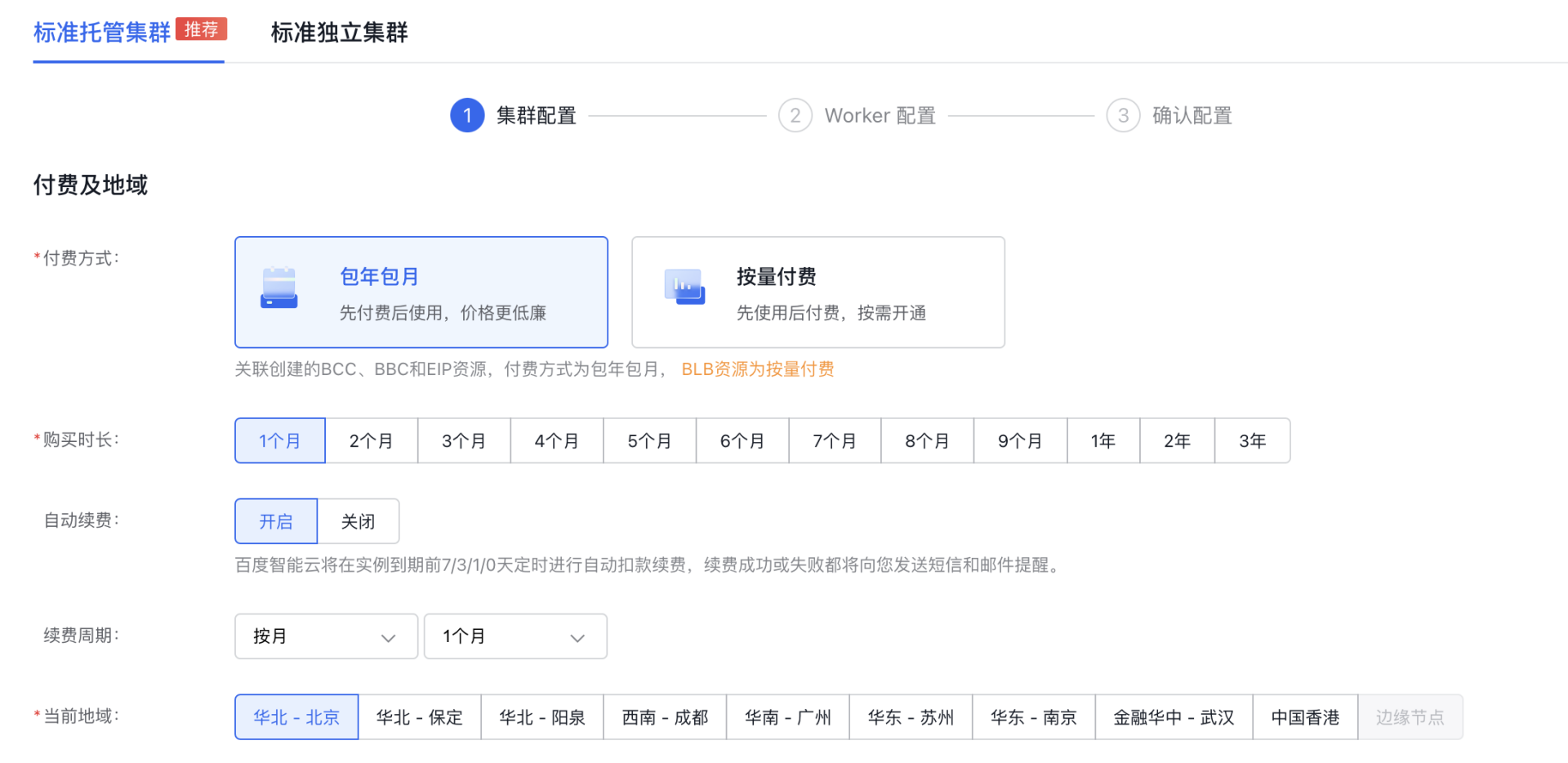
  2. Billing and Region

image (2).png

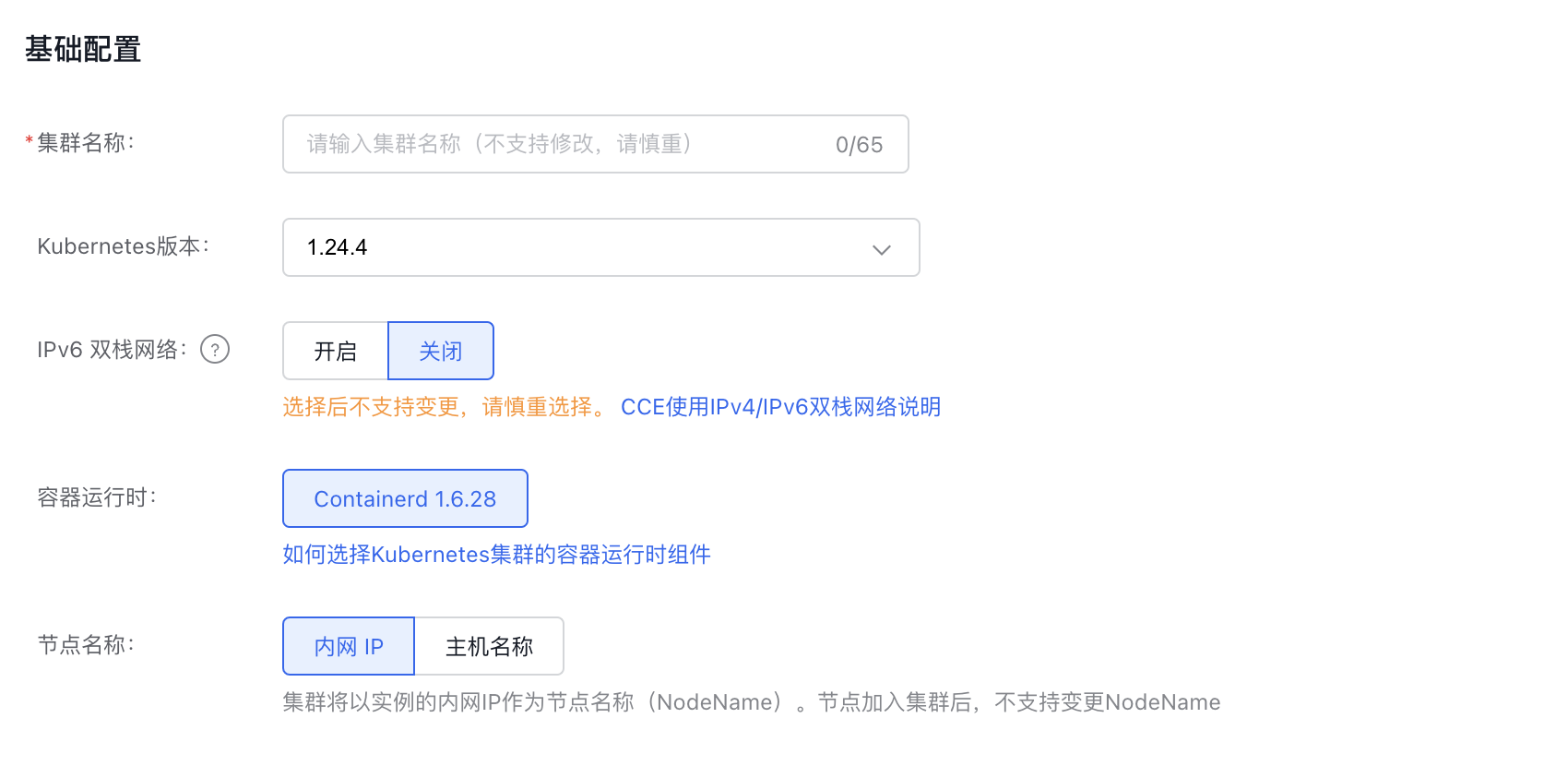
  1. Basic configuration

image (3).png

  1. Network configuration

The container network uses a separate address space, which must remain isolated from the node network, node subnet, and other clusters' container networks.
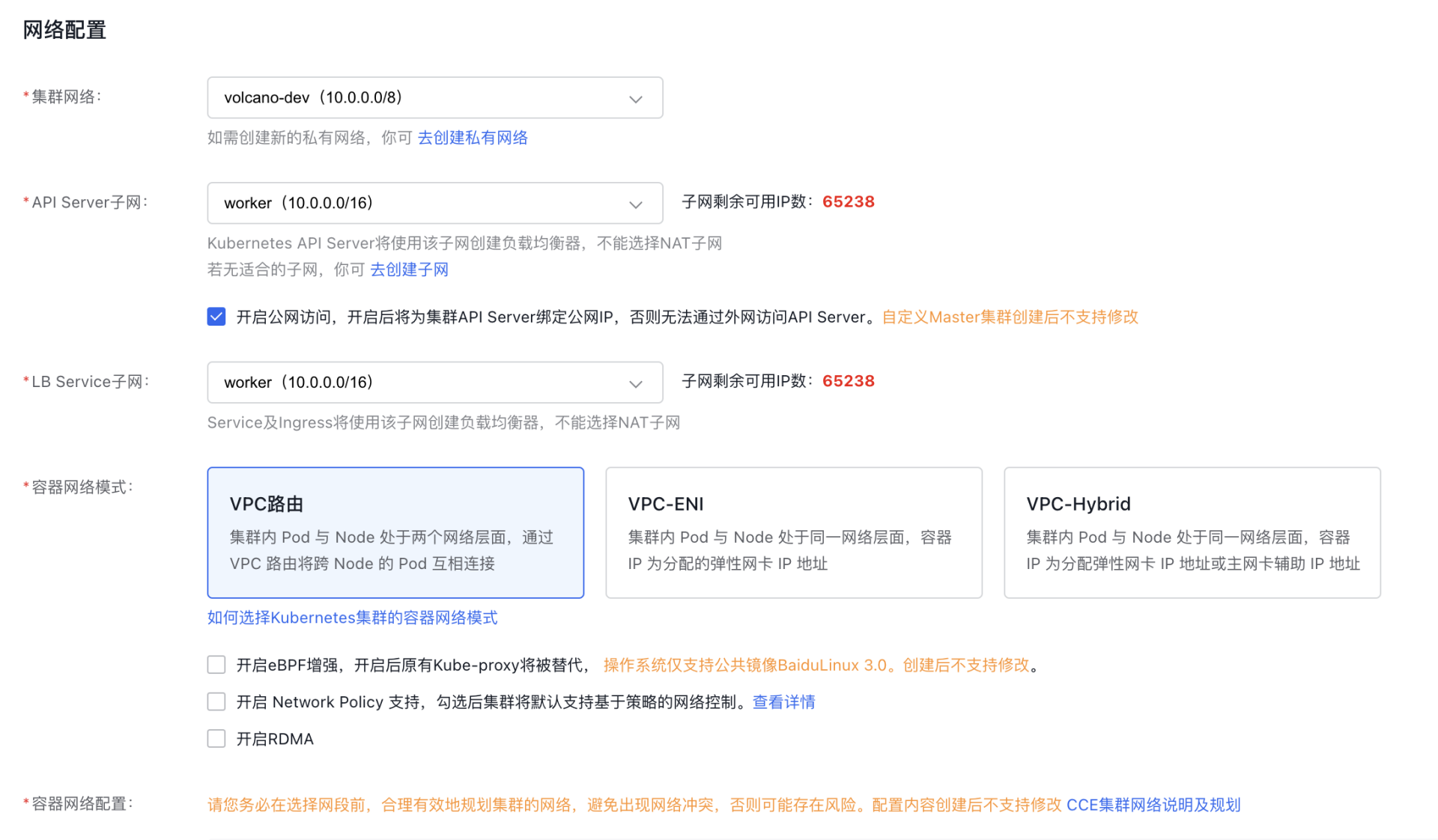
image (4).png

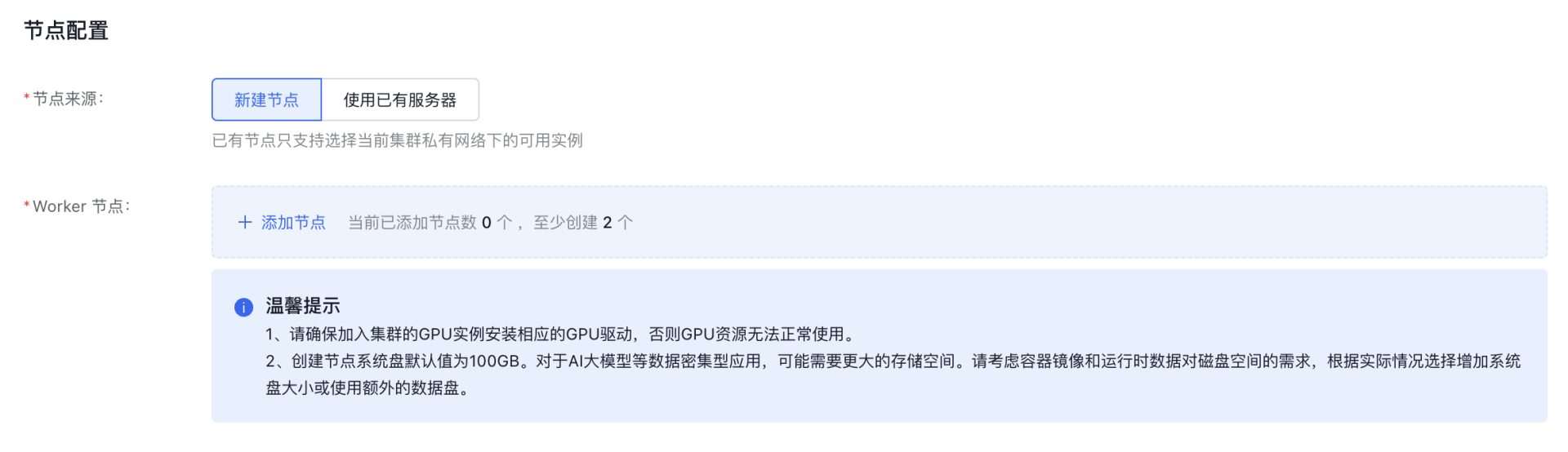
  1. Node configuration
  • You can choose Create New Node.

image (5).png

  • Once selected, click Add Node to open the Add Node dialog box.
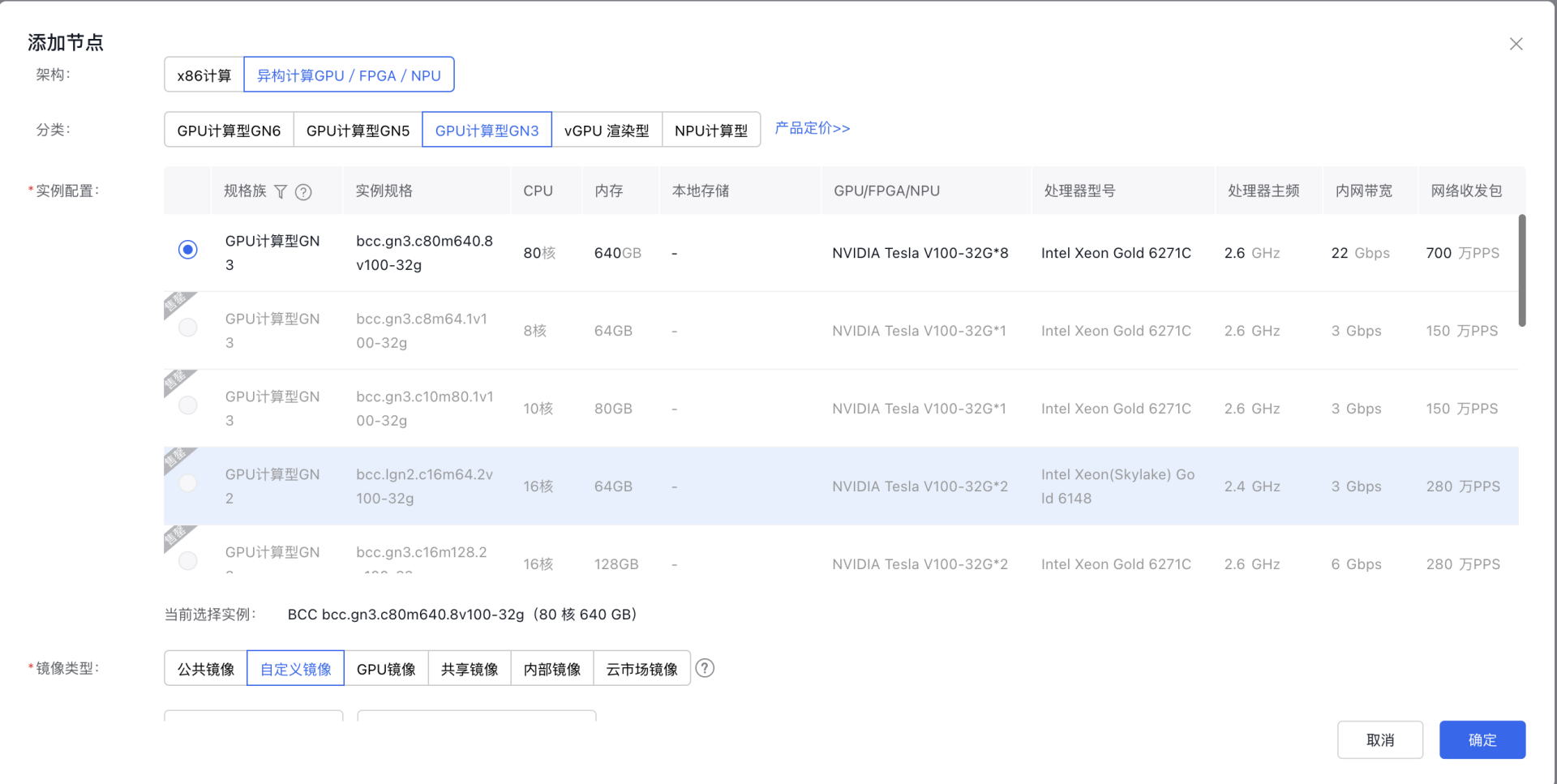
image (6).png

Note: In the instance configuration section, if GPU virtualization is required for the node, refer to the GPU virtualization compatibility list for isolation-optimized types during configuration. To ensure successful task creation, select a compatible instance as per the list—otherwise, incompatible GPUs will not be detected during task setup.

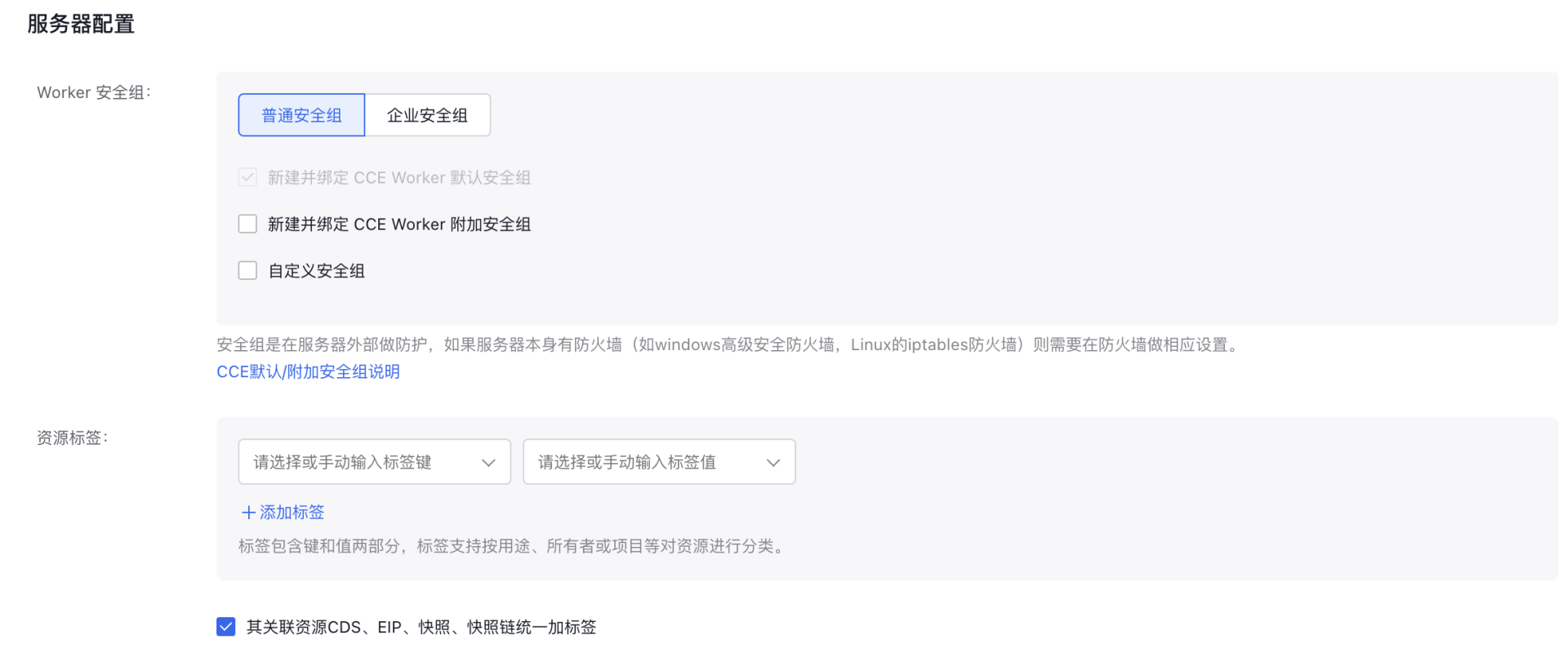
  1. Server configuration

image (7).png

3.2 Install required components:

You need to install the following components in Cluster - Component Management - Cloud Native AI: CCE GPU Manager, CCE Deep Learning Frameworks Operator and CCE AI Job Scheduler.

3.2.1 CCE GPU Manager component:

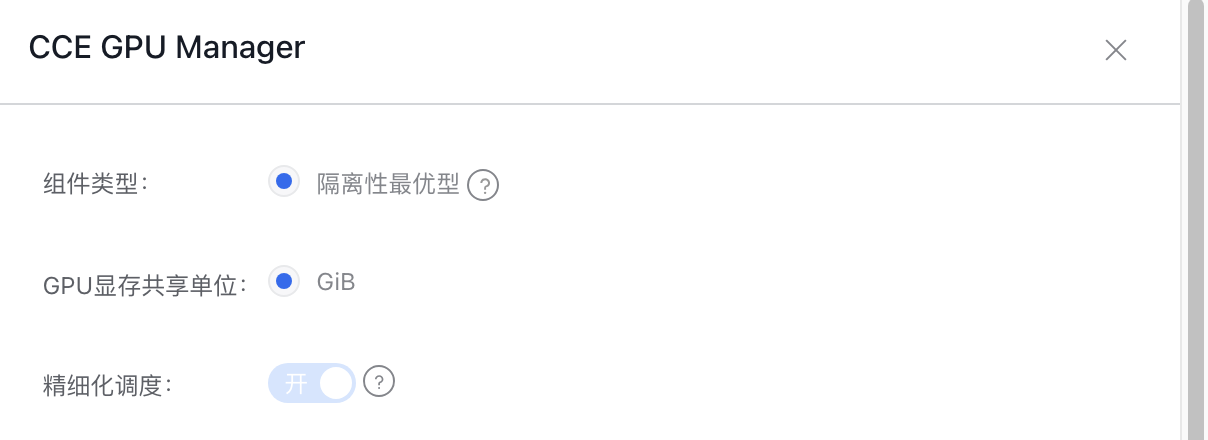
Component parameter description:

Parameters Optional values Description
Component type Isolation-optimized type Refer to the relevant GPU virtualization compatibility list.
GPU memory sharing unit GiB The minimum unit for GPU memory partitioning, currently only supporting GiB
Fine-grained scheduling Enable/disable After disabling fine-grained scheduling, resource reporting does not distinguish between specific GPU models.
After enabling fine-grained scheduling, you can select specific GPU models when creating queues and tasks.

image (8).png

3.2.2 CCE Deep Learning Frameworks Operator and CCE AI Job Scheduler components

Install these components directly in the Component Management section
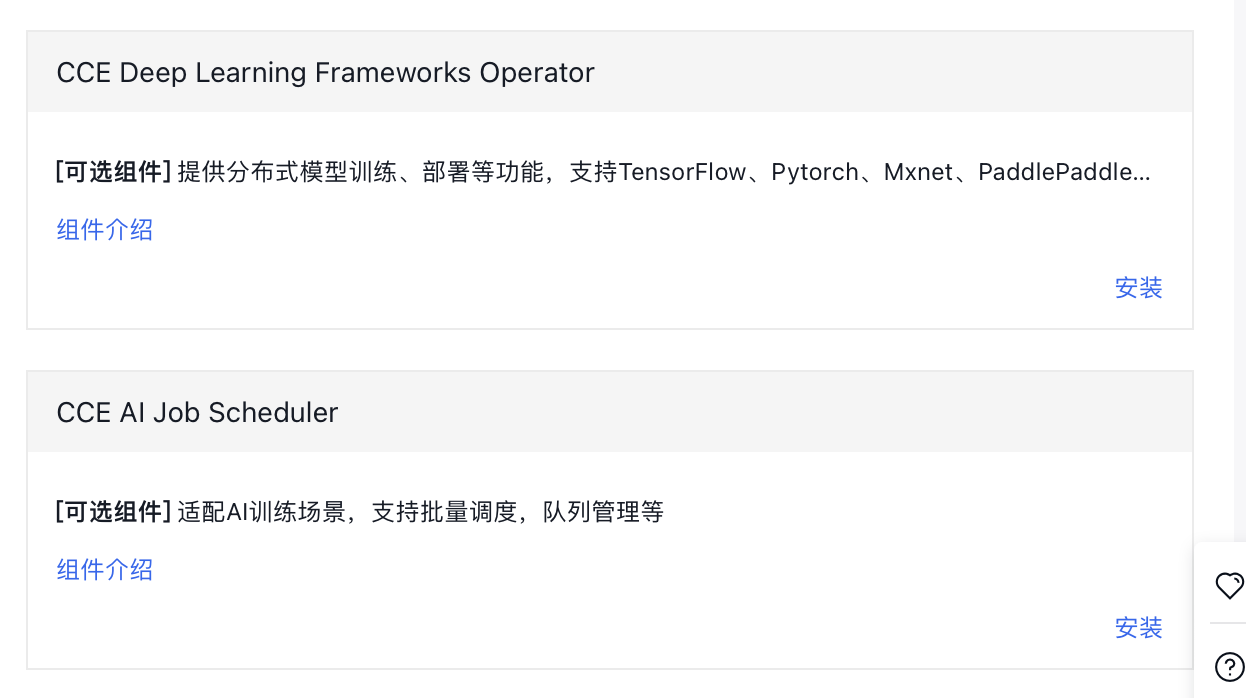
image (9).png

3.3 Steps to enable memory sharing on nodes:

  1. Sign in to the Baidu AI Cloud official website and enter the management console.
  2. Select Product Services - Cloud Native - Cloud Container Engine (CCE) to enter Cluster Management - Cluster List.
  3. Click on the target cluster name in the Cluster List page to navigate to the cluster management page.
  4. On the left sidebar, select Node Management - Worker to enter the node list page.
  5. In the node list, select the GPU node for which you want to enable memory sharing, and click Enable Memory Sharing.
  6. Turn on the memory sharing switch, then click OK to complete the memory sharing setup.
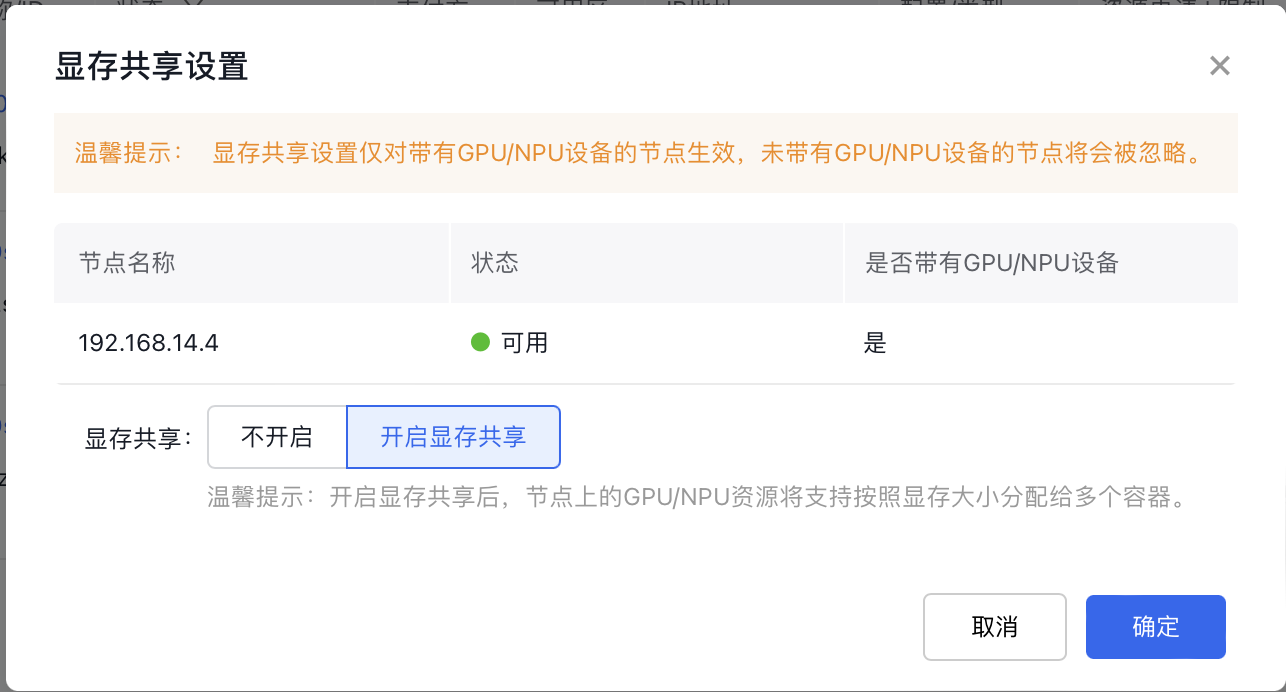
image (10).png

3.4 Batch enable GPU virtualization on nodes

Method 1:Batch add virtualization node labels to existing nodes

  1. Sign in to the Baidu AI Cloud official website and enter the management console.
  2. Select Product Services - Cloud Native - Cloud Container Engine (CCE) to enter Cluster Management - Cluster List.
  3. Click on the target cluster name in the Cluster List page to navigate to the cluster management page.
  4. On the left sidebar, select Node Management - Worker to enter the node list page.
  5. Click Label and Taint Management to enter the configuration page
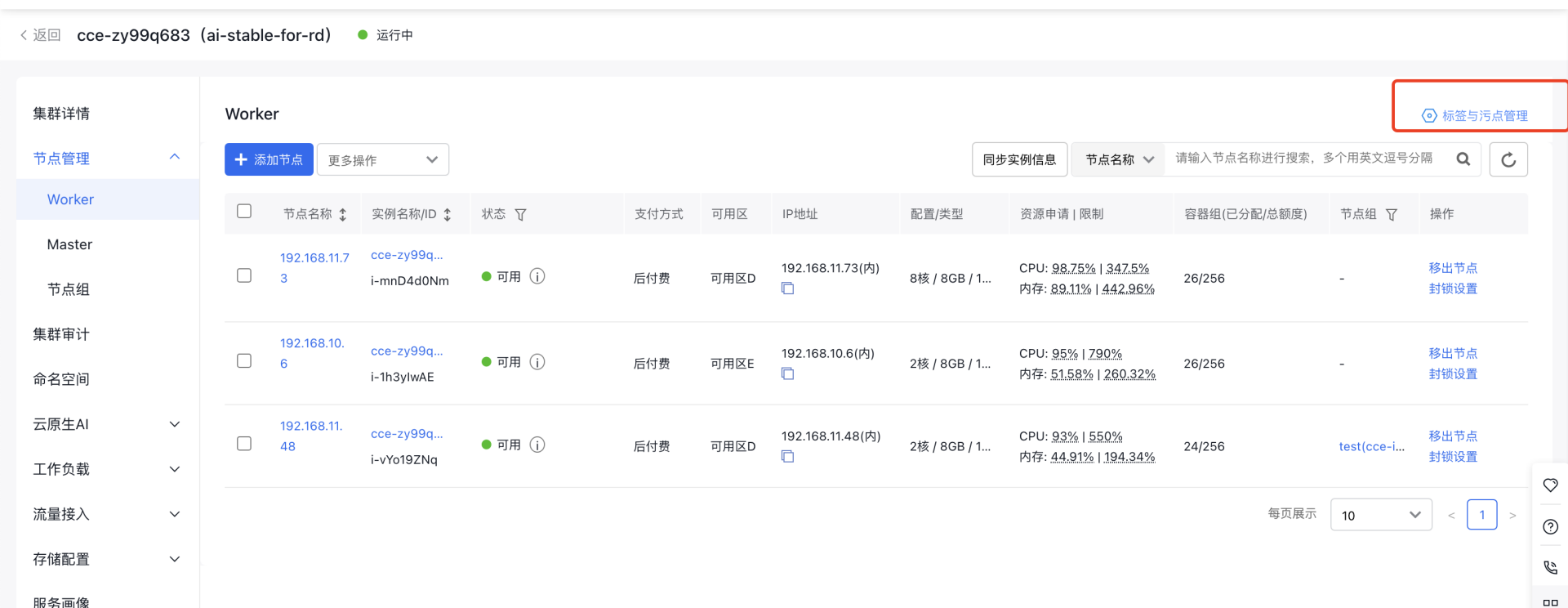
46ab850449e4d5d906fed69fab4dbe57.png

  1. Click Edit Labels, enter the tag key and value, then click OK
Plain Text
1Tag key: cce.baidubce.com/gpu-share-device-plugin
2 Value: enable
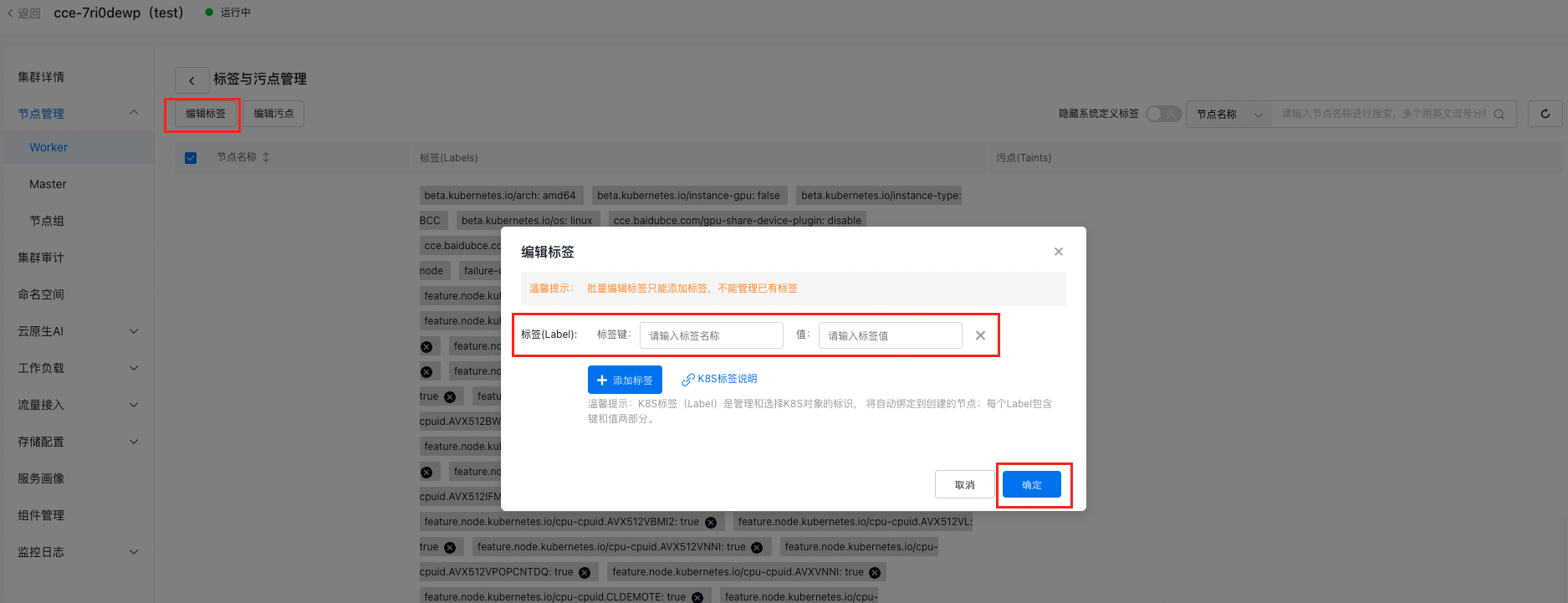
Screenshot 7/10/2024 6.43.03 PM.png

Method 2: Add node labels by default using node groups

  1. Sign in to the Baidu AI Cloud official website and enter the management console.
  2. Go to Product Services - Cloud Native - Cloud Container Engine (CCE) to access Cluster Management - Cluster List.
  3. Click on the target cluster name in the Cluster List page to navigate to the cluster management page.
  4. On the left sidebar, select Node Management - Node Groups to enter the Node Group page.
  5. Click Create Node Group to enter the configuration page
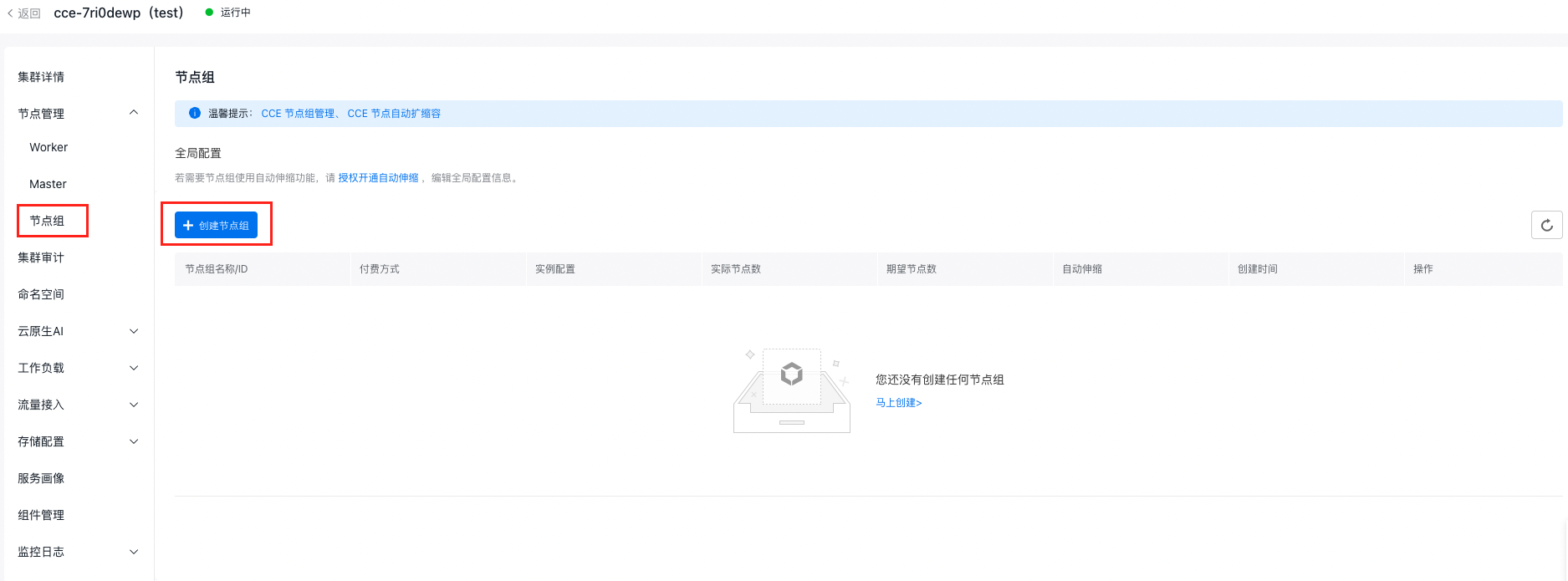
Screenshot 7/10/2024 6.48.23 PM.png

  1. Fill in the basic node group configurations:
  • Node group name: custom, which supports uppercase and lowercase letters, numbers, Chinese characters, and -_ /. special characters, starting with a letter and a length of 1-65
  • VPC network: The VPC network of the cluster
  • Node configuration: This includes the settings for nodes in the group, such as the availability zone, node subnet, and instance specifications. This configuration will act as the template for future node group scaling. The number of nodes specified during creation represents the initial target node count.
  • Auto scaling: Enable auto-scaling, allowing the system to automatically expand when conditions are met, based on specified node configurations and auto-scaling rules. The system will also calculate node costs and create orders automatically. After scaling, you can manually review the node and order details.
  • Advanced settings: Support configuring parameters such as scaling policies, kubelet data directory, container data directory, pre-deployment scripts, post-deployment scripts, custom kubelet parameters, node cordoning, resource labels, K8s labels, taints, and annotations. Configure K8s labels
Plain Text
1Tag key: cce.baidubce.com/gpu-share-device-plugin
2 Value: enable

666eb846ef822dfe9ffd01b382464d54.png

3.5 Obtain RBAC authorization

Note: If you are a IAM user, you need RBAC authorization from the root account or a IAM user with administrator privileges to create new tasks. Skip this step if you are not a IAM user.

  1. Obtain IAM authorization. The IAM user must first be granted at least CCE read-only permissions in IAM. For detailed authorization steps, see Configure IAM Preset Permission Policies
  2. Obtain RBAC authorization. For detailed authorization procedures, see Configure Preset RBAC Permission Policies

4. GPU resource description

4.1 GPU model and resource name

Specifying the correct resource name for the GPU model is essential when using the GPU virtualization isolation-optimized service. Familiarize yourself with GPU resource configurations and compatibility before task creation to ensure successful execution. To designate GPU computing power or memory resources, append _core or _memory to the resource name.

The following are common GPU models and their corresponding resource names:

GPU model Resource name
NVIDIA V100 16GB baidu.com/v100_16g_cgpu
NVIDIA V100 32GB baidu.com/v100_32g_cgpu
NVIDIA T4 baidu.com/t4_16g_cgpu
NVIDIA A100 80GB baidu.com/a100_80g_cgpu
NVIDIA A100 40GB baidu.com/a100_40g_cgpu
NVIDIA A800 80GB baidu.com/a800_80g_cgpu
NVIDIA A30 baidu.com/a30_24g_cgpu
NVIDIA A10 baidu.com/a10_24g_cgpu
NVIDIA RTX3090 baidu.com/rtx_3090_cgpu
NVIDIA RTX4090 baidu.com/rtx_4090_cgpu
NVIDIA H800 baidu.com/h800_80g_cgpu
NVIDIA L20 baidu.com/l20_cgpu
NVIDIA H20 96GB baidu.com/h20_96g_cgpu
NVIDIA H20 141GB baidu.com/h20_141g_cgpu
NVIDIA H20z baidu.com/h20z_141g_cgpu

4.2 Resource description

Resource name Types Unit Description
baidu.com/xxx_xxx_cgpu int64 1 Number of GPU cards: Enter 1 for the shared scenario.
The number of shared GPU cards requested for multi-GPU single-container scenarios
baidu.com/xxx_xxx_cgpu_core int64 5% GPU computing power (minimum unit: 5%)
baidu.com/xxx_xxx_cgpu_memory int64 GiB GPU memory
baidu.com/xxx_xxx_cgpu_memory_percent int64 1% GPU memory requested by percentage (minimum unit: 1%)

5. Create task

Users can create tasks/workloads via CCE console or YAML. Choose the method based on your needs. Detailed creation steps are provided below.

Note: See Section VII for precautions for image building in shared GPU scenarios.

5.1 Create tasks via the console

Operation steps (For reference, see Cloud Native AI Task Management)

  1. Sign in to the Baidu AI Cloud official website and enter the management console.
  2. Go to Product Services - Cloud Native - Cloud Container Engine (CCE) to access the CCE management console.
  3. Click Cluster Management - Cluster List in the left navigation pane.
  4. Click on the target cluster name in the Cluster List page to navigate to the cluster management page.
  5. On the Cluster Management page, click Cloud-Native AI - Task Management.
  6. Click Create Task on the Task Management page.
  7. On the Create Task page, configure basic task information:
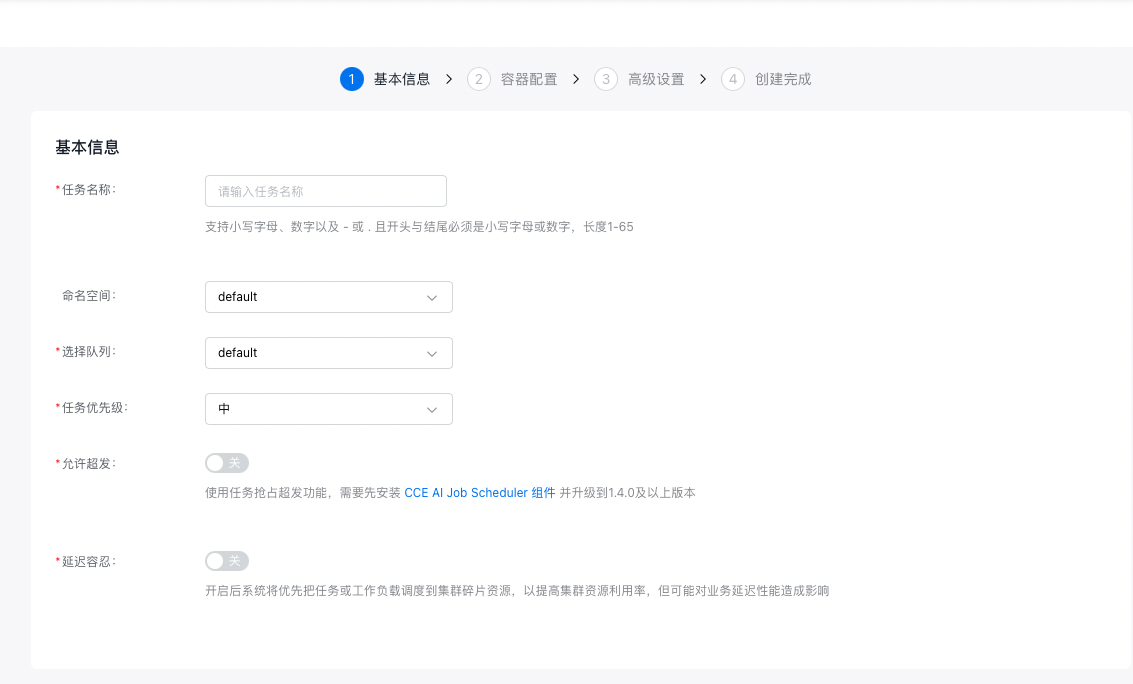
image (11).png

  • The task name supports uppercase and lowercase letters, numbers, and special characters (-_/), must start with a letter or Chinese character, and should be 1 to 65 characters long.
  • Namespace: Choose the namespace for the new task.
  • Select queue: Choose the queue associated with the new task.
  • Task priority: Set the priority level for the task.
  • Allow overcommitment: Enable this option to use task preemption for overcommitment. The CCE AI Job Scheduler component must be installed and updated to version 1.4.0 or higher.
  • Delay tolerance: When activated, the system prioritizes scheduling tasks or workloads to fragmented cluster resources.
  1. Configure basic code information:
  • Code configuration type: Specify the code configuration method. Current options include “BOS File,” “Local File Upload,” and “Not Configured Temporarily.”
  • Execution command: Define the command to execute the code.
  1. Configure data-related information:
  • Set Data Source: Supports both datasets and persistent volume claims (PVCs). For datasets: All available datasets are listed, and selecting a dataset will automatically select a PVC with the same name. For PVCs: Directly select the desired PVC.
  1. Click "Next" to proceed to container-related configurations.
  2. Configure task type information:
  • Select a framework: Choose TensorFlow.
  • Training method: Select either Single-Machine or Distributed training.
  • Select role: When the training method is “Single-machine”, only “Worker” can be selected. When the training method is “Distributed”, “PS”, “Chief” and “Evaluator” can be additionally selected.
  1. Configure pod information (advanced settings are optional).
  • Specify the number of pods desired in the pod.
  • Define the restart policy for the pod. Options: “Restart on Failure” or “Never Restart”.
  • Image address: Enter the address for fetching the container image. You can also click Select Image to choose the required image. Refer to Section VI for guidelines on building images in shared GPU scenarios.
  • Enter the image version. If left unspecified, the latest version will be used by default.
  • Container quota: Specify information related to the container’s CPU, memory, and GPU resources. You can specify the GPU type (exclusive or shared) in the pod configuration of the task. Details for each type are as follows.

5.1.1 Single-GPU/Multi-GPU exclusive

  • When specifying the GPU type as exclusive GPU, to use the full resources of a GPU card for the task:
  1. Choose the GPU model.
  2. Enter the number of GPU cards (range: [1 to the maximum number of GPU cards per node in the current cluster]).
  • To use only CPU and memory resources (no GPU resources):

Leave the GPU Model field blank and only input the required CPU and memory resources.
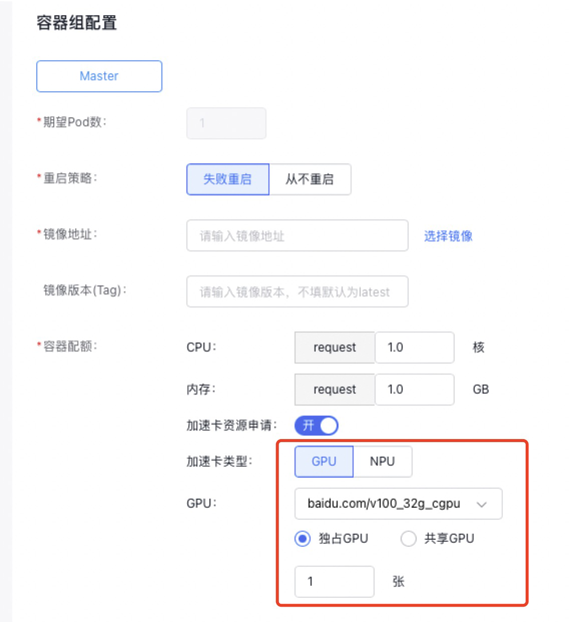
image (12).png

5.1.2 Single-GPU sharing (isolation for memory only, no isolation for computing power)

When specifying the GPU type as shared GPU, to isolate only memory (no computing power isolation), follow steps below:

  1. Choose the GPU model.
  2. Disable the computing power switch.
  3. Enter the required GPU memory, ranging from [1 to the memory size of the selected GPU card].
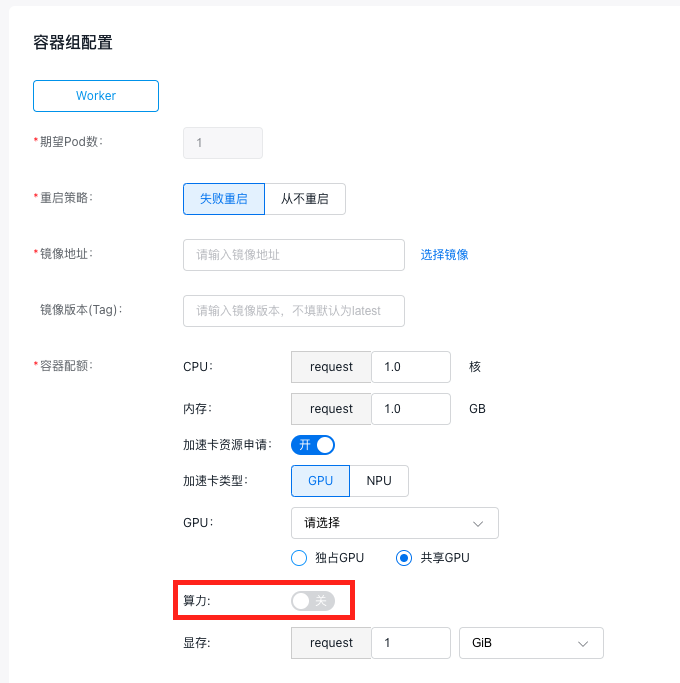
Screenshot 7/4/2024 10.38.14 AM.png

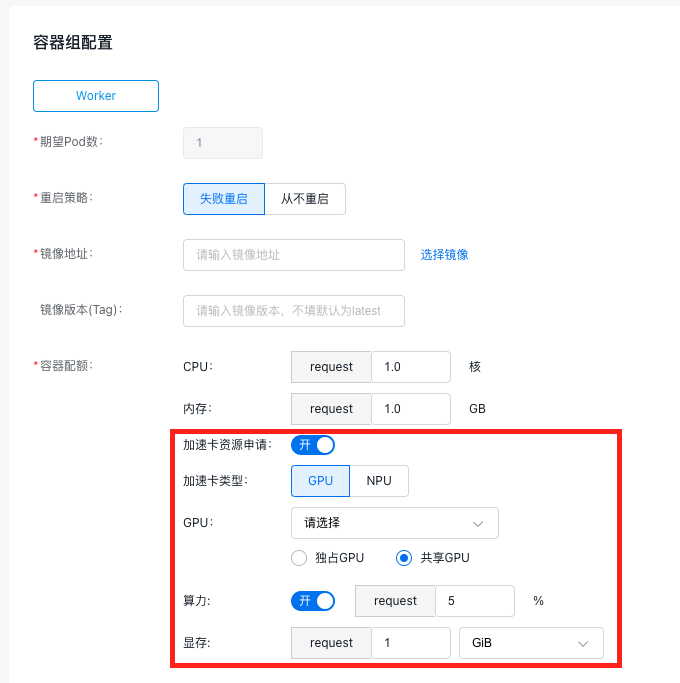
5.1.3 Single-GPU sharing

When specifying the GPU type as shared GPU, to isolate memory and computing power, follow steps below:

  1. Choose the GPU model.
  2. Turn on the computing power switch, and enter the required computing power percentage. The percentage must be a positive integer between [5 and 100].
  3. Enter the required GPU memory. The memory size must be a positive integer, ranging from [1 to the memory size of the selected GPU card].
Screenshot 7/4/2024 10.39.37 AM.png

  1. Configure the advanced task settings.
  • Set the maximum allowable training duration (leave blank for unlimited duration).
  • Add credentials to access the private image registry if using a private image.
  • Tensorboard: If task visualization is needed, enable the Tensorboard function. After activation, specify the “Service Type” and “Training Log Reading Path.”
  • Assign K8s labels to the task.
  • Provide annotations for the task.
  1. Click the Finish button to complete the creation of the task.

5.2 Create workloads via the console

If you create a workload through the CCE console (refer to Workloads for steps), you can set the GPU type as either "Exclusive" or "Shared" in the workload’s container settings. The resource input rules for exclusive and shared modes are consistent with those for AI task creation.
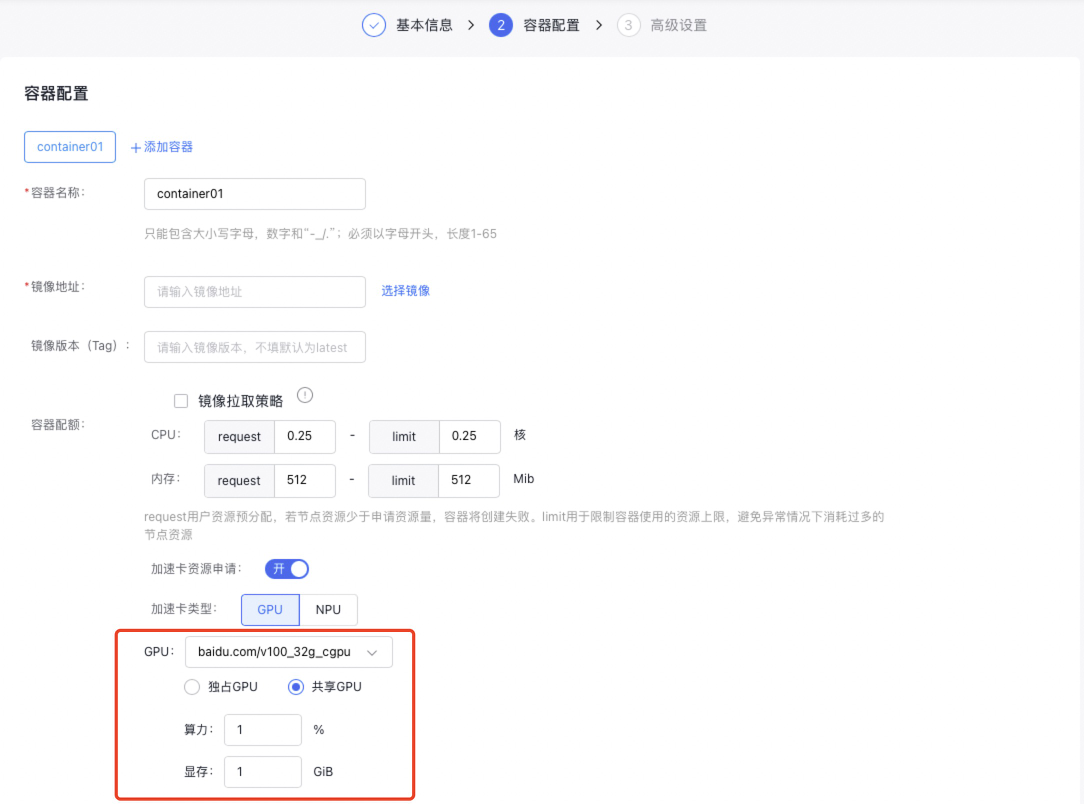
image (13).png

5.3 Create tasks/workloads using YAML

If you create a task or workload via YAML (for detailed configurations, refer to Cloud-Native AI Task Management and Workloads), you can specify the required GPU card resources as “Exclusive” or “Shared” in the YAML configuration. Specific examples are as follows:

Remarks:

  1. When creating a task via YAML, the scheduler must be specified as: schedulerName: volcano
  2. GPU memory resources must be applied for. Additionally, only one of baidu.com/v100_32g_cgpu_memory and baidu.com/v100_32g_cgpu_memory_percent can be filled in; they cannot be filled in simultaneously
  3. The GPU card's resource name should be provided based on the resource description outlined in Section IV, with different GPU models corresponding to distinct resource names.

5.3.1 Single-GPU exclusive

Plain Text
1resources:
2  requests:
3 baidu.com/v100_32g_cgpu: 1 // 1 GPU card
4    cpu: "4"
5    memory: 60Gi
6  limits:
7 baidu.com/v100_32g_cgpu: 1 // Limit and request must be the same
8    cpu: "4"
9    memory: 60Gi

5.3.2 Multi-GPU exclusive

Plain Text
1resources:
2  requests:
3 baidu.com/v100_32g_cgpu: 2 // 2 GPU card
4    cpu: "4"
5    memory: 60Gi
6  limits:
7 baidu.com/v100_32g_cgpu: 2 // Limit and request must be the same
8    cpu: "4"
9    memory: 60Gi

5.3.3 Single-GPU sharing (isolation for memory only, no isolation for computing power)

Plain Text
1resources:
2  requests:
3 baidu.com/v100_32g_cgpu_memory: 10 // 10 GB, fill in as needed
4    cpu: "4"
5    memory: 60Gi
6  limits:
7    baidu.com/v100_32g_cgpu_memory: 10
8    cpu: "4"
9    memory: 60Gi

5.3.4 Single-GPU sharing

Plain Text
1resources:
2  requests:
3 baidu.com/v100_32g_cgpu_core: 50 // 50%, 0.5 of a card’s computing power, fill in as needed
4 baidu.com/v100_32g_cgpu_memory: 10 // 10 GB, fill in as needed
5    cpu: "4"
6    memory: 60Gi
7  limits:
8    baidu.com/v100_32g_cgpu_core: 50 //
9    baidu.com/v100_32g_cgpu_memory: 10
10    cpu: "4"
11    memory: 60Gi

5.3.6 Multi-GPU single-container capability (GPU memory/computing power isolation & memory-only isolation)

Explain how to use the single-container multi-GPU capability of sGPU by detailing resource descriptors, covering two situations: one where GPU memory and computing power are simultaneously isolated, and another with memory-only isolation.

  1. Simultaneous isolation of GPU memory and computing power

Resources for a single shared GPU card:

  • Computing power resource per GPU card: baidu.com/xxx_xxx_cgpu_core / baidu.com/xxx_xxx_cgpu
  • Memory resource per GPU card: baidu.com/xxx_xxx_cgpu_memory/baidu.com/xxx_xxx_cgpu

Example: In this case, the pod requests 50% computing power, 10 GiB memory, and 2 shared GPU cards. Each shared GPU card therefore provides 25% computing power and 5 GiB memory.

Plain Text
1resources:
2limits:
3baidu.com/a10_24g_cgpu: "2"
4baidu.com/a10_24g_cgpu_core: "50"
5baidu.com/a10_24g_cgpu_memory: "10"
  1. GPU memory isolation with shared computing power

Resources for a single shared GPU card:

  • Computing power resources per GPU card: Shares 100% computing power with other containers.
  • Memory resource per GPU card: baidu.com/xxx_xxx_cgpu_memory/baidu.com/xxx_xxx_cgpu

Example: In this example, the pod requests 10 GiB memory and 2 shared GPU cards. Consequently, each shared GPU card provides 100% shared computing power and 5 GiB memory.

Plain Text
1resources:
2          limits:
3            baidu.com/a10_24g_cgpu: "2"
4            baidu.com/a10_24g_cgpu_memory: "10"
  1. Usage restrictions
  • The memory/computing power allocation for a single GPU must be a positive integer (e.g., computing power: baidu.com/xxx_xxx_cgpu_core/baidu.com/xxx_xxx_cgpu; memory: baidu.com/xxx_xxx_cgpu_memory/baidu.com/xxx_xxx_cgpu).
  • The memory/computing power allocation for a single GPU must meet or exceed the minimum unit requirement for memory/computing power.
  • You cannot request _cgpu_core if you do not request _cgpu_memory or _cgpu_memory_percent
  • The minimum unit for memory isolation is 1 GiB.

6. Precautions for image building in shared GPU scenarios.

  1. When choosing an image for a shared GPU task, pay attention to the image’s environment variables.

The following environment variables will be injected by the GPU Manager. Do not add them to the image’s environment variables:

Environment variables Description
NVIDIA_VISIBLE_DEVICES Visible GPU device list: Assigned by the scheduler
NVIDIA_VISIBLE_GPUS_SLOT Visible GPU device slots: Assigned by the scheduler
NVIDIA_VISIBLE_GPUS_UUID A list of visible GPU devices in UUID format: Assigned by the scheduler
LD_LIBRARY_PATH It is not recommended to set the LD_LIBRARY_PATH environment variable. If necessary, add the /usr/lib64 directory in the format of LD_LIBRARY_PATH=/usr/lib64:$LD_LIBRARY_PATH.
CUDA_MPS_ACTIVE_THREAD_PERCENTAGE MPS computing power isolation settings (assigned by the scheduler)
CUDA_MPS_LOG_DIRECTORY MPS log path
CUDA_MPS_PIPE_DIRECTORY Communication address for MPS SERVER
CGPUX_XXX Environment variables starting with CGPU: Used to run memory & computing power isolation functions (e.g., CGPU0_PRIORITY, CGPU0_SHAREMODE)
CGPU_COUNT Number of devices
SGPU_DISABLE Flag indicating whether to use GPU virtualization (for isolation-optimized type)
  1. When creating an image, avoid directly saving a GPU container running in the cluster as an image. Doing so will include environment variables injected by the GPU Manager component, which could lead to unexpected behavior or the inability to use virtualization features properly.

7. (Optional) Verify GPU virtualization isolation effect

Once the above steps are completed, to confirm whether the shared GPU operates according to the configured isolation parameters, follow these instructions.

  1. Sign in to the Baidu AI Cloud official website and enter the management console.
  2. Go to Product Services - Cloud Native - Cloud Container Engine (CCE) to access the CCE management console.
  3. Click Cluster Management - Cluster List in the left navigation pane.
  4. Click on the target cluster name in the Cluster List page to navigate to the cluster management page.
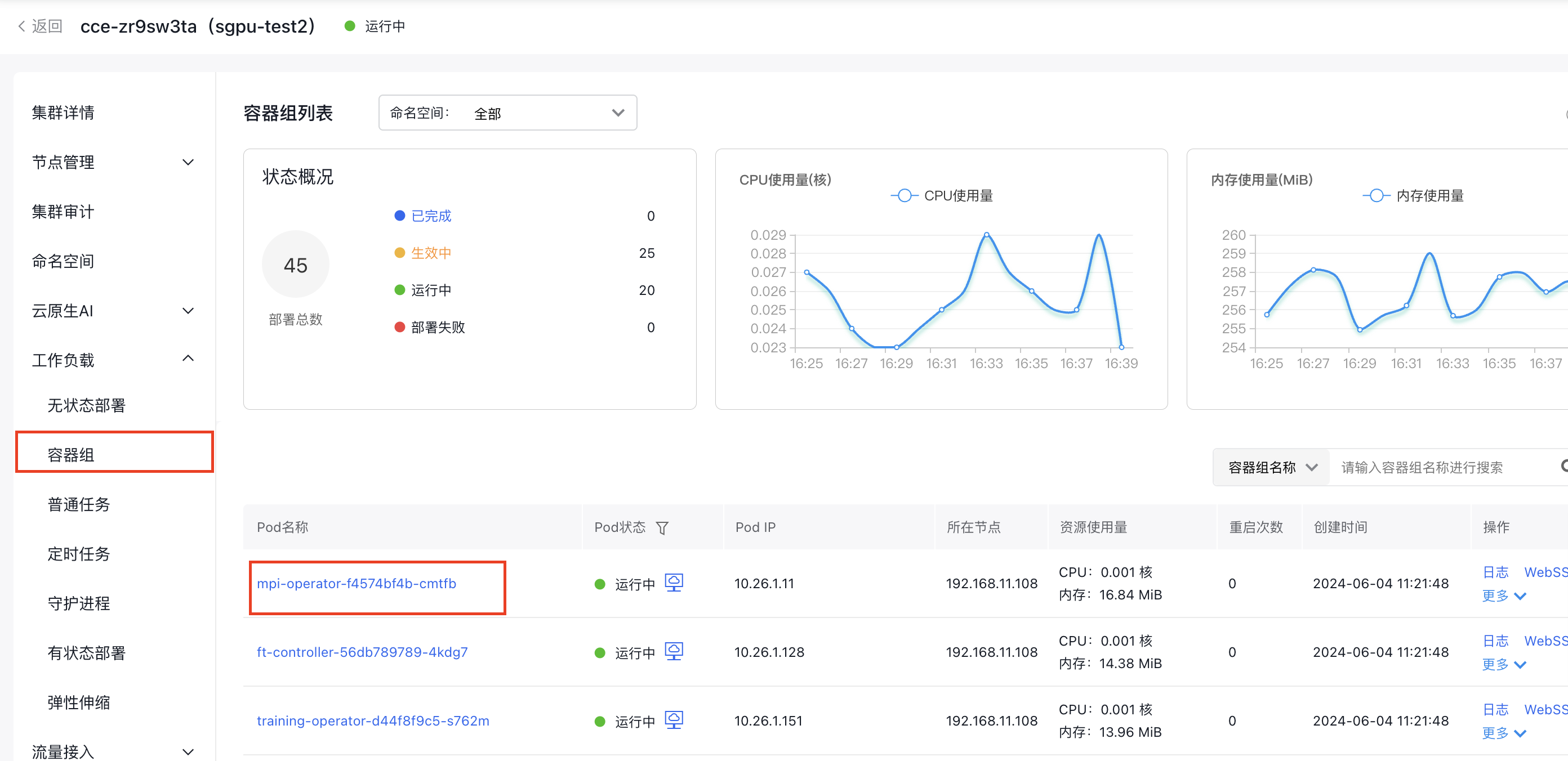
  5. On the cluster management page, click Workloads - Pods.
  6. Click the Pod Name you want to check

Screenshot 7/9/2024 4.39.57 PM.png

  1. Click WebSSH, select /bin/sh as the command type, then click Connect
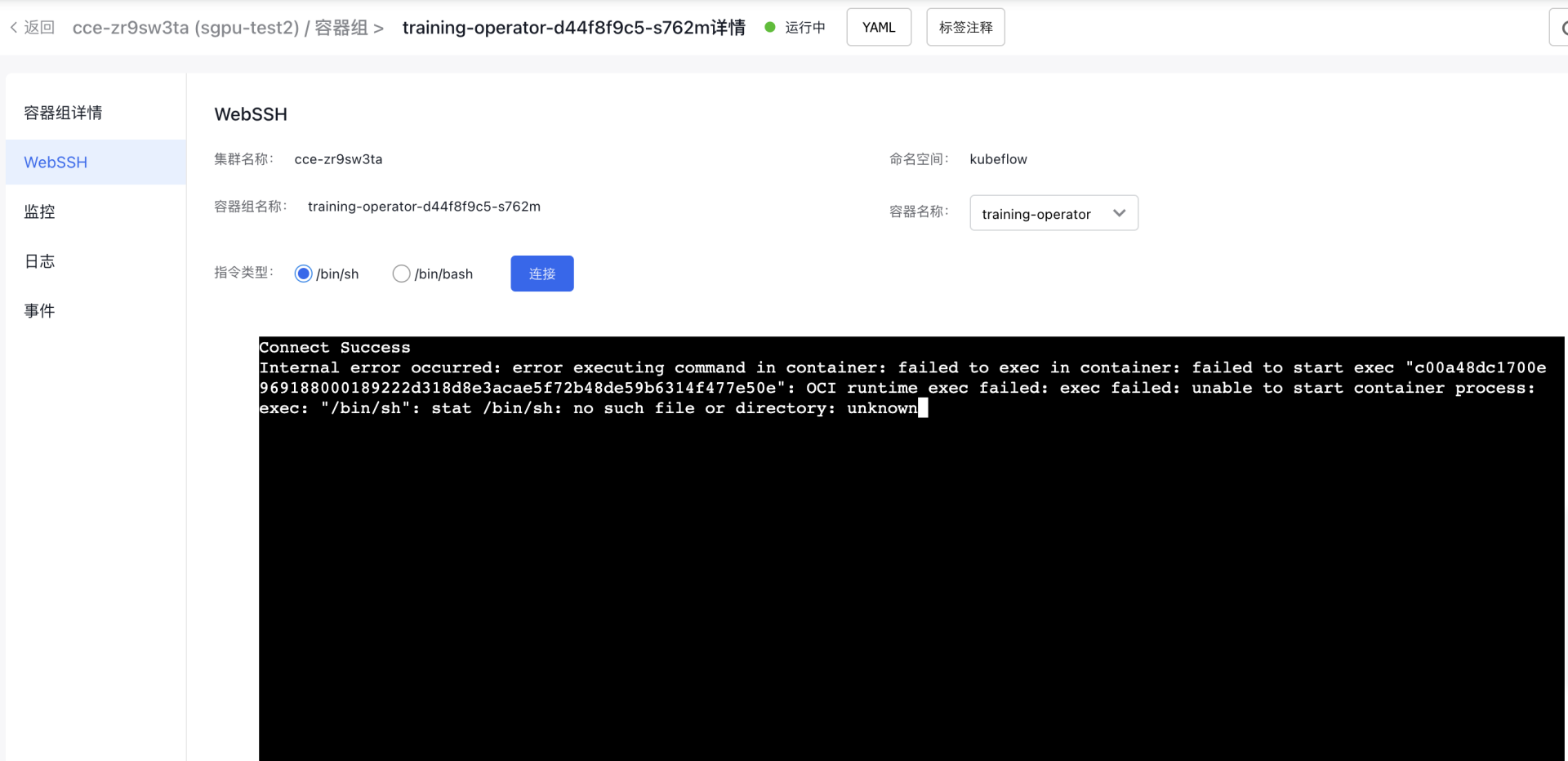
image (18).png

  1. Enter the command: nvidia-smi and press Enter
Parameters Description
GPU Name The command output will display all GPUs available on the server.
Memory-Usage The memory usage for each GPU.
GPU-Util The utilization rate of each GPU.
Processes The processes utilizing the GPUs.

8. Disable memory sharing

  1. Restrictions for disabling memory sharing

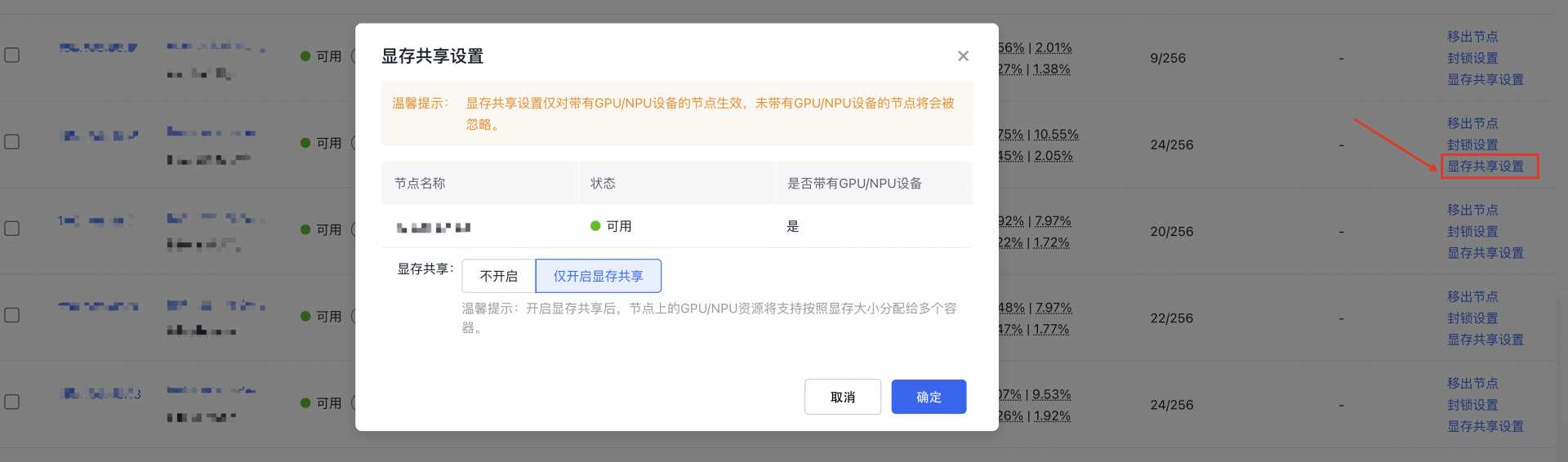
If you need to turn off the memory-sharing function on a node, the system will first check for any active memory-sharing tasks on that node. The function can only be disabled after all such tasks have been completed. Otherwise, it may disrupt current tasks or prevent proper resource reclamation after task completion, affecting future tasks on the node.

Use the commands in Steps 2 and 3 to locate nodes with memory sharing enabled and verify the status of memory-sharing tasks on each node.
4d15fe7778cb7866f8314133e837f61f.png

  1. Query nodes with memory sharing enabled
Plain Text
1kubectl get nodes -l cce.baidubce.com/gpu-share-device-plugin=enable

This command will display all nodes where the memory-sharing function is enabled. These nodes are labeled with cce.baidubce.com/gpu-share-device-plugin:enable.

  1. Query pods running memory-sharing tasks
Plain Text
1kubectl get pods --all-namespaces -o json | jq -r '.items[] | select(.status.phase=="Running") | select(.spec.containers[].resources.limits // empty | keys[] // empty | test("baidu.com/.*(_core|_memory|_memory_percent)$")) | "\(.metadata.name) \(.spec.nodeName)"' | sort | uniq

This command will show all active pods using memory sharing and their corresponding host nodes. The memory-sharing function can only be disabled after these pods are finished.

  1. Risks of modifying node labels via commands

In addition to the console method, you can use the kubectl label nodes command to modify the node label to cce.baidubce.com/gpu-share-device-plugin:disable to disable the node’s memory sharing function. Please pay attention to the following risks before modification:

  • Service interruption: Modifying node labels triggers the installation of a non-shared environment, which interrupts running memory-sharing tasks or prevents resources from being reclaimed properly when tasks end. This impacts subsequent tasks on the node.
  • Scheduling failure: After modifying labels, the scheduler might assign non-shared tasks to the node. Running both task types on the same machine could lead to issues like incorrect GPU detection or abnormal shared memory behavior.

To mitigate these risks, ensure the node labels in the cluster correctly represent the node's capabilities, and only disable memory sharing on a node after confirming there are no active memory-sharing tasks running on it.

  • The minimum value for computing power isolation is 5%.

Previous
Deploy the TensorFlow Serving inference service
Next
FAQs