

Create Queue
Updated at:2025-10-27
Create a new queue to define the resources required for AI task execution and assign the responsible operators.
Prerequisites
- You have successfully created a Kubernetes cluster. For details, see [Create Cluster](CCE/Operation guide/Cluster management/Create cluster.md).
- Ensure CCE AI Job Scheduler and CCE Deep Learning Frameworks Operator components are installed successfully; otherwise, cloud-native AI functionalities will be unavailable.
Limitations
- Before assigning GPU resources to the queue, ensure that the CCE GPU Manager component is installed.
Operation steps
- Sign in to the Baidu AI Cloud official website and enter the management console.
- Go to Product Services - Cloud Native - Cloud Container Engine (CCE) to access the CCE management console.
- Click Cluster Management - Cluster List in the left navigation pane.
- Click on the target cluster name in the Cluster List page to navigate to the cluster management page.
- On the Cluster Management page, click Cloud-Native AI - Queue Management.
- On the Queue Management page, click Create Queue.
- On the Create Queue page, complete the configuration of basic queue information:
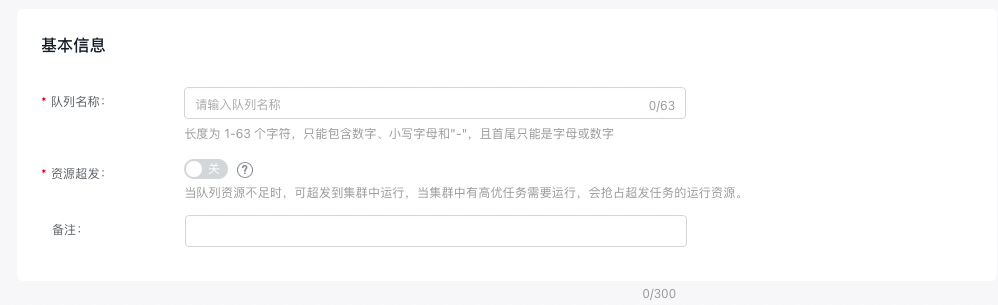
- Queue Name: Customize the name for the queue. It must be between 1-63 characters, consist only of digits, lowercase letters, and “-”, and must start and end with a letter or digit.
- Resource Overcommitment: If the queue lacks sufficient resources, tasks can still proceed by being overcommitted in the cluster. High-priority tasks in the cluster can preempt resources being used by overcommitted tasks.
- Remarks: Add custom remarks for the queue, up to a maximum of 300 characters.
- Complete the configuration of queue quota information:
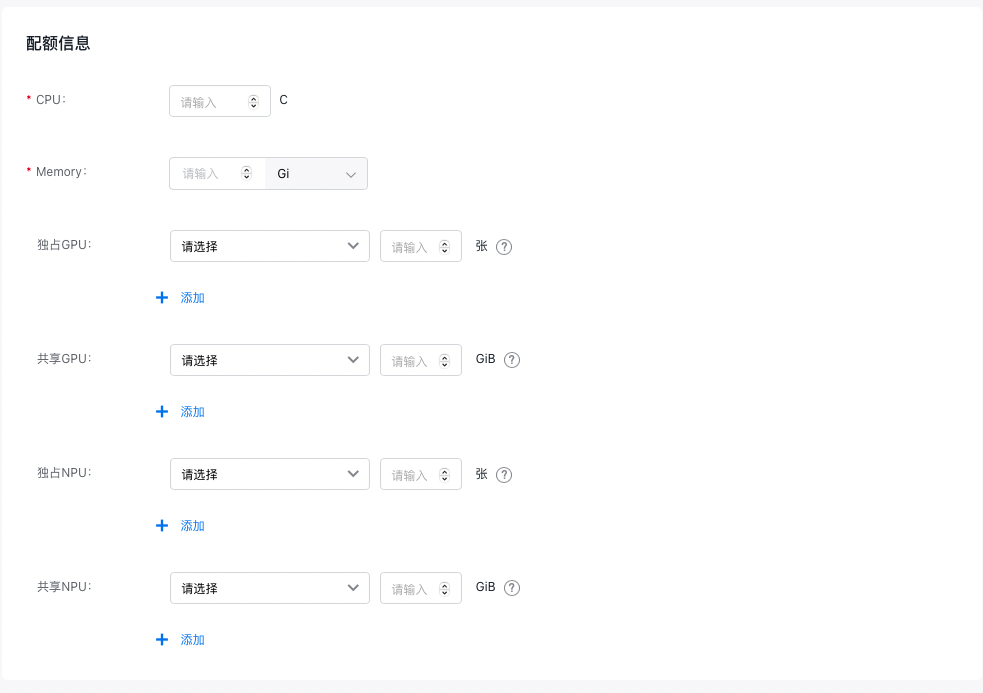
- CPU: Specify the CPU resource size for the queue. The value must be greater than 0 and can include up to two decimal places.
- Memory: Indicate the memory resource size for the queue. The value must be greater than 0 and can include up to two decimal places. Units can be switched between Gi and Mi.
- Exclusive GPU: Define GPU resources allocated as entire cards for the queue. The value must be a positive integer.
- Shared GPU: Define GPU resources allocated by memory size for the queue. The value must be a positive integer.
- Exclusive NPU: Define NPU resources allocated as entire cards for the queue. The value must be a positive integer.
- Shared NPU: Specify NPU resources allocated by memory size for the queue. The input must be a positive integer.
Note: To specify GPU and NPU resources, you must first install the CCE GPU Manager and CCE NPU Manager components
- Complete the resource object configuration.
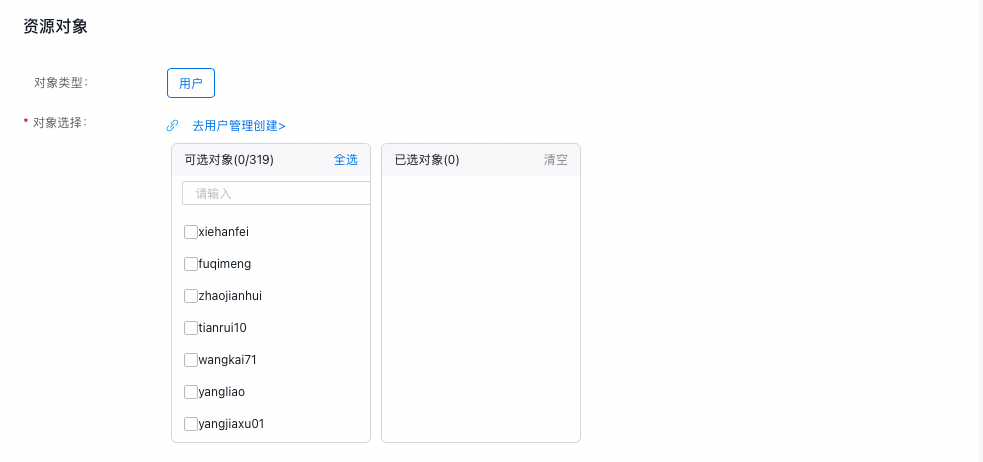
- Object type: Specify the type of resource objects available to the queue. Currently, only "User" is supported.
- Object selection: Specify the IAM users who can utilize the queue’s resources. Multiple selections are supported.
- Click the OK button to complete creating the queue.