CCE Best Practice-Guestbook Setup

CCE CCE

  • Function Release Records
  • Common Tools
    • Command Line Scenario Examples
  • API Reference
    • Overview
    • Common Headers and Error Responses
    • General Description
  • Product Announcement
    • Announcement on the Discontinuation of CCE Standalone Clusters
    • CCE New Cluster Management Release Announcement
    • Upgrade Announcement for CCE Cluster Audit Component kube-external-auditor
    • CCE Console Upgrade Announcement
    • Announcement on Management Fees for CCE Managed Clusters
    • Container Runtime Version Release Notes
    • Announcement on the Decommissioning of CCE Image Repository
    • Kubernetes Version Release Notes
      • CCE Release of Kubernetes v1_26 History
      • CCE Kubernetes Version Update Notes
      • CCE Release of Kubernetes v1_24 History
      • CCE Release of Kubernetes v1_30 History
      • CCE Release of Kubernetes v1_22 History
      • CCE Release of Kubernetes v1_18 History
      • CCE Release of Kubernetes v1_20 History
      • CCE Release of Kubernetes v1_28 History
      • Release Notes for CCE Kubernetes 1_31 Version
      • Kubernetes Version Overview and Mechanism
    • Security Vulnerability Fix Announcement
      • Vulnerability CVE-2019-5736 Fix Announcement
      • Vulnerability CVE-2021-30465 Fix Announcement
      • CVE-2025-1097, CVE-2025-1098, and Other Vulnerabilities Fix Announcement
      • CVE-2020-14386 Vulnerability Fix Announcement
      • Impact Statement on runc Security Issue (CVE-2024-21626)
  • Service Level Agreement (SLA)
    • CCE Service Level Agreement SLA (V1_0)
  • Typical Practices
    • Pod Anomaly Troubleshooting
    • Adding CGroup V2 Node
    • Common Linux System Configuration Parameters Description
    • Encrypting etcd Data Using KMS
    • Configuring Container Network Parameters Using CNI
    • CCE - Public Network Access Practice
    • Practice of using private images in CCE clusters
    • Unified Access for Virtual Machines and Container Services via CCE Ingress
    • User Guide for Custom CNI Plugins
    • CCE Cluster Network Description and Planning
    • Cross-Cloud Application Migration to Baidu CCE Using Velero
    • CCE Resource Recommender User Documentation
    • Continuous Deployment with Jenkins in CCE Cluster
    • CCE Best Practice-Guestbook Setup
    • CCE Best Practice-Container Network Mode Selection
    • CCE Usage Checklist
    • VPC-ENI Mode Cluster Public Network Access Practice
    • CCE Container Runtime Selection
    • Cloud-native AI
      • Elastic and Fault-Tolerant Training Using CCE AITraining Operator
      • Deploy the TensorFlow Serving inference service
      • Best Practice for GPU Virtualization with Optimal Isolation
  • FAQs
    • How do business applications use load balancer
    • Using kubectl on Windows
    • Cluster management FAQs
    • Common Questions Overview
    • Auto scaling FAQs
    • Create a simple service via kubectl
  • Operation guide
    • Prerequisites for use
    • Identity and access management
    • Permission Management
      • Configure IAM Tag Permission Policy
      • Permission Overview
      • Configure IAM Custom Permission Policy
      • Configure Predefined RBAC Permission Policy
      • Configure IAM Predefined Permission Policy
      • Configure Cluster OIDC Authentication
    • Configuration Management
      • Configmap Management
      • Secret Management
    • Traffic access
      • BLB ingress annotation description
      • Use K8S_Service via CCE
      • Use K8S_Ingress via CCE
      • Implement Canary Release with CCE Based on Nginx-Ingress
      • Create CCE_Ingress via YAML
      • LoadBalancer Service Annotation Description
      • Service Reuses Existing Load Balancer BLB
      • Use Direct Pod Mode LoadBalancer Service
      • NGINX Ingress Configuration Reference
      • Create LoadBalancer_Service via YAML
      • Use NGINX Ingress
    • Virtual Node
      • Configuring BCIPod
      • Configuring bci-profile
      • Managing virtual nodes
    • Node management
      • Add a node
      • Managing Taints
      • Setting Node Blocking
      • Setting GPU Memory Sharing
      • Remove a node
      • Customizing Kubelet Parameters
      • Kubelet Container Monitor Read-Only Port Risk Warning
      • Managing Node Tag
      • Drain node
    • Component Management
      • CCE CSI CDS Plugin Description
      • CCE Fluid Description
      • CCE CSI PFS L2 Plugin
      • CCE Calico Felix Description
      • CCE Ingress Controller Description
      • CCE QoS Agent Description
      • CCE GPU Manager Description
      • CCE Ingress NGINX Controller Description
      • CCE P2P Accelerator Description
      • CCE Virtual Kubelet Component
      • CoreDNS Description
      • CCE Log Operator Description
      • CCE Node Remedier Description
      • CCE Descheduler Description
      • CCE Dynamic Scheduling Plugin Description
      • Kube Scheduler Documentation
      • CCE NPU Manager Description
      • CCE CronHPA Controller Description
      • CCE LB Controller Description
      • Kube ApiServer Description
      • CCE Backup Controller Description
      • CCE Network Plugin Description
      • CCE CSI PFS Plugin Description
      • CCE Credential Controller Description
      • CCE Deep Learning Frameworks Operator Description
      • Component Overview
      • CCE Image Accelerate Description
      • CCE CSI BOS Plugin Description
      • CCE Onepilot Description
      • Description of Kube Controller Manager
      • CCE_Hybrid_Manager Description
      • CCE NodeLocal DNSCache Description
      • CCE Node Problem Detector Description
      • CCE Ascend Mindx DL Description
      • CCE RDMA Device Plugin Description
      • CCE AI Job Scheduler Description
    • Image registry
      • Image Registry Basic Operations
      • Using Container Image to Build Services
    • Helm Management
      • Helm Template
      • Helm Instance
    • Cluster management
      • Upgrade Cluster Kubernetes Version
      • CCE Node CDS Dilatation
      • Managed Cluster Usage Instructions
      • Create cluster
      • CCE Supports GPUSharing Cluster
      • View Cluster
      • Connect to Cluster via kubectl
      • CCE Security Group
      • CCE Node Resource Reservation Instructions
      • Operate Cluster
      • Cluster Snapshot
    • Serverless Cluster
      • Product overview
      • Using Service in Serverless Cluster
      • Creating a Serverless Cluster
    • Storage Management
      • Using Cloud File System
      • Overview
      • Using Parallel File System PFS
      • Using RapidFS
      • Using Object Storage BOS
      • Using Parallel File System PFS L2
      • Using Local Storage
      • Using Cloud Disk CDS
    • Inspection and Diagnosis
      • Cluster Inspection
      • GPU Runtime Environment Check
      • Fault Diagnosis
    • Cloud-native AI
      • Cloud-Native AI Overview
      • AI Monitoring Dashboard
        • Connecting to a Prometheus Instance and Starting a Job
        • NVIDIA Chip Resource Observation
          • AI Job Scheduler component
          • GPU node resources
          • GPU workload resources
          • GPUManager component
          • GPU resource pool overview
        • Ascend Chip Resource Observation
          • Ascend resource pool overview
          • Ascend node resource
          • Ascend workload resource
      • Task Management
        • View Task Information
        • Create TensorFlow Task
        • Example of RDMA Distributed Training Based on NCCL
        • Create PaddlePaddle Task
        • Create AI Training Task
        • Delete task
        • Create PyTorch Task
        • Create Mxnet Task
      • Queue Management
        • Modify Queue
        • Create Queue
        • Usage Instructions for Logical Queues and Physical Queues
        • Queue deletion
      • Dataset Management
        • Create Dataset
        • Delete dataset
        • View Dataset
        • Operate Dataset
      • AI Acceleration Kit
        • AIAK Introduction
        • Using AIAK-Training PyTorch Edition
        • Deploying Distributed Training Tasks Using AIAK-Training
        • Accelerating Inference Business Using AIAK-Inference
      • GPU Virtualization
        • GPU Exclusive and Shared Usage Instructions
        • Image Build Precautions in Shared GPU Scenarios
        • Instructions for Multi-GPU Usage in Single-GPU Containers
        • GPU Virtualization Adaptation Table
        • GPU Online and Offline Mixed Usage Instructions
        • MPS Best Practices & Precautions
        • Precautions for Disabling Node Video Memory Sharing
    • Elastic Scaling
      • Container Timing Horizontal Scaling (CronHPA)
      • Container Horizontal Scaling (HPA)
      • Implementing Second-Level Elastic Scaling with cce-autoscaling-placeholder
      • CCE Cluster Node Auto-Scaling
    • Network Management
      • How to Continue Dilatation When Container Network Segment Space Is Exhausted (VPC-ENI Mode)
      • Container Access to External Services in CCE Clusters
      • CCE supports dual-stack networks of IPv4 and IPv6
      • Using NetworkPolicy Network Policy
      • Traffic Forwarding Configuration for Containers in Peering Connections Scenarios
      • CCE IP Masquerade Agent User Guide
      • Creating VPC-ENI Mode Cluster
      • How to Continue Dilatation When Container Network Segment Space Is Exhausted (VPC Network Mode)
      • Using NetworkPolicy in CCE Clusters
      • Network Orchestration
        • Container Network QoS Management
        • VPC-ENI Specified Subnet IP Allocation (Container Network v2)
        • Cluster Pod Subnet Topology Distribution (Container Network v2)
      • Network Connectivity
        • Container network accesses the public network via NAT gateway
      • Network Maintenance
        • Common Error Code Table for CCE Container Network
      • DNS
        • CoreDNS Component Manual Dilatation Guide
        • DNS Troubleshooting Guide
        • DNS Principle Overview
    • Namespace Management
      • Set Limit Range
      • Set Resource Quota
      • Basic Namespace Operations
    • Workload
      • CronJob Management
      • Set Workload Auto-Scaling
      • Deployment Management
      • Job Management
      • View the Pod
      • StatefulSet Management
      • Password-Free Pull of Container Image
      • Create Workload Using Private Image
      • DaemonSet Management
    • Monitor Logs
      • Monitor Cluster with Prometheus
      • CCE Event Center
      • Cluster Service Profiling
      • CCE Cluster Anomaly Event Alerts
      • Java Application Monitor
      • Cluster Audit Dashboard
      • Logging
      • Cluster Audit
      • Log Center
        • Configure Collection Rules Using CRD
        • View Cluster Control Plane Logs
        • View Business Logs
        • Log Overview
        • Configure Collection Rules in Cloud Container Engine Console
    • Application management
      • Overview
      • Secret
      • Configuration dictionary
      • Deployment
      • Service
      • Pod
    • NodeGroup Management
      • NodeGroup Management
      • NodeGroup Node Fault Detection and Self-Healing
      • Configuring Scaling Policies
      • NodeGroup Introduction
      • Adding Existing External Nodes
      • Custom NodeGroup Kubelet Configuration
      • Adding Alternative Models
      • Dilatation NodeGroup
    • Backup Center
      • Restore Management
      • Backup Overview
      • Backup Management
      • Backup repository
  • Quick Start
    • Quick Deployment of Nginx Application
    • CCE Container Engine Usage Process Overview
  • Product pricing
    • Product pricing
  • Product Description
    • Application scenarios
    • Introduction
    • Usage restrictions
    • Features
    • Advantages
    • Core concepts
  • Solution-Fabric
    • Fabric Solution
  • Development Guide
    • EFK Log Collection System Deployment Guide
    • Using Network Policy in CCE Cluster
    • Creating a LoadBalancer-Type Service
    • Prometheus Monitoring System Deployment Guide
    • kubectl Management Configuration
  • API_V2 Reference
    • Overview
    • Common Headers and Error Responses
    • Cluster Related Interfaces
    • Instance Related Interfaces
    • Service domain
    • General Description
    • Kubeconfig Related Interfaces
    • RBAC Related Interfaces
    • Autoscaler Related Interfaces
    • Network Related Interfaces
    • InstanceGroup Related Interfaces
    • Appendix
    • Component management-related APIs
    • Package adaptation-related APIs
    • Task Related Interfaces
  • Solution-Xchain
    • Hyperchain Solution
  • SDK
    • Go-SDK
      • Overview
      • NodeGroup Management
      • Initialization
      • Install the SDK Package
      • Cluster management
      • Node management
All documents
menu
No results found, please re-enter

CCE CCE

  • Function Release Records
  • Common Tools
    • Command Line Scenario Examples
  • API Reference
    • Overview
    • Common Headers and Error Responses
    • General Description
  • Product Announcement
    • Announcement on the Discontinuation of CCE Standalone Clusters
    • CCE New Cluster Management Release Announcement
    • Upgrade Announcement for CCE Cluster Audit Component kube-external-auditor
    • CCE Console Upgrade Announcement
    • Announcement on Management Fees for CCE Managed Clusters
    • Container Runtime Version Release Notes
    • Announcement on the Decommissioning of CCE Image Repository
    • Kubernetes Version Release Notes
      • CCE Release of Kubernetes v1_26 History
      • CCE Kubernetes Version Update Notes
      • CCE Release of Kubernetes v1_24 History
      • CCE Release of Kubernetes v1_30 History
      • CCE Release of Kubernetes v1_22 History
      • CCE Release of Kubernetes v1_18 History
      • CCE Release of Kubernetes v1_20 History
      • CCE Release of Kubernetes v1_28 History
      • Release Notes for CCE Kubernetes 1_31 Version
      • Kubernetes Version Overview and Mechanism
    • Security Vulnerability Fix Announcement
      • Vulnerability CVE-2019-5736 Fix Announcement
      • Vulnerability CVE-2021-30465 Fix Announcement
      • CVE-2025-1097, CVE-2025-1098, and Other Vulnerabilities Fix Announcement
      • CVE-2020-14386 Vulnerability Fix Announcement
      • Impact Statement on runc Security Issue (CVE-2024-21626)
  • Service Level Agreement (SLA)
    • CCE Service Level Agreement SLA (V1_0)
  • Typical Practices
    • Pod Anomaly Troubleshooting
    • Adding CGroup V2 Node
    • Common Linux System Configuration Parameters Description
    • Encrypting etcd Data Using KMS
    • Configuring Container Network Parameters Using CNI
    • CCE - Public Network Access Practice
    • Practice of using private images in CCE clusters
    • Unified Access for Virtual Machines and Container Services via CCE Ingress
    • User Guide for Custom CNI Plugins
    • CCE Cluster Network Description and Planning
    • Cross-Cloud Application Migration to Baidu CCE Using Velero
    • CCE Resource Recommender User Documentation
    • Continuous Deployment with Jenkins in CCE Cluster
    • CCE Best Practice-Guestbook Setup
    • CCE Best Practice-Container Network Mode Selection
    • CCE Usage Checklist
    • VPC-ENI Mode Cluster Public Network Access Practice
    • CCE Container Runtime Selection
    • Cloud-native AI
      • Elastic and Fault-Tolerant Training Using CCE AITraining Operator
      • Deploy the TensorFlow Serving inference service
      • Best Practice for GPU Virtualization with Optimal Isolation
  • FAQs
    • How do business applications use load balancer
    • Using kubectl on Windows
    • Cluster management FAQs
    • Common Questions Overview
    • Auto scaling FAQs
    • Create a simple service via kubectl
  • Operation guide
    • Prerequisites for use
    • Identity and access management
    • Permission Management
      • Configure IAM Tag Permission Policy
      • Permission Overview
      • Configure IAM Custom Permission Policy
      • Configure Predefined RBAC Permission Policy
      • Configure IAM Predefined Permission Policy
      • Configure Cluster OIDC Authentication
    • Configuration Management
      • Configmap Management
      • Secret Management
    • Traffic access
      • BLB ingress annotation description
      • Use K8S_Service via CCE
      • Use K8S_Ingress via CCE
      • Implement Canary Release with CCE Based on Nginx-Ingress
      • Create CCE_Ingress via YAML
      • LoadBalancer Service Annotation Description
      • Service Reuses Existing Load Balancer BLB
      • Use Direct Pod Mode LoadBalancer Service
      • NGINX Ingress Configuration Reference
      • Create LoadBalancer_Service via YAML
      • Use NGINX Ingress
    • Virtual Node
      • Configuring BCIPod
      • Configuring bci-profile
      • Managing virtual nodes
    • Node management
      • Add a node
      • Managing Taints
      • Setting Node Blocking
      • Setting GPU Memory Sharing
      • Remove a node
      • Customizing Kubelet Parameters
      • Kubelet Container Monitor Read-Only Port Risk Warning
      • Managing Node Tag
      • Drain node
    • Component Management
      • CCE CSI CDS Plugin Description
      • CCE Fluid Description
      • CCE CSI PFS L2 Plugin
      • CCE Calico Felix Description
      • CCE Ingress Controller Description
      • CCE QoS Agent Description
      • CCE GPU Manager Description
      • CCE Ingress NGINX Controller Description
      • CCE P2P Accelerator Description
      • CCE Virtual Kubelet Component
      • CoreDNS Description
      • CCE Log Operator Description
      • CCE Node Remedier Description
      • CCE Descheduler Description
      • CCE Dynamic Scheduling Plugin Description
      • Kube Scheduler Documentation
      • CCE NPU Manager Description
      • CCE CronHPA Controller Description
      • CCE LB Controller Description
      • Kube ApiServer Description
      • CCE Backup Controller Description
      • CCE Network Plugin Description
      • CCE CSI PFS Plugin Description
      • CCE Credential Controller Description
      • CCE Deep Learning Frameworks Operator Description
      • Component Overview
      • CCE Image Accelerate Description
      • CCE CSI BOS Plugin Description
      • CCE Onepilot Description
      • Description of Kube Controller Manager
      • CCE_Hybrid_Manager Description
      • CCE NodeLocal DNSCache Description
      • CCE Node Problem Detector Description
      • CCE Ascend Mindx DL Description
      • CCE RDMA Device Plugin Description
      • CCE AI Job Scheduler Description
    • Image registry
      • Image Registry Basic Operations
      • Using Container Image to Build Services
    • Helm Management
      • Helm Template
      • Helm Instance
    • Cluster management
      • Upgrade Cluster Kubernetes Version
      • CCE Node CDS Dilatation
      • Managed Cluster Usage Instructions
      • Create cluster
      • CCE Supports GPUSharing Cluster
      • View Cluster
      • Connect to Cluster via kubectl
      • CCE Security Group
      • CCE Node Resource Reservation Instructions
      • Operate Cluster
      • Cluster Snapshot
    • Serverless Cluster
      • Product overview
      • Using Service in Serverless Cluster
      • Creating a Serverless Cluster
    • Storage Management
      • Using Cloud File System
      • Overview
      • Using Parallel File System PFS
      • Using RapidFS
      • Using Object Storage BOS
      • Using Parallel File System PFS L2
      • Using Local Storage
      • Using Cloud Disk CDS
    • Inspection and Diagnosis
      • Cluster Inspection
      • GPU Runtime Environment Check
      • Fault Diagnosis
    • Cloud-native AI
      • Cloud-Native AI Overview
      • AI Monitoring Dashboard
        • Connecting to a Prometheus Instance and Starting a Job
        • NVIDIA Chip Resource Observation
          • AI Job Scheduler component
          • GPU node resources
          • GPU workload resources
          • GPUManager component
          • GPU resource pool overview
        • Ascend Chip Resource Observation
          • Ascend resource pool overview
          • Ascend node resource
          • Ascend workload resource
      • Task Management
        • View Task Information
        • Create TensorFlow Task
        • Example of RDMA Distributed Training Based on NCCL
        • Create PaddlePaddle Task
        • Create AI Training Task
        • Delete task
        • Create PyTorch Task
        • Create Mxnet Task
      • Queue Management
        • Modify Queue
        • Create Queue
        • Usage Instructions for Logical Queues and Physical Queues
        • Queue deletion
      • Dataset Management
        • Create Dataset
        • Delete dataset
        • View Dataset
        • Operate Dataset
      • AI Acceleration Kit
        • AIAK Introduction
        • Using AIAK-Training PyTorch Edition
        • Deploying Distributed Training Tasks Using AIAK-Training
        • Accelerating Inference Business Using AIAK-Inference
      • GPU Virtualization
        • GPU Exclusive and Shared Usage Instructions
        • Image Build Precautions in Shared GPU Scenarios
        • Instructions for Multi-GPU Usage in Single-GPU Containers
        • GPU Virtualization Adaptation Table
        • GPU Online and Offline Mixed Usage Instructions
        • MPS Best Practices & Precautions
        • Precautions for Disabling Node Video Memory Sharing
    • Elastic Scaling
      • Container Timing Horizontal Scaling (CronHPA)
      • Container Horizontal Scaling (HPA)
      • Implementing Second-Level Elastic Scaling with cce-autoscaling-placeholder
      • CCE Cluster Node Auto-Scaling
    • Network Management
      • How to Continue Dilatation When Container Network Segment Space Is Exhausted (VPC-ENI Mode)
      • Container Access to External Services in CCE Clusters
      • CCE supports dual-stack networks of IPv4 and IPv6
      • Using NetworkPolicy Network Policy
      • Traffic Forwarding Configuration for Containers in Peering Connections Scenarios
      • CCE IP Masquerade Agent User Guide
      • Creating VPC-ENI Mode Cluster
      • How to Continue Dilatation When Container Network Segment Space Is Exhausted (VPC Network Mode)
      • Using NetworkPolicy in CCE Clusters
      • Network Orchestration
        • Container Network QoS Management
        • VPC-ENI Specified Subnet IP Allocation (Container Network v2)
        • Cluster Pod Subnet Topology Distribution (Container Network v2)
      • Network Connectivity
        • Container network accesses the public network via NAT gateway
      • Network Maintenance
        • Common Error Code Table for CCE Container Network
      • DNS
        • CoreDNS Component Manual Dilatation Guide
        • DNS Troubleshooting Guide
        • DNS Principle Overview
    • Namespace Management
      • Set Limit Range
      • Set Resource Quota
      • Basic Namespace Operations
    • Workload
      • CronJob Management
      • Set Workload Auto-Scaling
      • Deployment Management
      • Job Management
      • View the Pod
      • StatefulSet Management
      • Password-Free Pull of Container Image
      • Create Workload Using Private Image
      • DaemonSet Management
    • Monitor Logs
      • Monitor Cluster with Prometheus
      • CCE Event Center
      • Cluster Service Profiling
      • CCE Cluster Anomaly Event Alerts
      • Java Application Monitor
      • Cluster Audit Dashboard
      • Logging
      • Cluster Audit
      • Log Center
        • Configure Collection Rules Using CRD
        • View Cluster Control Plane Logs
        • View Business Logs
        • Log Overview
        • Configure Collection Rules in Cloud Container Engine Console
    • Application management
      • Overview
      • Secret
      • Configuration dictionary
      • Deployment
      • Service
      • Pod
    • NodeGroup Management
      • NodeGroup Management
      • NodeGroup Node Fault Detection and Self-Healing
      • Configuring Scaling Policies
      • NodeGroup Introduction
      • Adding Existing External Nodes
      • Custom NodeGroup Kubelet Configuration
      • Adding Alternative Models
      • Dilatation NodeGroup
    • Backup Center
      • Restore Management
      • Backup Overview
      • Backup Management
      • Backup repository
  • Quick Start
    • Quick Deployment of Nginx Application
    • CCE Container Engine Usage Process Overview
  • Product pricing
    • Product pricing
  • Product Description
    • Application scenarios
    • Introduction
    • Usage restrictions
    • Features
    • Advantages
    • Core concepts
  • Solution-Fabric
    • Fabric Solution
  • Development Guide
    • EFK Log Collection System Deployment Guide
    • Using Network Policy in CCE Cluster
    • Creating a LoadBalancer-Type Service
    • Prometheus Monitoring System Deployment Guide
    • kubectl Management Configuration
  • API_V2 Reference
    • Overview
    • Common Headers and Error Responses
    • Cluster Related Interfaces
    • Instance Related Interfaces
    • Service domain
    • General Description
    • Kubeconfig Related Interfaces
    • RBAC Related Interfaces
    • Autoscaler Related Interfaces
    • Network Related Interfaces
    • InstanceGroup Related Interfaces
    • Appendix
    • Component management-related APIs
    • Package adaptation-related APIs
    • Task Related Interfaces
  • Solution-Xchain
    • Hyperchain Solution
  • SDK
    • Go-SDK
      • Overview
      • NodeGroup Management
      • Initialization
      • Install the SDK Package
      • Cluster management
      • Node management
  • Document center
  • arrow
  • CCECCE
  • arrow
  • Typical Practices
  • arrow
  • CCE Best Practice-Guestbook Setup
Table of contents on this page
  • Overview
  • Operation steps
  • 1. Baidu AI Cloud account registration and real-name certification
  • 2. Create CCE container cluster
  • 3. Create CCR image registry
  • 3.1 Enable image registry
  • 3.2 Create a namespace.
  • 3.3 (Optional) Create new image
  • 3.4 Push the image to the image registry
  • 4. Configure kubectl command-line interface
  • 4.1 Operation steps for Windows environment
  • 4.2 Operation steps for Linux environment
  • 5. (Optional) Configure Kubernetes-dashboard
  • 5.1 Prerequisites
  • 5.2 Creating a dashboard service in Windows environment
  • 5.3 Creating a dashboard service in Linux environment
  • 6. Creating GuestBook via Kubernetes-Kubectl
  • 6.1 Create redis master pod
  • 6.2 Create a redis master service
  • 6.3 Create a redis slave pod
  • 6.4 Create a redis slave service
  • 6.5 Create frontend pod
  • 6.6 Create frontend service
  • 6.7 View frontend service load balancer
  • 7. Bind domain name to provide service
  • 7.1 Purchase a domain name
  • 7.2 Binding a domain name

CCE Best Practice-Guestbook Setup

Updated at:2025-10-27

Overview

Baidu AI Cloud Container Engine (CCE) is a scalable and highly reliable container cluster service based on Kubernetes and Docker, designed to simplify the deployment of business applications on purchased clusters.

This document uses the classic front-end application "GuestBook" as an example to showcase the complete process of setting up a cluster and deploying an application, helping you quickly create the simplest web application using Baidu AI Cloud Container Engine (CCE).

Operation steps

General operation flow

Guestbook setup steps

  1. [Baidu AI Cloud account registration and real-name certification](Building a Simple Web Application with CCE (Using Guestbook as an Example).md#1. Baidu AI Cloud account registration and real-name certification)
  2. [Create a CCE container cluster](Building a Simple Web Application with CCE (Using Guestbook as an Example).md#2. Create CCE container cluster)
  3. [Create CCR image registry](Building a Simple Web Application with CCE (Using Guestbook as an Example).md#3. Create image registry)
  4. [Configure kubectl command-line interface](Building a Simple Web Application with CCE (Using Guestbook as an Example).md#4. Configure kubectl command-line interface)
  5. [(Optional) Configure Kubernetes-dashboard](Building a Simple Web Application with CCE (Using Guestbook as an Example).md#5. (Optional) Configure Kubernetes-dashboard)
  6. Creating GuestBook via Kubernetes-Kubectl
  7. Bind domain name to provide service

1. Baidu AI Cloud account registration and real-name certification

To register a Baidu AI Cloud account, please refer to [Register a Baidu Account](UserGuide/Register an account.md) and sign up.

Please complete "Enterprise Certification" or "Personal Certification" based on your situation. For details, please refer to [Certification Process](UserGuide/Certification/Basic Introduction to Real-name Verification.md).

If you have not completed real-name authentication when creating a CCE cluster, click the Authentication prompt button on the page to complete the relevant operations on the real-name authentication page.

2. Create CCE container cluster

A container cluster is a resource collection composed of servers, incorporating Kubernetes cluster capabilities. You can build highly available business applications on top of the cluster. The specific container cluster creation process is as follows; for details, please refer to Create Cluster.

  1. Sign in to Baidu AI Cloud official website.
  2. After successfully logging in, go to Product Services > Cloud Container Engine (CCE) to access the Cluster List page.
  3. (Optional) The Cluster List page provides an overview of all created K8S Cluster CCE names/IDs, statuses, regions, and more, allowing users to search for clusters by name.
  4. (Optional) You can select a region and switch it as needed.

    • The cluster is a global operation. Users may select different regions as needed. For multi-region cluster creation, please refer to [Region Selection Guide](Reference/Region Selection Instructions/Region.md).
    • Clusters created in different regions work independently of one another.
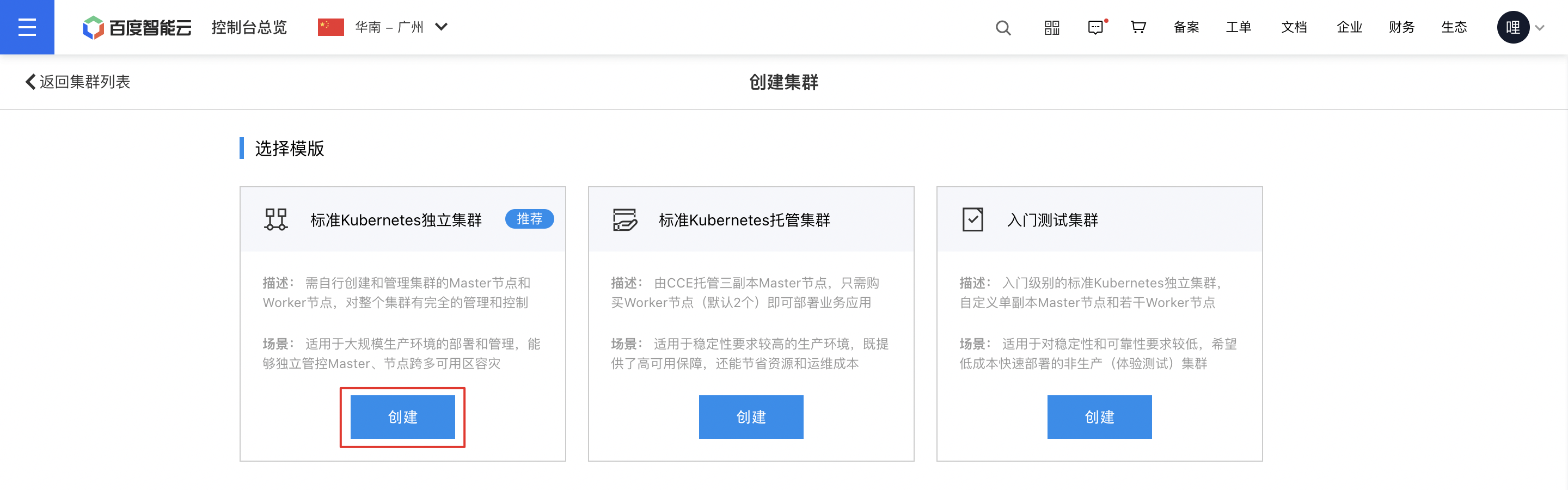
  5. Click Create Cluster to open the Create Cluster interface, where you can configure the cluster settings as required.
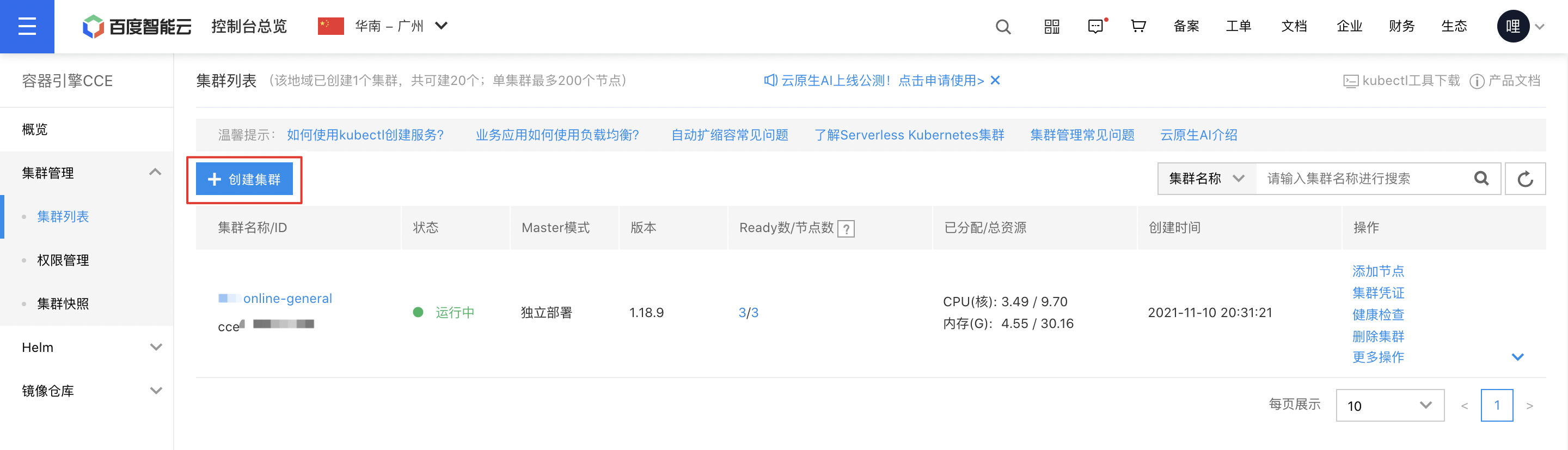
image.png

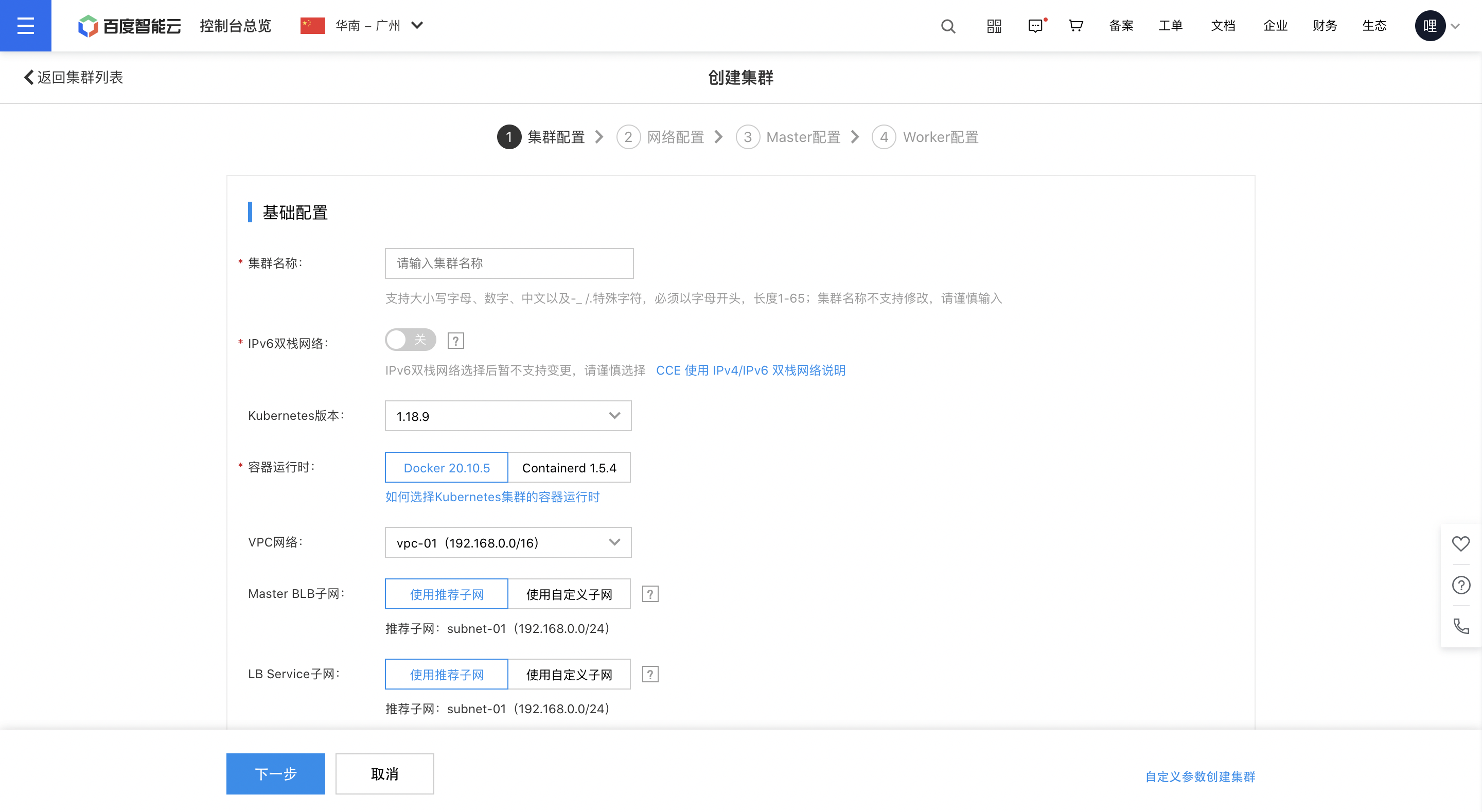
Cluster configuration

image.png image.png

Configuration descriptions:

  • Each region has a default limit of 20 clusters, with each cluster allowing a maximum of 200 nodes. To request an increased limit, you can submit a support ticket.
  • Cluster names cannot be changed after creation. Please choose carefully. Users may customize the cluster name, adhering to the following rules: "Alphabetic characters, numbers, and special symbols like -\_ /. are allowed, starting with a letter, with a total length of 1-64 characters."

Network configuration
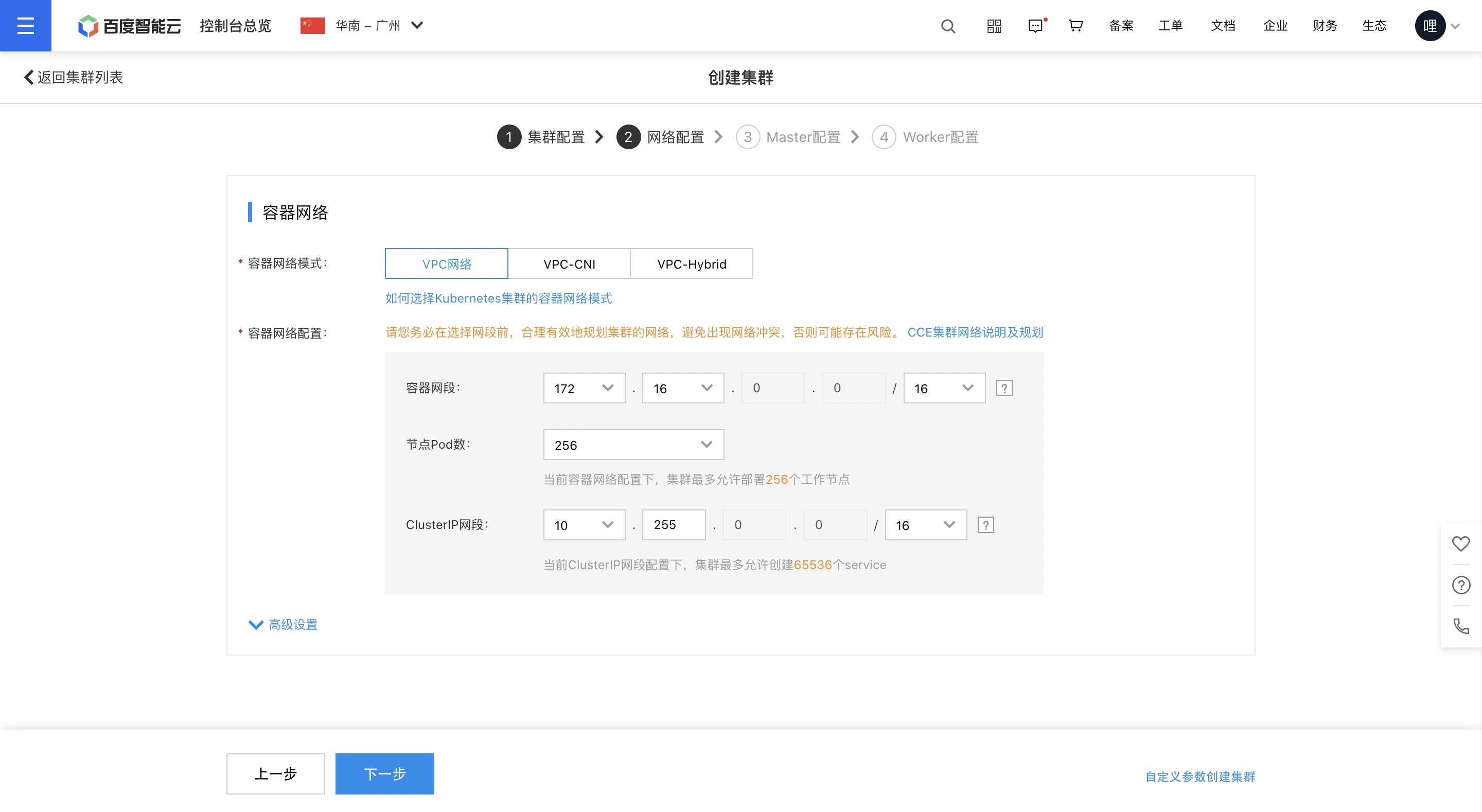
image.png

Node configuration

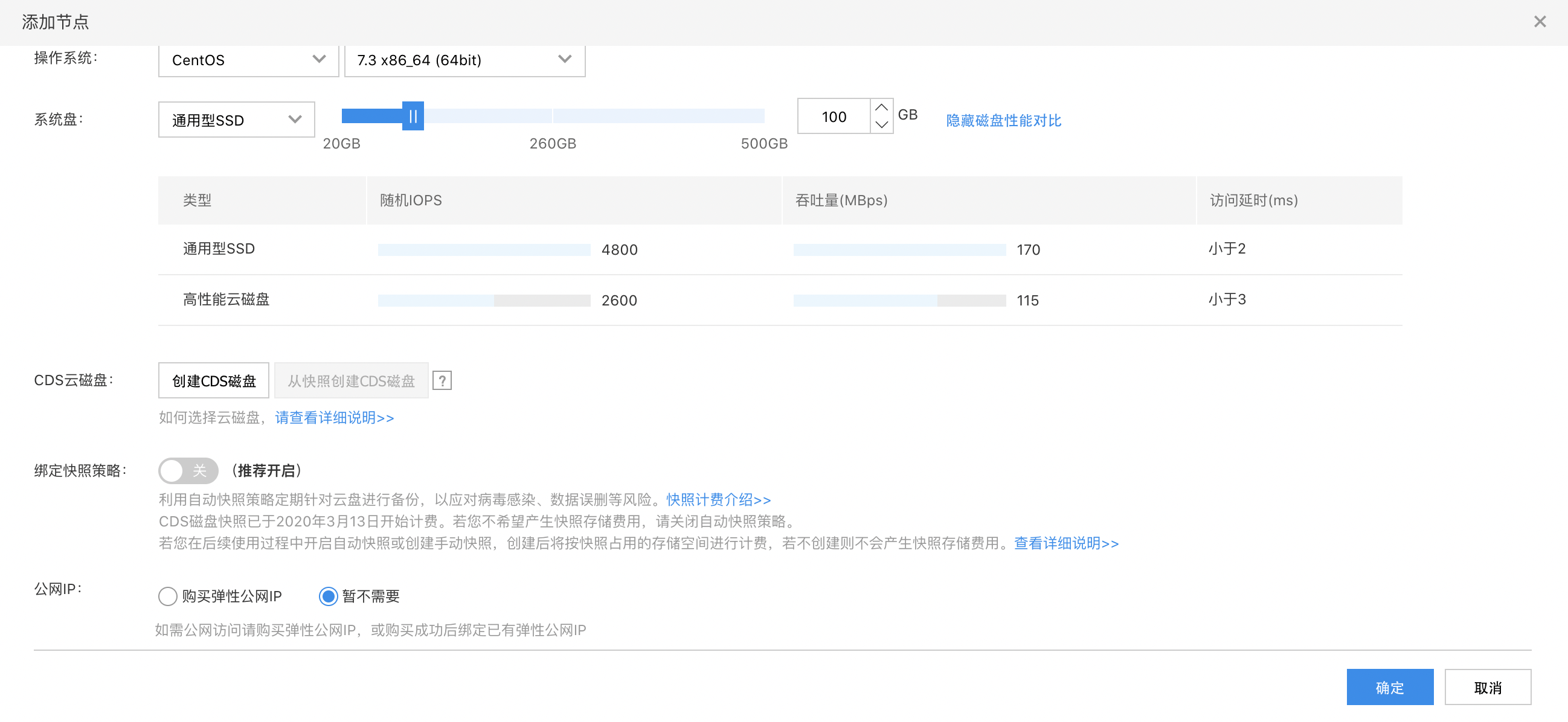
A node represents a single server resource within a cluster, supporting various types such as CPU and GPU. Containers needed for your business applications are distributed across these nodes to establish a highly available environment.
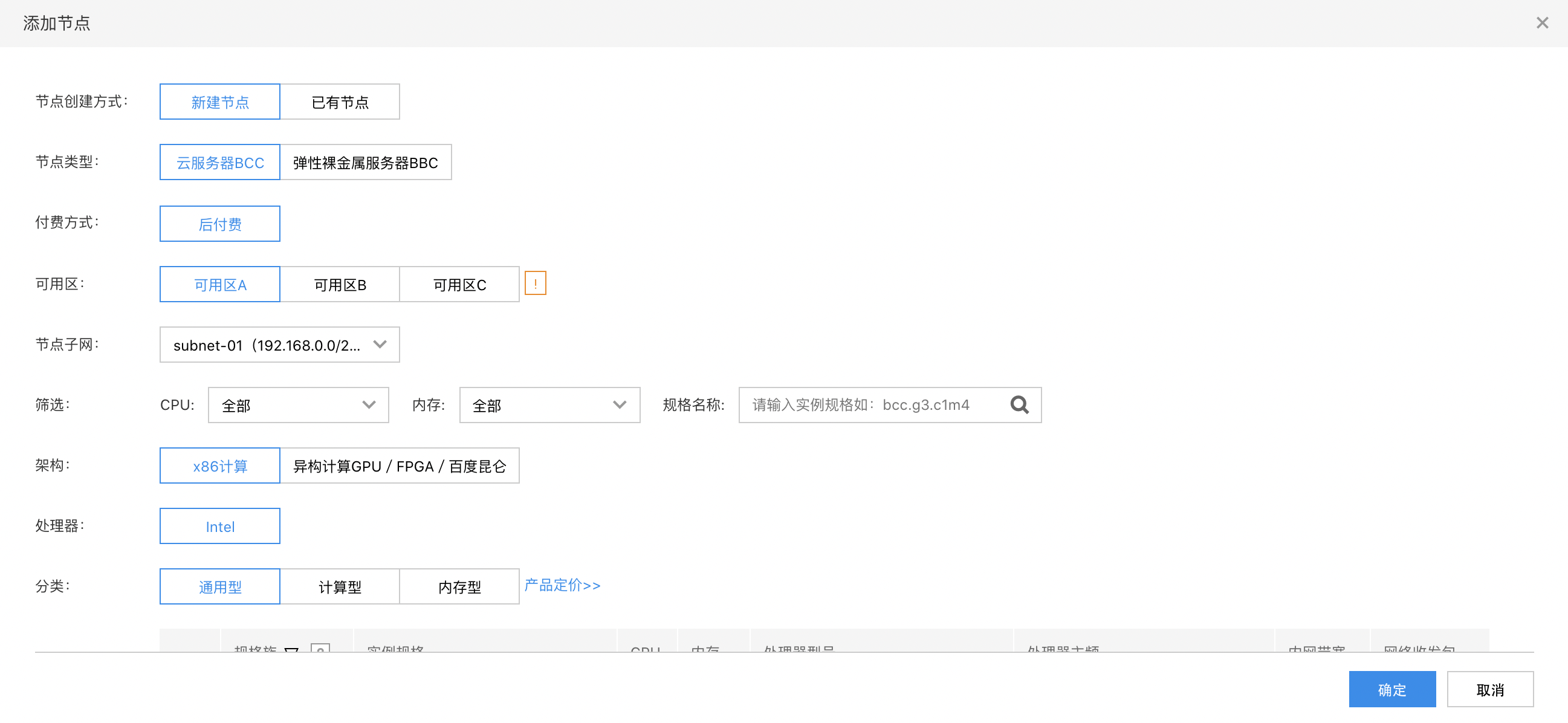
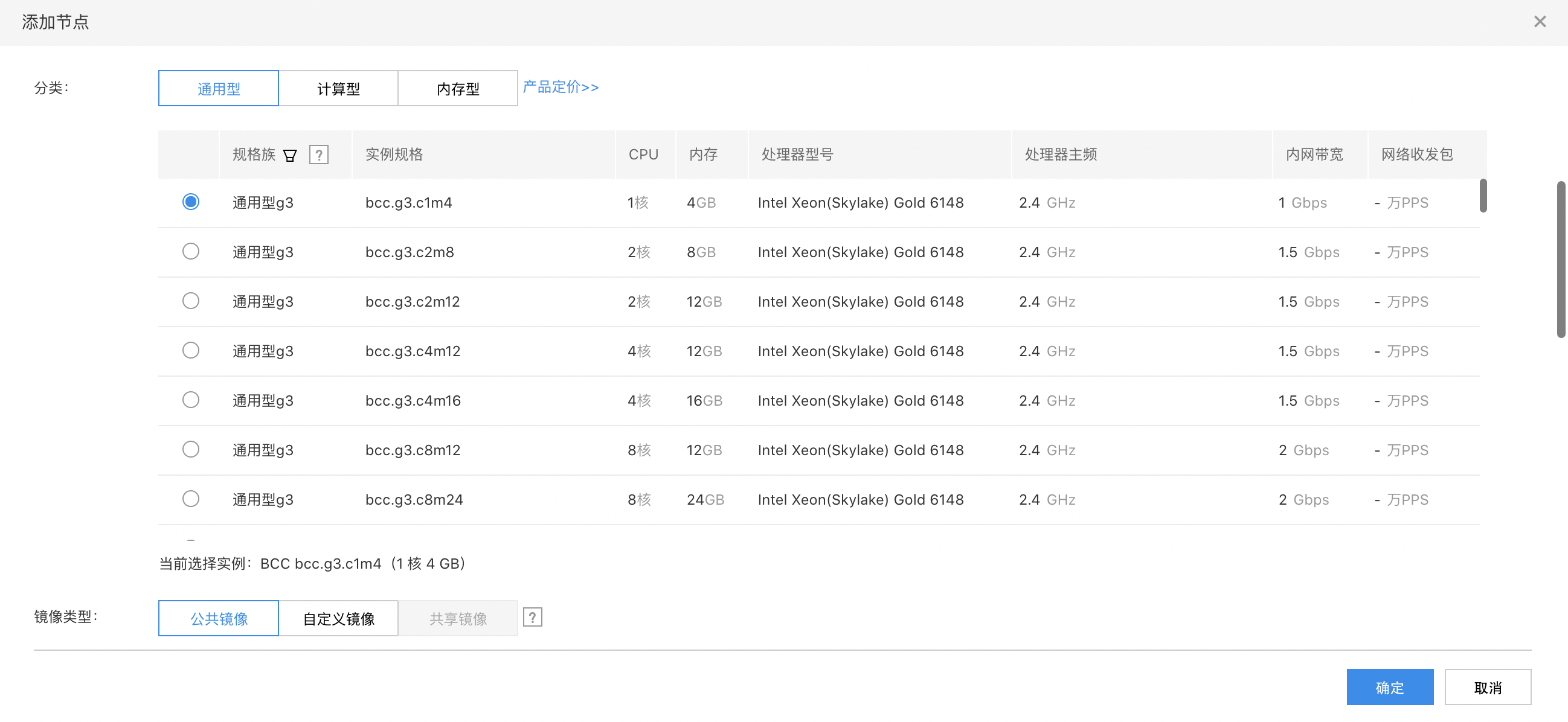
image.png image.png image.png

Configuration descriptions: The OS supports Baidu AI Cloud-configured versions integrated with GPU drivers. If users create GPU custom image in their BCC, the image support GPU customization. Users employing custom image must [manually set integrated GPU drivers](GPU/Operation guide/Use of image.md#Steps for Using Public Images).

  1. After clicking Finish, the system begins creating the cluster in the backend.
  2. Click the Management Console link to access the Cluster List interface. Once the creation is successful, the cluster status will display as "Running."

3. Create CCR image registry

Cloud Container Registry (CCR) provides dedicated docker image storage space, serving as a template for container running. It supports user-built image, DockerHub, and Baidu AI Cloud image for business application creation. For details, please refer to Basic Operations of Container Image Registry

3.1 Enable image registry

The first time you access the image registry, a setup page will appear. Enter a username and set a password as instructed.
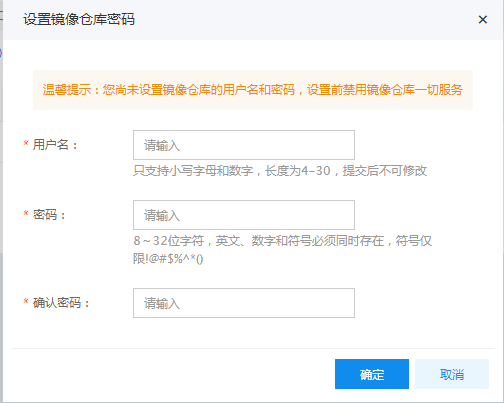
Note:

Username: The naming rule for image registry usernames requires 4-30 lowercase English letters and numbers. Password: This is the credential for users to sign in to the docker image registry.

3.2 Create a namespace.

  1. Within the image registry section, choose a namespace, then click Create Namespace in the namespace list.
  2. Provide the new namespace name, select the namespace type, and click OK to finish creating the namespace.
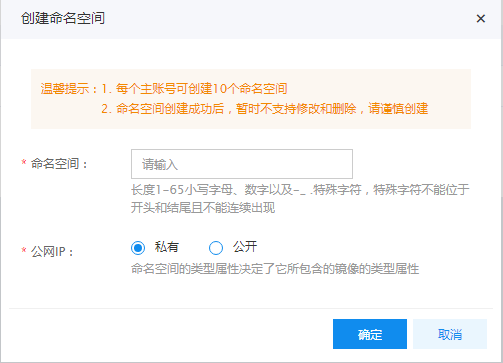
Note:

Namespace naming rules are as follows: Must consist of lowercase letters, numbers, and . \_ -, start and end with lowercase letters or numbers, and have a length of 1-65 characters.

3.3 (Optional) Create new image

  1. On the Image List page, click the Create button.
  2. Select the namespace, enter the image name and version number, then click OK.
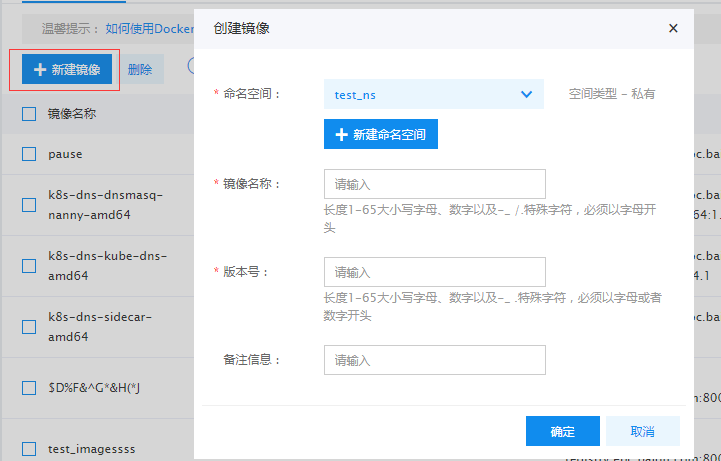
Note:

  1. The naming of image names and version No. must adhere to the following rules: "Composed of lowercase letters, numbers, and . _ -, starting and ending with lowercase letters or numbers and a length of 1-65." Chinese characters are not supported. The combination of namespace, image name, and version No. must not be duplicated.
  2. If the user does not choose to create a new image, the above basic information will also be automatically generated after completing the image push to the corresponding namespace.

3.4 Push the image to the image registry

Sign in to Baidu AI Cloud Image Registry

Plain Text
1    >$ sudo docker login --username=[username] hub.baidubce.com

Username: The image registry name serves as the username entered during the activation of the image registry service. Enter the corresponding password to complete the login.

Upload images

Plain Text
1    $ sudo docker tag [ImageId] hub.baidubce.com/[namespace]/[ImageName]: [Image Version No.]
2 $ sudo docker push hub.baidubce.com/[namespace]/[ImageName]:[Image Version No.]
  • Fill in the ImageId and image version No. based on the image information
  • Namespace refers to the namespace entered when activating the image registry
  • ImageName refers to the image name created in the console

4. Configure kubectl command-line interface

Kubernetes is an open-source container cluster management system by Google, representing the open-source version of large-scale container management technology Borg of Google. As one of CNCF's most critical projects, its main functions include:

  • Container-based application deployment, maintenance, and rolling dilatation
  • Load balancer and service discovery
  • Cross-machine and cross-region cluster scheduling
  • Auto scaling
  • Deployment service and StatefulSet services
  • Extensive volume support
  • Plugin mechanism ensures scalability

At present, the Baidu AI Cloud container service is based on kubernetes v1.8.6. To connect to Baidu AI Cloud Kubernetes Cluster from a local personal computer, use the Kubernetes command-line client kubectl. The installation steps are as follows:

Download the corresponding kubectl client from the Kubernetes Version Download Page. For additional kubectl information, please refer to the official Kubernetes Install and Set up Kubectl Documentation.

Note: Before downloading kubectl, users need to sign in to their server and use the command kubectl version to check the version No. of their created cluster, and then select the corresponding kubectl version to download. For example, if the user's cluster version is 1.8, the kubectl to be downloaded should also be version 1.8.

4.1 Operation steps for Windows environment

  1. After creating a cluster, download the Windows version of the kubectl tool, such as the 64-bit tool as follows:
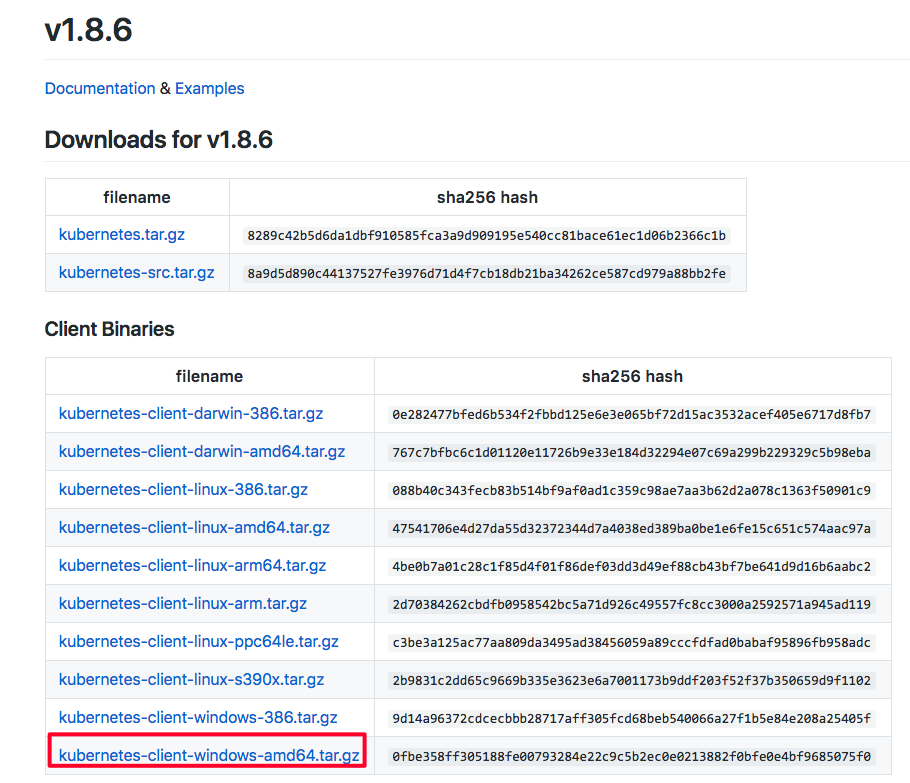
    Note: Before downloading kubectl, users need to sign in to their server and use the command kubectl version to check the version No. of their created cluster, and then select the corresponding kubectl version to download. For example, if the user's cluster version is 1.8, the kubectl to be downloaded should also be version 1.8. The download link is https://github.com/kubernetes/kubernetes/blob/master/CHANGELOG.md?spm=5176.app53755.3.2.2uYdIN&file=CHANGELOG.md#client-binaries-17. Users should download the corresponding version of the tool based on their cluster version.

  2. After downloading, extract it to any directory, such as placing it under the D drive
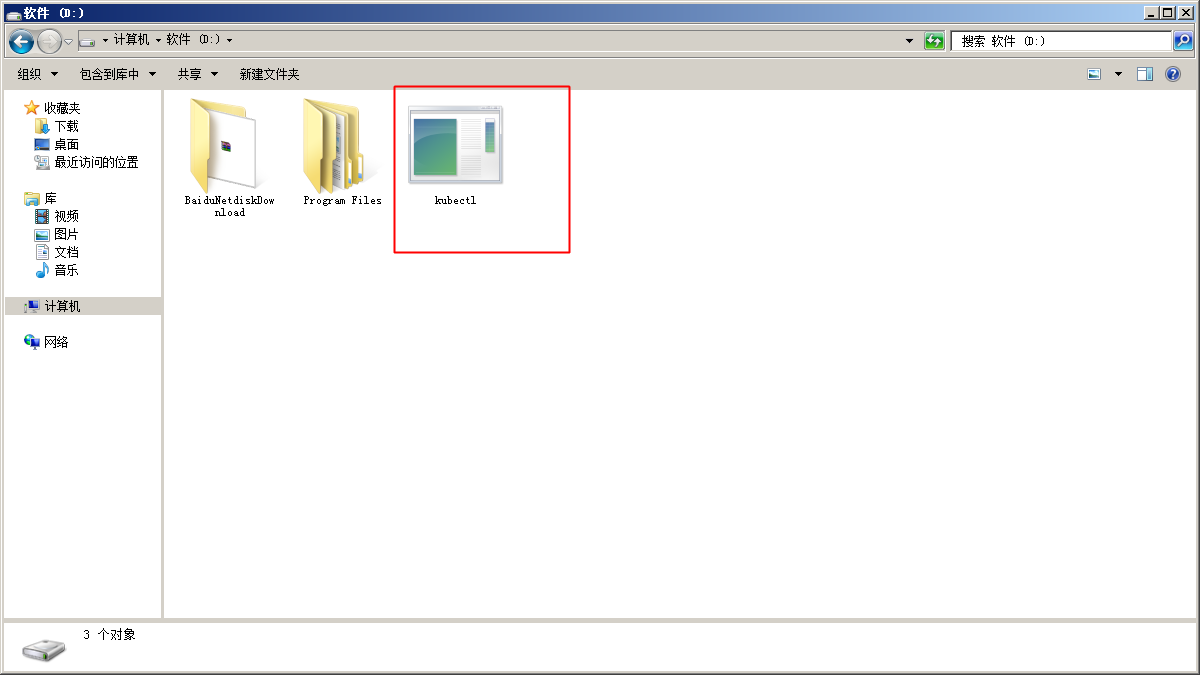
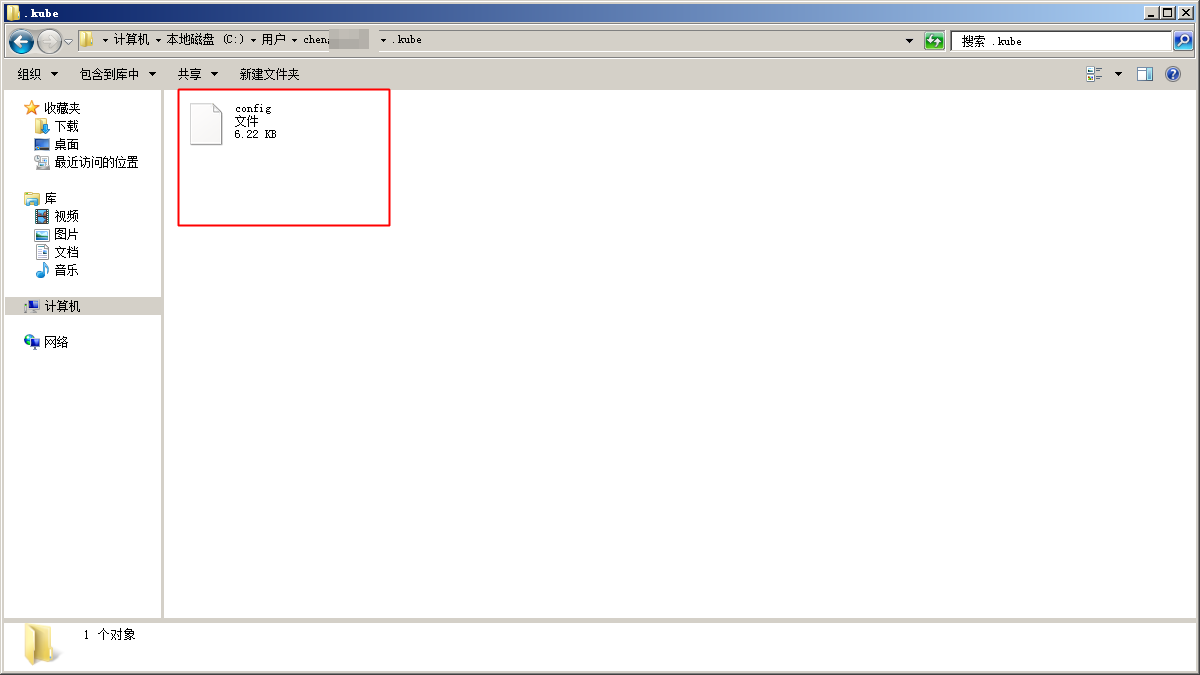
  3. Navigate to the user folder under the directory C:\users\. For example, if the user name is foo, the folder should be C:\users\foo. And then, enter this directory and create the folder .kube

  4. On the cluster list page, download the cluster configuration file, place it in the .kube folder created in the previous step, and rename it to config

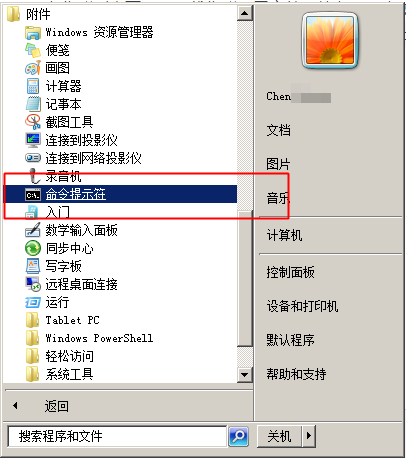
  5. Open the Windows command prompt

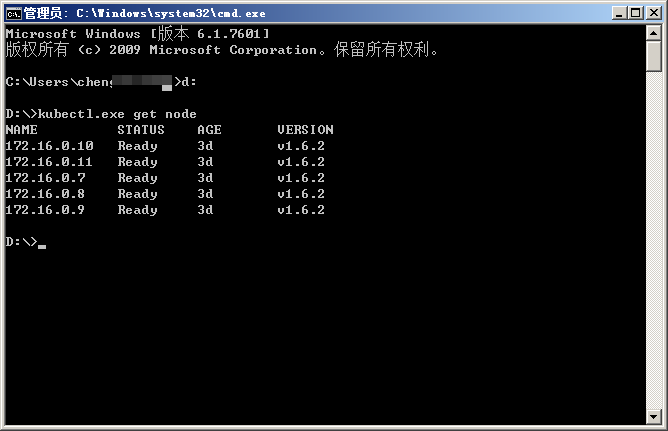
  6. Navigate to the directory containing kubectl files and run kubectl.exe get node to view cluster nodes.

4.2 Operation steps for Linux environment

  1. Extract the downloaded file, grant execution permission to kubectl, and place it under PATH

    chmod +x ./kubectl sudo mv ./kubectl /usr/local/bin/kubectl

  2. Configure kubectl and download cluster credentials. Retrieve the cluster configuration file from the cluster interface and place it in the default configuration path of kubectl.

    mv kubectl.conf ~/.kube/config

  3. After configuration is complete, you can use kubectl to access the Kubernetes cluster from your local computer

    kubectl get node

5. (Optional) Configure Kubernetes-dashboard

The Kubernetes dashboard is a web-based graphical user interface designed to help users deploy, monitor, and manage business applications.

5.1 Prerequisites

Before using the Kubernetes dashboard locally, users must configure kubectl to connect to the Baidu AI Cloud Kubernetes cluster.

Using the kubectl tool, create a dashboard application locally within the Kubernetes cluster. Follow these steps:

5.2 Creating a dashboard service in Windows environment

  1. First, create a dashboard.yaml file in the same directory where kubectl.exe is extracted, for example, using text editor:
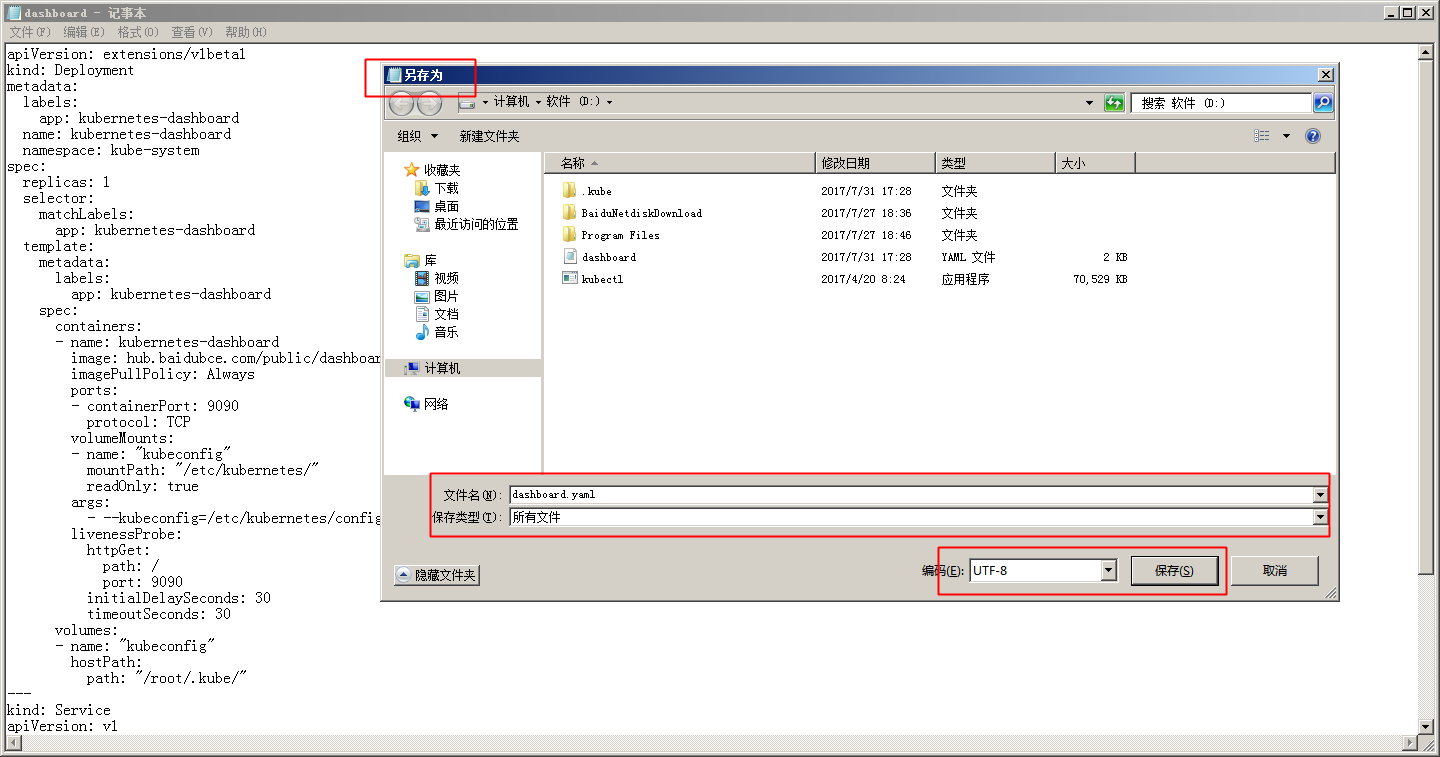
    The corresponding dashboard.yaml file is:

    Plain Text
    1	apiVersion: apps/v1
    2	kind: Deployment
    3	metadata:
    4	  labels:
    5	    app: kubernetes-dashboard
    6	  name: kubernetes-dashboard
    7	  namespace: kube-system
    8	spec:
    9	  replicas: 1
    10	  selector:
    11	    matchLabels:
    12	      app: kubernetes-dashboard
    13	  template:
    14	    metadata:
    15	      labels:
    16	        app: kubernetes-dashboard
    17	    spec:
    18	      containers:
    19	      - name: kubernetes-dashboard
    20	        image: hub.baidubce.com/public/dashboard:v1.5.0-caas
    21	        imagePullPolicy: Always
    22	        ports:
    23	        - containerPort: 9090
    24	          protocol: TCP
    25	        volumeMounts:
    26	        - name: "kubeconfig"
    27	          mountPath: "/etc/kubernetes/"
    28	          readOnly: true
    29	        args:
    30	          - --kubeconfig=/etc/kubernetes/config
    31	        livenessProbe:
    32	          httpGet:
    33	            path: /
    34	            port: 9090
    35	          initialDelaySeconds: 30
    36	          timeoutSeconds: 30
    37	      volumes:
    38	      - name: "kubeconfig"
    39	        hostPath:
    40	          path: "/root/.kube/"
    41	---
    42	kind: Service
    43	apiVersion: v1
    44	metadata:
    45	  labels:
    46	    app: kubernetes-dashboard
    47	  name: kubernetes-dashboard
    48	  namespace: kube-system
    49	spec:
    50	  type: NodePort
    51	  ports:
    52	  - port: 80
    53	    targetPort: 9090
    54	  selector:
    55	    app: kubernetes-dashboard
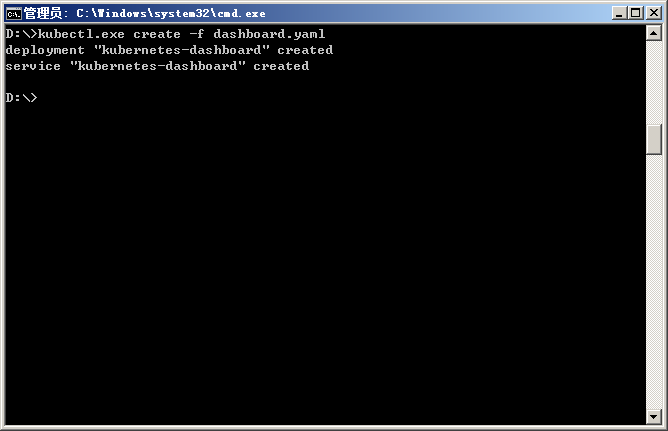
  2. And then enter kubectl.exe create -f dashboard.yaml to create dashboard

  3. Use the kubectl.exe get pod --all-namespaces command to check if the creation is successful
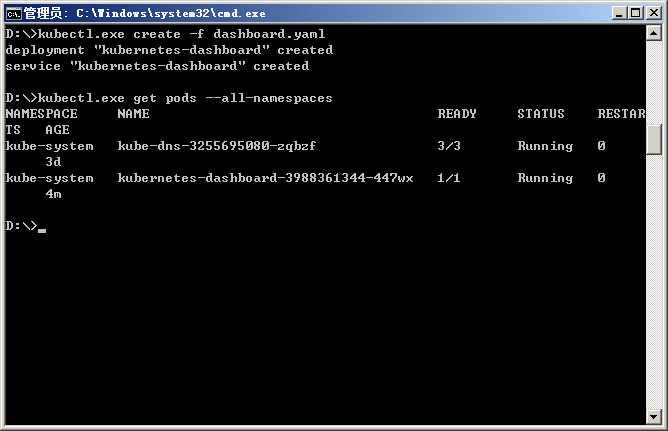
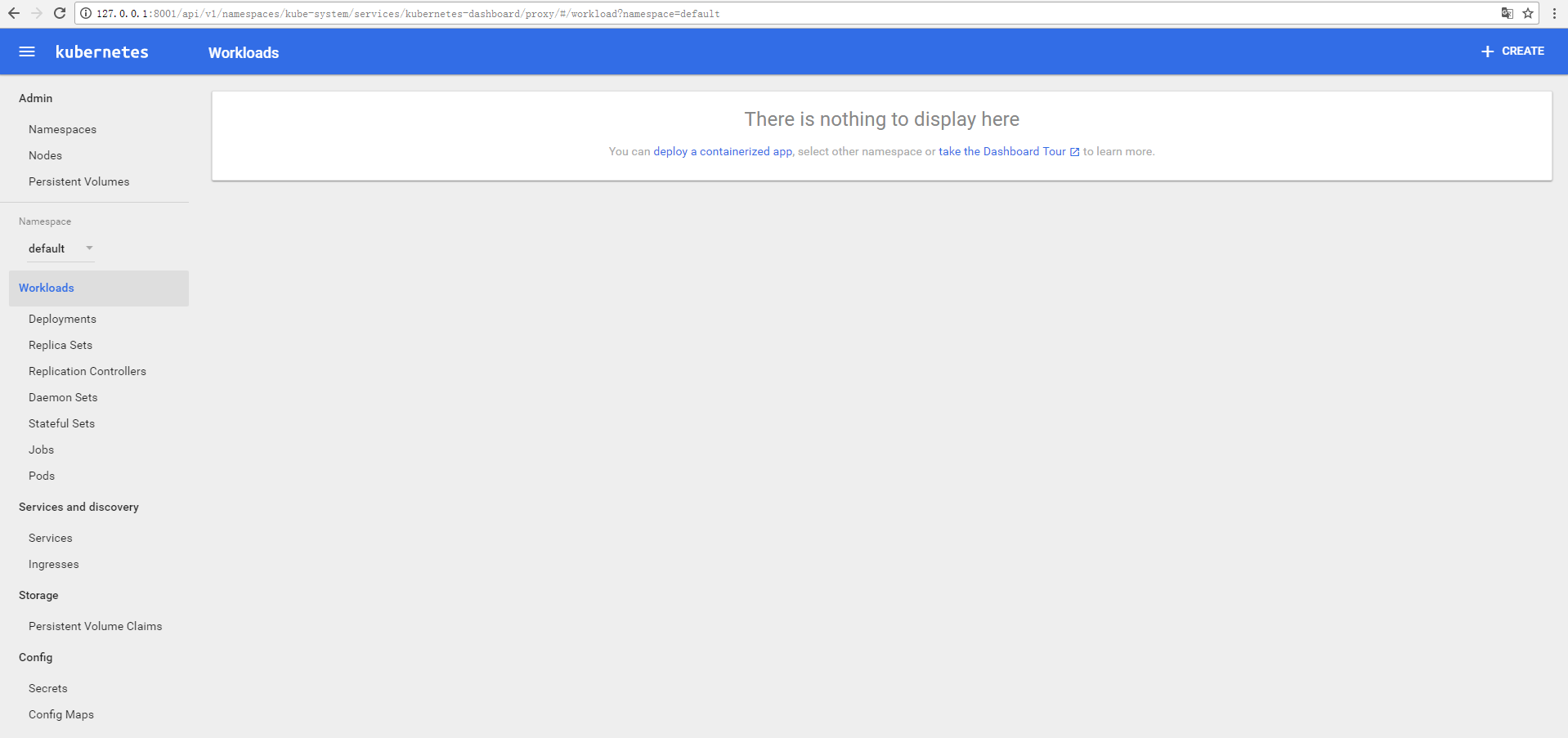
  4. Enter kubectl.exe proxy to open proxy, and then access dashboard via 127.0.0.1:8001/ui in browsers

5.3 Creating a dashboard service in Linux environment

Enter the following commands to complete the creation of the dashboard service

Plain Text
1$ kubectl create -f dashboard.yaml
2deployment "kubernetes-dashboard" created
3service "kubernetes-dashboard" created

The corresponding dashboard.yaml file is:

Plain Text
1	apiVersion: apps/v1
2	kind: Deployment
3	metadata:
4	  labels:
5	    app: kubernetes-dashboard
6	  name: kubernetes-dashboard
7	  namespace: kube-system
8	spec:
9	  replicas: 1
10	  selector:
11	    matchLabels:
12	      app: kubernetes-dashboard
13	  template:
14	    metadata:
15	      labels:
16	        app: kubernetes-dashboard
17	    spec:
18	      containers:
19	      - name: kubernetes-dashboard
20	        image: hub.baidubce.com/public/dashboard:v1.5.0-caas
21	        imagePullPolicy: Always
22	        ports:
23	        - containerPort: 9090
24	          protocol: TCP
25	        volumeMounts:
26	        - name: "kubeconfig"
27	          mountPath: "/etc/kubernetes/"
28	          readOnly: true
29	        args:
30	          - --kubeconfig=/etc/kubernetes/config
31	        livenessProbe:
32	          httpGet:
33	            path: /
34	            port: 9090
35	          initialDelaySeconds: 30
36	          timeoutSeconds: 30
37	      volumes:
38	      - name: "kubeconfig"
39	        hostPath:
40	          path: "/root/.kube/"
41	---
42	kind: Service
43	apiVersion: v1
44	metadata:
45	  labels:
46	    app: kubernetes-dashboard
47	  name: kubernetes-dashboard
48	  namespace: kube-system
49	spec:
50	  type: NodePort
51	  ports:
52	  - port: 80
53	    targetPort: 9090
54	  selector:
55	    app: kubernetes-dashboard

After creating the dashboard, use the kubectl proxy command to start a proxy and establish a connection to the Kubernetes API Server.

Plain Text
1	kubectl proxy

After successfully enabling the proxy, you can access http://localhost:8001/ui in a local browser to connect to the dashboard.

Note:

Localhost refers to the user's local machine (not a virtual machine), with the corresponding IP address of 127.0.0.1
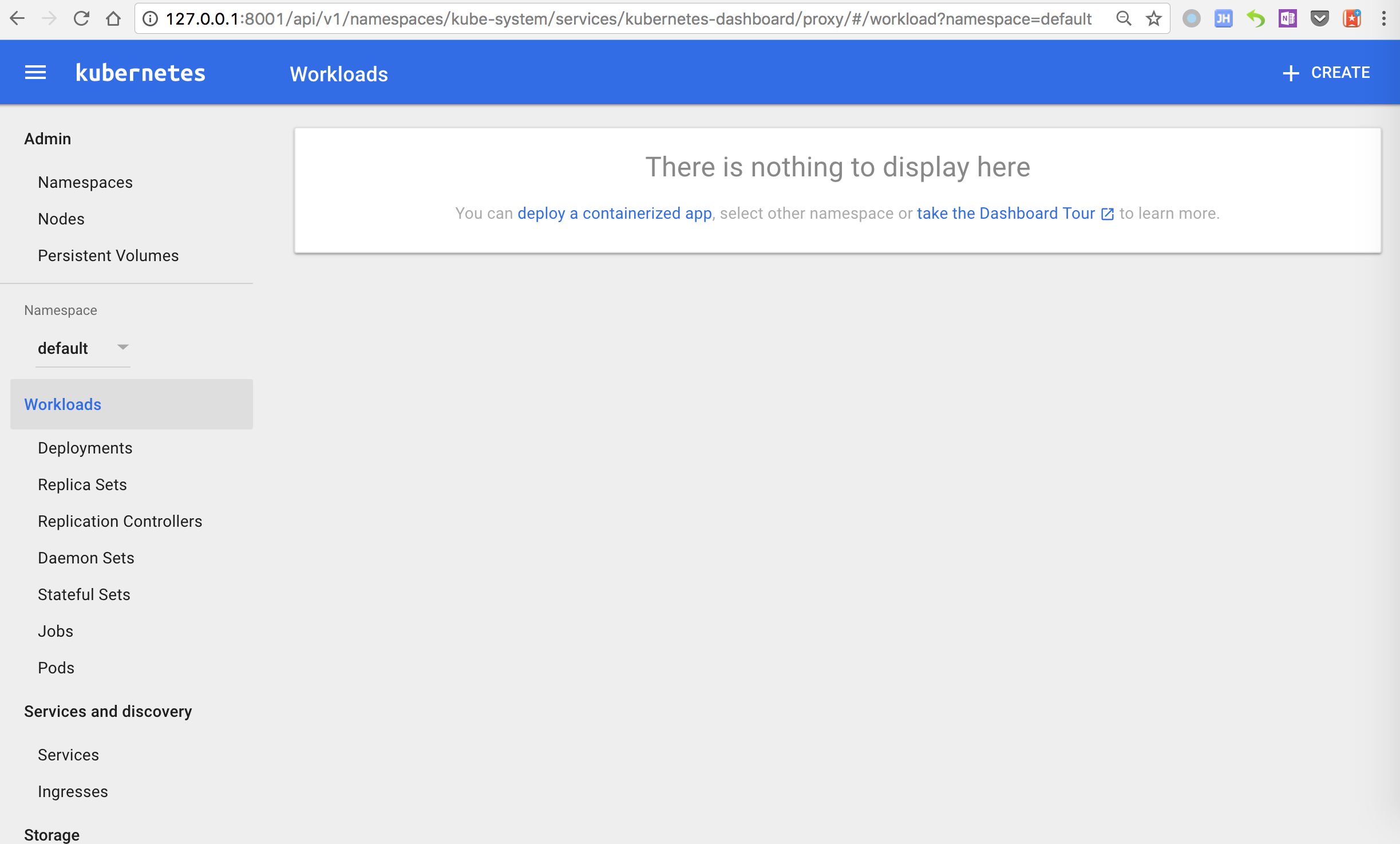
6. Creating GuestBook via Kubernetes-Kubectl

The GuestBook application in this practice consists of two components:

  • Web frontend service.
  • Redis storage system, comprising both redis master and redis slave nodes.

6.1 Create redis master pod

Redis-master: Refers to the redis service used by the frontend web application for handling "write" message operations.

*Note: All YAML files in this operation are saved in the same directory as kubectl.

Execute the following commands on the master node to deploy the redis-master-deployment.yaml file to the Kubernetes cluster, completing the redis-master creation.

Plain Text
1    kubectl apply -f redis-master-deployment.yaml

The corresponding redis-master-deployment.yaml file is:

Plain Text
1	apiVersion: apps/v1
2	kind: Deployment
3	metadata:
4	  name: redis-master
5	spec:
6      selector:
7        matchLabels:
8          app: redis
9          role: master
10          tier: backend
11	  replicas: 1
12	  template:
13	    metadata:
14	      labels:
15	        app: redis
16	        role: master
17	        tier: backend
18	    spec:
19	      containers:
20	      - name: master
21	        image: hub.baidubce.com/public/guestbook-redis-master:e2e  # or just image: redis
22	        resources:
23	          requests:
24	            cpu: 100m
25	            memory: 100Mi
26	        ports:
27	        - containerPort: 6379

After creation, use the following commands to verify if the pod is running:

Plain Text
1kubectl get pods

The response similar to the following information will be returned:

Plain Text
1NAME                            READY     STATUS    RESTARTS   AGE
2redis-master-1068406935-3lswp   1/1       Running   0          28s

When STATUS shows as "Running," it indicates the pod is operating normally.

6.2 Create a redis master service

A service consists of a group of identical containers and includes rules for accessing them. It acts as the deployment unit within a microservice architecture and represents the smallest runnable component of a user's application.

Enter the following commands to create a service associated with the redis-master pod.

Plain Text
1kubectl apply -f redis-master-service.yaml

The corresponding redis-master-service.yaml file is:

Plain Text
1	apiVersion: v1
2	kind: Service
3	metadata:
4	  name: redis-master
5	  labels:
6	    app: redis
7	    role: master
8	    tier: backend
9	spec:
10	  ports:
11	  - port: 6379
12	    targetPort: 6379
13	  selector:
14	    app: redis
15	    role: master
16	    tier: backend

Note: The tarPort attribute specifies the port number that the container application in the pod listens on.

After completion, use the following commands to verify whether the redis master service is running:

Plain Text
1kubectl get service

The response similar to the following information will be returned:

Plain Text
1NAME           CLUSTER-IP   EXTERNAL-IP   PORT(S)    AGE
2kubernetes     10.0.0.1     <none>        443/TCP    1m
3redis-master   10.0.0.151   <none>        6379/TCP   8s

6.3 Create a redis slave pod

Redis-slave: Refers to a Redis service used by the frontend web application for "read" operations, ensuring data synchronization with Redis-master.

Deploy the redis-slave-deployment.yaml file to the Kubernetes cluster to complete the creation of redis-slave.

Plain Text
1	kubectl apply -f redis-slave-deployment.yaml

The corresponding redis-slave-deployment.yaml file is:

Plain Text
1	apiVersion: apps/v1
2	kind: Deployment
3	metadata:
4	  name: redis-slave
5	spec:
6	  selector:
7	    matchLabels:
8	      app: redis
9	      role: slave
10	      tier: backend
11	  replicas: 2
12	  template:
13	    metadata:
14	      labels:
15	        app: redis
16	        role: slave
17	        tier: backend
18	    spec:
19	      containers:
20	      - name: slave
21	        image: hub.baidubce.com/public/guestbook-redis-slave:v1
22	        resources:
23	          requests:
24	            cpu: 100m
25	            memory: 100Mi
26	        env:
27	        - name: GET_HOSTS_FROM
28	          value: dns
29	          # Using `GET_HOSTS_FROM=dns` requires your cluster to
30	          # provide a dns service. As of Kubernetes 1.3, DNS is a built-in
31	          # service launched automatically. However, if the cluster you are using
32	          # does not have a built-in DNS service, you can instead
33	          # instead access an environment variable to find the master
34	          # service's host. To do so, comment out the 'value: dns' line above, and
35	          # uncomment the line below:
36	          # value: env
37	        ports:
38	        - containerPort: 6379

After completing the above steps, execute the following code to query the pods list and verify whether the redis slave pods are running:

Plain Text
1kubectl get pods

The response similar to the following information will be returned:

Plain Text
1NAME                            READY     STATUS              RESTARTS   AGE
2redis-master-1068406935-3lswp   1/1       Running             0          1m
3redis-slave-2005841000-fpvqc    1/1       Running             0          6s
4redis-slave-2005841000-phfv9    1/1       Running             0          6s

6.4 Create a redis slave service

Run the following commands to start two replicas of Redis-slave. Each replica's Redis instance will sync data with Redis-master, forming a Redis cluster with both read and write capabilities.

Plain Text
1kubectl apply -f redis-slave-service.yaml

The corresponding redis-slave-service.yaml file is:

Plain Text
1	apiVersion: v1
2	kind: Service
3	metadata:
4	  name: redis-slave
5	  labels:
6	    app: redis
7	    role: slave
8	    tier: backend
9	spec:
10	  ports:
11	  - port: 6379
12	  selector:
13	    app: redis
14	    role: slave
15	    tier: backend

After completing the above steps, use the following commands to query the service list and verify whether the redis slave service is running:

kubectl get services

The response similar to the following information will be returned:

Plain Text
1NAME           CLUSTER-IP   EXTERNAL-IP   PORT(S)    AGE
2kubernetes     10.0.0.1     <none>        443/TCP    2m
3redis-master   10.0.0.151   <none>        6379/TCP   1m
4redis-slave    10.0.0.223   <none>        6379/TCP   6s

6.5 Create frontend pod

Deploy the frontend-deployment.yaml file to the Kubernetes cluster to complete the creation of redis-slave.

Plain Text
1kubectl apply -f frontend-deployment.yaml

The corresponding frontend-deployment.yaml file is:

Plain Text
1	apiVersion: apps/v1
2	kind: Deployment
3	metadata:
4	  name: frontend
5	spec:
6	  selector:
7	    matchLabels:
8	      app: guestbook
9	      tier: frontend
10	  replicas: 3
11	  template:
12	    metadata:
13	      labels:
14	        app: guestbook
15	        tier: frontend
16	    spec:
17	      containers:
18	      - name: php-redis
19	        image: hub.baidubce.com/public/guestbook-frontend:v4
20	        resources:
21	          requests:
22	            cpu: 100m
23	            memory: 100Mi
24	        env:
25	        - name: GET_HOSTS_FROM
26	          value: dns
27	          # Using `GET_HOSTS_FROM=dns` requires your cluster to
28	          # provide a dns service. As of Kubernetes 1.3, DNS is a built-in
29	          # service launched automatically. However, if the cluster you are using
30	          # does not have a built-in DNS service, you can instead
31	          # instead access an environment variable to find the master
32	          # service's host. To do so, comment out the 'value: dns' line above, and
33	          # uncomment the line below:
34	          # value: env
35	        ports:
36	        - containerPort: 80

After completing the above steps, use the following commands to query the pods list and verify whether the three frontend replicas are running:

Plain Text
1	kubectl get pods -l app=guestbook -l tier=frontend

The response similar to the following information will be returned:

Plain Text
1NAME                        READY     STATUS    RESTARTS   AGE
2frontend-3823415956-dsvc5   1/1       Running   0          54s
3frontend-3823415956-k22zn   1/1       Running   0          54s
4frontend-3823415956-w9gbt   1/1       Running   0          54s

6.6 Create frontend service

The purpose of setting up the frontend service is to use its nodeport to map an internet-facing port for the Redis-master and Redis-slave services in the Kubernetes cluster.

Note: If you use the Baidu Load Balance provided by Baidu AI Cloud, annotate the type: NodePort and cancel the type: LoadBalancer.

Enter the following commands to complete the creation of the frontend service

Plain Text
1	kubectl apply -f frontend-service.yaml

The corresponding frontend-service.yaml file is:

Plain Text
1    apiVersion: v1
2	kind: Service
3	metadata:
4	  name: frontend
5	  labels:
6	    app: guestbook
7	    tier: frontend
8	spec:
9	  # comment or delete the following line if you want to use a LoadBalancer
10	  type: LoadBalancer
11	  # if your cluster supports it, uncomment the following to automatically create
12	  # an external load-balanced IP for the frontend service.
13	  ports:
14	  - port: 80
15	  selector:
16	    app: guestbook
17	    tier: frontend

After completing the above steps, use the following code to query the service list and verify whether the frontend service is running:

Plain Text
1	kubectl get services

The response similar to the following information will be returned:

Plain Text
1	NAME           CLUSTER-IP   EXTERNAL-IP   PORT(S)        AGE
2	frontend       10.0.0.112   <nodes>       80:32372/TCP   6s
3	kubernetes     10.0.0.1     <none>        443/TCP        4m
4	redis-master   10.0.0.151   <none>        6379/TCP       2m
5	redis-slave    10.0.0.223   <none>        6379/TCP       1m

6.7 View frontend service load balancer

Execute the commands below to retrieve the IP address of the frontend service.

Plain Text
1	kubectl get service frontend

The response similar to the following information will be returned:

Plain Text
1    NAME       CLUSTER-IP      EXTERNAL-IP        PORT(S)        AGE
2	frontend   10.0.0.112      180.76.174.157     80:32372/TCP   1m

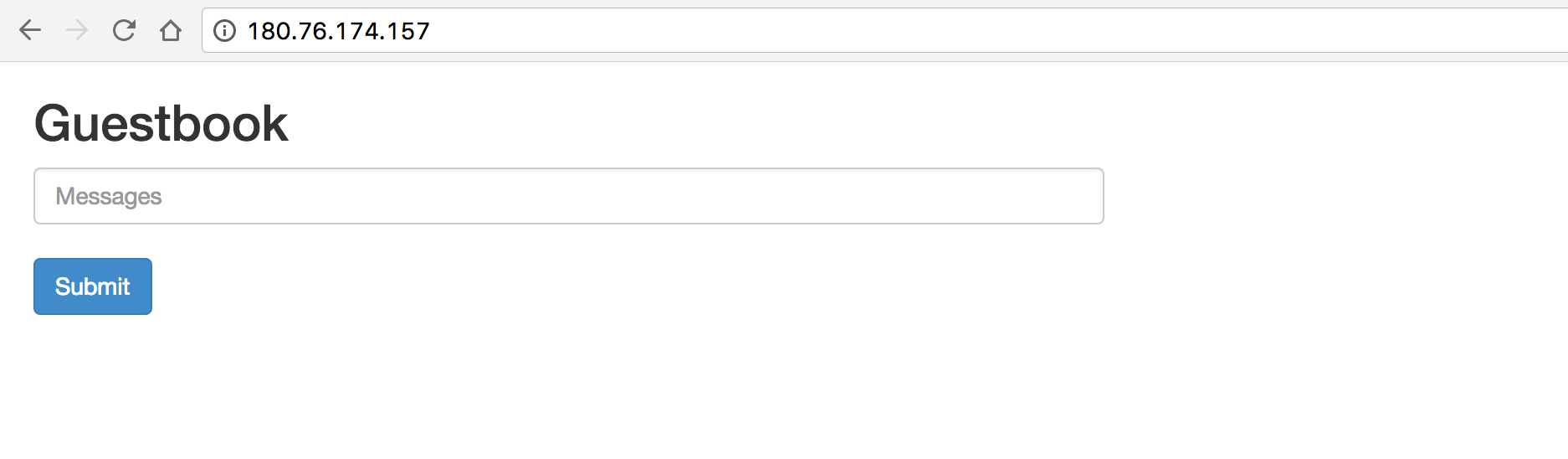
Copy the internet IP address and open it in your browser to access your Guestbook page.
7. Bind domain name to provide service

7.1 Purchase a domain name

If a user already has a registered domain name, proceed directly to the next step of domain name binding. If not, please refer to Domain Name Purchase

7.2 Binding a domain name

  1. Sign in to the management console and navigate to Domain Name Management
  2. Select the domain name to bind to the frontend service's public IP, and then click Resolution in the operation bar.

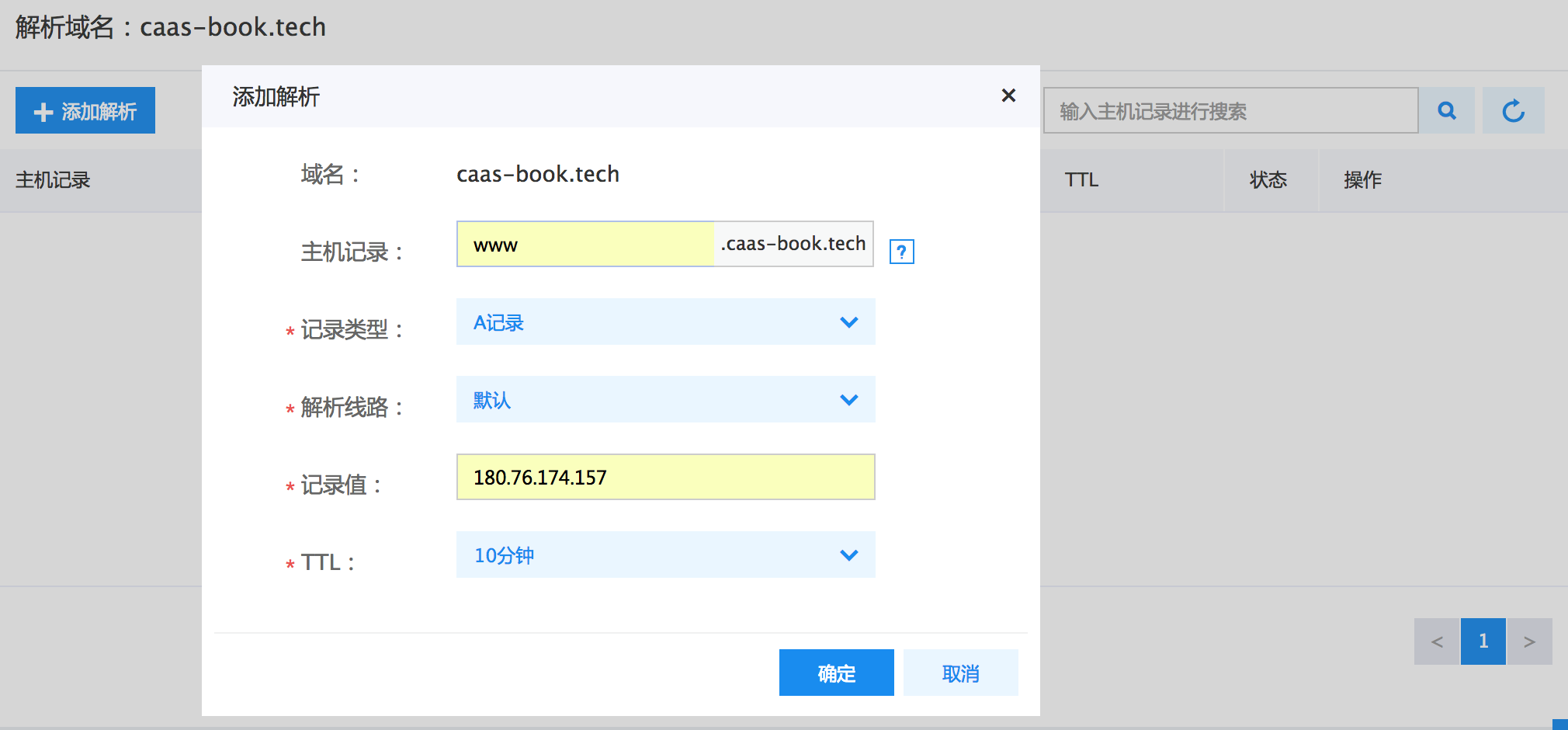
  3. In the pop-up Add Resolution menu, select A records for Record Type, and enter the internet IP of the frontend service in Record Value.
  4. Access the service using the domain name, with the result shown below:

Previous
Continuous Deployment with Jenkins in CCE Cluster
Next
CCE Best Practice-Container Network Mode Selection