

Ascend workload resource
Updated at:2025-10-27
Prerequisites
- The CCE Ascend MindX DL component has been installed
- Accessed monitoring instances
- Collection tasks need to be enabled. For details, refer to the document: Access Monitoring Instance and Enable Collection Tasks
Application method
- Sign in to Cloud Container Engine Console (CCE).
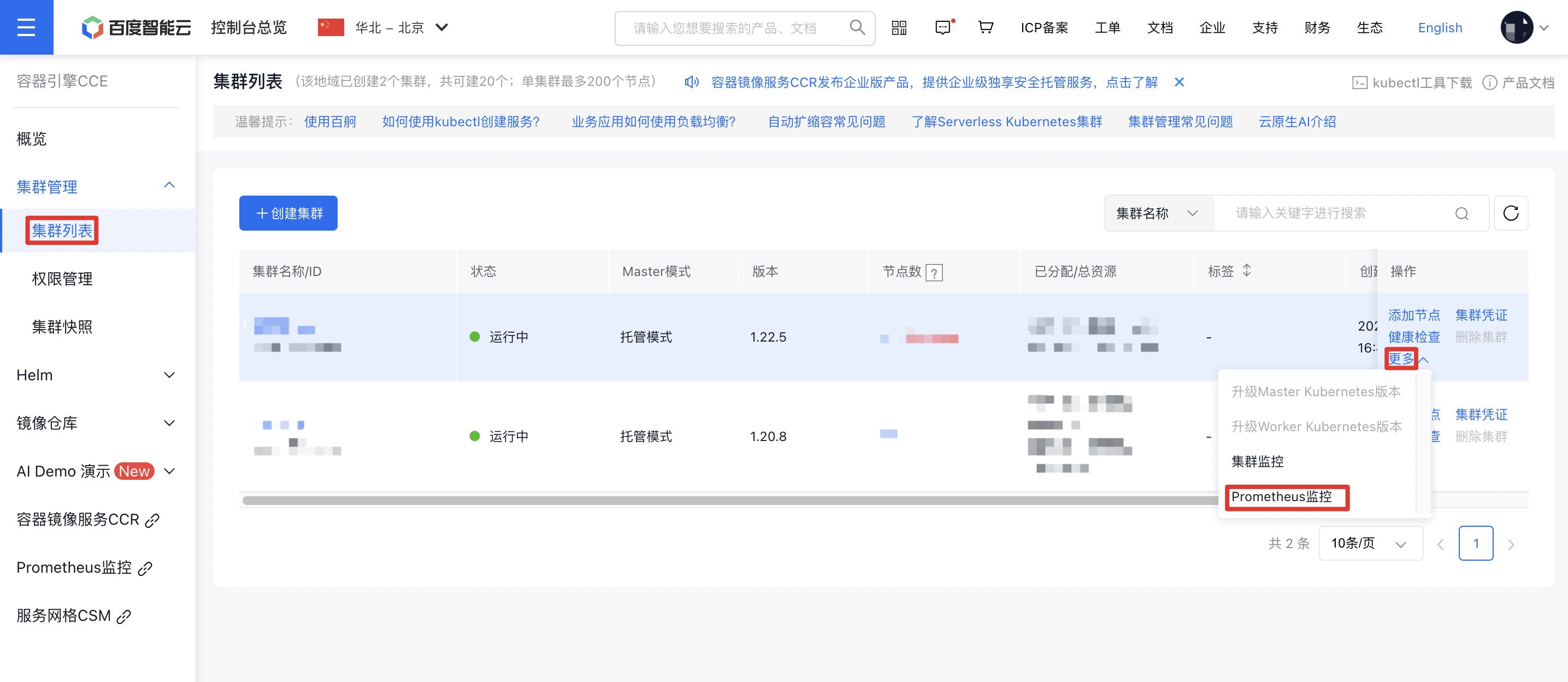
- Click Cluster Management on the left sidebar. In the Cluster List, select the Cluster Name you need. Under Actions - More on the right, click Prometheus Monitoring to navigate to the Prometheus Monitoring Service.
- In the options at the bottom of the Prometheus Monitoring Page, select Cloud-Native AI Monitoring, then select Ascend Workload Resources.
Ascend workload resources are shown as follows
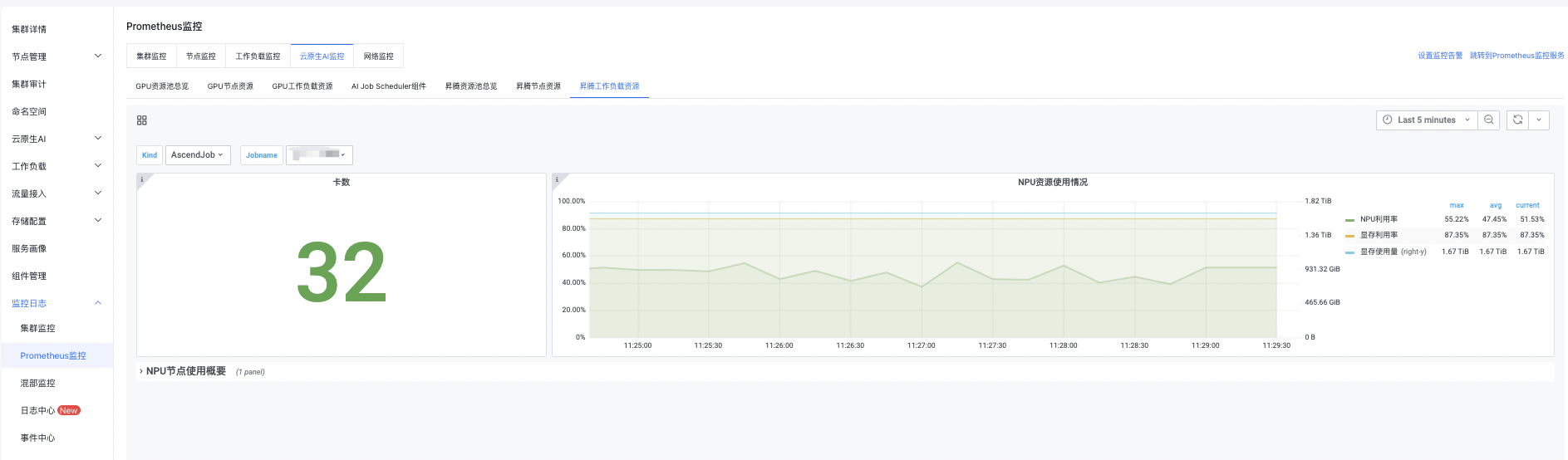
You can click the button in the upper right corner to set monitoring time, manual refresh, and automatic refresh by yourself.
Detailed description of Ascend workload resources
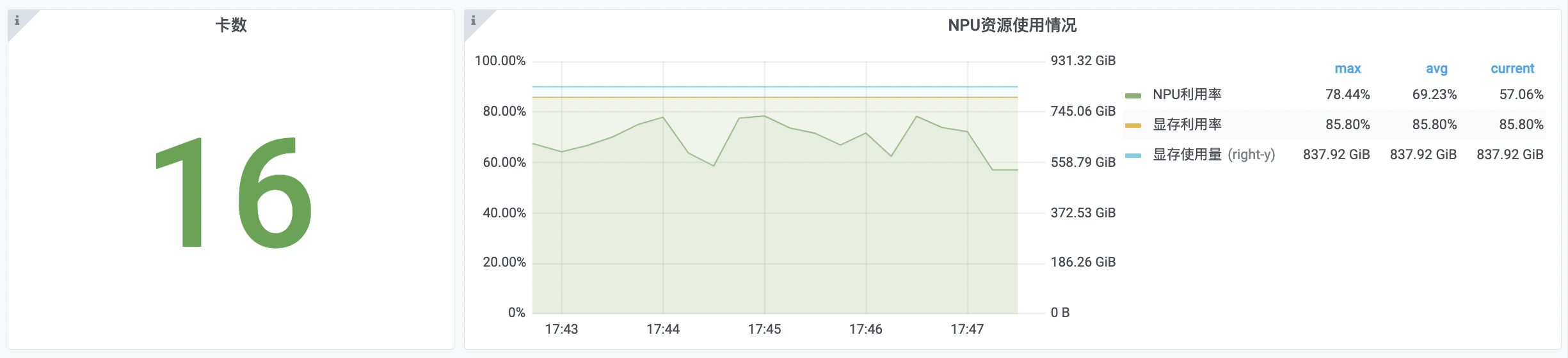
Card count & NPU resource utilization
| Monitoring items | Description |
|---|---|
| GPU card count | Count of NPU cards of the current workload |
| NPU utilization rate | Real-time average utilization of all NPUs of current workload |
| Memory utilization rate | Real-time average utilization of all memory of current workload |
| Memory usage | Real-time memory usage of current workload |
 )
)
NPU node usage summary
| Monitoring items | Description |
|---|---|
| Namespace | Namespace of NPU nodes in current workload |
| Node name | Name of NPU nodes in current workload |
| Pod name | Name of Pod running on NPU nodes in current workload |
| Allocated NPU cards | NPU cards allocated to NPU nodes in the current workload |
| Average NPU utilization rate | Average NPU utilization rate of NPU nodes in current workload |
| Memory usage | Memory usage of NPU nodes in current workload |
| Average memory utilization rate | Average memory utilization rate of NPU nodes in current workload |
