

Configure IAM Tag Permission Policy
After associating cloud resource tags with the K8S cluster CCE, you can use these tags to allocate and manage access permissions for cluster resources. This document explains how to control IAM users’ permissions through tags, giving them specific access to various K8S cluster CCEs.
Background
Tags are a way to categorize cloud resources for better management. IAM can manage user identities and control access permissions for cloud resources based on policies. By combining tags with IAM and using tags as conditions in permission policies, you can achieve more precise permission management for cloud resources.
Operation steps
This step involves using the Baidu AI Cloud root account to create a custom permission policy, UseTagAccessPolicy (which restricts IAM users to accessing only K8S cluster CCEs with the specified tag test: cce), and then granting this custom permission policy (UseTagAccessPolicy) to the IAM user.
- Navigate to the Identity and Access Management console.
- Click Policy Management in the left navigation bar to enter the Permission Policy List page.
-
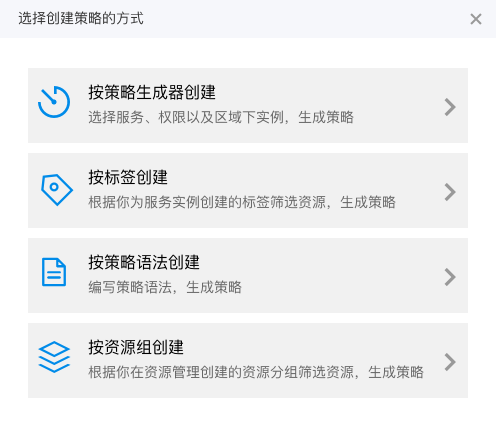
Click Create Policy, and then select Create by Tag in the system pop-up box to enter the Create Permission Policy by Tag page.
-
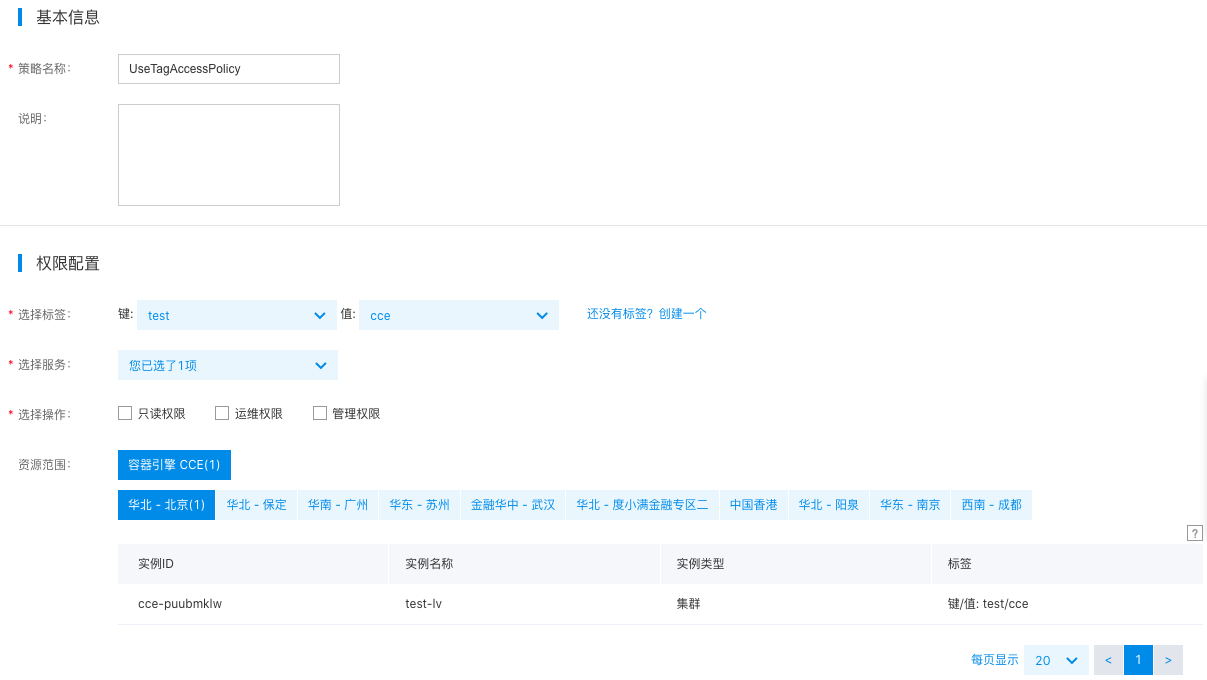
Complete relevant configurations on the Create Permission Policy by Tag page:
| ConfigMap | Required/Optional | Configuration |
|---|---|---|
| Policy name | Required | Custom policy name: Enter "UseTagAccessPolicy" here. |
| Select tag | Required | Select the tag bound to the target resource; select test: cce here. |
| Select service | Required | Select the cloud service that corresponds to the target resource. Choose "Cloud Container Engine (CCE)" here, and the system will automatically filter all associated K8S cluster CCEs based on the selected tag. |
| Select operation | Required | Specify the IAM user permissions to operate on the target resources. Choose "Read-only Permission" here. Multiple permissions, such as "Operation and Maintenance Permission" and "Management Permission," can also be selected. |
1>**Description**
2>
3>* Read-only permission: Have read-only permission for all clusters associated with the selected tag.
4>* Operation and maintenance permission: Have full read-write permissions for all clusters associated with the selected tag but be unable to delete the cluster
5>* Management permission: Have full read-write permissions for all clusters associated with the selected tag and be able to delete the cluster
6>- Click the OK button to complete the creation. You can view the created policy on the Permission Policy List page.
- Grant the custom permission policy to the target IAM user. For specific steps, refer to IAM User Authorization.