Secret
Secret
Operate secrets
-
Navigate to Product Services > Cloud Container Engine (CCE), then click Application Management > Secrets to access the Secrets list page.
View the Secrets list: First select a cluster and namespace, and then the list will display the secrets within that cluster and namespace.
Plain Text1 -
Click Create Secret. You can create a new secret using YAML by selecting the desired cluster and namespace, filling in the YAML file, clicking OK to submit it, and then returning to the Secrets list page.
- Copy: Duplicate the contents of the current YAML file.
- Cancel: Return to the list page.
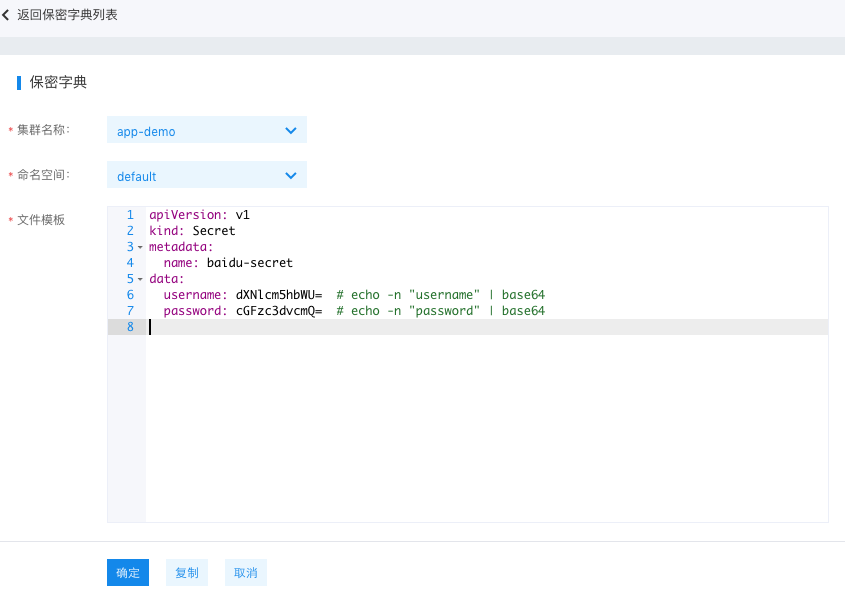
If there is an error in the submission, a pop-up window will display the error message and the request ID. If the error message does not provide enough information for troubleshooting, you can submit a ticket to seek support from the customer service team.
Plain Text1 -
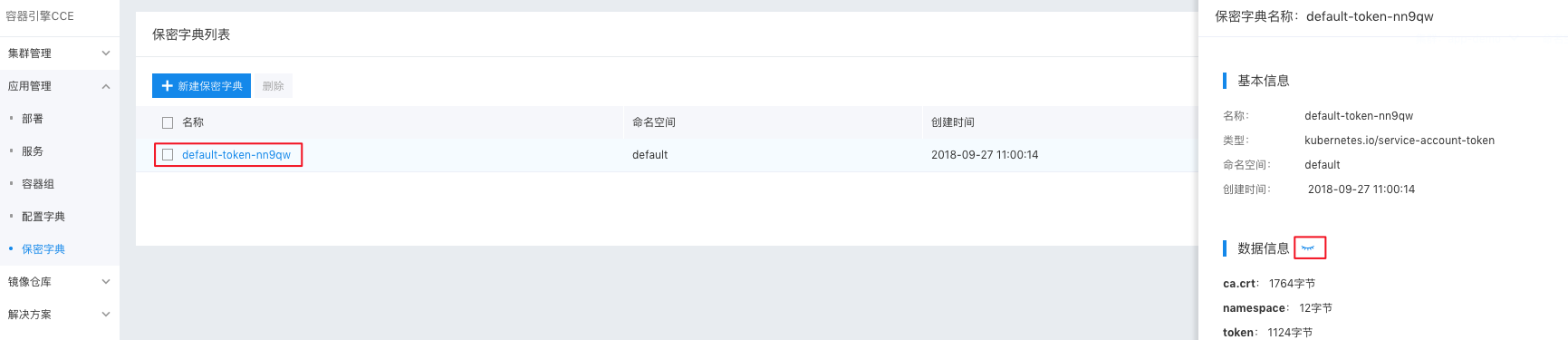
Click any secret name in the list page to open the secret details page in the right sidebar, which includes:
- Basic details: name, namespace, type, creation time, and data information.
- Data details: A "small eye" button is available to toggle between showing or hiding the specifics of the data information.
Relevant operations
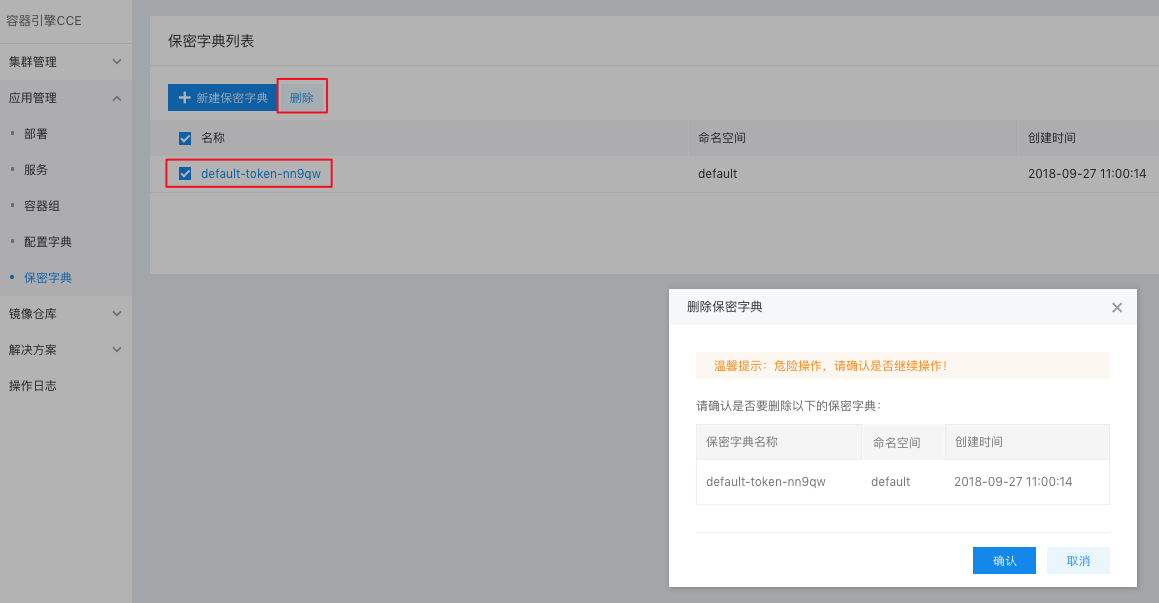
Delete a secret: On the Secrets list page, choose the secret you want to delete, click the Delete button, confirm the information, and then click OK.
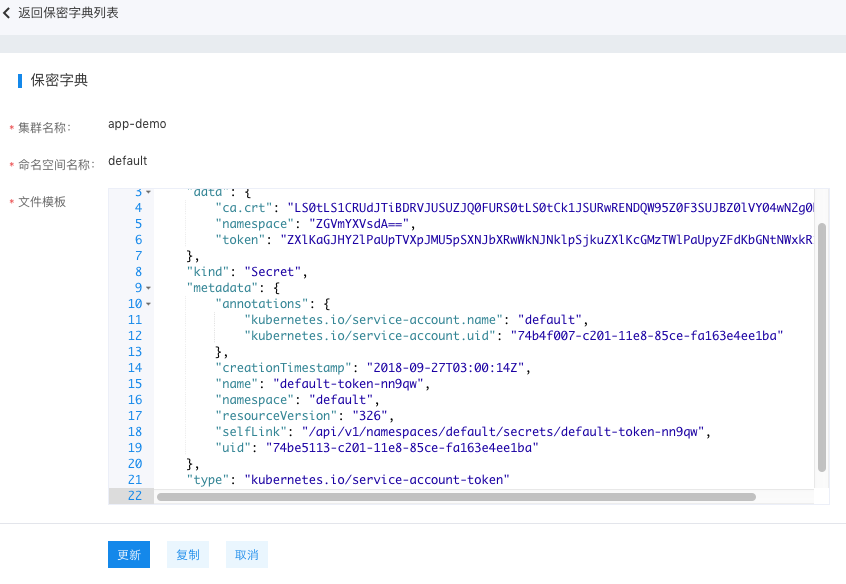
Modify a secret: On the Secrets list page, click the Modify button for the desired secret. After making the changes, click Update to save. Once the update is successful, you will return to the list page.