Add image watermark
Updated at:2025-11-03
Overview
This document explains how to add an image watermark to an image.
Image watermark parameters
Action name: watermark
| Image watermark parameters | Value | Description |
|---|---|---|
| bucket | - | Specify the name of the BOS bucket where the watermark image is stored. This is optional; the default is the current bucket. If using a different bucket, ensure the watermark image in that bucket has public-read permissions. |
| image | - | Specify the object name of the watermark image stored in BOS, which can include preprocessing directives and must be encoded in a URL-secure Base64 format. This parameter is required for an image watermark. |
| t | 1-100 | Set the opacity level of the watermark image. A value of 100 means it will match the original opacity. This parameter is optional, with the default value set to 100. |
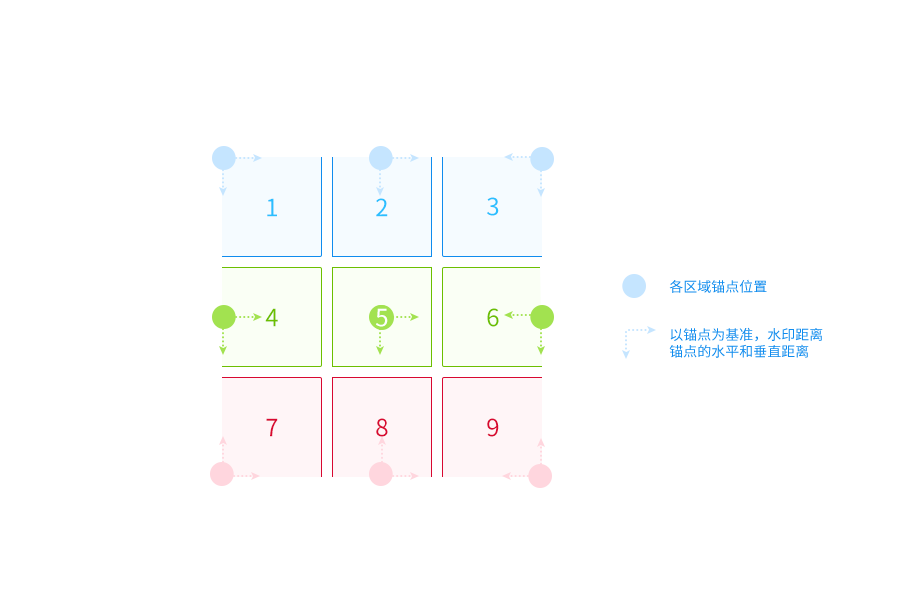
| g | 1-9 | Determine the anchor point position for the watermark. This is optional, and the default value is 9. For detailed descriptions, refer to the section below. |
| x | -4096-4096 | Define the horizontal offset of the watermark relative to the anchor point. This setting is optional, with a default value of 10. |
| y | -4096-4096 | Define the vertical distance of the watermark from its anchor point. This is optional, with a default value of 10. |
| a | -360-360 | Set the watermark's rotation angle. Positive values mean a clockwise rotation, while negative values indicate a counterclockwise rotation. This is optional, with a default value of 0. |
| P | 1-100 | Define the scale ratio for resizing the watermark. This is optional, with a default value of 20. |
Description:
- Currently, both image and text watermarks cannot be specified in a single operation. You can only define one type (either an image or a text watermark) at a time. If both are needed, use separate operations to implement them.
- Anchor position description: Divide your original image into 9 regions as shown in the figure below, and number them according to the positions shown in the diagram. The anchor points of each region are shown in the figure:
Watermark encoding
For adding watermarks, parameters such as text content, text font, and the watermark image name must be encoded in URL-safe Base64 format. Encoding steps are as follows:
- Convert the content into Base64 format and then modify some characters in the result.
- Replace all plus signs (+) in the result with hyphens (-).
- Replace all forward slashes (/) in the result with underscores (_).
Example
- Add image watermark

- Set the ratio of the watermark image
- https://doc.bce.baidu.com/bce-documentation/BOS/image.jpg?x-bce-process=image/watermark,image_YmNlLWRvY3VtZW50YXRpb24vQk9TL2JjZS5qcGc=,P_15,g_3

- Preprocess the watermark image
- The image value is
bce-documentation/BOS/bce.jpg?x-bce-process=image/resize,w_50/rotate,a_90, which needs to be processed with url-secure Base64 encoding. - https://doc.bce.baidu.com/bce-documentation/BOS/image.jpg?x-bce-process=image/watermark,image_YmNlLWRvY3VtZW50YXRpb24vQk9TL2JjZS5qcGc_eC1iY2UtcHJvY2Vzcz1pbWFnZS9yZXNpemUsd181MC9yb3RhdGUsYV85MA==

- Image grid layout
- Support stitching up to nine images
- https://doc.bce.baidu.com/bce-documentation/BOS/white-600x600.png?x-bce-process=image/watermark,image_YmNlLWRvY3VtZW50YXRpb24vQk9TL2ltYWdlLmpwZz94LWJjZS1wcm9jZXNzPWltYWdlL3Jlc2l6ZSxtX2ZpbGwsd18yMDAsaF8yMDAsYWxpZ25fMzA=,w_200,x_0,y_0,g_1/watermark,image_YmNlLWRvY3VtZW50YXRpb24vQk9TL2ltYWdlLmpwZz94LWJjZS1wcm9jZXNzPWltYWdlL3Jlc2l6ZSxtX2ZpbGwsd18yMDAsaF8yMDAsYWxpZ25fMzA=,w_200,x_0,y_0,g_3/watermark,image_YmNlLWRvY3VtZW50YXRpb24vQk9TL2ltYWdlLmpwZz94LWJjZS1wcm9jZXNzPWltYWdlL3Jlc2l6ZSxtX2ZpbGwsd18yMDAsaF8yMDAsYWxpZ25fMzA=,w_200,x_0,y_0,g_5/watermark,image_YmNlLWRvY3VtZW50YXRpb24vQk9TL2ltYWdlLmpwZz94LWJjZS1wcm9jZXNzPWltYWdlL3Jlc2l6ZSxtX2ZpbGwsd18yMDAsaF8yMDAsYWxpZ25fMzA=,w_200,x_0,y_0,g_7/watermark,image_YmNlLWRvY3VtZW50YXRpb24vQk9TL2ltYWdlLmpwZz94LWJjZS1wcm9jZXNzPWltYWdlL3Jlc2l6ZSxtX2ZpbGwsd18yMDAsaF8yMDAsYWxpZ25fMzA=,w_200,x_0,y_0,g_9