

Batch processing
Overview
The batch processing feature allows you to carry out specific operations on a list of objects in a BOS bucket. Start by specifying the list of objects to be processed. After configuring the batch processing task, BOS will carry out the task based on the list provided.
Description: Currently, batch processing is only supported for files in buckets in the North China (Beijing), East China (Suzhou), and South China (Guangzhou) regions.
Batch processing task types
Currently supported batch processing task types include batch data replication and batch restoration of archived files.
- Batch data replication: Copies some or all objects from a specified source bucket to a designated directory in a target bucket. It supports choosing new storage classes, object metadata, permissions, and other configuration options for the replicated objects. If the source and target buckets are located in different regions, cross-region egress traffic fees will apply.
- Batch restore of archived files: Set up a batch restore task to bring archived files back online. Once restored, a temporary replica file of the standard storage class is automatically generated, accessible normally during its validity period without restoration restrictions.
Create a batch processing task
Preparation
Preparing inventory files: Supported inventory file formats currently include BOS inventory reports and CSV files.
- BOS inventory report: Based on the user’s inventory task configuration, BOS can regularly scan specified objects in the user’s bucket and generate an inventory report, which is stored as a CSV file in the user-specified bucket. For methods to set up the inventory, see Set Storage Inventory.
-
CSV file
- Create a CSV-formatted inventory list of objects to be processed. This list specifies and records all objects to inform BOS of the files for processing. Custom CSV files should be formatted with two columns per line and can be arranged in the order of bucket name followed by file name (key value), as shown in the example below:

12. Upload the custom CSV file into the bucket. Create batch processing tasks on the console
- Sign in to the Baidu AI Cloud Object Storage (BOS) Management Console.
- In the left global navigation bar of the console, select the Data Cube-Batch Processing entry to access the batch task management page.
- Click Create Task to initiate the creation of a batch processing task.

- Configuration items are described as follows:
| Module | Parameters | Description |
|---|---|---|
| Inventory file configuration | Inventory format | BOS inventory report |
| CSV file | ||
| Inventory bucket | Bucket where the inventory file is located | |
| Path of inventory file | Specific path of the inventory file. If the inventory format you selected is:
| |
| Task configuration | Task type | Batch data replication |
| Restore archive storage class files in batches | ||
| Task priority | Task priority is used to identify the processing priority of current batch processing tasks compared with others, with higher values indicating higher priority. Priority value range: 0 - 2147483647. | |
| Task description | Provide a description for this task (up to 100 characters). Descriptions can include Chinese, English, numbers, and special characters. | |
| Generate configuration | Task report scope | Complete operation records |
| Only record failed operations | ||
| Report delivery bucket. | The bucket designated for storing reports. | |
| Report delivery prefix | The directory prefix for report names. |
The parameter configuration for different task types are described as follows:
| Task type | Parameters | Description |
|---|---|---|
| Batch data replication | Target bucket | The bucket where the replicated data is stored. |
| Prefix operations | You can choose the root directory or set a prefix. Add, replace, or remove prefixes or directory prefixes for replicated files. | |
| Object metadata | Set metadata for the replicated object, and you can replicate all metadata or replace all metadata:
|
|
| Server-side encryption | Not encrypted | |
| BOS managed keys | ||
| Access permissions | Consistent with bucket | |
| Set it to public read | ||
| Set it to private | ||
| Restore archive storage class files in batches | Replica validity period | Replicas will be automatically expired and deleted after a specified number of days, with a range of 7-30 days. |
| Restore mode | Currently supports standard restoration. | |
- After confirmation, click OK to successfully create the batch processing task.
- After creation, you can view the task status, progress, and details in the batch processing task list. When the task status is in ready or in progress, you can Cancel Task. When the task status is in Waiting for Start, Canceling, Canceled, Completed, or Task Failed, you can Delete Task.
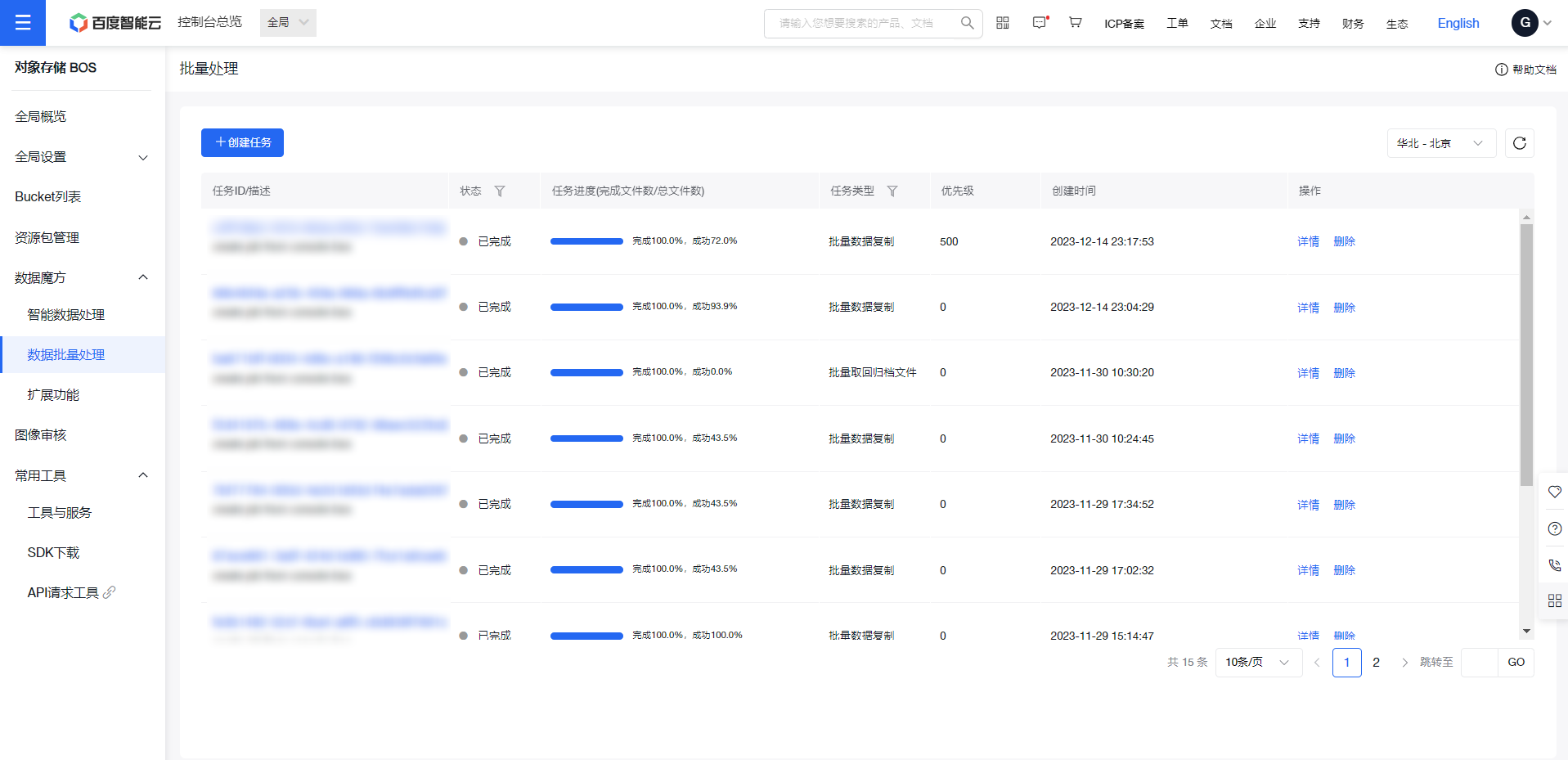
- Batch processing tasks in the task list are retained for 90 days after completion and will be automatically deleted when they expire.