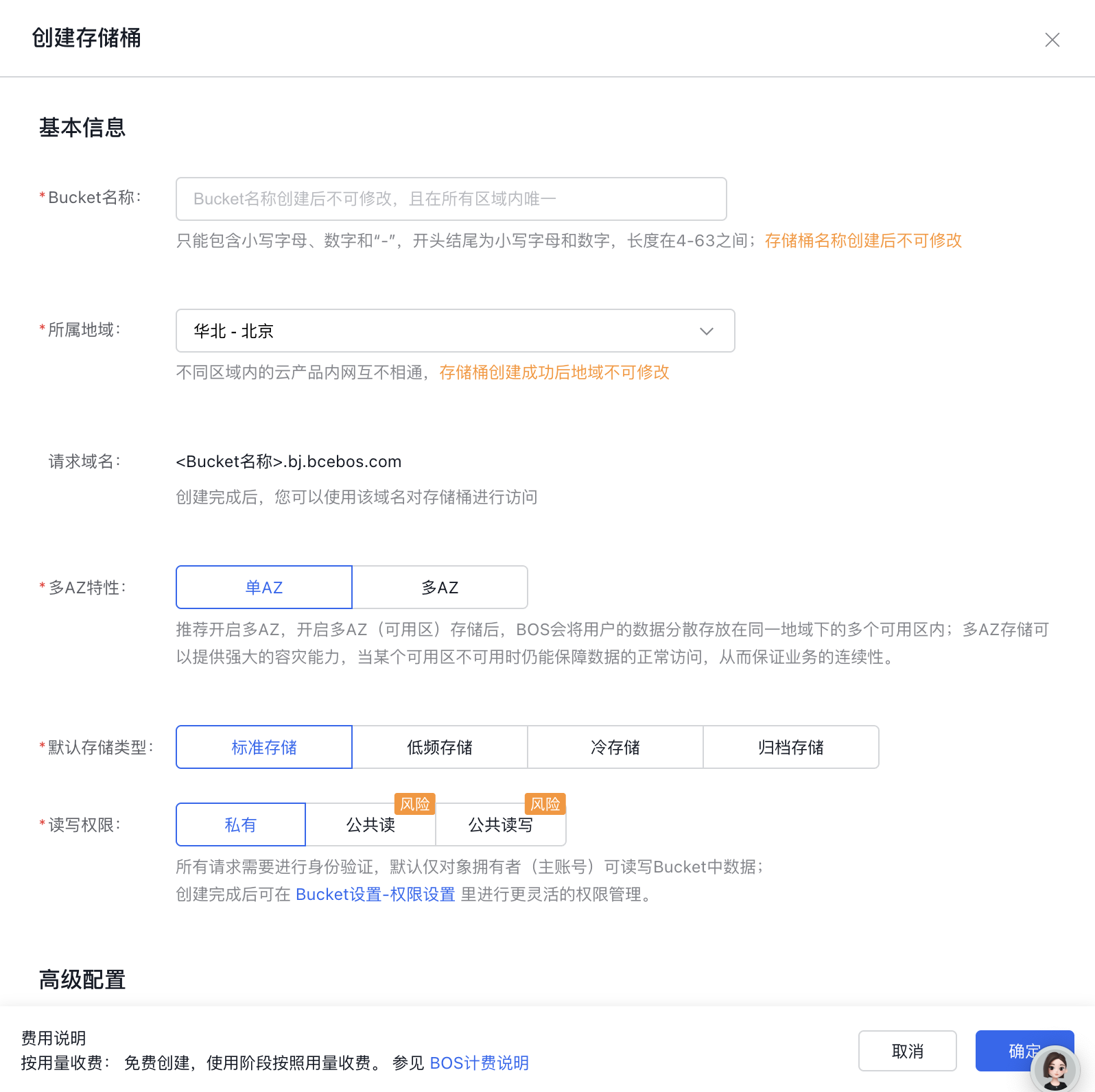
A bucket is a container used to store object files. Before using the Baidu AI Cloud Object Storage (BOS) service, you need to create a bucket.
A bucket comes with several configuration properties. During its creation, you’ll need to define certain key aspects like the bucket’s name, associated region, default storage class, and access permissions. Simultaneously, you may enable official CDN acceleration and add tags if needed.
Click Bucket List in the left navigation bar. Click the Create Bucket button. Follow the prompts in the pop-up window to create the bucket.
Configuration items
Configuration description
Bucket name
The name of each bucket is globally unique. You can use a prefix to ensure the uniqueness of the name, such as using the name of the organization you belong to as the prefix of the bucket. Once a bucket is created, its name cannot be changed.
Bucket names can only contain lowercase letters, numbers, and hyphens ("-"), shall start and end with lowercase letters or numbers, and shall be between 4-63 characters in length.
Region
A bucket has a regional attribute and can only be located in one region. Since the region it belongs to cannot be modified after bucket name creation, it is recommended to store it nearby according to service conditions to facilitate upload and download and improve access speed.
If you have enabled multi-region services, please select the region where the bucket is located as needed. For reference, see Region Selection Instructions.
Default storage class
When creating a bucket, you can select its default storage class. If the object uploaded via API, CLI, or SDK does not have a specified storage class, it follows the default storage class of the bucket. On the console, the uploaded object is by default of standard storage class. When the storage class of the object differs from the storage class of the bucket, the storage class of the object shall apply.
The storage classes include six categories: Standard Storage - Multi-AZ, Standard Storage, Infrequent Access Storage - Multi-AZ, Infrequent Access Storage, Cold Storage, and Archive Storage. For specific usage scenarios and performance, please refer to Hierarchical Storage.
Read-write permissions
Private: The bucket creator has full exclusive permission to the bucket. Others cannot write data to or read from the bucket. Suitable for storing confidential files.
Public-read: The bucket creator has full exclusive permission to the bucket. Others can read its contents but cannot write data to it. Suitable for storing files requiring public access, such as notifications or advertisements. Please note that enabling this permission allows all internet users to access and read files in the bucket. Please enable it with caution.
Public-read-write: Anyone, including the bucket creator, can access and write files. Please note that enabling this permission allows all internet users to read and write files in the bucket. Please enable it with caution.
If you need to set advanced permissions, you need to modify the corresponding permission settings after creating the bucket. For details, please refer to Set Bucket Permissions.
Domain acceleration (official CDN acceleration)
After enabling the domain acceleration (official CDN acceleration) for the bucket, the DNS resolution of the corresponding bucket domain name will be modified to the CNAME domain name provided by CDN, so as to access the CDN nodes and enable CDN acceleration.
By default, official CDN acceleration is disabled when creating a bucket. If you need to enable it, you can directly set “Official CDN Acceleration” to “Enabled” during the creation process.
Versioning
By default, files (objects) in a bucket only have the latest version. After enabling bucket versioning, overwrite and delete operations on data will be retained as historical versions, effectively preventing accidental data deletion/overwriting. For detailed descriptions of this feature, refer to Bucket Versioning.
Hierarchical namespace
By default, a bucket has no directory structure. After enabling the hierarchical namespace configuration, a metadata bucket with hierarchical characteristics will be created, which is suitable for big data analysis and big data computing scenarios. For detailed descriptions of this feature, refer to Hierarchical Namespace.
Tag binding
You can bind a bucket to a tag according to project and scenario requirements, making it easier to classify, identify, and manage buckets. Before binding tags, you need to create tags on the console first.
Binding resource groups
You can bind a bucket to a resource group according to project and scenario requirements, making it easier to classify, identify, and manage buckets by business. Before binding a resource group, you need to first create a resource group on the console or select the default group. For information about the introduction and usage of resource groups, please check the Official Documentation of Resource Groups.
Other descriptions
Each user can create up to 100 buckets. Please create them judiciously. If the count of buckets you created has reached the limit, please delete the bucket after clearing the files within it; otherwise, the bucket cannot be deleted. New buckets can be created only after the existing buckets are deleted.
No fees will be incurred immediately after a bucket is created. Fees for the bucket will only be generated when data read/write operations occur (e.g., uploading a file will incur storage space usage fees).
If you create a multi-AZ type bucket, data can only be synchronized to other multi-AZ type buckets, and lifecycle rules cannot migrate data to single-AZ type buckets.
After clicking OK, the bucket is created successfully. Next, you can upload files to the bucket.
Related APIs
PutBucket API: Create a bucket using the PutBucket API.