

Upload files
Updated at:2025-11-03
Overview
The file upload function in the BOS console actually uses BOS Simple Upload method to upload files to your created bucket via the PutObject API.
Prerequisites
- A Baidu AI Cloud account has been registered. For specific operations, please refer to [Register a Baidu AI Cloud Account](UserGuide/Register an account.md#Register a Baidu Account).
- A bucket has been created. For details, refer to [Create Bucket](BOS/Console Operation Guide/Managing Bucket/Create bucket.md).
Note
- BOS does not currently support multi-versioning. If the same file (with the same filename) is uploaded multiple times, the previously uploaded data will be overwritten.
- The file upload function of BOS console supports all file types, allowing up to 10,000 files per upload with a maximum single file size of 512 GB. If the file size exceeds 512 GB, please use SDK Tools for uploading. BOS API, SDK, and tools support uploading single files up to 48.8 TB.
- Uploaded files support six storage classes: standard storage-multi-AZ, standard storage, infrequent access storage-multi-AZ, infrequent access storage, cold storage, and archive storage. Set file storage classes based on data access frequency. For storage class selection, you may refer to How to Choose the Appropriate Storage Class. The storage classes available for sale vary by regions. Please check the Available Regions in advance.
- When an IAM user uploads files through the console, both Programmatic Access and Console Password Access must be enabled during the creation process, along with granting the necessary file upload permissions.
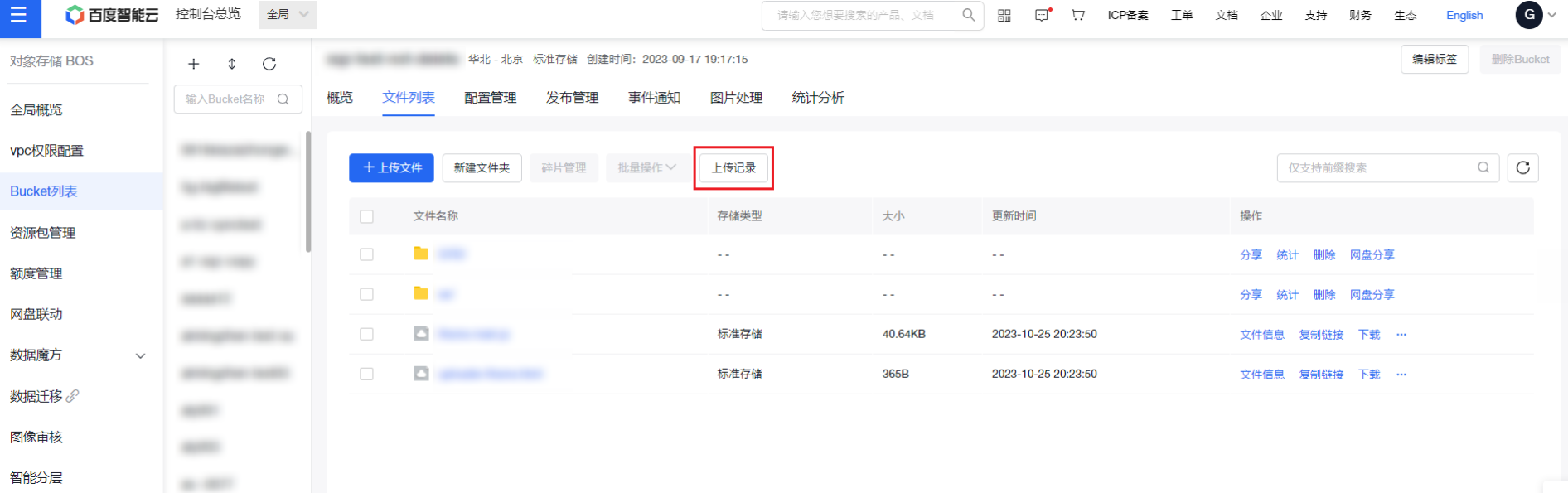
- After creation, upload tasks will proceed automatically in the backend. You can check the task progress at any time by selecting Upload Records from the file list page.If you close or refresh the browser, the upload task will be automatically canceled, and all records will be cleared. Do not close or refresh the browser before all files are successfully uploaded.
Upload files
- Sign in to the BOS Management Console and navigate to the Global Overview page.
- In the left navigation bar of the BOS console, select the target bucket, then click to enter the bucket’s file list page.
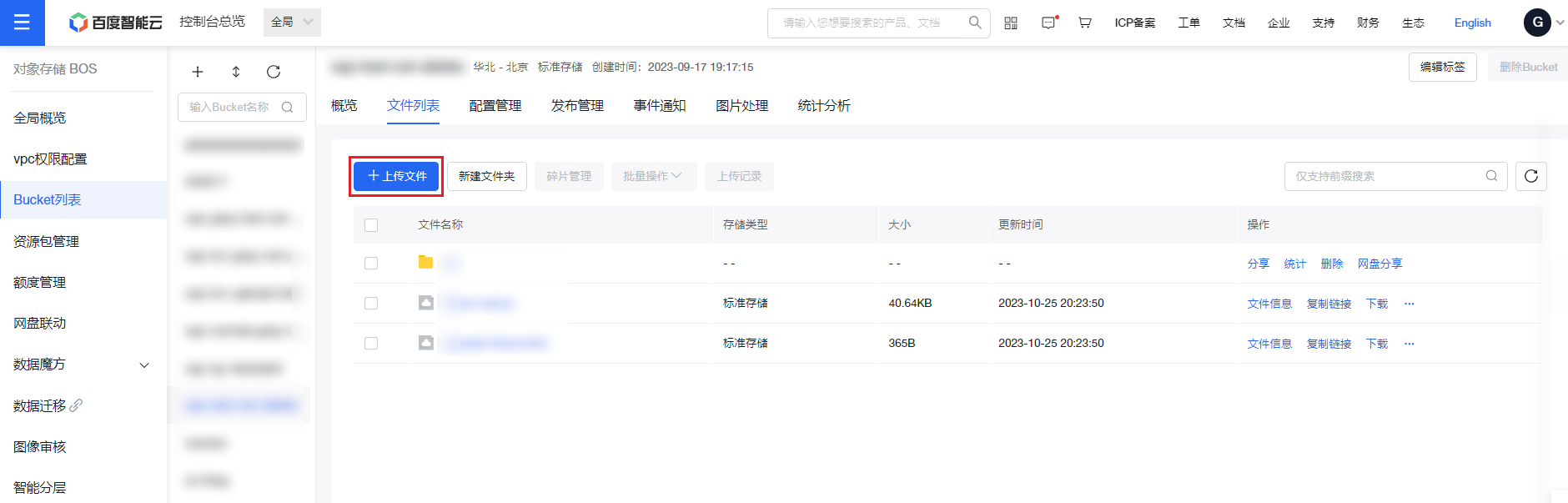
- On the file list page, click the Upload File button at the top. The upload file window will appear on the right side of the screen.
- You can choose to upload objects to the Current Directory or a Specified Directory, with entry switching available via the top menu. To upload files/folders to a specific directory under the current bucket, manually enter the directory name ending with "/" in the input field.
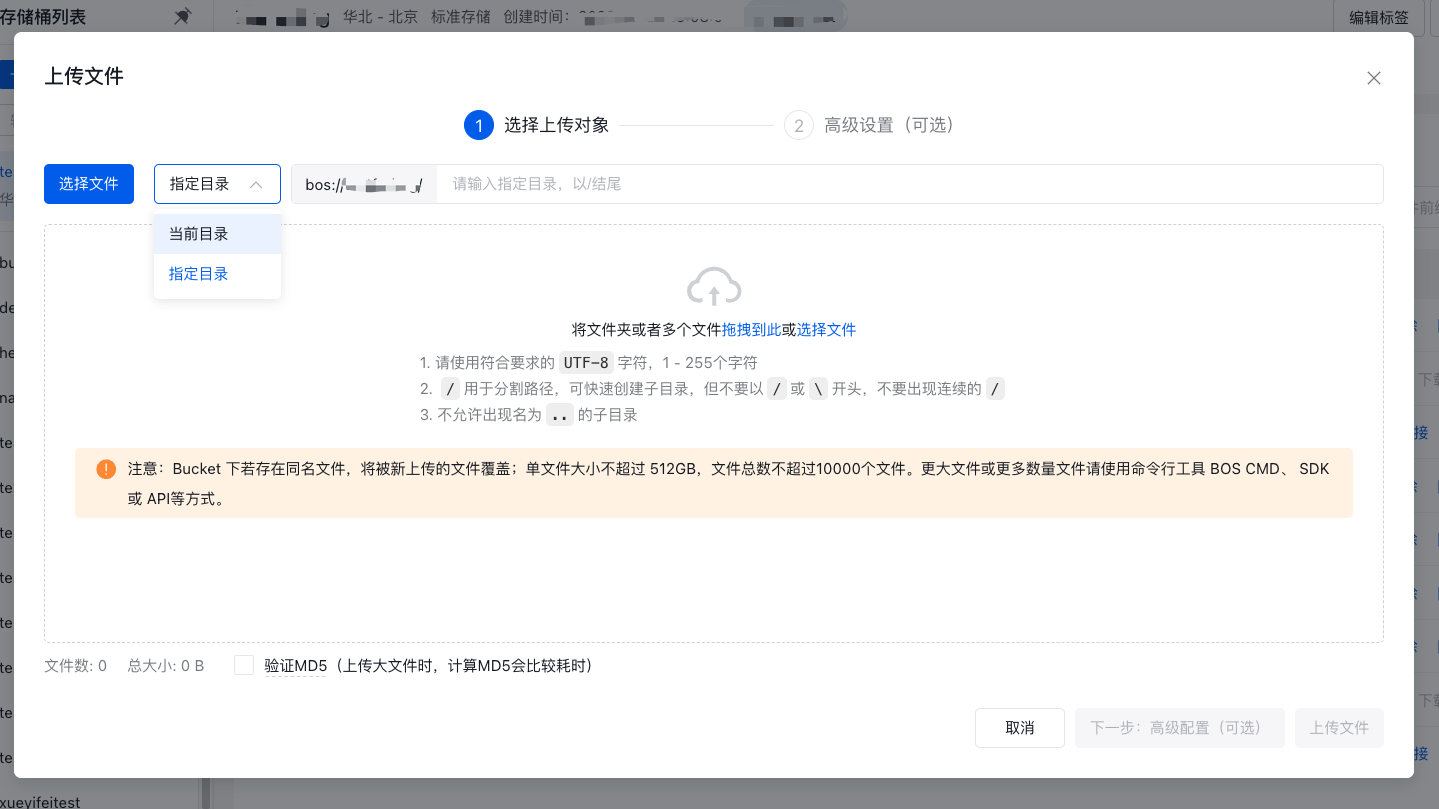
- After confirming the upload directory, click Upload File to select files. The files to be uploaded will be displayed on the page, and the total number of files and file size will be shown at the bottom. If you need to verify MD5, check Support MD5 Verification at the bottom, and we will automatically verify MD5 for you.

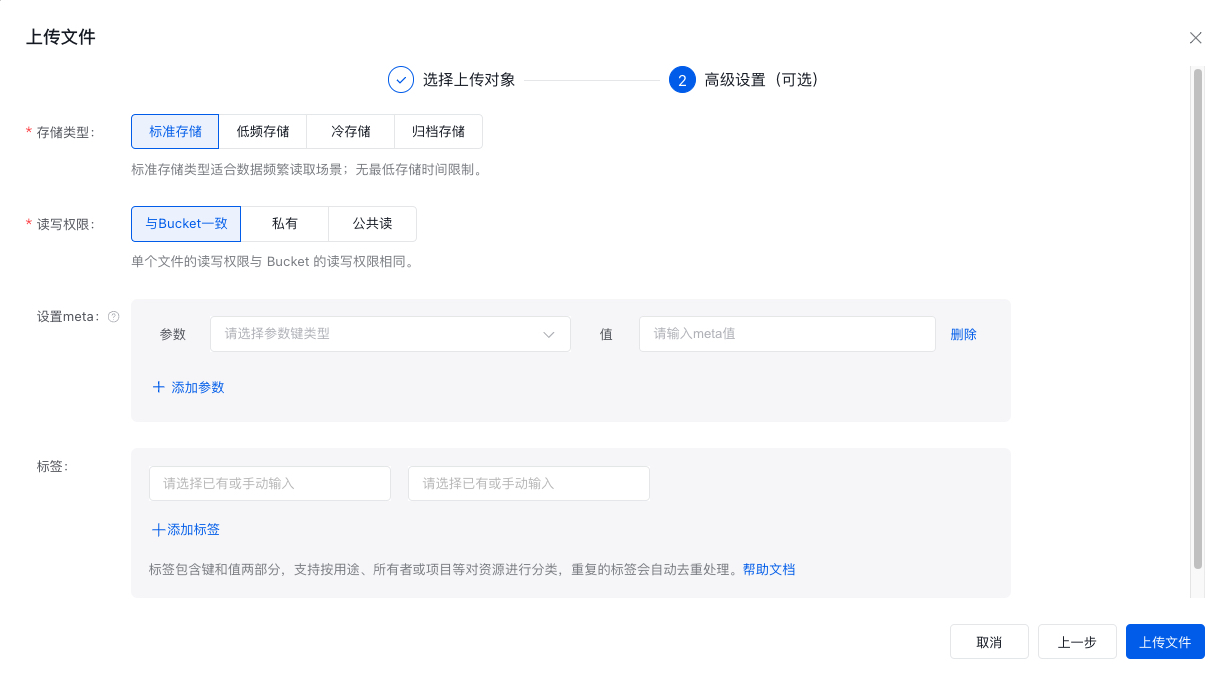
- Once the uploaded files are confirmed to be correct, click Next: Advanced Configuration (Optional) to set object attributes. This step supports batch configuration of storage class, access permissions, metadata, and tags for the uploaded files. You can customize these attributes based on specific requirements. After verification, click Upload File to initiate the upload task.
- Click the Upload Records button at the top of the file list page to open the task list and view the progress and status of upload tasks. For successfully uploaded files, you can choose Copy Link in the operation column to copy the file link and share it with third parties for preview or download. Alternatively, you can select View to navigate to the file's current path.
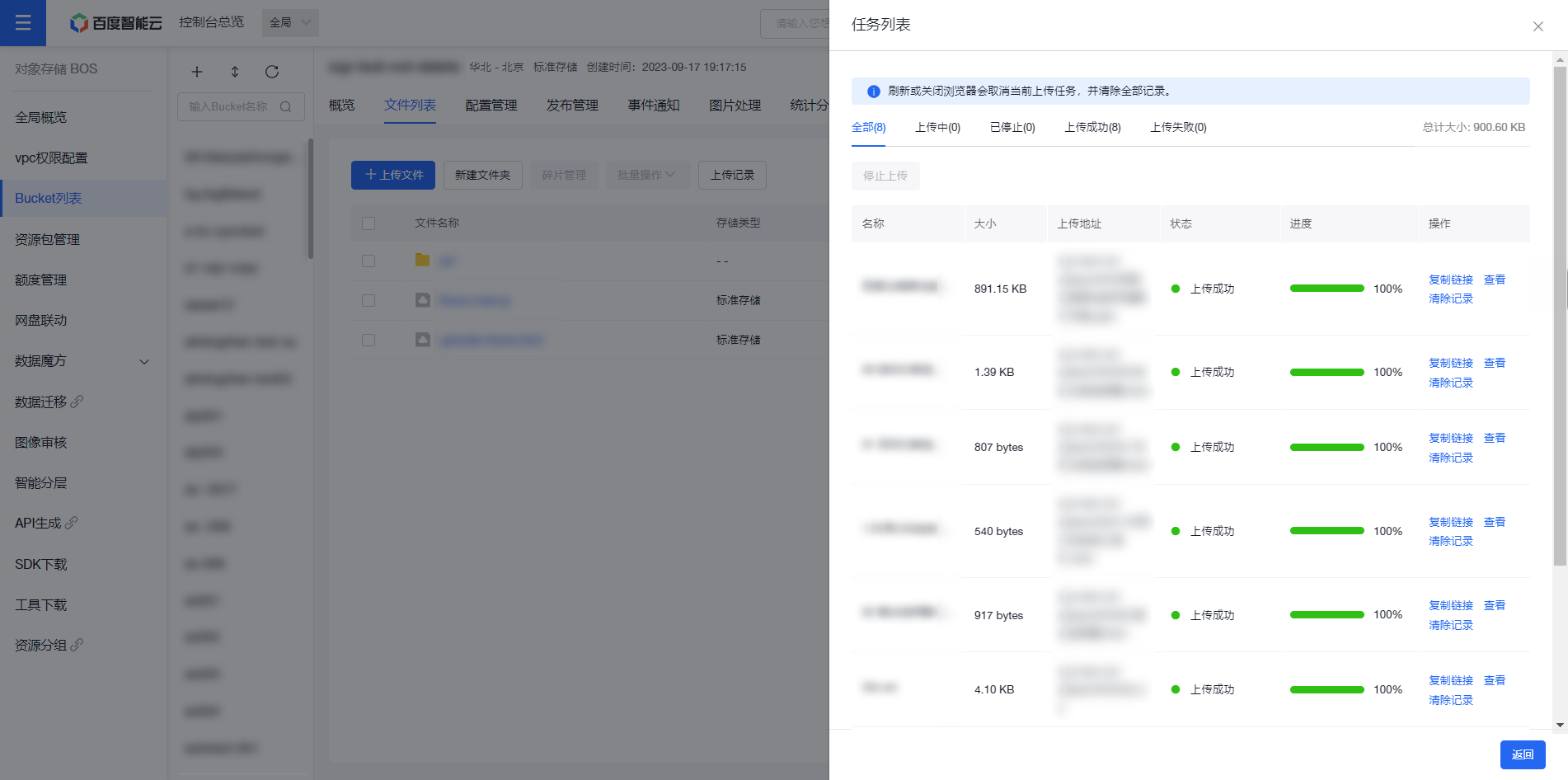
- Uploaded files will immediately show up in the bucket's file list.
FAQs
-
How to upload/download files or folders in BOS?
Answer: BOS supports the following methods for file upload:
- You can directly upload objects or folders through the console. The console supports uploading files up to 512GB in size. For batch uploads or files larger than 512GB, it is recommended to use SDKs or external tools.
- Use API or SDK for upload/download. For folder uploads, refer to Simulate Folder Function;
- Use Peripheral Tools for upload/download.
Related APIs
- [PutObject API](BOS/API Reference/Object-Related Interface/Basic Operations/PutObject.md): Use the PutObject API to upload an object.