Convert file storage class
Updated at:2025-11-03
Overview
Files stored in BOS can switch their storage classes at any time. Currently, BOS supports converting storage classes between standard, infrequent access, cold, and archive, as well as between standard, multi-AZ, and infrequent access, and multi-AZ.
Note
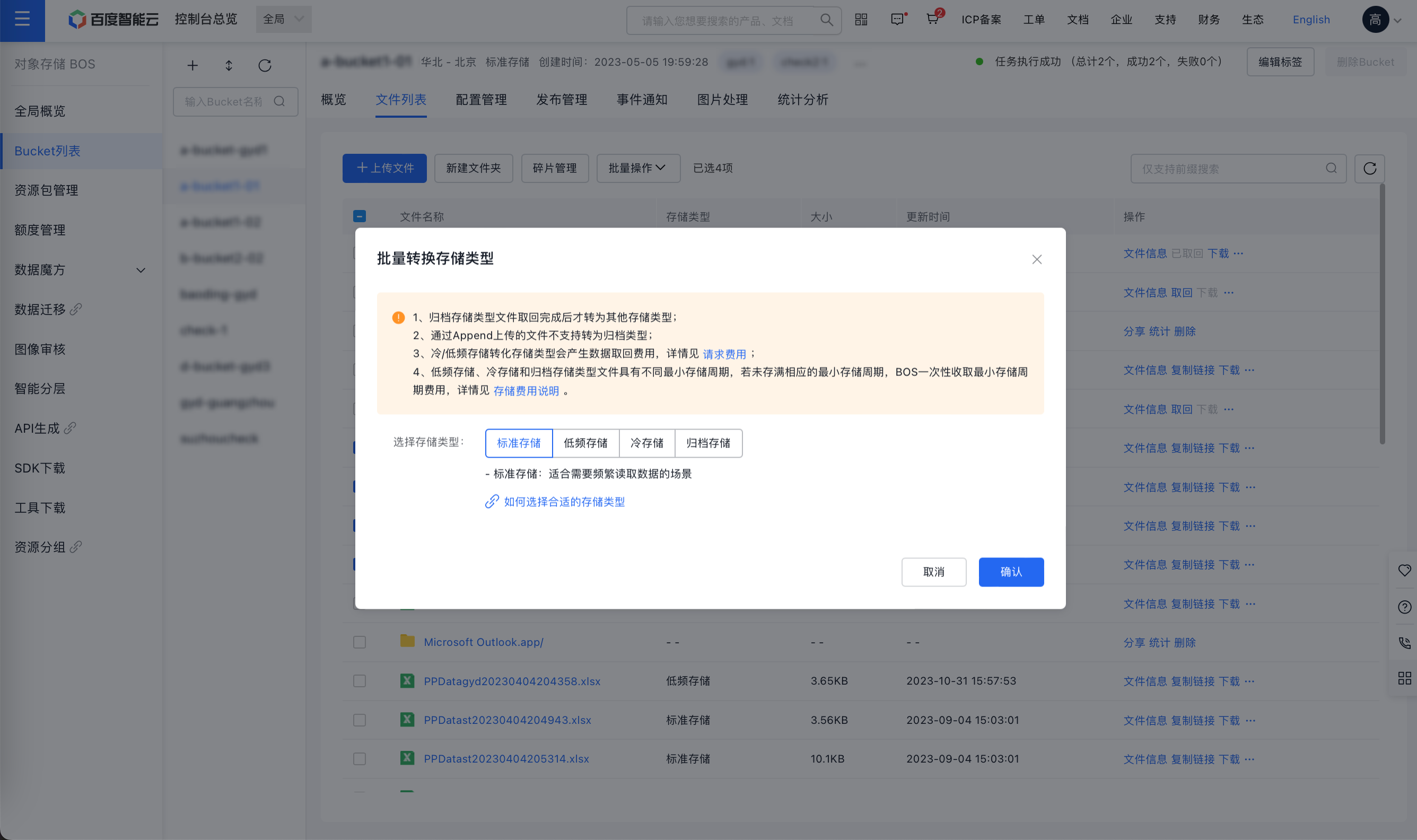
- Archive storage class files can be converted to other storage classes only after restoration is completed;
- Files uploaded through Append do not support conversion to archive type;
- Converting storage class between cold and infrequent access will incur data restoration fees. Refer to Request Fees for details;
- Infrequent access, cold, and archive storage files have different minimum storage periods. If these files are stored for less than a full period, BOS charges the minimum storage period fees at one time. Refer to Explanation on Storage Fees for details.
Convert file storage class
- Sign in to the BOS Management Console and navigate to the Global Overview page.
- In the BOS console's left navigation bar, select the bucket containing the target file and access the bucket’s File List page.
- Click the [Convert Storage Class] button under [...] in the operation bar on the right of the target file.
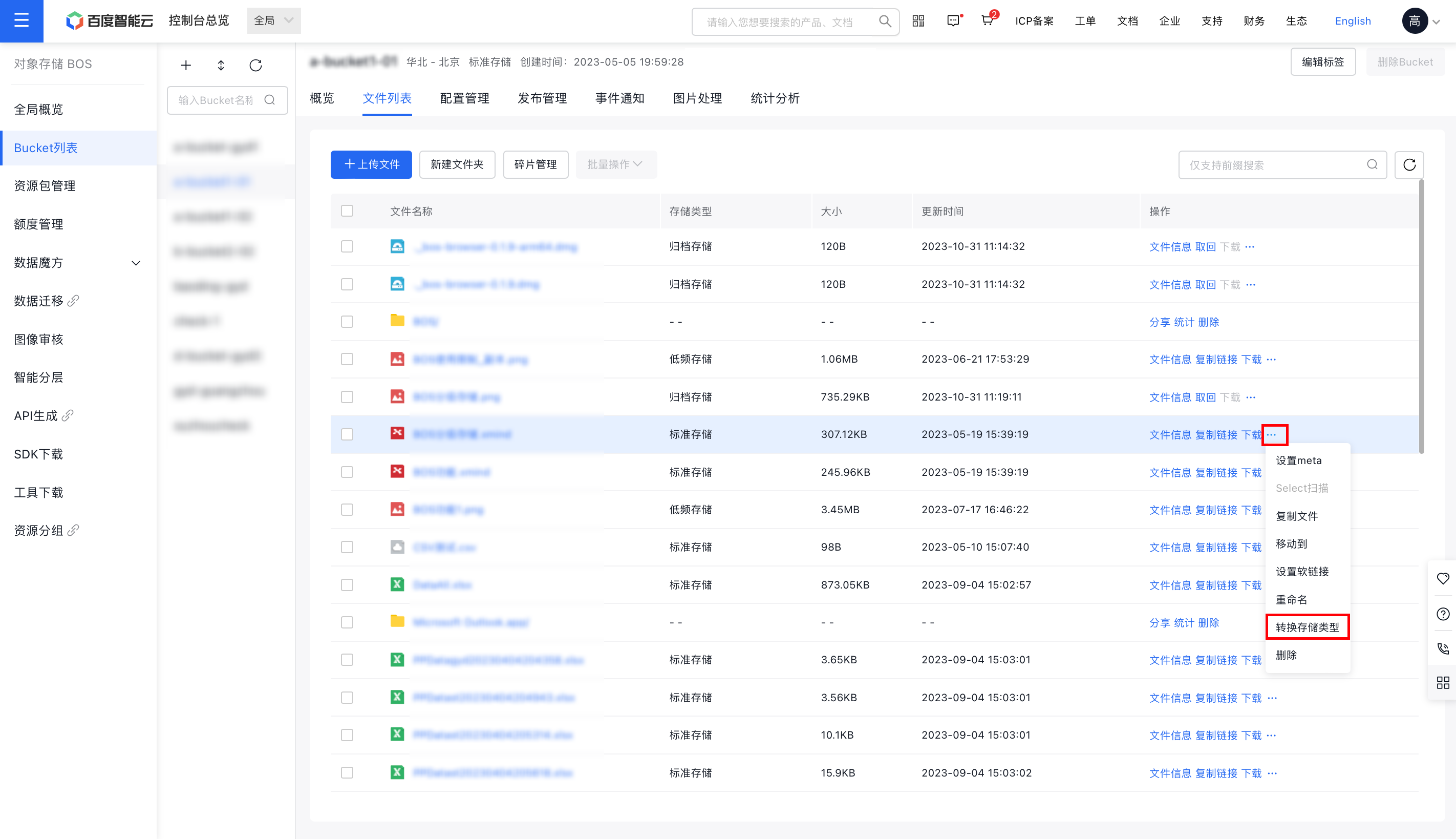
- In the pop-up window, select the Target Storage Class for conversion, then click OK to complete the process.
Batch convert storage class
- Sign in to the BOS Management Console and navigate to the Global Overview page.
- In the BOS console's left navigation bar, select the bucket containing the target file and access the bucket’s File List page.
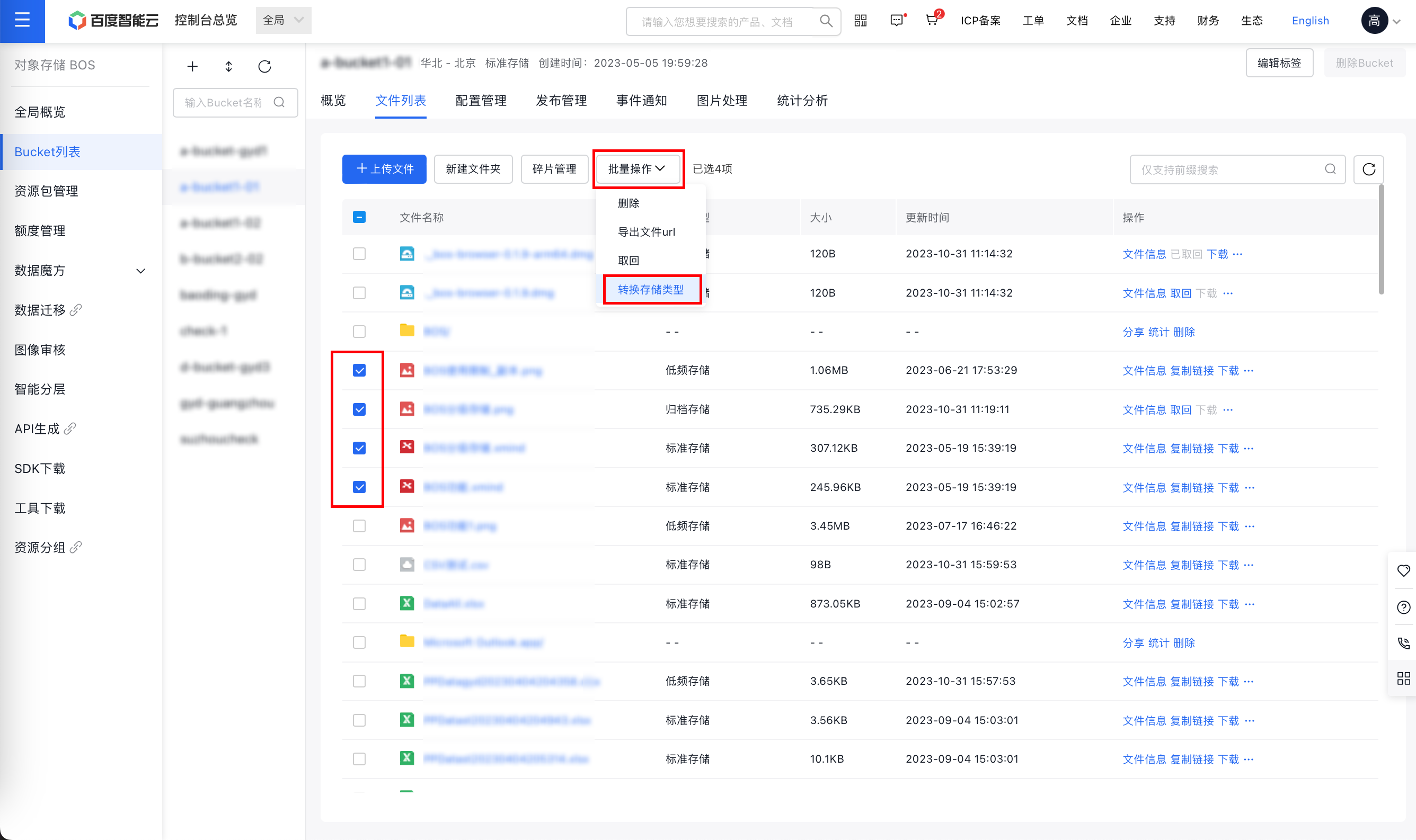
- Select the files/folders for storage class you want to perform batch conversion, then click [Batch Operation] > [Convert Storage Class] above
- In the pop-up window, select the Target Storage Class for conversion, then click OK to create storage class conversion tasks in batches.
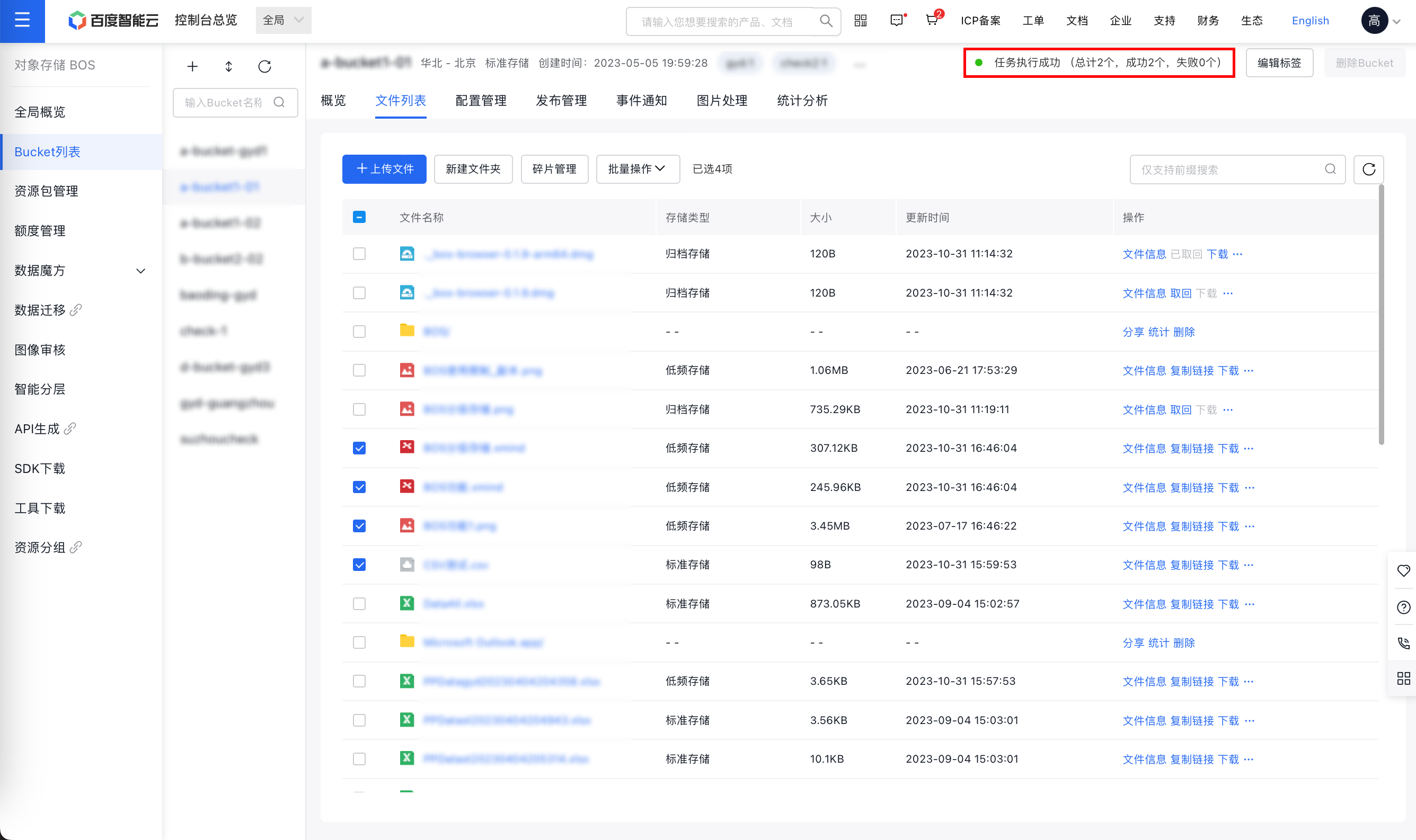
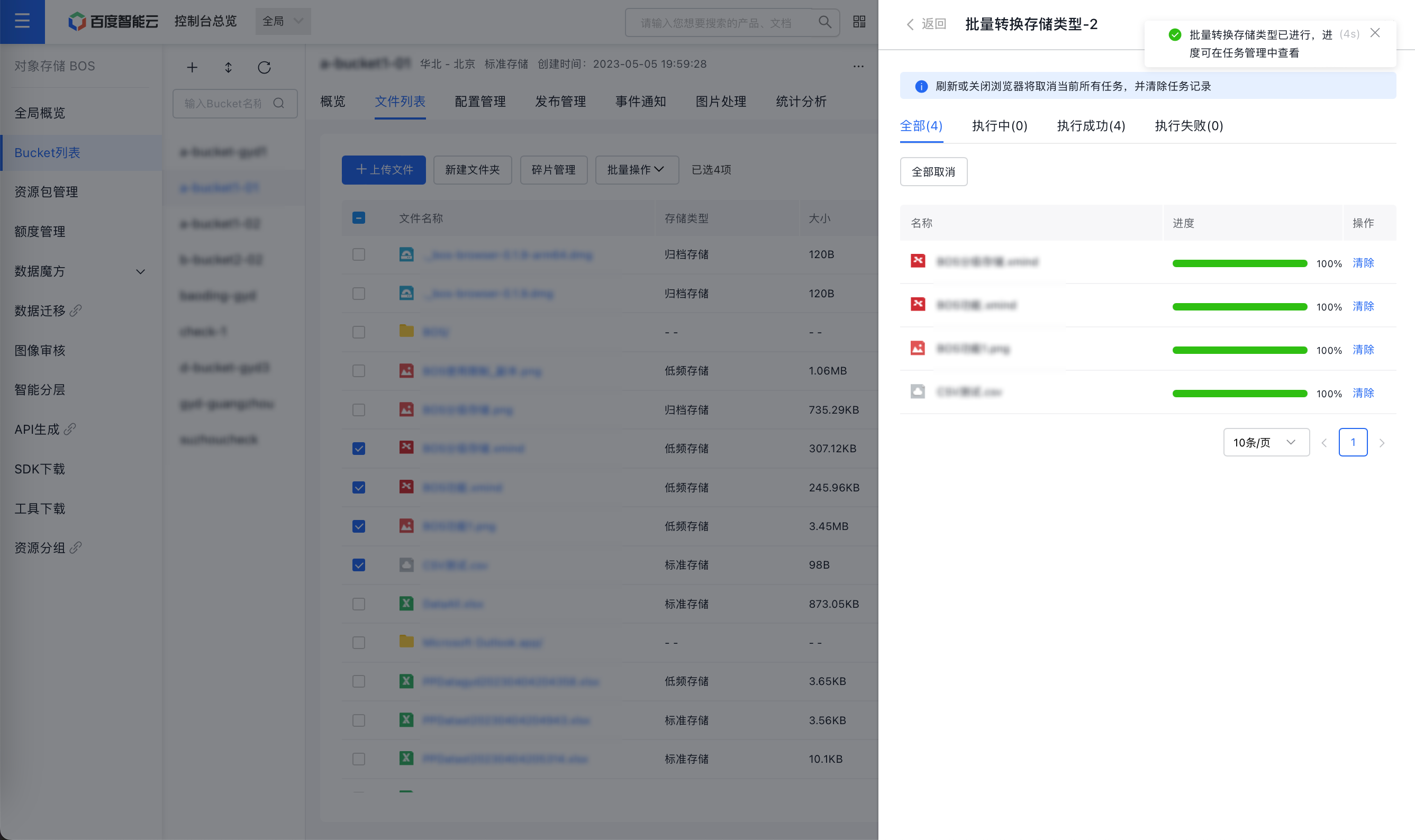
- You can monitor the progress of the batch conversion task in the top-right corner under task status.