

View and export usage data
Overview
The BOS console allows you to view and export monthly statistical data for all buckets in your account, such as total storage capacity, total traffic, total request numbers for each bucket, and detailed data like standard storage capacity and infrequent access storage capacity for individual buckets.
View and export usage data
- Sign in to the Baidu AI Cloud Object Storage (BOS) Management Console.
- In the left navigation bar of the BOS console, find and click Global Overview to enter the Global Overview page. Then click Resource Dashboard to access the Resource Dashboard page, and click the download button labeled Download All Bucket Usage Details.
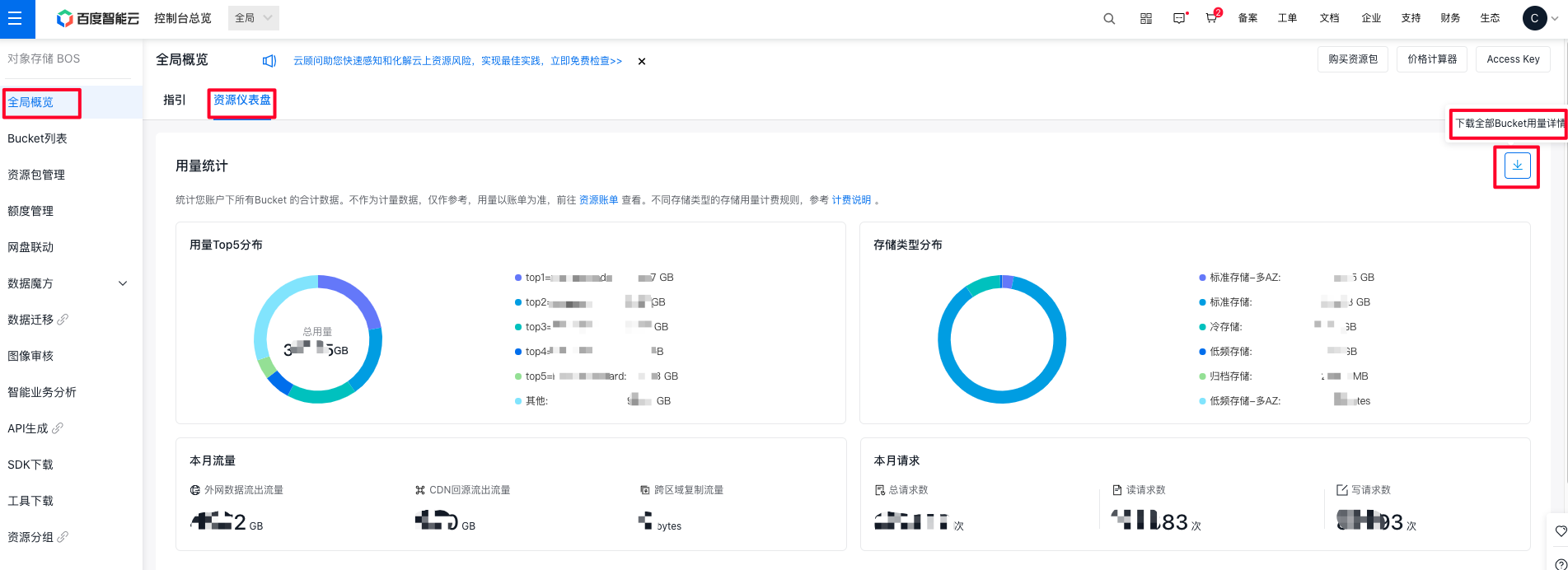
- The page displays data categorized by bucket and features a pie chart for clear visualization of the total storage capacity of each bucket. It also summarizes the total traffic and number of requests used by your account during the month.
The capacity pie chart shows data for the top 5 buckets with the largest capacity share. If you want to obtain detailed data of all buckets under your account, click the Download button - on the page. The system will immediately generate and download data in CSV format, and you can view all usage information in this file.
Note:
- If the total number of buckets under your account exceeds 100, the console will not display the current summary data; you can only view it after downloading;
- If your account contains a large number of buckets, generating and downloading the CSV file may take several minutes. Please wait patiently.
Exported data metrics
When you click Download Now, the browser will automatically download and generate a file named “bosMetricData.csv”. This file contains the total capacity, total traffic, and total number of requests for each bucket under your account, as well as granular statistical data for each bucket (e.g., capacity and number of requests for file types such as standard storage and infrequent access storage). The data metrics included in the file are as follows:
| Data metrics | Metric meanings |
|---|---|
| bucketName |
|
| metricName |
|
| value |
|
| startTime |
|
| endTime |
|
Note:
- The startTime and endTime in the CSV file are in Greenwich Mean Time, which is 8 hours behind Beijing Time;
- To view the prices of various BOS billing items, please refer to Pay-As-You-Go Billing.