

Parts management
Updated at:2025-11-03
Overview
During multi-part upload, a file (object) will be cut into several parts, which are called fragments. After uploading these parts to BOS, you can call CompleteMultipartUpload to combine these parts into a complete object. Parts are generated in the process of multipart upload. Please refer to [Object Multipart Upload](BOS/Developer Guide/Object Basic Operations/Uploading Data/Chunking and Resumable Upload.md).
Note
- During part retention, bucket capacity is counted and billed according to the storage class specified at upload. You can delete part files no longer needed. For the storage price, traffic fee, request fee, and data processing fee of each storage class, please refer to Billing Items Overview for detailed information on billing items.
- You can also recall CompleteMultipartUpload to combine these parts into a complete object. For details on usage of MultipartUpload, please refer to the introduction.
- You may also schedule the cleanup of unnecessary parts by configuring lifecycle management. This configuration can be used to remove parts in the bucket that have not undergone CompleteMultipartUpload for a long time, thereby reducing space usage. For specific operations, refer to Set Lifecycle Rules.
- Parts cannot be accessed until the object is fully assembled.
- Before deleting a bucket, you must first delete all objects and parts. Parts are primarily generated during the multipart upload. For details, refer to Object Multipart Upload.
Parts management
- Sign in to the BOS Management Console and navigate to the Global Overview page.
- In the left-side navigation bar of the BOS console, select the desired bucket and then click on "File List" to access the bucket’s File List page.
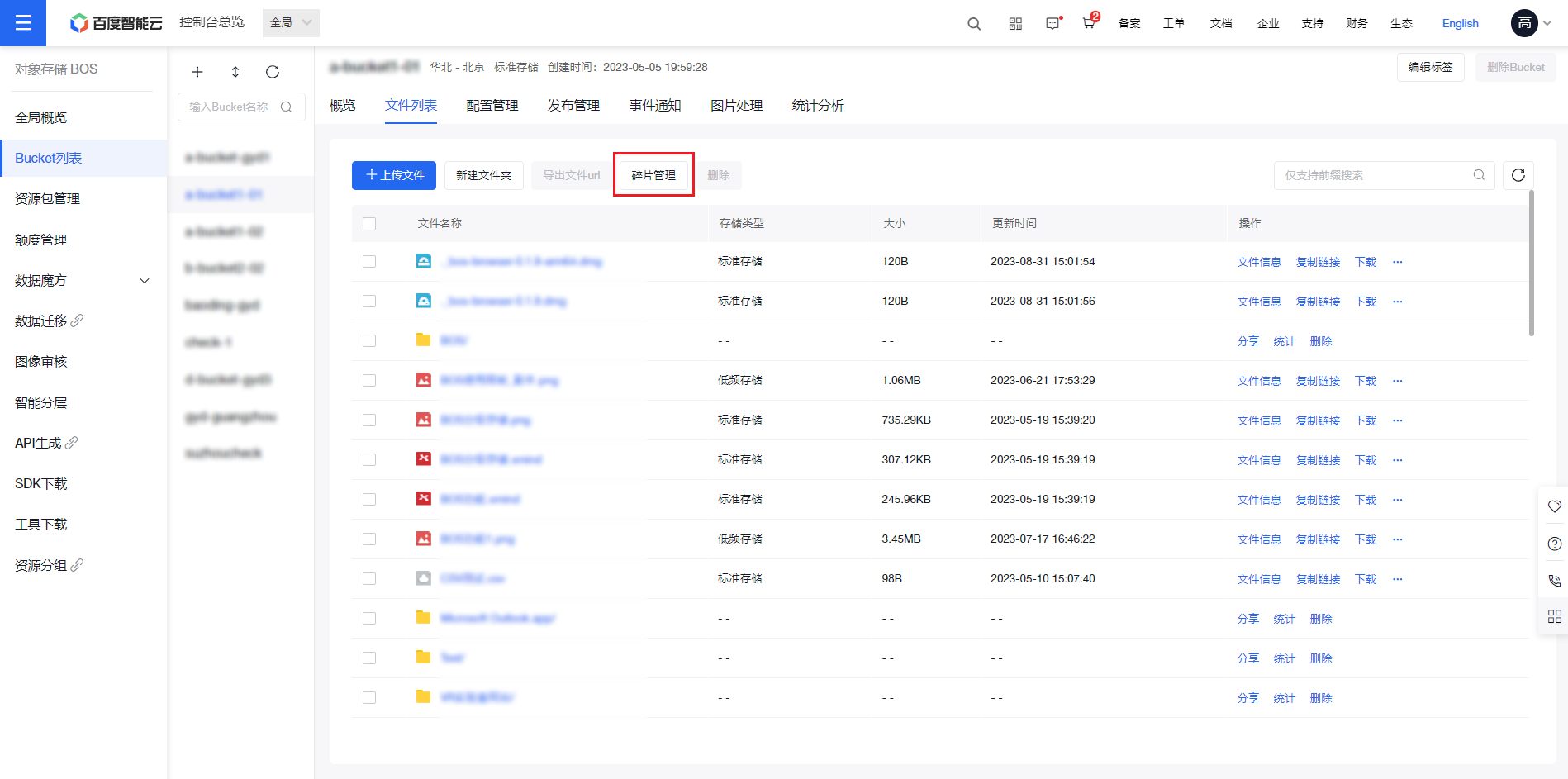
- At the top of the current file list page, click on [Part Management], and BOS will display all the part files in the selected bucket.
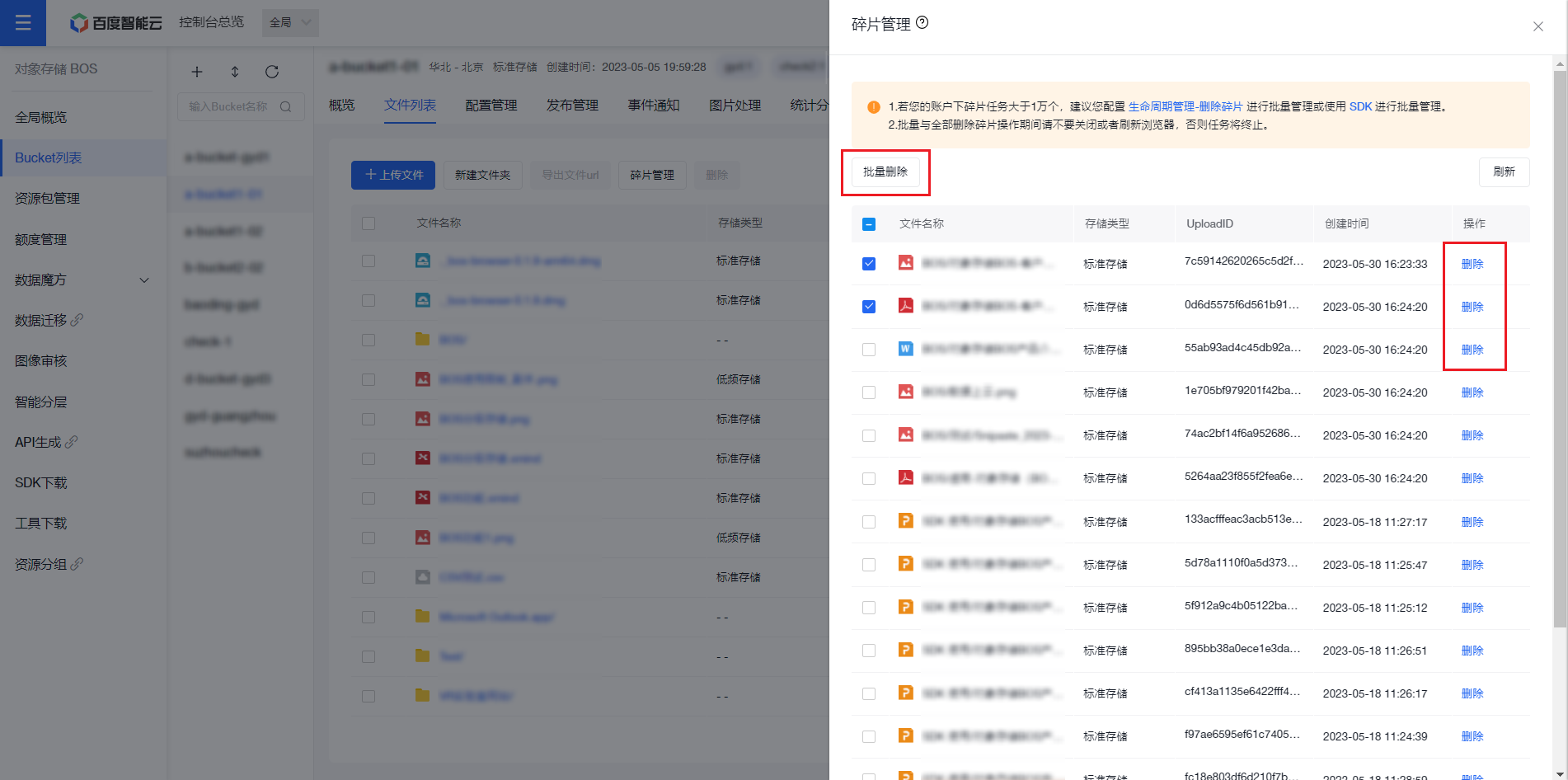
- To delete part files, click the [Delete] button in the corresponding action column to remove a single part file, or select multiple parts and click the [Batch Delete] button at the top to perform a batch deletion.
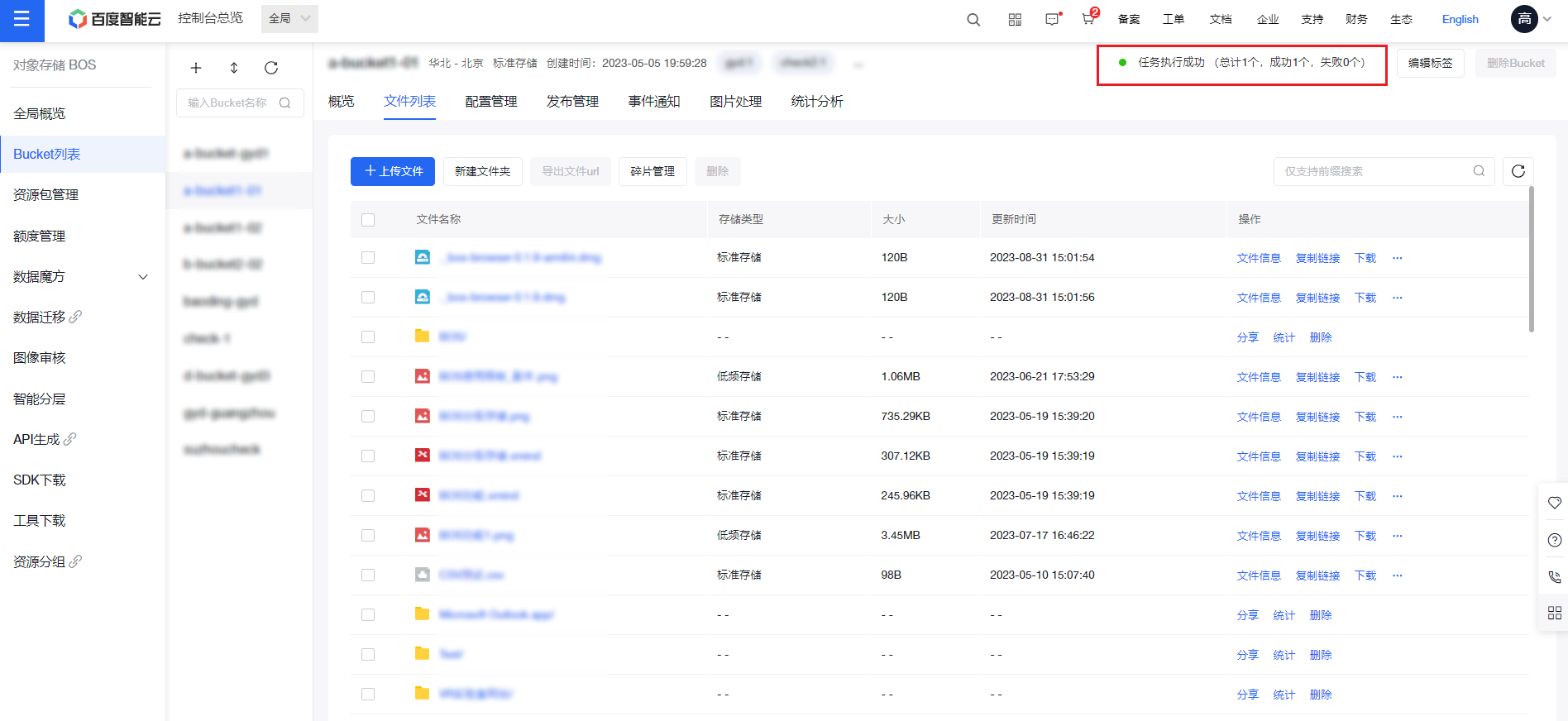
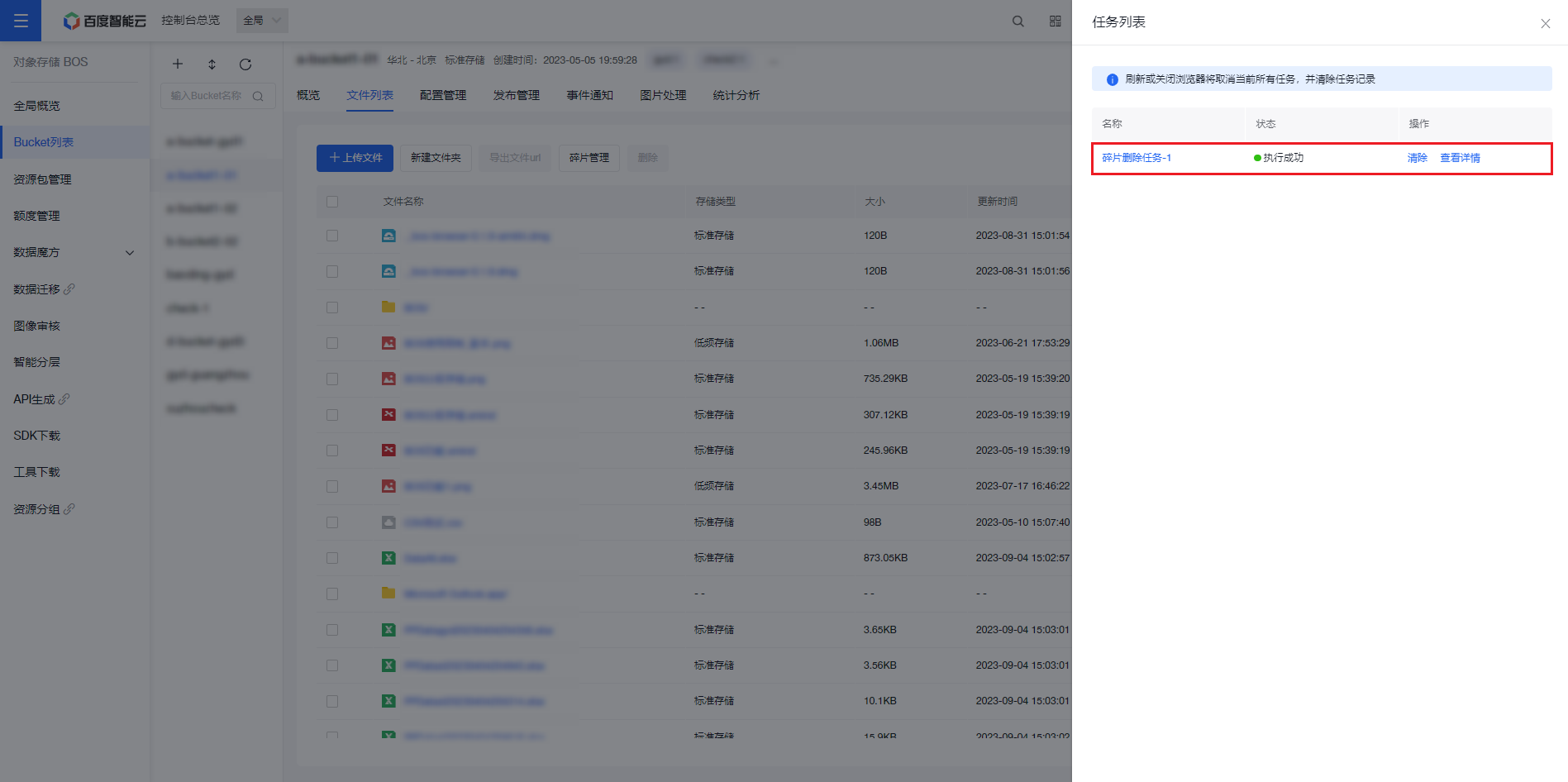
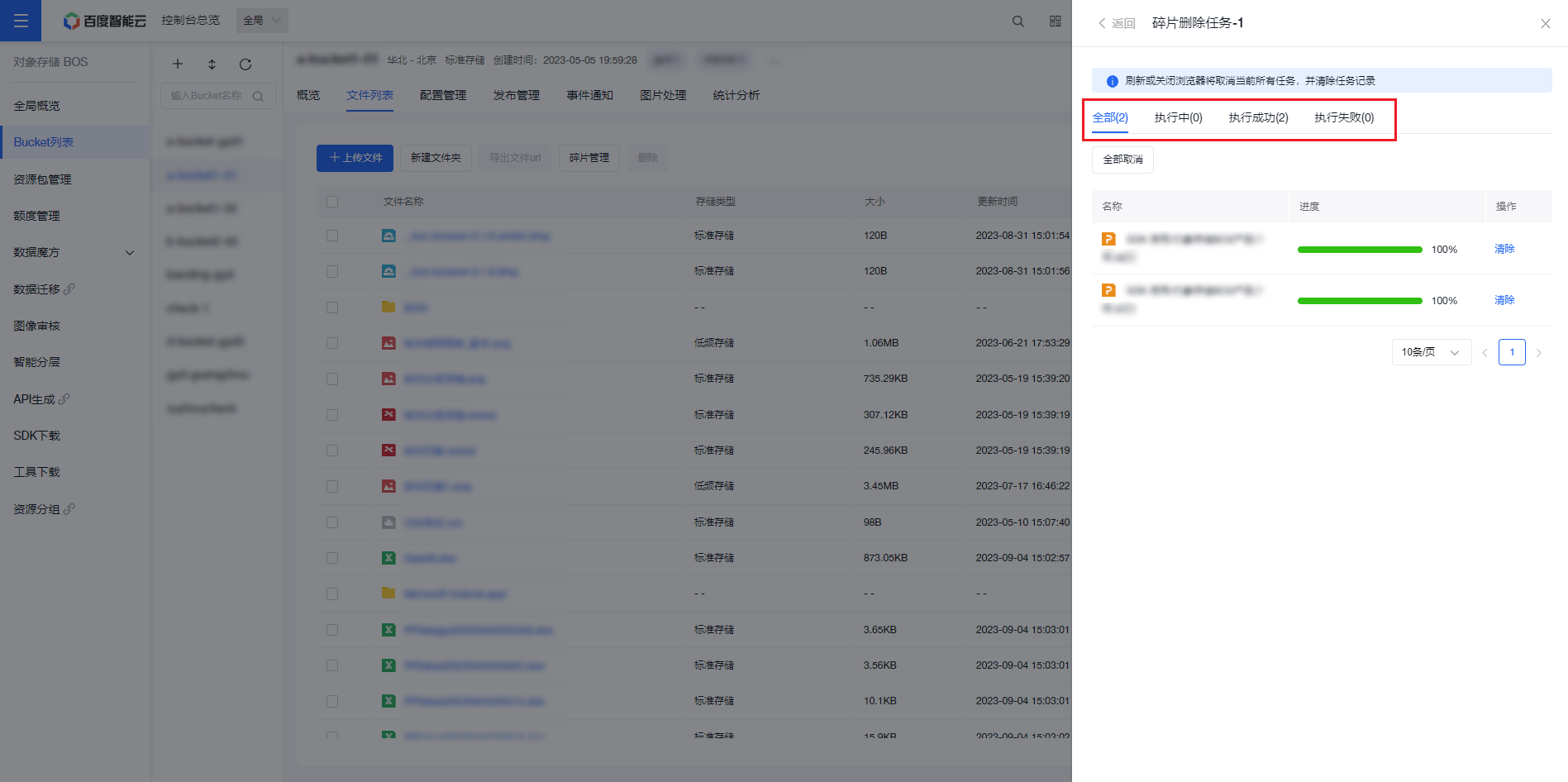
- Once a batch deletion task is created for part files, the task will automatically execute in the background. You can access the task management page through the upper-right corner to monitor the execution status of batch tasks.
Note:
- If your account has more than 10,000 part tasks, it is recommended to configure Lifecycle Management - Delete Parts for batch management or use SDK for batch management.
- If you need to delete part files, ensure that the part files to be deleted do not contain unfinished multiparts. Deletion is irreversible, so please proceed with caution.
- Avoid closing or refreshing the browser during the batch deletion of parts, as this will cause the task to terminate.
Related APIs
- InitiateMultipartUpload API: This command requests a globally unique UploadId from BOS to represent this MultipartUpload.
- UploadPart API: After calling InitiateMultipartUpload and obtaining UploadId, we use the UploadPart command to upload the split object data (part).
- UploadPartCopy API: After calling InitiateMultipartUpload and obtaining UploadId, we use the UploadPartCopy command to copy the split data shard (part).
- CompleteMultipartUpload API: Use this API to complete the entire MultipartUpload operation.
- AbortMultipartUpload API: Users can use this API to abort a MultipartUpload request. Upon receiving this command, BOS will clear uploaded data, allowing users to delete part files.
- ListParts API: It is used to list all successfully uploaded Parts of the user-specified UploadId. Users can view the current progress by this command.
- ListMultipartUploads API: This command lists all unfinished Multipart Uploads in the specified bucket.