

Usage rules
Overview
BOS Image Processing V2.0 is an updated processing protocol for BOS. Compared to V1.0, V2.0 supports additional image processing functions and introduces a new command format. The BOS Image Processing V1.0 method remains accessible, but its functionality will not be updated in the future.
Before using BOS image processing functions, you need to upload the original image to BOS. Each bucket in BOS has image processing functions enabled by default; you do not need to enable them additionally, nor do you need to use a specific domain name to access the image processing service. When accessing an image URL, you can trigger the BOS image processing function by specifying the image processing command through the x-bce-process parameter in the Querystring.
Description:
- To enhance image security, BOS also supports enabling original image protection for images in a specified bucket. After enabling original image protection, if the image requesters do not verify the authorized signature, they can only access processed images via styles. Direct access to the original image or access via processing parameters will be refused. Currently, you can enable or disable the original image protection function through the console, and also perform related operations via API. You can specify the effective scope of this function through the resource field.
Rules and limit
- Supported original image formats: jpg, png, bmp, webp, heic, gif, avif;
- Supported target formats: jpg, png, bmp, webp, heic, gif, avif;
- The size of the processed file does not exceed 20 M;
- The original image’s width and height must not exceed 30,000 pixels, and the total pixels must not exceed 200 million. For dynamic images, the product of width × height × frame count must not exceed 200 million pixels. For image-based watermark, the combined pixels of the watermark and original image must not exceed 200 million;
- The width and height of the processed output image do not exceed 9,999 px, including intermediate output images between pipelines and subcommands;
- A maximum of 16 groups of operations, i.e., 16 actions, can be specified at the same time;
- The same parameter cannot be repeatedly specified under one action;
- Style names support combinations of numbers, letters, and underscores, with the first character not being an underscore, and the maximum length is 64 characters;
- The result of dynamic image processing does not exceed 20 frames;
Usage method
BOS offers two methods for accessing image services: command mode and style mode.
1. Command format
The format of an image processing command is as follows:
1x-bce-process=image/${action},${key}_${value},${key}_${value}/${action},${key}_${value}Where:
- image: BOS supports multiple data processing formats, all triggered using the x-bce-process parameter. When using image processing, you need to specify the name here as image.
- action: BOS supports multiple image processing commands, and each image processing command is called an action (e.g., resize and crop).
- key: Each action supports multiple specific processing parameters (e.g., w for scaling width and h for height).
- value: The value of the processing parameter.
- Delimiter;
| Delimiter name | Delimiter | Order on both sides | Description |
|---|---|---|---|
| Processing delimiter | / | Related | Delimiters are used between multiple actions, and the actions are executed in sequence |
| Parameter delimiter | , | Unrelated | The delimiter between multiple processing parameter items |
| Value delimiters | _ | Fixed order | The delimiter between parameter names and parameter values |
For example, to proportionally resize an image with a maximum resized width of 200, maximum height of 100, adjust brightness to -5, and convert the format to webp; the corresponding command is as follows:
1http://bucket-A.bj.bcebos.com/sample.jpg?x-bce-process=image/resize,m_lfit,w_200,h_100/bright,b_-10/format,f_webp2. Style format
You can save one or more image processing commands as a style through the console and assign it a name. This allows you to achieve image processing effects using styles, streamlining complex command operations and parameters into a concise URL.
Access via style syntax:
1http://${domain}/${objectkey}?x-bce-process=style/${stylename}Detailed description:
- style: When accessing using an image style, you need to specify this as style.
- stylename: The name of the style being accessed.
For example, if you create a style named mystylename, it can achieve proportional maximum scaling with a width of 200 px and a height of 300 px, and synchronously support adaptive rotation (command: pxresize,m_lfit,limit_0,w_200,h_300/auto-orient,o_1). You can directly call the name of mystylename to access image processing:
1http://bucket-A.bj.bcebos.com/sample.jpg?x-bce-process=style/mystylenameAdd/delete styles through the console
You can add or remove styles via the BOS console.
1. Sign in to the Baidu AI Cloud official website
Sign in to Baidu AI Cloud official website.
- If you have not registered an account, you must first [register an account](UserGuide/Register an account.md#Register a Baidu Account).
- If you have registered an account, you can directly sign in.
2. Access the BOS console
In the left navigation bar of the page, select Storage & CDN - Baidu AI Cloud Object Storage (BOS) to enter the BOS console.
3. Select the bucket and access the Image Processing page
In the bucket list on the left, choose the target bucket and navigate to the image processing page. Here, you can create new image styles or review existing ones in the list.
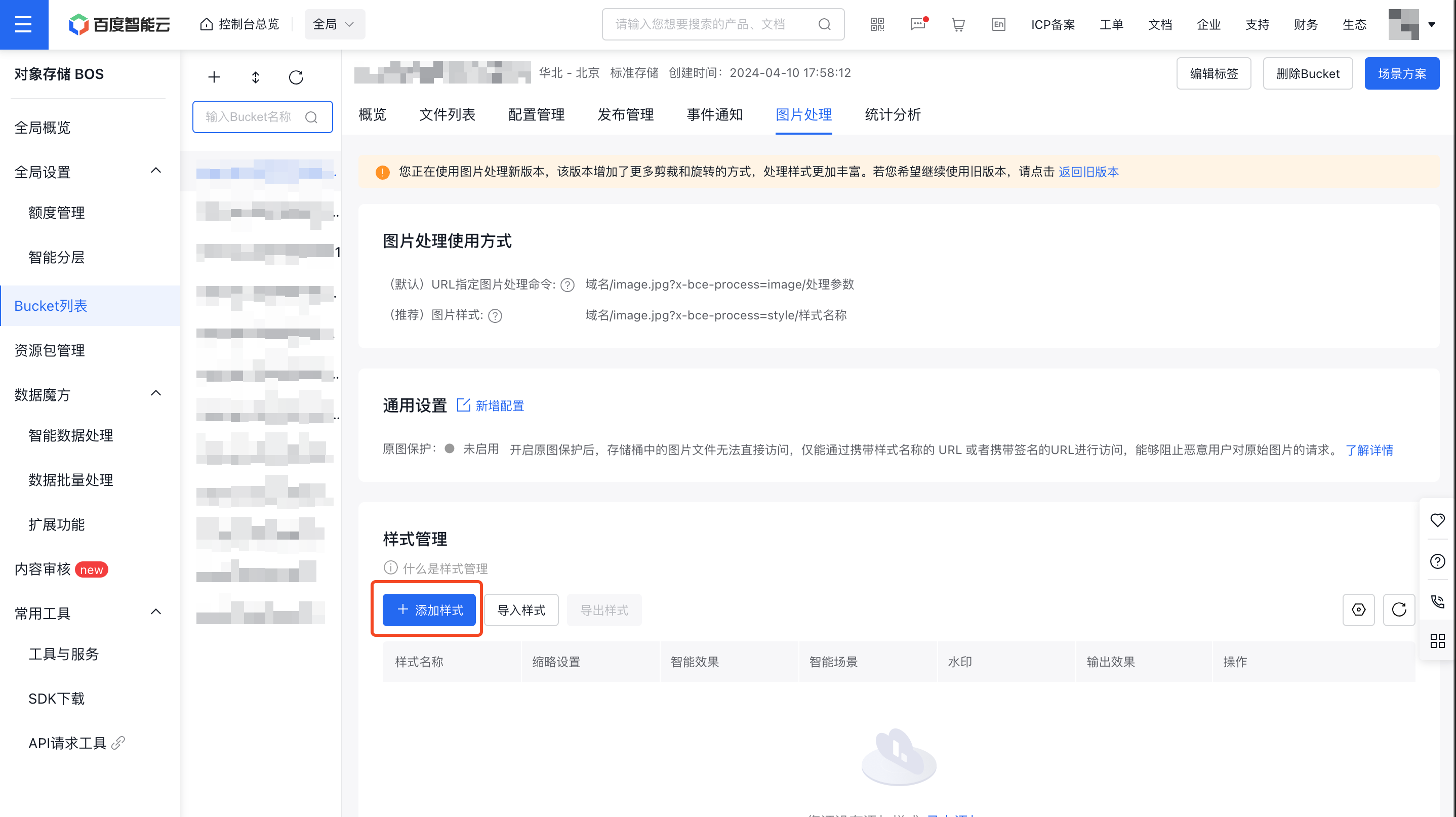
4. Add a style
Click the Add Style button to enter the style addition page. For instructions on setting styles for the Image Processing Protocol V2.0, refer to Image Processing Protocol V2.0. For instructions on setting styles for the Image Processing Protocol V1.0, refer to Image Processing Protocol V1.0.
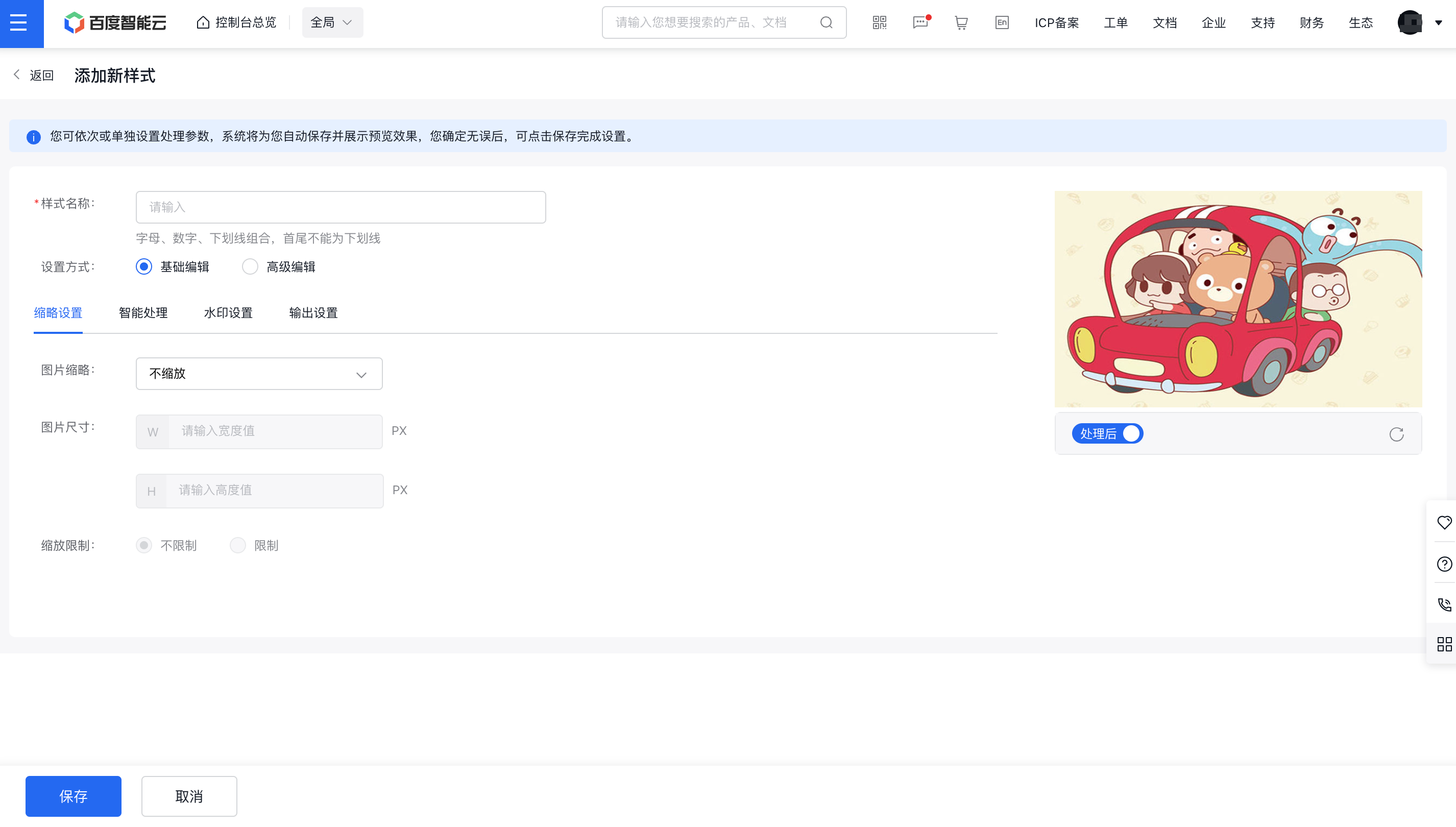
You can edit styles in the console via two methods: Basic Editing and Advanced Editing. Basic Editing: Use a graphical interface to create or modify styles. Advanced Editing: Customize image styles by entering command lines directly.
Under Basic Editing, you can name your style and configure thumbnail settings.
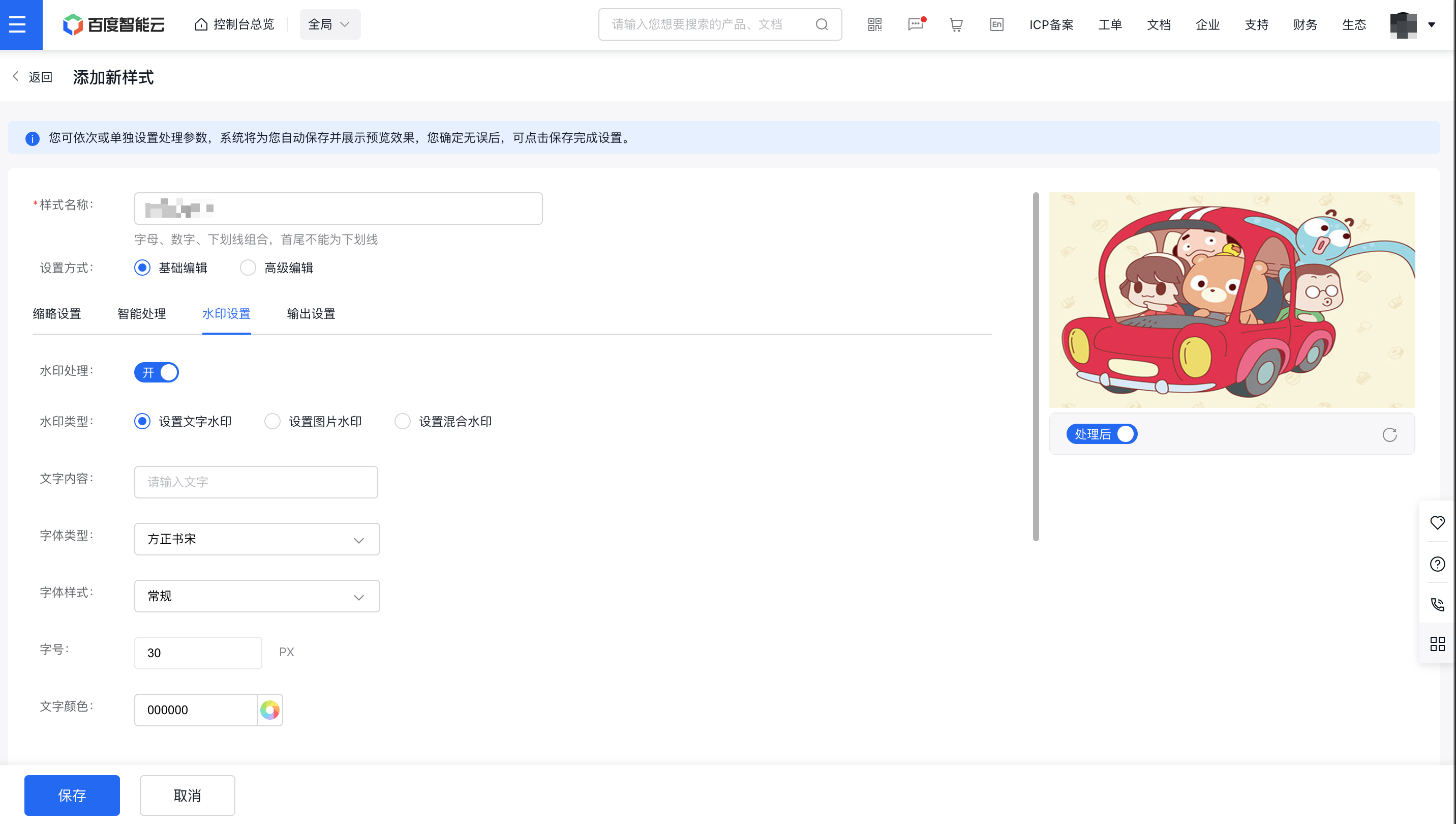
You can configure both the output and watermark settings for the image.
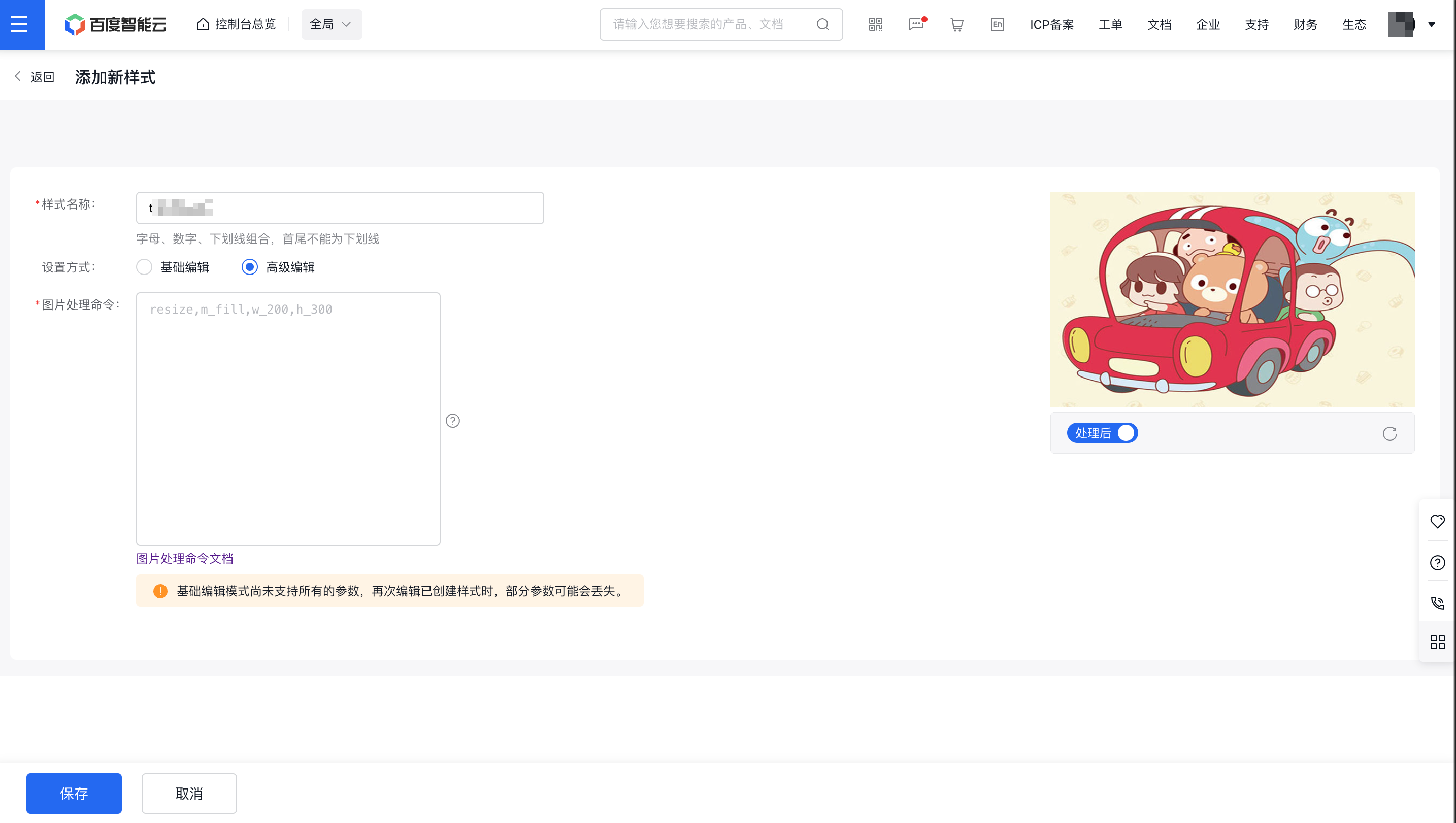
Under advanced editing, you can set directly by command lines. For detailed operations on image service command lines, refer to Image Processing Service V2.0 and Image Processing Protocol V1.0.
5. Add a list
Once a style is added, it will appear in the style list for image processing. Through the "View Command" option in the operation column, you can view the corresponding command, preview the style, or edit/delete it.
Note:
- Styles created with Image Processing Protocol 2.0 are listed only in the new protocol section, while styles created with Protocol 1.0 appear in the old protocol section. These styles are not displayed concurrently. Switch between protocols using the toggle at the top of the page to view them separately.
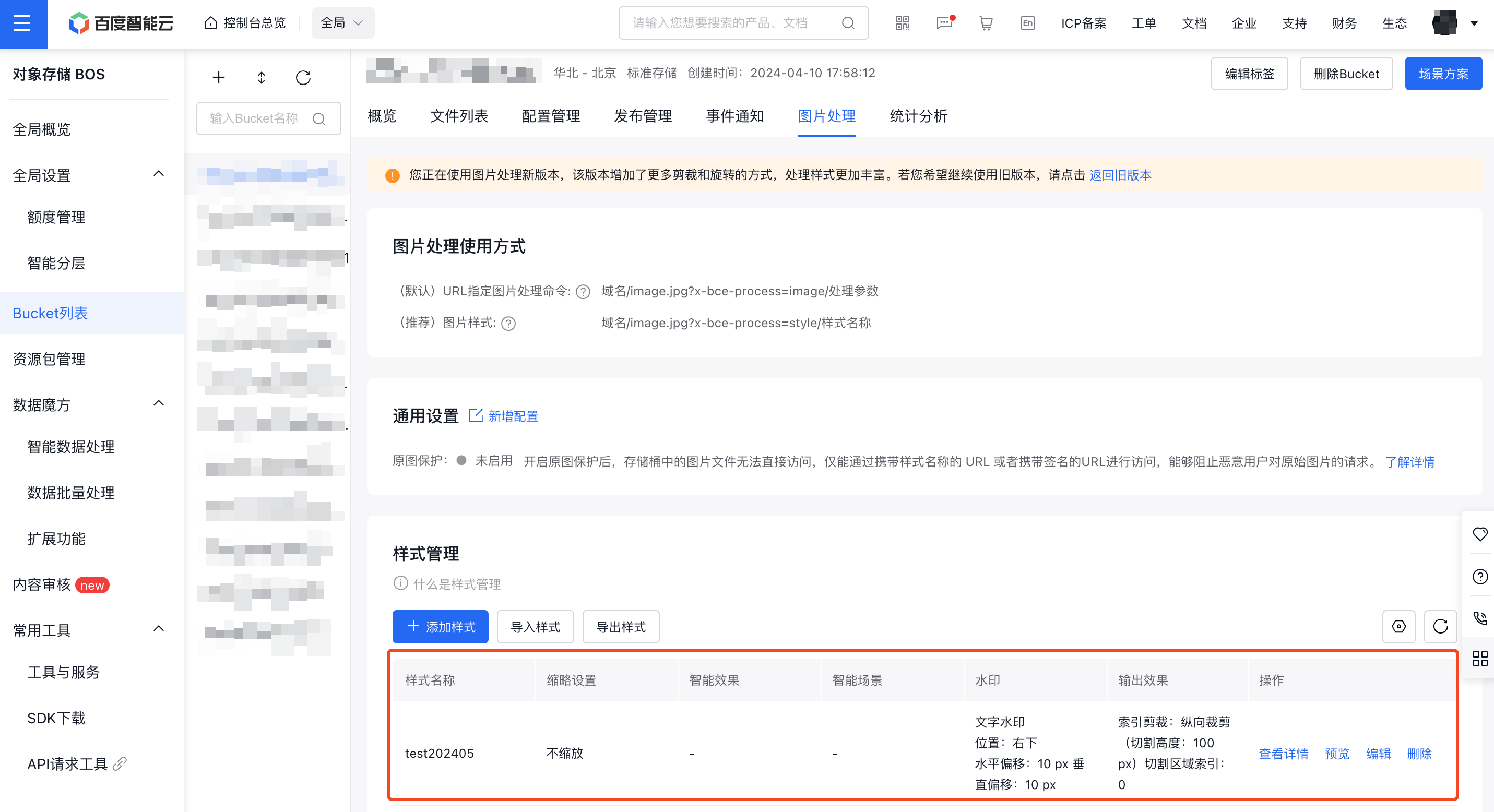
Description:
- BOS image processing commands are categorized into old and new versions. Therefore, the actual command corresponding to an image processing style can belong to either the new or the old version.
- In this document, the access mode
x-bce-process=style/${stylename}can only access styles corresponding to new-version commands. Styles corresponding to old-version commands still need to be accessed through the old-version @! mode.
Image processing result return
BOS returns the processed image information through HTTP Headers.
In addition to the information already included in standard HTTP Headers, other information is returned in the x-bce-image-info, in the format of key1=value; key2=value2;...
Reference return content is as follows:
| Information | Response header | Value |
|---|---|---|
| format | Content-Type: image/jpeg |
jpeg |
| size | Content-Length: 12608 |
12608 |
| md5 | Content-MD5: IsfLjdB8Uu+kwmuFKJ1VZw== |
IsfLjdB8Uu+kwmuFKJ1VZw== |
| width | x-bce-image-info:width=200 |
200 |
| height | x-bce-image-info:height=113 |
113 |