

Folder sharing
If you need to share multiple files (objects) in a bucket at once, you can create a folder, store all the files to be shared in it, and generate a sharing link using the folder sharing function. Recipients can access the link through a browser or log in with the BOS desktop tool to download the folder's contents.
Create folder sharing link
Method 1: Use BOS console
Operation steps
- Sign in to BOS Management Console.
- In the BOS console's left navigation bar, select the bucket containing the target folder, then click to access the bucket’s File List page.
- Find the folder you want to share, and click [Sharing] in the right-hand operation bar.
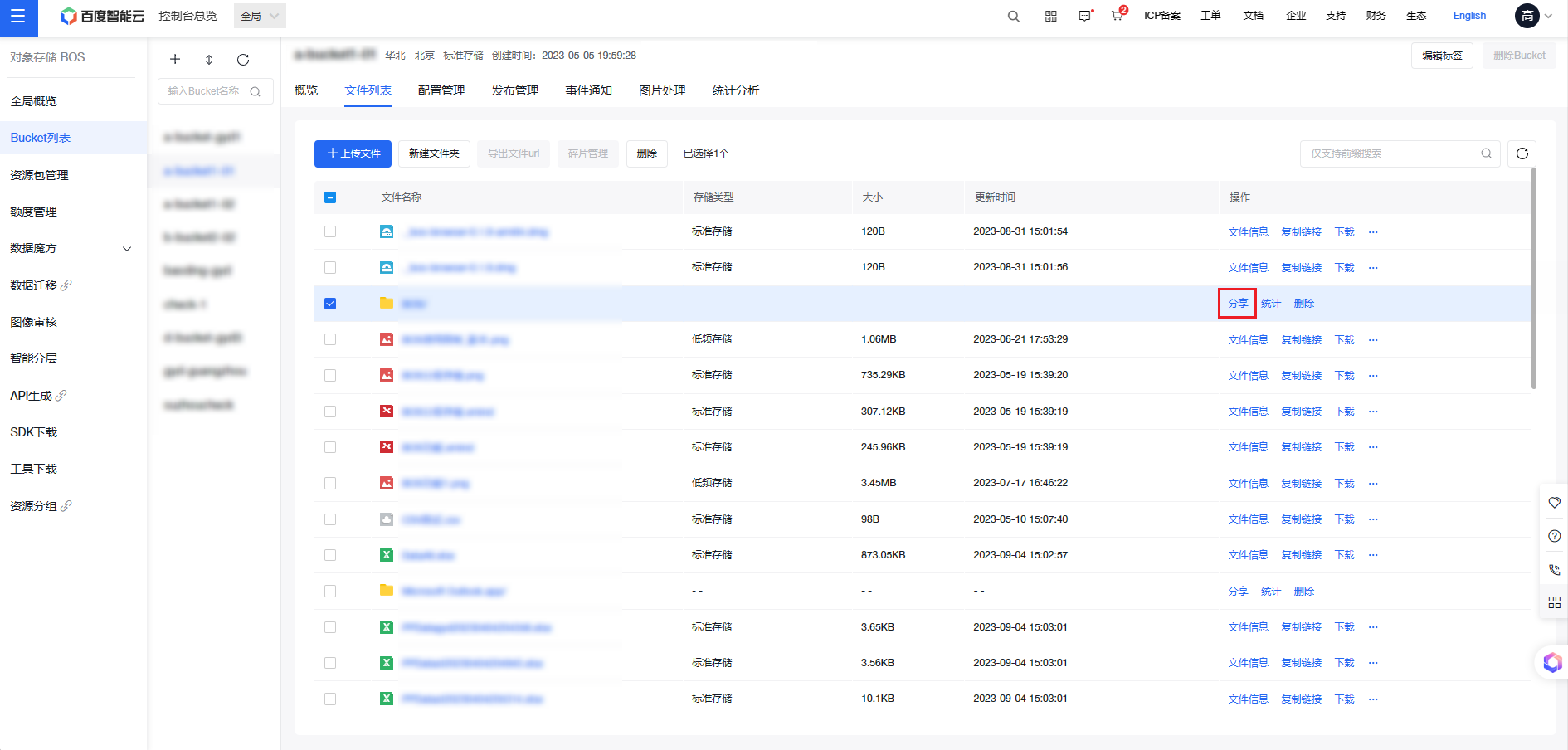
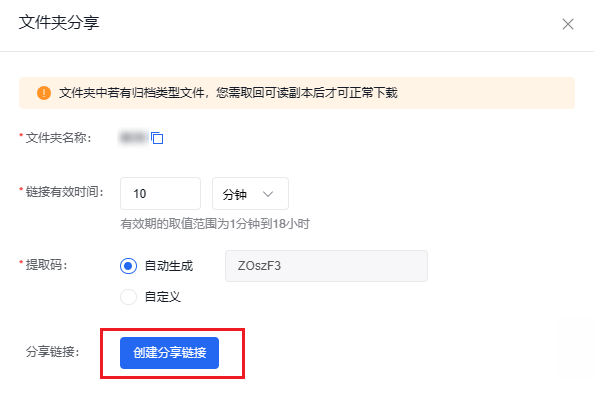
- In the pop-up window, set the validity period and extraction code for the folder sharing link as needed, then click [Create Sharing Link].
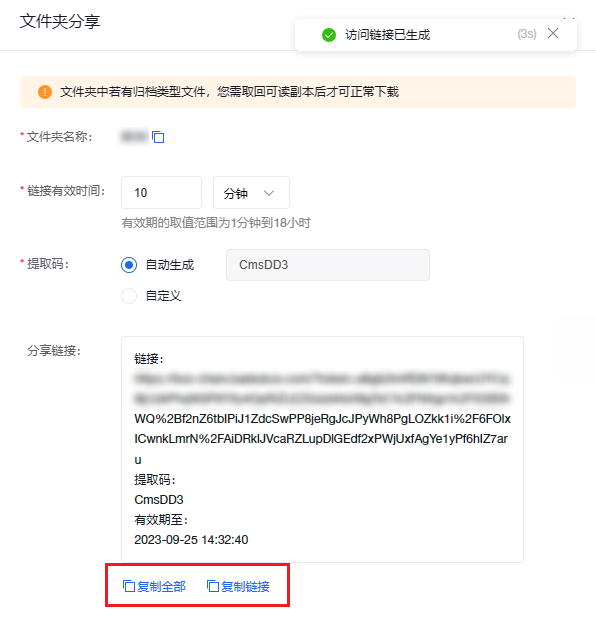
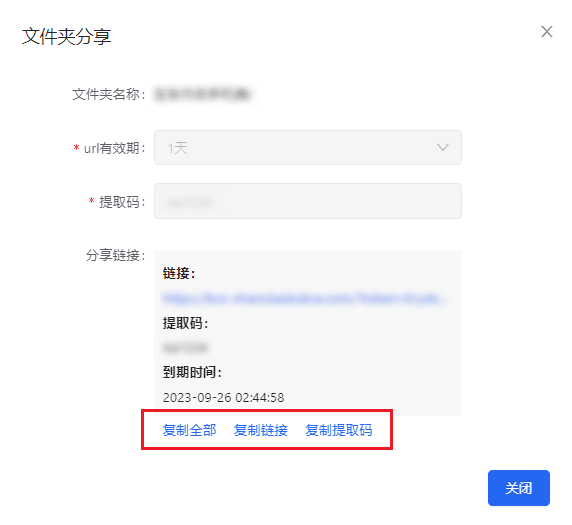
- In the current window, you can view the generated folder URL. You may select [Copy All] or [Copy Link] to quickly copy and share the sharing link and extraction code with others.
Method 2: Use the graphical desktop tool BOS Browser
Operation steps
- Sign in to the BOS desktop tool using AK/SK. If you haven't downloaded a BOS desktop tool yet, please go to BOS-PC Client to download the latest version.
- Choose the target bucket.
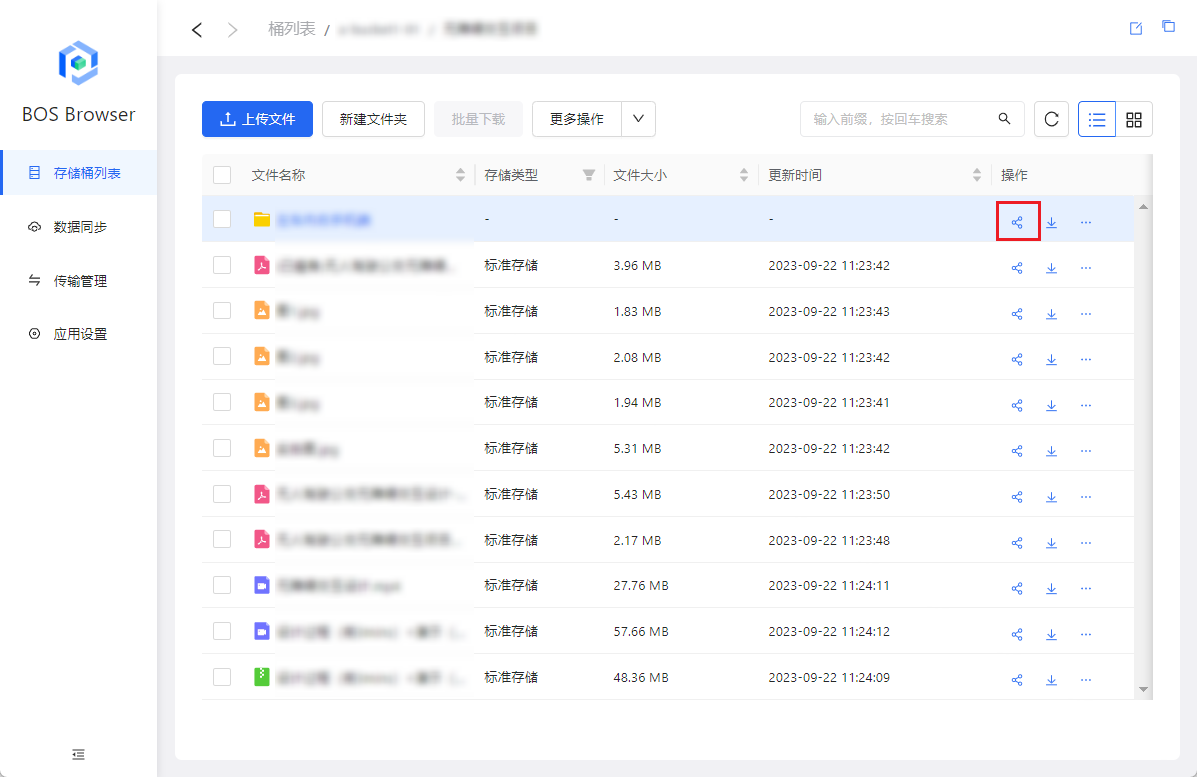
- Find the folder you want to share on the file list page and click the [Sharing] icon in the operation bar.
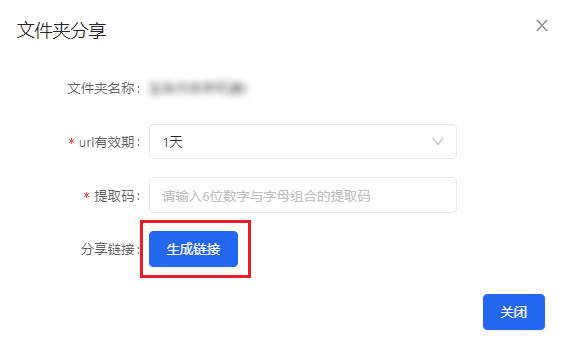
- In the Folder Sharing pop-up window, set the URL validity period and a 6-digit extraction code, then click [Generate Link].
- Copy the folder sharing link along with the extraction code.
Use folder sharing link
Once you have the BOS folder sharing link and extraction code, you can use them to view and download the files or folders within the shared link.
Method 1: Open via browser
Operation steps
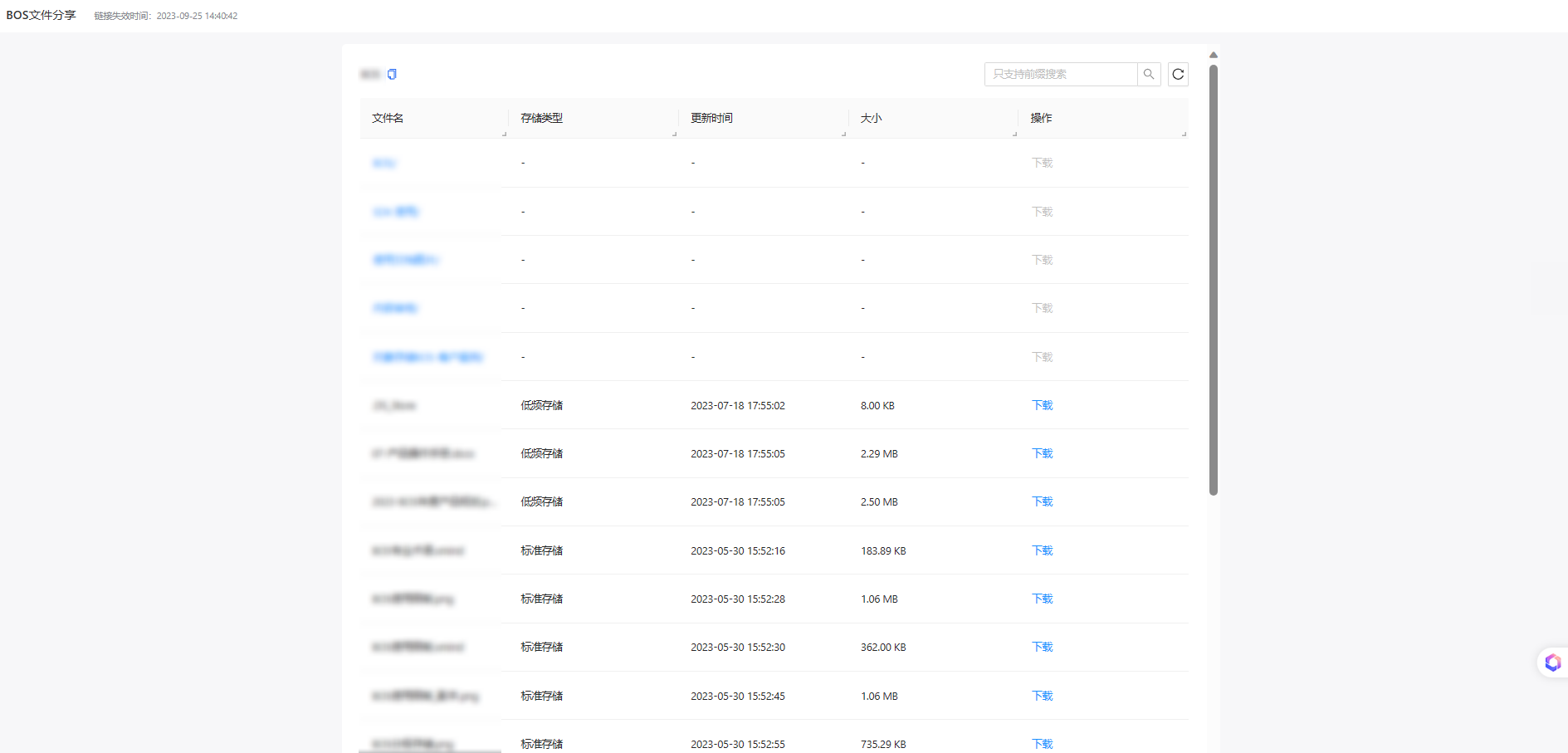
- Open the folder sharing link in a browser while it’s within the validity period, enter the extraction code, and click [Extract Files] to view the file list in the shared folder.

-
You can click the [Download] button in the file list to download files directly to your local system.
Note: Opening the folder sharing link in a browser currently supports downloading files in the opened folder only. For batch downloading of files or folders, refer to Method 2: Using the graphical desktop tool BOS Browser.
Method II: Use the graphical desktop tool BOS Browser
Operation steps
- After obtaining the folder sharing link and extraction code, you can use the code to sign in to the BOS desktop tool. If you haven't downloaded a BOS desktop tool yet, please go to BOS-PC Client to download the latest version.

- Click the [Download] button in the file list operation bar to download specific files or folders.
- Alternatively, you can select multiple files or folders for batch downloading, click [Batch Download] at the top of the page, and create a batch download task.
- In the left navigation bar of the BOS Browser, go to [Task Management] to check the status of the tasks.
- For details, refer to [Download Shared Files Using BOS Desktop Tool](BOS/Peripheral Tools/BOS-PC Client/User guide.md#Download Shared Files).
Note: Ensure that all files are downloaded before the link expires. After it expires, the desktop tool will automatically log out, and any ongoing download tasks will be forcibly terminated.