

User guide
BOS desktop is a graphical management tool provided by Baidu AI Cloud Object Storage (BOS), supporting use after installation in both Windows and Mac systems. For BOS desktop download and installation, refer to Installation and Login.
Overview of BOS desktop function
The BOS desktop supports object-level operations and management, such as file uploads and downloads, deletions, renaming, folder creation, and file ACL viewing. Any changes made to files in the bucket via BOS desktop (including uploads, deletions, renaming, etc.) are automatically synchronized with the console.
| Function name | Function description |
|---|---|
| Create Bucket | Support creating bucket on BOS desktop |
| View Bucket Details | Support viewing bucket basic information |
| Search for Buckets | Support searching for created buckets |
| Delete bucket | Support deleting non-null buckets on the BOS desktop. Make sure that there are no files and unfinished parts in the bucket |
| File (Folder) Upload | Support uploading local files to the BOS bucket via drag-and-drop or clicking |
| File (Folder) Download | Support downloading files and folders from bucket to local |
| File (folder) batch download | Support downloading files and folders from bucket to local in batch |
| View File Details | Support viewing basic information of files in bucket |
| File Rename | Support renaming files within bucket |
| File Copy | Support copying files from a bucket to other BOS buckets by drop-down selection method |
| Share files/folders | Support sharing files and folders, and setting validity period for sharing |
| Delete file | Support single and batch deletion of existing files in the bucket |
| Search for Files | Support searching for files in the bucket by prefix search method |
| New folder | Support creating new folders in the bucket to add new storage directories |
| Local file auto-sync upload | Support automatic synchronization of local data to BOS via sync drive, eliminating the need for manual upload |
| Transmission Management | (The function is applicable to v0.2.4 and lower versions) Upload, download and other operations of single or batch files can be viewed, paused, retried, etc., in Task Management. |
| Task Management | (The function is applicable to v1.0.0 and higher versions) The operation tasks of uploading, downloading, moving, copying, deleting and renaming of single or batch files can be viewed and managed in the Task Management |
| Sign in via Specified Path | When a user signs in, based on the configuration of AK/SK login, an optional access path can be configured. The path access mode supports either a single bucket or a specific file path under a bucket. This function enables fine-grained file management via the desktop tool. |
| Local Logs | Supports full logs (including all information of info, warm, error, etc.) and info-only logs. Enabled by default, you can modify the configuration in the Application Settings |
| Upload/Download Performance Optimization | To further improve the upload and download performance, BOS Browser provides the ability to control the count of concurrent tasks. Users can flexibly adjust the relevant parameters according to their own configuration and network environment and other factors, so as to obtain the maximum transmission efficiency. |
BOS Browser User Guide
The following example illustrates related operations in version 0.1.0 for macOS. If you are using Windows, you can also refer to this User Guide for guidance.
1. Create/Delete/View Bucket
| Function | Description | How to operate |
|---|---|---|
| Create a bucket | A bucket can be created directly through the desktop tool client | 1. In the bucket list, click Create Bucket in the upper left corner. 2. Correctly fill in the bucket name and select the region, default bucket type, and access permission. 3. Click OK to complete the creation |
| Delete bucket | Before deleting a bucket, confirm that all files and fragments in the bucket have been cleared | 1. In the bucket list, click Delete in the corresponding bucket operation bar 2. Confirm that all data in the bucket has been cleared, and then click OK to delete |
| View Bucket Details | Bucket details include the bucket name, region, access permissions, and official bucket domain name. | You can click View Details in the bucket list operation bar |
2. File/Folder Upload
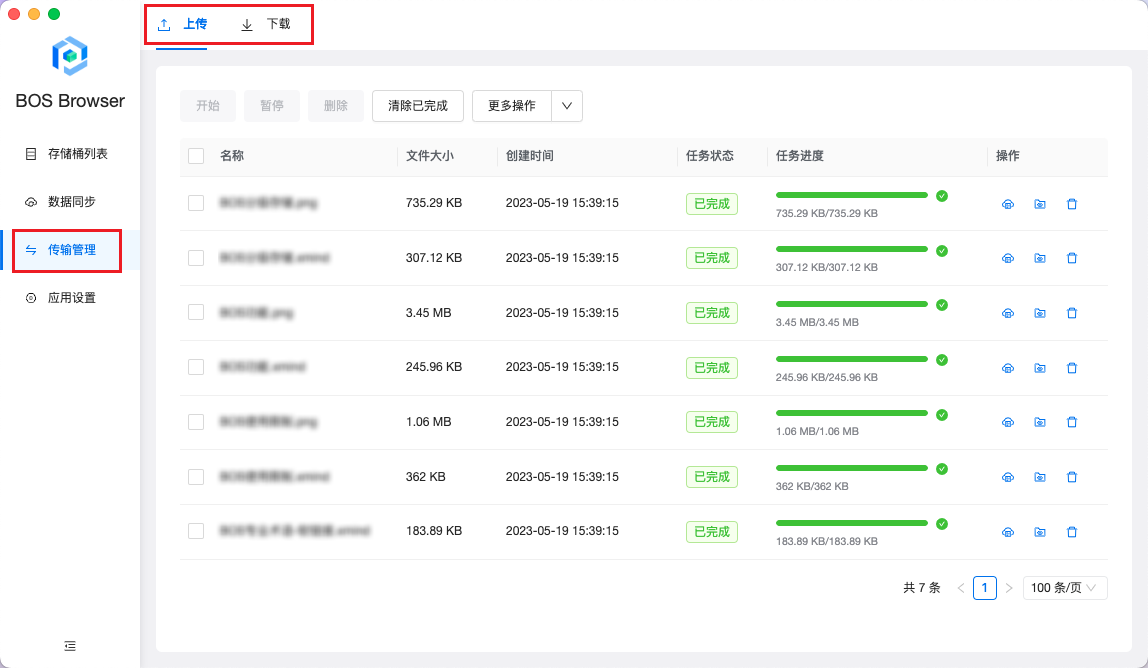
On the BOS desktop, click the Upload button to select single or batch files and folders for uploading, or simply drag and drop local files (or folders) into the target bucket. All file upload tasks can be monitored and managed under Transmission Management > Upload in the navigation panel on the left.
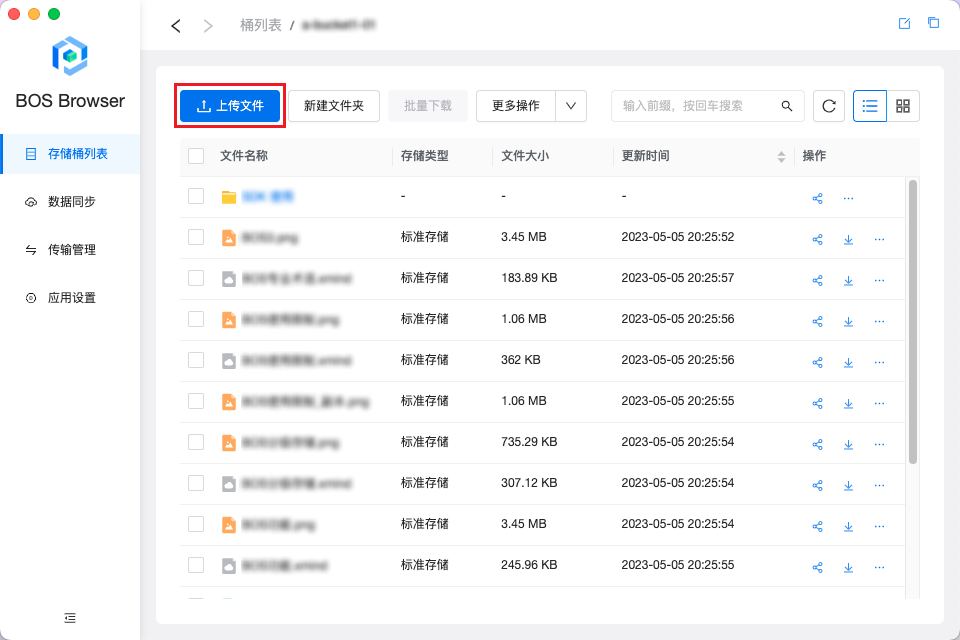
Description:
- If the "Upload Failed" message appears during file upload, it might be due to a connection timeout caused by inactivity after signing into the BOS desktop. In such cases, close the BOS desktop, restart it, sign in again, and then re-upload the file from the upload list.
3. File/Folder Download
You can download single files or folders, or batch download multiple files and folders.
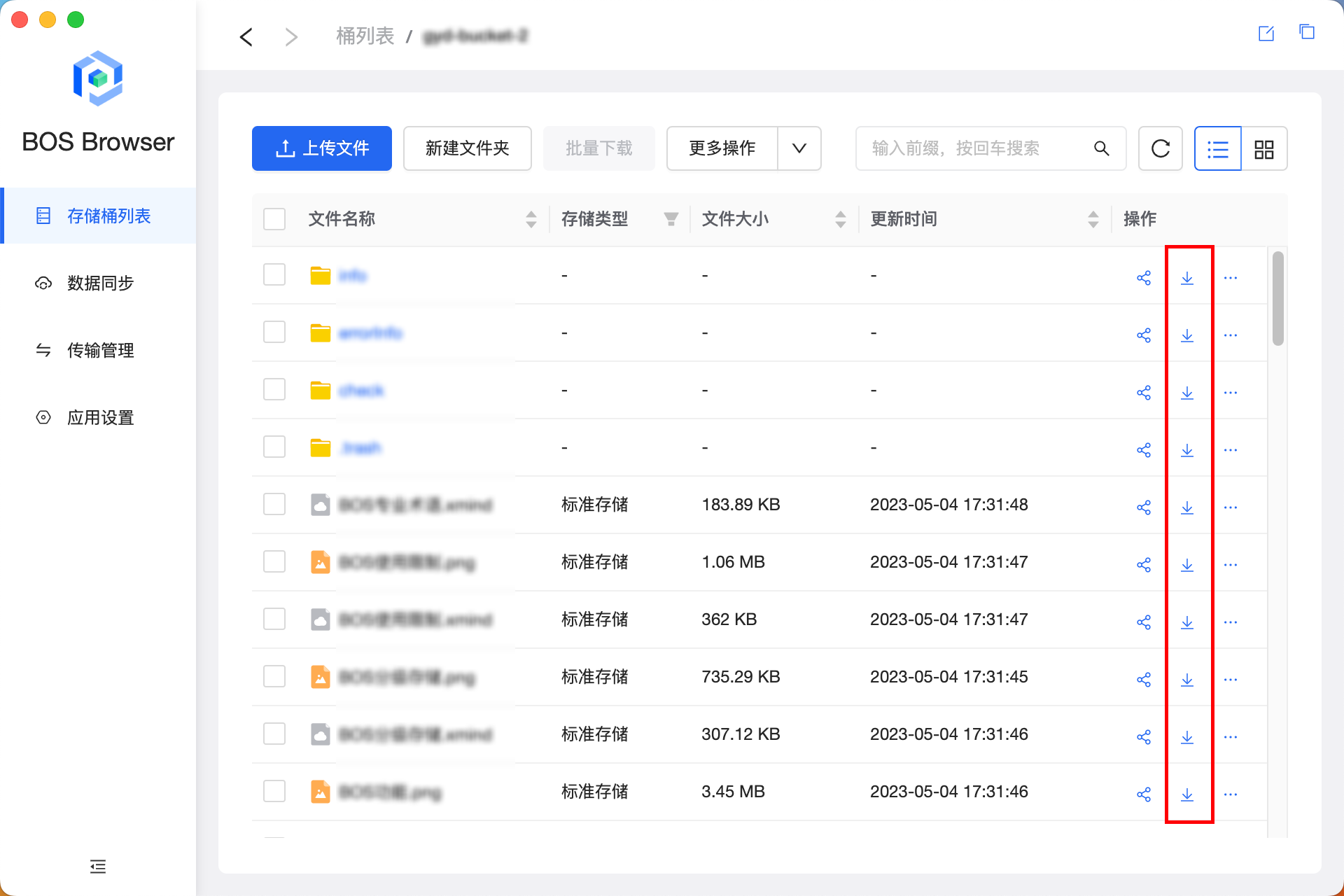
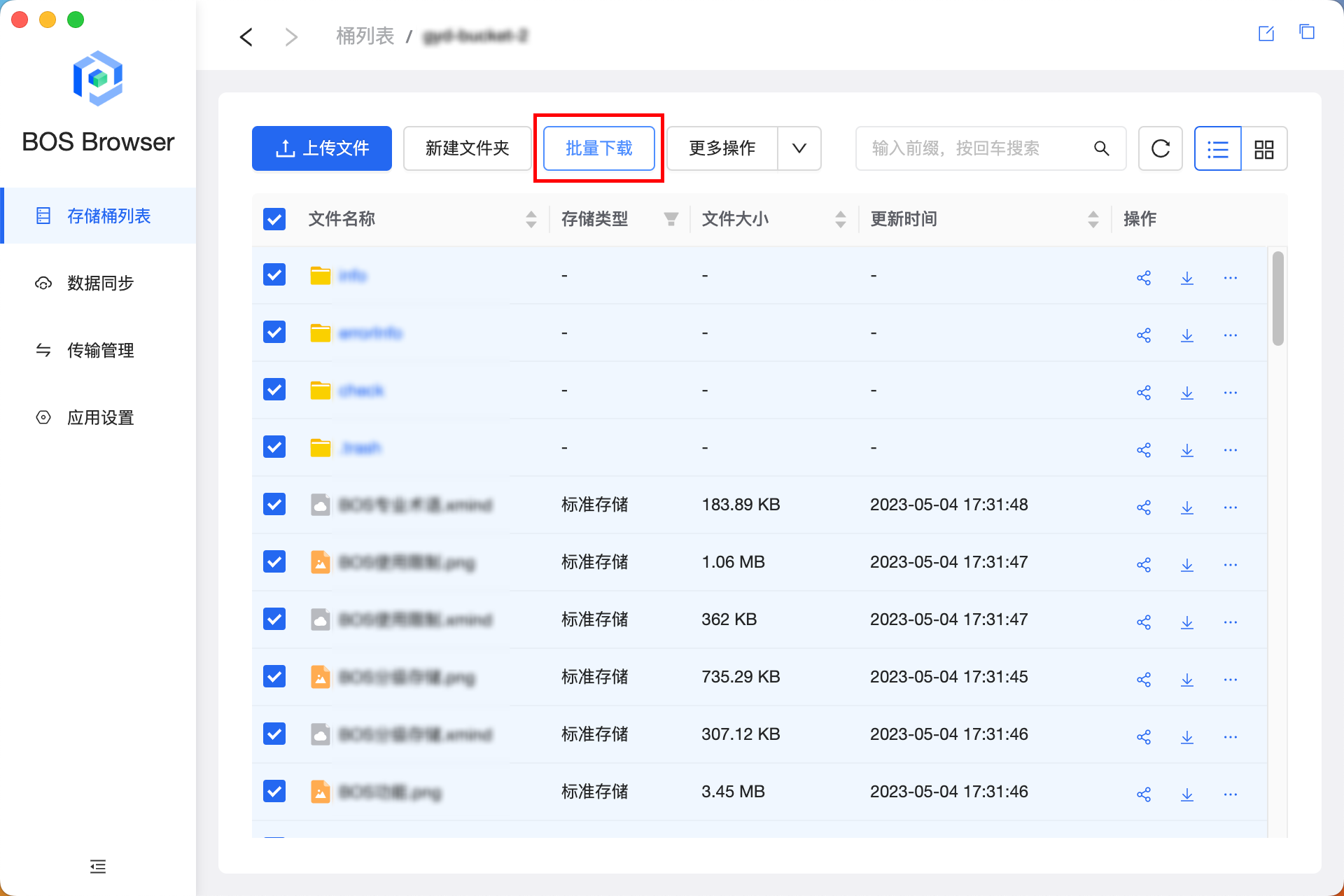
- Click the Download icon in the file (object) list operation bar on the BOS desktop to download a single file/folder. You can also select multiple files/folders and then click the Batch Download button at the top to batch download multiple files/folders. The download tasks can be viewed and managed in the left navigation bar Transmission Management - Download.
4. File Renaming
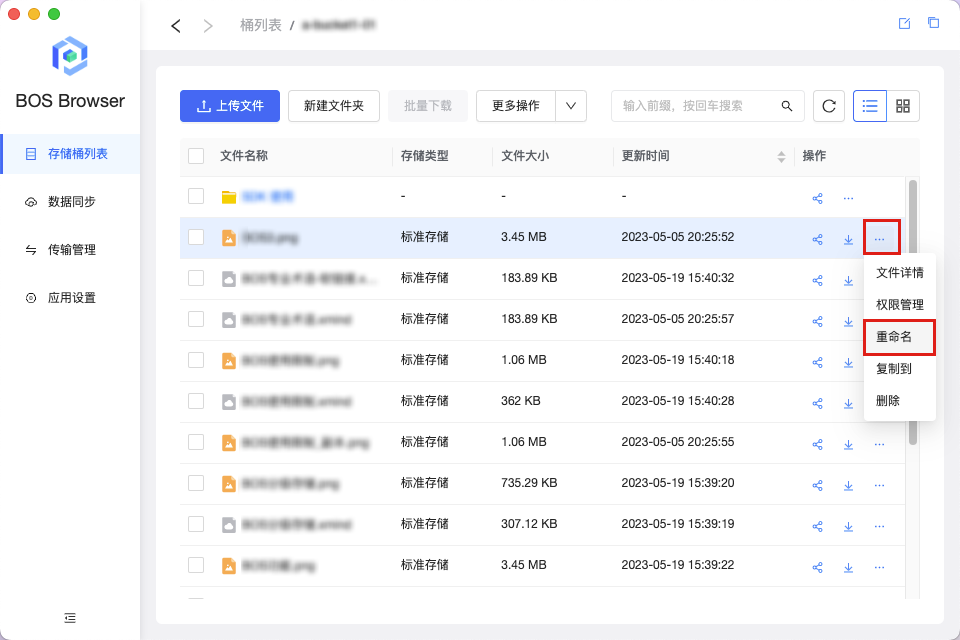
To rename a file, click the ... icon in the file (object) list operation bar, select Rename from the dropdown menu, enter the new name in the pop-up box, and click OK to save the changes.
5. File Copy
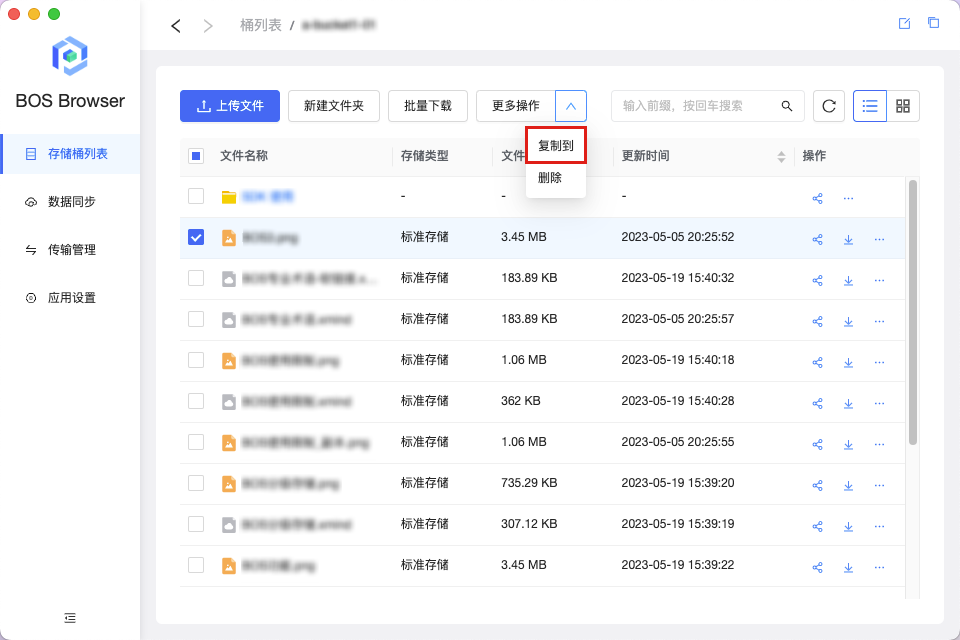
To copy a file to another bucket, click the ... icon in the file (object) list operation bar, select Copy To from the dropdown menu, and specify or directly input the target bucket in the pop-up box. You may also choose a specific folder within the bucket. For batch copying, select multiple files, click More Operations at the top, and choose Copy To from the dropdown menu.
6. File and Folder Sharing
6.1 File Sharing
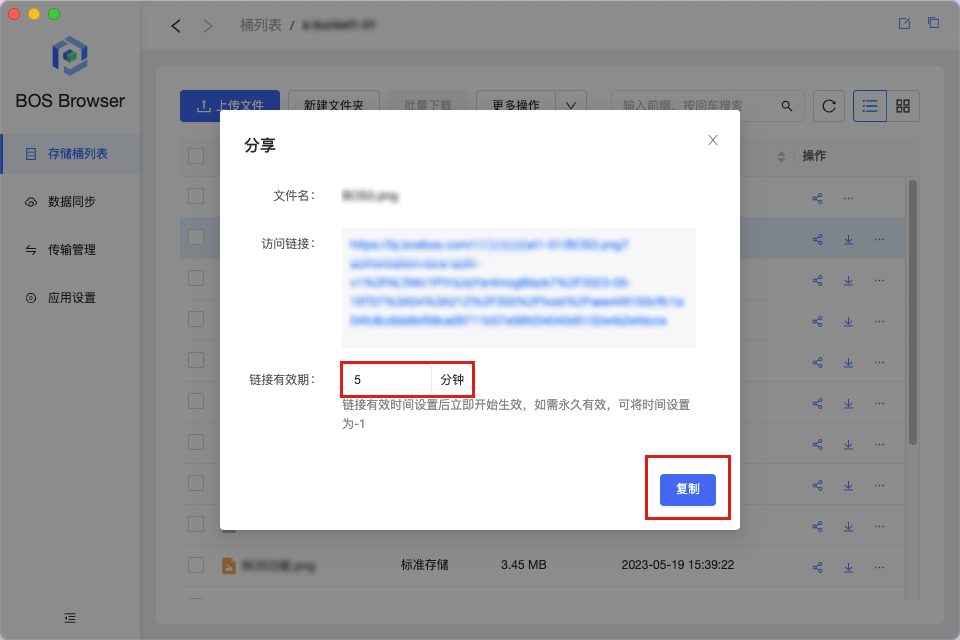
To share a file, click the Share icon next to the file in the object list on the BOS desktop, set the validity period for the sharing link, and click Copy to generate and share the link.
6.2 Folder sharing
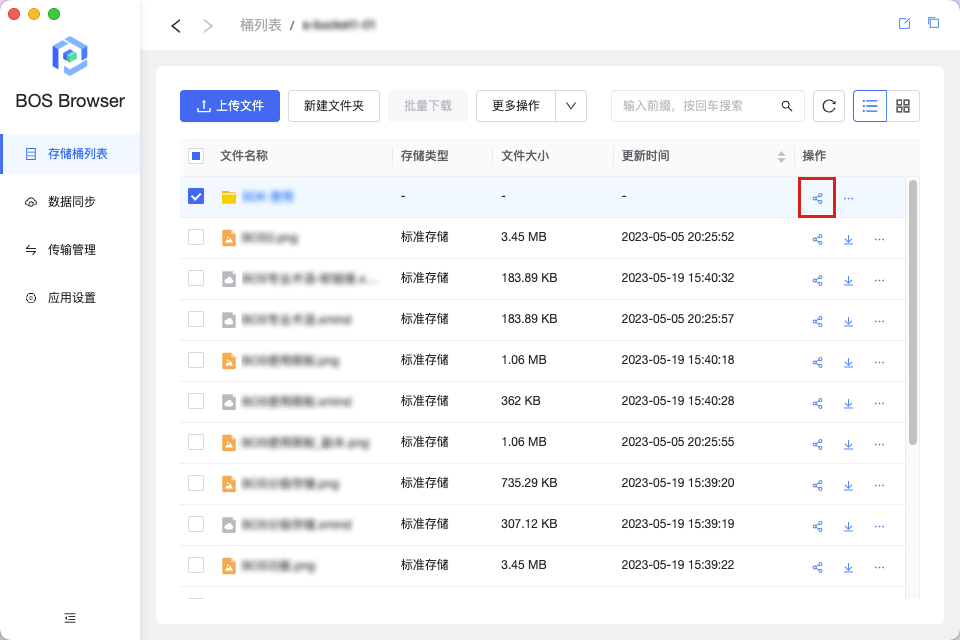
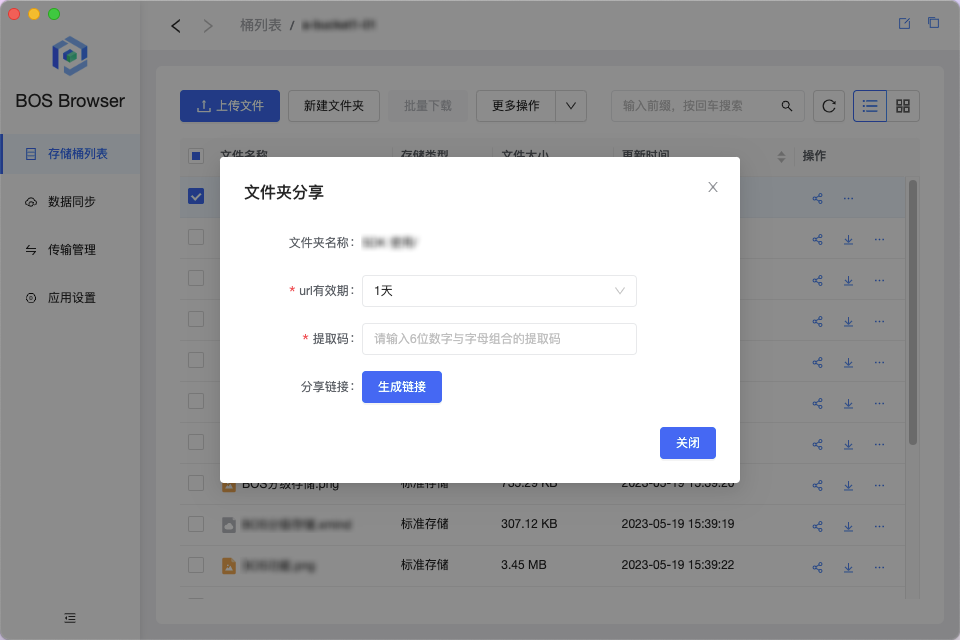
To improve sharing efficiency, you can directly share all files under a directory (folder). The operation type is to click and select the folder to be shared, then click the Share icon in the operation bar, set the sharing link validity period and a 6-digit extraction code, click to generate the link, and copy the folder sharing link and extraction code to complete the folder sharing
7. Delete file
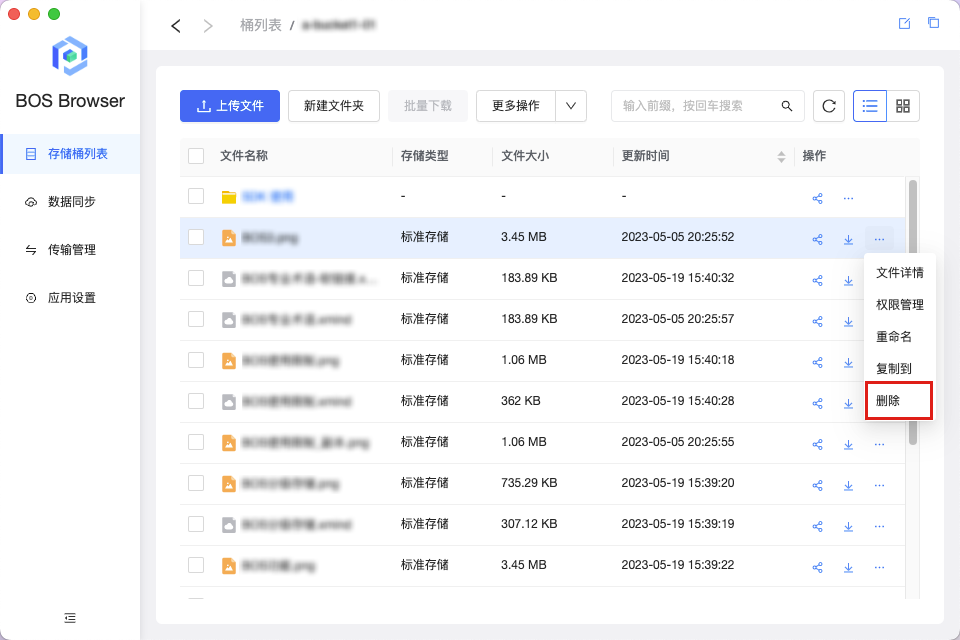
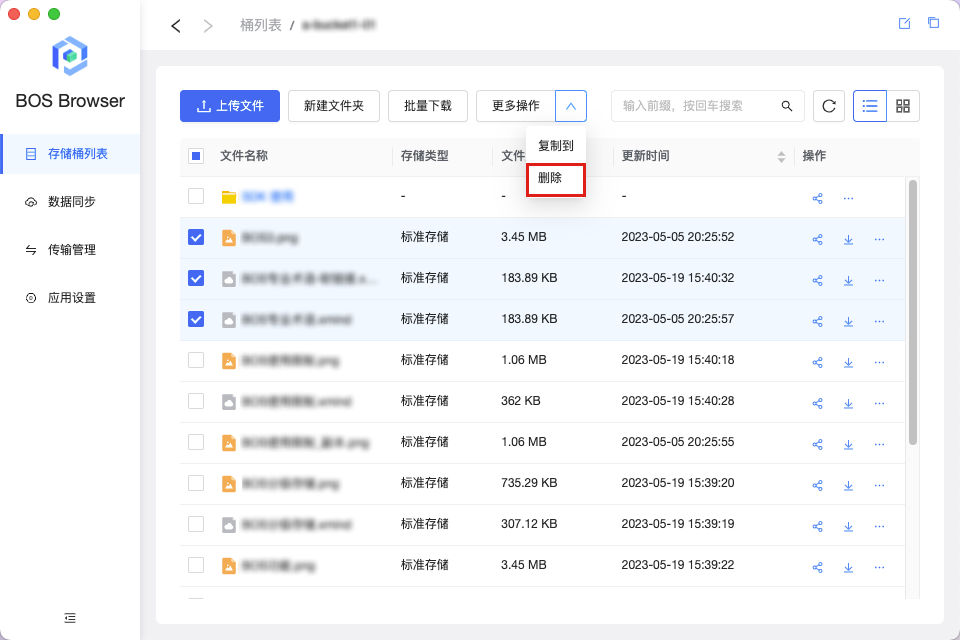
To delete a file, click the ... icon in the file (object) list operation bar, select Delete from the dropdown menu, and confirm the action. For batch deletion, select multiple files and click More Operations - Delete to remove them simultaneously.
Once a file is deleted on the BOS desktop, it will be permanently deleted from BOS. Please operate with caution.
8. New folder
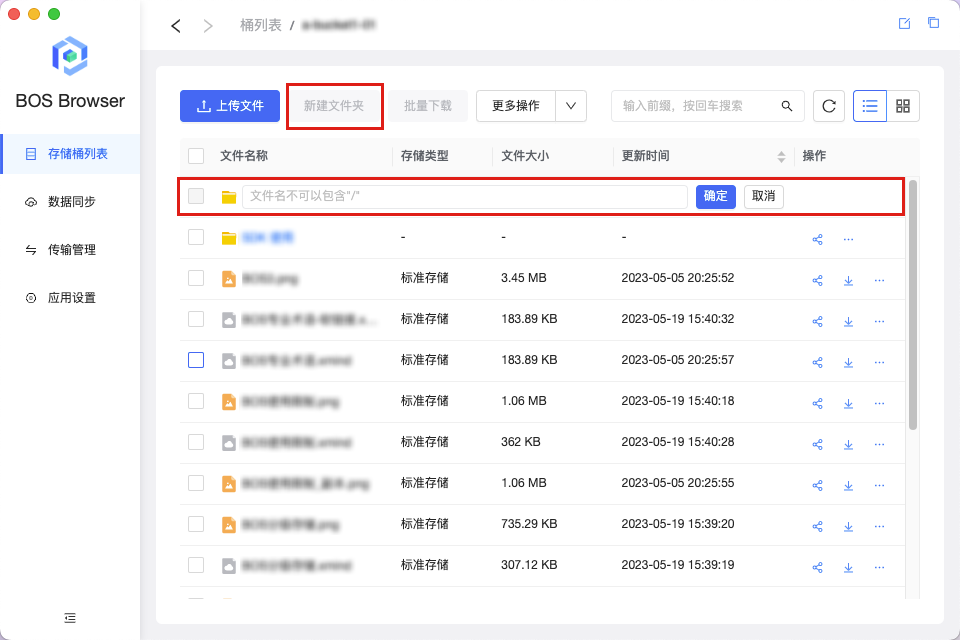
Click the New Folder button to create a directory in the bucket. Once created, you can upload or download files within the folder.
9. Local File Auto Upload (Data Sync)
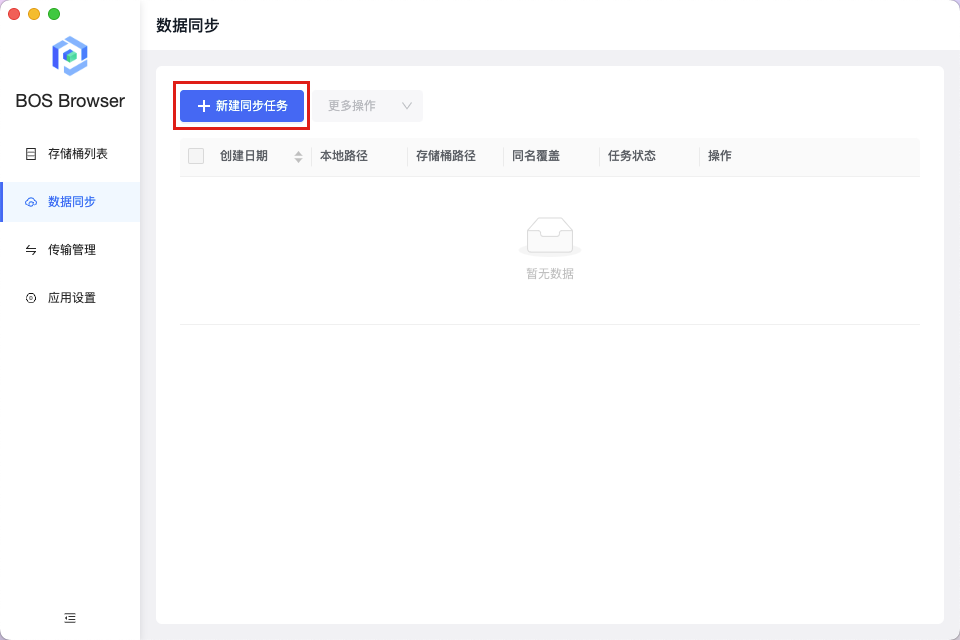
The BOS desktop supports automatic uploading of local files, ensuring real-time synchronization between local directories and cloud data. After enabling data synchronization on the BOS desktop (previously known as Sync Drive), files in the designated local folder are automatically synchronized with the BOS bucket. New files added to the local directory appear automatically in the BOS bucket. You can pause tasks, view logs, and delete synchronization tasks as needed, or manage them in batches via More Operations.
Description:
- Users must select a local folder and a cloud folder to establish a mapping relationship between the two folders after confirmation;
- You can select a bucket or a folder within the BOS directory, but only local folders—not individual files—can be chosen from the local directory.
- BOS enforces a limit on mapping relationships, restricting users to a maximum of 20 concurrent mappings per account.
BOS desktop performs different operations based on different scenarios:
- If a file exists in the local directory but not in the mapped bucket, the file is automatically uploaded to the bucket.
- If a file exists in both the local directory and the mapped BOS bucket but is updated locally, it will automatically overwrite the existing file and be uploaded to the bucket.
- If a file exists in both the local directory and the mapped BOS bucket but is deleted from the local directory, it will remain in the BOS bucket. BOS does not synchronize deletions automatically.
- If a file exists in the bucket but does not exist in the local directory with a corresponding mapping, the file will not be automatically synchronized to the local directory. To save the file locally, download it from the bucket.
Description:
- Files with the same name but different contents in the local directory will be uploaded to the bucket and overwritten. To avoid overwriting, please use distinct filenames.
10. Download Shared Folder
After obtaining the BOS file sharing link and extraction code, you can utilize the BOS desktop tool to view and download files in bulk from the sharing link.
Preliminary preparation
Obtain BOS file sharing link and extraction code. For the process of generating the file sharing link using the web-based BOS console or desktop tool, refer to [Folder Sharing](BOS/Console Operation Guide/Manage object/Folder sharing.md)..
Operation steps
- Go to the BOS Desktop Tool Login page and sign in using the file sharing link.

- From the left navigation bar in the BOS desktop tool, select the received share to view the shared file list.
- Select the checkboxes in front of the files you wish to download in bulk, then click Batch Download at the top of the page to start downloading.
- In the BOS Browser's left navigation bar, go to Task Management to check the status of tasks.
- Click the Cancel button located at the bottom right corner of the desktop tool to log out of the file sharing link.
Note: Ensure the file download is completed before the link expires. Once expired, the desktop tool will automatically log out, and any ongoing downloads will be forcibly stopped.
11. Search for Files
Enter the filename in the search box at the top right of the bucket to search. Filename prefix search is supported.
12. View File Details
Click the filename or right-click and select the Details option in the operation bar to view file details such as filename, modification time, permissions, ETag, and Headers.
13. Modify File Access Permission
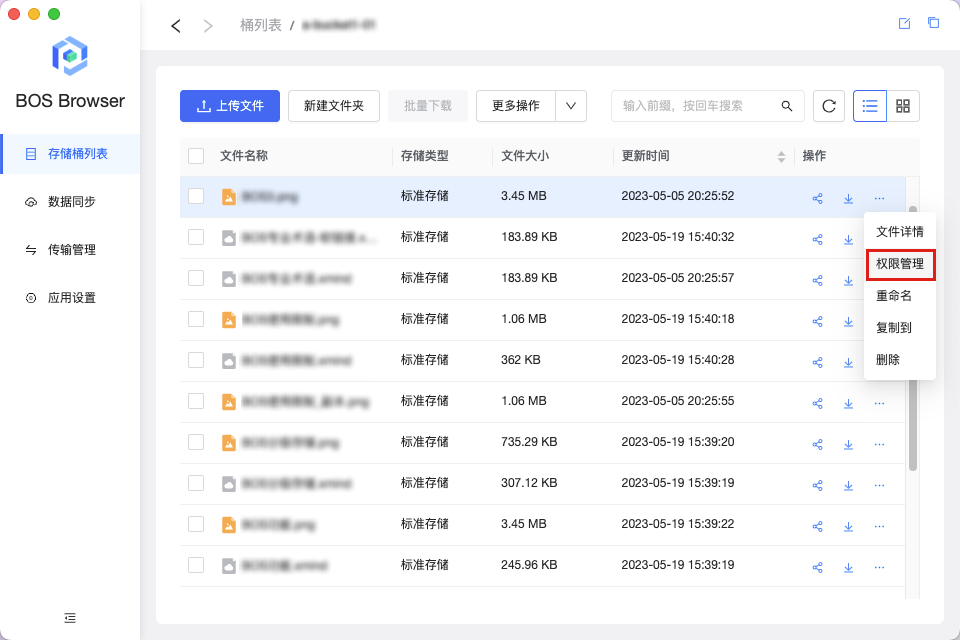
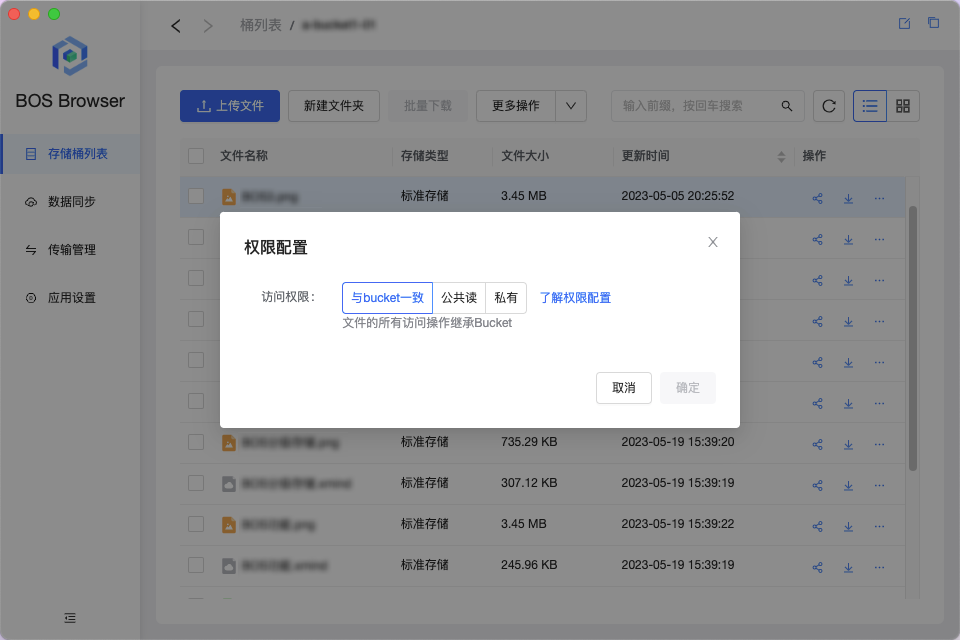
To view and modify object permissions, click the ... icon in the file's operation bar and select Permission Management from the dropdown menu.
14. Direct Input Path and Path Copy
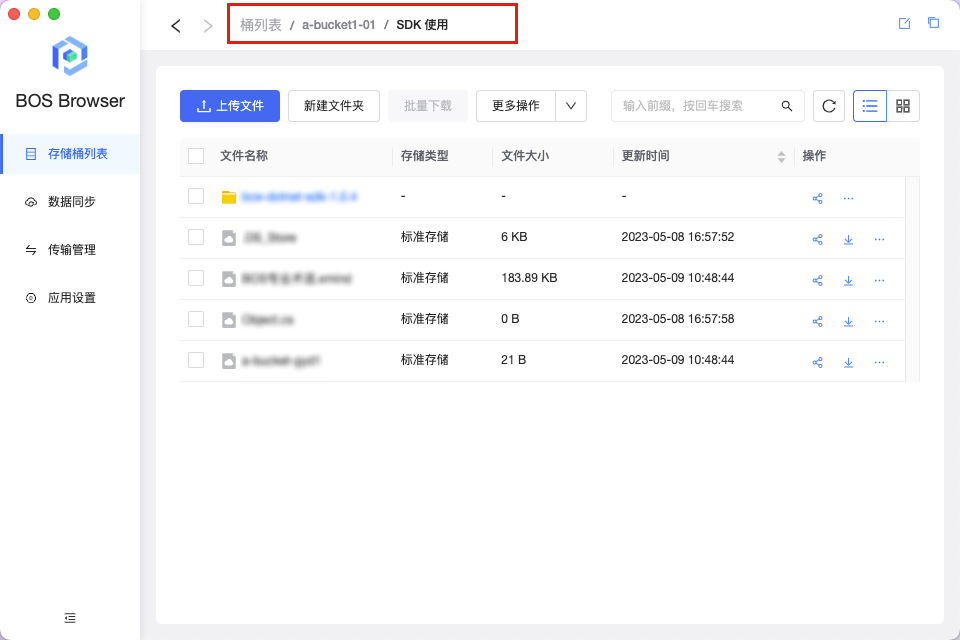
You can type the path directly into the tool's address navigation bar and press Enter to locate the specified path automatically. Ensure the path includes the full bucket or bucket/folder name/, such as bos:/a-bucket1-01/SDK use/. Alternatively, click the Copy icon next to the path to copy it for sharing. You can combine it with the AK/SK key login mode and BOS access path for precise file list navigation.
15. Search for Bucket
To quickly locate a bucket, type its name in the search box above the bucket list on the left.
16. Transmission Management (Applicable to v0.2.4 and earlier versions)
Transmission Management supports managing historical file upload and download tasks, allowing batch operations such as start, pause, and delete.
17. Task Management (Applicable to v1.0.0 and later versions)
Task Management allows you to view and manage tasks such as uploading, downloading, moving, copying, deleting, and renaming single or batch files.
18. Local Logs
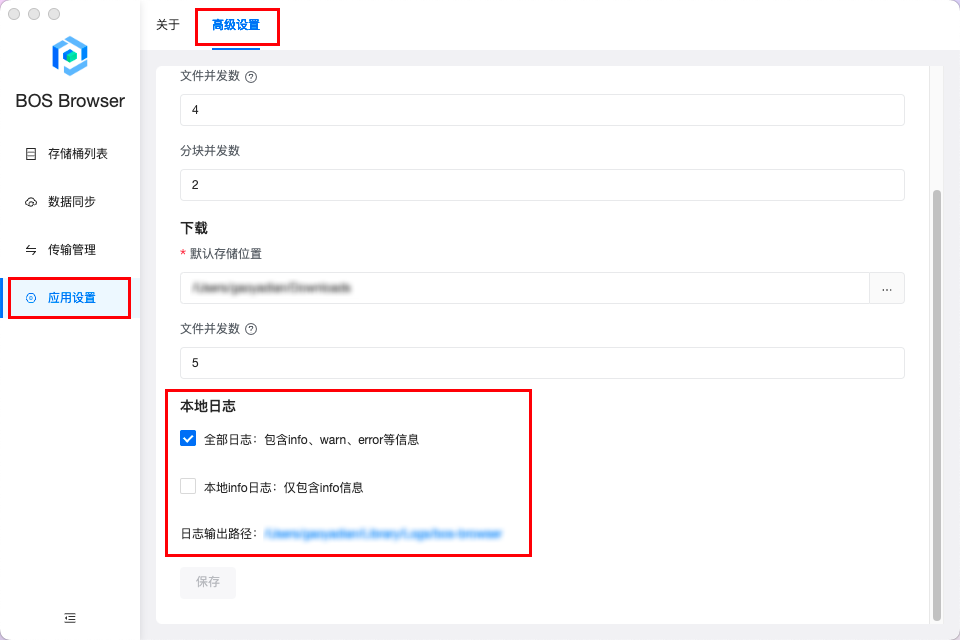
Operations performed through the desktop tool will generate local logs for viewing and auditing purposes. It supports full logs (including all info, warning, error, etc.) or info-only logs. Logs are generated on a daily basis. You can modify the local log configuration in Application Settings - Advanced Settings. If both are not checked, the local logs are disabled by default. It is not recommended that you disable the local log. Click the Log Output Path to open the folder where the local log is located for easy viewing.
19. Upload/download performance optimization
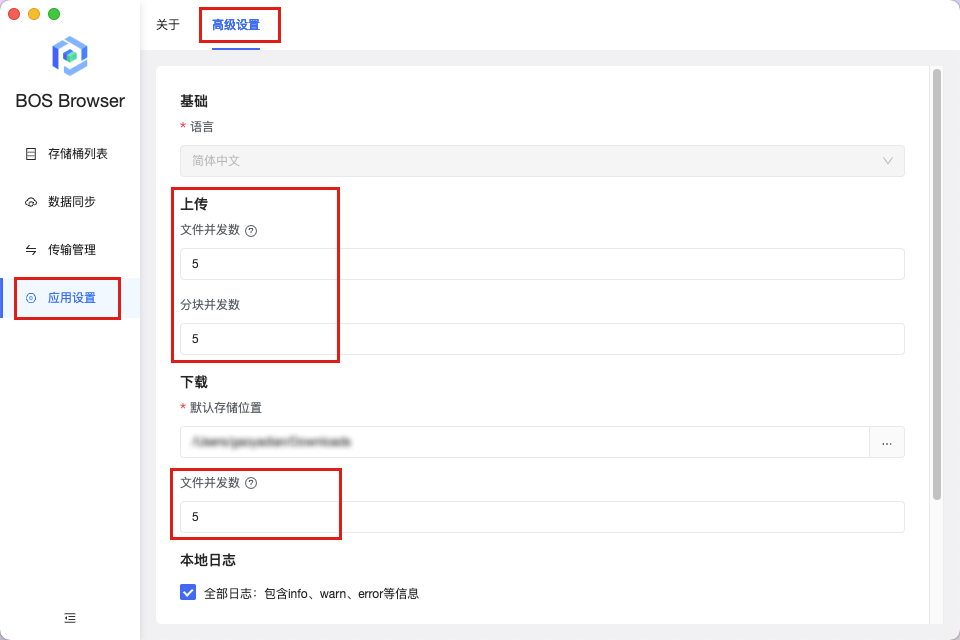
To further improve the upload and download performance, BOS Browser provides the ability to control the count of concurrent tasks. Users can flexibly adjust the relevant parameters according to their own configuration and network environment and other factors, so as to obtain the maximum transmission efficiency. Users can dynamically adjust the concurrent task count in Application Settings - Advanced Settings.
Relevant parameter description
- Upload
| Parameters | Description |
|---|---|
| File concurrency count | The default count of concurrently running upload tasks is set to 5, which can be adjusted by the user, within the valid range of 1-1,000,000. |
| Block concurrency count | The default count of shards executed at the same time when the file is uploaded separately is set to 5, which can be adjusted by the user, within the valid range of 1-10,000 |
- Download
| Parameters | Description |
|---|---|
| File concurrency count | The default count of concurrently running download tasks is set to 5, which can be adjusted by the user, within the valid range of 1-6. |
Description:
- Avoid setting the concurrency count too high. Excessive concurrency can reduce upload/download performance due to thread resource switching and contention. Adjust the setting based on the actual file size and network conditions.
- When the client network condition is not ideal, in order to reduce the situation of task failure caused by network fluctuation, the upload/download segment size and the overall concurrency count can be appropriately reduced;
- Currently, a maximum of 6 concurrent download tasks is supported.