Select scanning
Updated at:2025-11-03
Overview
BOS select scanning function supports retrieving and querying the content of a single BOS file through simple SQL statements, so as to allow you to get the desired data. With the BOS select scanning function, you can complete content retrieval and queries directly in the console without downloading files locally, to effectively save bandwidth resources and improve data query efficiency. Select scanning is a value-added service of BOS and may incur corresponding fees. For details, please refer to Overview of Billing Items.
Note
-
Supported file types for retrieval:
- CSV files: UTF-8 encoded RFC 4180 standard CSV files, including TSV and similar CSV files, with customizable row/column delimiters and Quote characters;
- JSON files can include two types: DOCUMENT and LINES. DOCUMENT means that the entire file constitutes a single JSON object, while LINES indicates that the file comprises multiple JSON objects separated by row delimiters, though the overall file itself is not a valid JSON object.
- Supported storage classes for retrieval: Standard storage, infrequent access storage, and cold storage files;
- Support scanning server-side encrypted files;
- Support scanning files compressed via GZIP;
- Supported SQL syntax: Support the
Select From Where Limit SQLpattern, supporting string, int (64bit), float (64bit), timestamp, bool, and decimal(128). Also support logical conditions (AND, OR, NOT), arithmetic expressions (+-*/%), comparison operators (>,=, <, >=, <=, !=), matching operators (LIKE, BETWEEN+AND, IN), null checks (IS NULL), aggregate functions (AVG, COUNT, MAX, MIN, SUM), conversion function CAST, and the alias keyword AS; - The console currently only supports scanning files with size less than 180 MB and extracts only the first 40 MB data of scanning results. If you need to process larger files or return more records, please call the Select Object API;
- Select scanning is a BOS value-added service, and fees are charged based on the scanned source file size (GB). For details, please refer to the Charge Item Information and Usage Pricing. If scanning fails due to SQL syntax or system errors, and no charges will be incurred for the scanning.
Select scanning
- Sign in to the BOS Management Console and navigate to the Global Overview page.
- In the left navigation bar of the BOS console, select the target bucket where the scanned file is located, then click to open the bucket’s File List page.
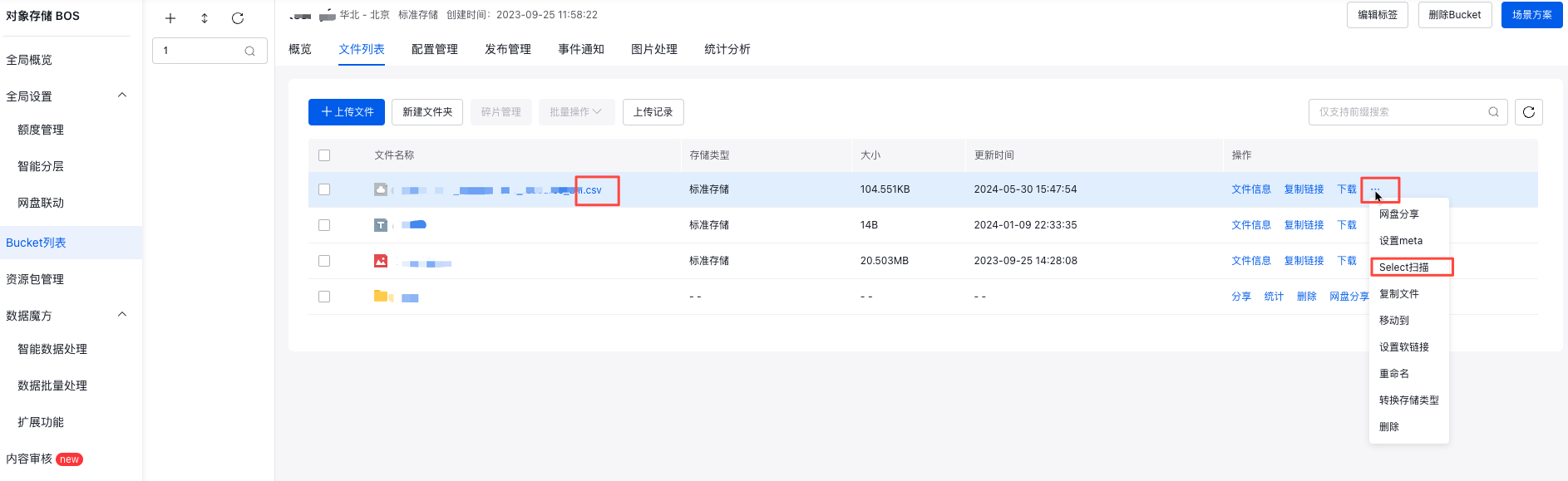
- Click More->Select Scanning in the operation bar on the right side of the target file. Select scanning is a cloud operation designed for big data scenarios, with specific requirements on file types. Only files of .csv and .json support select scanning; other file types are not supported.
- In the right panel, first select the file you want to scan, then proceed to configure the source file.
| File Type | Configuration name | Configuration description |
|---|---|---|
| CSV | Header Field |
|
| Delimiter |
|
|
| Compression Method |
|
|
| Export format | Currently, only the scanning results in CSV format are supported for export | |
| Encryption Format | Select scanning supports scanning encrypted files, and the console automatically identifies the encryption status of the scanned file | |
| JSON | JSON Type |
|
| Compression Method |
|
|
| Export format | Currently, only the scanning results in CSV format are supported for export | |
| Encryption Format | Select scanning supports scanning encrypted files, and the console automatically identifies the encryption status of the scanned file |
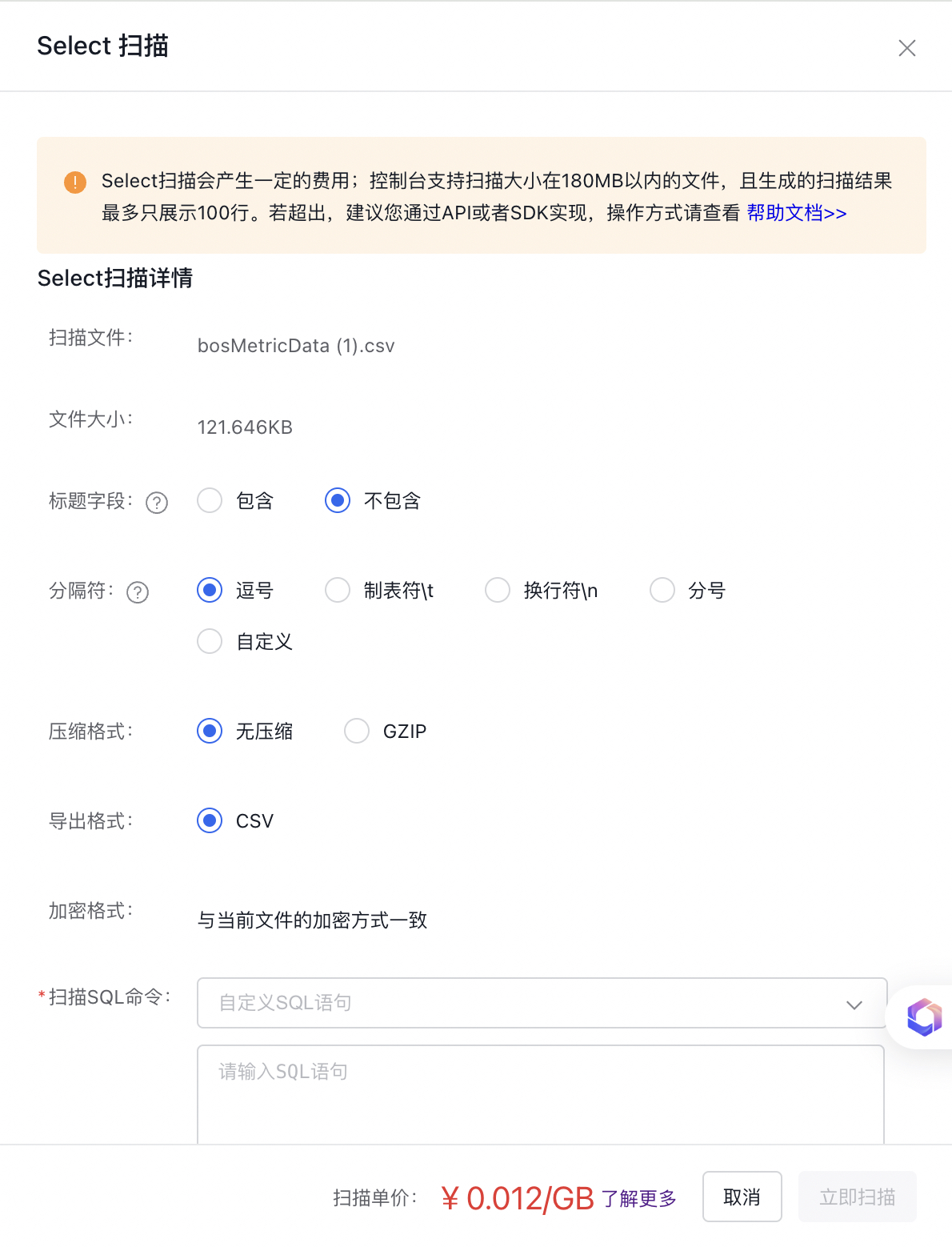
- After configuring the scanned file, you also need to input an SQL statement, and then click Run to scanning the file. BOS provides several common SQL statement templates for your convenience. For common SQL statements for CSV files, please refer to Common CSV SQL Statements; for JSON files, please refer to Common JSON SQL Statements.
- View the scanning results: After clicking "Scan Now," you can check the scanning results. If the scan fails, BOS will provide an error code in the results box. No charges will be applied for unsuccessful scans.
Note
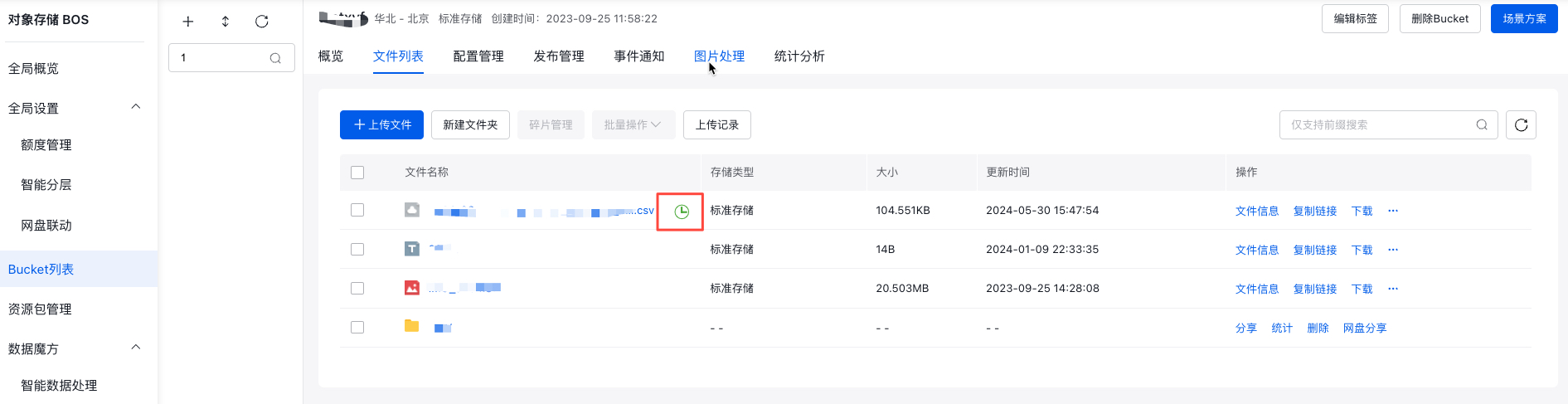
- When the scan window is closed, the currently selected scanning results will automatically be cached in your browser. An alert icon will appear next to the corresponding file in the file list. If you reopen the scan window, the results will still be available. However, initiating a new scan for the same file or closing the browser will automatically clear the cached results.