

Managing Bucket Tag
Updated at:2025-11-03
Overview
Baidu AI Cloud offers a Tag Management feature, enabling efficient categorization and identification of cloud resources by assigning tags to each resource.
- Tag: Each tag includes a key and a value. The combination of the key and value must be unique.
- Single and batch: Supports tagging individual resources or applying tags to multiple cloud resources in batch.
Note
Each user can create up to 200 tags.
Add tag
Tags can be added to buckets based on project or scenario needs, simplifying classification, identification, and bucket management.
Operation step
- Sign in to the Baidu AI Cloud Object Storage (BOS) Management Console.
- In the bucket list on the left, select the bucket where you want to configure tags.
- After accessing the Bucket File List page, click Edit Tag in the upper right corner.
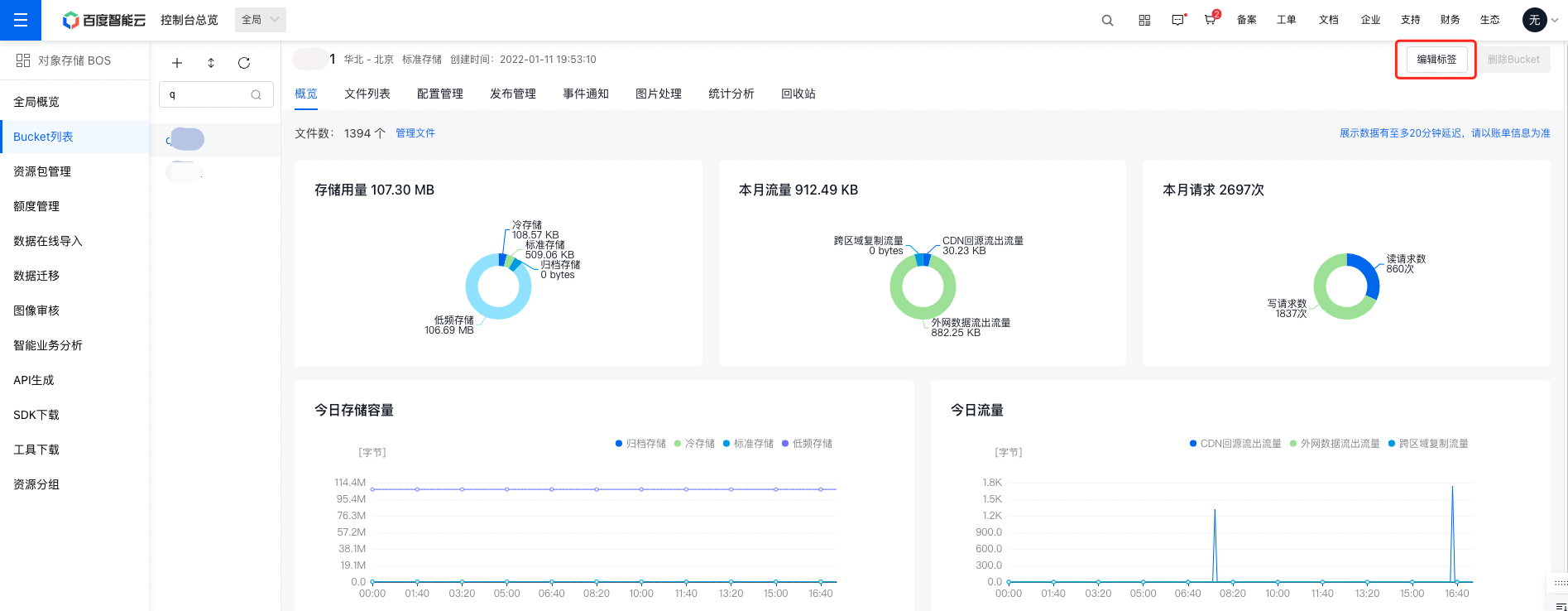
Note: Batch tag editing only allows adding tags; it cannot manage existing ones. Tag key settings are case-sensitive.
- In the pop-up dialog box, input a custom tag key and value. Each bucket can have multiple tag keys, but each key must be unique. The value field can be left blank.
- Click OK to complete the tag creation.
Description:
- When creating bucket tags in batches, you cannot view already added individual instance tags.
- To modify a bucket tag, unbind the tag first, then reset it after confirmation.
Unbind tags
If a bucket no longer needs a tag, you can unbind the tag.
Operation step
- Sign in to the Baidu AI Cloud Object Storage (BOS) Management Console.
- In the bucket list on the left, select the bucket where you want to configure tags.
- After accessing the Bucket File List page, click Edit Tag in the upper right corner.
- In the pop-up dialog box, click
 Remove the Tag to unbind it.
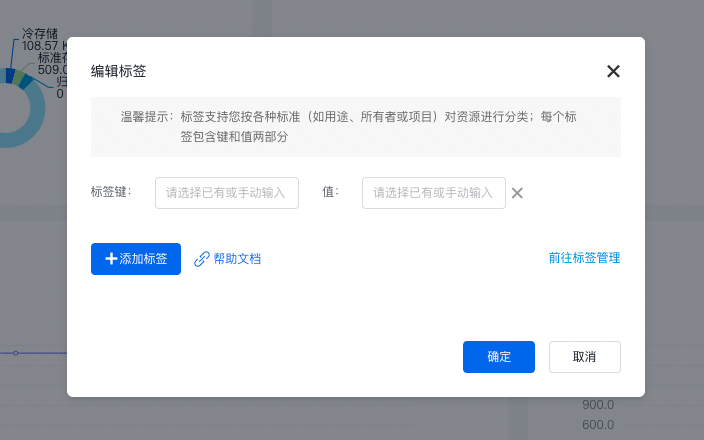
View the resource bill
The resource bill function records the lifecycle and consumption data of each resource, allowing users to view resource and product consumption data by resource dimension.
Operation step
- Sign in to the Baidu AI Cloud Object Storage (BOS) Management Console.
- In the bucket list on the left, select the bucket where you want to configure tags.
- After accessing the Bucket File List page, click Edit Tag in the upper right corner.
- In the pop-up box, select Go to Tag Management> to enter the Baidu AI Cloud Tag Management page.
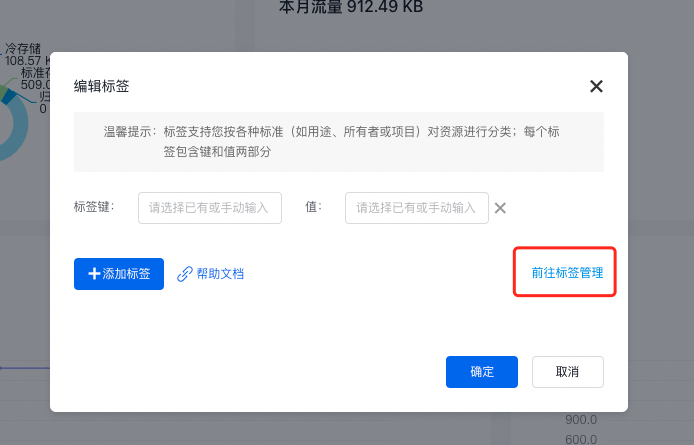
- Click View Bill in the operation bar with the bound BOS bucket.
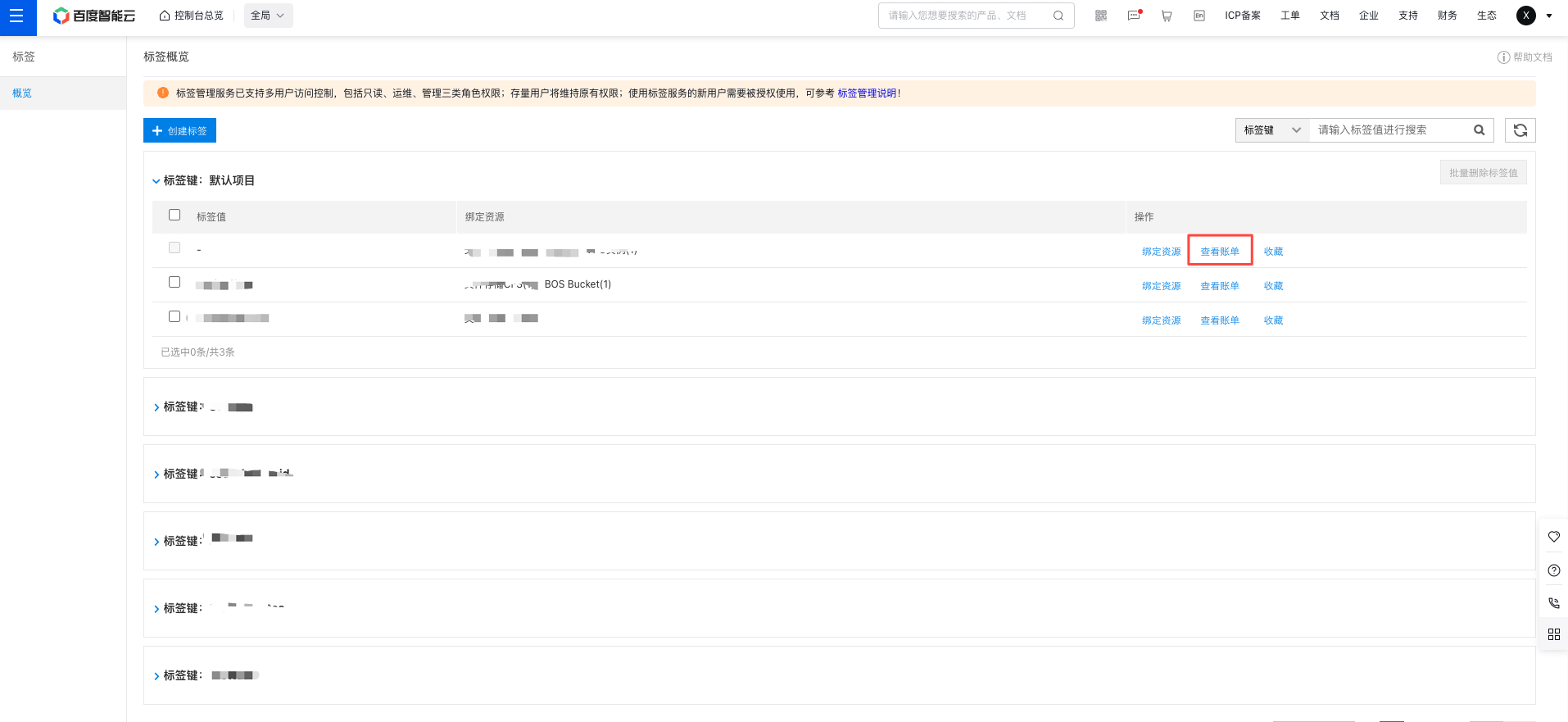
- Go to the Resource Bill page and select the desired month to view the bill. Current tagged resources' consumption data will be displayed. You can also search tags by combining filter criteria, view consumption details for other tags using their tag key and value, and download the related information.
- Click "View Details" to see the resource ID, product name, and bill amount.