

Quota management
Overview
BOS offers a quota management feature, allowing you to set limits on the number of buckets associated with your account, as well as the total storage capacity and file count across all buckets. This provides flexible management of storage service capacity.
Configuration management
- Number of buckets: BOS allows you to customize the upper limit of the number of buckets for your account. By default, BOS supports creating a maximum of 100 buckets under the same account. When the number of created buckets reaches the upper limit you set, creating new buckets will not be allowed. Please set this quota appropriately;
- Total bucket capacity: BOS allows you to customize the total storage capacity under your account, i.e., the sum of the capacities of all buckets under the same account. BOS sets the default total capacity to “unlimited” for you. If you want to adjust it based on your financial budget, you can modify the total capacity upper limit to a specific value - but this value must be greater than or equal to your current actual total storage capacity.
- Upper limit of total number of files: BOS allows you to customize the upper limit of the total number of files under your account. BOS sets the default total number of files to "unlimited”. You can use this feature to restrict the total number of files to below a fixed value. If the value you set is less than or equal to the current total number of files, no new files can be uploaded to the buckets.
Operation guide
1. Sign in to the Baidu AI Cloud official website
Sign in to Baidu AI Cloud official website.
- If you have not registered an account, you must first [register an account](UserGuide/Register an account.md#Register a Baidu Account).
- If you have registered an account, you can directly sign in.
2. Access BOS quota management
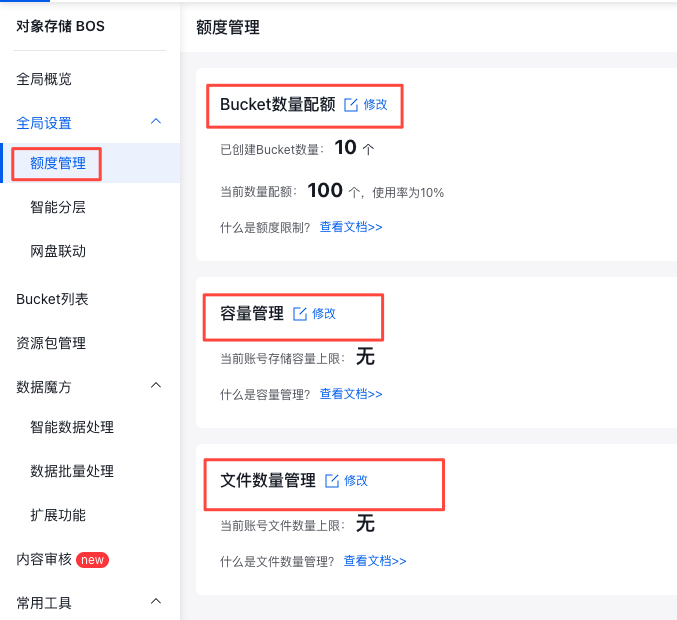
Click on "Quota Management" in the left navigation bar to access the Quota Management page. Here, you can configure the upper limits for the total number of buckets, total storage capacity, and total file count under your account.
3. Modify the upper limit of the number of buckets
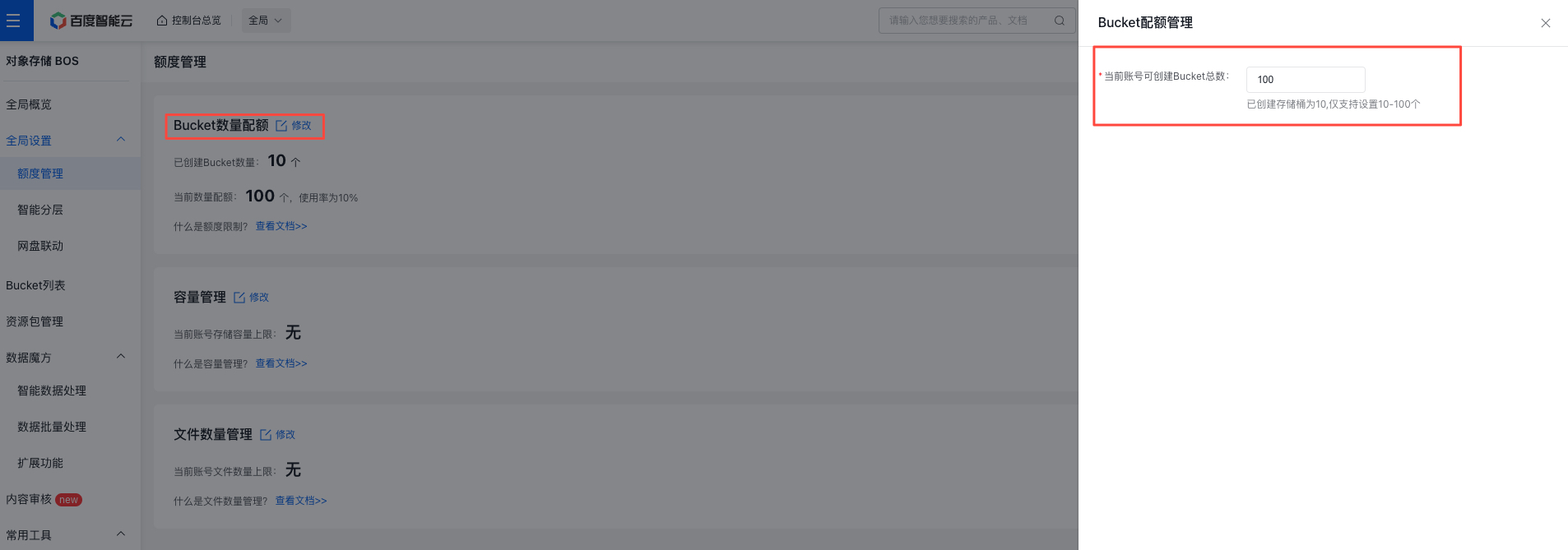
You can adjust the upper limit of the number of buckets to any value between the current bucket count and 100. For example, if you've already created 2 buckets, you can set the upper limit anywhere between 2 and 100 based on your requirements.
- When the number of created buckets exceeds the set upper limit, no new buckets can be created;
- If the total number of buckets reaches the upper limit, you can still adjust the limit within the permissible range.
4. Modify the upper limit of total capacity
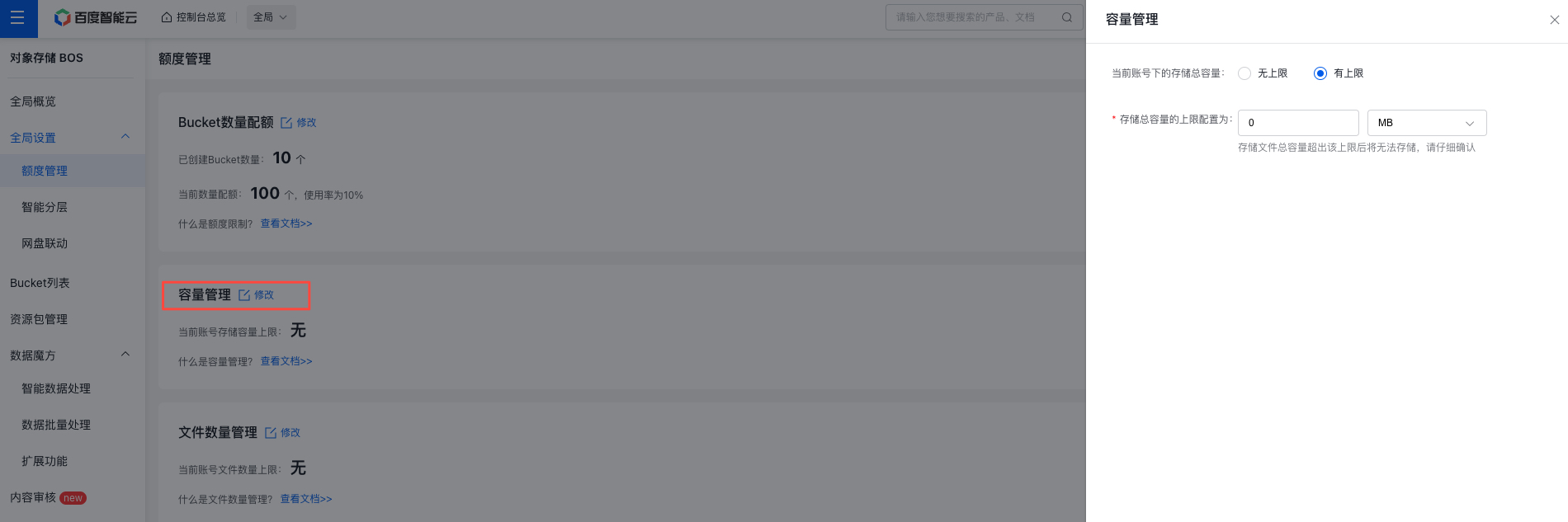
You are allowed to modify the total storage capacity for your account. By default, BOS provides “unlimited” total storage capacity. If cost control is a priority, you can switch it to “limited” and set a specific upper limit.
- After the total storage capacity exceeds this upper limit, no new files can be stored in BOS, please confirm carefully;
- After the total storage capacity exceeds this upper limit, files cannot be copied, please confirm carefully;
- The set storage upper limit must not be lower than the current total stored capacity;
- Once the storage upper limit is configured, you can further adjust it later if you need to store additional new files.
5. Modify the upper limit of total number of files
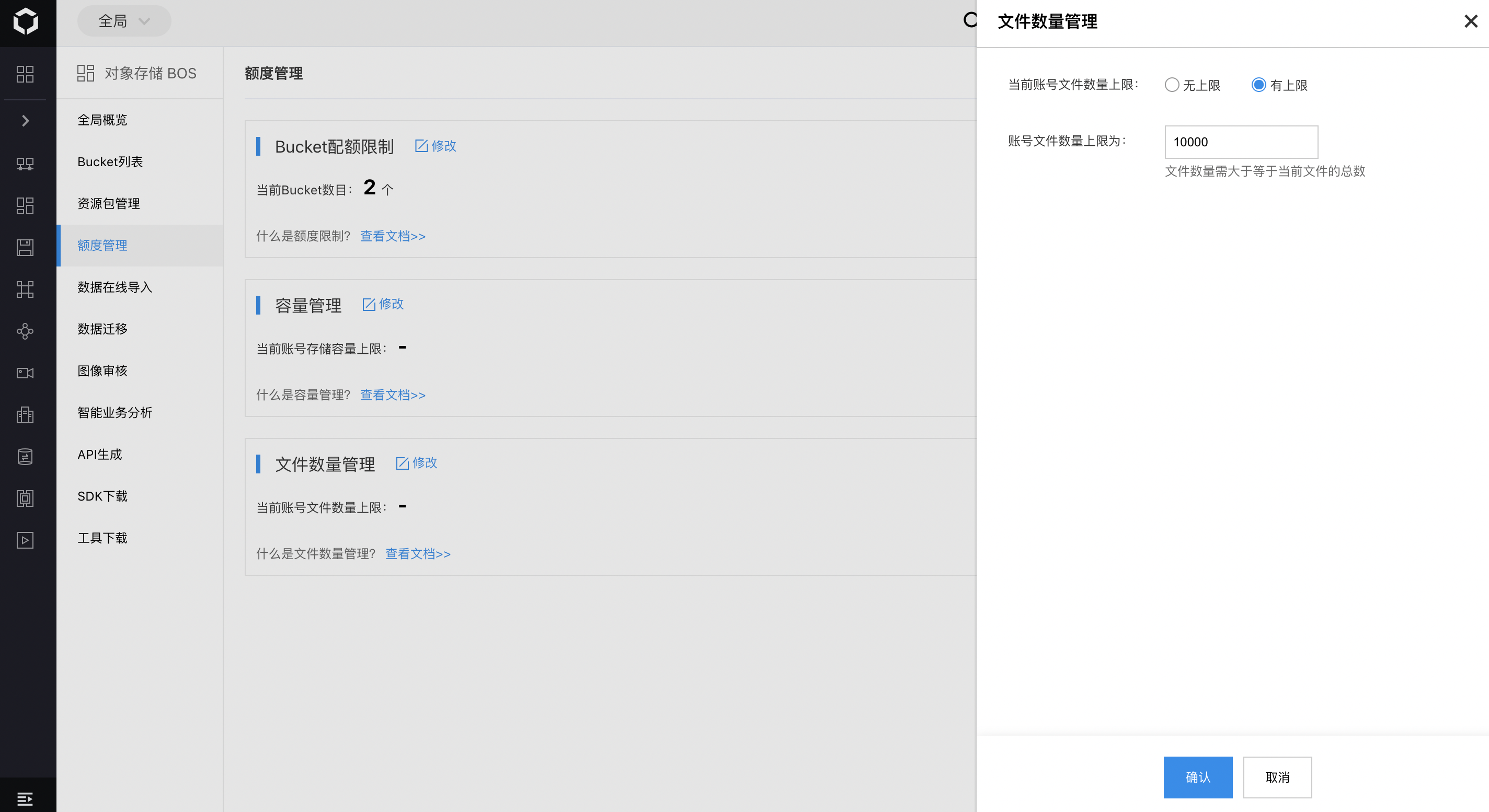
You can also set the total number of files under your account. The default limit is “unlimited.” If cost considerations call for a restriction, you can change it to “limited” and define the upper limit yourself.
- After the total number of stored files exceeds this upper limit, no new files can be stored in BOS, please confirm carefully;
- After the total number of stored files exceeds this upper limit, files cannot be copied, please confirm carefully;
- The set upper limit of the total number of files must not be lower than the current total number of stored files;
- After setting an upper limit for the number of files, you can revise the limit later as needed to accommodate additional files.
6. Completion of modifications