Restore Archived Files
Updated at:2025-11-03
Overview
Archive storage class objects can be accessed after manual restoration. BOS offers three restoration modes: expedited, standard, and deferred, allowing users to choose based on their specific needs.
Note
- Only archive storage class files support restoration. For different restoration modes, please refer to Storage Class - Archive Storage - Data Restoration Performance.
- Restoration operations will incur data restoration fees. Different restoration modes have varying prices, with faster speeds costing more. Under fixed unit prices, fees are calculated based on file size. For details, please refer to Charge Details.
Restore a single file
- Log in to the BOS Console and navigate to the Overview page.
- Select the bucket containing the archive storage files to be restored and navigate to its file list page.
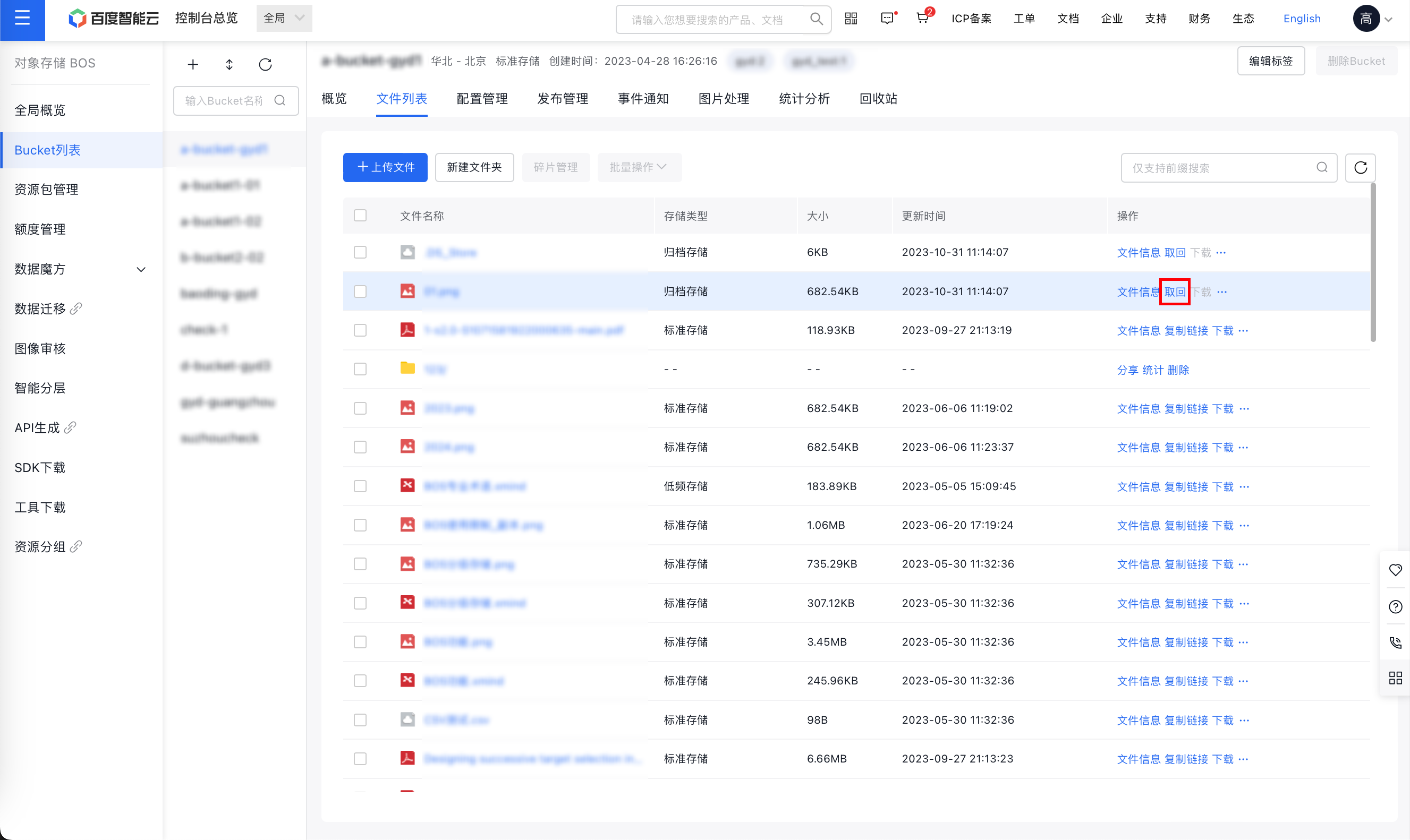
- Find the archive storage file to be restored on the file list page, then click the Restore button in the operation column on the right.
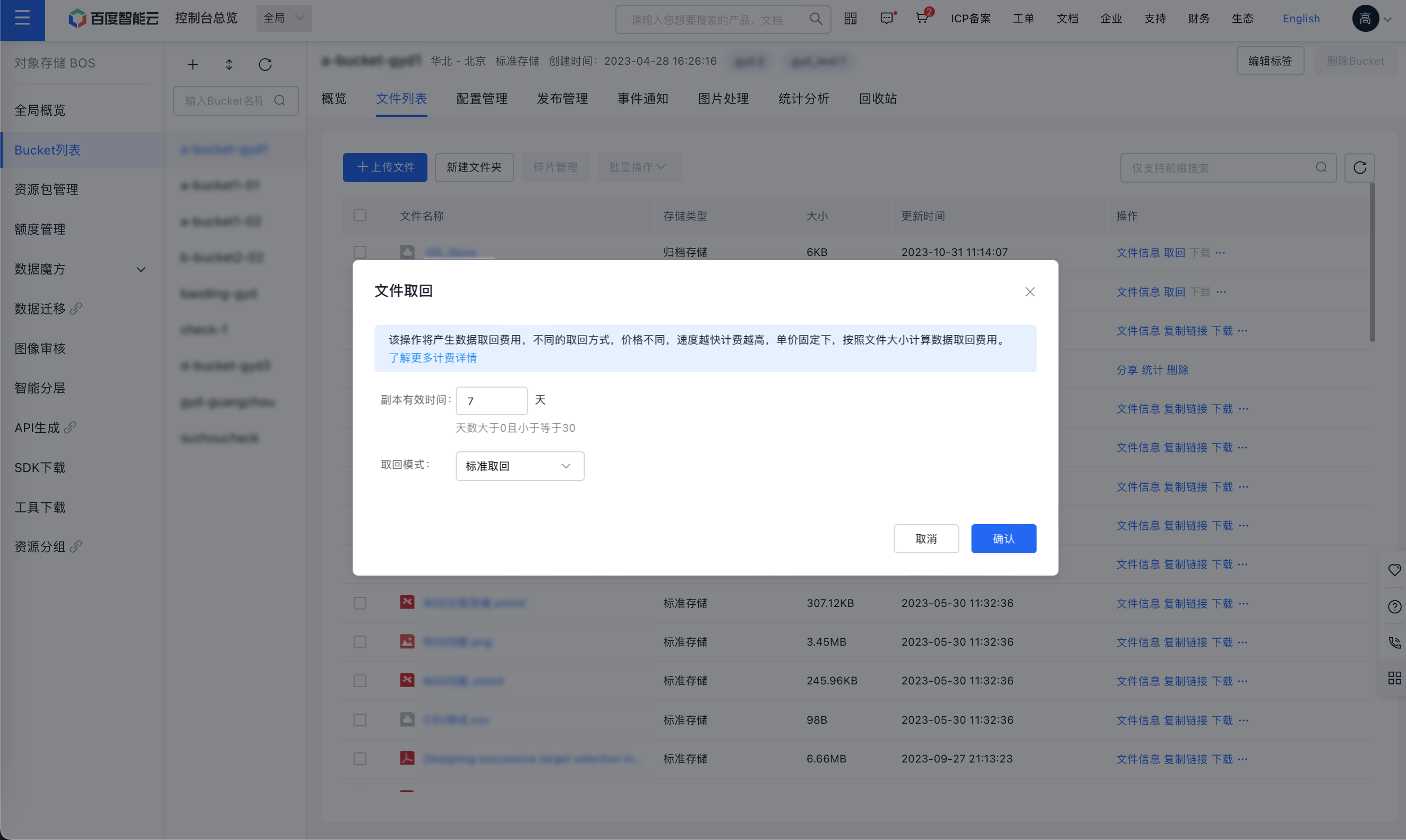
- In the restoration pop-up window, configure the restoration validity period and choose the restoration mode.
- Click OK to start the restoration process.
Restore archive storage class files in batches
- Log in to the BOS Console and navigate to the Overview page.
- Select the bucket containing the archive storage files to be restored and navigate to its file list page.
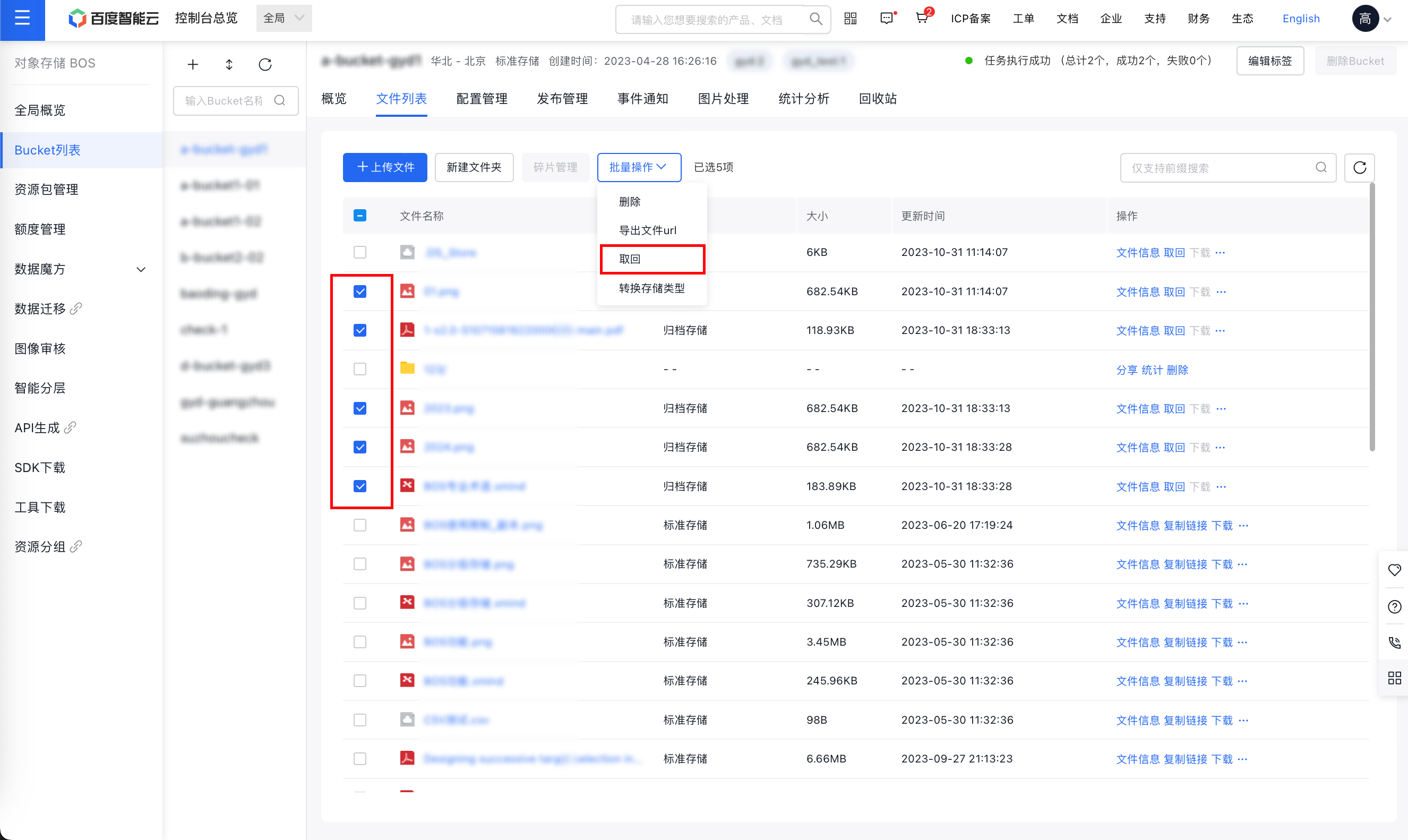
- Find the archive storage class file to be restored on the File List page, then click the Restore button in the Batch Operation section after selecting multiple objects.
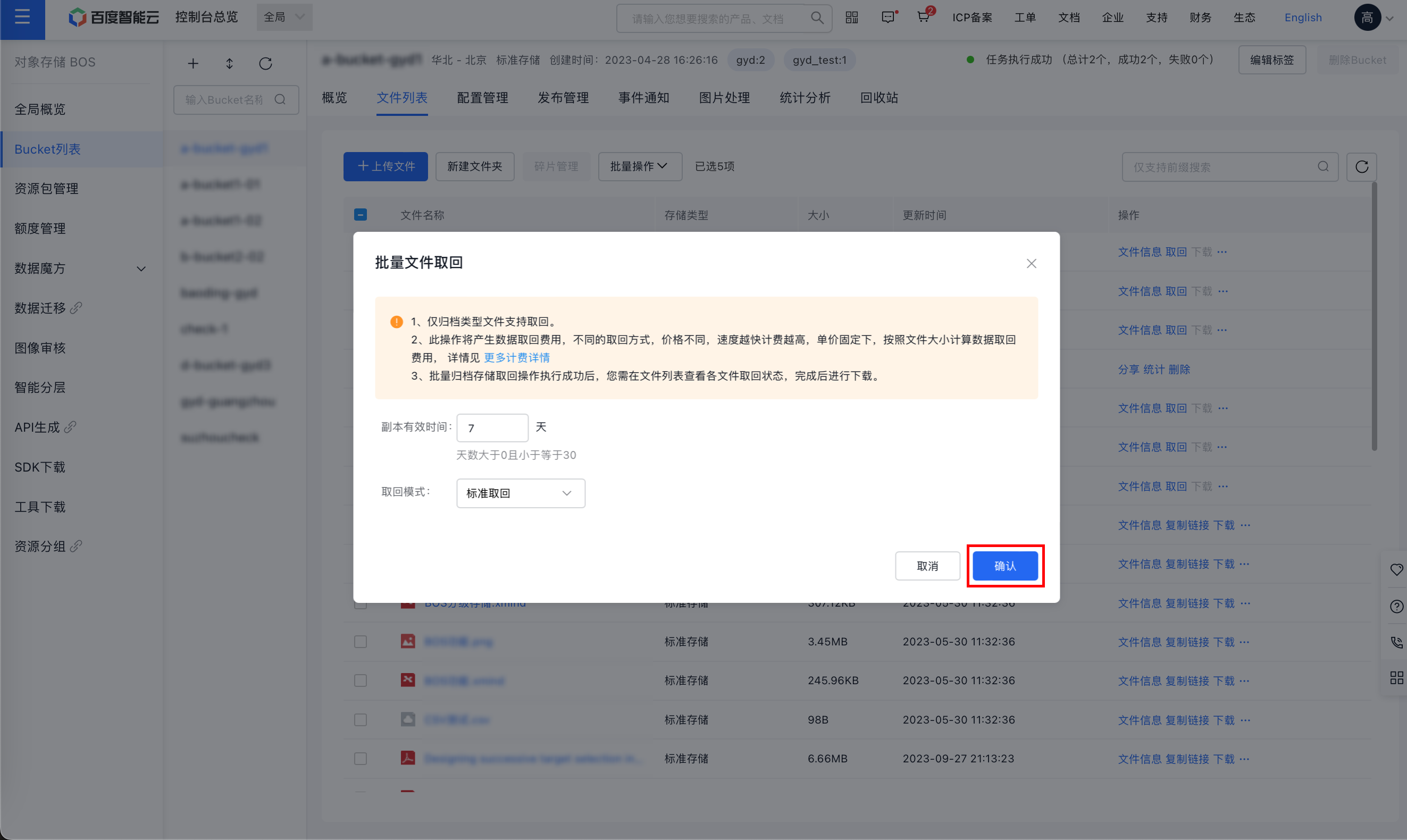
- In the restoration pop-up window, configure the restoration validity period and choose the restoration mode.
- Click OK to initiate a batch restoration task.
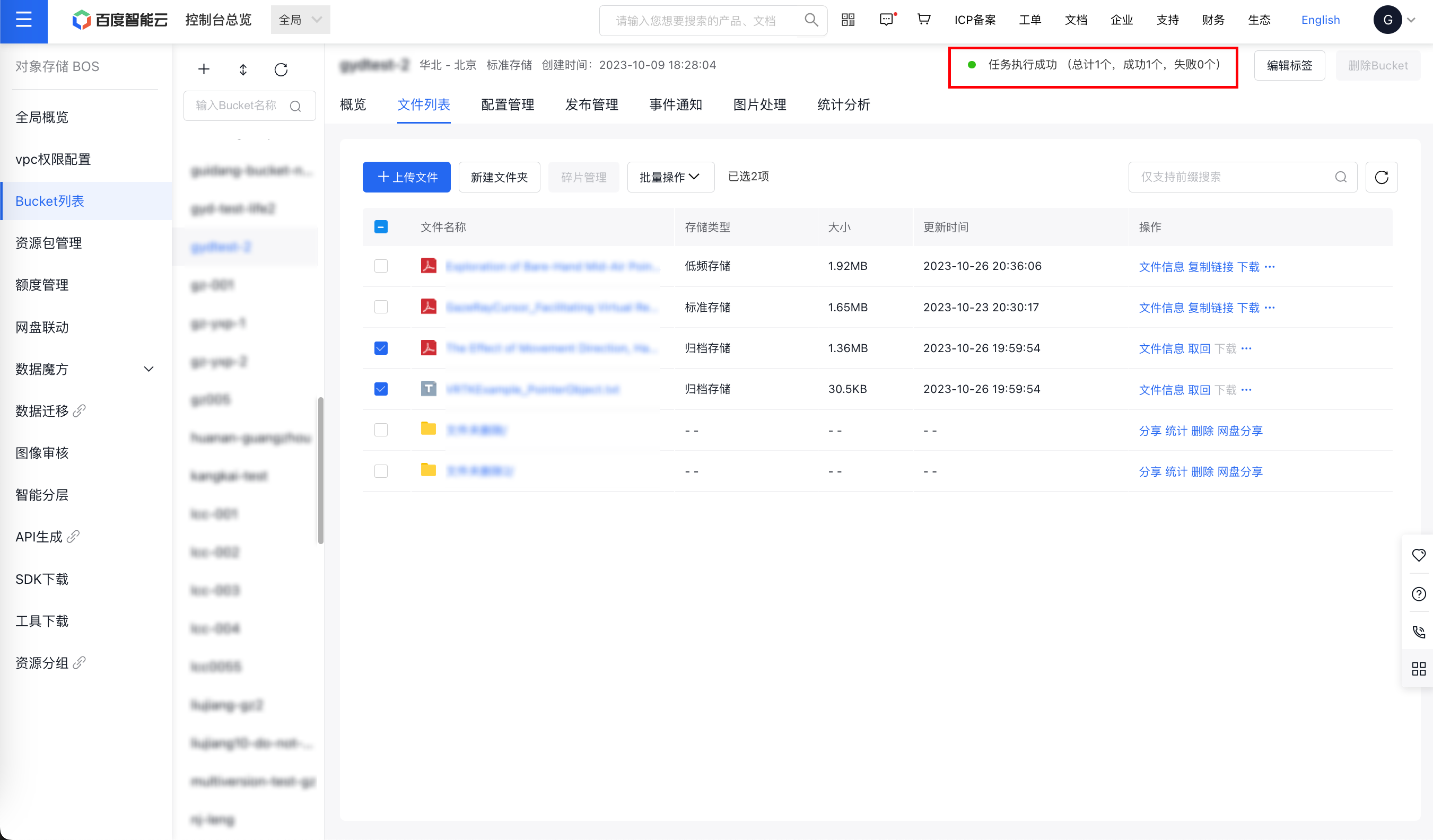
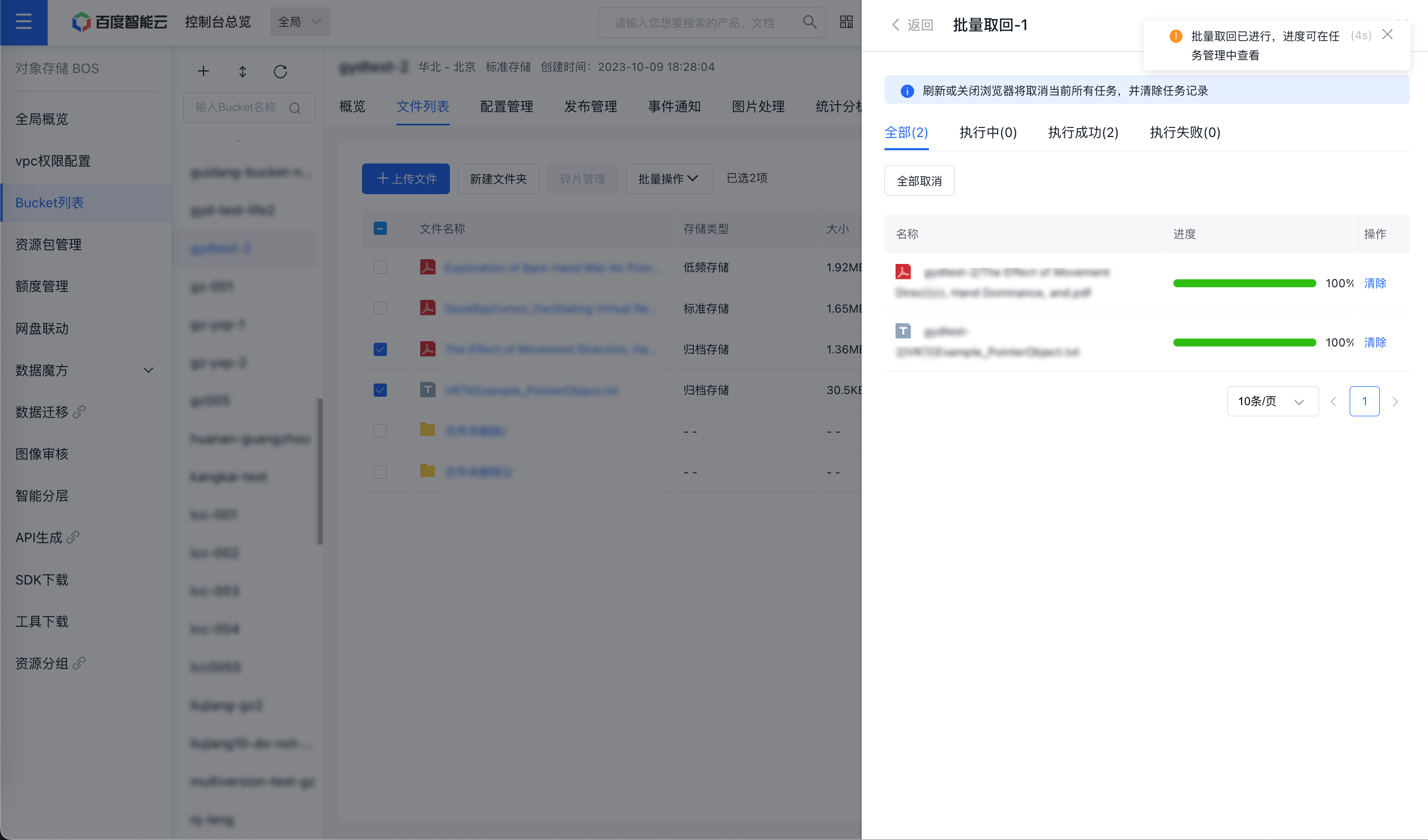
- You can monitor the progress and results of the batch restoration task in the task status section located in the top-right corner.