

Configuring CDN Upload Acceleration
Updated at:2025-11-03
Overview
BOS introduces the Dynamic Route Content Delivery Network (DRCDN) feature to address users’ needs for acceleration in uplink scenarios when using BOS. For example:
- File upload acceleration scenarios
- Long-distance file upload scenarios
- Large file upload scenarios
- Dynamic update file upload scenarios
You can also refer to Best Practices for DRCDN Uplink Acceleration for more use information.
Prerequisites
- The account has enabled the DRCDN service
After enabling the service, you can enable DRCDN function of domain names in the BOS console. The enabling domain name acceleration will incur Dynamic Route Content Delivery Network (DRCDN) Fees.
Enable DRCDN uplink acceleration
- Sign in to the BOS Management Console and navigate to the Global Overview page.
- In the left navigation bar of the BOS console, select the target Bucket, then click to open the bucket’s file list page.
- Click the Release Management tab in the top navigation bar to enter the Release Management page.
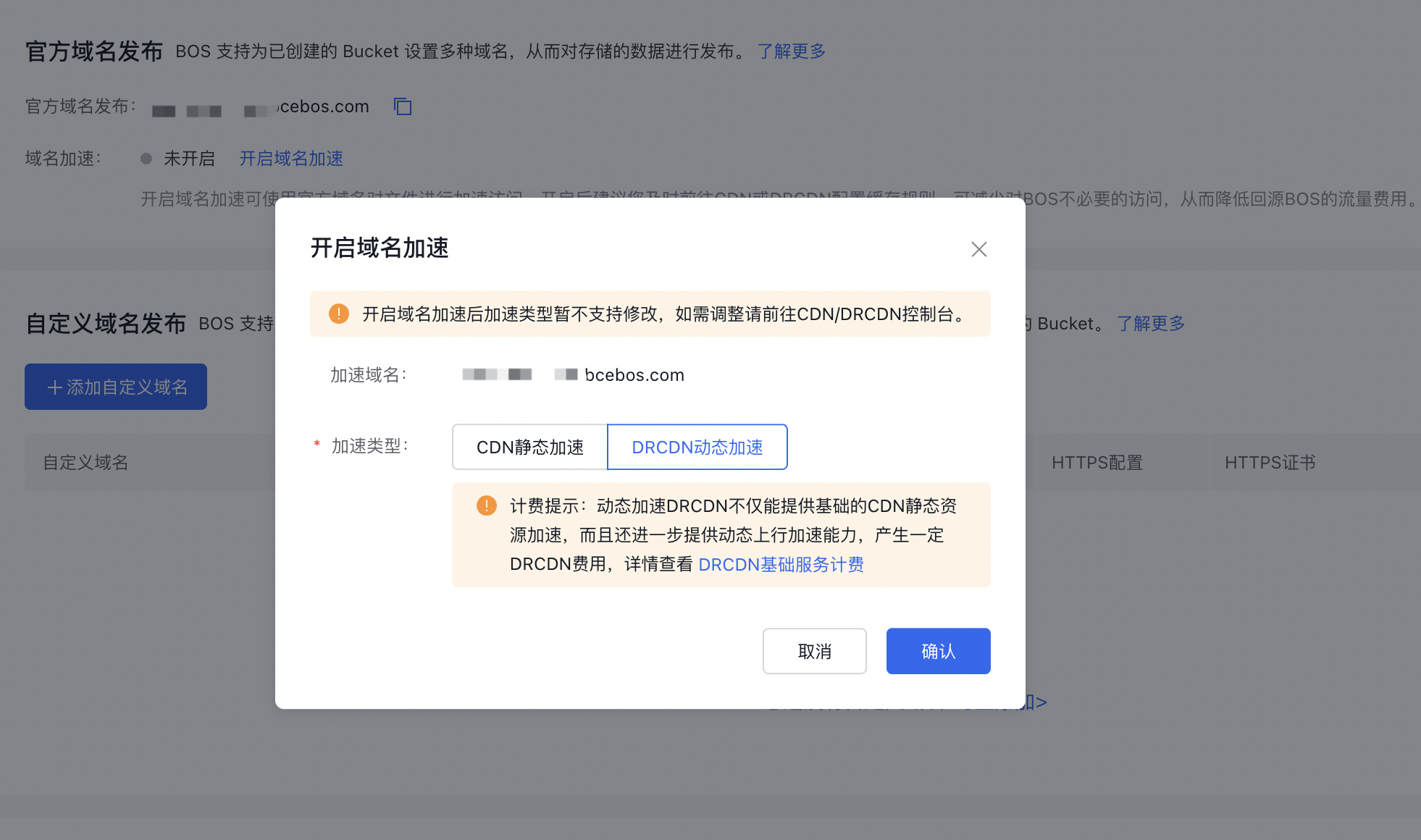
- You can enable DRCDN for official domain names or custom domain names. To enable official domain name acceleration, click Enable Domain Name Acceleration in the domain name acceleration section of the Official Domain Name Release module. After completing the selection, click OK to enable DRCDN uplink acceleration. After enabling, you can go to the DRCDN Console to configure acceleration rules in detail.
- The process for enabling DRCDN on a custom domain name is similar to that for an official domain name. You can enable Dynamic Route Content Delivery Network (DRCDN) when adding a new custom domain name or editing an existing one.
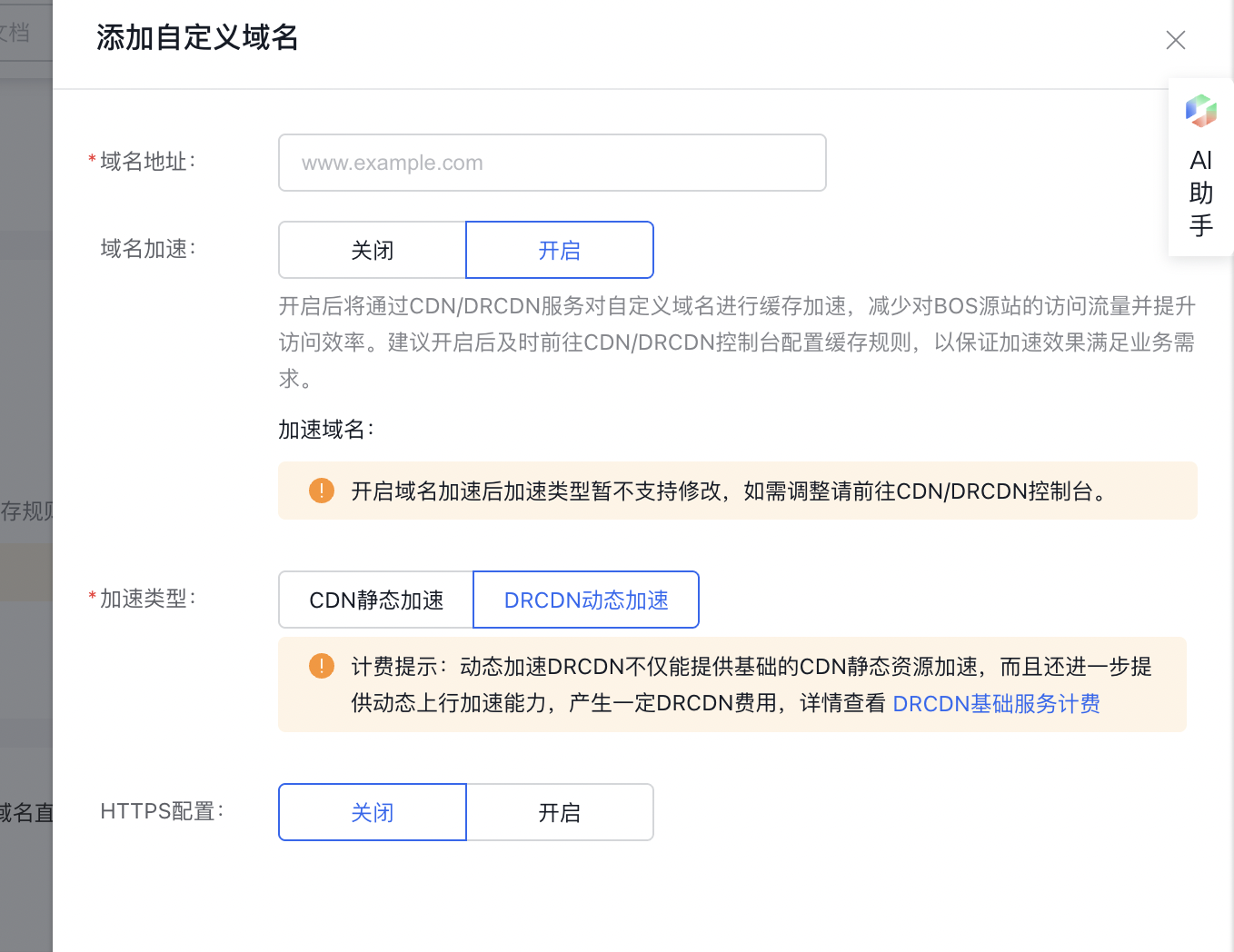
Notes The DRCDN domain name for DRCDN of a bucket is the same as its official CDN domain name.
- Disable Uplink Acceleration: You can disable the CDN uplink acceleration function on the console as needed.