Download file
Updated at:2025-11-03
Overview
Files can be downloaded and previewed directly in the BOS console.
Note
Archive storage class files do not support direct download. You must first click the Retrieve File button in the file information drawer to retrieve the Object before downloading it.
Download file
- Sign in to the BOS Management Console and navigate to the Global Overview page.
- In the left navigation bar of the BOS console, select the bucket where the target file is located, then click to open the bucket’s file list page.
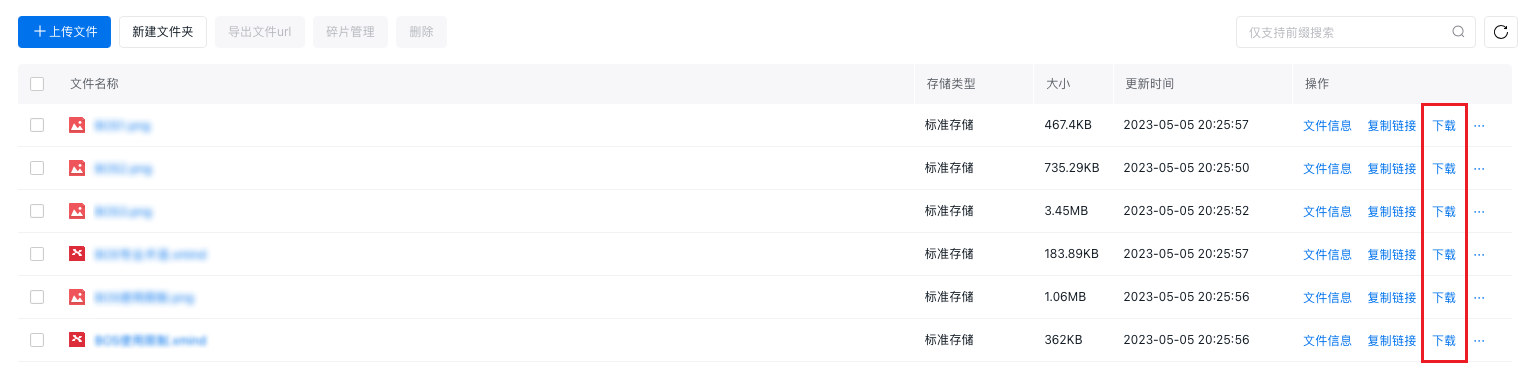
- In the file list, click the Download button in the operation bar to finish download.
Preview files
- Sign in to the BOS Management Console and navigate to the Global Overview page.
- In the left navigation bar of the BOS console, select the bucket where the target file is located, then click to open the bucket’s file list page.
-
Preview files:
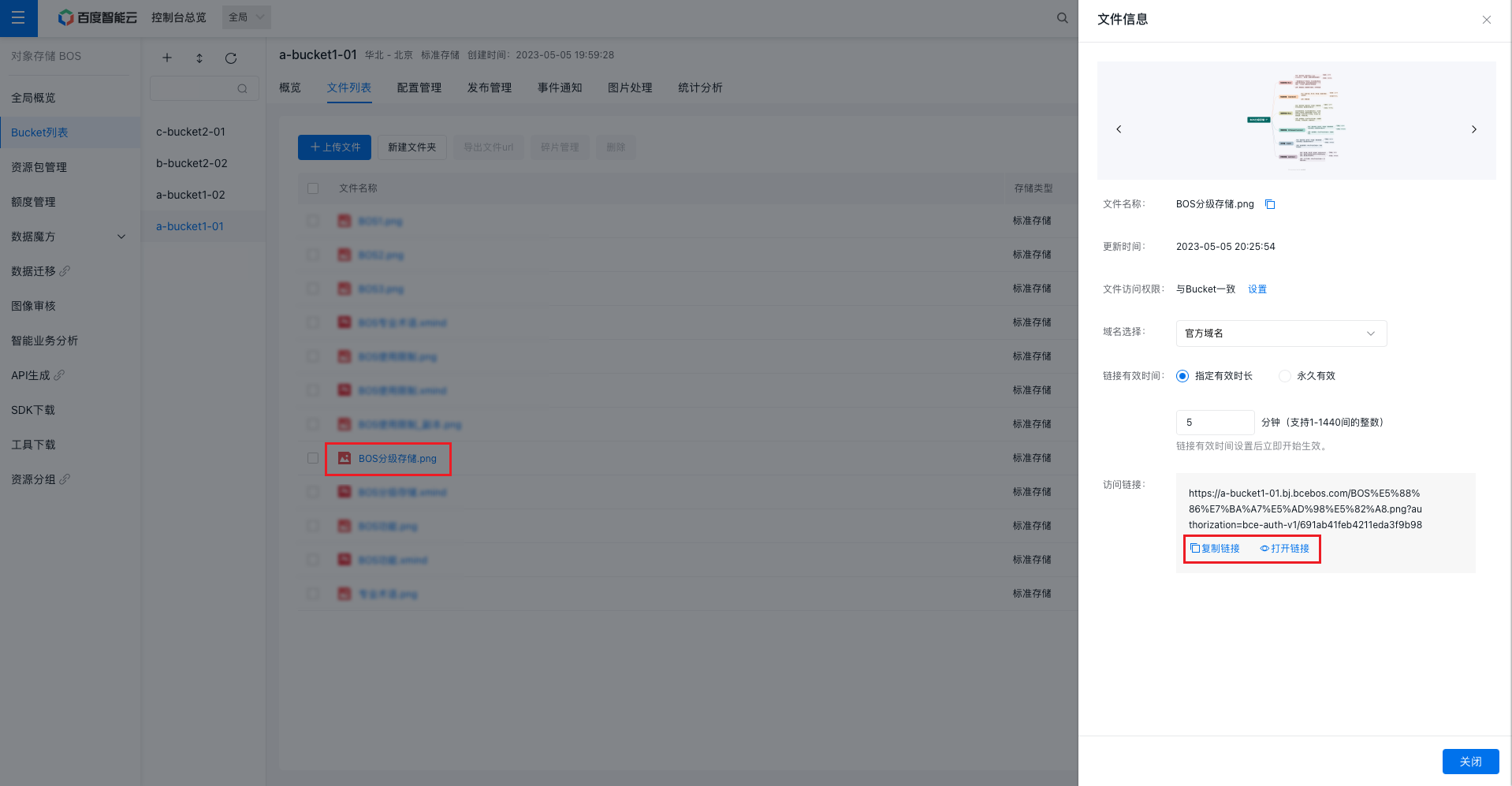
- Console preview: In the file list, click the file name of the Object you want to preview or the file information in the operation bar. A file information drawer will pop up for you to preview images, videos, etc.
- URL preview: Click Copy Link next to the file you want to preview, then paste the copied download address in a new browser window. Alternatively, in the file information drawer, click Copy Link to copy the file address or Open Link to directly access the address, and preview images, videos, etc.