

High-availability virtual IP address (HAVIP)
Updated at:2025-10-16
A High-availability Virtual IP address (HAVIP) is a private IP resource within a VPC. When used with high-availability software like Keepalived, it can establish active-standby clusters for scenarios requiring high availability.
Application scenarios:
- Building high-availability services in private networks: Multiple BCC instances can form a highly available internal service using HAVIP with Keepalived. Other instances within the VPC can access this service through HAVIP over the intranet. If the active BCC instance fails, the standby BCC instance automatically takes over, ensuring high availability.
- Building high-availability services in a public network environment: Multiple BCC instances utilize HAVIP with Keepalived and bind HAVIP to an EIP. Other instances can access the service through the EIP bound to the HAVIP over the public network. If the active BCC instance fails, the standby BCC instance will automatically take over, ensuring high availability.
Before Configuration, you should know:
- HAVIPs must be created using unoccupied private IPs within the VPC subnet.
- HAVIP possesses VPC attributes and can only be bound to cloud servers or elastic network interfaces within the same VPC. However, it can span across availability zones. Cloud servers include BCC, DCC, and BBC.
- A single VPC can host up to 10 HAVIPs.
- Each HAVIP can be bound to a maximum of 5 BCC/BBC instances or elastic network interfaces.
- An HAVIP can only be bound to a single elastic public IP (EIP).
Create HAVIP
- Navigate to Products & Services - Virtual Private Cloud (VPC) and select Network Interface Card - High-Availability Virtual IP Address from the left navigation bar.
- Click Create Virtual IP to open the virtual IP creation dialog, and fill in the required configuration information.
| ConfigMap | Description |
|---|---|
| Virtual IP name | User-defined HAVIP name |
| Network | Select the virtual private cloud where the HAVIP is to be created |
| Subnet belonged | HAVIP has subnet attributes. Please select the subnet under the current VPC from the dropdown |
| IP address | By default, automatic IP address assignment is selected. Specifying a custom IP is supported, provided that the IP is unoccupied |
| Description | Edit HAVIP description |
- Click OK to complete the setup. The high-availability virtual IP address will then be created.

Bind EIP to HAVIP
- Navigate to Products & Services - Virtual Private Cloud (VPC) and select Network Interface Card - High-Availability Virtual IP Address from the left navigation bar.
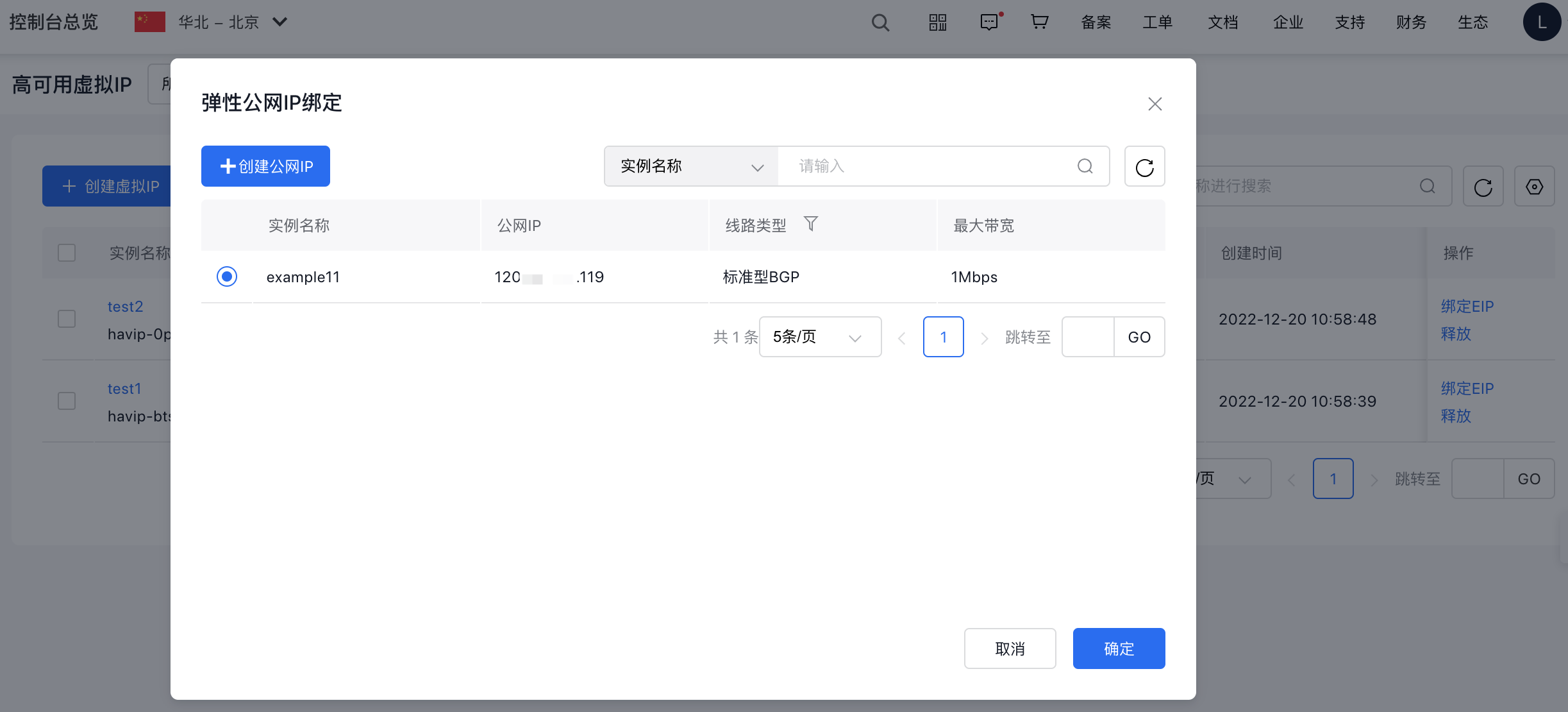
- Users can click Bind EIP in the operation column to select and bind an EIP.
Unbind EIP from HAVIP
- Navigate to Products & Services - Virtual Private Cloud (VPC) and select Network Interface Card - High-Availability Virtual IP Address from the left navigation bar.
- Users can click Unbind EIP in the operation column to unbind an EIP.
Bind HAVIP to cloud server
- Navigate to Products & Services - Virtual Private Cloud (VPC) and select Network Interface Card - High-Availability Virtual IP Address from the left navigation bar.
- Click the instance name in the list to navigate to the instance details page. Select Bind Server from the left menu to access the binding server page.
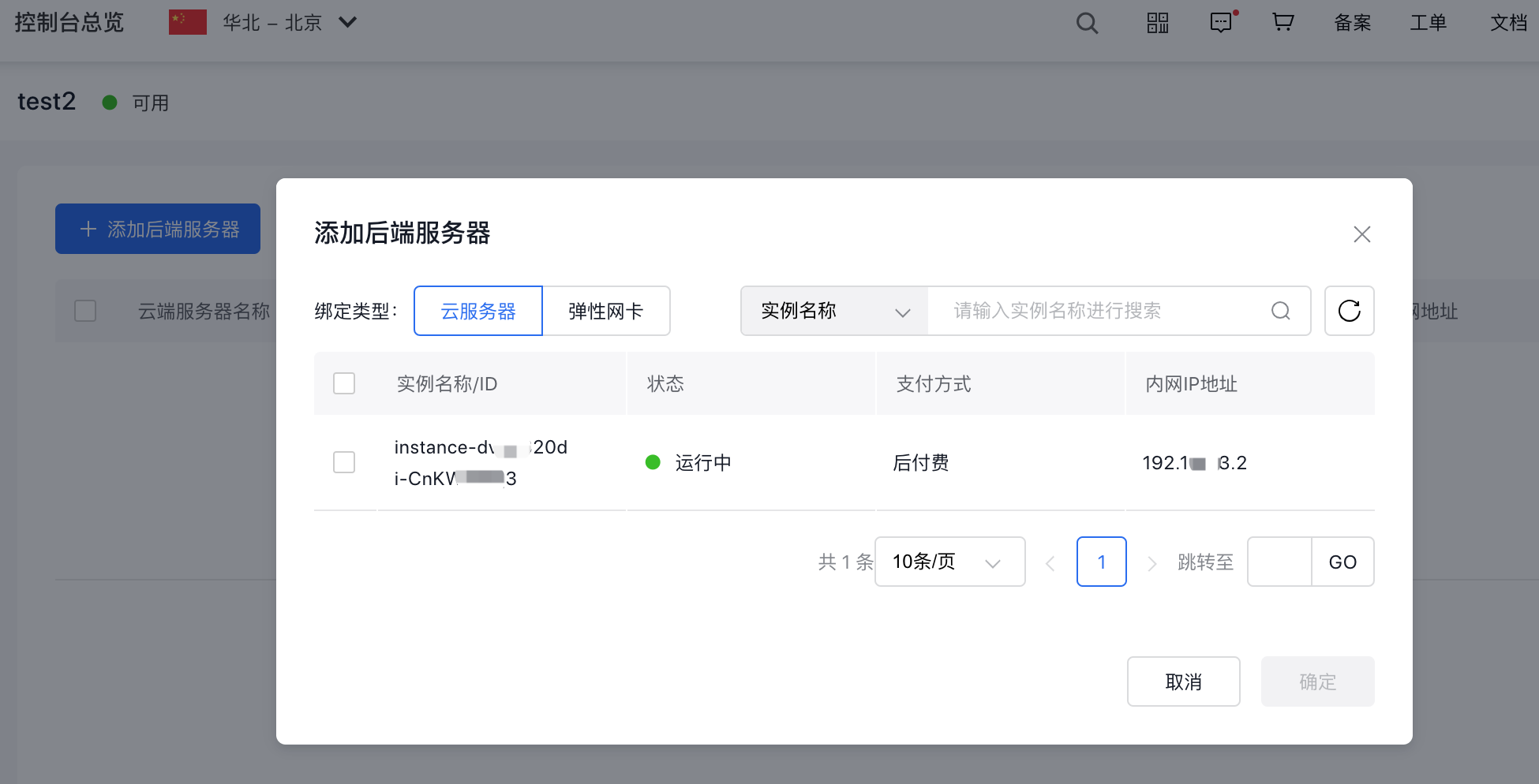
- Click Add Real Server to trigger a dialog box. The default binding type will be Baidu Cloud Compute, but users can switch to an elastic network interface.
Unbind cloud server from HAVIP
- Navigate to Products & Services - Virtual Private Cloud (VPC) and select Network Interface Card - High-Availability Virtual IP Address from the left navigation bar.
- Click the instance name in the list to navigate to the Instance Information page. Select Bind Server from the left menu to access the Bind Server page.
- Review the servers listed and click "Release" to unbind them.
Release HAVIP
- Navigate to Products & Services - Virtual Private Cloud (VPC) and select Network Interface Card - High-Availability Virtual IP Address from the left navigation bar.
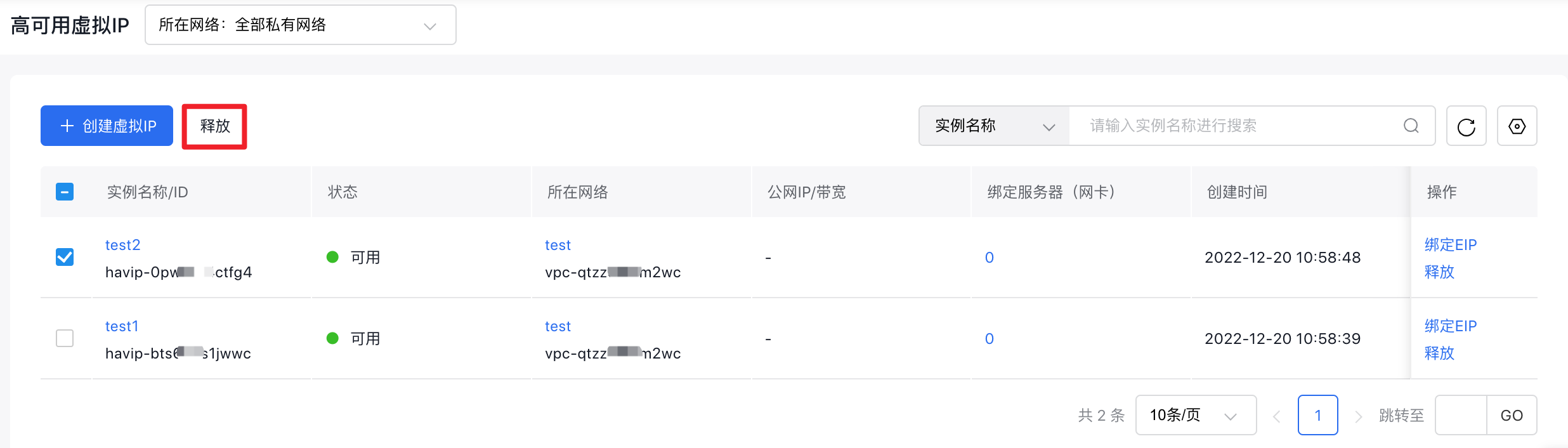
- Select the HAVIP you want to release and click "Release" to complete the process.
Description:
- If the HAVIP is attached to a server, ensure the server is unbound before releasing the HAVIP.
- If a HAVIP is linked to an EIP, the HAVIP can be released directly, and the associated EIP will be automatically unbound.