

Tag Management
Overview
Baidu AI Cloud offers a Tag Management feature that allows you to categorize and manage cloud resources by assigning tags to each. Tag management is supported for VPC instances, subnets, security groups, NAT gateways, and VPN gateways. Here, VPC is used as an example.
Before using tags, you need to know:
- Tag: Each tag includes a key and a value. The combination of the key and value must be unique.
- Single and batch: Supports tagging individual resources or applying tags to multiple cloud resources in batch.
- Sorting and searching: Supports locating and sorting resources using tags (keys and values).
- Cross-product tagging: Tags can be shared across different product lines.
Restriction
Each user is allowed to create up to 200 tags.
Add tag
Users with multiple VPCs can tag VPC instances based on project and scenario requirements to simplify the classification, identification, and management of instances.
Operation step:
- Log in to the console and navigate to Product Services - Network - Virtual Private Cloud.
- Click Instance in the left navigation bar to access the Instance List page.
- Select one or more instances and click Edit Tags in the operation bar.
- In the pop-up dialog box, enter the custom label key and label value. Note that the "Key" must be unique, and the value can be left blank.
- Click OK to complete the tag creation.
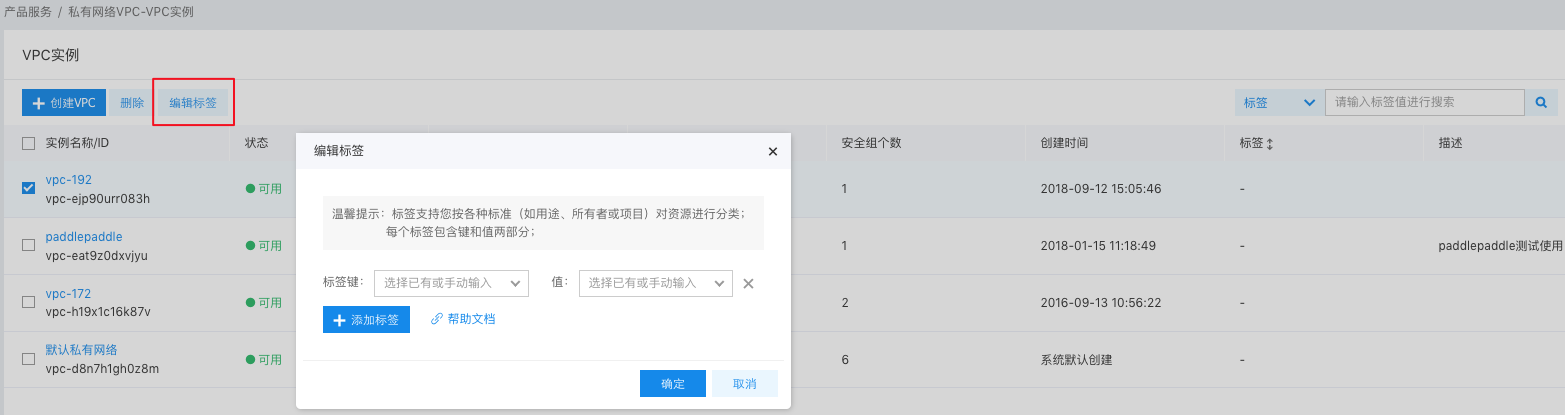
Notes When creating instance tags in batch, you cannot view the single instance tag that has been added.
Tag sorting and search
Tag sorting
Users can organize cloud resource tags by selecting the Tag column header within the console.
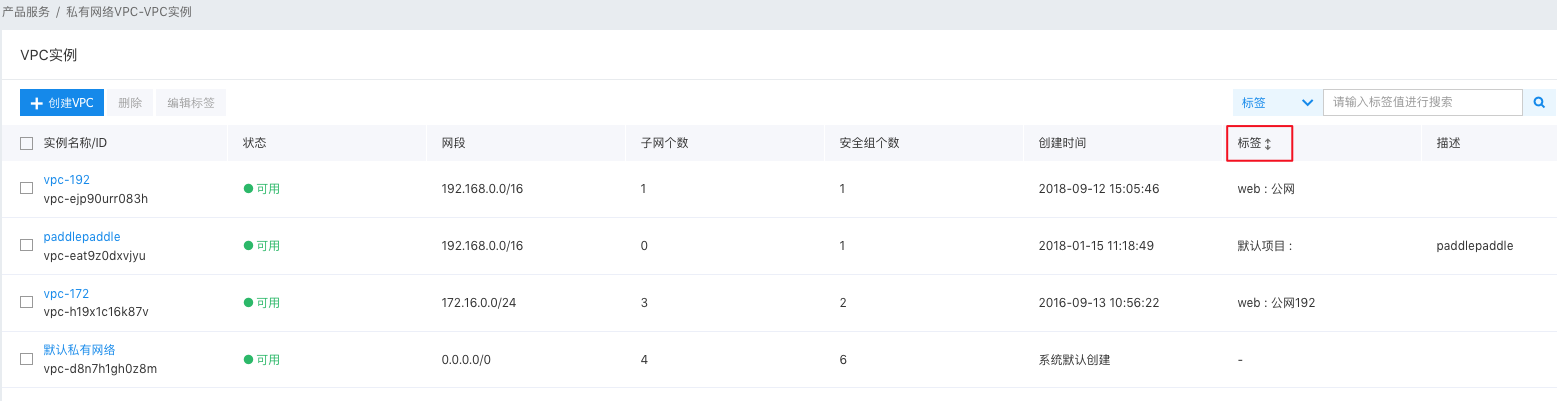
Tag search
Search for tags by using filter criteria to achieve precise VPC results. You can filter by both tag key and tag value:

Delete tag
If you no longer need certain tags, you can delete them.
- Click Tag Management in the left navigation bar, select a tag name on the Tag List page, and then click Delete in the operation bar.
- In the pop-up dialog, click OK to delete the tag. Once it’s deleted, the tag cannot be recovered, and the system will automatically unbind it from the associated resources.
Resource bill
The resource bill function records the lifecycle and consumption data of each resource, allowing users to view resource and product consumption data by resource dimension.
Operation step:
- Log in to the console, go to Product Services - Network - Virtual Private Cloud.
- Click Tag Management in the left navigation bar to access the Tag List page.
- Select a tag and click View Bill in the operation bar.
-
Go to the Resource Bill page and select the desired month to view the bill. Current tagged resources' consumption data will be displayed. You can also search tags by combining filter criteria, view consumption details for other tags using their tag key and value, and download the related information.
Note: You can also retrieve information by instance ID to view the instance’s consumption details.

-
Click View Details to view the instance ID, product name, and bill amount. There may be both prepay and postpay instances, so the postpaid bill and the prepaid bill will be displayed in separate tabs by clicking View Instance Details.
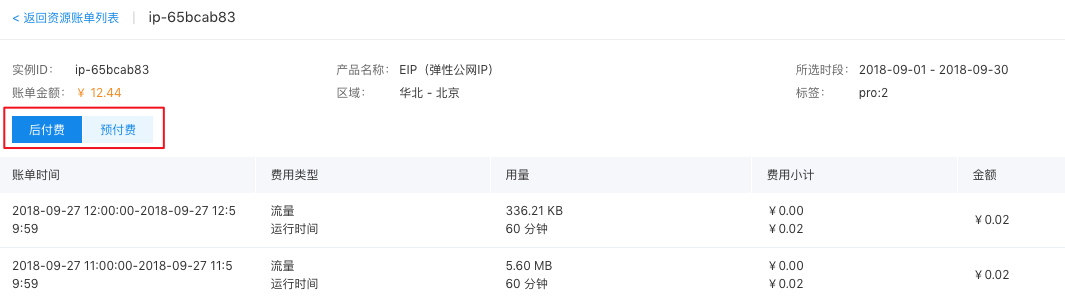
Notes: Because prepay incurs one-time deduction of fees, the consumption information will only be displayed in the month of creation, while the postpay involves continuous deduction of fees, and the consumption information be displayed from the month of creation to the usage period.