

Public Network NAT (Network Address Translation) Gateway
This document introduces the method of "configuring public NAT gateway " (including instructional video) of Baidu AI Cloud. Users can refer to key steps in the video to use Baidu AI Cloud products or self-solve issues. Click here to watch BCC Instances Access Public Network via Public NAT Gateway
Description:
If the interface elements or operation methods shown in the video guidance are updated, please rely on the AI Cloud console interface for the most accurate information. The video aims to demonstrate the functional operation process, and minor interface changes will not affect the overall functionality or presentation.
Public NAT gateways allow BCC, DCC, and BBC instances in private subnets to connect to the Internet or other Baidu AI Cloud services.
Description:
- Before setting up SNAT rules, ensure that the VPC containing the public NAT gateway has public NAT routing configured.
- For public NAT gateways, SNAT rules must be set up to enable Internet access through the gateway's public IP.
Public NAT gateways support both SNAT and DNAT functionalities.
- SNAT (Source Network Address Translation) enables Baidu Cloud Compute instances without public IPs in the VPC to access the Internet. Additionally, the SNAT function of a public NAT gateway acts as a basic firewall, safeguarding virtual private cloud data from direct exposure to the public Internet.
- DNAT (Destination Network Address Translation) maps the public IP of a NAT gateway to a BCC instance, allowing the BCC instance to provide Internet services. DNAT supports IP and port mapping. With IP mapping, all ports are assigned to the target BCC instance, effectively associating an EIP with it. For port mapping, the public NAT gateway forwards specific protocol and port requests from the public IP to the designated port on the target BCC instance.
The performance of an enhanced public NAT gateway is measured in capacity unit (CU). The performance parameters for one CU are:
- New connections (cps): 1,000 per second
- Concurrent connections (conns): 10,000
- Forwarding capacity (bps): 1Gbps
Note: Each CU of an enhanced public NAT gateway can bind up to 5 EIPs, with a maximum limit of 50 EIPs per gateway.
Applicable scenarios:
- Bind a single EIP: Baidu Cloud Compute instances use the public NAT gateway to convert intranet IPs into a single public IP address for Internet access.
- EIPGROUP: Works with public NAT gateways to translate intranet IPs into multiple public IP addresses.
Before Configuration, you should know:
- Each VPC can have a maximum of 3 public NAT gateways.
- SNAT or DNAT can bind either a single regular EIP or multiple IPs from an EIPGROUP, but cannot bind both simultaneously.
- The total number of EIPs for SNAT+DNAT must not exceed the maximum EIPs that the public NAT gateway can support.
- The same public IP can be used for both SNAT and DNAT simultaneously.
This feature is supported since March 15, 2024. Submit a ticket for historical data requirements. - A single SNAT table can have up to 40 entries.
- A single SNAT entry can associate with a maximum of 50 public IPs.
- A single DNAT table can support up to 100 port forwarding entries.
Create public NAT gateway
- On the VPC Instance List page, select the created VPC instance and click to access the Details page. To create a public NAT gateway in a non-default VPC, you must first create a subnet in that VPC.
- In the navigation bar, go to Network Connection - NAT Gateway and click the Create NAT Gateway button.
- Fill in the following configuration information:
| ConfigMap | Description |
|---|---|
| Bill type | Choose prepay or postpay |
| Current region | Beijing, Baoding, Guangzhou, Suzhou, Wuhan and Hong Kong are supported. Switch regions in the top left corner |
| Network | Select the network |
| NAT (Network Address Translation) name | User-defined public NAT gateway name |
| Types | Select public NAT gateway type, with enhanced support available |
| Performance capacity | Select the NAT gateway performance capacity |
| SNAT public IP address | Select the public connection type for SNAT, including two options: EIP and EIPGROUP |
| DNAT public IP address | Select the public connection type for DNAT gateway, including two options: EIP and EIPGROUP |
| Description | Edit public NAT gateway description |
| Resource group | Select resource group |
| Purchase period | Select purchase period |
| Auto-renewal | Select whether to enable auto-renewal |
- Follow the payment steps to complete the creation of the public NAT gateway.
Configure public NAT routing
- In the navigation bar, go to the Route Table section, click the route table name, and proceed to the details page.
- Click on Add Route.
- Set up the route table linked to the subnet that needs Internet access.
- Source Network Segment: Subnets requiring Internet access through public NAT gateway
- Enter target network segment: 0.0.0.0/0
- Select NAT gateway for the route type
- Next Hop Instance: Choose the ID of the public NAT gateway you created. All traffic from this subnet heading to the public network will use this public NAT gateway as the next hop.
Description:
- General-purpose subnets now support public NAT gateways, eliminating the need for creating dedicated NAT subnets.
- If an instance in the subnet is associated with an EIP, EIP routing will take priority over NAT routing if a conflict arises after adding NAT routing.
- Since all subnets within a VPC are automatically connected, BCC instances in NAT-dedicated subnets and general-purpose subnets can still communicate with each other.
- A public NAT gateway must have an EIP bound to serve as the next hop for NAT routing. Make sure to bind an EIP before setting up NAT routing.
- Click OK to finalize the router configuration. When BCC instances in the subnet linked to this route table access the Internet, their traffic will be routed through the public NAT gateway.
Configure SNAT table
- Click on the public NAT instance name or select Configure SNAT from the available operations to open the SNAT Table page.
- Click on Add SNAT Entry above the SNAT list to open the Add SNAT Entry dialog box.
- Fill in the following configuration information:
| ConfigMap | Description |
|---|---|
| Entry name | User-defined Entry Name |
| Source network segment | Mandatory. BCC instances within this range will access the public network using the SNAT feature. Note: Overlapping source network segments are allowed as long as they are identical duplicates. In overlapping cases, the system will prioritize SNAT entries based on the longest prefix match rule for Internet proxy services. |
| Public IP Address | Required. Select the public IP from the SNAT public IP pool to provide Internet access |
- Click OK to finalize adding the SNAT entry.
Description:
- Ensure that the VPC hosting the public NAT gateway has NAT routing configured before setting up SNAT rules.
- For enhanced public NAT gateways, you must configure SNAT rules to enable Internet access through the gateway's public IP.
Configure DNAT table
- Click on the public NAT instance name or select Configure DNAT from the operations menu to open the DNAT Table page.
- Click on Add DNAT Entry above the DNAT list to open the Add DNAT Entry dialog box.
- Fill in the following configuration information:
| ConfigMap | Description |
|---|---|
| Entry name | User-defined Entry Name |
| Public IP Address | Required. Select an IP from the DNAT public IPs |
| Internal IP address | Required. Enter the intranet IP of the TARGET INSTANCE |
| Protocol | Mandatory. Set the protocol type for the forwarding port. The default is "All Protocols." Protocol options include: All Protocols, TCP, or UDP. |
| Source port | Mandatory. Specify the public port, the external port used for port forwarding. It must be an integer between 1 and 65535. Note: You can input continuous ports, for example, 80-90. |
| Target port | Mandatory. Specify the intranet port, the internal port used for port forwarding. It must be an integer between 1 and 65535. Note: You can input continuous ports, for example, 80-90. |
- Click OK to finalize adding the DNAT entry.
Description:
- Before setting up DNAT rules, make sure the VPC hosting the public NAT gateway has NAT routing properly configured.
- Before detaching the EIP, confirm that it is not being used by any DNAT entries.
View the list of EIPs bound to the public NAT
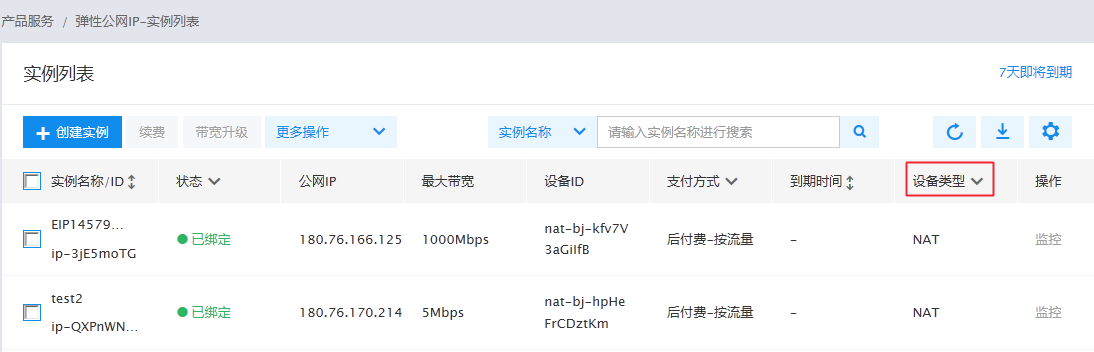
Log in to the console and navigate to the Products & Services - Elastic Public IP instance list page to check the EIP instances linked to the public NAT. EIPs remain bound to the NAT gateway for up to 7 days after expiration. Once this period ends, the EIP is automatically unbound and released.
View monitor
- Log in to the Management Console, go to Products & Services - Virtual Private Cloud, and select Public NAT Gateway from the left navigation bar to view the public NAT gateway instance list.
- Select Monitor after the instance, and a floating monitor window will appear on the right side of the page.
- Click View More to access the Monitor Of Instance Details page.
- Users can access monitoring information for the public NAT gateway and associated real servers.
- Click Alarm Details on the Monitor page to enter the alarm policy configuration page, where you can manage the alarm strategy of public NAT gateway. For detailed operation steps, please see [BCM Alarm Management](BCM/Operation guide/Alarm Service/Manage Alarms.md).
Description:
- If there are fewer than 10 real servers, all their monitoring information is displayed by default. Users can customize which server monitoring information to display, with a limit of 10 options.
Public NAT gateways support TOPN statistics
TOPN: After selecting the time range, statistic method and metric, enable the TOP display function and click the Refresh button on the leftmost side. The system will then automatically display the ID of top 10 real server instances ranked by traffic share based on your selection.
Statistical methods include: Average, Maximum, Minimum, Sum.
Monitoring metrics include inbound traffic, outbound traffic, inbound bandwidth, outbound bandwidth, inbound packet rate, outbound packet rate, and connection count.
Log in to the Baidu AI Cloud Management Console, go to Products & Services - Network - Virtual Private Cloud (VPC), select NAT Gateway from the left menu, click the NAT Gateway instance name, choose Monitor from the left navigation bar, and view the Real Server Monitoring Information.
Description:
- Only public NAT gateways support TOPN; private NAT gateways currently do not have this functionality.
- The public NAT gateway status is "Running", and the SNAT or DNAT status is "available".
- There must be network traffic passing through the public NAT gateway for conversion;
- After clicking the Refresh button, there may be a delay before the Traffic Graph appears. Please wait approximately three minutes for it to load.
- Data should be available within the past three days, and the maximum query time span is 30 days.
- The system supports the following three time selection methods: - The query time range must be less than 1 hour (1-59 minutes). For example, if a query task begins at 20:00, only data from 18:56 to 19:55 can be queried.
- For query time ranges longer than 1 hour, queries must be made in whole-hour increments, with a range of 1-12 hours. For example, if a query task begins at 20:00 and the query time range is between 1 and 12 hours, only data before 19:00 can be queried.
- If the query time range is more than 1 hour but not a whole multiple, combine data within an hour with a query time range of less than 1 hour (1-59 minutes) for accurate results.
Gateway traffic control
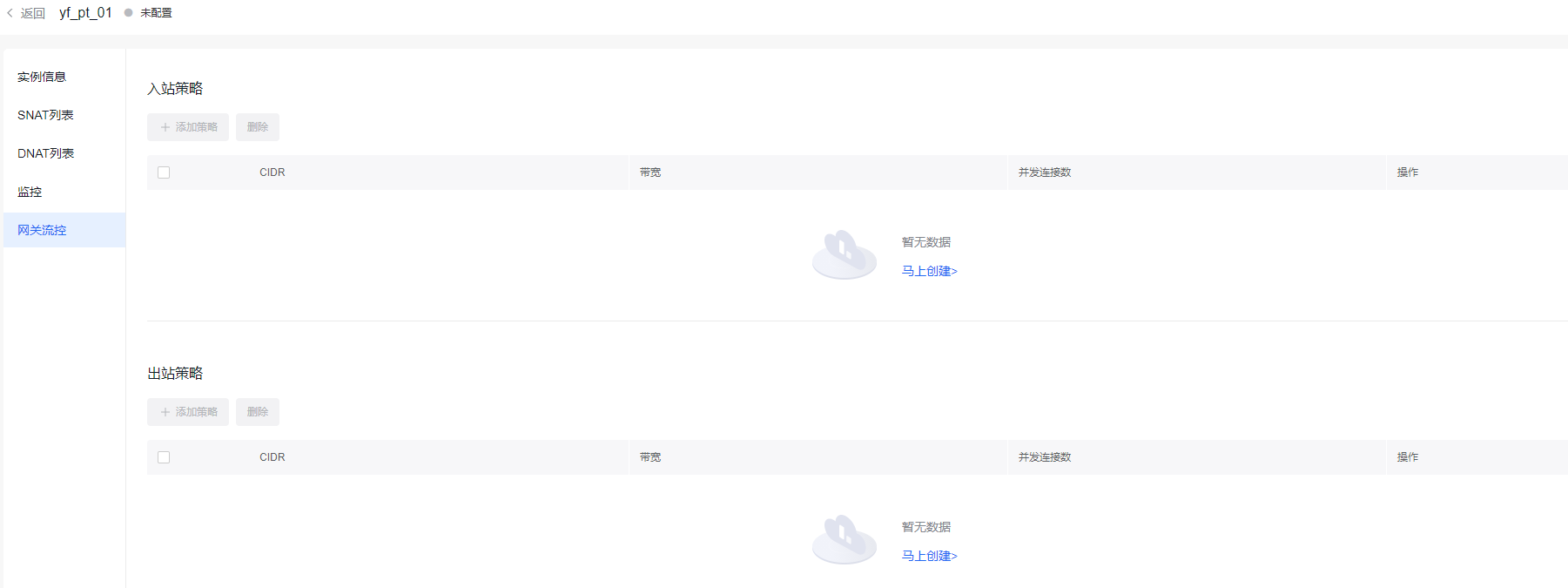
Baidu AI Cloud gateway traffic control enables IP rate limiting for both inbound and outbound traffic and can restrict connection counts for IPs passing through the public NAT gateway. It works alongside the TOPN feature to identify IPs with abnormal traffic and uses traffic control for intervention, streamlining operations and enabling timely responses.
Log in to Baidu AI Cloud Management Console, navigate to Products & Services - Network - Virtual Private Cloud, select the Public NAT Gateway from the left navigation menu, click the public NAT gateway instance name, and then choose Gateway Bandwidth Limiting to complete setup.
Description:
- Only public NAT gateways support gateway traffic control; private NAT gateways currently do not support this feature.
- At present, the public NAT gateway traffic control function is in the public beta stage. If you need to use it, please submit a Ticket application.
- Gateway traffic control functionality is available only when the public NAT gateway is in "Running" status.
- Duplicate ingress or egress IPs or subnets are not allowed. Note: The CIDR added for gateway flow control rules applies only to the internal CIDR associated with this public NAT gateway and cannot be used for public EIP bandwidth limiting.
- The bandwidth and concurrent connections specified for limiting cannot exceed the specifications initially purchased by the user. Note: The intranet CIDR for gateway bandwidth limiting adheres to the EIPGROUP restriction mode.
- Quota: Only 50 ingress/egress rules can be created under the same instance. Submit a Ticket to request adjustments.