

Elastic network interface
Updated at:2025-10-16
Baidu AI Cloud elastic network interfaces can be freely migrated between multiple cloud hosts. By binding elastic network interfaces to a cloud host, a highly available network solution can be achieved. Multiple intranet IP addresses can also be bound to an elastic network interface, and each intranet IP address can be paired with an EIP. Once IP addresses are configured, users can apply application policies to route different traffic flows through various source IP addresses on the network interface card, enabling the deployment of a single host with multiple IP addresses.
Application scenarios:
- Deploy high-availability clusters: Elastic network interfaces are critical components in system architecture, designed to meet the high-availability requirements for single instances and multiple network interface cards within a system.
- Rapid failover: Traffic from a failed instance can be quickly switched to a standby instance by unmounting the elastic network interface from the faulty cloud host and attaching it to another cloud host, enabling disaster recovery for services.
- Refined network management: Instances can mount multiple elastic network interfaces, which can exist in different subnets and be configured with security groups and ACL security access rules individually. This setup allows for traffic security access controls on each elastic network interface and ensures data isolation between different businesses.
Before Configuration, you should know:
- Each VPC allows up to 500 unmounted elastic network interfaces. Mounted elastic network interfaces do not consume quota.
- BCC instances and elastic network interfaces must reside in the same availability zone and VPC. However, they can belong to different subnets and be associated with separate security groups.
- The bandwidth capacity of a BCC instance is determined by its specifications, and mounting multiple elastic network interfaces on a single instance does not enhance its bandwidth performance.
- The primary network interface card of a BCC instance is not an elastic network interface and does not appear in the list of elastic network interfaces. It can be configured on the BCC Details page.
- A single network interface card must have a minimum of one IPv4 and one IPv6 address, with a maximum of 40 IPv4 and 40 IPv6 addresses.
- The number of elastic network interfaces that can be mounted by a cloud host is determined by the smaller value between the host's core count and 8.
- The number of IPv4 and IPv6 IPs configurable on the network interface card bound to the cloud host, respectively, is:
| Memory | Count of IPs |
|---|---|
| 1G | 2 |
| (1-8]G | 8 |
| (8-32]G | 16 |
| (32-64]G | 30 |
| Greater than 64G | 40 |
Create elastic network interface
- In the virtual private cloud console, go to the left navigation bar and select Network Interface Card - Elastic Network Interface to view the list of elastic network interfaces.
- Click on "Create Elastic Network Interface" to open the creation dialog.
- Fill in the following configuration information:
| ConfigMap | Description |
|---|---|
| Current region | Beijing, Shanghai, Baoding, Guangzhou, Suzhou, Wuhan and Hong Kong are supported. Switch regions in the top left corner |
| Network interface card name | User-defined elastic network interface name |
| Network | Select the network |
| Subnet belonged | Subnet to which the elastic network interface belongs |
| Security group | Security group bound to the elastic network interface: minimum 1, maximum 10 |
| IP address | A primary IP address is automatically assigned by default. Users can manually add secondary IP address |
| Description | Edit information on elastic network interface description |
- Click OK. The elastic of network interface creation is completed.

Mount Host
- In the virtual private cloud console, go to the left navigation bar and select Network Interface Card - Elastic Network Interface to view the list of elastic network interfaces.
- Under Instance operations on the right, click "Mount Host" and choose the host you want to mount.
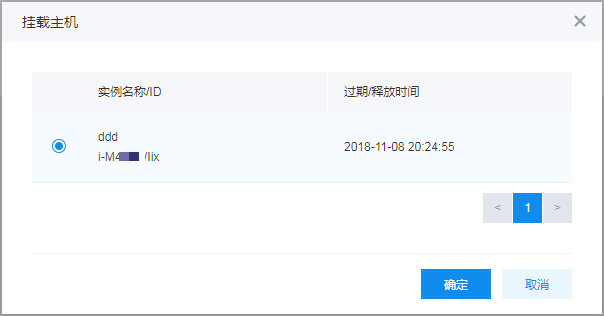
- Click "OK" to finish mounting the host.
Description:
- After mounting the elastic network interface to the cloud host, if OS does not have default network interface card configuration rules, it is necessary to manually configure the network parameters of the elastic network interface to ensure normal network functionality. Refer to BCC documentation-[Configure Elastic Network Interface](BCC/Operation guide/Network/Elastic network interface/Configure elastic network interface.md).
- The ability to mount an elastic network interface to a cloud host depends on the instance configuration, which specifies the number of interfaces that can be mounted and the corresponding IP allocations.
- After mounting an elastic network interface to a host, you can click "Unmount Host" in the Instance Operations to complete unmounting if required.
Configure elastic network interface
Add secondary IP address
- In the virtual private cloud console, navigate to the left bar and select Elastic Network Interface to access the list of elastic network interfaces.
- Click the Elastic Network Interface Instance Name to open its details page, then select "IP Address" to access the IP Address Management section.
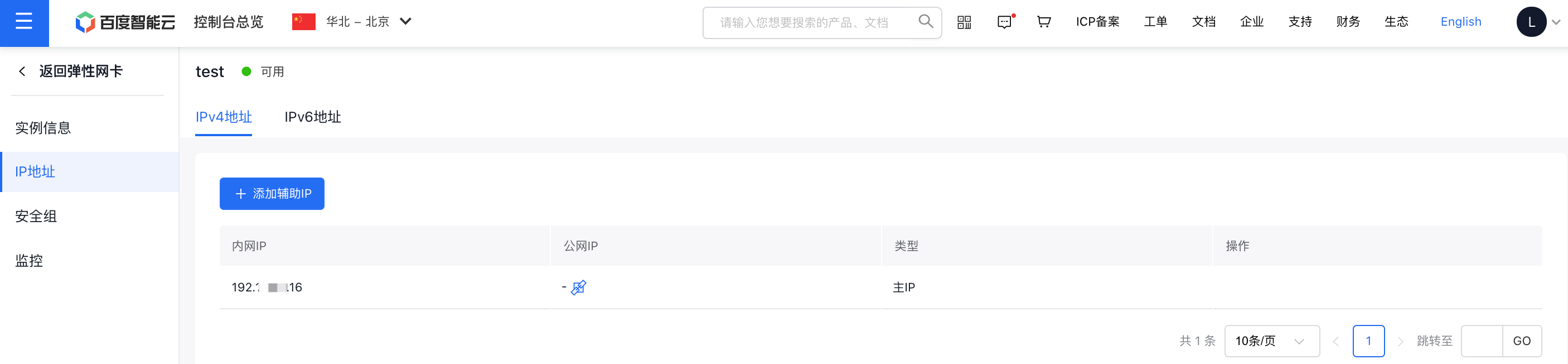
- Click "Add Secondary IP Address" to bring up a dialog. By default, an IP address will be automatically allocated from the elastic network interface's subnet, or users can manually specify an available IP.
Description:
- After mounting the cloud host, if the system does not automatically recognize the secondary IP address, it is necessary to manually configure the secondary IP address. Refer to BCC documentation-[Configure Elastic Network Interface](BCC/Operation guide/Network/Elastic network interface/Configure elastic network interface.md).
- The primary IPv4 address of an elastic network interface cannot be released, but secondary IP addresses can. All IPv6 addresses associated with an elastic network interface are secondary and can be released.
Associate security group
- In the virtual private cloud console, navigate to the left bar and select Elastic Network Interface to access the list of elastic network interfaces.
- Click the Elastic Network Interface Instance Name to access its Details page, then select "Security Group" to open the Security Group Management section.
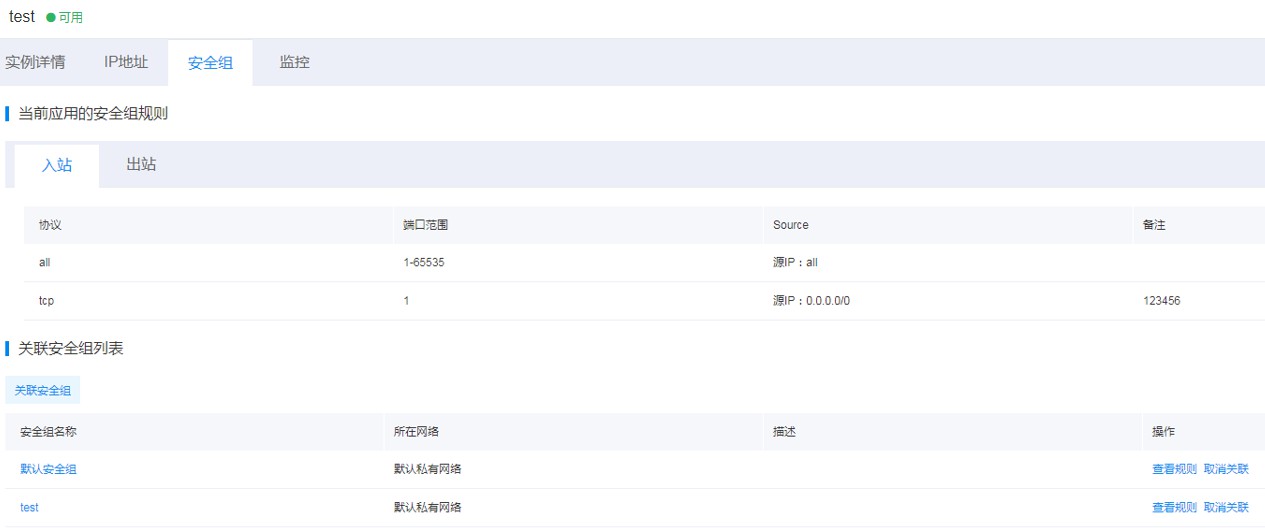
- In the Associated Security Groups List, click "Associate Security Group," then choose the security group you wish to associate with the elastic network interface in the pop-up window.
View monitor
- In the virtual private cloud console, navigate to the left bar and select Elastic Network Interface to access the list of elastic network interfaces.
- Click the Elastic Network Interface Instance Name to go to its Details page, then select "Monitor" to access the Monitoring section.
- Users can view information like bandwidth, traffic, and packet rate for the elastic network interface.
- Click Alarm Details in the monitor information to enter the alarm management page and configure the alarm strategy. For detailed steps, refer to [BCM Alarm Management](BCM/Operation guide/Alarm Service/Manage Alarms.md).