

Using Coupons
Usage rules
- Only one coupon can be used per order. If you submit a merged order, each sub-order within it can independently use one coupon.
- When confirming an order for prepaid products, you can select an available coupon to complete the payment.
-
Deduction rules for postpaid products after confirming the order:
- First deduct the coupon, then deduct the cash;
- First deduct the single product coupon, then deduct the general coupon;
- First deduct coupons with earlier validity period; coupons with the same validity period will be deducted first for those with a smaller balance;
- If you use a coupon to pay for an order, invoices can only be applied for based on the actual amount you paid for that order
Example: When paying for an order with a need-pay amount of RMB 100, you use a RMB 20 coupon and pay RMB 80 out of pocket. If you need to apply for an invoice, the invoiced amount for this order will be RMB 80.
- Refunds are supported for prepaid products.
-
A single coupon can be used multiple times and may have a remaining balance
Example: If you have a usable coupon with a face value of RMB 20 and need to pay for an order with need-pay amount of RMB 15, you can use this RMB 20 coupon. Your out-of-pocket payment will be RMB 0, and the coupon will have a remaining balance of RMB 5 after payment. This coupon can be used again, and the payable amount offset for the next use is RMB 5.
- Coupons are preferential benefits issued by Baidu AI Cloud. You can use the coupon to consume, but it cannot offset the debts caused by unpaid service fees.
Example of specific coupon usage scenario:
Take purchasing Baidu Cloud Compute (BCC) using a General Coupon as an example:
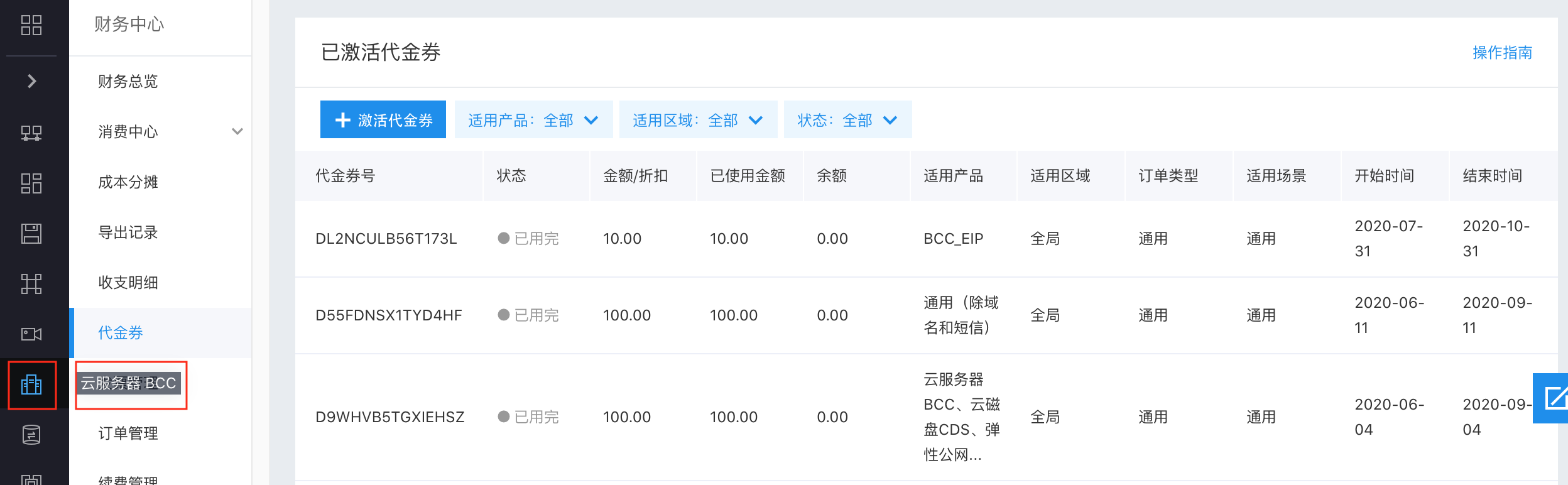
- Access the Baidu Cloud Compute (BCC) interface via the left navigation bar;
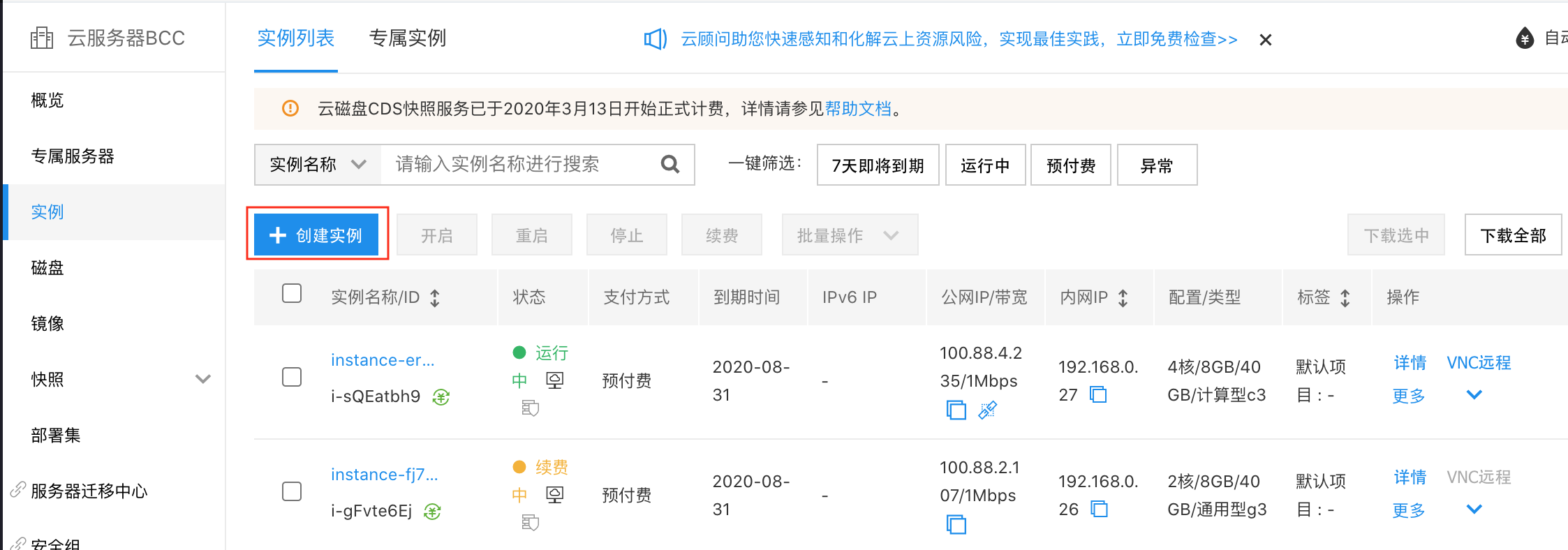
- Click + Create Instance to enter the Create Instance interface;
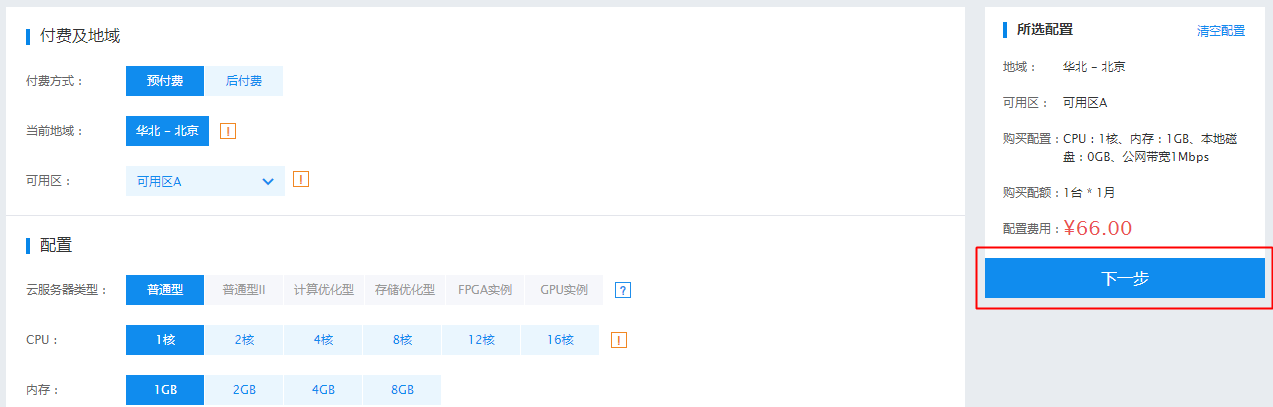
- After filling in the relevant information, please refer to the [BCC Instance Creation Guide](BCC/Operation guide/Instance/Create instance/Create Instance via Purchase Page.md) for filling specifications, and click Next to enter the Confirm Order interface;
- The system defaults to No Coupon Selected. You can click No Coupon Selected and choose an available coupon from the drop-down menu. If you have unactivated coupons, click Activate a Coupon to complete the activation.
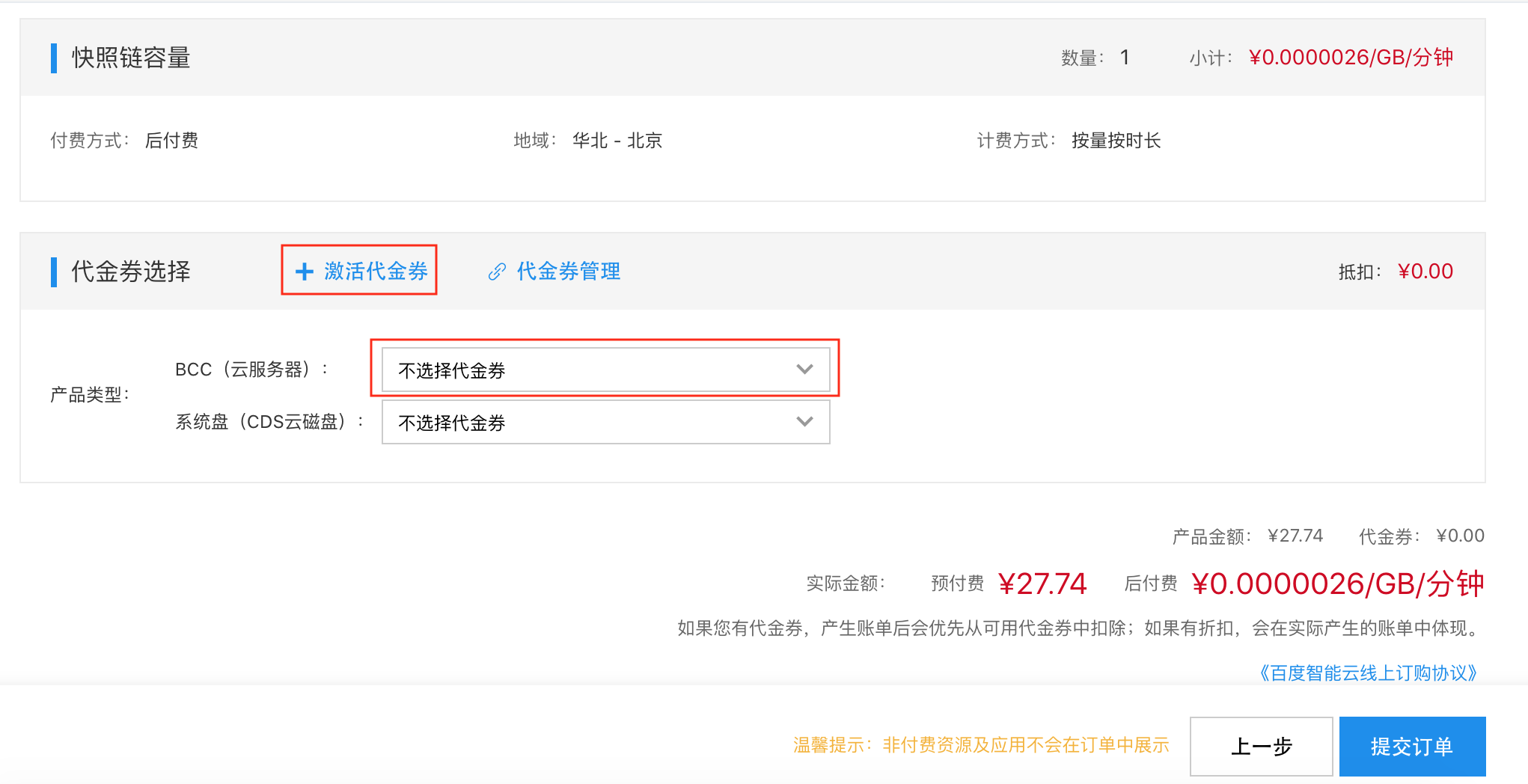
- Click Proceed to Payment to pay the order using the selected coupon.