

Tag-Based Billing
[Function overview](#Function overview)
[Operation step](#Operation steps)
- [Create tag](#Create tag)
- [Resource binding tag](#Resource Binding Tag)
[Tag display methods](#Tag Display Method)
- [Display of the console](#Console Display)
- [Resource bills and detailed bills](#Resource Bill and Detailed Bill)
-
[Display in bill files](#Display in Bill File)
- [Resource bills and detailed bills](#Resource Bill and Detailed Bill)
- [Tag display methods](#Tag Display Method)
[Description of API](#API Description)
Function overview
Concept of tags:
A tag consists of a tag key and tag values. A tag key can correspond to multiple tag values, and a resource can be bound to multiple tag keys simultaneously. By binding corresponding tags to resources, it is possible to achieve classification management of cloud resources and division of bill fees.
Purpose of tag-based cost allocation:
Customers can assign corresponding tags to resources based on their service requirements, technical demands, etc., which helps customers manage resource costs from dimensions such as services, departments, and projects, enabling refined cost control and internal cost allocation.
After using tags, they will be applied to the following bills:
- Consumption summary: Customer consumption data is summarized by tags
- Resource month bill: A tag key column is added to the downloaded monthly summary resource bill
- Resource bills and detailed bills: A tag key column is added to both the console-based and downloaded versions of resource bills and detailed bills
Operation steps
1. Create a tag
- Navigate to the Enterprise in the management console and locate Tag Management.
- On the Tag Overview page, click Create a Tag.
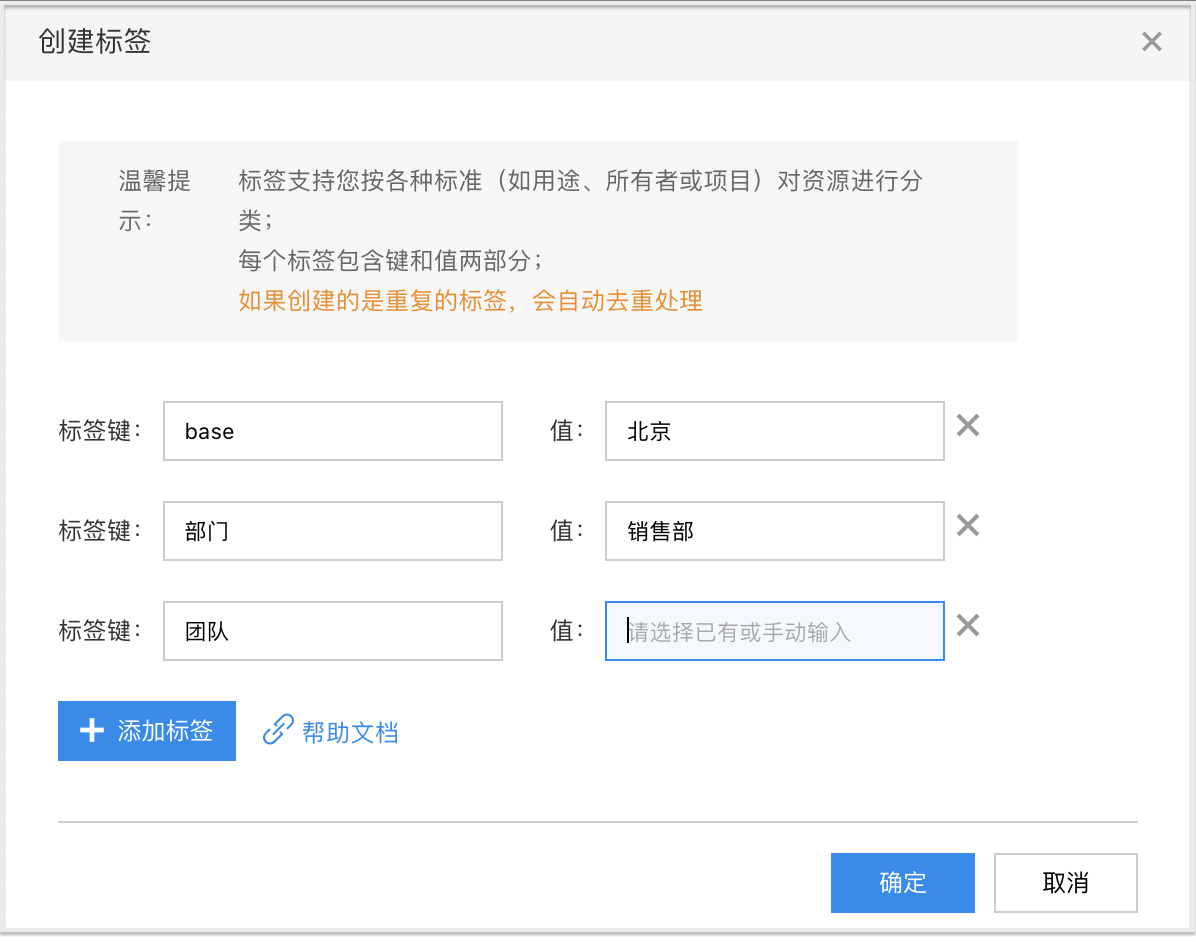
- In the pop-up window, enter the Tag Key and Tag Value. After completion, click OK to finish creating the tag.
Note: A tag key can correspond to multiple tag values, and the system will automatically deduplicate the tag key.
2. Bind tags to resources
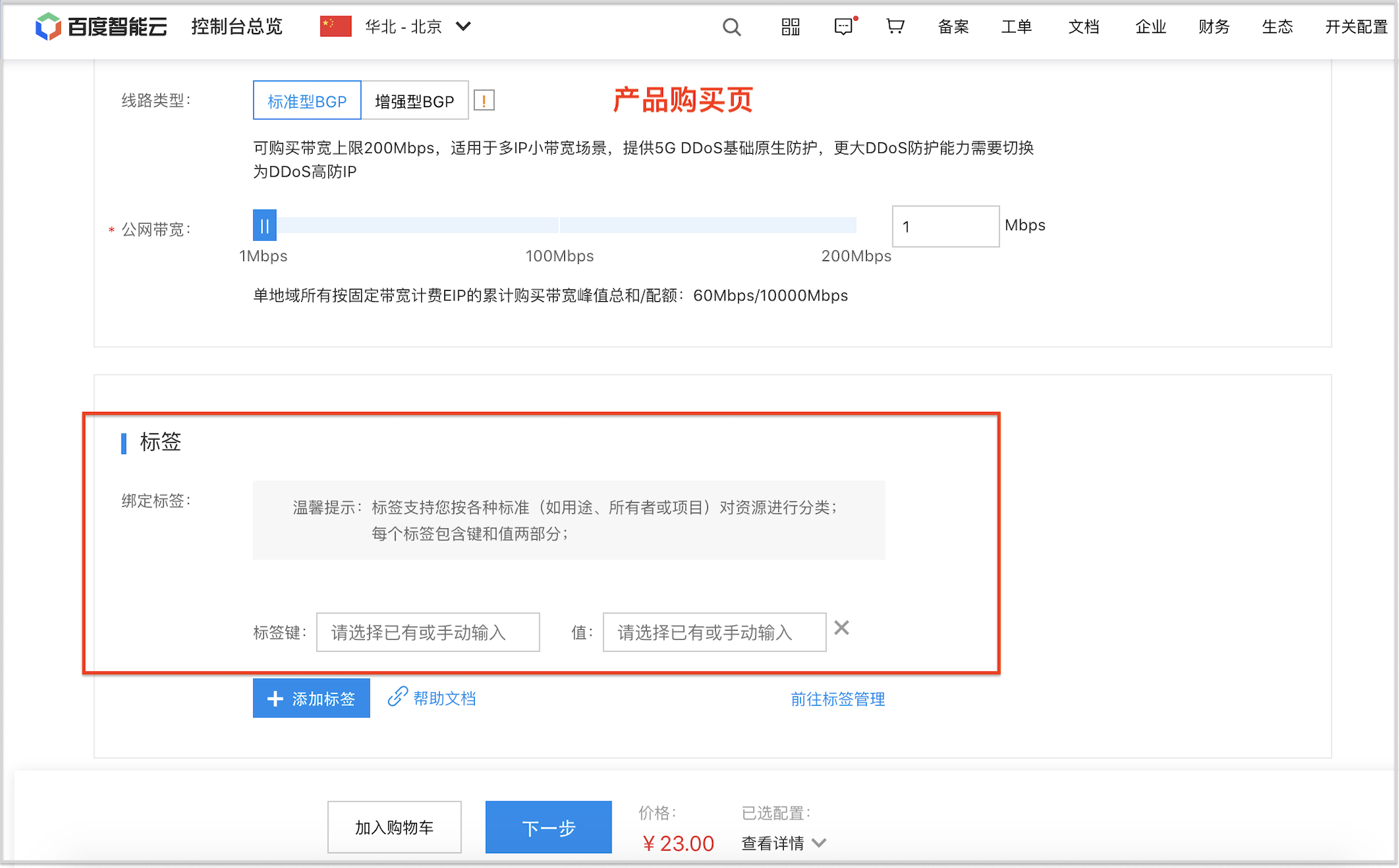
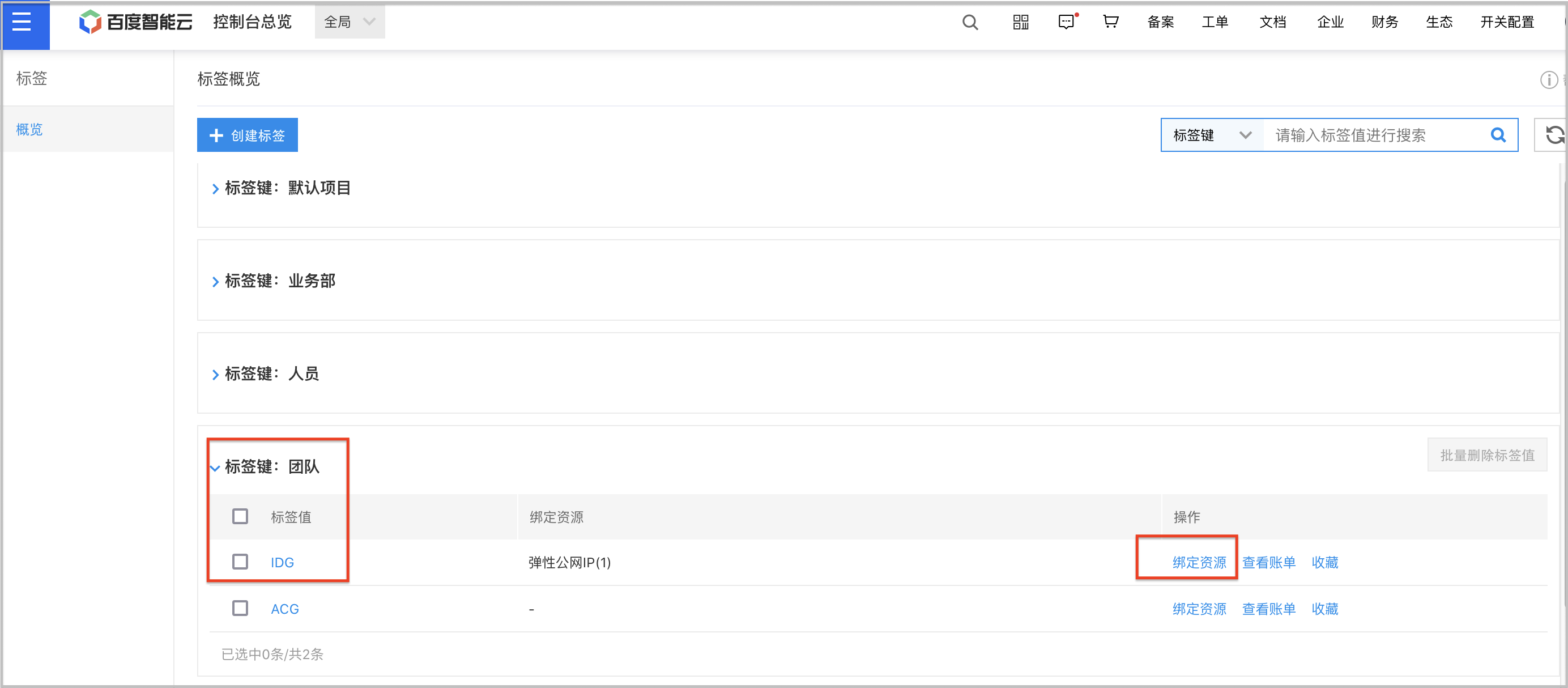
There are four ways to bind tags to resources: You can bind tags to resources when purchasing them, bind tags to resources in the product console, bind tags to resources on the tag management page, and also bind tags to resources through APIs.
Directly bind tags when purchasing resources:
Bind resource tags on the tag management page:
Bind tags via API: For details, see API for Tag Binding.
Tag display methods
If you have bound tags to a resource, you can view tag-related information in bills from the month when the tags are set.
Display of the console
- Navigate to Consumption Overview.
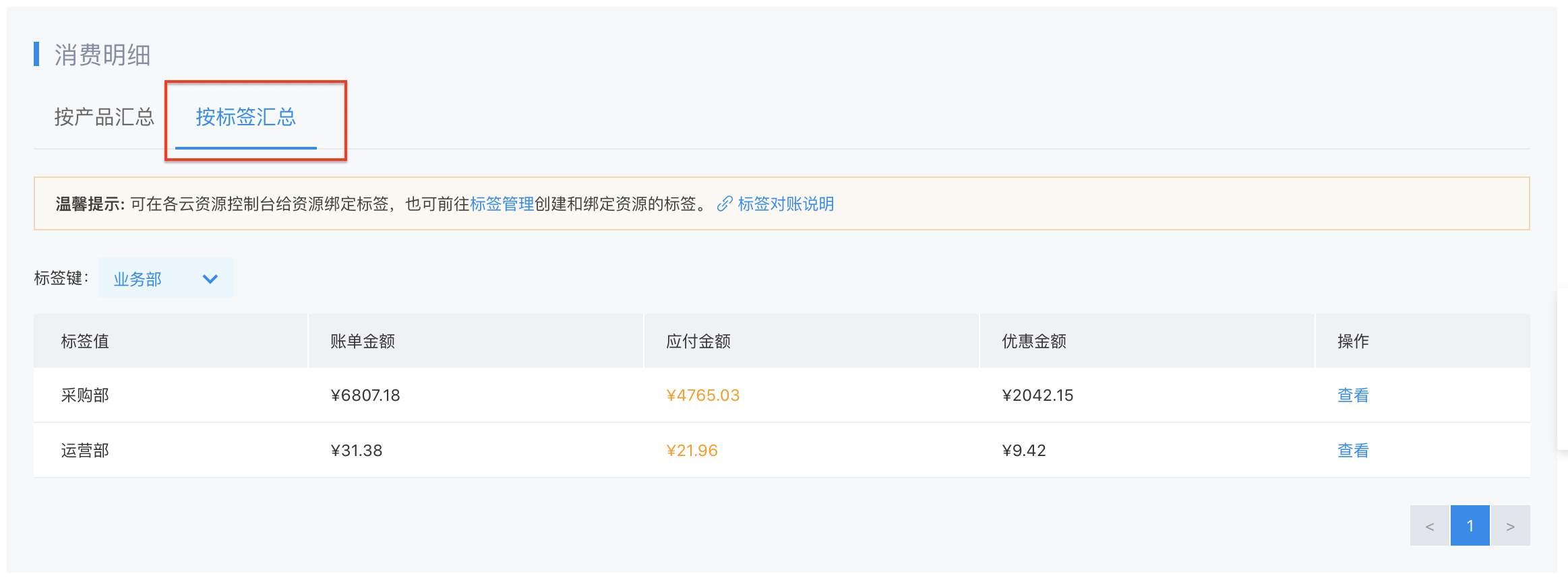
- On the Consumption Overview page, select Summarize by Tags for Consumption Details, and select the desired Tag Key, then customer consumption will be summarized according to the values of each tag under that tag key.
Resource bills and detailed bills
- Navigate to the Resource Bill page.
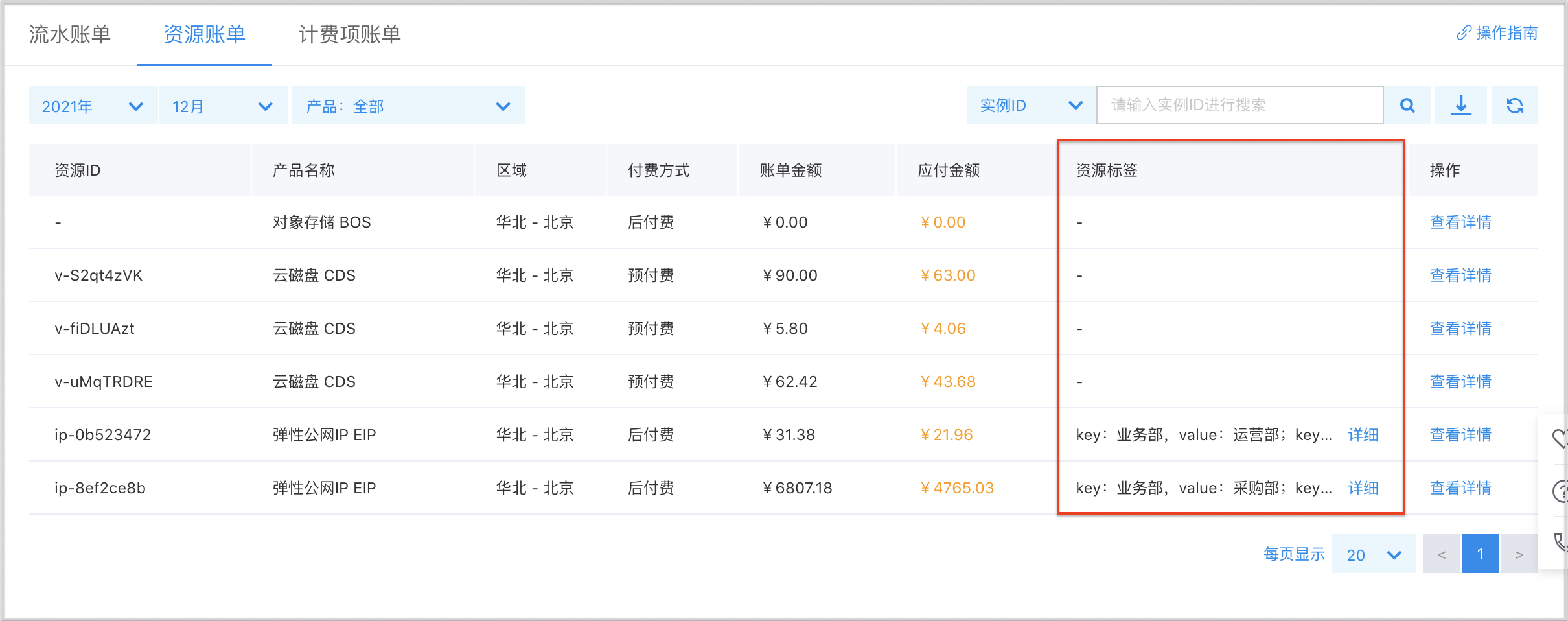
- On the Resource Bill page, a new Resource Tag column has been added to the bill list, displaying the tags bound to the resource for this month. Tags are displayed in the format [key, value], where "key" represents the tag key and "value" represents the tag value.
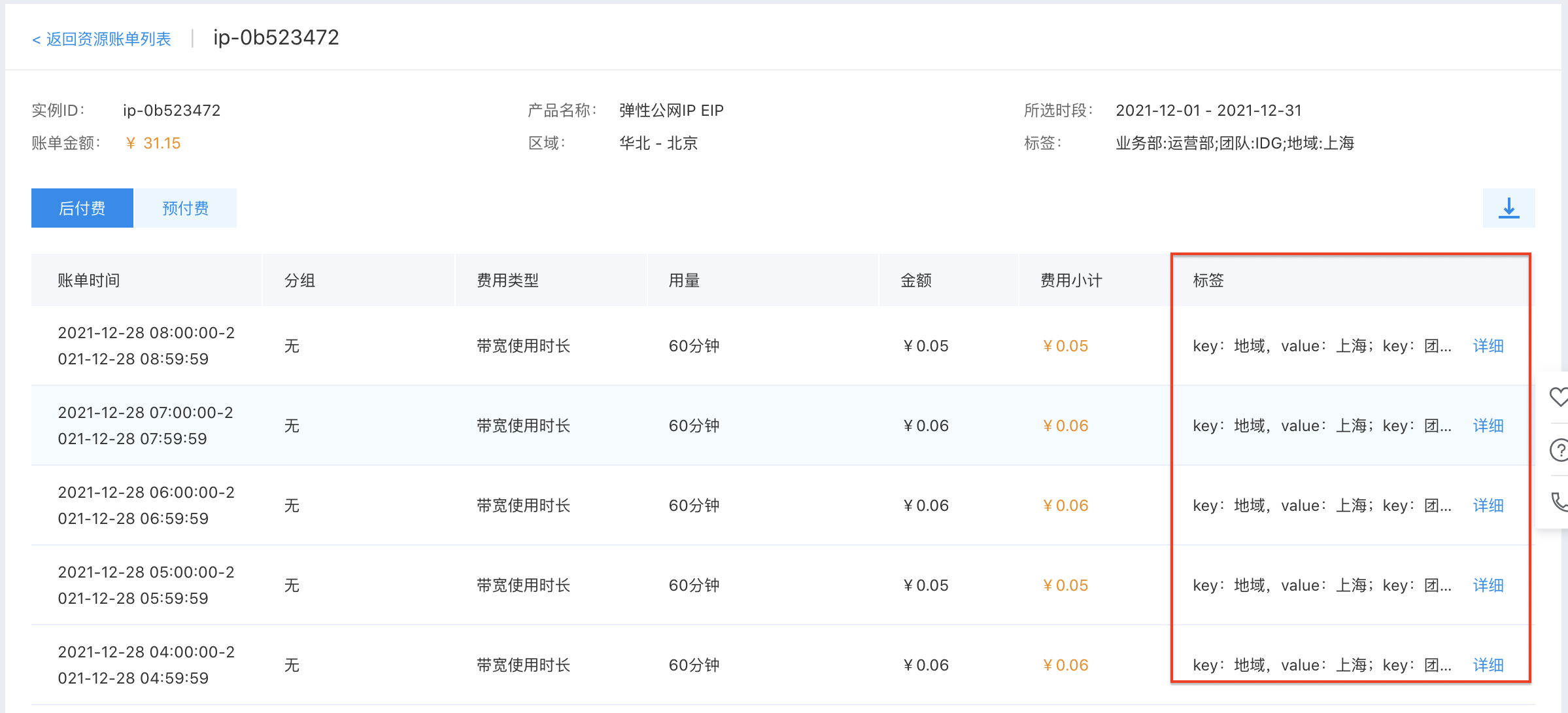
- Click View Details to check the resource’s detailed bill. In each billing cycle, the resource’s bill is bound to the tags applicable to that cycle.
Display in bill files
If you have already bound tags to the resources, you can view tag information in the downloaded bill file, with each tag key listed as a separate column in the bill. You can filter or process the bill file based on tag keys as needed.
1. Resource bills and detailed bills
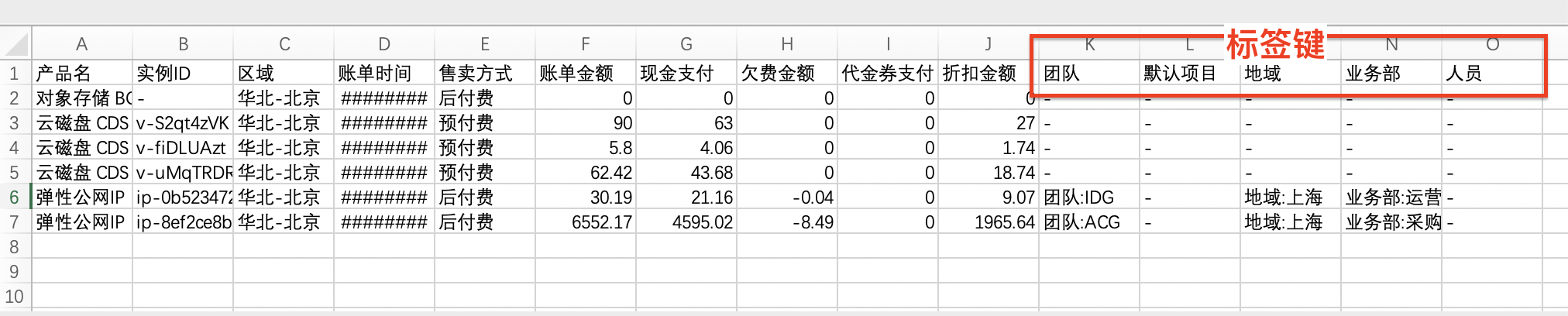
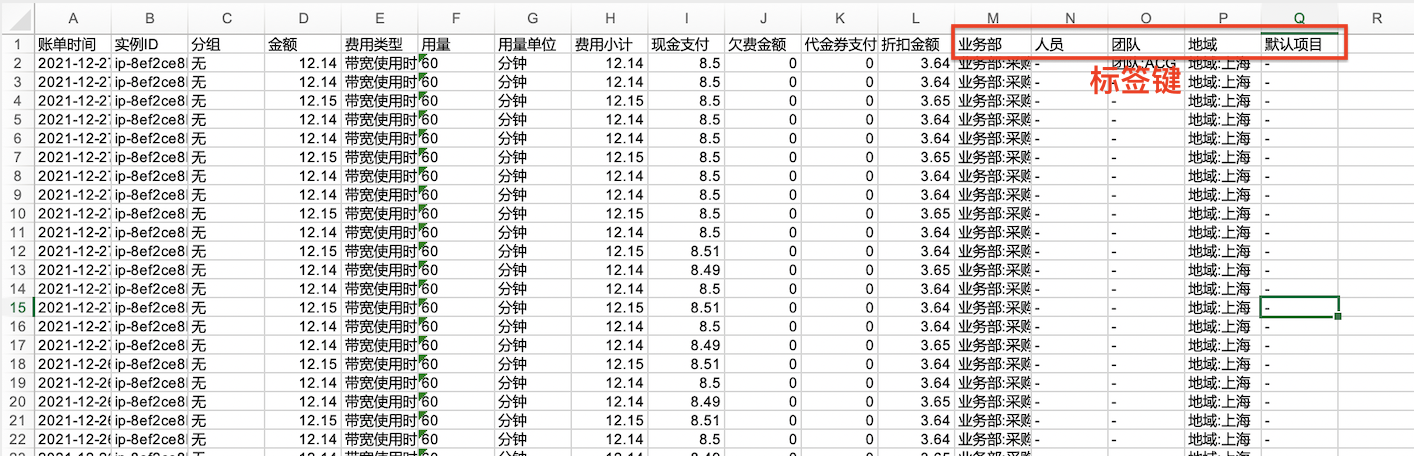
A new resource tag column is added to the downloaded resource bill and detailed bill files. If a resource is bound to a tag value under a specific tag key, the corresponding tag value will be displayed in the tag key column for that resource’s bill entry. If no tag is bound, the column will show "-".
Example of tags in downloaded resource bills:
Example of tags in downloaded detailed resource bills:
2. Resource month bill
In the resource month bill, corresponding tag key columns have been added to the prepaid and postpaid bill sheets. If a resource is bound to a tag value under a specific tag key, the corresponding tag value will be displayed in the tag key column for that resource’s bill entry. If no tag is bound, the column will show "-".

Description of API
If you have already assigned tags to resources, you can retrieve bill data and corresponding tag information in the bill API starting from the month in which the resource tags are assigned in the resource month bill API and cost prepay share bill API.