Recharge Operations

Finance Finance

  • API Reference
    • Access control
    • Balance Query Related Interfaces
      • Account Balance Query
    • Bill Related Interfaces
      • Appendix
      • Charge Item Bill
      • Python Request Example
      • Resource Month Bill
    • Error response
    • Feature Update Records
    • General Description
    • Interface Specifications
    • Introduction
  • Bill Management
    • Bill Details
    • Bill Subscription
    • Consumption Information Subscription Guide
    • Consumption Overview
    • How to View
    • Tag-Based Billing
  • Charge
    • Billing & Configuration Changes
      • Configuration Upgrade Or Shrinkage
      • Shift Charge
    • Charge type
    • On-Demand Billing
    • Pay-as-you-go
    • Subscription billing
  • Contract
    • Apply for Electronic Contract
    • Overview
  • Cost Management
    • Cost Allocation
    • Cost Splitting
  • Disclaimer
  • Enterprise Organization Financial Management
  • FAQs
    • Bill and Debt
    • Billing Issues
    • Common Questions Overview
    • Contract Issues
    • Coupon Issues
    • Dedicated Account Remittance Issues
    • Invoice Issues
    • Order Issues
    • Recharge Issues
    • Refund Issues
    • Renew Issues
    • Withdrawal Issues
  • Invoice
    • Apply for Baidu Intelligent Cloud Invoice
    • Return or Exchange Baidu Intelligent Cloud Invoice
  • Multi-Account Multi-User Financial Management
    • Enterprise Organization - Financial Management
    • Multi-User Access Control - Financial Permission
    • Unified Finance
  • Order Management
  • Overview
  • Partner Deposit Payment
  • Purchase Guide
    • Coupon
      • Activating Coupons
      • Coupon Overview
      • Using Coupons
      • Viewing Coupons
    • Income and Expense Details
    • Purchase
    • Recharge
      • Exclusive Account Wire Transfer
      • Recharge Operations
      • Viewing Balance
    • Refund and Compensation
      • Product Compensation Standards
      • Refund Application Process
      • Refund policy
      • Unsubscribe Overview
      • Unsubscribe Rule Description
    • Renew
      • Auto-renewal
      • Renew Overview
      • Unified Resource Expiration Time
    • Withdrawal
  • Resource Package Management
    • Resource Package Deduction Details
    • Resource Package Overview
  • SDK
    • Java-SDK
      • Bill
      • BillingClient
      • Exception handling
      • Install SDK
      • Overview
      • Version Update Description
All documents
menu
No results found, please re-enter

Finance Finance

  • API Reference
    • Access control
    • Balance Query Related Interfaces
      • Account Balance Query
    • Bill Related Interfaces
      • Appendix
      • Charge Item Bill
      • Python Request Example
      • Resource Month Bill
    • Error response
    • Feature Update Records
    • General Description
    • Interface Specifications
    • Introduction
  • Bill Management
    • Bill Details
    • Bill Subscription
    • Consumption Information Subscription Guide
    • Consumption Overview
    • How to View
    • Tag-Based Billing
  • Charge
    • Billing & Configuration Changes
      • Configuration Upgrade Or Shrinkage
      • Shift Charge
    • Charge type
    • On-Demand Billing
    • Pay-as-you-go
    • Subscription billing
  • Contract
    • Apply for Electronic Contract
    • Overview
  • Cost Management
    • Cost Allocation
    • Cost Splitting
  • Disclaimer
  • Enterprise Organization Financial Management
  • FAQs
    • Bill and Debt
    • Billing Issues
    • Common Questions Overview
    • Contract Issues
    • Coupon Issues
    • Dedicated Account Remittance Issues
    • Invoice Issues
    • Order Issues
    • Recharge Issues
    • Refund Issues
    • Renew Issues
    • Withdrawal Issues
  • Invoice
    • Apply for Baidu Intelligent Cloud Invoice
    • Return or Exchange Baidu Intelligent Cloud Invoice
  • Multi-Account Multi-User Financial Management
    • Enterprise Organization - Financial Management
    • Multi-User Access Control - Financial Permission
    • Unified Finance
  • Order Management
  • Overview
  • Partner Deposit Payment
  • Purchase Guide
    • Coupon
      • Activating Coupons
      • Coupon Overview
      • Using Coupons
      • Viewing Coupons
    • Income and Expense Details
    • Purchase
    • Recharge
      • Exclusive Account Wire Transfer
      • Recharge Operations
      • Viewing Balance
    • Refund and Compensation
      • Product Compensation Standards
      • Refund Application Process
      • Refund policy
      • Unsubscribe Overview
      • Unsubscribe Rule Description
    • Renew
      • Auto-renewal
      • Renew Overview
      • Unified Resource Expiration Time
    • Withdrawal
  • Resource Package Management
    • Resource Package Deduction Details
    • Resource Package Overview
  • SDK
    • Java-SDK
      • Bill
      • BillingClient
      • Exception handling
      • Install SDK
      • Overview
      • Version Update Description
  • Document center
  • arrow
  • FinanceFinance
  • arrow
  • Purchase Guide
  • arrow
  • Recharge
  • arrow
  • Recharge Operations
Table of contents on this page
  • Recharge entry
  • Recharge methods
  • Online recharge
  • Offline remittance
  • View recharge records

Recharge Operations

Updated at:2025-10-27

Recharge entry

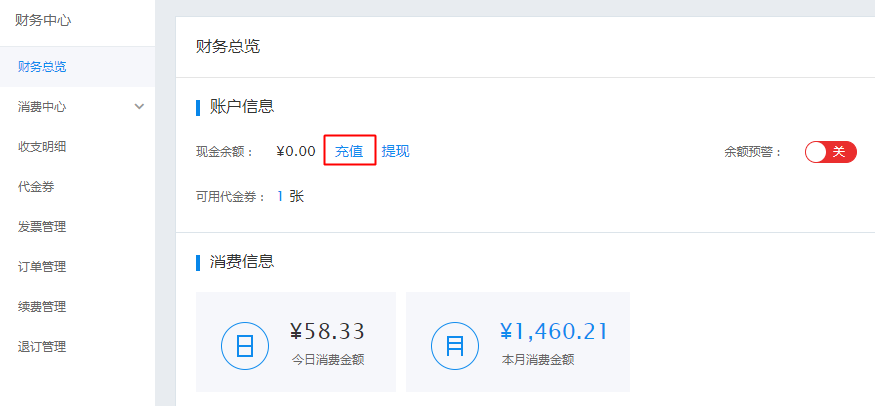
After logging in to the Baidu AI Cloud Management Console, you can access the recharge page in the following two ways:

  • On the console homepage, hover your mouse over the Finance button in the top-right navigation bar. A small window will pop up; click the Recharge button.
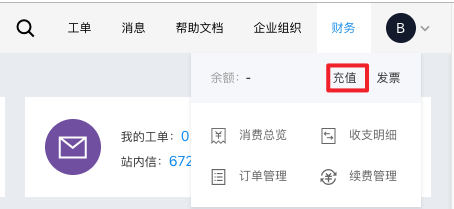
    image.png

  • On the console homepage, click the Finance button in the top-right navigation bar to enter the Financial Center. On the Account Overview page, click the Recharge button.
Recharge methods

Online recharge

We provide you with multiple online recharge payment channels. You can complete the online recharge operation via Alipay, WeChat Pay, or Duxiaoman Wallet.

Recharge steps:

  1. On the recharge page, select Online Payment as the recharge method.
  2. Click a preset amount option or enter a custom amount, then confirm the recharge amount.
  3. After confirming the amount, click the Confirm Recharge button to be redirected to the third-party payment channel for payment.
  4. After successful payment, the recharge amount will be credited to your account immediately.
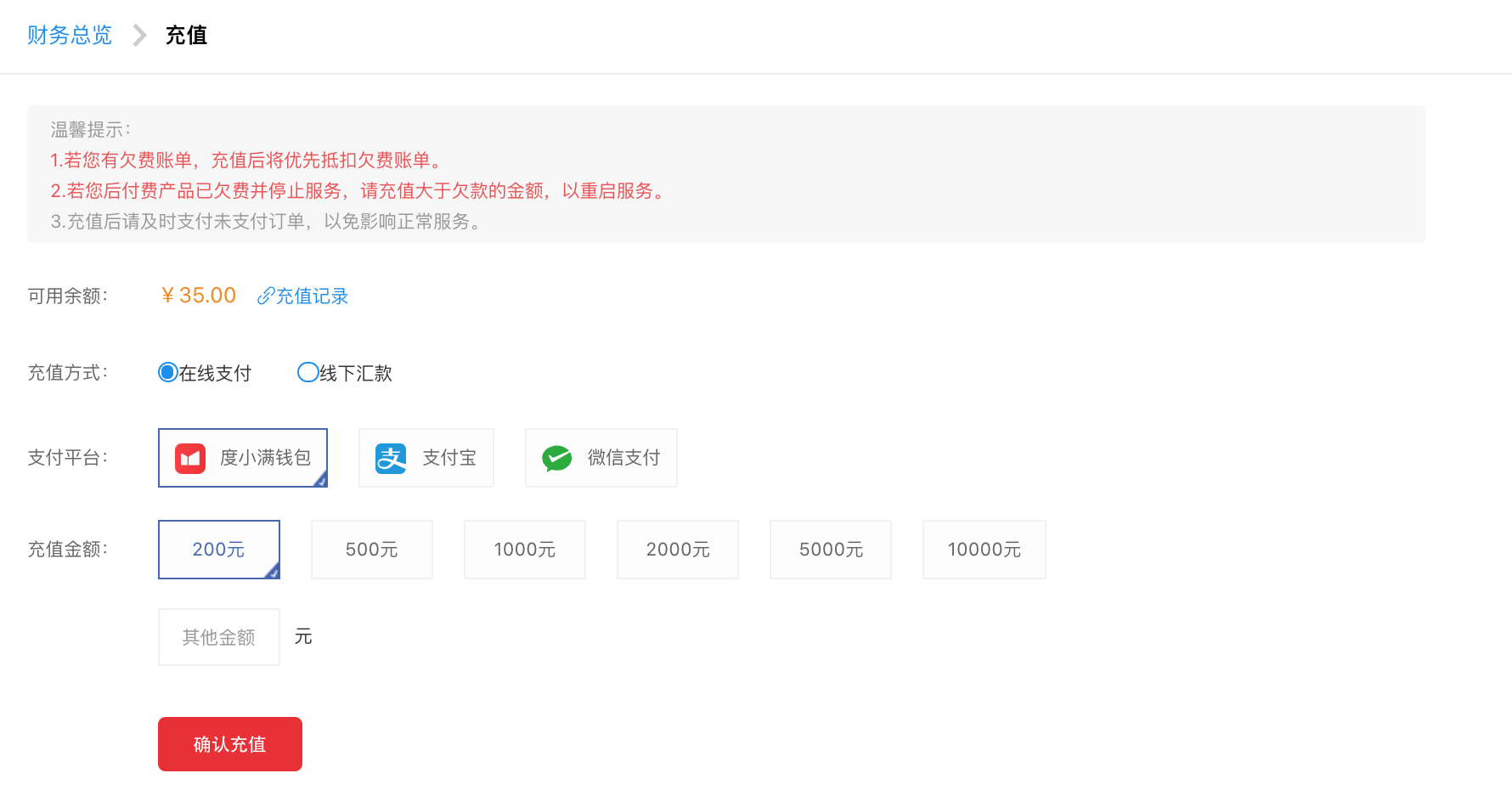
image.png


Offline remittance

Obtain your exclusive account and make an offline remittance to this exclusive account. The system will directly match the remittance to your Baidu AI Cloud account, enabling automatic fund addition and fast crediting.

Offline remittance is applicable to all users who have completed individual certification or enterprise certification through Baidu AI Cloud (users whose real-name status is synchronized from Baidu Wallet are not supported temporarily).

Steps to obtain the exclusive account:

  1. On the recharge page, select Offline Remittance as the recharge method.
  2. Click Obtain Your Exclusive Remittance Account corresponding to the remittance information section to get the exclusive account for automatic fund addition via bank wire transfer.
  3. Click Send Verification Code, enter the received verification code, and then click the OK button to obtain your exclusive remittance account.
  4. After obtaining the exclusive remittance account, you can go to any bank branch or use online banking to add funds to your Baidu AI Cloud account via bank wire transfer.

    • If the remittance is from yourself (i.e., the account name of remitter matches the certification name of your Baidu AI Cloud account), the transferred funds will be directly recharged to your Baidu AI Cloud account.
    • If the remittance is from another person (not yourself) and the account name of remitter does not match the certification name of your Baidu AI Cloud account, the transferred funds will require manual verification. For details, please refer to Exclusive Account Remittance Verification.

Description

To ensure the smooth progress of the remittance, please try to ensure that the account name of remitter matches the certification name. The certification name will be the name used when you apply for special VAT invoices later.
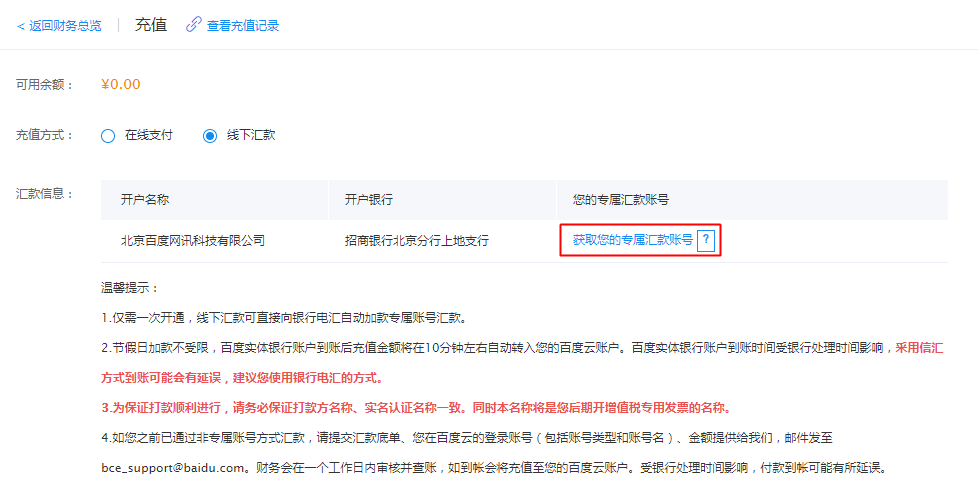
image.png


View recharge records

After a successful recharge, you can click Transaction Details in the navigation bar to view your recharge records. There may be a 10-minute delay for recharge records to appear; please check again after 10 minutes.
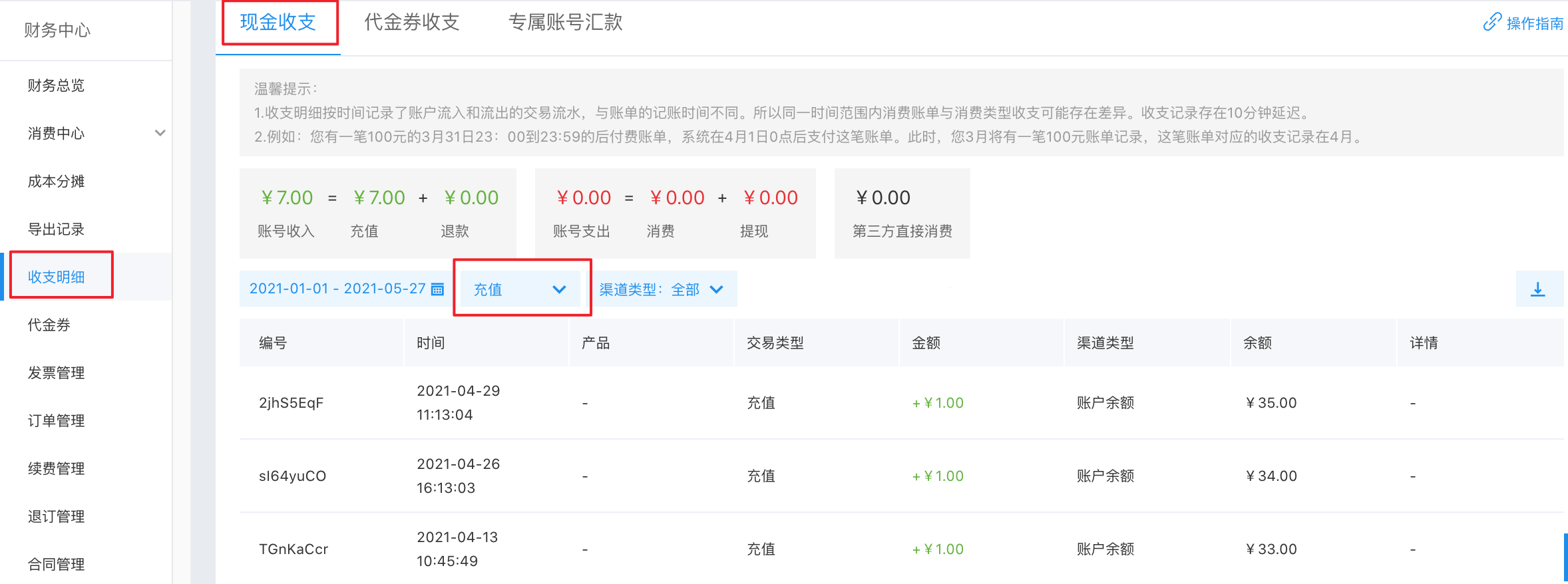
image.png


For more frequently asked questions about recharge, please refer to Recharge FAQs; if your question is still not resolved, please submit a ticket to contact us.

Previous
Exclusive Account Wire Transfer
Next
Viewing Balance