Bill Details
Hour Bill
When checking hour bills, you may overview and download all bill details, filter by product name, time period, and bill type.
-
Click Bill Details under the Consumption Center in the left navigation bar. Hour Bill is displayed in the homepage by default;
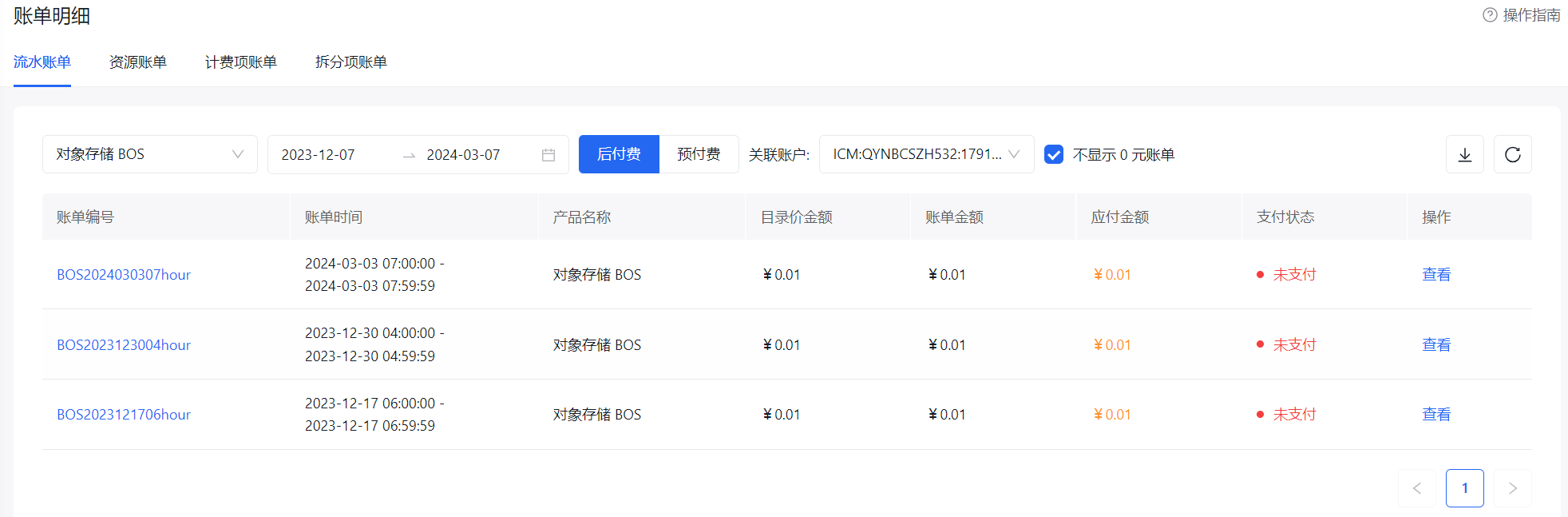
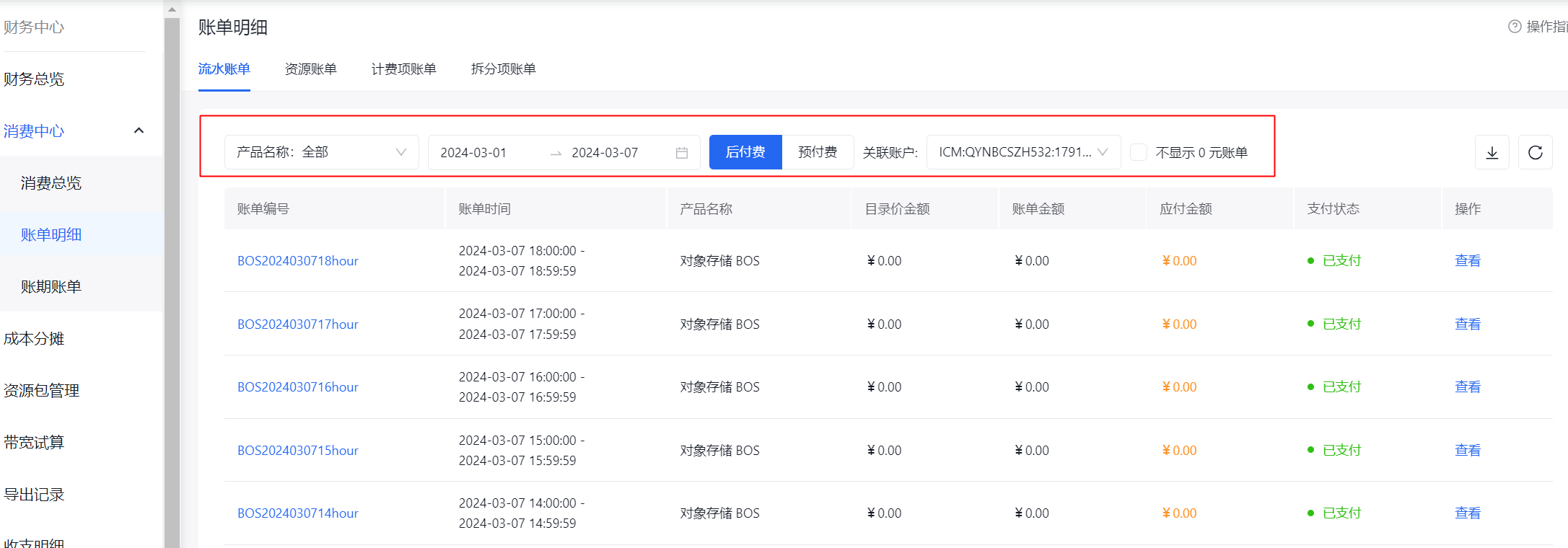
- Set bill viewing conditions through the following options:
| Filter options | Description |
|---|---|
| Product name | You can select a product from the dropdown menu, or directly enter the product name in the search box of the dropdown menu and select the desired product to view the corresponding billing information. If no product name is selected, the system will display billing information of all products by default. |
| Select time period | You can select the start and end dates for viewing bill details. The list will automatically display billing information within the selected period. If no period is selected, the list defaults to showing bills from the 1st of the current month to the date of viewing details. You may also quickly select "Yesterday", "Last 7 Days", "Last Week", "This Month", "Last Month", or "Last Quarter" to view corresponding bills. |
| Bill type | By selecting Postpay, you can view bills for postpay services; by selecting Prepay, you can view bills for prepaid services. |
| Associated accounts | As the root account of an enterprise, you may view hour bills of different accounts by switching associated accounts. |
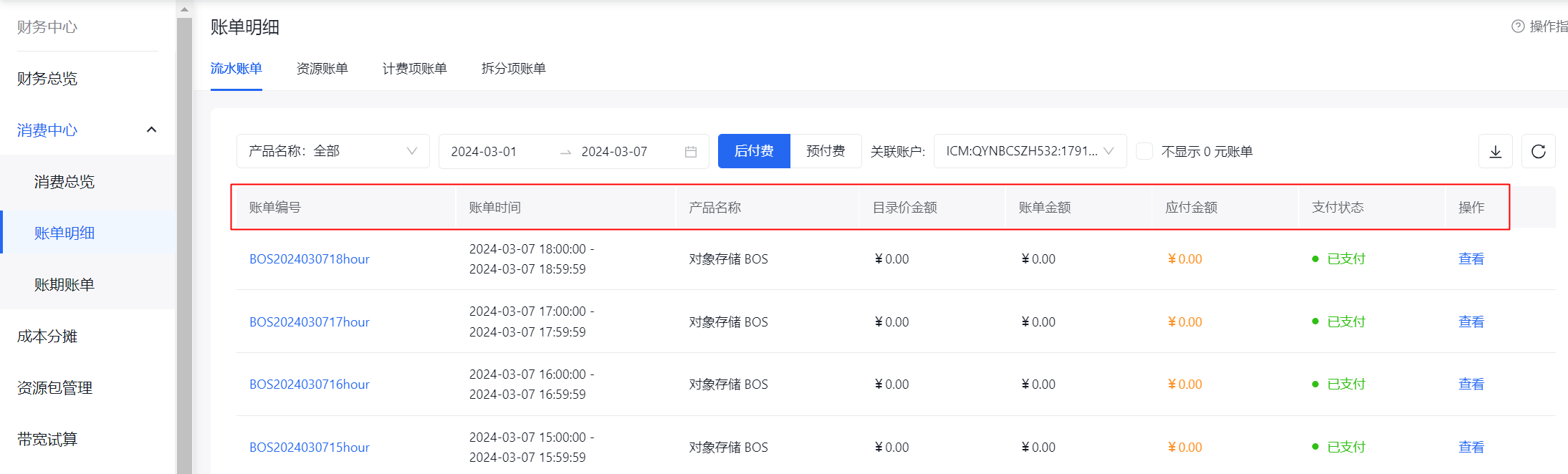
The content details displayed on the bill breakdown page are explained below:
| Display items in bill details list | Description |
|---|---|
| Bill number | Unique identifier for the specified bill, to facilitate locating all bills. Click to view the bill details. |
| Product name | Display the name of products billed. |
| List price amount | Display bill prices excluding nopaid amount. For example, the price on the official website is RMB 10 /month, RMB 100 /year, and the annual catalog amount is RMB 120. | Bill amount | Display the bill amount excluding nopaid amount. |
| Need-pay amount | Display the need-pay amount of this bill (including the amount you have already paid). |
| Payment status | Display the payment status of the bill, which is categorized into three status: "Paid", "Unpaid", and "Partially Paid". |
| Operation | Click View to view the bill details. |
- Click the View button in the bill number row to view bill details
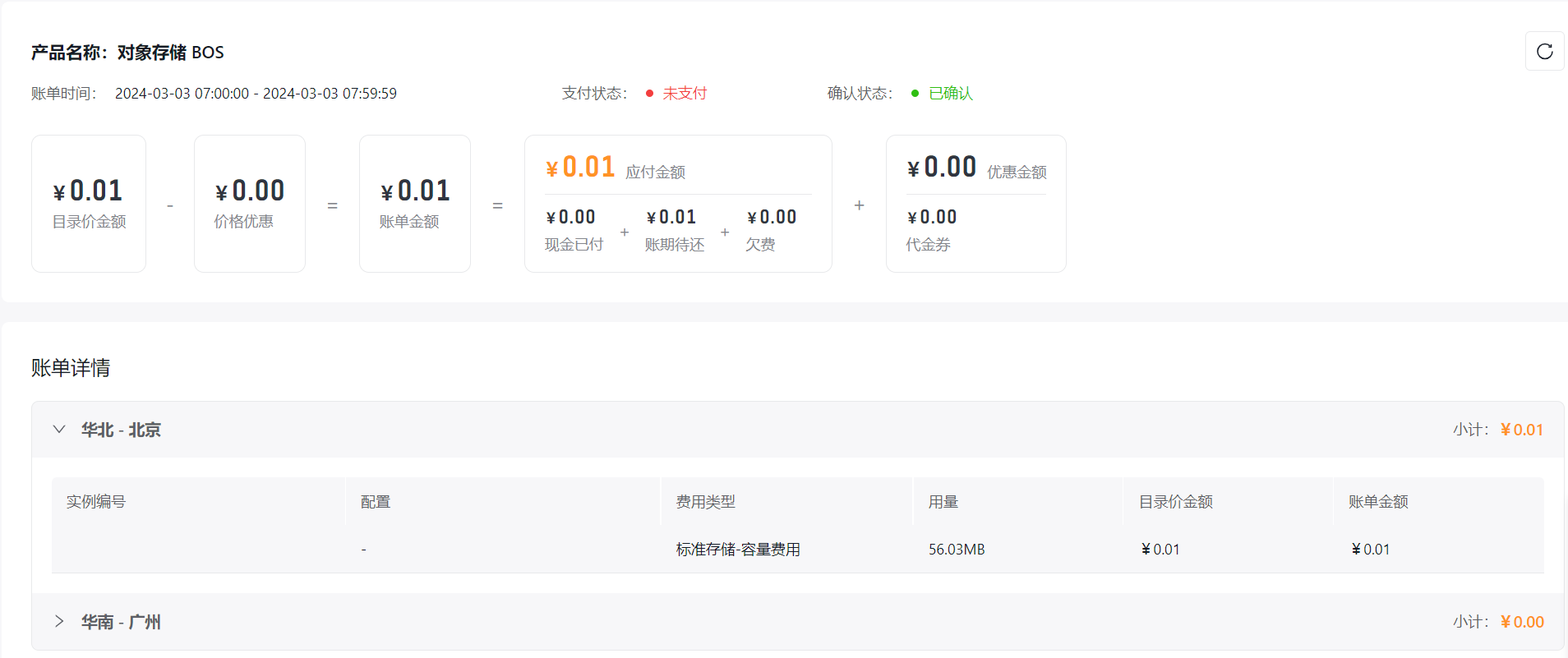
The detailed display items in the bill details page are as follows:
| Display items in bill details page | Description |
|---|---|
| List price amount | Display bill prices excluding nopaid amount. For example, the price on the official website is RMB 10 /month, RMB 100 /year, and the annual catalog amount is RMB 120. |
| Nopaid price | Nopaid discount in this bill, e.g., the price in the official website is RMB 10 /month, RMB 100 /year, with RMB 20 discount for purchasing for one year. |
| Bill amount | Display the total amount in the bill |
| Cash payment | Display cash payment amounts in bills. |
| Coupon payment | Display the coupon amount in the bill. |
| Arrears | Display the unpaid amount in the bill. |
| Instance number | Unique bill identifier for locating all bills; |
| Fee type |
Postpay products will be charged based on your usage of fee types, which are generally divided into the following categories:
|
| Usage quantity | Cumulative usage amount based on bill type during selected period |
| Product amount | Display the amount to be paid in the bill |
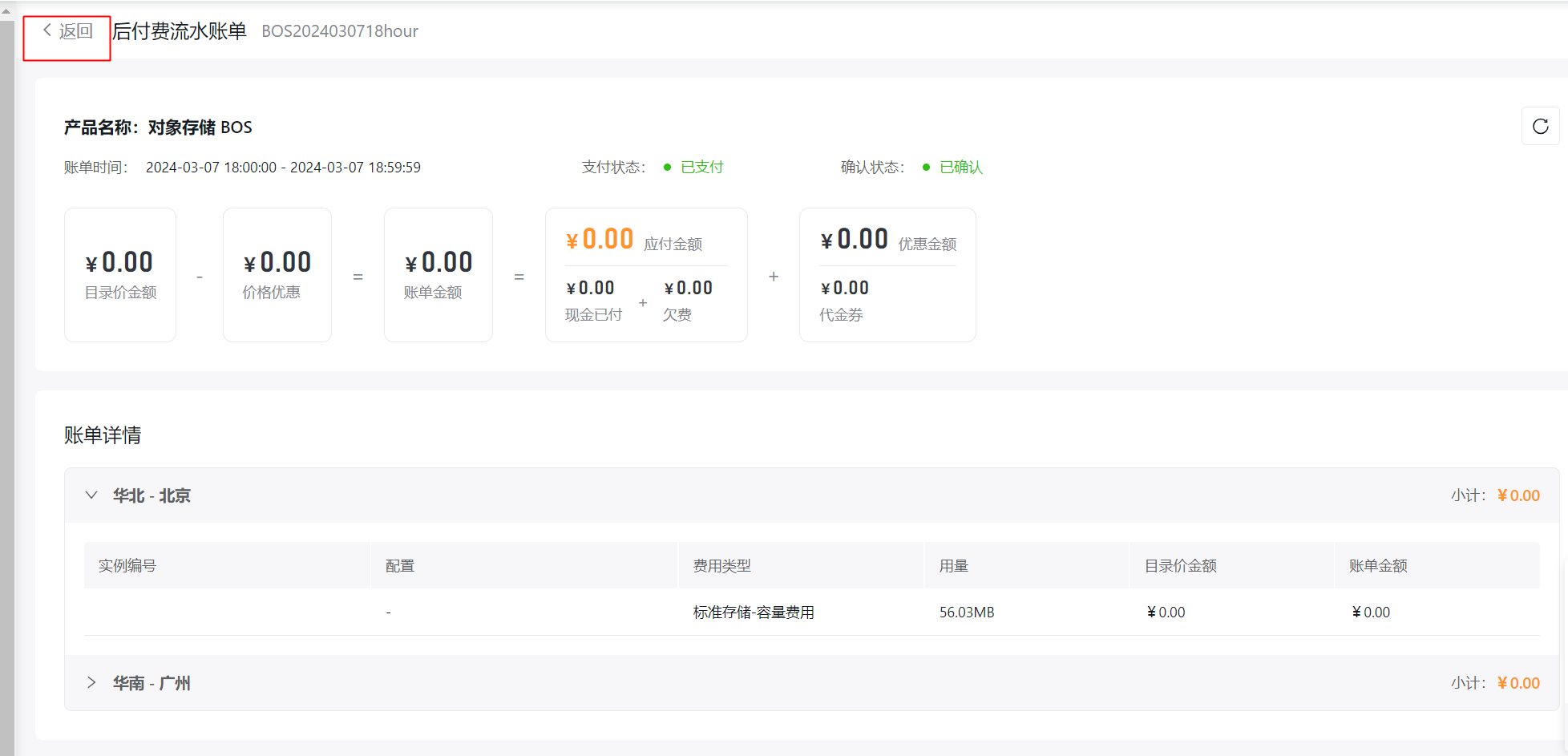
- Click Return to Hour Bill in the upper left corner to return to the hour bill homepage.
- To download bill details, click the Download button:
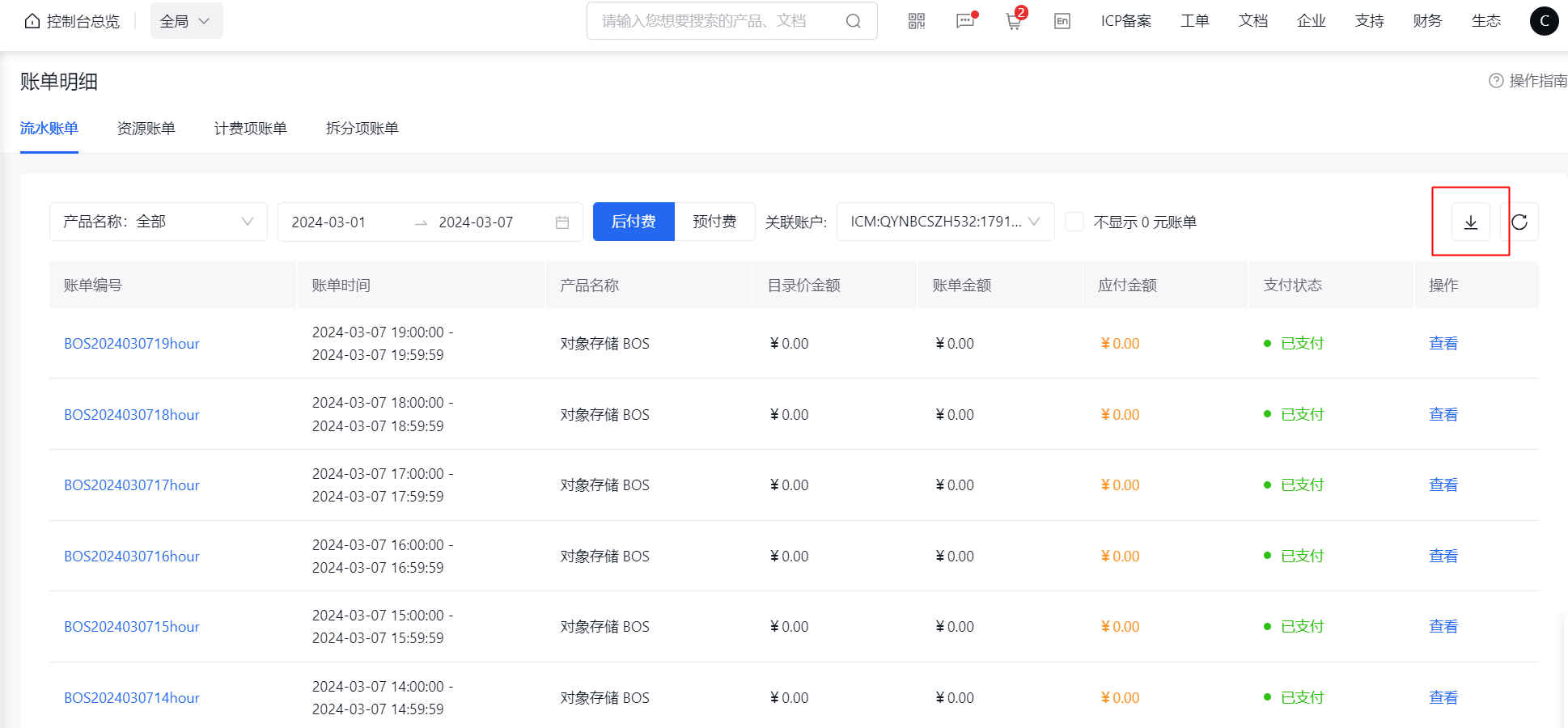
Select the payment method, product type, and month in the pop-up dialog, then click Download to download the specified bill. To download bills for all products, remain the default option for product type unchanged.
Resource bill
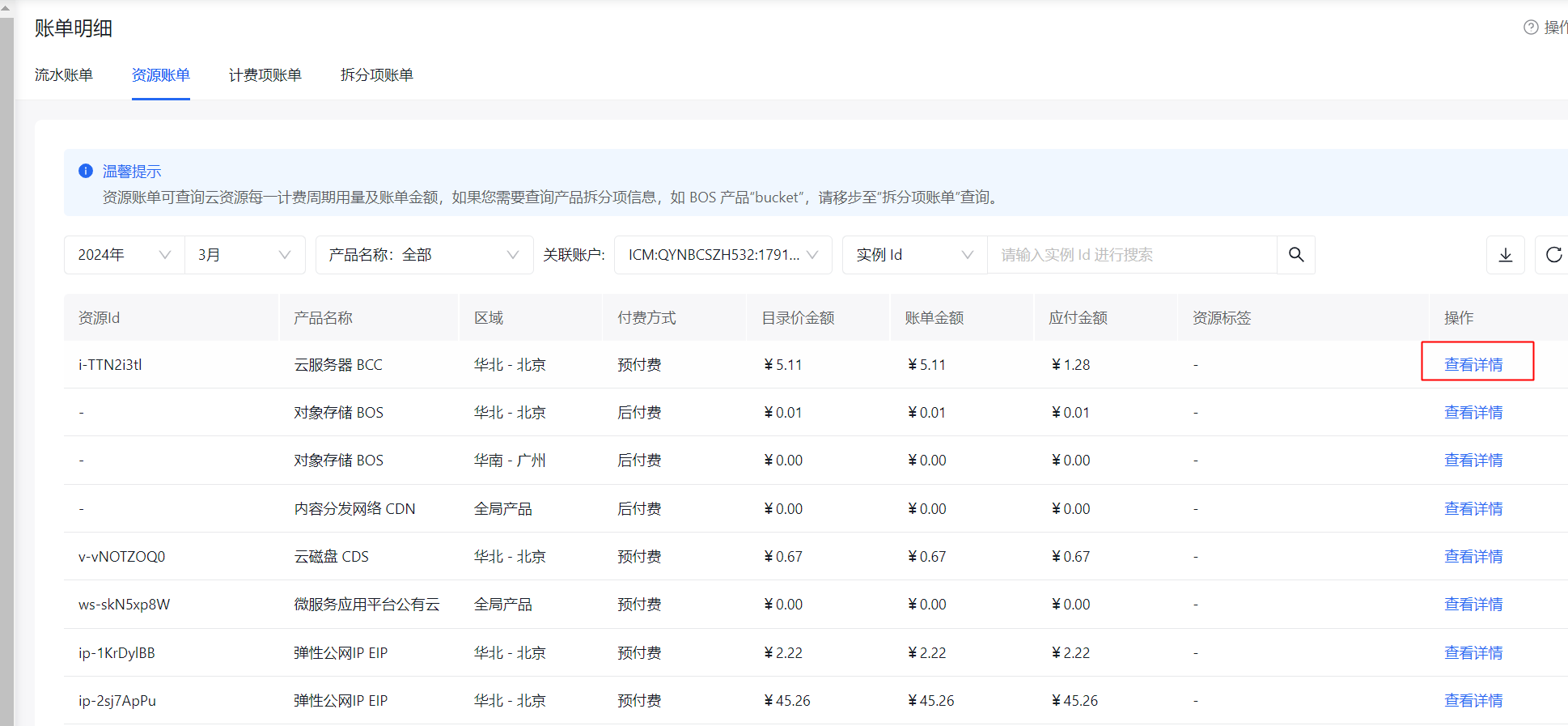
When viewing the resource bill, you can view and download the bill details of any resource within a specified natural month by selecting the product name, year, month, name, instance ID, and resource tags.
- Click Bill Details under the Consumption Center in the left navigation bar, then select the Resource Bill window.
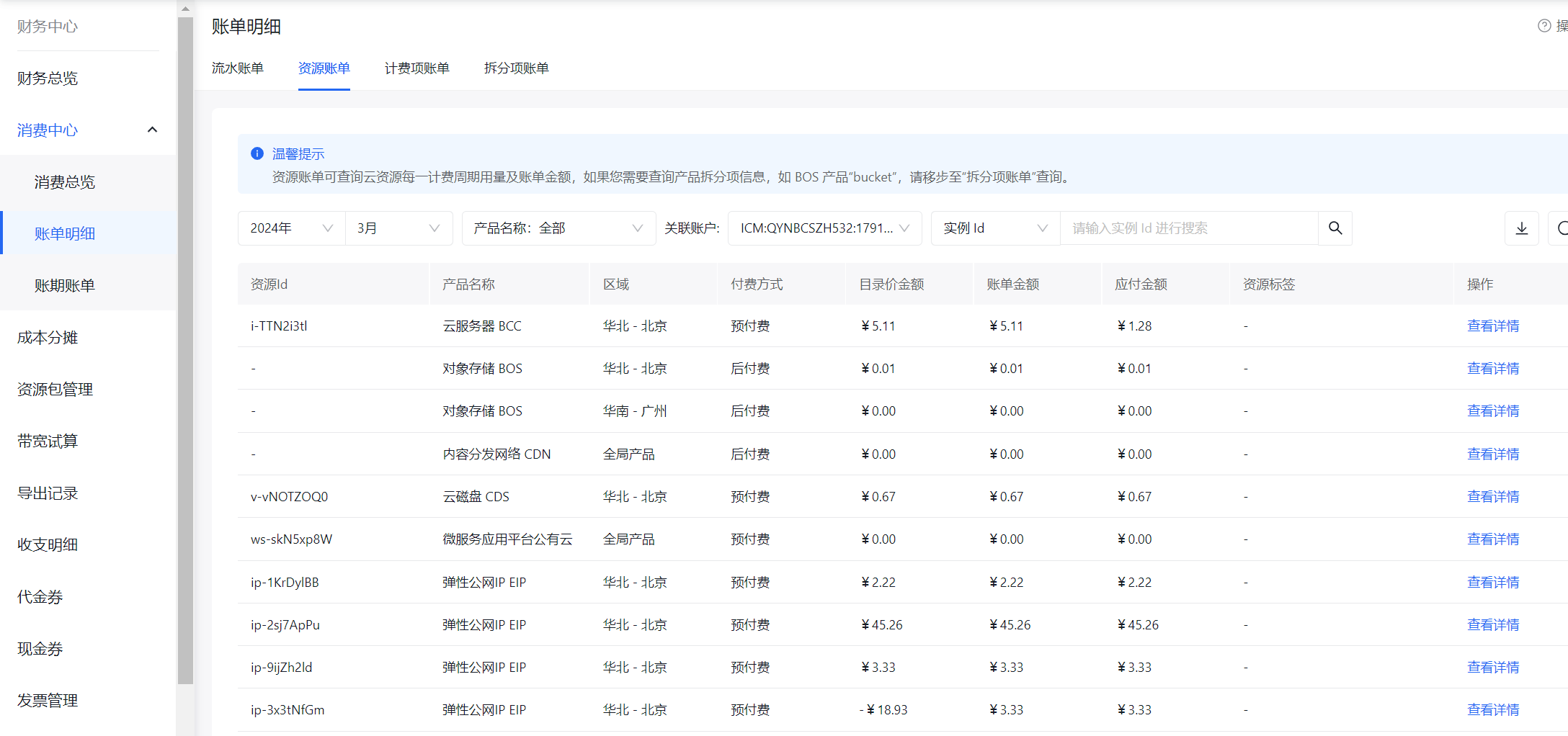
- Set bill viewing conditions through the following options:
| Filter options | Description |
|---|---|
| Product | Select a product to view its corresponding bill information; display all products' bill information by default |
| Instance ID | Select the instance ID in the drop-down box, and enter the instance ID in the search box to view the resource bill under this ID |
| Resource labels | Select a resource tag in the drop-down box and enter the tag value in the search box to view all resource bills under this tag |
| Select time | Select a year and month to view all bills within that month; display all bills within the current month by default. |
- The resource bill page details are displayed as follows:
| Resource bill display items | Description |
|---|---|
| Resource ID | Resource ID of this resource |
| Product name; | Display products billed |
| Region | Region to which the resource belongs |
| List price amount | Display bill prices excluding nopaid amount. For example, the price on the official website is RMB 10 /month, RMB 100 /year, and the annual catalog amount is RMB 120. |
| Bill amount | Display the total payment amount (including nopaid amount) in this resource bill |
| Operation | Click View Details to view the details of the bill |
- Click the View Details button corresponding to the selected resource to view all bill details for the resource under the selected conditions. The bill details page displays both prepay and postpay bill details for the resource, with explanations for each display item as follows:
Postpay bill
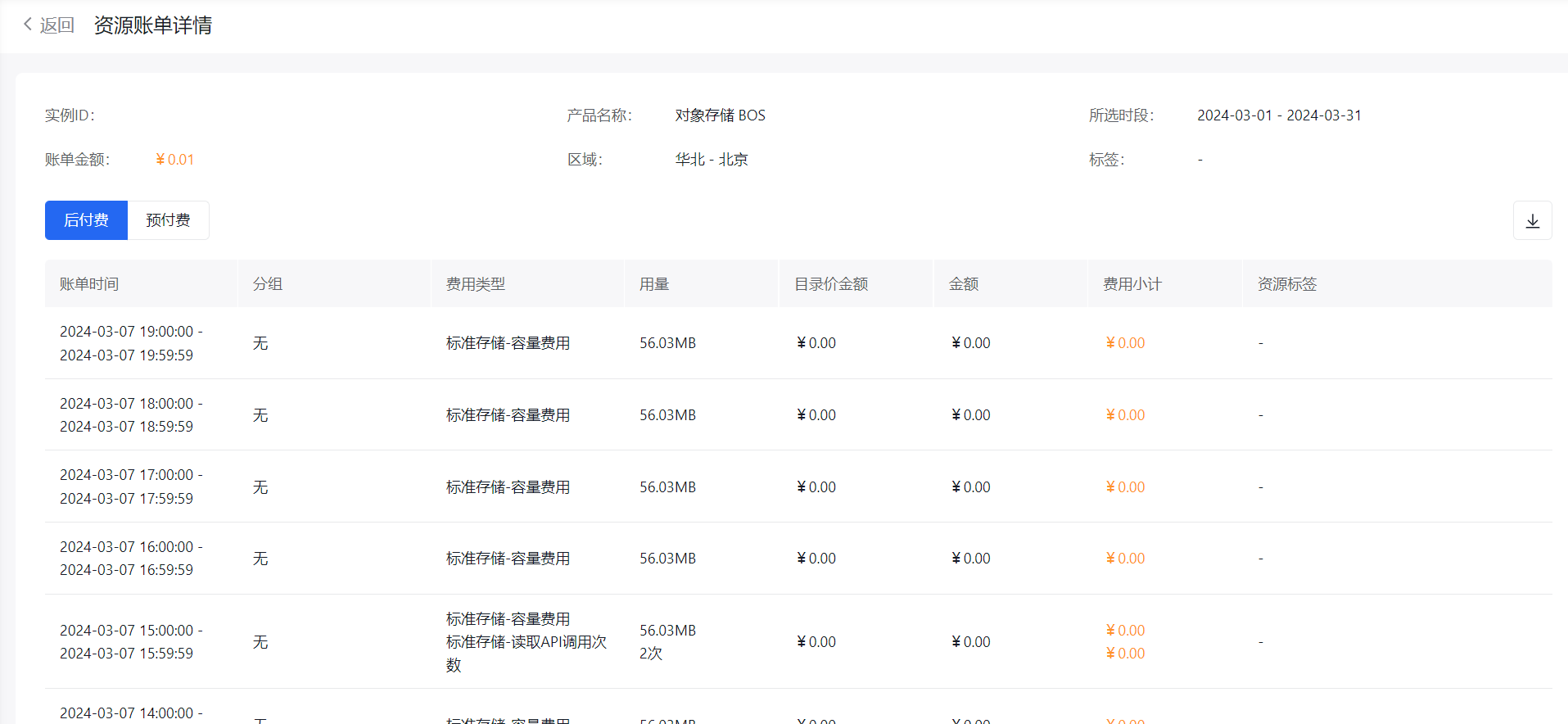
| Postpay bill details display items | Description |
|---|---|
| Instance ID | Unique identifier of the instance |
| Product name | Product name of this instance |
| Region | Region where the instance is located |
| Bill amount | Total amount paid for all bills of this resource under the selected conditions (including nopaid amount) |
| Selected time period | Month range selected on the resource bill page |
| Bill time | Time period during which this bill of the resource is generated |
| Fee type |
Postpay products will be charged based on your usage of fee types, which are generally divided into the following categories:
|
| Usage quantity | Cumulative usage amount based on bill type during selected period |
| Sum | Amount for each item |
| Amount | Display the need-pay amount of the resource in this bill |
Prepaid bills
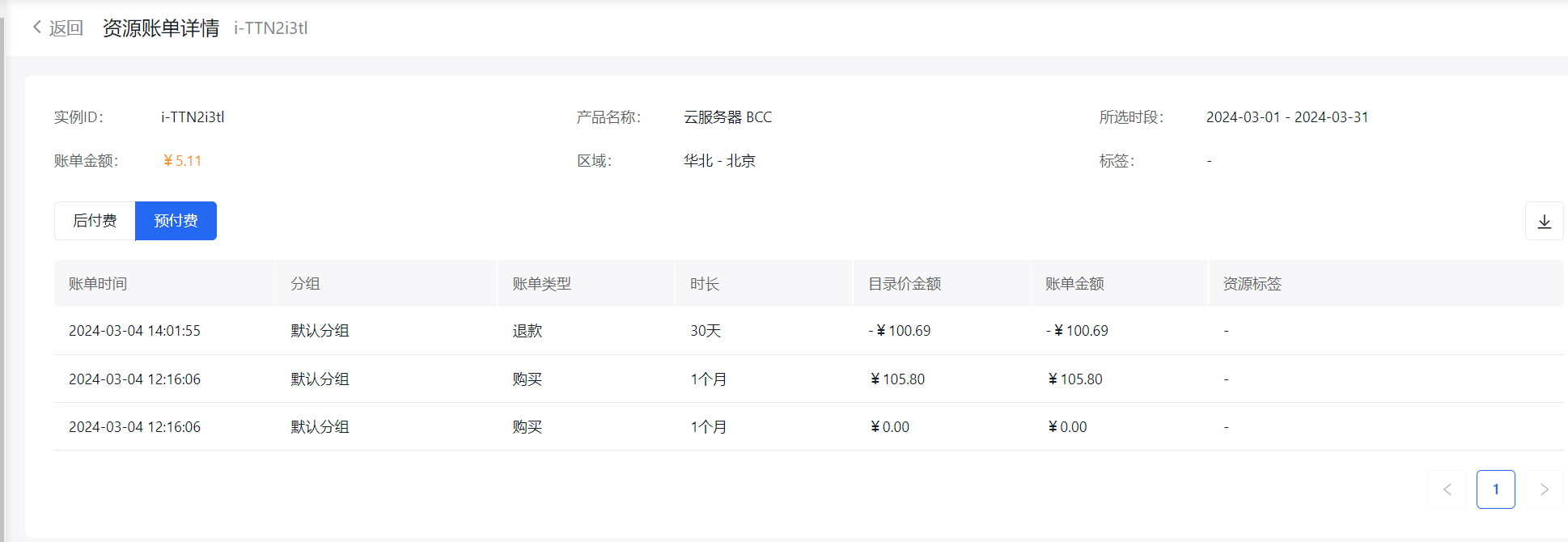
| Prepaid bill details display items | Description |
|---|---|
| Bill time | Billing time for this prepay bill |
| Bill type | It is consistent with order types, and categorized as "Purchase", "Renew", "Upgrade", "Downgrade", "Resize", "Refund", etc. |
| Duration | Order duration of this prepay bill; |
| Bill amount | Need-pay amount in this prepay bill |
- Click Return to Resource Bill List to go back to the resource bill page.
- To download bill details, click the Download button:
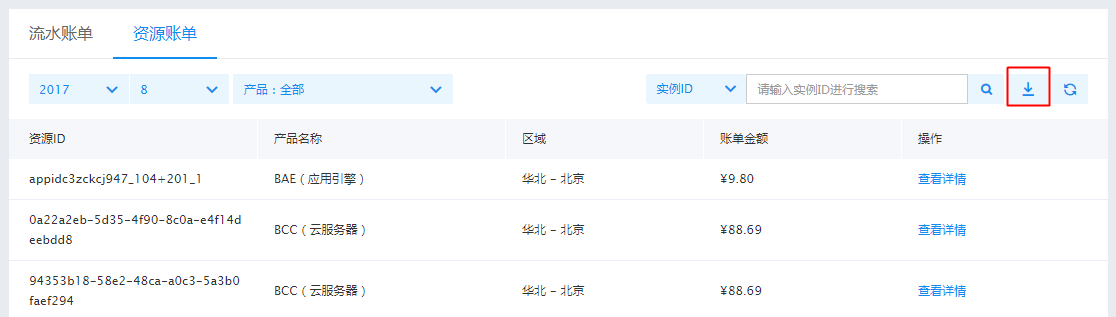
Select the payment method, product type, and month in the pop-up dialog, then click Download to download the specified bill. To download bills for all products, remain the default option for product type unchanged.
Charge item bill
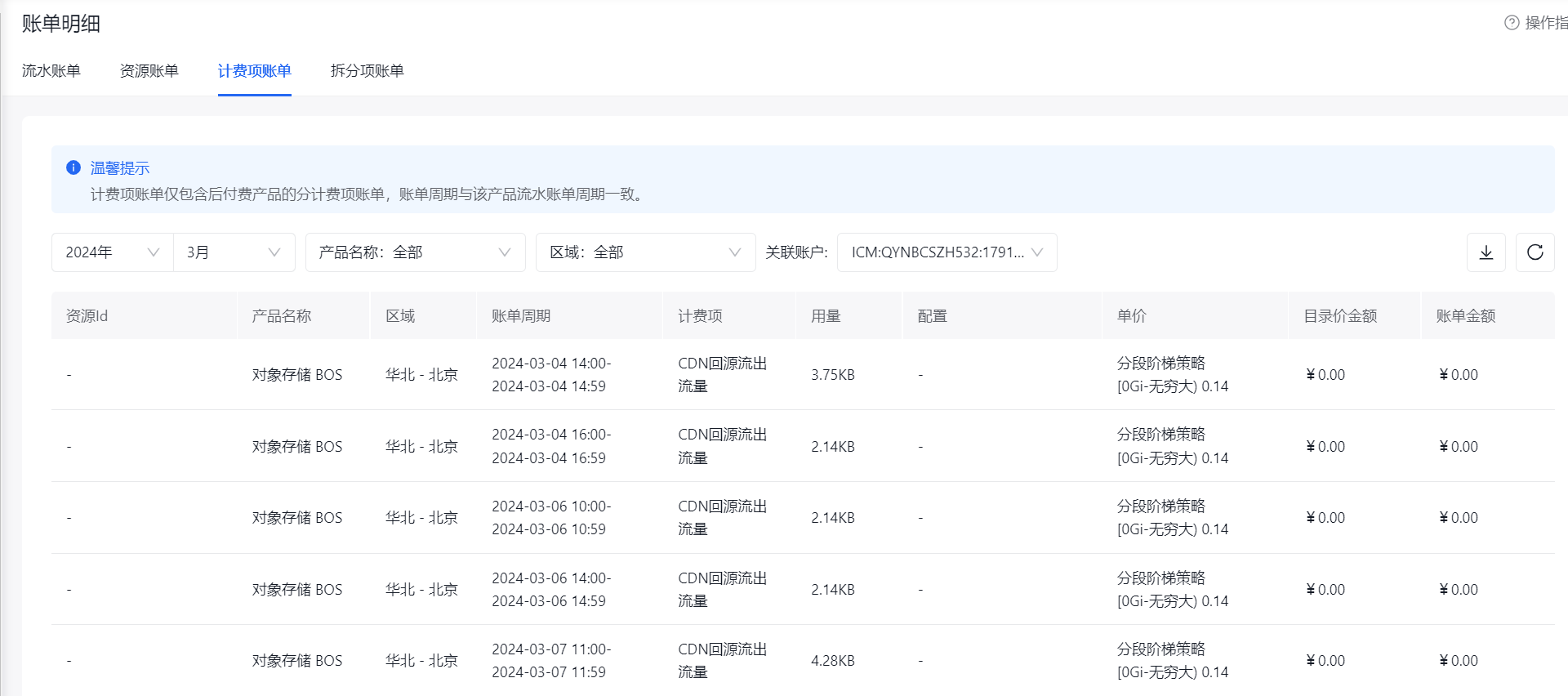
When viewing the charge item bill, you can view and download the bill details of any product charge item within a specified natural month by selecting the product year, month, name, instance ID, and region.
- Click Bill Details under the Consumption Center in the left navigation bar, then select the Charge Item Bill window.
-
Set bill viewing conditions through the following options:
- Select time: Select a year and month to view all bills within that month; display all bills within the current month by default;
- Product: Select a product to view its corresponding bill information; display all products' bill information by default;
- Region: Select a region to view corresponding charge item bills; display all charge item bill information by default.
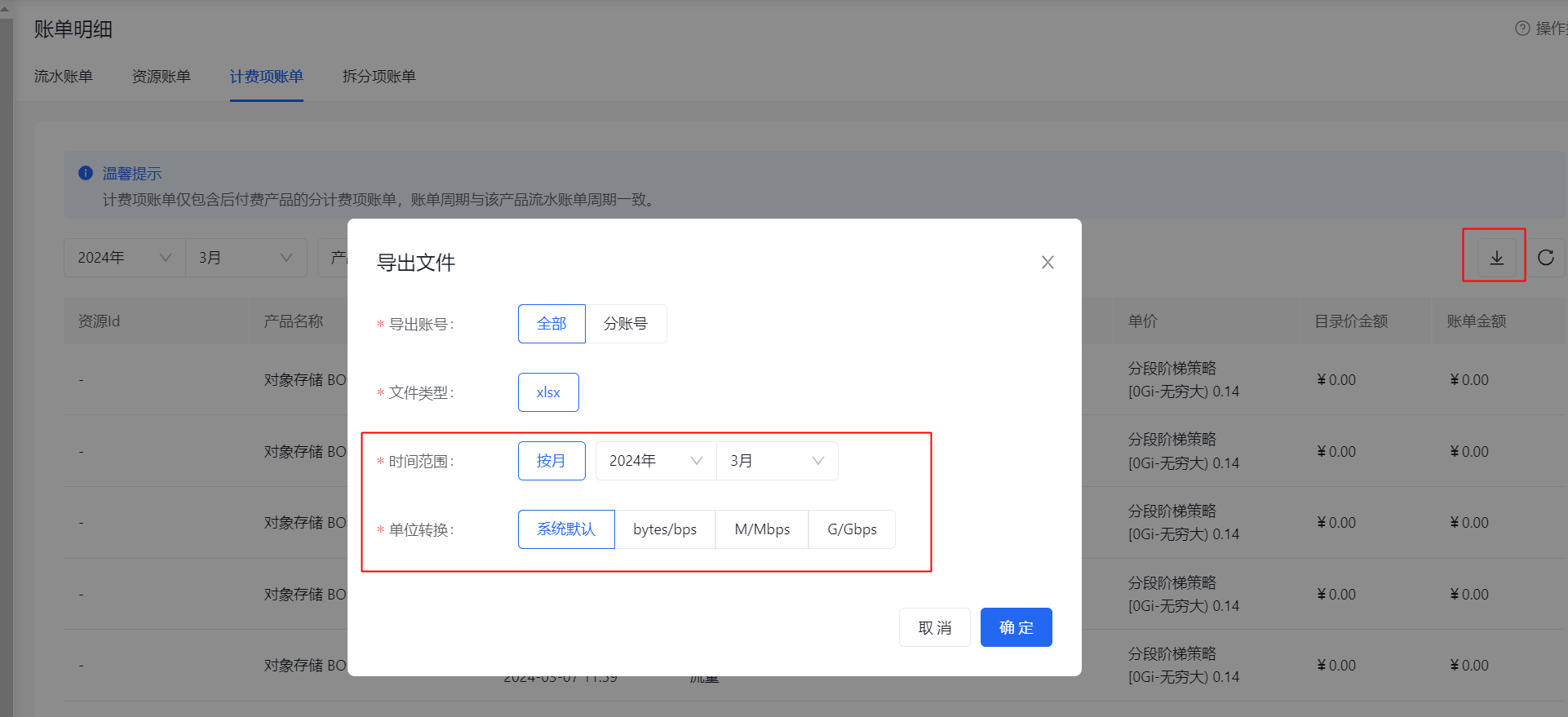
- To download bill details, click the Download button, select the time range in the export pop-up window, and click OK. The downloaded charge item bill only supports monthly bill export.