Apply for Electronic Contract
Overview of electronic contracts
Baidu AI Cloud provides an online service for applying for electronic contracts (on an order-by-order basis) for you, including order contracts and payment request contracts.
| Contract types | Description |
|---|---|
| Order contract | You can use an electronic contract generated for paid orders in your account as an archival material for your company’s contracts |
| Payment request contract | You can use an electronic contract generated for unpaid orders in your account as supporting material for your company’s internal processes (including but not limited to payment request, procurement, etc.) |
To ensure you can verify the accuracy of contract content in time, a draft contract will first be generated for you. After confirmation, you can convert it into an official contract.
| Contract status | Description |
|---|---|
| Draft contract | Its content is consistent with the official electronic contract, but it is not stamped with the special seal for Baidu AI Cloud contract. The contract (draft) is available for download, allowing you to confirm whether the content is accurate and whether the terms are acceptable. If no objections are raised, you can convert the draft contract into an official contract; if there are errors in the draft, you can click Void and then reapply for a new one. |
| Official contract | Once the content or terms of the draft contract are correct, it can be converted into an official contract. The official contract is stamped with the special seal for contract of Baidu AI Cloud, with legal effect. You cannot void it by yourself. If you void it, please submit a ticket for processing. |
Currently, only some products support online issuance of electronic contracts. For details, refer to [Electronic Contract FAQ](Finance/FAQs/Contract Issues.md).
View contract lists
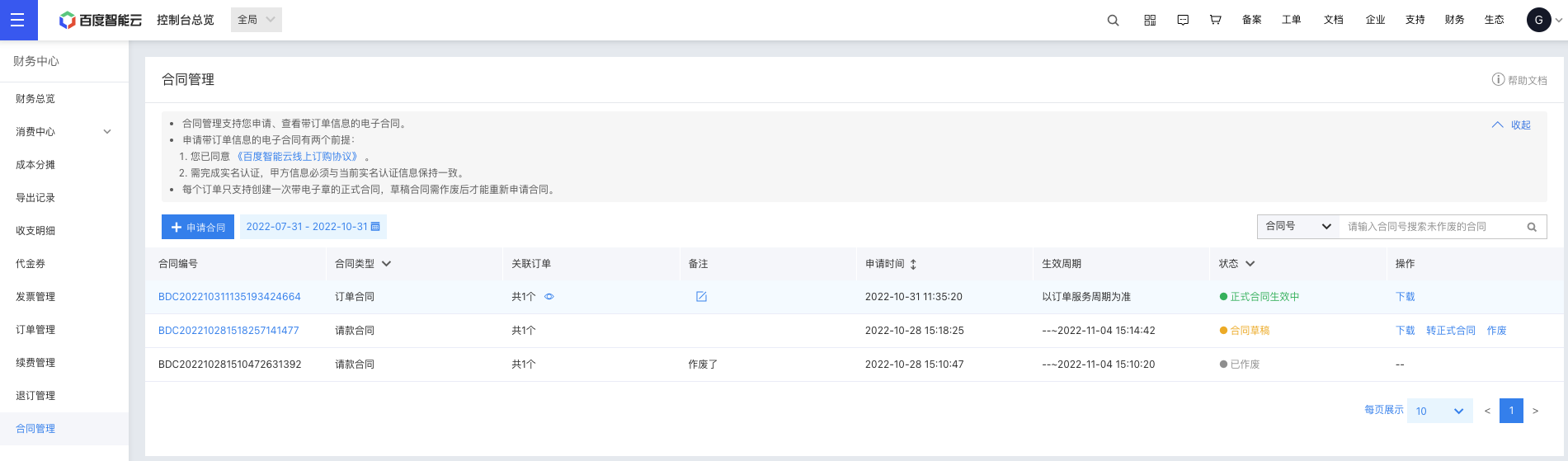
You can sign in to the Management Console and enter the Financial Center ->Contract Management page in the upper right corner to view the electronic contract records that have been applied for. The system defaults to displaying the contract application records for the past three months.
| List field | Description |
|---|---|
| Contract No. |
Unique ID for all applied contracts (including draft and official versions)
|
| Contract types |
|
| Associated order |
|
| Remarks | Edit custom remarks for the current contract to quickly locate the target contract |
| Application time | The time when the current contract is applied for |
| Valid period |
|
| Status | You can click the Header button to query the contract application records in the specified status
|
| Operation |
|
Apply for electronic contracts online
Application - contract management
You can sign in to the Management Console and enter the Financial Center -> Contract Management in the upper right corner, click Apply for Contract on the Contract List page, and enter the Contract Application page.
This page supports applications for both Order Contracts and Payment Request Contracts.
1. Select the contract type
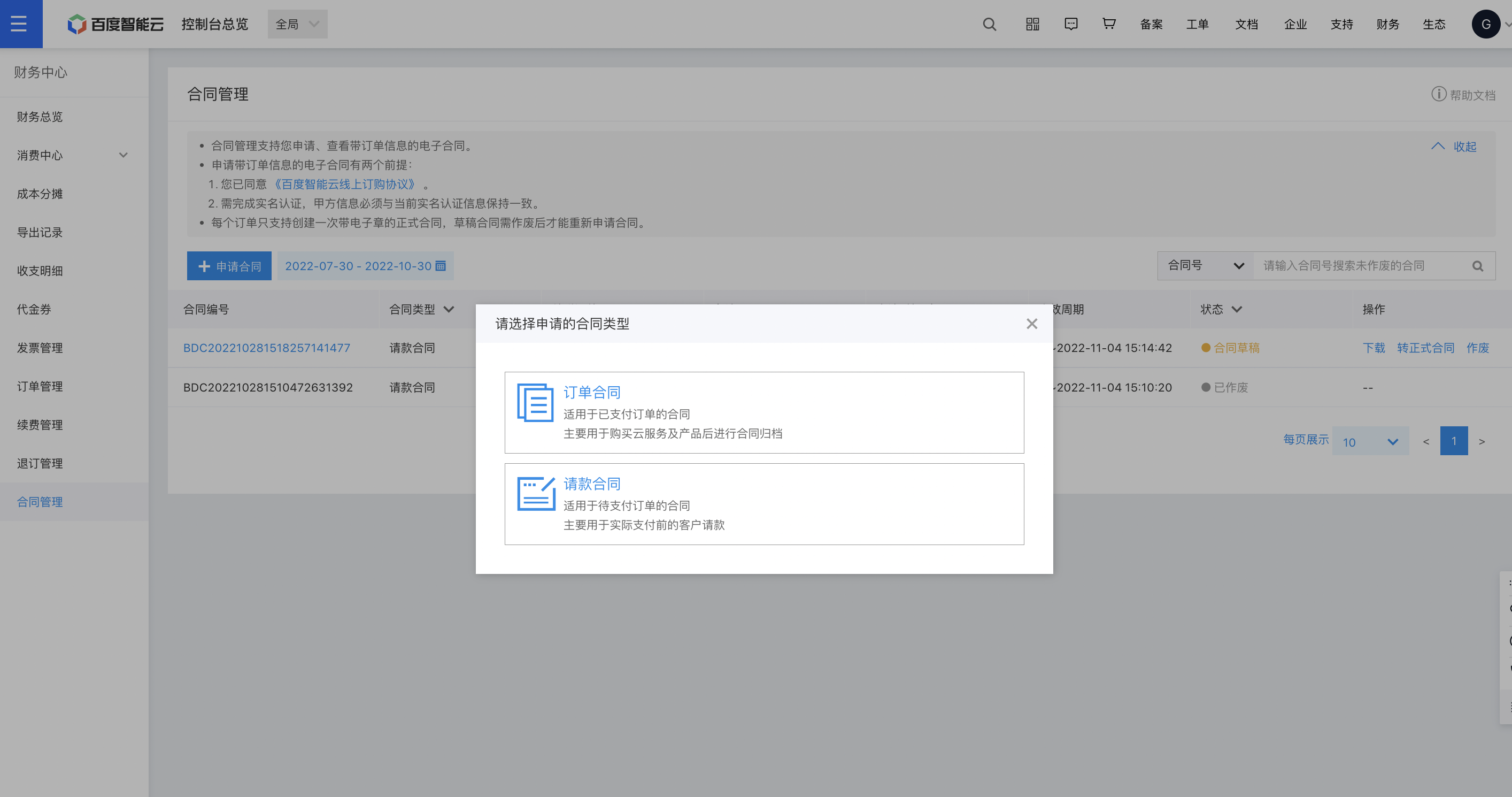
Click the Apply for Contract button to open the Select the Contract Type pop-up window. You can select the contract type (order contract/payment request contract) that needs to be applied for this time in this step, which will determine the list of available orders and the generated contract types in the future.
Click the desired contract type to proceed to the subsequent process of the corresponding contract application.
2. Select the order associated with the contract
The order selection page will display the eligible orders in your account for the current month.
Select a maximum of 200 orders at once. Orders that have already generated drafts or official contracts do not support reapplying for contracts. You can go to the voided associated historical contracts to release the target order. After release, you can reapply for a contract for that order
Order contract
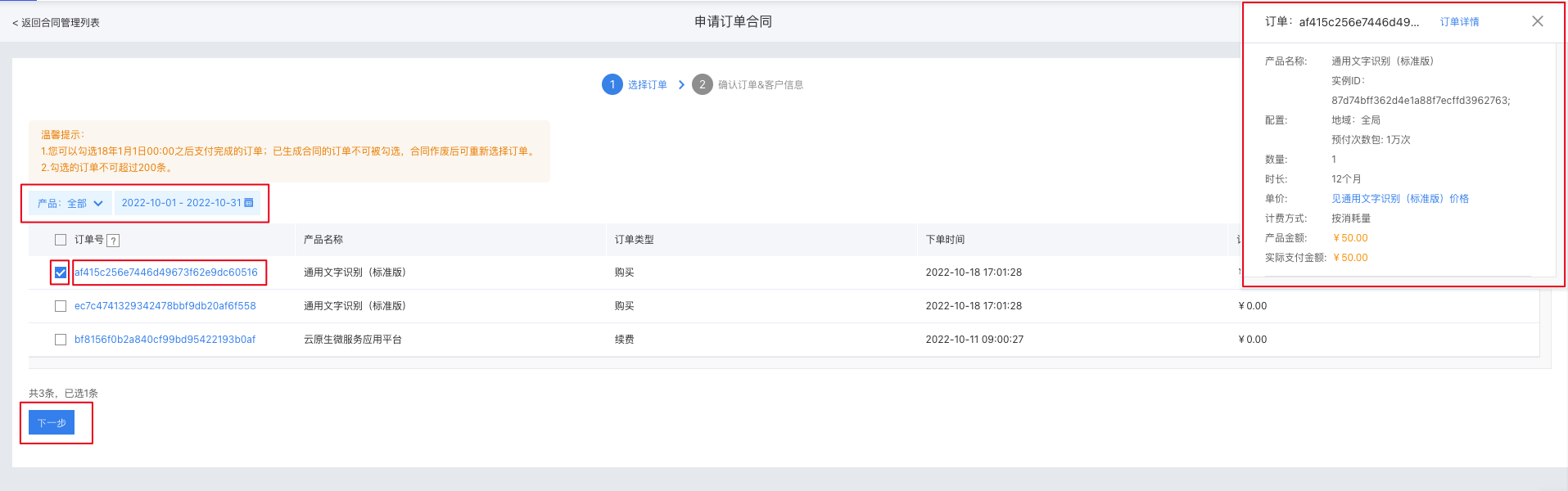
If you selected an order contract in the previous step, we will default to filtering the list of orders Paid for in the Current Month for you on this page.
- You can accurately search for target orders associated with contracts by searching for products, or search for orders by switching time intervals
- Click an order ID to directly view the order details in the upper right corner, helping you make related order decisions
- After selecting the order, click the Next button at the bottom left of the list to enter the order and subject information confirmation page
Payment request contract
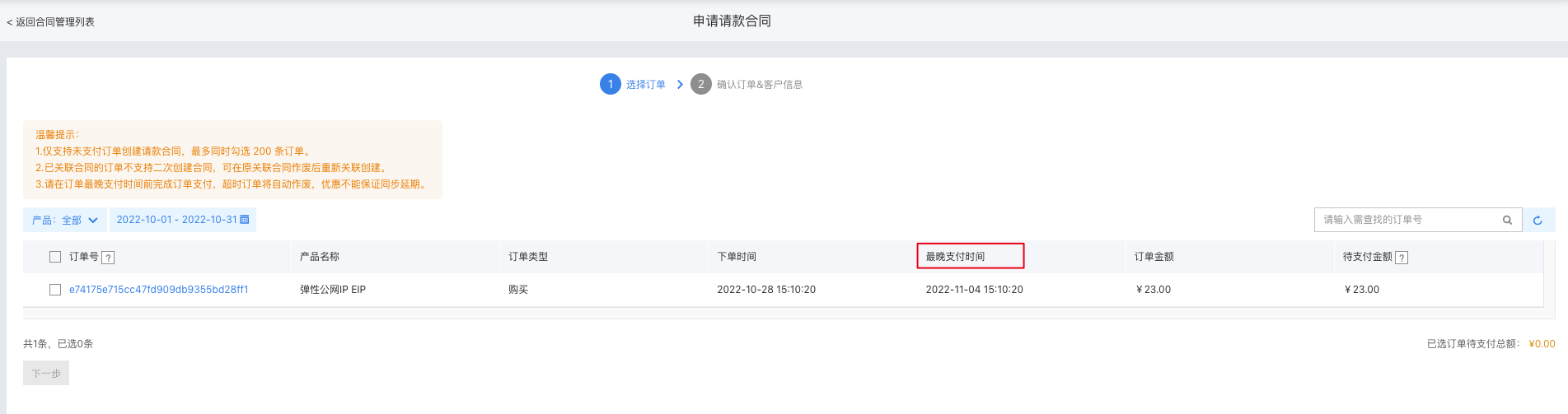
If you select a payment request contract in the previous step, we will default to filtering the list of orders Unpaid for in the Current Month for you on this page.
- You can accurately search for target orders associated with contracts by searching for products, or search for orders by switching time intervals
- Click an order ID to directly view the order details in the upper right corner, helping you make related order decisions
- In the order list, you can view the latest payment deadline (order time + 7 days) and unpaid amount (the amount to be paid after deducting discounts) for each unpaid order
- After selecting the order, click the Next button at the bottom left of the list to enter the order and subject information confirmation page
3. View and confirm order and contract subject information
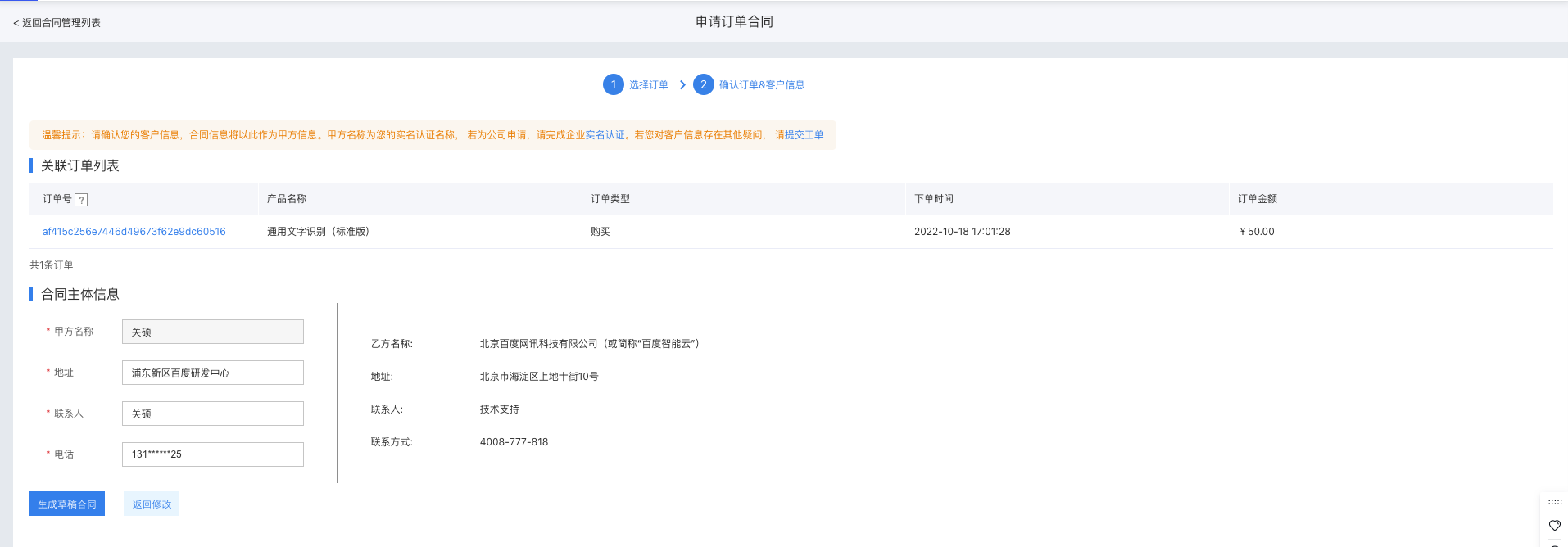
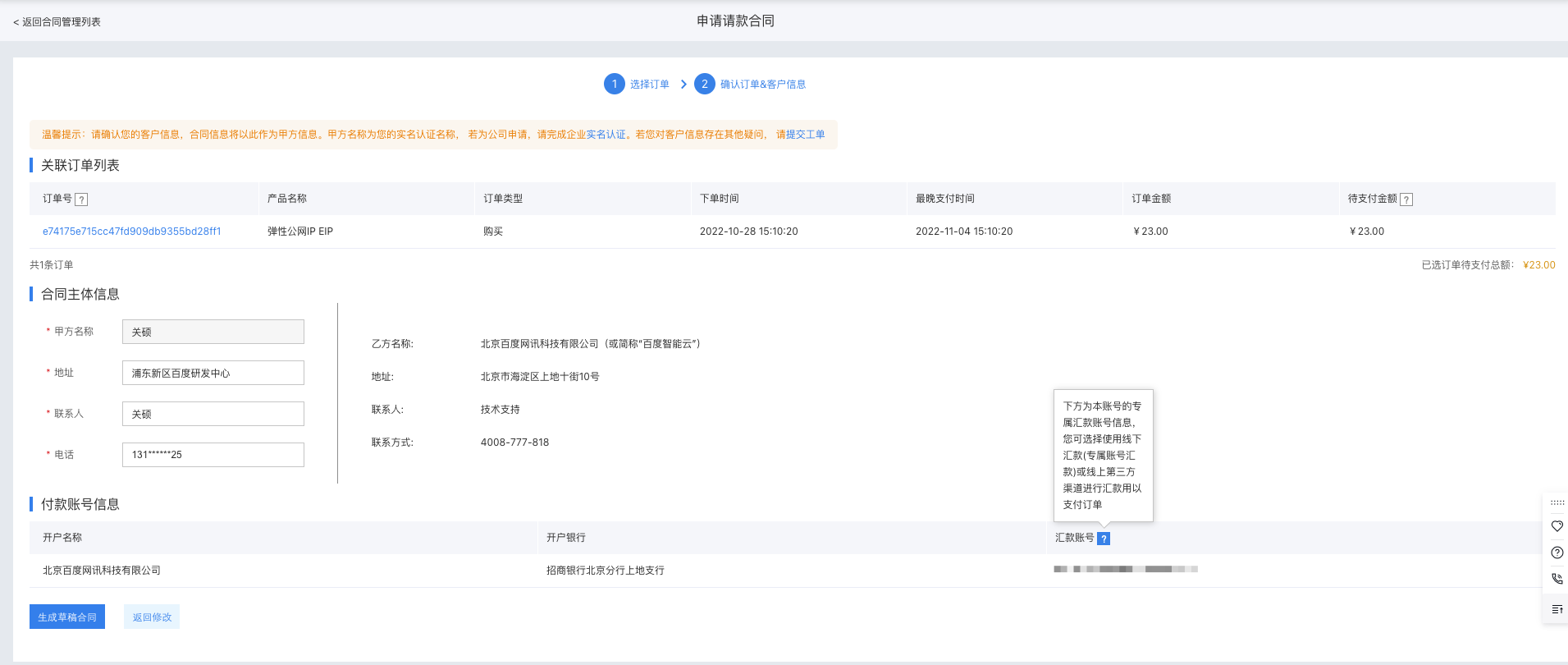
Before generating the contract, you need to confirm the selected order and fill in the relevant entity information of your company. If you find that the selected order is incorrect, you can click the Return to Modify button at the bottom of the page to return to the previous page (order selection page) to modify the selected order.
Order contract
Associated order list: The information of the orders you selected in the previous step will be displayed in this list
Contract subject information: This displays the relevant information of both parties in the contract. If you are applying for an electronic contract online for the first time, you need to manually supplement some information
Note: Party A's name cannot be modified, and it needs to be consistent with your real-name certification name on Baidu AI Cloud official website. If Party A is a company name, please first complete Enterprise Real-name Certification.
Payment request contract
On the information confirmation page of the payment request contract, in addition to the associated order list and contract subject information described in the order contract section above, there is also payment account information, which is the exclusive remittance account of the current account. (What is an exclusive remittance account? ).
4. Apply for a draft contract
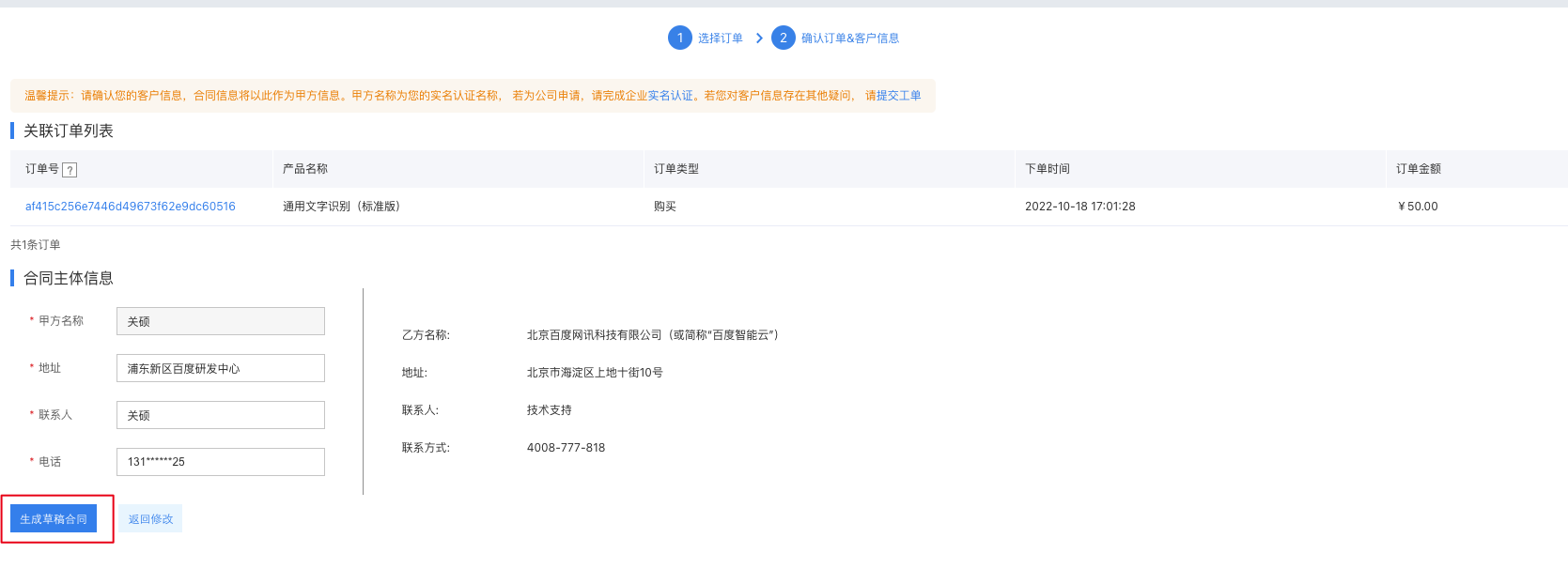
Click the Generate Draft Contract button in the bottom left corner of the Order/Subject Information Confirmation page to successfully create a draft contract.
After 5 seconds of successful creation of the draft contract, the page will automatically redirect to the contract list. You can preview the created draft contract in the contract list. After confirmation, it can be converted into an official contract.
5. Convert to official contract
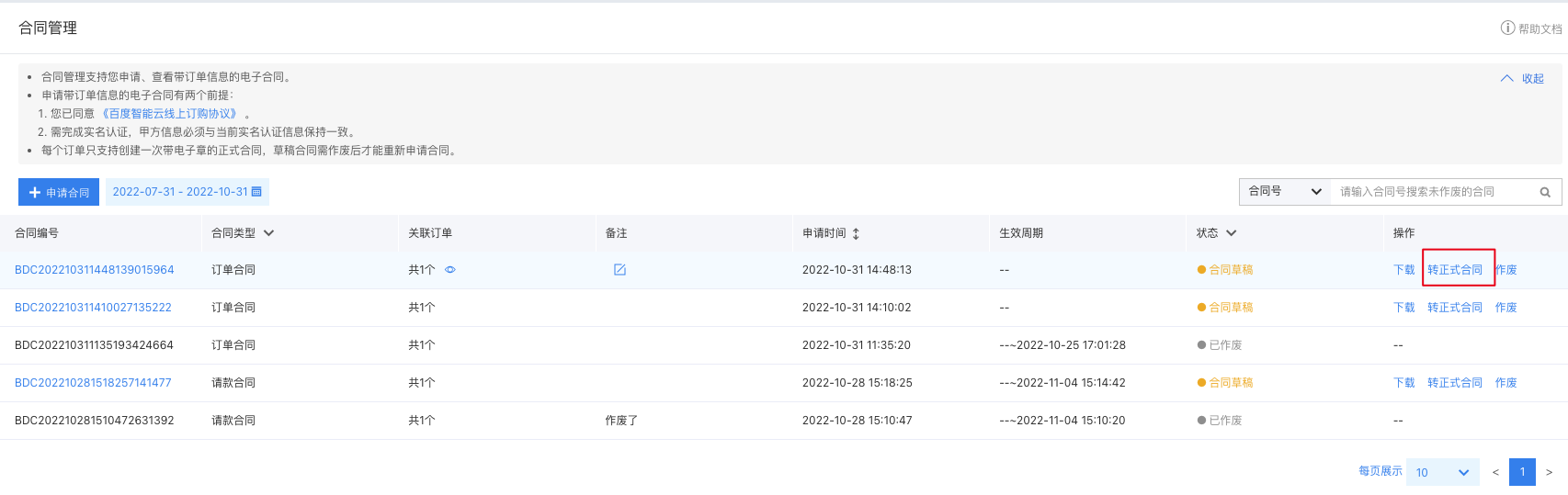
After confirmation, navigate to the Contract Management List page, and click Convert to Official Contract in the operation bar of this contract to convert the draft contract into an official contract.
Once converted to an official contract, it becomes legally binding; the signature and seal is valid, and it cannot be voided.
Application - order payment page
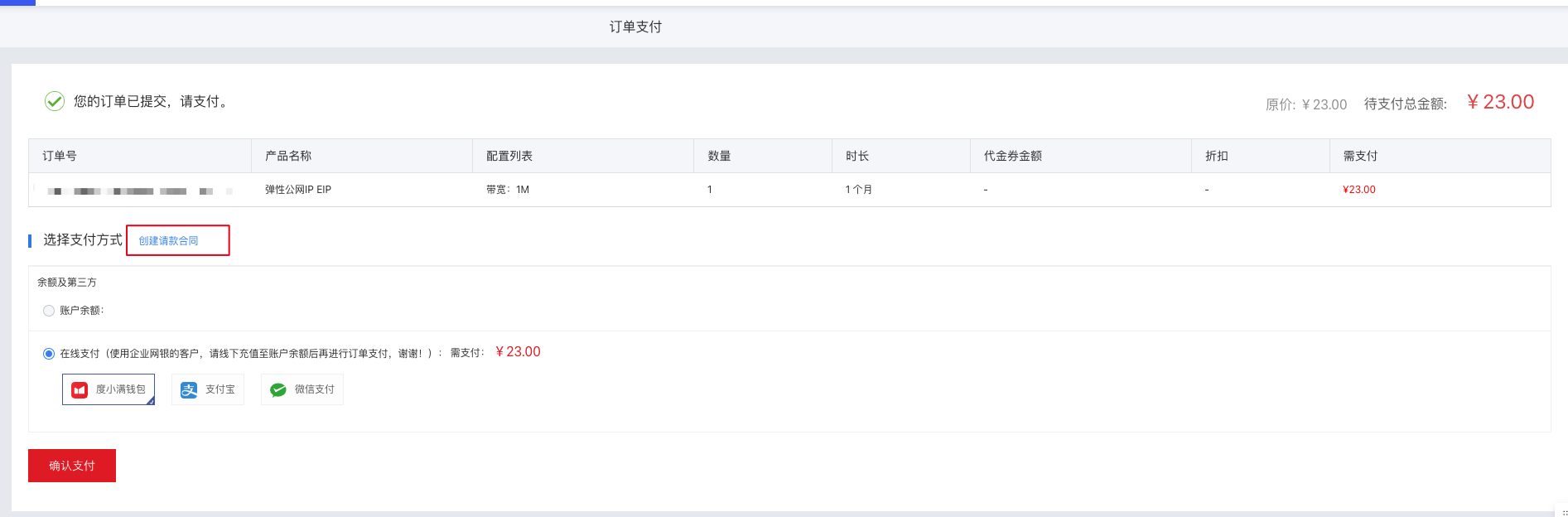
Support directly applying for payment request contracts on the Order Payment page. Click Apply for Payment Request Contract, and then we will select the pending payment order on the current payment page and redirect you to the order selection page for contract application. You can directly proceed with subsequent payment request contract application operations.
This entry only supports applying for payment request contracts.