Manual Snapshot
Overview
You can manually create snapshots for purchased CDS cloud disks. For snapshot use scenarios, you can refer to [Snapshot Overview](CDS/Snapshot Operation Guide/Introduction to snapshot/Instructions for use.md).
Description:
- Each cloud disk server (CDS) can have a total of 512 snapshots created, including 256 manual snapshots and 256 automatic snapshots;
- The time required to complete a Snapshot creation depends on the disk data size, typically ranging from seconds to minutes
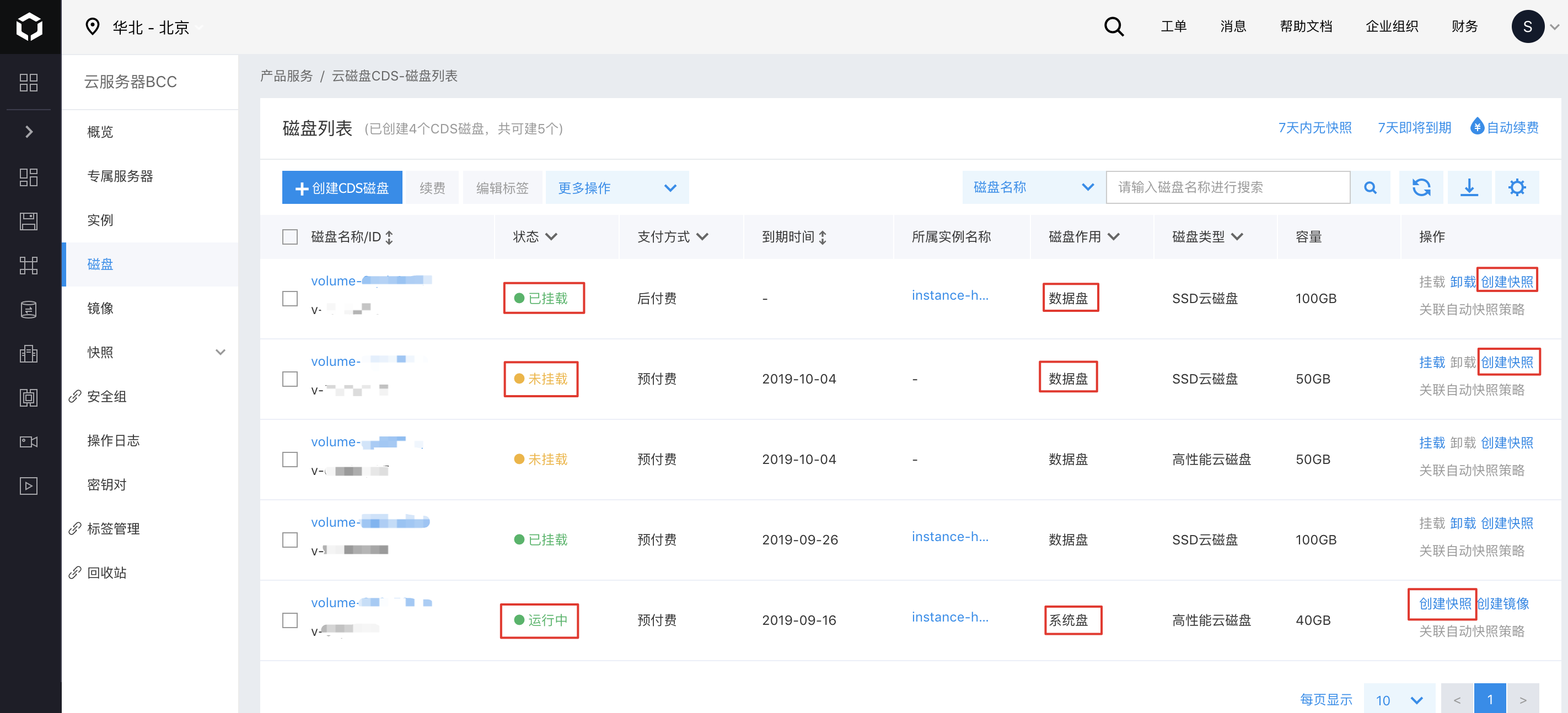
- To perform a Snapshot operation on a Data Disk, the disk must be either in the "In Use" or "Unmounted" state. For security reasons, snapshot operations are not permitted in other statuses.
- When performing Snapshot operations on System Disks, they must be in "In Use" or "Normal" status;
- Snapshot content only includes data that has been written to the disk at the time of creation and does not account for data still residing in the cache. It is recommended to either detach the disk or confirm that all file write operations have stopped to ensure data integrity.
Operation guide
If you want to perform a Manual Snapshot operation for a CDS Cloud Disk Server, refer to the following operation guide. You can also associate an Automatic Snapshot Policy with purchased CDS Cloud Disk Servers. For detailed operations, please refer to [Associate Automatic Snapshot](CDS/Snapshot Operation Guide/Disk Snapshot/Automatic snapshot.md).
You can create a Snapshot on the Disk List page or access the Disk Details page to create a Snapshot for the disk. Alternatively, you can go directly to the "Snapshot List" page and click on "Create Snapshot" to create snapshots for the listed disks.
Create on the Disk List page
1. Sign in to the Baidu AI Cloud
Sign in to Baidu AI Cloud official website.
- If you have not registered, you must first [register an account](UserGuide/Register an account.md#Register a Baidu Account);
- If you have already registered, directly Sign in;
2. Log in to BCC Console
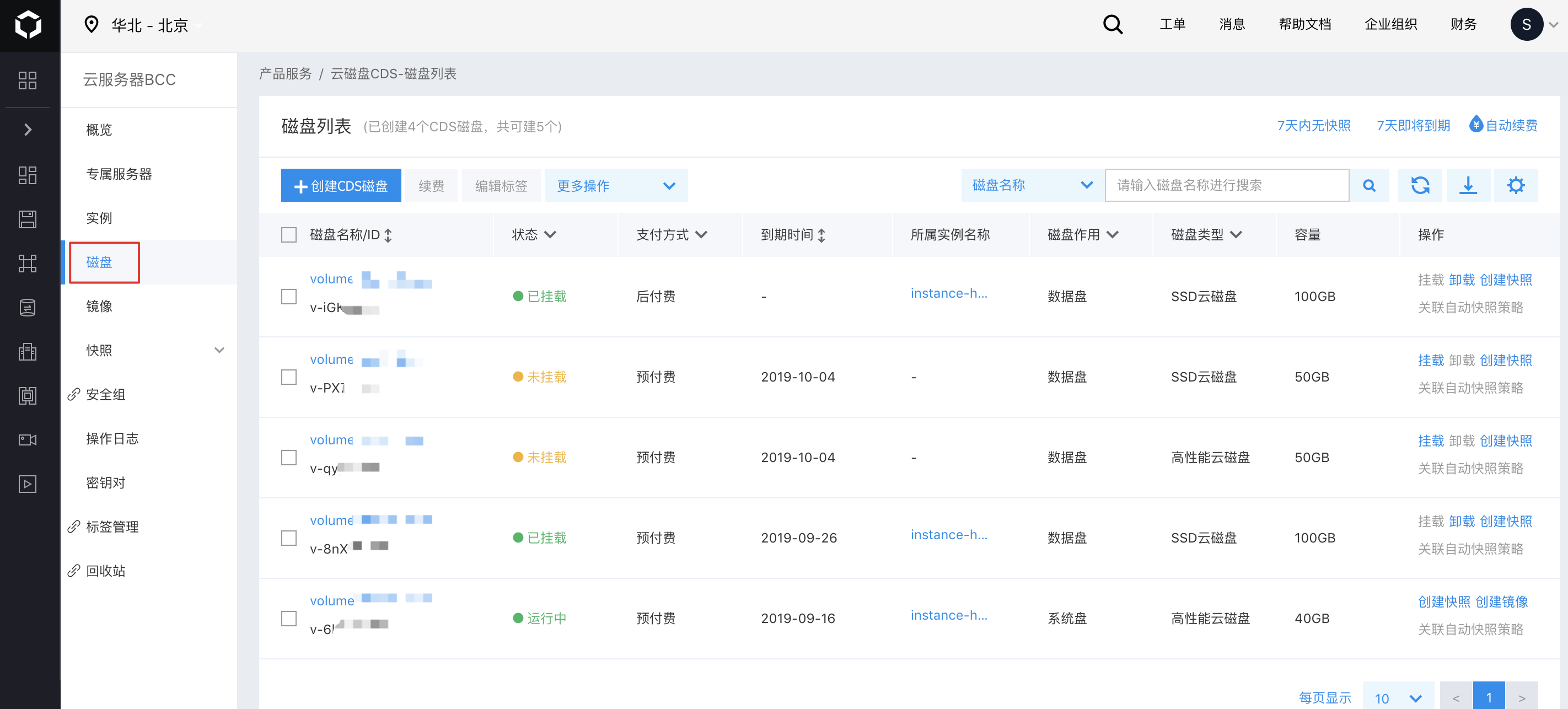
Select Product Service > Baidu Cloud Compute (BCC) in the left navigation bar of the console to access the BCC Instance List page. Click "Disk" on the left side of the page to enter the Cloud Disk Server list page.
Alternatively, after logging in, you can directly access the CDS disk list page by selecting "Product Services > Cloud Disk Server" from the left navigation menu.
3. Select the disk for snapshot creation
On the "CDS Disk List" page, select the CDS disk you want to create a Snapshot for, then click the "Create Snapshot" button.
4. Set snapshot name
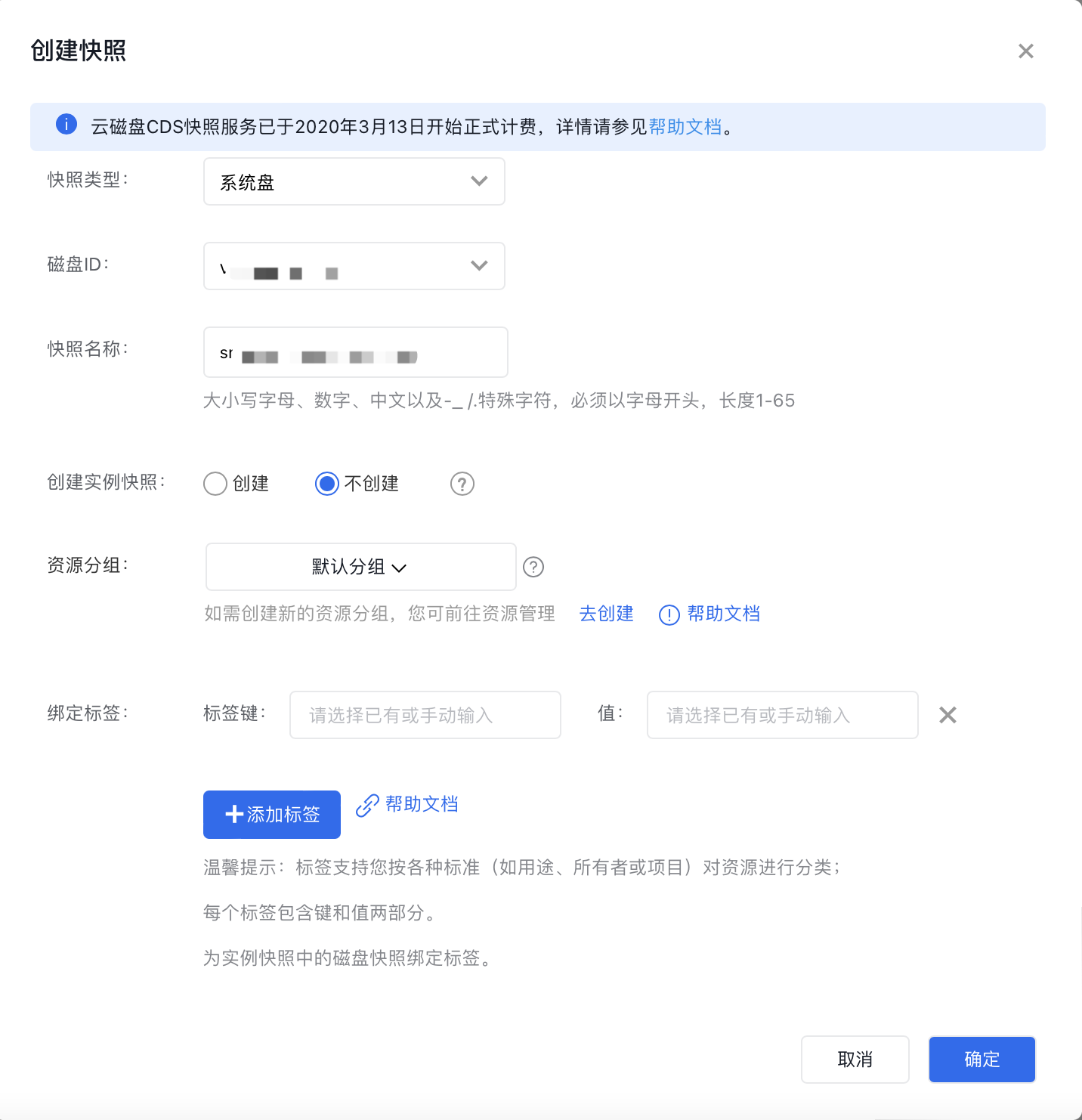
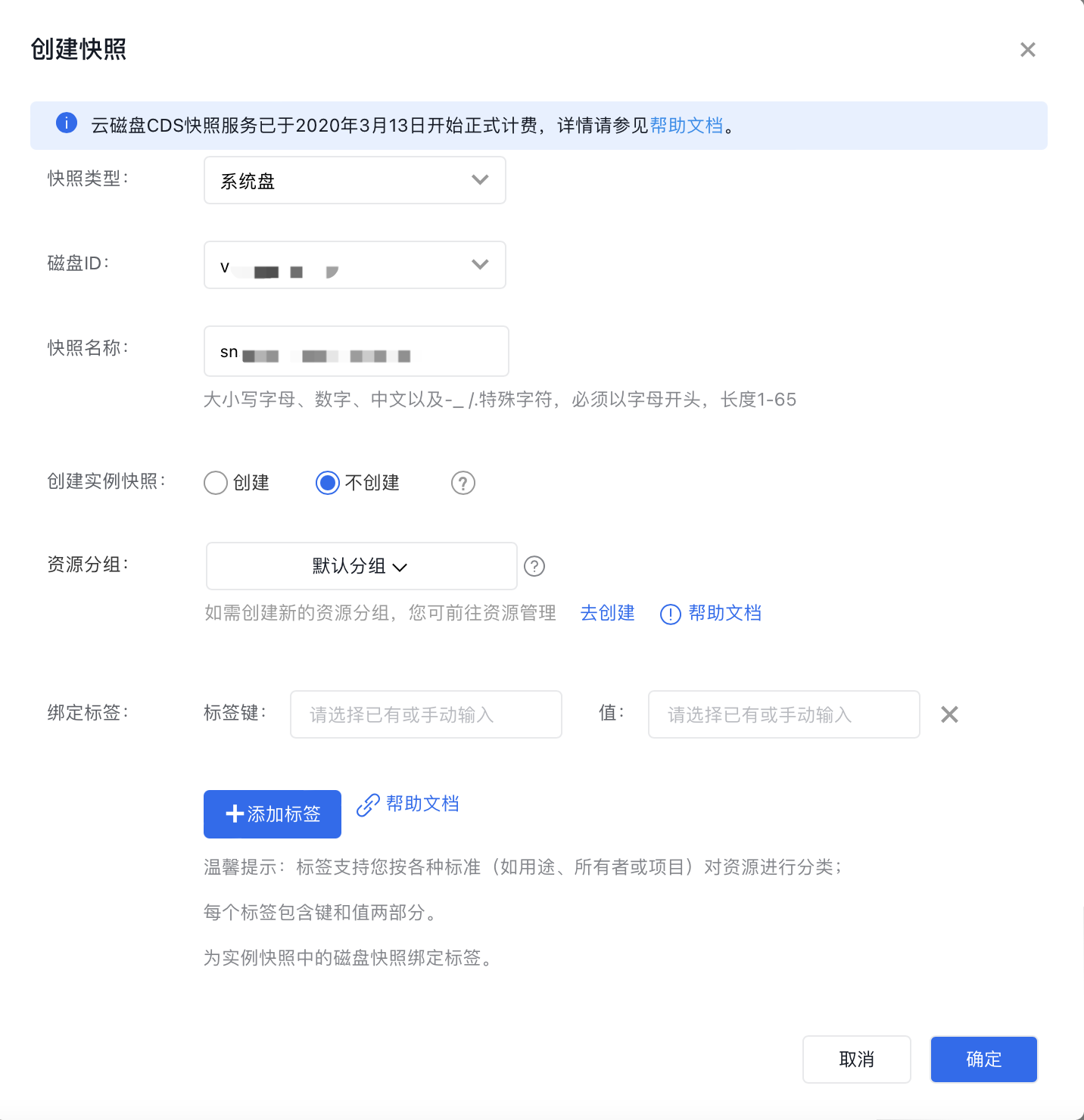
In the "Create Snapshot" dialog box that appears, enter the Snapshot name.
5. Complete Snapshot Creation
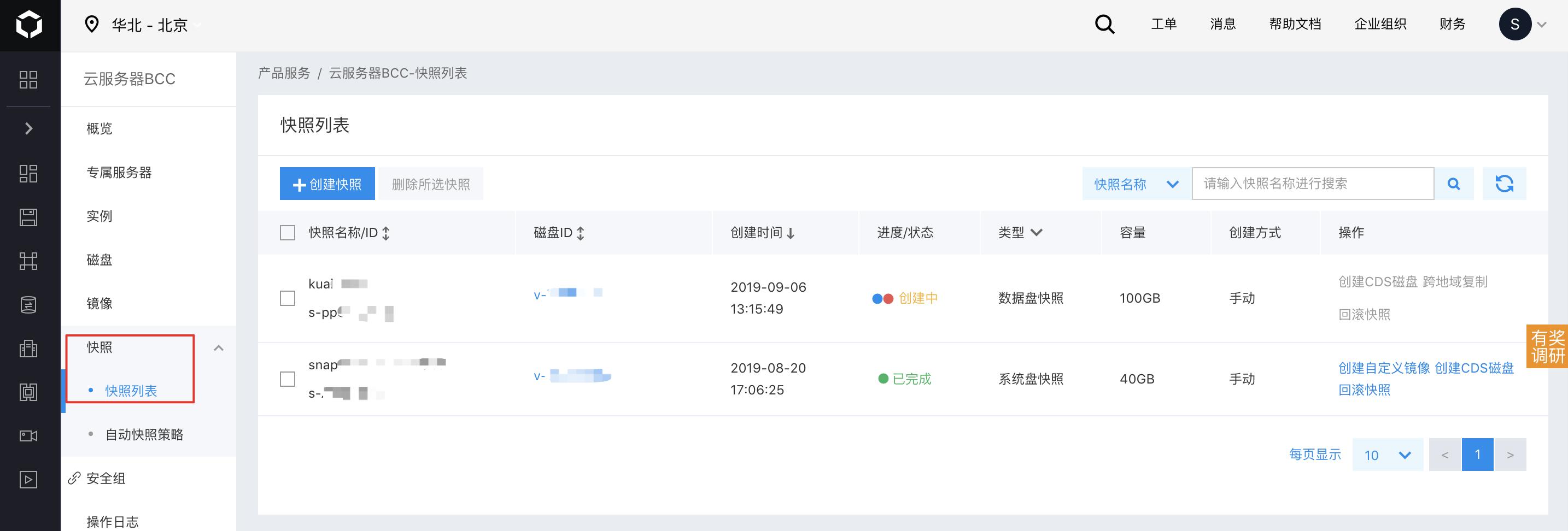
Click "Confirm" to start the Snapshot creation process. Successfully created Snapshots will appear in the Snapshot list. When the Snapshot status changes from "Creating" to "Completed," the Snapshot has been successfully created.
Create on the Disk Details page
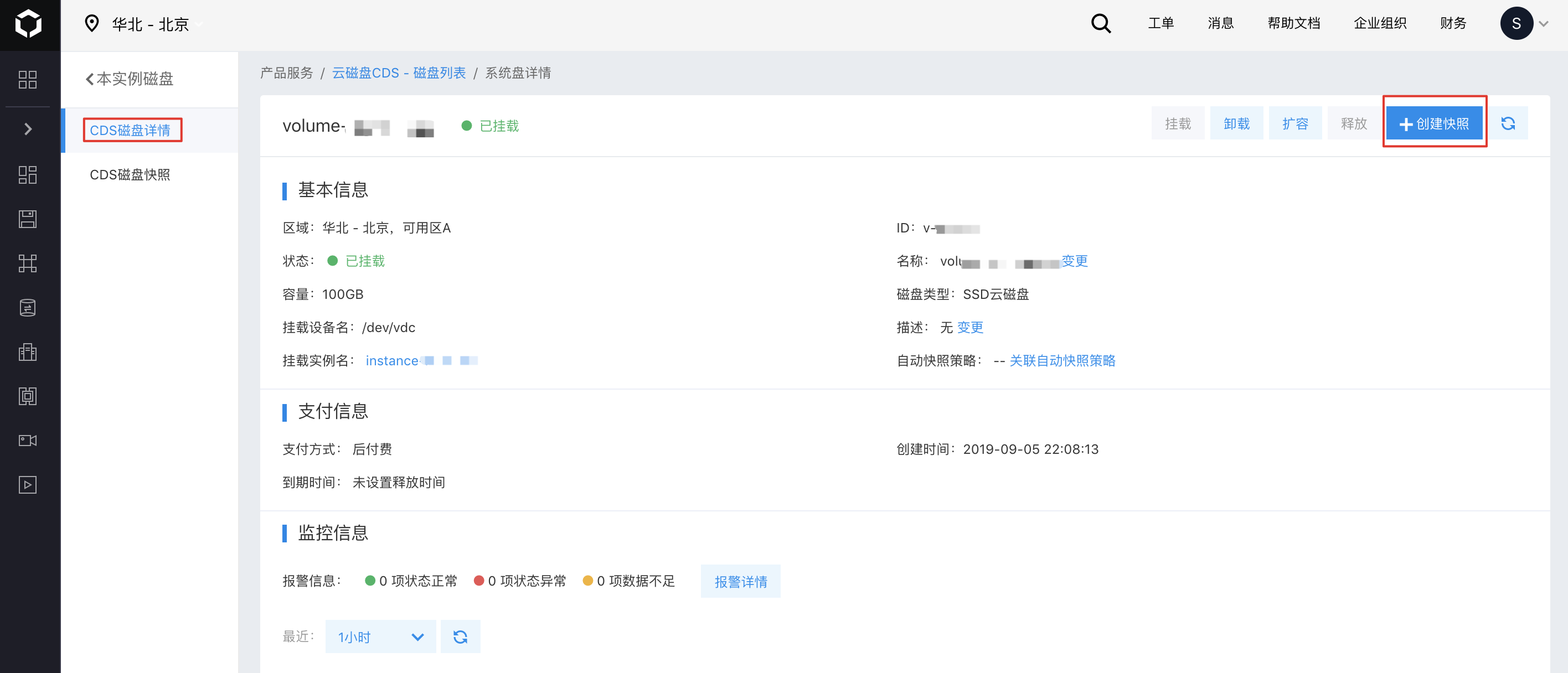
You can also click on the disk name to access its Details page, then click the "Create Snapshot" button in the upper right corner to create a Snapshot for that disk.
Create on the Snapshot List page
After logging into the BCC console, select "Snapshot" from the left sidebar to access the Snapshot list page, and then click "Create Snapshot" to proceed.
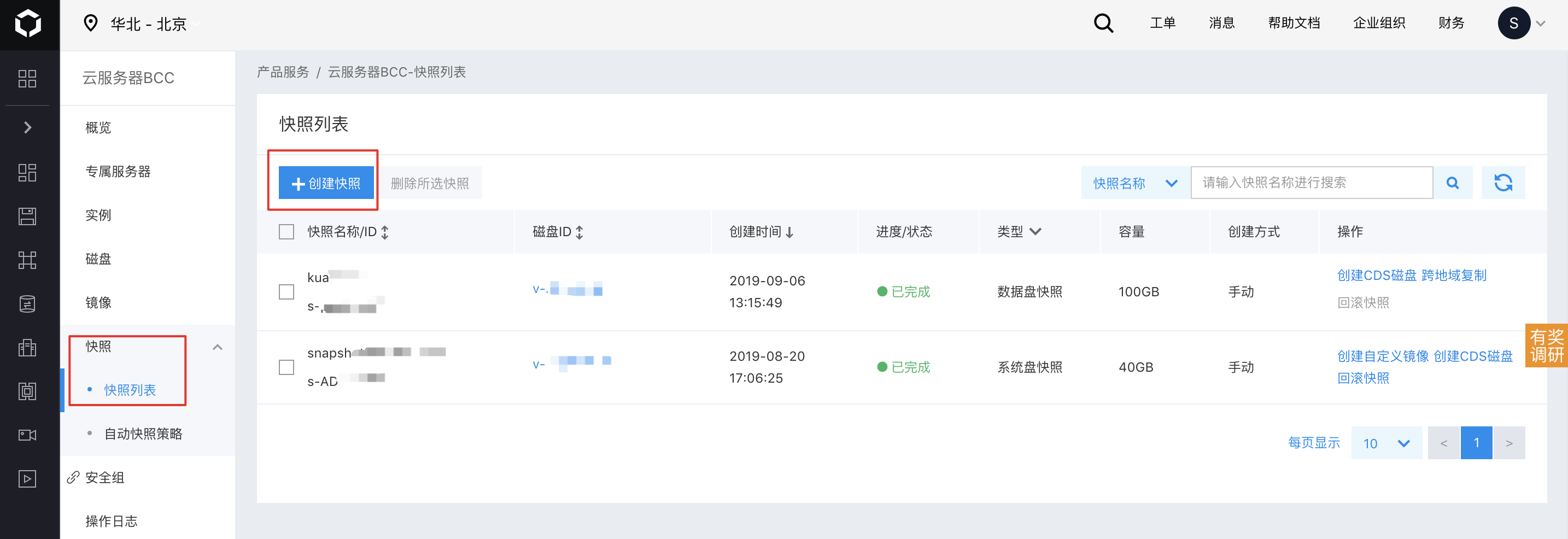
In the dialog box, choose the Snapshot type and disk ID, and then enter a name to create the Snapshot.