Tag Management
Overview
Baidu AI Cloud provides the "Tag Management" feature, allowing you to quickly categorize and manage cloud resources by attaching tags to them. Both Cloud Disk Server snapshots and Automatic Snapshot Policies currently support Tag Management. You can add, unbind, or perform other actions on tags in the snapshot list and the automatic snapshot list. This document outlines the Tag Management functionality for Snapshots. For Automatic Snapshot Policy tags, follow similar steps on the "Automatic Snapshot Policy" page.
Note:
- Each user can create up to 200 tags;
- Tag: Each tag consists of a key and a value, and the tag (key + value) must be unique;
- Single and batch: Supports tagging individual resources or applying tags to multiple cloud resources in batch.
Add tag
Users can attach tags to Cloud Disk Server Snapshots based on their project and scenario needs, making snapshot classification and management much simpler.
Operation step:
- Log in to the management console and go to Product Services > Cloud Disk Server (CDS) to access the Cloud Disk Server (CDS) page. Then click on the left menu option "Snapshot" > "Snapshot List" to open the Snapshot List page.
- Choose a snapshot from the Snapshot List, then click "Edit Tag" in the upper-right corner of its details page.
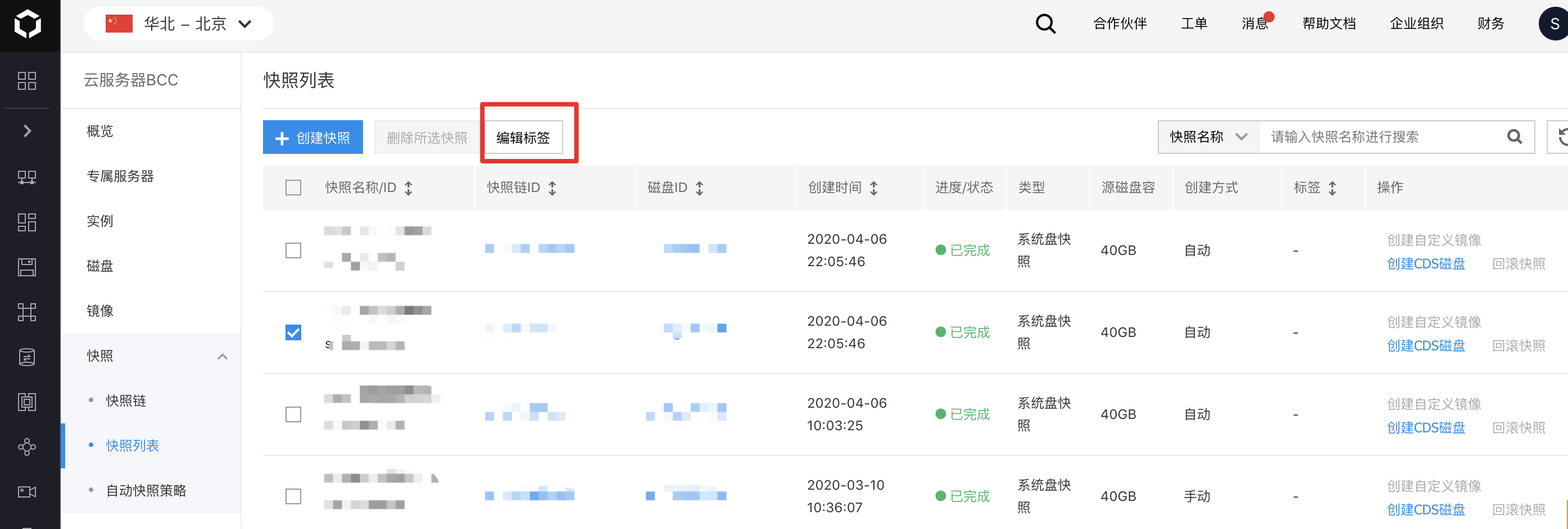
Note: Batch tag editing only allows adding tags; it cannot manage existing ones. Tag key settings are case-sensitive.
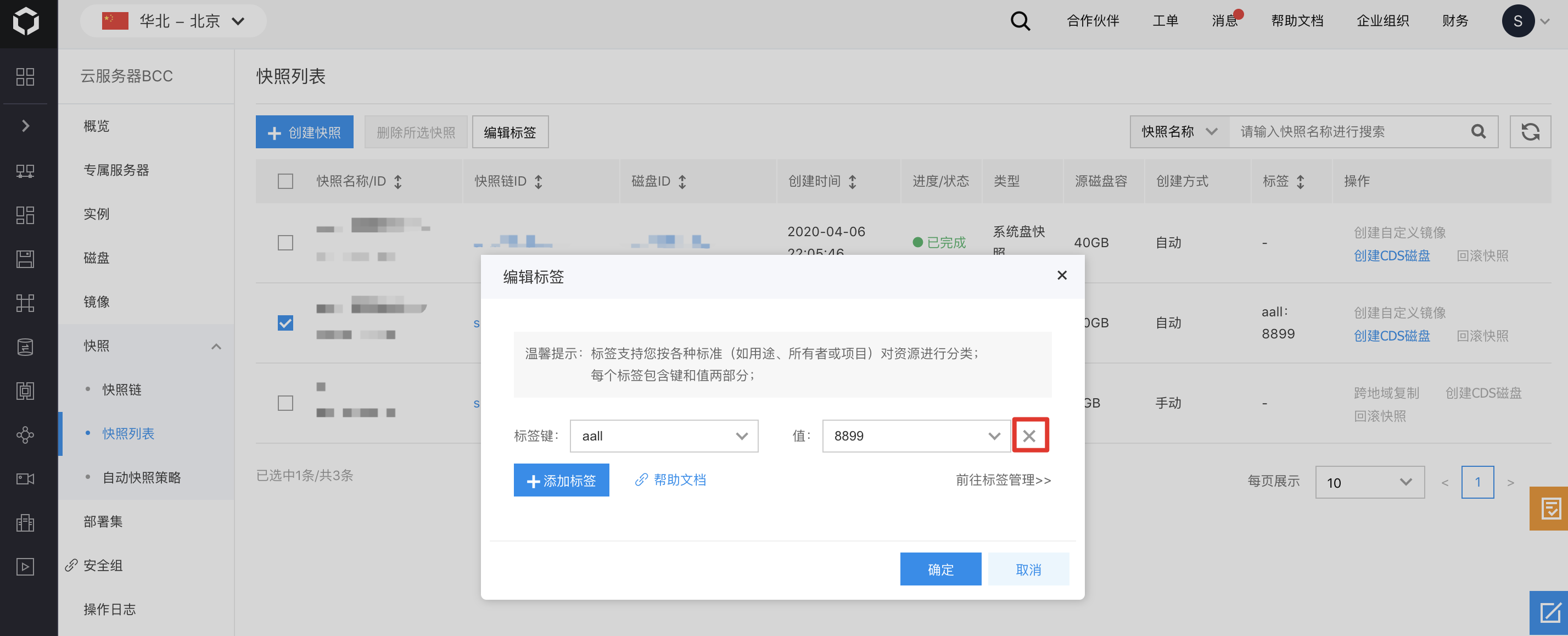
- In the pop-up dialog box, enter a custom tag key and value. A single snapshot can have multiple tag keys, but each key must be unique. The value field can be left blank if desired.
- Click OK to complete the tag creation.
Description:
- To update a snapshot tag, you must first unbind the existing tag and then reconfigure it after confirming.
Unbind tags
If a disk no longer needs a tag, you can unbind the tag.
Operation step:
- Sign in to the management console, and select Product Services - Cloud Disk Server (CDS) to enter the Cloud Disk Server (CDS) page. Click the left Snapshot - Snapshot List to enter the Snapshot List page.
- Select a Snapshot from the Snapshot list, then click "Edit Tag" in the upper right corner of its Details page.
- In the pop-up dialog box, click "Remove the Tag" to unbind it.