Snapshot Rollback

CDS

  • API Reference
    • Disk Related Interfaces
  • Dedicated Cluster Operation Guide
    • Charge
    • Create a dedicated cluster
    • Create Cloud Disk Server in Dedicated Cluster
    • Expand Dedicated Cluster
    • View Dedicated Cluster Information
    • What Is a Dedicated Cluster
  • Disk Operation Guide
    • Basic Operations
      • Create cloud disks
      • Disk encryption
        • Encrypt Data Disk and Snapshot
        • Encrypt System Disk and Image
        • Encryption Overview
      • Format cloud disks
        • Format Disk Partition on Linux System
        • Format Disk Partition on Windows System
        • Overview
      • Monitor alarm
      • mount Cloud Disk Server
      • Recycle bin
      • Release cloud disks
      • Tag Management
      • Unmount Cloud Disk Server
    • Billing management
      • Renew cloud disks
      • Shift Charge
    • Elastic Operations
      • Burst performance capability
      • Change cloud disk type
      • Performance preconfiguration
        • Use Performance Pre-Configuration
        • What Is Performance Pre-Configuration
      • Resize cloud disks
        • Expansion Overview
        • Extend Disk Partition on Linux Data Disk
        • Extend Disk Partition on Linux System Disk
        • Extend Disk Partition on Windows Data Disk
        • Extend Disk Partition on Windows System Disk
  • FAQs
    • Billing Problems
    • Common Questions Overview
    • Configuration-related questions
    • Fault-related questions
    • Performance-related questions
    • Security Problems
  • Peripheral Tools
    • CDSCMD Tool
      • Configure CDS CMD Tool
      • Install CDS CMD Tool
      • Operate Disk Using CDS CMD Tool
      • Overview
      • Tool Version History
  • Product Description
    • Application scenarios
    • Disk Status
    • Disk types
    • Product advantages
    • Product features
    • Product functions
    • Product Introduction
    • Type and Region
  • Product pricing
    • Disk charge type
      • Pay as you go
      • Subscription billing
    • Disk Expiration and Debt Reminder
    • Snapshot Charge Type
    • Universal Storage Capacity Package GSCP
  • Product Updates
    • Function Release Records
    • Product Announcement
      • Adjustments to prepay Disk renew, shift charge, and Unsubscribe Operations
  • Service Level Agreement (SLA)
    • Baidu Intelligent Cloud Block Storage Trusted Cloud
    • CDS Service Level Agreement (SLA V2_0)
  • Snapshot Operation Guide
    • Disk Snapshot
      • Automatic snapshot
      • Create a custom image
      • Create CDS disk from snapshot
      • Cross-region replication
      • Delete a snapshot
      • Manual Snapshot
      • Snapshot Rollback
      • Tag Management
    • Instance snapshots
      • Instance snapshots
    • Introduction to snapshot
      • Instructions for use
      • Snapshot chain
  • Typical Practices
    • Block Device Persistent Naming
All documents
menu
No results found, please re-enter

CDS

  • API Reference
    • Disk Related Interfaces
  • Dedicated Cluster Operation Guide
    • Charge
    • Create a dedicated cluster
    • Create Cloud Disk Server in Dedicated Cluster
    • Expand Dedicated Cluster
    • View Dedicated Cluster Information
    • What Is a Dedicated Cluster
  • Disk Operation Guide
    • Basic Operations
      • Create cloud disks
      • Disk encryption
        • Encrypt Data Disk and Snapshot
        • Encrypt System Disk and Image
        • Encryption Overview
      • Format cloud disks
        • Format Disk Partition on Linux System
        • Format Disk Partition on Windows System
        • Overview
      • Monitor alarm
      • mount Cloud Disk Server
      • Recycle bin
      • Release cloud disks
      • Tag Management
      • Unmount Cloud Disk Server
    • Billing management
      • Renew cloud disks
      • Shift Charge
    • Elastic Operations
      • Burst performance capability
      • Change cloud disk type
      • Performance preconfiguration
        • Use Performance Pre-Configuration
        • What Is Performance Pre-Configuration
      • Resize cloud disks
        • Expansion Overview
        • Extend Disk Partition on Linux Data Disk
        • Extend Disk Partition on Linux System Disk
        • Extend Disk Partition on Windows Data Disk
        • Extend Disk Partition on Windows System Disk
  • FAQs
    • Billing Problems
    • Common Questions Overview
    • Configuration-related questions
    • Fault-related questions
    • Performance-related questions
    • Security Problems
  • Peripheral Tools
    • CDSCMD Tool
      • Configure CDS CMD Tool
      • Install CDS CMD Tool
      • Operate Disk Using CDS CMD Tool
      • Overview
      • Tool Version History
  • Product Description
    • Application scenarios
    • Disk Status
    • Disk types
    • Product advantages
    • Product features
    • Product functions
    • Product Introduction
    • Type and Region
  • Product pricing
    • Disk charge type
      • Pay as you go
      • Subscription billing
    • Disk Expiration and Debt Reminder
    • Snapshot Charge Type
    • Universal Storage Capacity Package GSCP
  • Product Updates
    • Function Release Records
    • Product Announcement
      • Adjustments to prepay Disk renew, shift charge, and Unsubscribe Operations
  • Service Level Agreement (SLA)
    • Baidu Intelligent Cloud Block Storage Trusted Cloud
    • CDS Service Level Agreement (SLA V2_0)
  • Snapshot Operation Guide
    • Disk Snapshot
      • Automatic snapshot
      • Create a custom image
      • Create CDS disk from snapshot
      • Cross-region replication
      • Delete a snapshot
      • Manual Snapshot
      • Snapshot Rollback
      • Tag Management
    • Instance snapshots
      • Instance snapshots
    • Introduction to snapshot
      • Instructions for use
      • Snapshot chain
  • Typical Practices
    • Block Device Persistent Naming
  • Document center
  • arrow
  • CDS
  • arrow
  • Snapshot Operation Guide
  • arrow
  • Disk Snapshot
  • arrow
  • Snapshot Rollback
Table of contents on this page
  • Overview
  • Operation guide

Snapshot Rollback

Updated at:2025-11-03

Overview

When you need to roll back to a previous version or restore data to a past point in time, you can use the snapshot rollback function. Before performing a rollback operation, to ensure disk stability and data security, please detach the CDS disk first. For specific operations, refer to [Detach a CDS Disk](CDS/Disk Operation Guide/Basic Operations/Unmount Cloud Disk Server.md).

Note:

  • Snapshot data can only be rolled back to its original disk, not to other existing disks. You may import snapshot data to new disks by creating disks from snapshots;
  • Disk rollback is an irreversible operation. Once it is completed, all data generated from the snapshot's creation to the rollback point will be permanently lost. Please proceed with caution.
  • Data Disks in “Mounting" status cannot be rolled back;
  • After disk rollback completes, the disk will restore to its state at the snapshot creation time (including Disk Partition, File System, and data);
  • After completing a rollback, you need to remount the CDS disk to its corresponding cloud host to resume usage.

Operation guide

1. Sign in to the Baidu AI Cloud

Sign in to Baidu AI Cloud official website.

  • If you have not registered, you must first [register an account](UserGuide/Register an account.md#Register a Baidu Account).
  • If you have already registered, directly Sign in.

2. Log in to BCC Console

Select Product Service > Baidu Cloud Compute (BCC) in the left navigation bar of the console to access the BCC Instance List page. Click "Snapshot" on the left side to enter the Snapshot list page.

3. Select rollback snapshot

In the Snapshot list, choose the desired snapshot to which the disk should be rolled back, and then click "Rollback Snapshot" in the respective operation bar. In the "Rollback Snapshot" dialog box, input the SMS Verification Code to confirm the rollback.

Note: Data disks in the "Mounting" state cannot be rolled back, and the "Rollback Snapshot" button in the corresponding data disk operation bar will be grayed out. To perform a rollback operation, please detach the disk first.
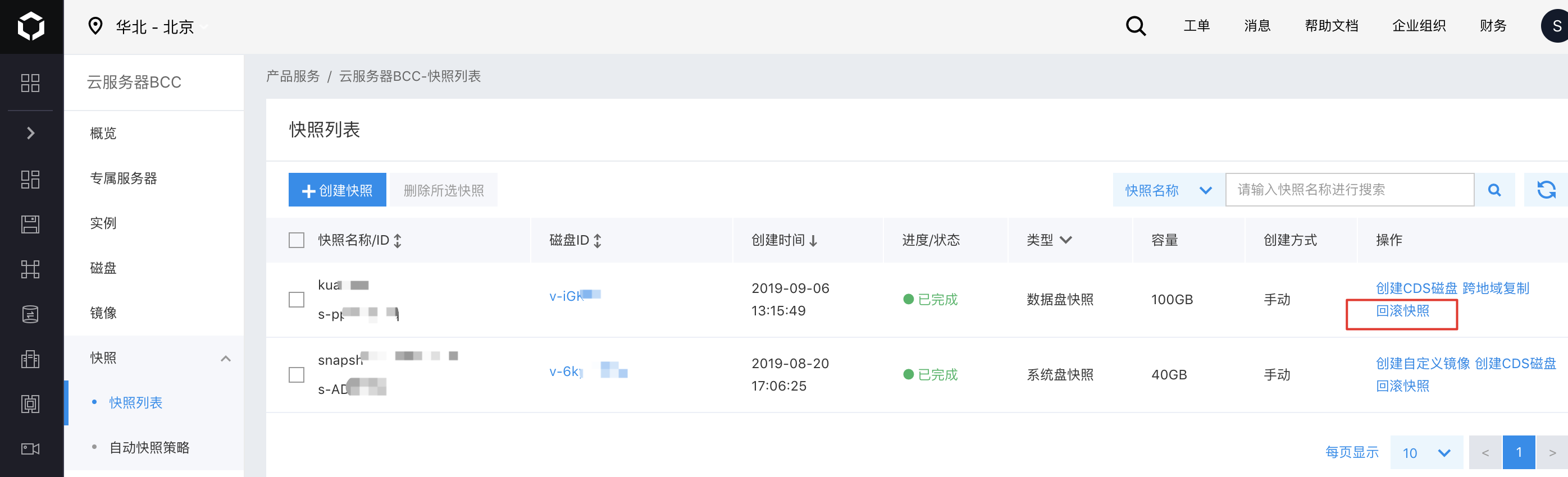
image.png

4. Complete Rollback

Click "OK" to finalize the snapshot rollback process.

Previous
Manual Snapshot
Next
Tag Management