

Extend Disk Partition on Windows Data Disk
Overview
This document uses Windows Server 2008 R2 x86_64 (64bit) Chinese version as an example; other Windows versions are similar. If you have questions during partition expansion, contact us via Ticket.
This document outlines three common scenarios, including:
- Preserve the existing data disk partition and data, and expand this partition;
- Preserve the existing data disk partition and data, and add the expanded capacity as a new partition;
- Delete the current data disk partition and its data, then create a new partition with a larger capacity.
Refer to the three scenarios outlined in the document to proceed based on your actual usage situation.
Operation guide
Expand the existing partition
Scenario 1: Assume the original 25 GB disk partition contains data. Retain the data in the original partition and expand it to 50 GB
1. Sign in to the Windows host
After logging in, click Start and select Management to open the Server Manager.

2. Select Storage > Disk Management from the left navigation bar
3. Expand volume
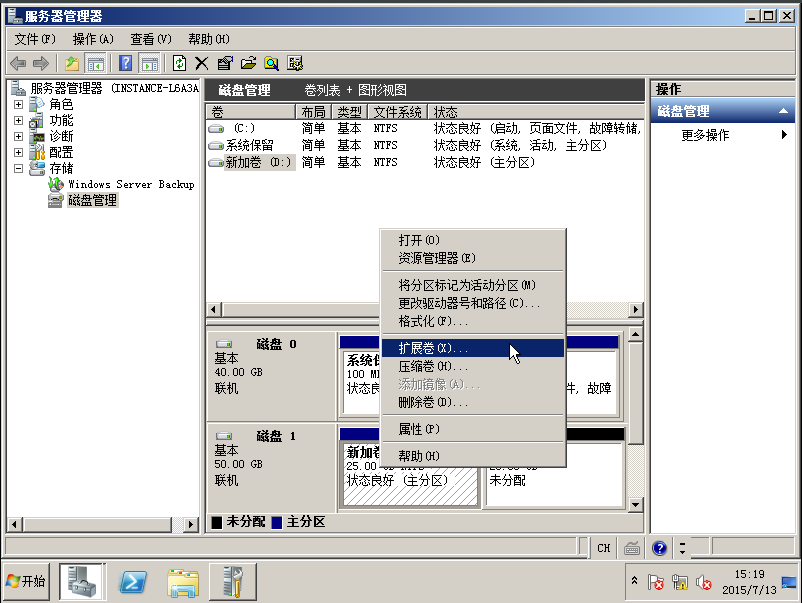
Right-click on the D drive and choose Expand Volume.
Description:
- Original data will not be lost
4. Next
For the following steps, simply click Next repeatedly to finalize the partition expansion.
Add new partition
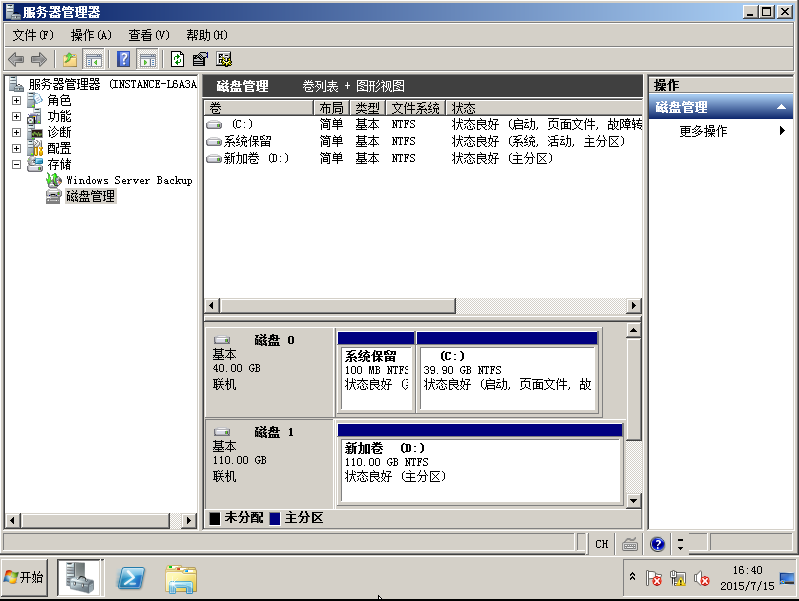
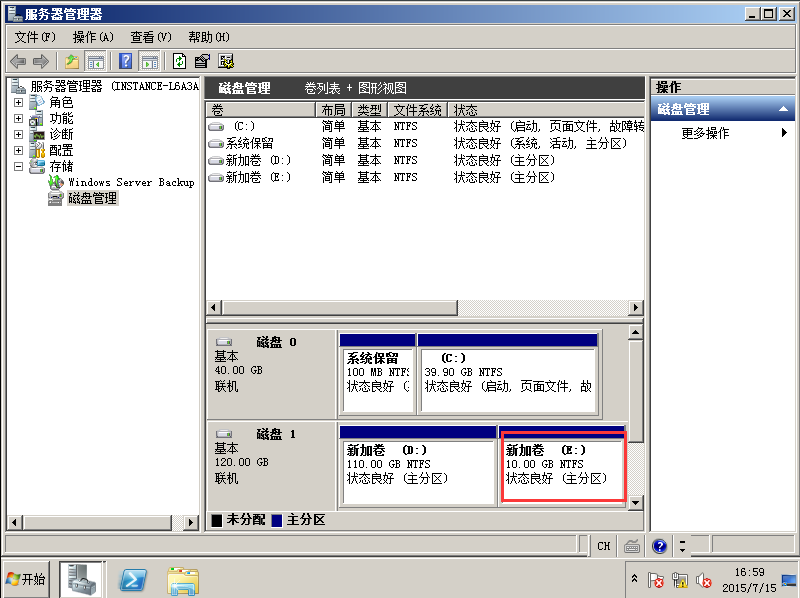
Scenario: Assume the original 110 GB disk partition holds data. Keep the original partition and create a new 10 GB partition.
1. Sign in to the Windows host
After logging in, click Start and select Management to open the Server Manager.
2. Select Storage > Disk Management from the left navigation bar
3. New simple volume
Right-click on the 10.00 GB unallocated space and select New Simple Volume.
4. Next
In subsequent steps, simply click Next continuously to complete partition expansion.
Delete the existing partition and create a new one
Scenario: Assume the user needs to delete the current 120 GB disk partition and create a new 130 GB partition.
1. Sign in to the Windows host
After logging in, click Start and select Management to open the Server Manager.
2. Select Storage > Disk Management from the left navigation bar
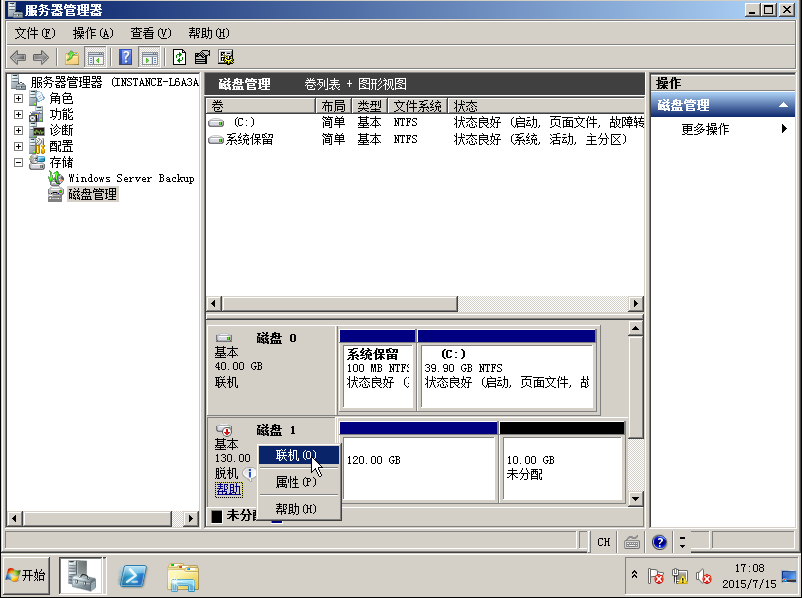
Right-click on Disk 1 and choose Connect.
3. Delete the volume
Right-click the 120.00 GB partition and select Delete Volume to remove the existing 120 GB volume.
4. New simple volume
Right-click on the 130 G unallocated space and choose New Simple Volume.
5. Next
In subsequent steps, simply click Next continuously to complete partition expansion.