Manage IP Advanced Fault Diagnosis Tasks
Updated at:2025-11-03
Create IP advanced fault diagnosis task
- In the left navigation bar, click on the Site Monitor and then the IP Advanced Fault Diagnosis tab to open the Task List page.
- Click the Add Task button to open the Create Monitor Task page.

- Fill out the form following the on-screen instructions. The next section explains the configuration options.
| ConfigMap | Description |
|---|---|
| Task name | Required. Enter a unique custom task name for this account. |
| Probe address | Required. Provide the URL for the monitor object, which supports probing a single IP address. |
| Internet connection type | Required. Specify the access type for the current IP address. Options include BGP (default), single-line China Mobile, single-line China Telecom, and single-line China Unicom. |
| Probe protocol | Required. Supports "HTTP," "PING," or "TCP." |
| Network type | Supports both IPv4 and IPv6. |
| Detection Period | Sets the interval between probes, with a default value of 30 seconds. |
Edit/delete/enable/pause IP advanced fault diagnosis task
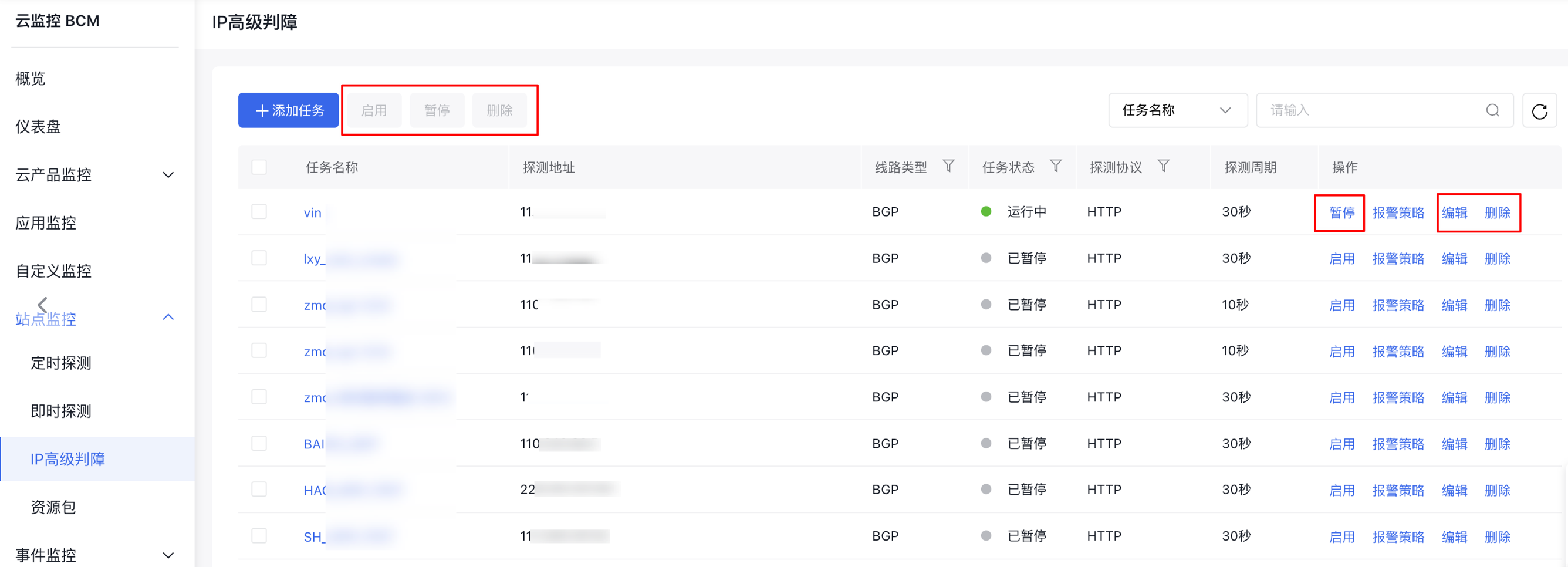
- In the left navigation bar, click on the Site Monitor and then the IP Advanced Fault Diagnosis tab to open the Task List page.
- Click the Edit, Delete, or Enable/Pause buttons in the Operation column to modify or remove a specific task. You can also select the checkbox next to the task name to perform batch operations for deletion, enabling, or pausing IP advanced fault diagnosis tasks.