Event Monitor
Function overview
For various event anomalies during the operation of cloud products, such as service disruptions, component issues, and performance degradation, BCM provides real-time monitoring and notification based on alarm strategies. This enables users to promptly stay informed about the operational status of cloud products. Unlike standard monitoring metrics, event monitoring does not collect data periodically but instead captures data and triggers alarms only when events occur.
Supported cloud products
Currently support multiple products including Baidu Baremental Compute (BBC), Baidu Cloud Compute (BCC), dedicated gateway, physical dedicated line, MapReduce BMR, and Cloud Container Engine (CCE). For details, refer to: Cloud Product Event List.
View details
- Log in to Baidu AI Cloud, go to Baidu Cloud Monitor (BCM), and click on Event Monitor in the left-hand navigation bar to access the Event List page.
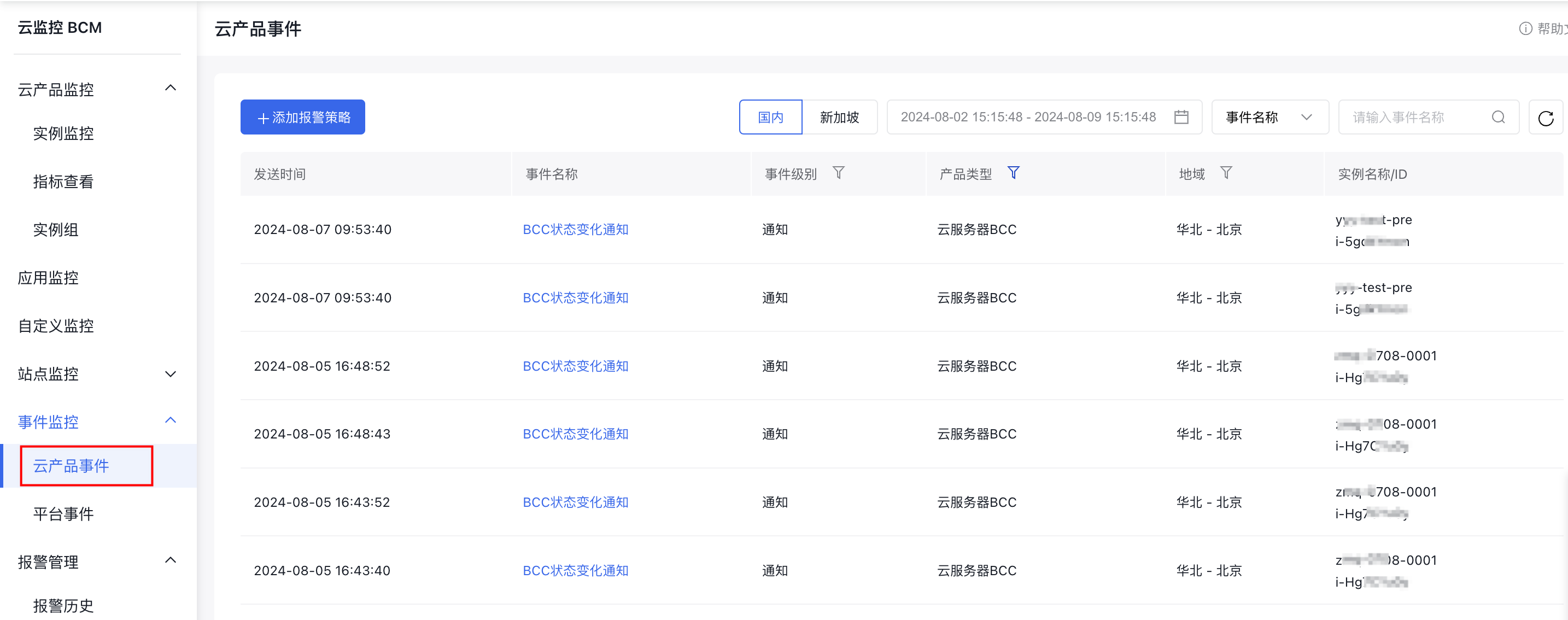
- At the top of the list, you can filter generated events by event level, product type, and region
- At the top right of the list, you can adjust the time span to search events by their occurrence time, or filter by event name and cloud product instance ID
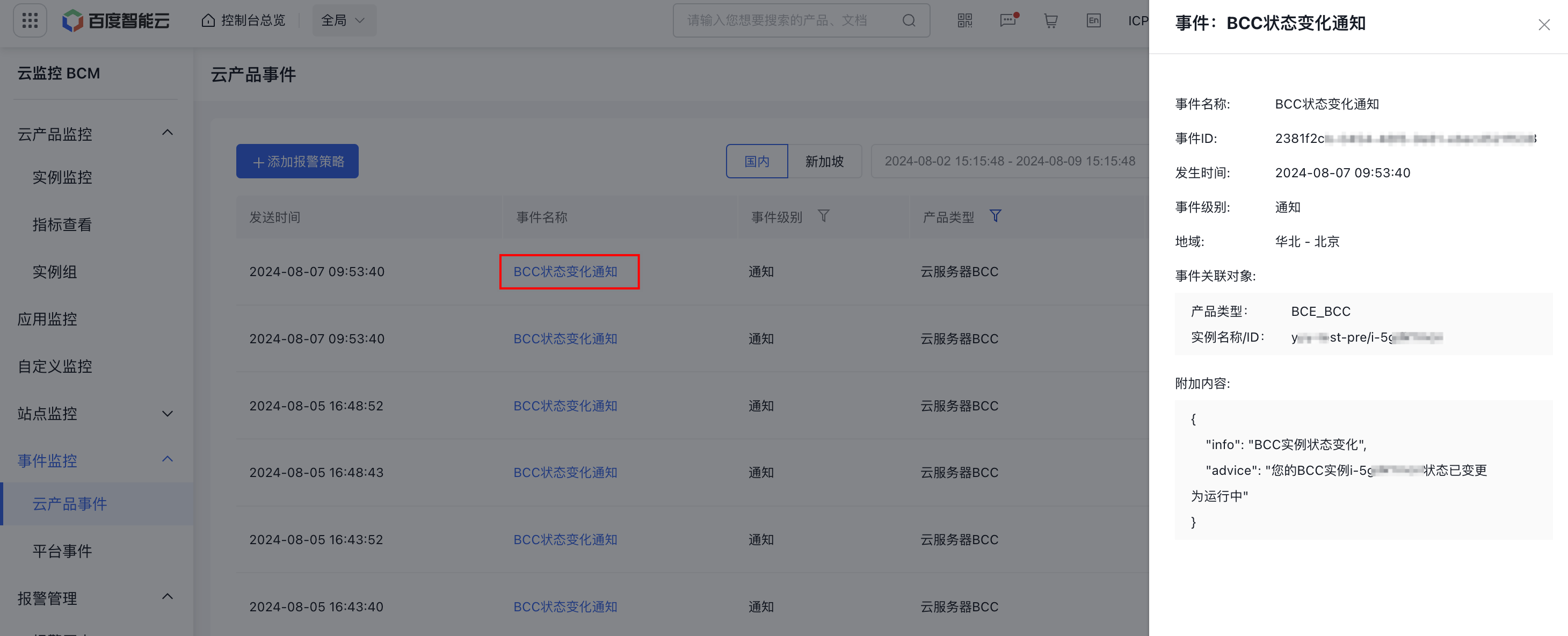
- Click on the event name to view more details in the right-hand sidebar. If needed, submit a ticket to the technical support team for additional assistance.
Configure alarms
Create Alarm Strategy
- Click "Add Alarm Strategy" at the top left of the Event List page to go to the Create Alarm Strategy page.
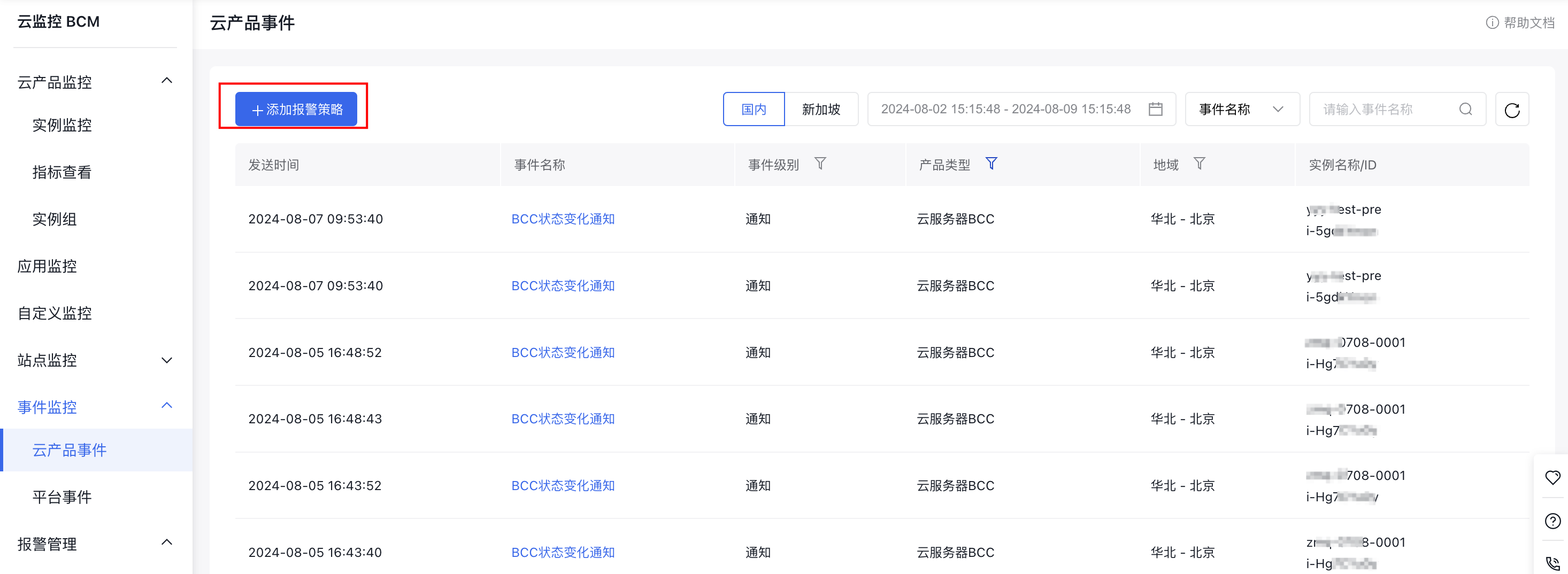
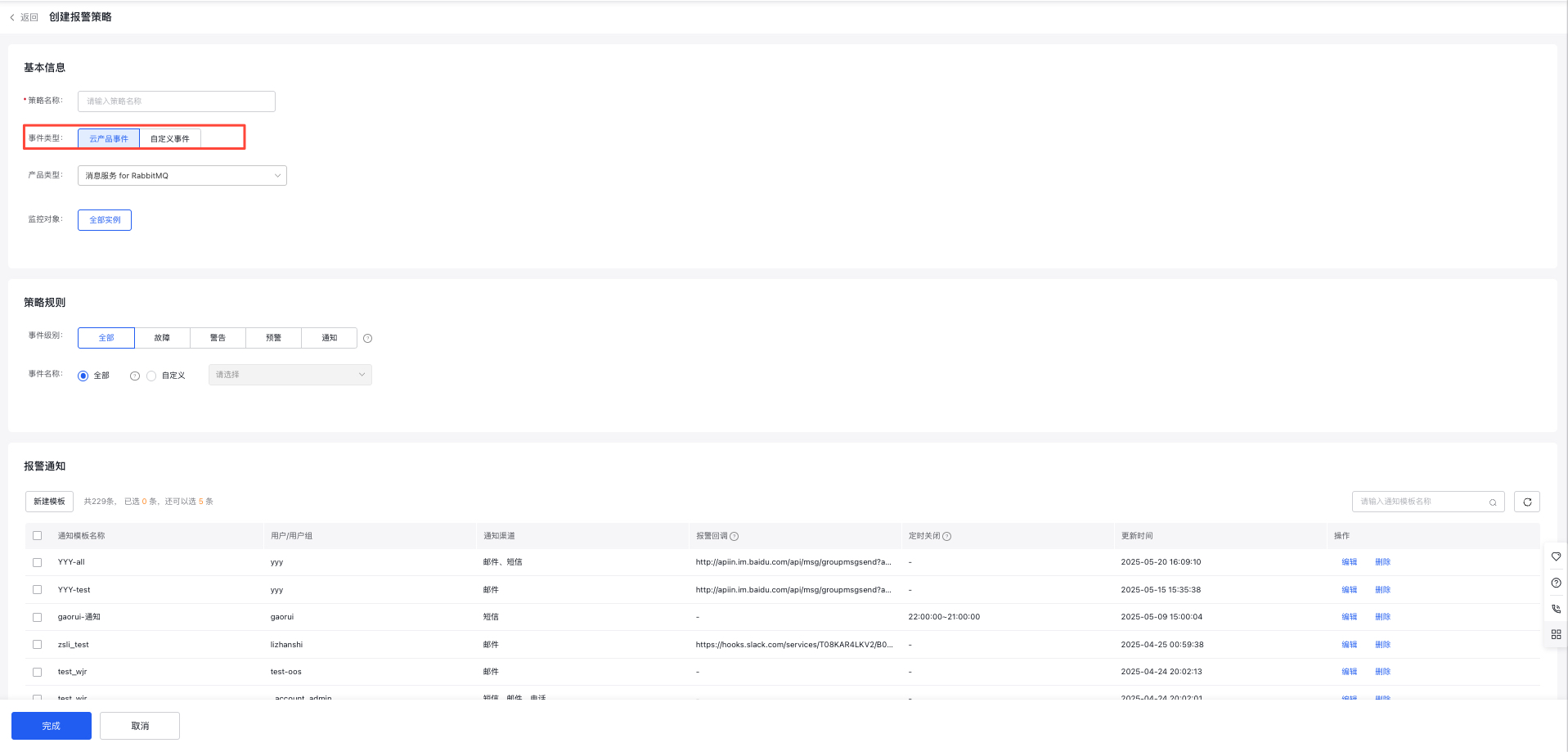
- On the Create Alarm Strategy page, fill in the corresponding information. Select Cloud Product Event under Event Type to configure alarm strategies for events
-
Event level: The event level requiring alarms. You can select based on the issue level you care about. The meanings of different levels are as follows:
- Fault: A cloud product instance or a specific function of the instance becomes unavailable
- Warning: Non-critical issues (performance degradation, capacity impact, etc.)
- Early warning: Some exceptions are about to occur, alerting users in advance
- Notification: Events that do not cause exceptions, or when a monitor object recovers from an abnormal state to normal
- Event name: Events requiring alarms. BCM provides various preset events; you can select events of interest to receive alarms or directly choose All Events
Copy/edit/delete/enable/disable alarm strategy
- In the left navigation bar, select Alarm Management - Event Monitor to access the Event Alarm Strategy List page. Then, choose the event type: Cloud Product Event.
- In the operations column on the right side of the alarm strategy you wish to modify, click Copy, Edit, Delete, Enable, or Disable. You can individually copy, edit, enable, disable, or delete an alarm strategy. By selecting the checkbox in front of the strategy, you can also perform batch operations like deleting, enabling, or disabling multiple alarm rules at once.
View alarm history
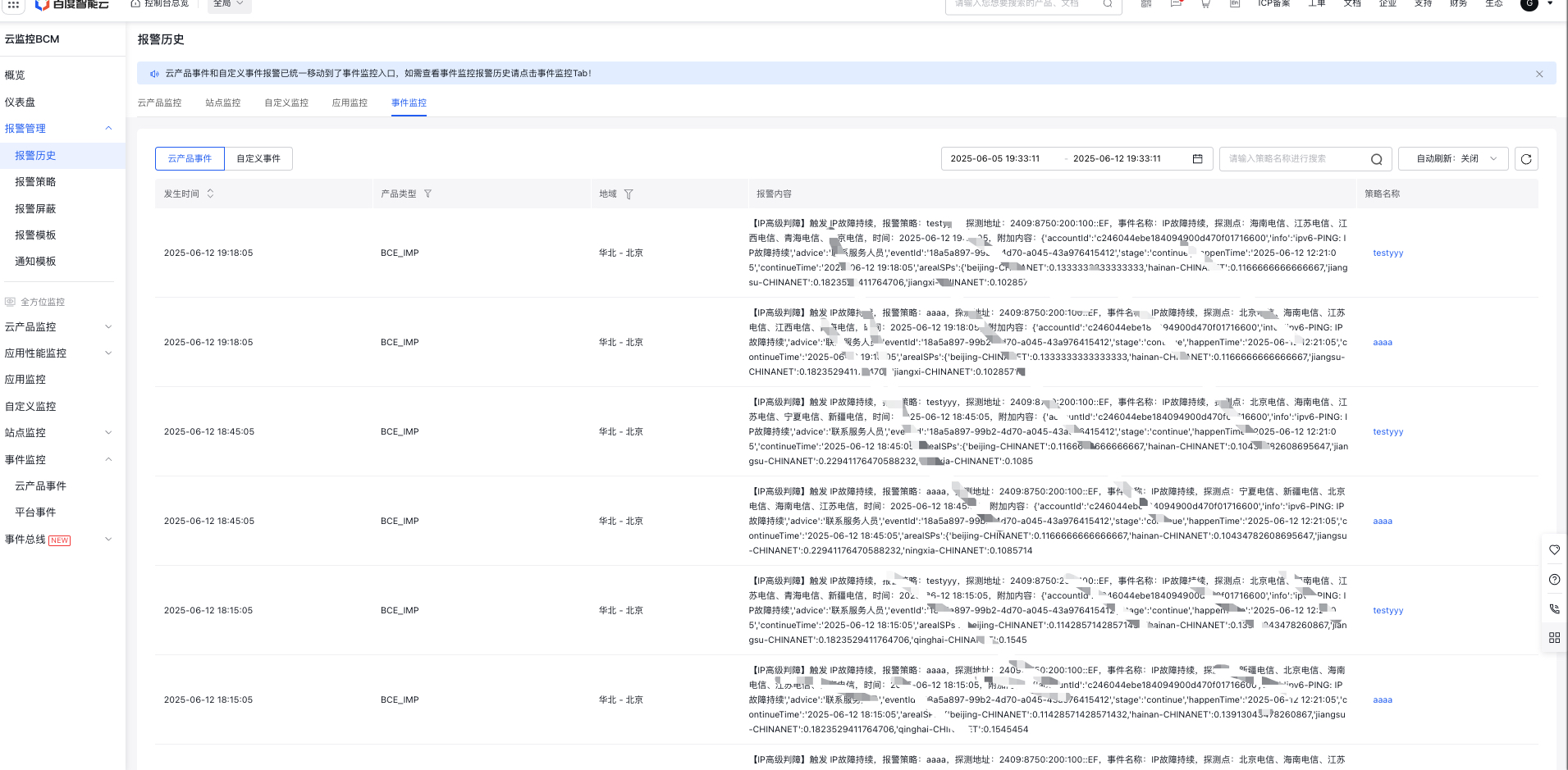
Go to the Alarm Management section in the left navigation bar to access the Alarm History page, and then click Event Alarm History. Here, you can filter by Product Type to view the alarm history relevant to your desired product.