

Alarm Notification Template
Function overview
A notification template serves as a framework for alarm notification methods and notification recipients. Baidu Cloud Monitor (BCM) provides default notification templates and also supports custom ones. Users can flexibly choose methods like email, SMS, or calls and can customize contacts or groups as alarm recipients. Different alarm strategies can utilize the same alarm notification template.
By updating an alarm notification template, you can instantly modify alarm notification methods and recipients across various alarm strategies, enhancing the management efficiency of your alarm notifications.
Create an alarm notification template
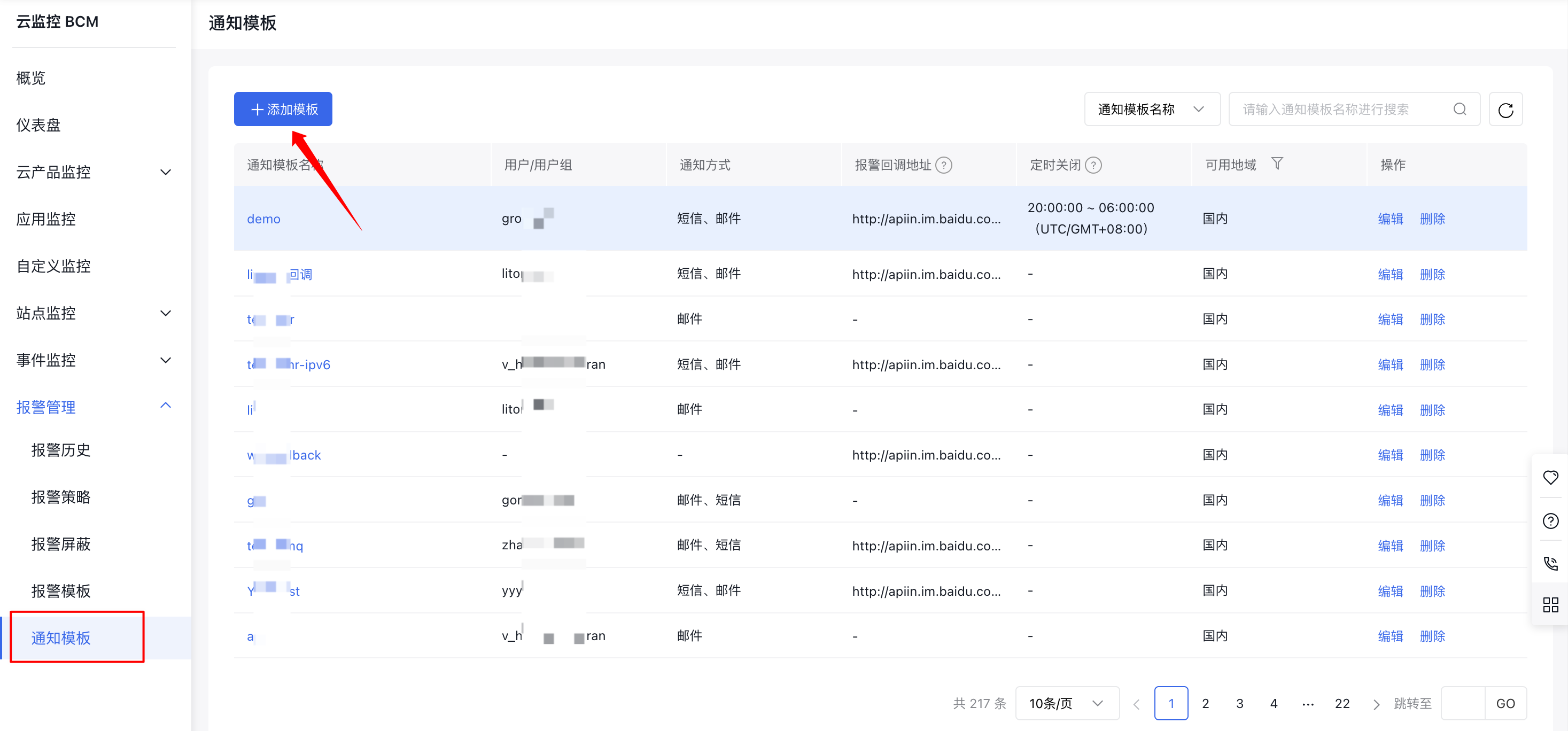
- Log in to Baidu AI Cloud, select Baidu Cloud Monitor (BCM), and click on Alarm Management and Notification Template in the left navigation bar to access the Notification Template List page.
- Click the Add Template button to open the form for creating a new notification template.
- Fill out the form and click the Confirm button to complete the creation of the alarm notification template.
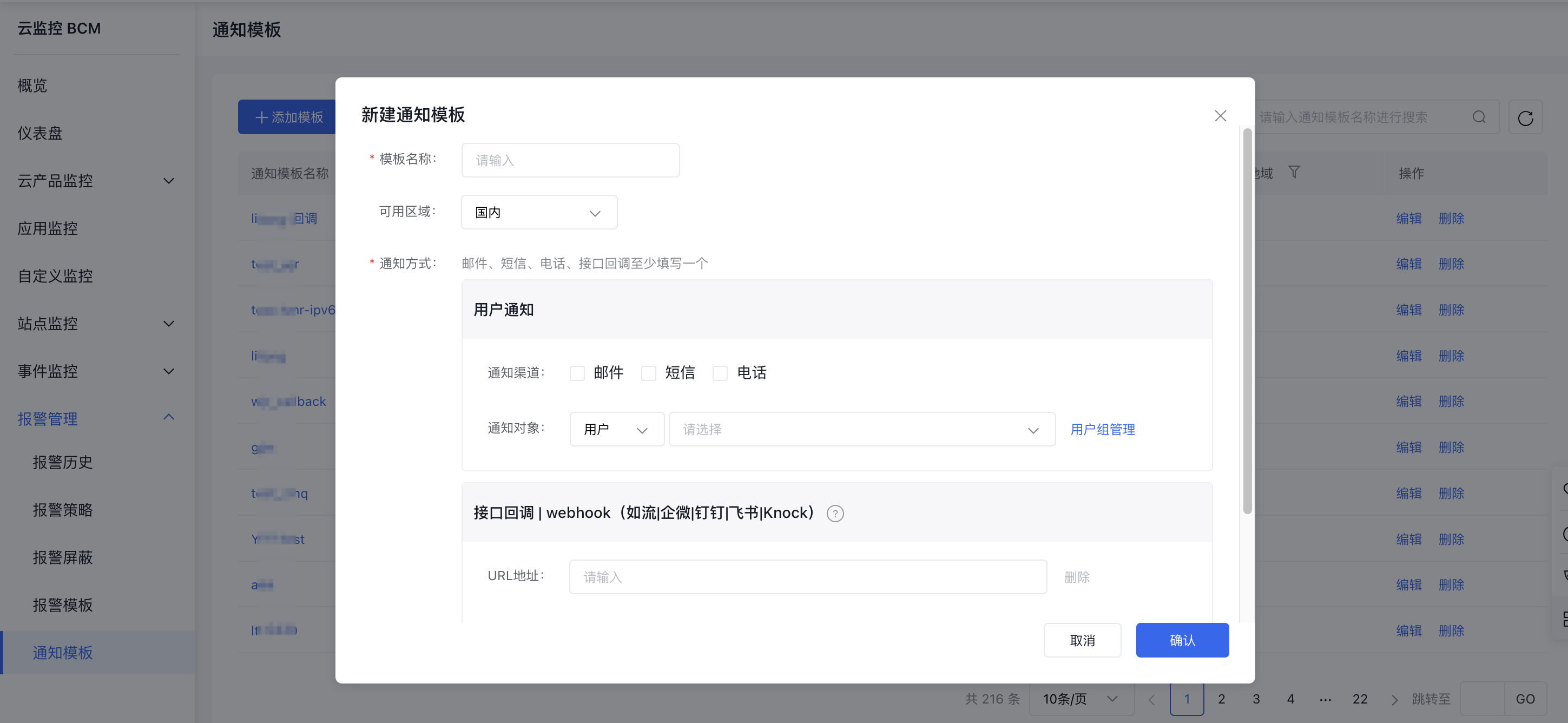
Instructions for alarm notification template configuration:
| ConfigMap | Description |
|---|---|
| Template Name | Enter a custom name for the alarm notification template. |
| Available regions | Support is available for selecting either Mainland China or Singapore. Alarm notification templates are region-specific and can only be applied to alarm strategies within their designated regions. |
| Notification channels | Three notification channels are supported: email, SMS, and calls. |
| Notification object | Support adding users or groups. Click the Add User Group/Add User button, then click User Group Management to redirect to the Multi-User Access Control platform for managing users and user groups, and adding, modifying, or deleting contact groups/contacts. |
| API callback | Enter publicly accessible URLs as callback addresses (5 alert callback addresses at most). Support webhook mechanism to push messages to office software such as WeCom, DingTalk, and Infoflow. For details, refer to Alarm Callback |
| Scheduled shutdown | Support for customizing the start and end times for alarm shielding. When timed deactivation is enabled, alarm notifications won't be sent, but the alarm details will still appear in the alarm history. |
View alarm notification templates
- In the left navigation bar, click Alarm Management, then Notification Template, to reach the Alarm Notification Template List page. Here, you can view basic details of the created alarm notification templates, including their name, contacts/groups, and notification methods.
- Click on any Notification Template name to view its details.
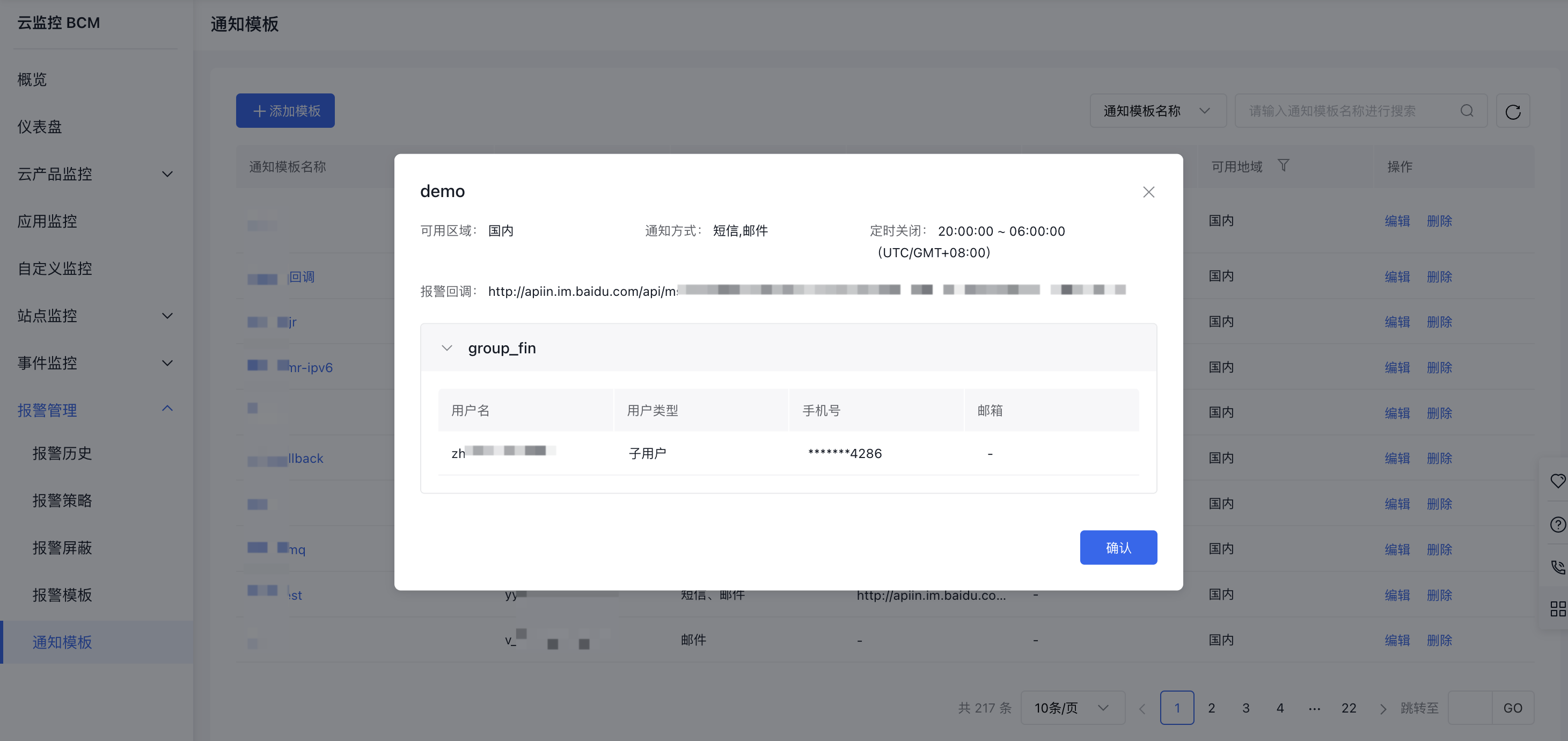
Newly created alarm notification templates appear at the top of the list, making it easy for users to quickly access and review the basic information of the template immediately after its creation.
Edit alarm notification template
- In the left navigation menu, click on Alarm Management and then the Notification Template tab to access the Alarm Notification Template List page.
- Click the Edit button in the operations column on the Alarm Notification Template List page to access the template editing page.
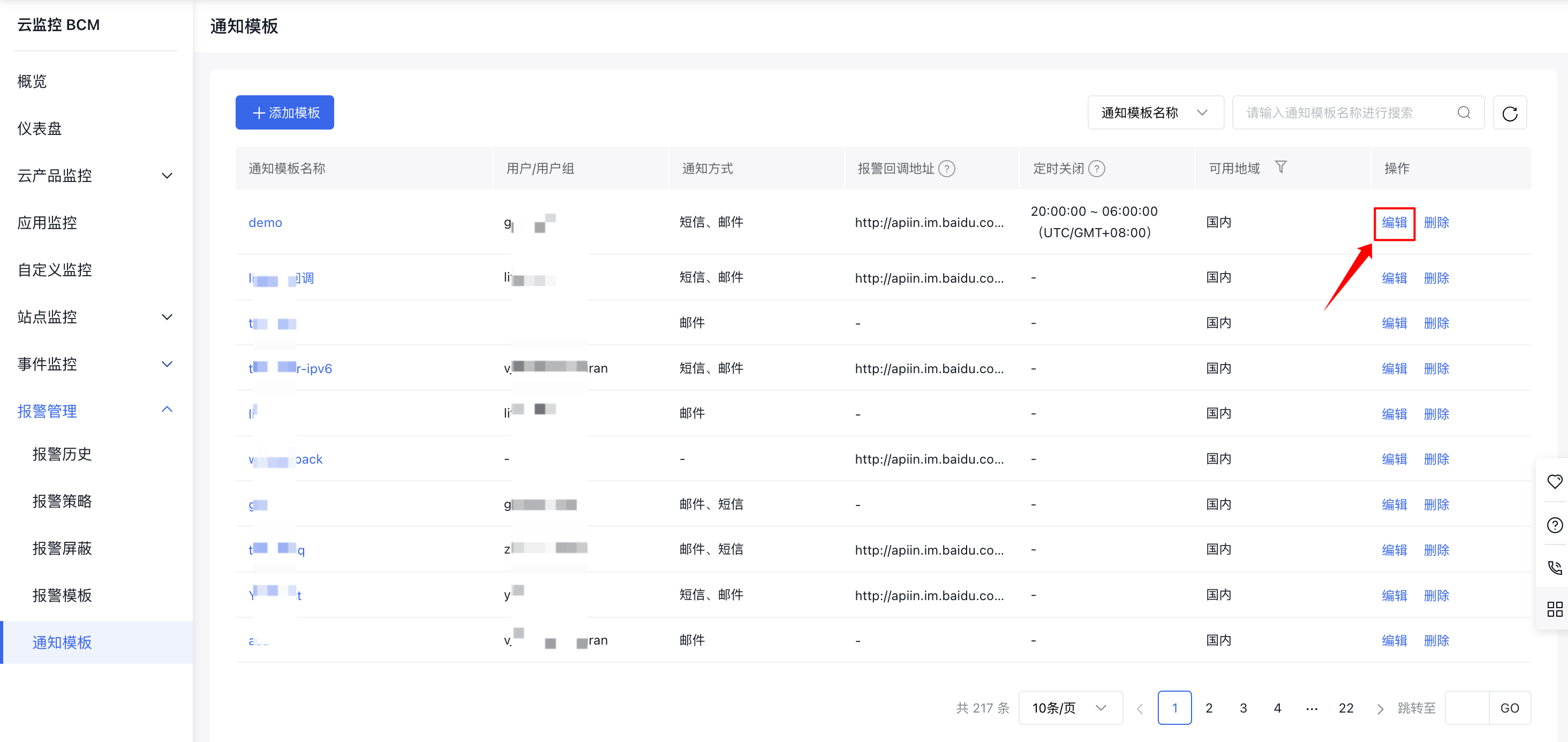
- On the alarm notification template editing page, you can make modifications as needed, such as renaming it, changing the notification method, or updating the notification recipients.
- Click the Confirm button to save your changes to the alarm notification template.
Notes
If the alarm notification template is bound to one or more alarm strategies, edited contents will be synchronized across all alarm strategies bound for the alarm notification template.
Delete alarm notification template
- In the left navigation menu, click on Alarm Management and then the Notification Template tab to access the Alarm Notification Template List page.
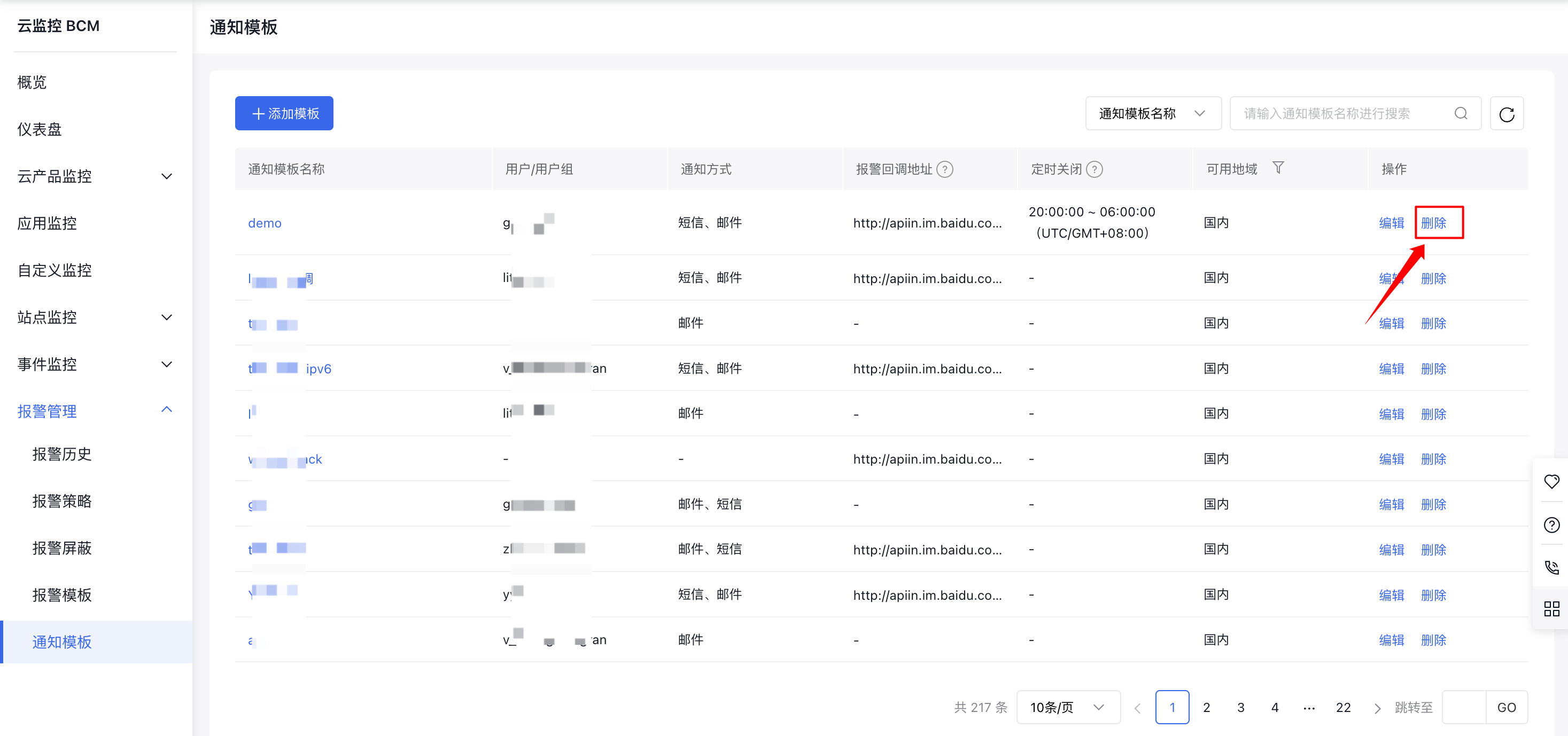
- Click the Delete button in the operations column on the Alarm Notification Template List page to remove the alarm notification template.
Notes
Notification templates bound to alarm strategies cannot be deleted. If this alarm notification template has used for one or more alarm strategies, please select alternative alarm notification templates for corresponding alarm strategies, and then delete this alarm notification template.