

Unblocking Center
DDoS attack unblocking
Background
When DDoS attack traffic on a user's public IP asset exceeds the blackhole threshold, the asset enters blackhole state. All external traffic is discarded, disrupting related services.
The Unblock Center provides manual unblocking function for EIPs in blocked status. Users can view the unblocking quota, currently blocked IPs, and unblocking records. Users who have purchased the TBSP will have four daily manual unblocking quotas. If this quota is exceeded, it is possible to purchase an IP unblocking package for additional quota. The system resets self-service unblocking counts at midnight daily, and unused unblocking counts do not carry over to the next day. For users who have not purchased the TBSP, manual unblocking quota can be obtained by purchasing an IP unblocking package.
Usage restrictions
(1) Purchase/quota restrictions
- Each user may purchase only 1 IP unblocking package. Click quota Expansion for extensions
- Purchased unblocking counts are issued on a monthly basis: 100 quotas are issued each month, and the quota count resets at 00:00 on the first day of each month
- Purchase period: 1 month/2 months/3 months/4 months/5 months/6 months/7 months/8 months/9 months/1 year/2 years/3 years (17% off for annual subscription)
- Unblocking count: 10 / 30 / 50 / 100 (Unblocking package upper limit 100)
- Unblocked resource: EIP (including IPv4 and IPv6)
(2) Unblocking restrictions
- Automatic unblocking: Automatically unblocked after 24 hours in blackhole
- Manual unblocking: The interval between two unblockings must exceed 30 minutes
- DDoS basic protection: Support unblocking by purchasing unblocking quotas only, with a maximum of 4 unblockings per day and 100 unblockings per month
- Traffic burst service package (TBSP): A quota of 4 free unblockings is provided daily, with a maximum of 100 unblockings per month
(3) Start/stop restrictions
- 7/3/1 days before product expiration, Baidu AI Cloud will notify users via SMS to renew the product
- On the product expiration date, the Baidu AI Cloud will disable the IP unblocking package service. Related configurations and data will be retained for 7 days. If renewal is completed within this period, you can continue using the current configuration and historical data.
- Seven days after product expiration (excluding the seventh day), Baidu AI Cloud will release the user's related configuration in the IP unblocking package, and it cannot be restored
Operation guide
Overview
- Log in to the Management Console and navigate to the Elastic Public IP (EIP) service section.
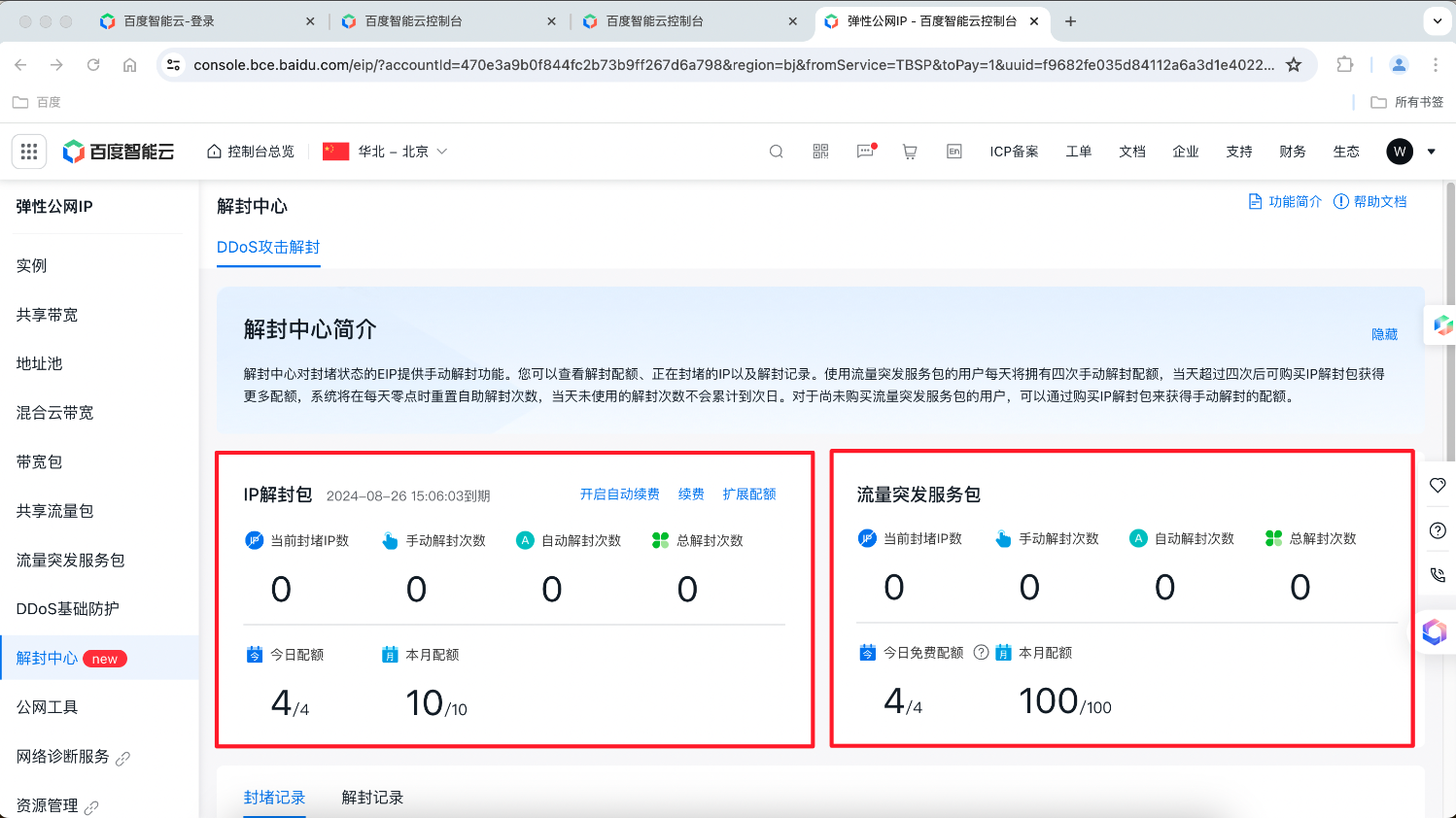
- A new Unblock Center section has been added to the left navigation bar. In the Overview tab, users can access the following information.
| Function name | Description |
|---|---|
| IP unblocking package | - Currently blocked IPs - Manual unblock count: Historical manual unblock count - Automatic unblocks: Historical automatic unblock count - Total unblock count: Historical total unblock count - Daily quota: User's remaining daily quota/total daily unblock quota (max 4/day) - Monthly quota: User's remaining monthly quota/total monthly unblock quota |
| TBSP | - Currently blocked IPs - Manual unblock count: Historical manual unblock count - Automatic unblocks: Historical automatic unblock count - Total unblock count: Historical total unblock count - Daily free quota: User's remaining daily free quota/total daily free unblock quota (max 4 free unblocks /day) - Monthly quota: User's remaining monthly quota/total monthly unblock quota |
Unblocking steps:
- Log in to the Management Console and navigate to the Elastic Public IP (EIP) service section.
- The Unblock Center section now appears in the left navigation bar, showing currently blocked IPs.
- Users can enter an IP address in the search box to search and click Refresh button to update the list
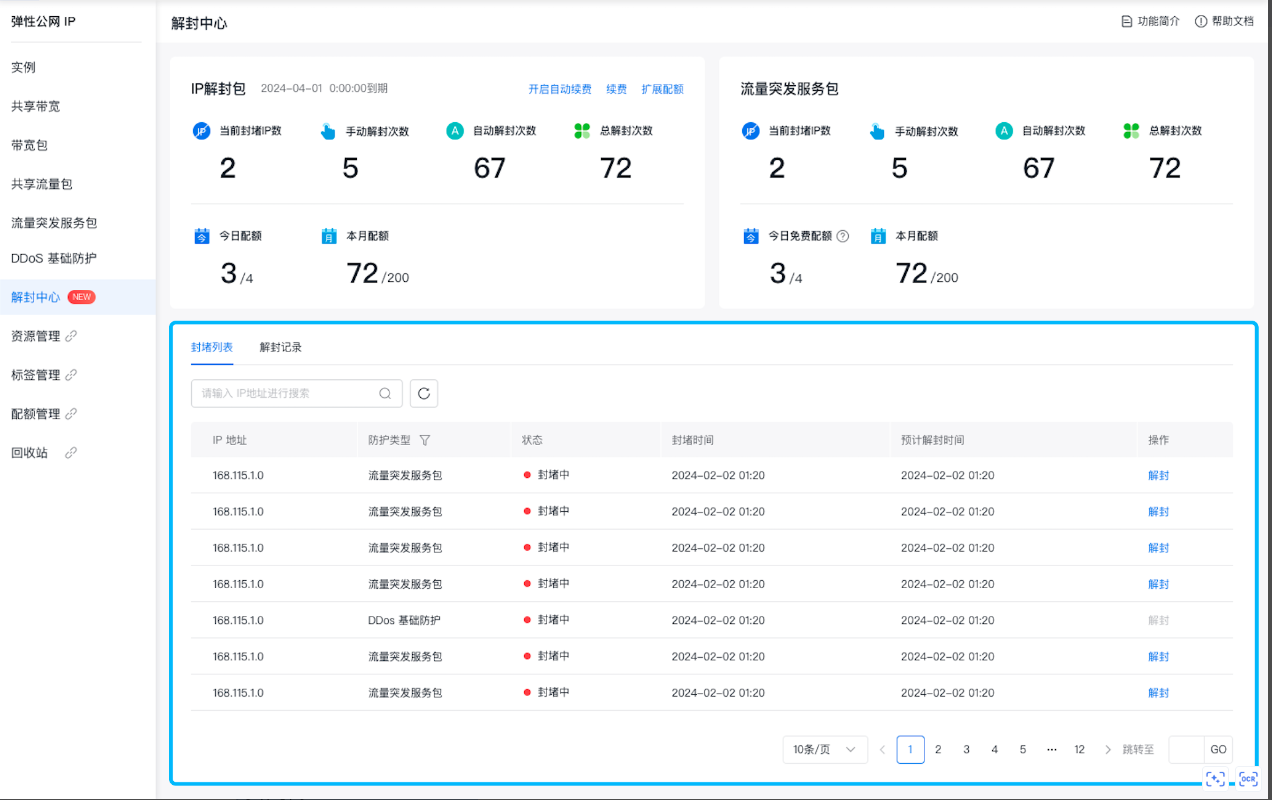
- Choose the IP instance you want to unblock and select Unblock.
- If a TBSP has been purchased and the quota has not been exhausted, unblocking will consume one TBSP quota
- If the TBSP is not purchased and only the IP unblocking package is available, unblocking will consume one quota of the IP unblocking package Note: The interval between two unblockings must exceed 30 minutes
- Click Unblocking Records to view the details of previously blocked IPs.
Purchase IP unblocking package
- Log in to the Management Console and navigate to the Elastic Public IP (EIP) service section.
- Added an Unblock Center section in the left navigation bar. Click Buy Now
on the IP unblocking package card
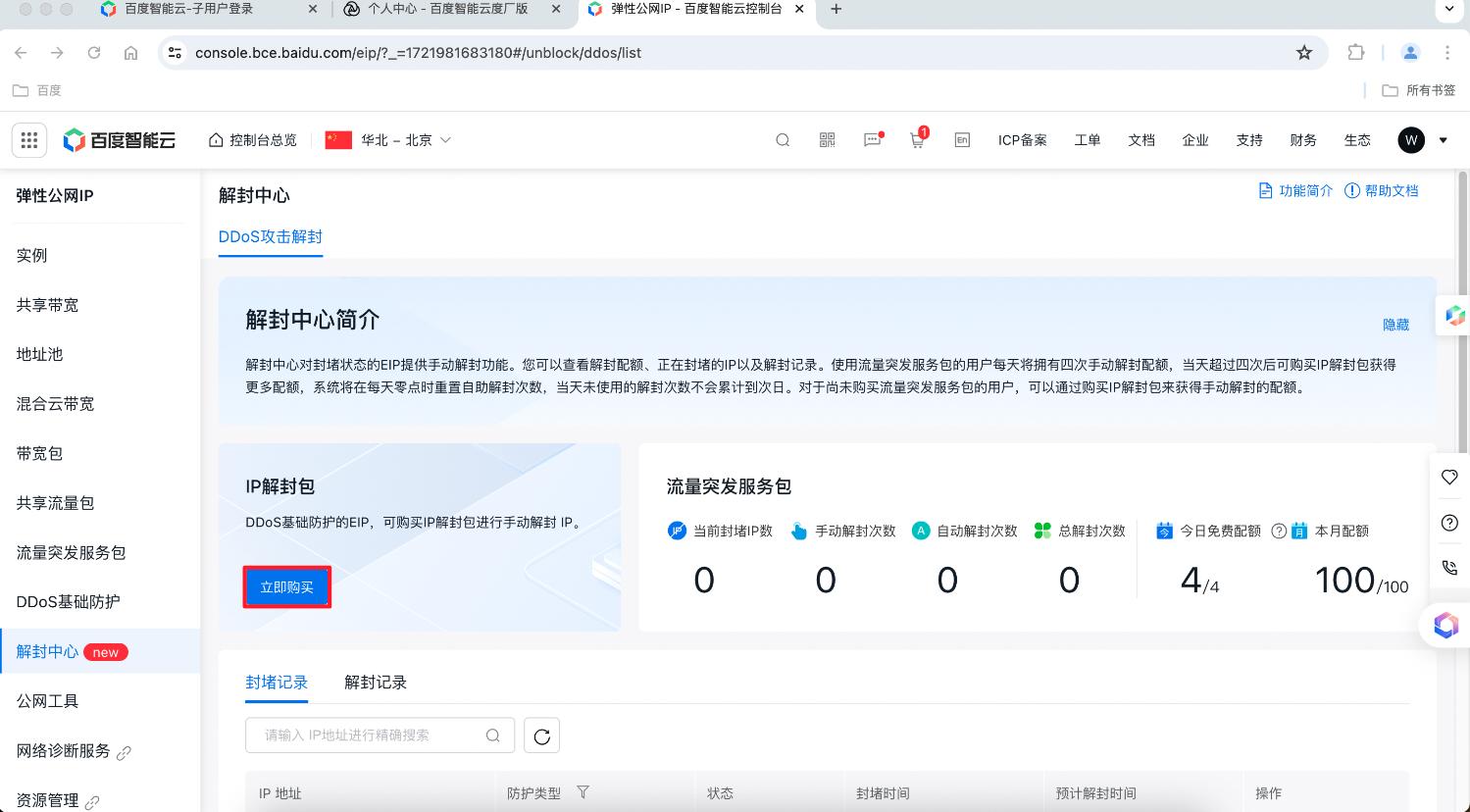
- Fill in the following information
| Parameter list | Description |
|---|---|
| Bill type | Subscription |
| Unblock method | Manual unblocking |
| Unblock resources | EIP |
| Protection type | DDoS standard protection |
| IP | Support IPv4 and IPv6 |
| Unblock quota | 10/month 30/month 50/month 100/month |
| Purchase period | 1 month/2 months/3 months/4 months/5 months/6 months/7 months/8 months/9 months/1 year/2 years/3 years (17% off for annual subscription) |
| Auto-renewal | Enable/disable (defaulted as disabled) |
- Confirm the information is correct and click Submit Order
Extend quota
- Log in to the Management Console and navigate to the Elastic Public IP (EIP) service section.
- In the Unblock Center found in the left navigation bar, click Extend Quota on the IP Unblock Package card to increase your unblocking limit.
Self-service unblocking for Port 25
Application scenarios
For specific scenarios requiring TCP Port 25 for external connections, this document explains the process for requesting Port 25 unblocking.
Usage restrictions
- You can unblock up to 5 EIP instances per region. To request a higher limit, go to Quota Management and apply for the quota named UnblockPort25EipQuota.
- Only prepaid (subscribed) EIP instances support unblocking; pay-as-you-go EIP instances are not eligible.
- For security considerations, lightweight Baidu Cloud Compute does not allow Port 25 unblocking.
Operation process
- Log in to the Unblocking Center console.
- Click Port 25 Unblock tab in the Unblock Center to enter the Overview page.
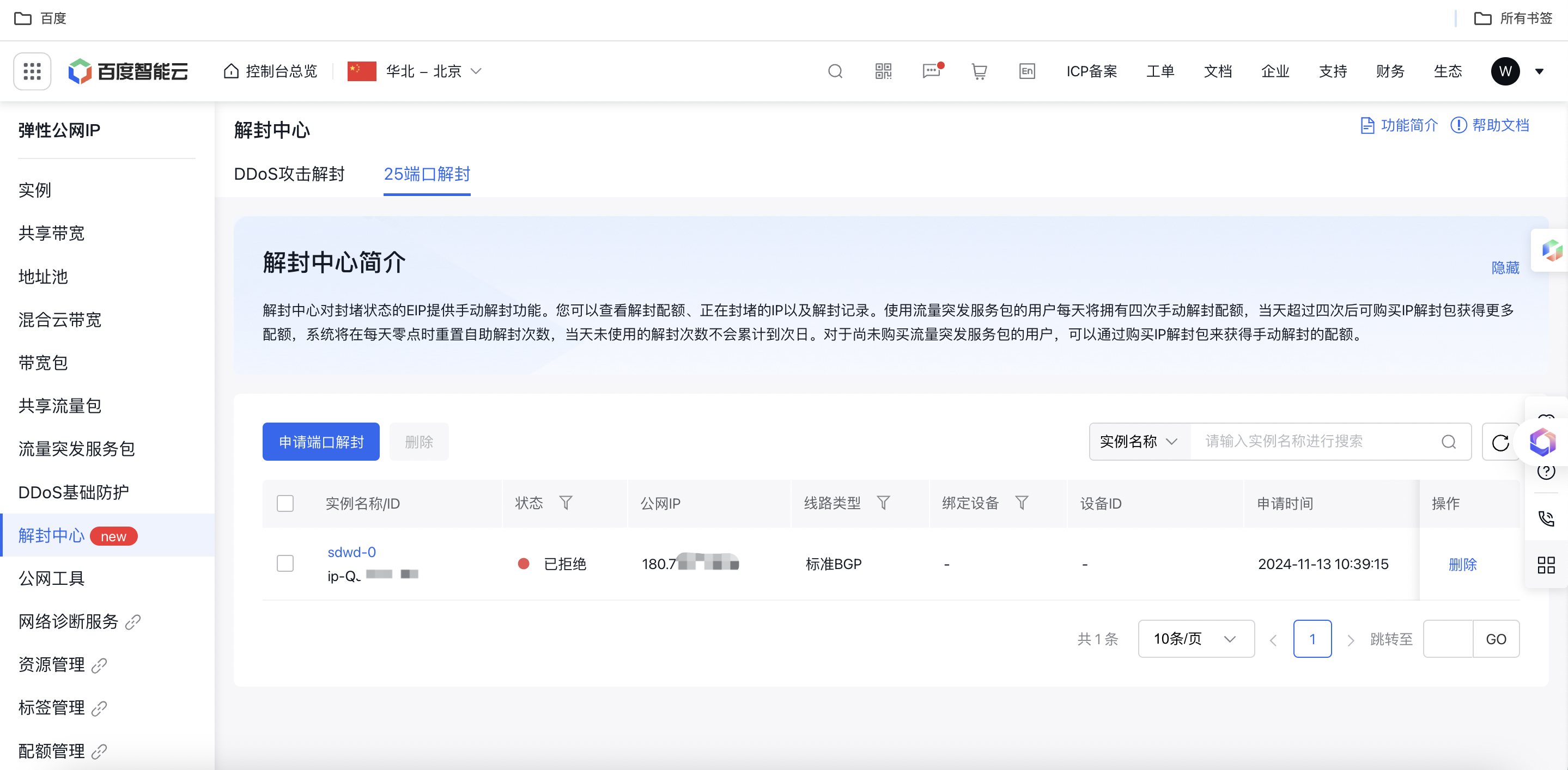
- Click Apply for Port Unblocking, then select the region and instance requiring Port 25 unblocking from the pop-up window.
- Click OK to submit the application. It typically takes about 2 business days. Please wait patiently for the platform administrator to process your request. The status page will display the approval result.