Protection Configuration
Updated at:2025-10-16
Cleaning threshold
When the traffic on an EIP exceeds normal levels, TBSP works to mitigate attack traffic and ensure service availability. Users can customize cleaning thresholds based on their regular traffic levels.
- Sign in to the Management Console and select Product Services - Network - EIP.
- Navigate to TBSP in the left-hand menu to view the TBSP list.
- Select the instance name to view details, and then choose Protection Policy from the left menu to modify policies.
- Go to the Cleaning Threshold tab to view the configuration page.
- Click on Modify Threshold to open a dialog box.
- Fill in the following configuration information:
| ConfigMap | Description |
|---|---|
| Threshold configuration method | Select the threshold setting method, with three options available:
|
| Cleaning trigger threshold | Users can customize the cleaning thresholds for traffic bandwidth (Mbps) as well as messages per second (pps) |
- After clicking OK, the cleaning threshold will be successfully updated.
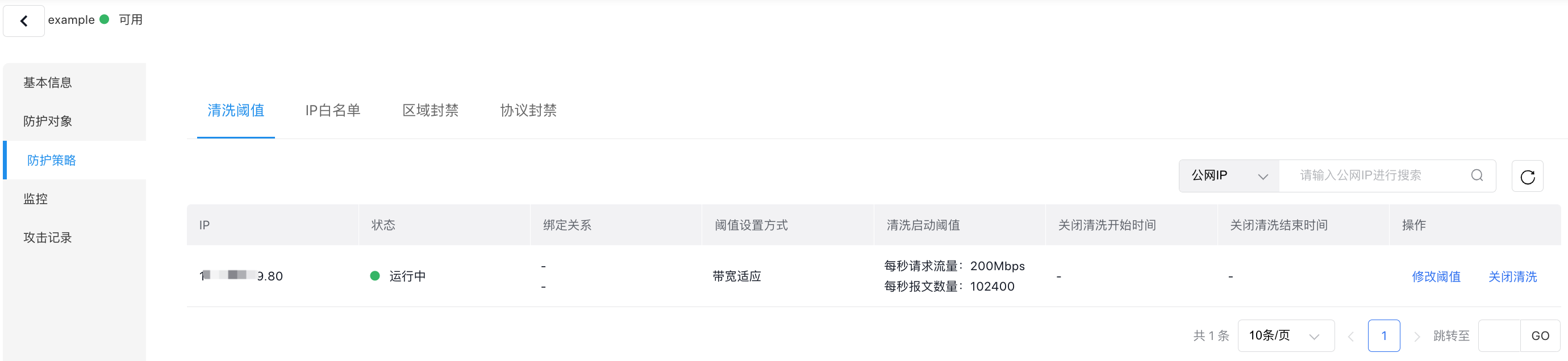
Description:
- The list allows configuring the ping-blocking switch. When turned on, ping packets are filtered, thereby reducing attack risks.
- When you purchase TBSP, you are entitled to a daily quota of 4 unblock operations at no additional cost.
IP allow list
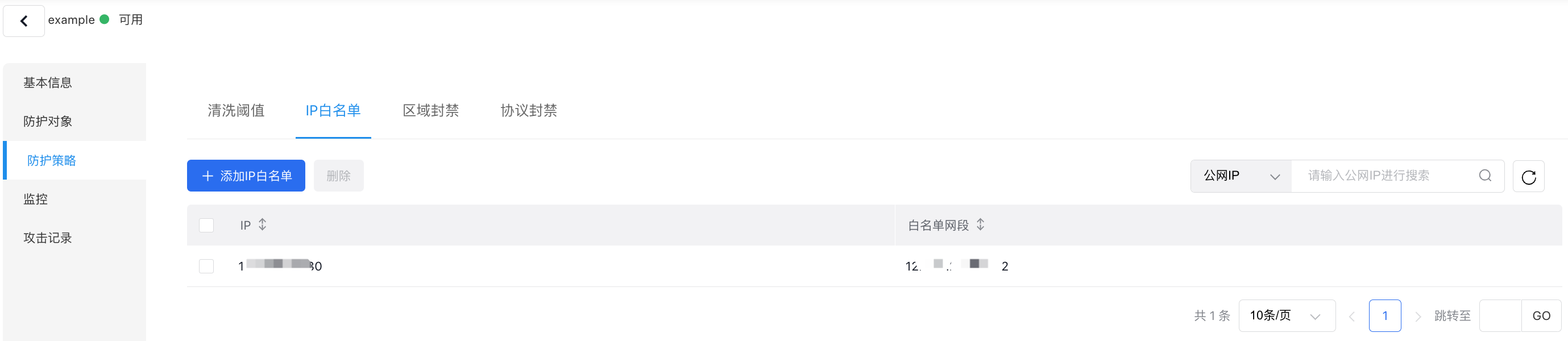
Set up an IP allow list to grant direct access to listed source IPs, bypassing protection filters.
- Sign in to the Management Console and select Product Services - Network - EIP.
- Navigate to TBSP in the left-hand menu to view the TBSP list.
- Select the instance name to view details, and then choose Protection Policy from the left menu to modify policies.
- Open the IP Allow List tab to manage its configuration.
- Select Add IP Allow List to display a pop-up window.
- Fill in the following configuration information:
| ConfigMap | Description |
|---|---|
| IP | Select the IP to be protected |
| Allow list network segment | Users can add IPs or network segments |
- Click OK to finalize adding an entry to the IP allow list.
Region blocking
By adding the EIP to TBSP, you can configure region blocking to automatically discard cross-border traffic.
- Sign in to the Management Console and select Product Services - Network - EIP.
- Navigate to TBSP in the left-hand menu to view the TBSP list.
- Select the instance name to view details, and then choose Protection Policy from the left menu to modify policies.
- Go to the Region Blocking tab to manage its configuration.
- Select Add Region Blocking to open a dialog box.
- Fill in the following configuration information:
| ConfigMap | Description |
|---|---|
| Blocked region | The blocked region is set to overseas areas by default, discarding cross-border service traffic |
| IP | Select the IP to be protected |
| Set block duration | Available time range: 30 minutes to 1 day. Block duration cannot be modified after configuration |
- Click OK to complete the addition of the region block.
Description:
- Each traffic burst package instance is allocated a default limit of 10 traffic block triggers every month.

Protocol Blocking
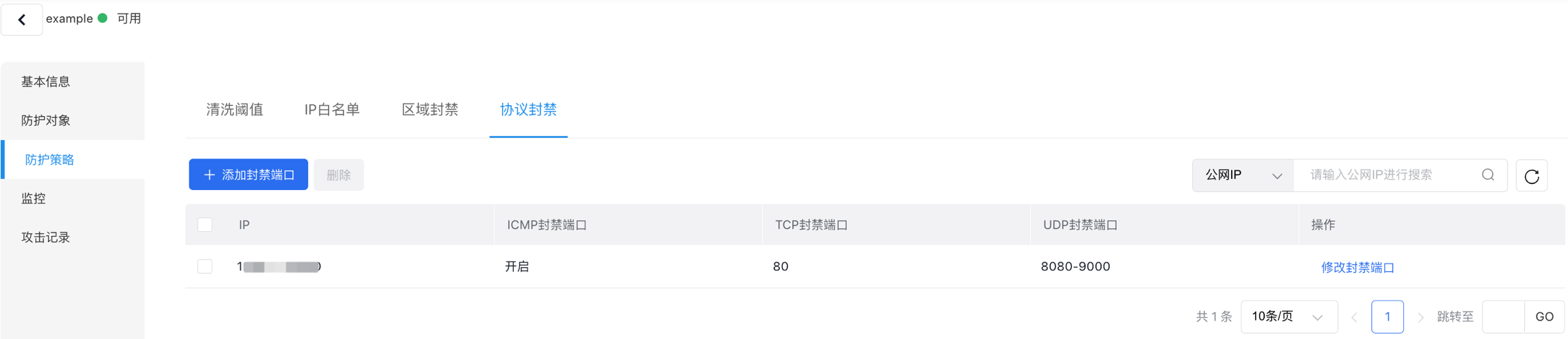
Users can set up ICMP blocks and TCP/UDP blocked ports for protected IPs. Once configured, any associated attack traffic requests will be blocked during link probes.
- Sign in to the Management Console and select Product Services - Network - EIP.
- Navigate to TBSP in the left-hand menu to view the TBSP list.
- Select the instance name to view details, and then choose Protection Policy from the left menu to modify policies.
- Go to the Protocol Blocking tab to access the protocol blocking configuration page.
- Select Add Region Blocking to open a dialog box.
- Fill in the following configuration information:
| ConfigMap | Description |
|---|---|
| IP | Select the IP to be protected |
| ICMP block | Disabled by default; it blocks ICMP protocol after being enabled |
| TCP port block | Defaulted as disabled. When enabled, enter TCP ports to block TCP ports, with specific ports and port ranges supported, e.g., 80, 8080-9000 |
| UDP port block | Defaulted as disabled. When enabled, enter UDP ports to block UDP ports, with specific ports and port ranges supported, e.g., 80, 8080-9000 |
- Click OK to complete the process of adding the protocol block.