Tag Management

EIP

  • API Reference
    • API function release records
    • API Service Domain Name
    • API Specifications
    • Appendix 1
    • Bandwidth Package Related Interfaces
      • Adjust the bandwidth of the bandwidth package
      • Create bandwidth package
      • Query bandwidth package details
      • Query bandwidth package list information of users
      • Release bandwidth package
      • Update the automatic release time of the bandwidth package
      • Update the name of the bandwidth package
    • DDoS Basic Protection Related Interfaces
      • Modify DDoS basic protection threshold
      • Query DDoS Basic Protection Attack Records
      • Query DDoS basic protection list
    • EIP Related Interfaces
      • Apply for EIP
      • Bind EIP
      • Disable EIP direct
      • EIP bandwidth scaling
      • EIP renewal has been enabled
      • Enable EIP direct
      • Query EIP list in bucket trash
      • Query EIP list
      • Release EIP
      • Release EIPs in the bucket trash
      • Renew EIP
      • Restore EIPs in the bucket trash
      • Selective release of EIP
      • Unbind EIP
      • Unsubscribe prepaid EIP
      • Update EIP Release Protection Switch
    • Error code
    • General Description
    • Inquiry Related
      • Bandwidth package price inquiry
      • EIP Inquiry
      • EIPGROUP Inquiry
      • Shared Traffic Package Inquiry
    • Interface Overview
    • Overview
    • Prerequisites for use
    • Shared Bandwidth Related Interfaces
      • Bandwidth scaling up for EIPGROUP
      • Create EIPGROUP
      • EIPGROUP IP count upgrade
      • EIPGROUP release
      • EIPGROUP renewal
      • EIPGROUP update
      • Migrate EIP from EIPGROUP
      • Migrate EIP into EIPGROUP
      • Query EIPGROUP details
      • Query the EIPGROUP list
      • Unsubscribe prepaid EIPGROUP
    • Shared Traffic Package Related Interfaces
      • Create a shared traffic package
      • Query shared traffic package details
      • Query shared traffic package list
    • TBSP Related Interfaces
      • Add Protection IP Allow List
      • Add Protocol Blocking
      • Add Region Blocking
      • Bind Protection Object
      • Close Protection IP Cleaning
      • Create TBSP
      • Delete Protection IP Allow List
      • Delete Protection Object
      • Delete Protocol Blocking
      • Delete Region Blocking
      • Modify Protection IP Cleaning Threshold
      • Modify Protection IP Protection Level
      • Open Protection IP Cleaning
      • Query Protection IP Allow List
      • Query Protection IP Cleaning Threshold List
      • Query Protocol Blocking List
      • Query Region Blocking List
      • Query TBSP Details
      • Query TBSP List
      • TBSP Capacity dilatation
      • TBSP renew
  • FAQs
    • Billing class
    • Configuration
    • Consultation
    • Security class
  • Function Release Records
  • Operation guide
    • Address pool
    • Bandwidth package
      • Bandwidth scale-up package
      • Cross-border acceleration package
    • Certification
    • DDoS standard protection
    • EIP Instance
      • Create instance
      • EIP Direct Connect
      • IPv6 Termination
      • Manage Alarms
      • Operation Instance
      • Shift Charge
      • View monitoring
    • EIP Self-Service Diagnostics
      • EIP Instance Diagnosis
    • EIPGROUP
      • Bind cloud resources
      • Manage Shared Bandwidth
      • Purchase Shared Bandwidth
      • View monitoring
    • High Defense EIP
    • Identity and access management
    • Recycle bin
    • Shared traffic package
      • Purchase Shared Traffic Package
      • View Shared Traffic Package
    • Tag Management
    • Traffic Burst Service Package
      • Instance management
      • Monitor alarm
      • Protection Configuration
    • Unblocking Center
  • Product Description
    • Application scenarios
    • Product advantages
    • Product Introduction
    • Usage restrictions
  • Product pricing
    • Bandwidth Package Billing
    • EIP Instance Billing
    • EIPGROUP Billing
    • Shared Traffic Package Billing
    • TBSP Billing
  • SDK
    • GO-SDK
      • DDoS Instance
      • EIP Instance
      • EipBp Instance
      • EIPGROUP Instance
      • EipTp Instance
      • Exception handling
      • Initialization
      • Install the SDK Package
      • Overview
    • Java-SDK
      • EIP Instance
      • EipBP Instance
      • EIPGROUP Instance
      • EipTp Instance
      • Exception handling
      • Initialization
      • Install the SDK Package
      • Overview
      • Version history
    • PHP-SDK
      • EIP Instance
      • EipBP Instance
      • EIPGROUP Instance
      • Exception handling
      • Initialization
      • Install the SDK Package
      • Overview
      • Version history
    • Python-SDK
      • EIP Instance
      • EipBP Instance
      • EIPGROUP Instance
      • EipTp Instance
      • Exception handling
      • Initialization
      • Install the SDK Package
      • Overview
      • Version history
  • Service Level Agreement (SLA)
    • EIP Service Level Agreement SLA
    • TBSP Service Level Agreement SLA
  • Typical Practices
    • Bring Your Own Overseas Public IP Address to the Cloud
    • IPv6 Public Network Access
    • Save Public Network Costs
    • TCP Port 25 Restriction Description
All documents
menu
No results found, please re-enter

EIP

  • API Reference
    • API function release records
    • API Service Domain Name
    • API Specifications
    • Appendix 1
    • Bandwidth Package Related Interfaces
      • Adjust the bandwidth of the bandwidth package
      • Create bandwidth package
      • Query bandwidth package details
      • Query bandwidth package list information of users
      • Release bandwidth package
      • Update the automatic release time of the bandwidth package
      • Update the name of the bandwidth package
    • DDoS Basic Protection Related Interfaces
      • Modify DDoS basic protection threshold
      • Query DDoS Basic Protection Attack Records
      • Query DDoS basic protection list
    • EIP Related Interfaces
      • Apply for EIP
      • Bind EIP
      • Disable EIP direct
      • EIP bandwidth scaling
      • EIP renewal has been enabled
      • Enable EIP direct
      • Query EIP list in bucket trash
      • Query EIP list
      • Release EIP
      • Release EIPs in the bucket trash
      • Renew EIP
      • Restore EIPs in the bucket trash
      • Selective release of EIP
      • Unbind EIP
      • Unsubscribe prepaid EIP
      • Update EIP Release Protection Switch
    • Error code
    • General Description
    • Inquiry Related
      • Bandwidth package price inquiry
      • EIP Inquiry
      • EIPGROUP Inquiry
      • Shared Traffic Package Inquiry
    • Interface Overview
    • Overview
    • Prerequisites for use
    • Shared Bandwidth Related Interfaces
      • Bandwidth scaling up for EIPGROUP
      • Create EIPGROUP
      • EIPGROUP IP count upgrade
      • EIPGROUP release
      • EIPGROUP renewal
      • EIPGROUP update
      • Migrate EIP from EIPGROUP
      • Migrate EIP into EIPGROUP
      • Query EIPGROUP details
      • Query the EIPGROUP list
      • Unsubscribe prepaid EIPGROUP
    • Shared Traffic Package Related Interfaces
      • Create a shared traffic package
      • Query shared traffic package details
      • Query shared traffic package list
    • TBSP Related Interfaces
      • Add Protection IP Allow List
      • Add Protocol Blocking
      • Add Region Blocking
      • Bind Protection Object
      • Close Protection IP Cleaning
      • Create TBSP
      • Delete Protection IP Allow List
      • Delete Protection Object
      • Delete Protocol Blocking
      • Delete Region Blocking
      • Modify Protection IP Cleaning Threshold
      • Modify Protection IP Protection Level
      • Open Protection IP Cleaning
      • Query Protection IP Allow List
      • Query Protection IP Cleaning Threshold List
      • Query Protocol Blocking List
      • Query Region Blocking List
      • Query TBSP Details
      • Query TBSP List
      • TBSP Capacity dilatation
      • TBSP renew
  • FAQs
    • Billing class
    • Configuration
    • Consultation
    • Security class
  • Function Release Records
  • Operation guide
    • Address pool
    • Bandwidth package
      • Bandwidth scale-up package
      • Cross-border acceleration package
    • Certification
    • DDoS standard protection
    • EIP Instance
      • Create instance
      • EIP Direct Connect
      • IPv6 Termination
      • Manage Alarms
      • Operation Instance
      • Shift Charge
      • View monitoring
    • EIP Self-Service Diagnostics
      • EIP Instance Diagnosis
    • EIPGROUP
      • Bind cloud resources
      • Manage Shared Bandwidth
      • Purchase Shared Bandwidth
      • View monitoring
    • High Defense EIP
    • Identity and access management
    • Recycle bin
    • Shared traffic package
      • Purchase Shared Traffic Package
      • View Shared Traffic Package
    • Tag Management
    • Traffic Burst Service Package
      • Instance management
      • Monitor alarm
      • Protection Configuration
    • Unblocking Center
  • Product Description
    • Application scenarios
    • Product advantages
    • Product Introduction
    • Usage restrictions
  • Product pricing
    • Bandwidth Package Billing
    • EIP Instance Billing
    • EIPGROUP Billing
    • Shared Traffic Package Billing
    • TBSP Billing
  • SDK
    • GO-SDK
      • DDoS Instance
      • EIP Instance
      • EipBp Instance
      • EIPGROUP Instance
      • EipTp Instance
      • Exception handling
      • Initialization
      • Install the SDK Package
      • Overview
    • Java-SDK
      • EIP Instance
      • EipBP Instance
      • EIPGROUP Instance
      • EipTp Instance
      • Exception handling
      • Initialization
      • Install the SDK Package
      • Overview
      • Version history
    • PHP-SDK
      • EIP Instance
      • EipBP Instance
      • EIPGROUP Instance
      • Exception handling
      • Initialization
      • Install the SDK Package
      • Overview
      • Version history
    • Python-SDK
      • EIP Instance
      • EipBP Instance
      • EIPGROUP Instance
      • EipTp Instance
      • Exception handling
      • Initialization
      • Install the SDK Package
      • Overview
      • Version history
  • Service Level Agreement (SLA)
    • EIP Service Level Agreement SLA
    • TBSP Service Level Agreement SLA
  • Typical Practices
    • Bring Your Own Overseas Public IP Address to the Cloud
    • IPv6 Public Network Access
    • Save Public Network Costs
    • TCP Port 25 Restriction Description
  • Document center
  • arrow
  • EIP
  • arrow
  • Operation guide
  • arrow
  • Tag Management
Table of contents on this page
  • Overview
  • Add tag
  • Tag search and deletion
  • Resource bill

Tag Management

Updated at:2025-10-16

Overview

Baidu AI Cloud offers a Tag Management feature, allowing you to quickly categorize and manage cloud resources by assigning tags to each one. Baidu AI Cloud supports tag management for EIP instances and EIPGROUPs. Here, EIP is used as an example for demonstration.

Before using tags, you need to know:

  • Tag: Each tag includes a key and a value. The combination of the key and value must be unique.
  • Single and batch: Supports tagging individual resources or applying tags to multiple cloud resources in batch.
  • Sorting and searching: Supports locating and sorting resources using tags (keys and values).
  • Cross-product tagging: Tags can be shared across different product lines.

Usage restrictions Each user can create up to 200 tags.

Add tag

If you manage multiple EIPs, you can assign tags to EIP instances based on project or scenario needs to simplify classification, identification, and management of instances.

Operation step:

  1. Log in to the Management Console and navigate to Product Services > Networking > EIP.
  2. Click Instance in the left navigation bar to access the Instance List page.
  3. Select one or more instances and click Edit Tags in the operation bar.
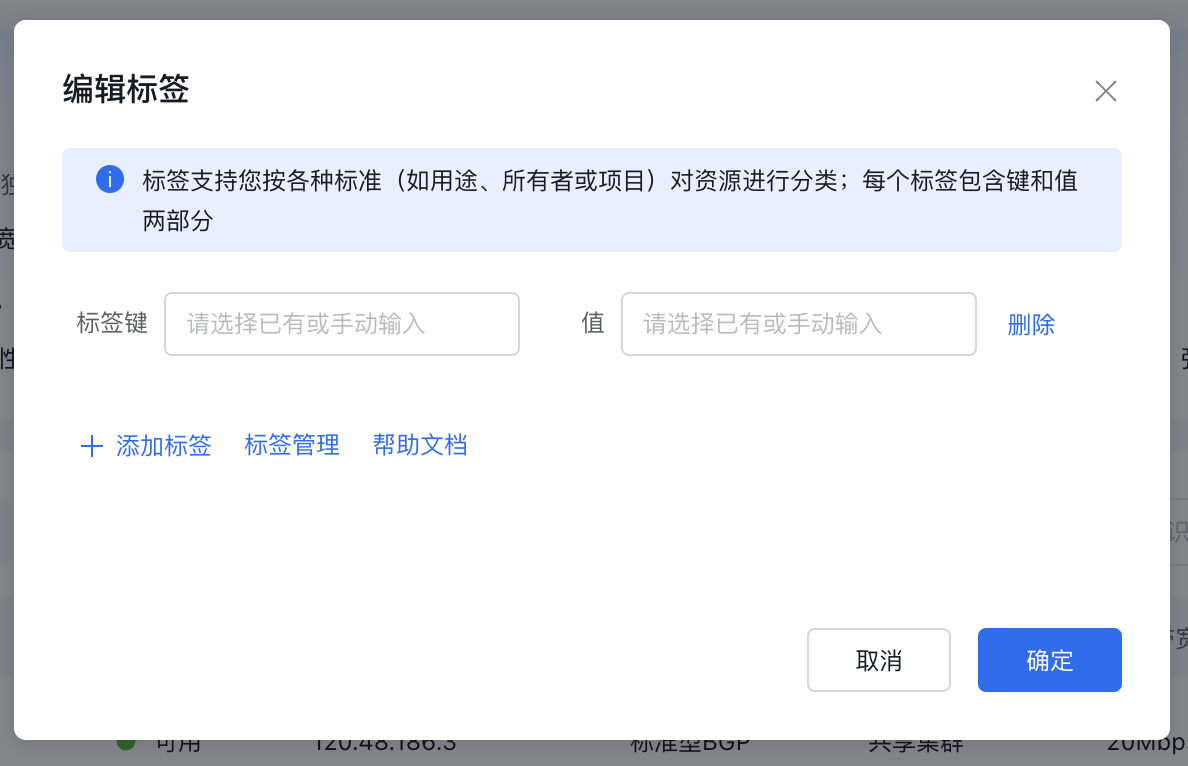
  4. In the pop-up dialog box, enter the custom label key and label value. Note that the "Key" must be unique, and the value can be left blank.
  5. Click OK to complete the tag creation.
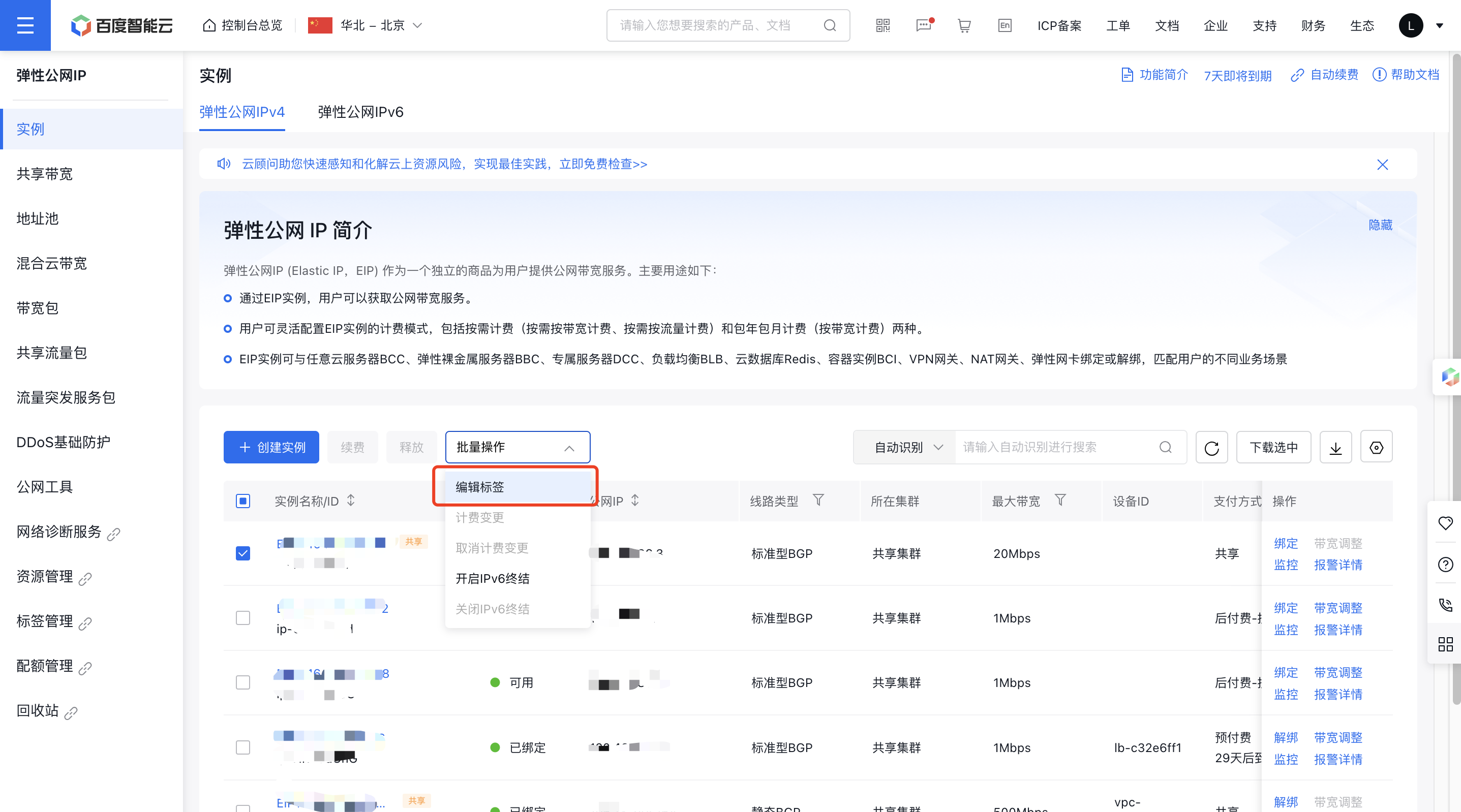
image.png

image.png

Notes: When creating instance tags in batch, you cannot view the single instance tag that has been added.

Tag search and deletion

Tag Search

Perform a tag search by combining filter criteria to find precise EIP results. Filters can include tag keys and tag values:
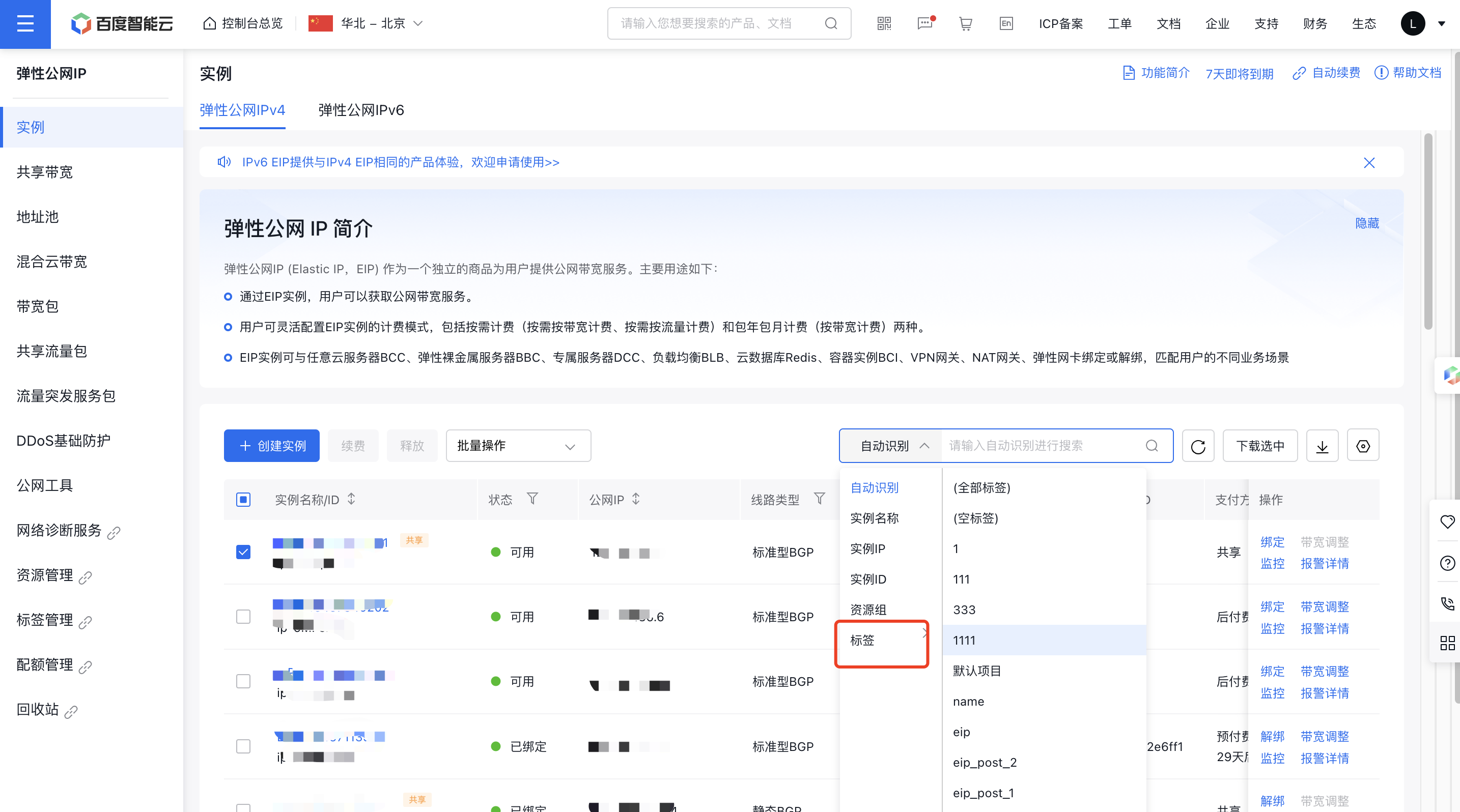
image.png

Delete tag

If you no longer need certain tags, you can delete them.

  1. Click Tag Management in the left navigation bar, select a tag name on the Tag List page, and then click Delete in the operation bar.
  2. In the pop-up dialog, click OK to delete the tag. Once it’s deleted, the tag cannot be recovered, and the system will automatically unbind it from the associated resources.

Resource bill

The resource bill function records the lifecycle and consumption data of each resource, allowing users to view resource and product consumption data by resource dimension.

Operation step:

  1. Log in to the Management Console and navigate to Product Services > Networking > EIP.
  2. Click Tag Management in the left navigation bar to access the Tag List page.
  3. Select a tag and click View Bill in the operation bar.
  4. Go to the Resource Bill page and select the desired month to view the bill. Current tagged resources' consumption data will be displayed. You can also search tags by combining filter criteria, view consumption details for other tags using their tag key and value, and download the related information.

    Note: You can also retrieve information by instance ID to view the instance’s consumption details.
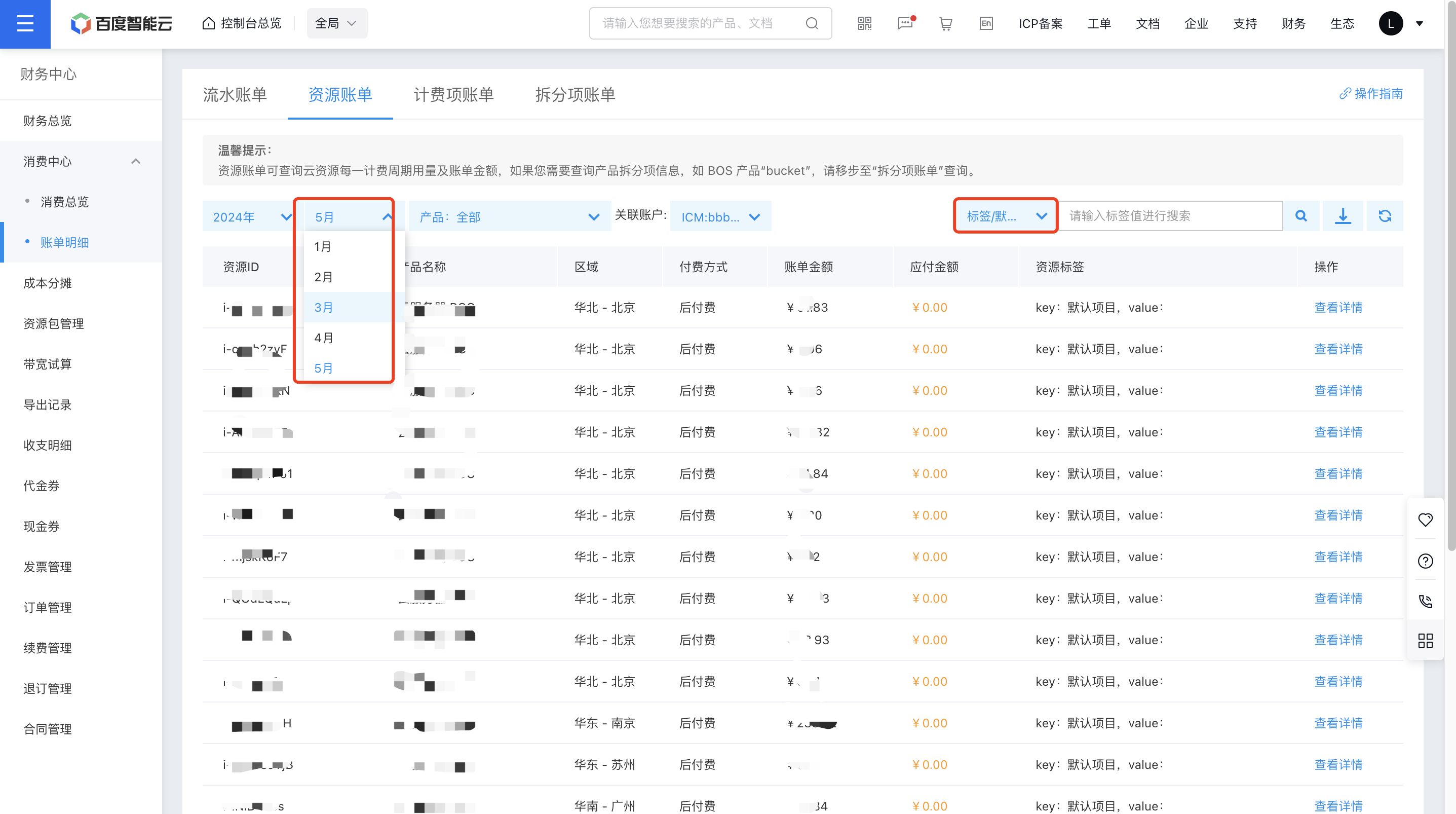
image.png

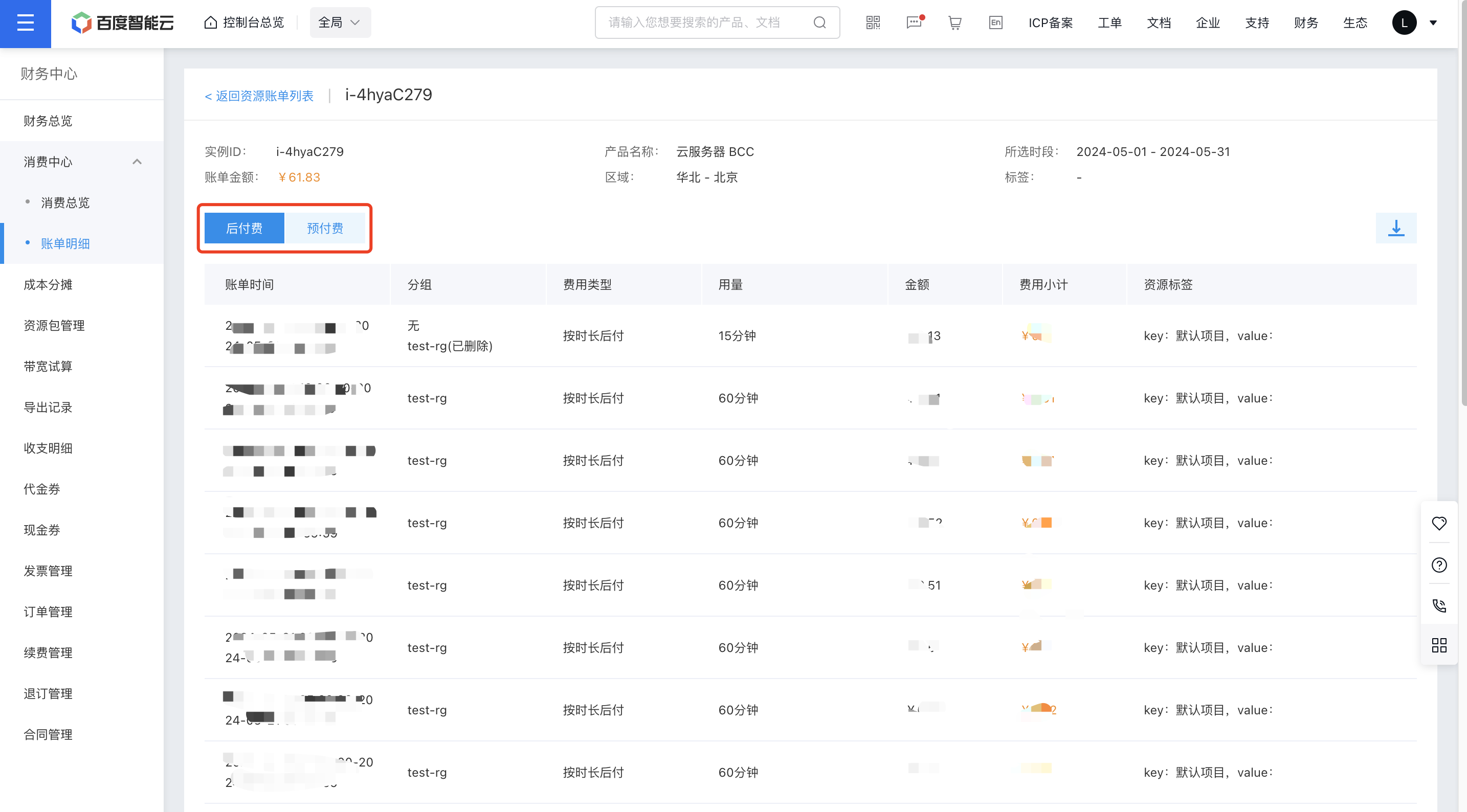
  1. Click View Details to view the instance ID, product name, and bill amount. There may be both prepaid and postpaid instances, so the postpayment bill and the prepayment bill will be displayed in separate tabs by clicking View Instance Details. image.png > Notes > Because prepay incurs one-time deduction of fees, the consumption information will only be displayed in the month of creation, while the postpay involves continuous deduction of fees, and the consumption information will be displayed during usage period.
Previous
Shared traffic package
Next
Traffic Burst Service Package