View Route Entry
Updated at:2025-11-11
Operation scenarios
Once the CSN route table configuration is complete, check the console to verify whether the added routing entries have taken effect.
Operation steps
- Sign in to the Cloud Smart Network Console.
- Click on the name of the CSN instance to access its basic information page.
In the Route Table List tab, click the route table ID to view the route table details.
- On the Routing Entries tab of the route table details page, view the routing entry information of the current route table.
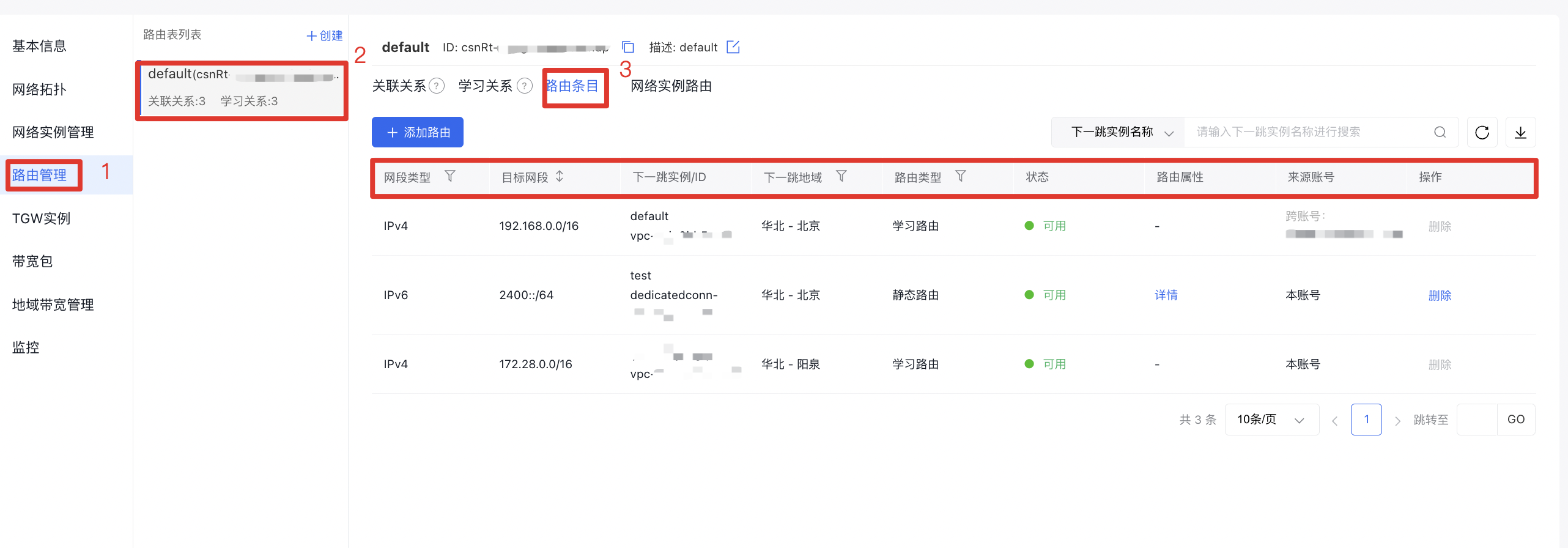
| Field | Description |
|---|---|
| Segment type | Displays the segment type of the route: IPv4 Segment or IPv6 Segment |
| Destination segment | Shows the destination segment of the routing entry. |
| Next-hop instance / ID | Displays the network instance and its ID associated with the next hop of the routing entry |
| Next-hop region | Displays the region of the network instance associated with the next hop of the routing entry |
| Route type | Display type of the route entry.Learned route: Routes learned through Cloud Smart Network. Static route: User-defined routes. |
| Status | Displays the status of the routing entry. |
| Route attribute | Shows the attributes of the routing entry. |
| Source account | Displays the account responsible for generating the current route. |
| Operation | The “Delete” operation is available. Only Static Route entries can be deleted here; to delete Learned Route entries, you need to remove the learning relationship in the learning relationship section. |
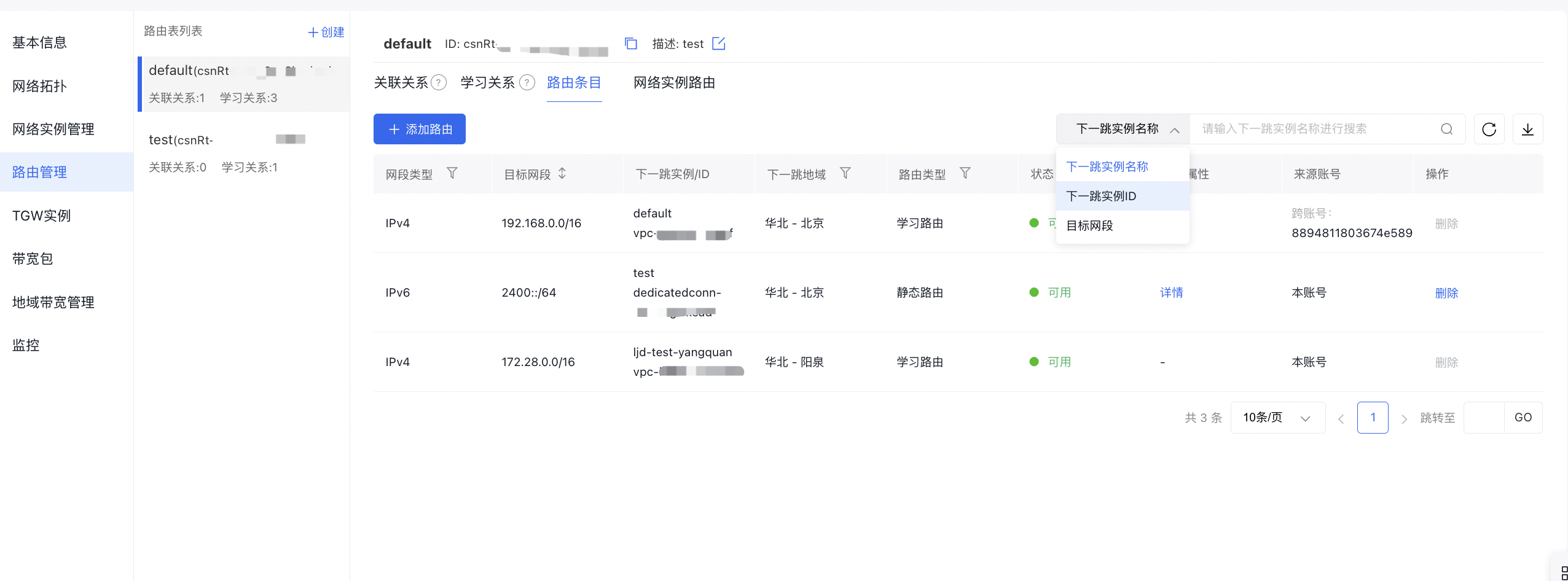
- When there are a large number of routing entries, you can search and view routing information by Next-Hop Instance Name, Next-Hop Instance ID, or Destination Segment.
Related documents
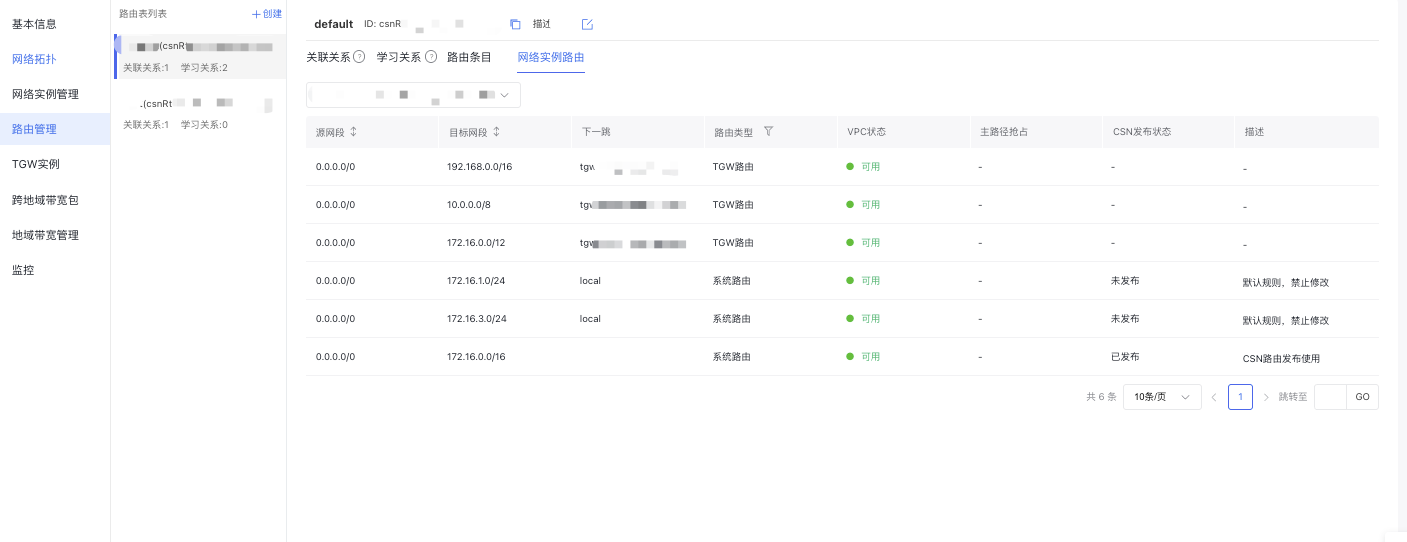
View network instance routes
In route management, you can directly view the routing entries for network instances without switching to the VPC console to query routing details.