

Create affiliation
Updated at:2025-11-11
Operation scenarios
After adding a network instance, configure an association to bind it to the target CSN route table. Upon completion, you can query the CSN route table entries to enable traffic forwarding for the network instance.
Operation steps
- Sign in to the Cloud Smart Network Console.
- Click on the name of the CSN instance to access its basic information page.
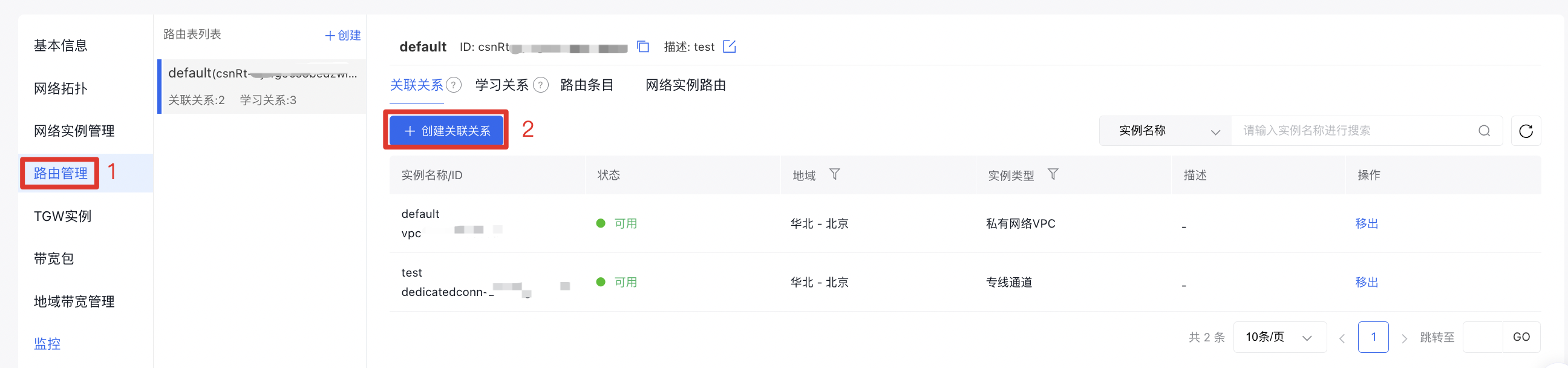
- In the left navigation bar, click Route Management to navigate to the route management page of the CSN instance.
- Click Create Association Relationship to open a popup window.
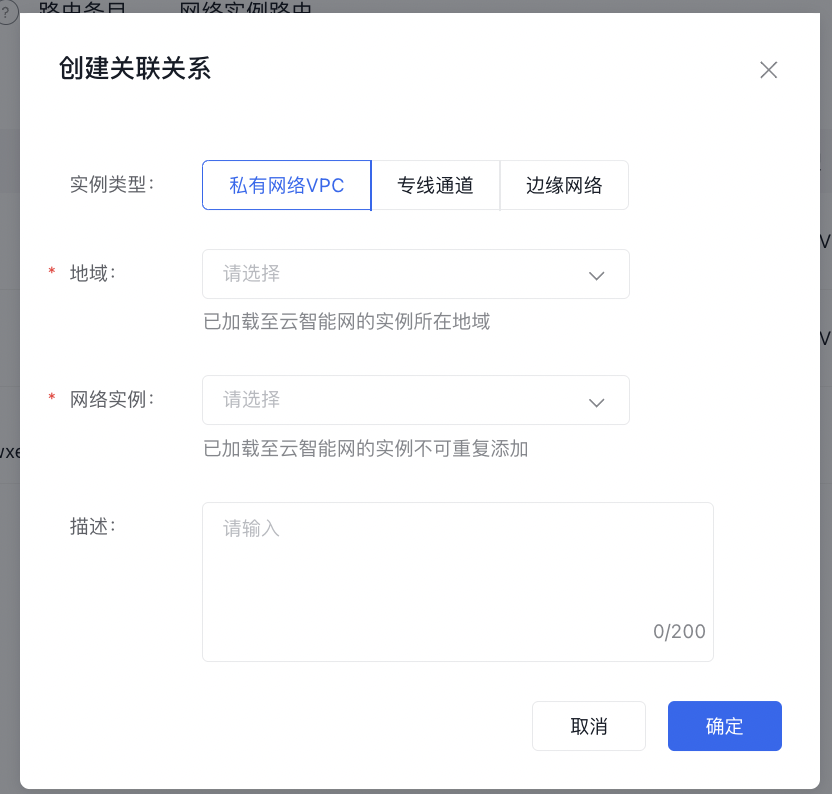
- Fill in the following configuration information:
| ConfigMap | Description |
|---|---|
| Instance type | Select the type of network instance to be associated. The supported types are Virtual Private Cloud (VPC), dedicated channel, and edge network |
| Region | Select the region where the network instance to be associated is located |
| Network instance | Select the network instance to be associated with this route table. After association, the network instance connection will forward traffic by querying this route table. Instances already loaded into Cloud Smart Network cannot be added repeatedly |
| Description | Edit the description of the association relationship (no more than 200 characters) |
- Click OK to finalize the creation of the association relationship.