

Fault Drill
Updated at:2025-11-11
The Express Tunnel (ET) fault drill feature simulates failure scenarios. For example, in failover situations where one or more links fail in a primary/backup or load-balancing setup, network traffic will automatically switch to redundant links. This tool helps users test and validate the reliability of the hybrid cloud network between the user and Baidu AI Cloud.
Note:
- In fault drills, the resources being drilled will be disabled to place them in an artificially constructed fault state. Please ensure that the drill resources have been redundantly configured; otherwise, it will cause service interruption.
- During fault drills, there is some latency in the resource status display on the console, but it does not affect the timeliness of underlying resource status switching.
Application scenarios
- Check link reliability: When users add new Express Tunnel access to their data center, they can use fault drills to confirm the effectiveness of disaster recovery failover across multiple lines.
- Diagnose faults: If a line fails and requires segment-by-segment troubleshooting, fault drill can simulate failure points to identify the root cause.
Resources supporting fault drills
Resources available for fault drills include physical dedicated lines and dedicated channels.
- When performing physical dedicated line drills, the physical port of the line will be temporarily disabled.
- During dedicated channel drills, the VLAN port will be disabled.
Restrictions and quota
Functional restrictions
- Each Baidu AI Cloud account can only support one parallel task per region.
- Each drill resource can be associated with only one ongoing drill task.
- Instance types within the same task must remain uniform.
-
The following scenarios do not support fault drills:
- There is at least one cross-account dedicated channel attached to the physical dedicated line instance.
- Physical dedicated lines or dedicated channel instances are either active with incomplete tasks or inactive due to expiration.
Quota
By default, each user can create up to 20 dedicated line drill tasks. If the quota is insufficient, users can apply for additional quota through Quota management.
Drill process
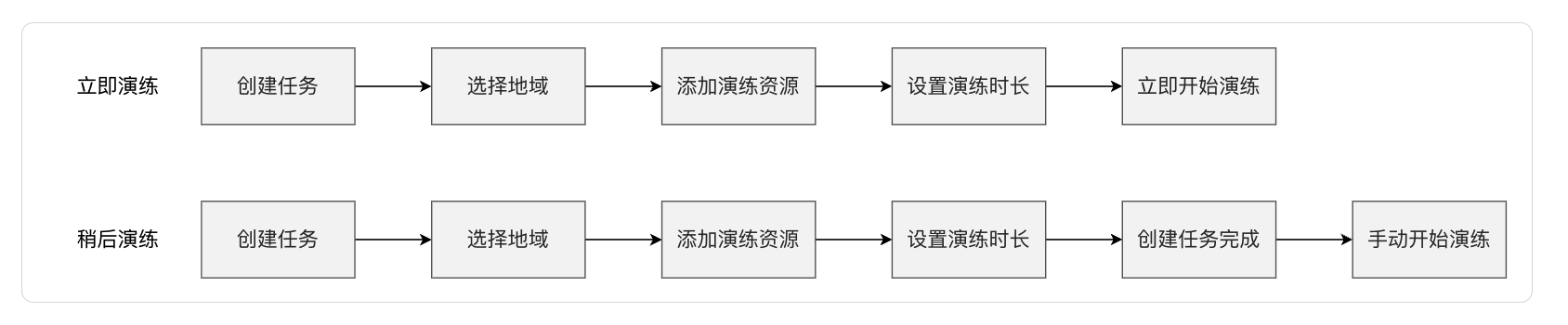
Create fault drill task
- Log in to the Express Tunnel (ET) Console.
- From the left navigation bar, select Fault Drill.
- In the Fault Drill - Task List tab, click Create Task. On the Task Creation page, configure the parameters as needed, and then click OK.
| ConfigMap | Description |
|---|---|
| Task name | Provide a name for the fault drill. |
| Region | Choose the region where the drill resources are located. |
| Drill resources | Select the drill resources to test. Supported resources include physical dedicated lines and dedicated channels. |
| List of instances | Pick the resource instance for testing. The selected instances will appear in the Selected Instances section on the right. Note: Resources with overdue payments or currently executing tasks are not eligible for selection. |
| Drill method | Choose the drill method. Options: Immediate execution: The drill starts immediately after creation. Later execution: The task is created without starting instantly. |
| Task duration | Specify the duration of the drill task. The duration can range from a minimum of 1 minute to a maximum of 72 hours. |
| Description | Provide a description for the fault drill. |
Note:
- Only one drill task with the status of uncompleted status is allowed per user per region.
View fault drill tasks
- Log in to the Express Tunnel (ET) Console.
- From the left navigation bar, select Fault Drill.
- In the Fault Drill - Task List tab, find the desired drill task and check its status in the Task Status column. Fault drill tasks can have the following statuses:
- Pending Execution: The task has been created and is awaiting initiation.
- Starting: The drill execution has been triggered and is in the initial stages.
- In Progress: The task is currently running and can be stopped manually.
- Completion: Drill execution has finished, and the status has been updated.
- Completion: The task drill is now fully done. It will automatically finish upon reaching the set duration or can be manually stopped.
- Click on the name of the target drill task to go to the Task Details page.
- Click on the instance name of the target resource to access its instance list.
More operations
Edit fault drill task
- Log in to the Express Tunnel (ET) Console.
- From the left navigation bar, select Fault Drill.
- In the Fault Drill - Task List tab, find the target drill task and click "Edit" in the operation column to update the task name, instance list, drill method, drill duration, and description.
Note:
- Only supports editing tasks with "pending execution" status.
Start the fault drill task
- Log in to the Express Tunnel (ET) Console.
- From the left navigation bar, select Fault Drill.
- In the Fault Drill - Task List tab, find the target drill task and click "Start Drill" in the operation column.
- Click "Start Drill" in the pop-up dialog box.
Note:
- Only supports starting tasks with "pending execution" status.
Terminate fault drill task
- Log in to the Express Tunnel (ET) Console.
- From the left navigation bar, select Fault Drill.
- In the Fault Drill - Task List tab, find the target drill task and click "End Drill" in the operation column.
- Afterwards, click "Confirm" in the pop-up dialog box.
Note:
- Only supports ending tasks with "drilling" status.
Delete fault drill task
- Log in to the Express Tunnel (ET) Console.
- From the left navigation bar, select Fault Drill.
- In the Fault Drill - Task List tab, find the target drill task and click "Delete" in the operation column.
- Afterwards, click "Confirm" in the pop-up dialog box.
Note:
- Only supports deleting tasks with "completed" and "to be drilled" status.
View the latest fault task report
- Log in to the Express Tunnel (ET) Console.
- From the left navigation bar, select Fault Drill.
- In the Fault Drill - Task List tab, find the target drill task and click "View Report" in the operation column.
- On the "View Report" tab, users can access the latest task report.
- If the task result indicates "abnormal," users can choose to retrieve the report again from the "View Report" tab. Note: Reports cannot be retrieved again if the drill task ended more than two days ago.
View all fault drill reports
- Log in to the Express Tunnel (ET) Console.
- From the left navigation bar, select Fault Drill.
- On the Fault Drills page, click the name of the target drill task.
- On the Task Details page, users can review the task details, all reports, and perform additional actions on the historical reports.
- To view historical reports: Locate the target task and click "View Report" in the operation column.
- To delete a historical report: Locate the target task and click "Delete" in the operation column.
Export fault drill records
- Log in to the Express Tunnel (ET) Console.
- From the left navigation bar, select Fault Drill.
- On the Fault Drill page, click the download button located on the right side of the top filter bar.