Creating BLB Ordinary Instance
Purchase general-purpose instance
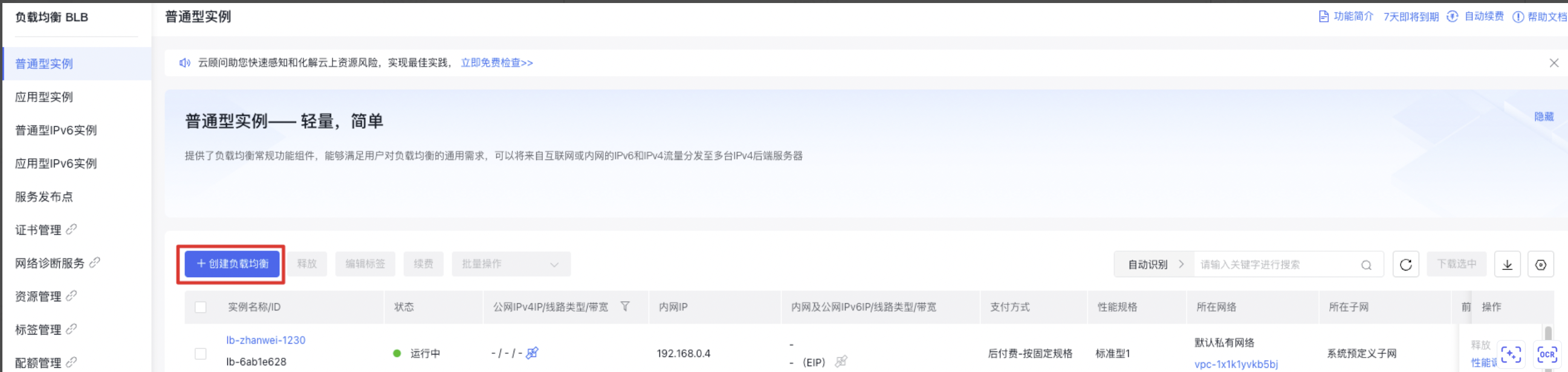
- Log in to the Baidu AI Cloud Platform, navigate to Product Overview > Baidu Load Balancer (BLB) > General-purpose Instance, and access the Instance List page.
- Click on Create Load Balancer to enter the Create Instance page.
Note: To help users manage BLB instances in batches, such as service addresses and real servers, the Instance List page allows downloading the resource list. The downloaded resource files are in CSV format, encoded in UTF-8, and named as "Product Region Date \ _ list. CSV". The downloaded instances adhere to the applied filter criteria in the current instance list and include all fields related to the BLB instances.
- Choose the configuration information.
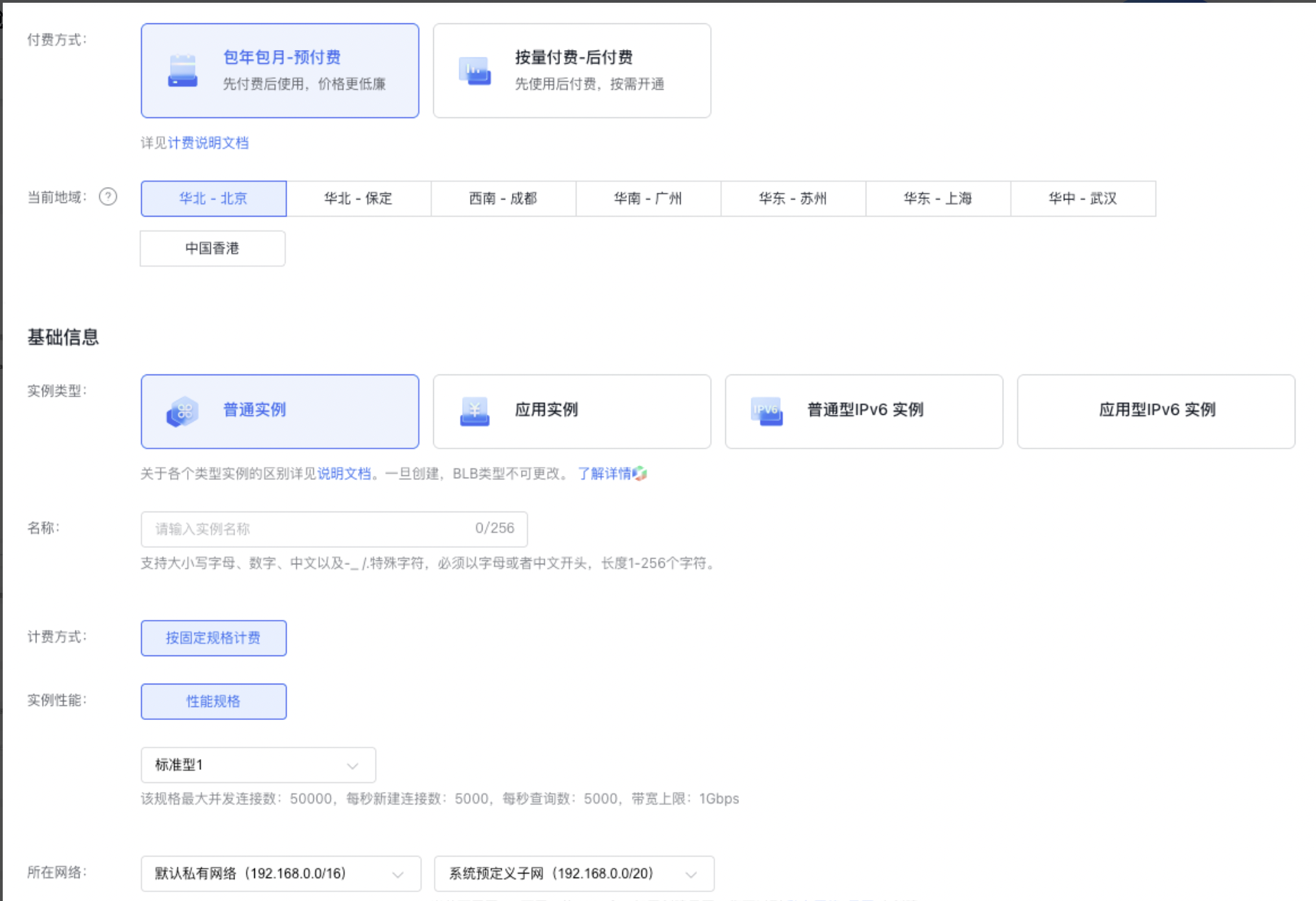
- Basic Information: You can select the region and set the instance name. Network: Specify the Virtual Private Cloud (VPC) to which the current BLB instance and the related BCC cloud resources belong.
Description:
- The Baidu Load Balancer (BLB) and its bound real server BCC must be established under the same Virtual Private Cloud (VPC). The system provides a default virtual private cloud. To customize a VPC, refer to [Create Virtual Private Cloud (VPC)](VPC/Operation guide/VPC.md#Create VPC).
- You need to specify a subnet when creating a BLB instance.
-
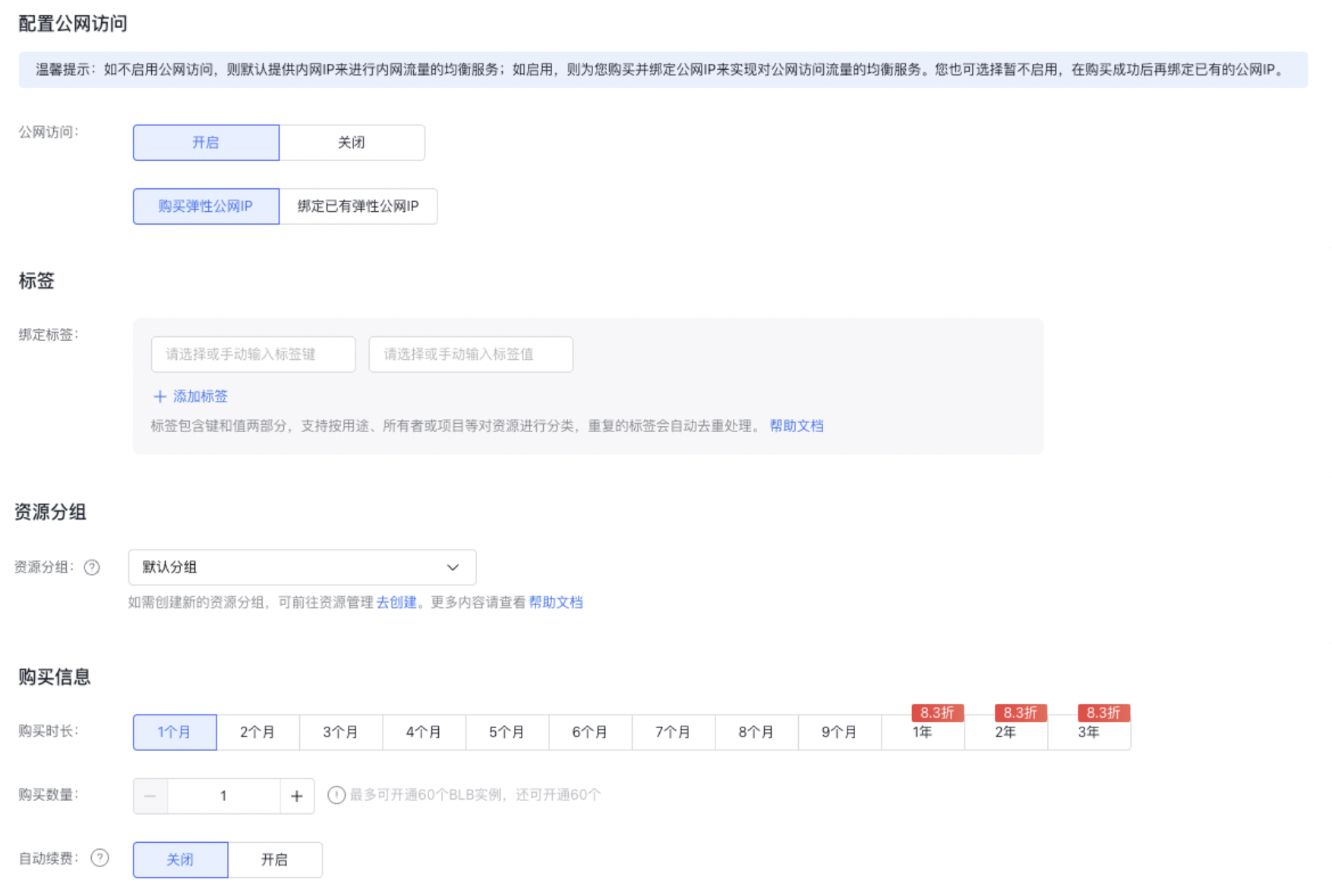
Configure public network access: Select Enable or Disable Public network access based on actual conditions.
Description:
- If OFF is selected, the feature will not be enabled, meaning that no public IP will be bound to the BLB instance during its creation. You can bind a public IP later if required.
- If ON is selected, the feature will be enabled, meaning that a public IP will be purchased and bound to the BLB instance during its creation.
- Purchase Information: For prepaid plans, select the purchase duration, quantity, and whether to enable auto-renewal. For pay-as-you-go plans, specify the quantity and configure whether the instance will be automatically released.
Notes When creating a BLB instance, users can directly configure the [Auto-release](BLB/Operation guide/General-purpose BLB instance/Managing BLB Ordinary Instance.md#Automatically release BLB instance) of BLB instance, and the BLB instance will be released automatically at the set time.
(Optional. If public network access is not enabled, the system will skip this step) Configure EIP instance information. For the configuration method of EIP instance, refer to [Create EIP Instance](EIP/Operation guide/EIP Instance/Create instance.md).
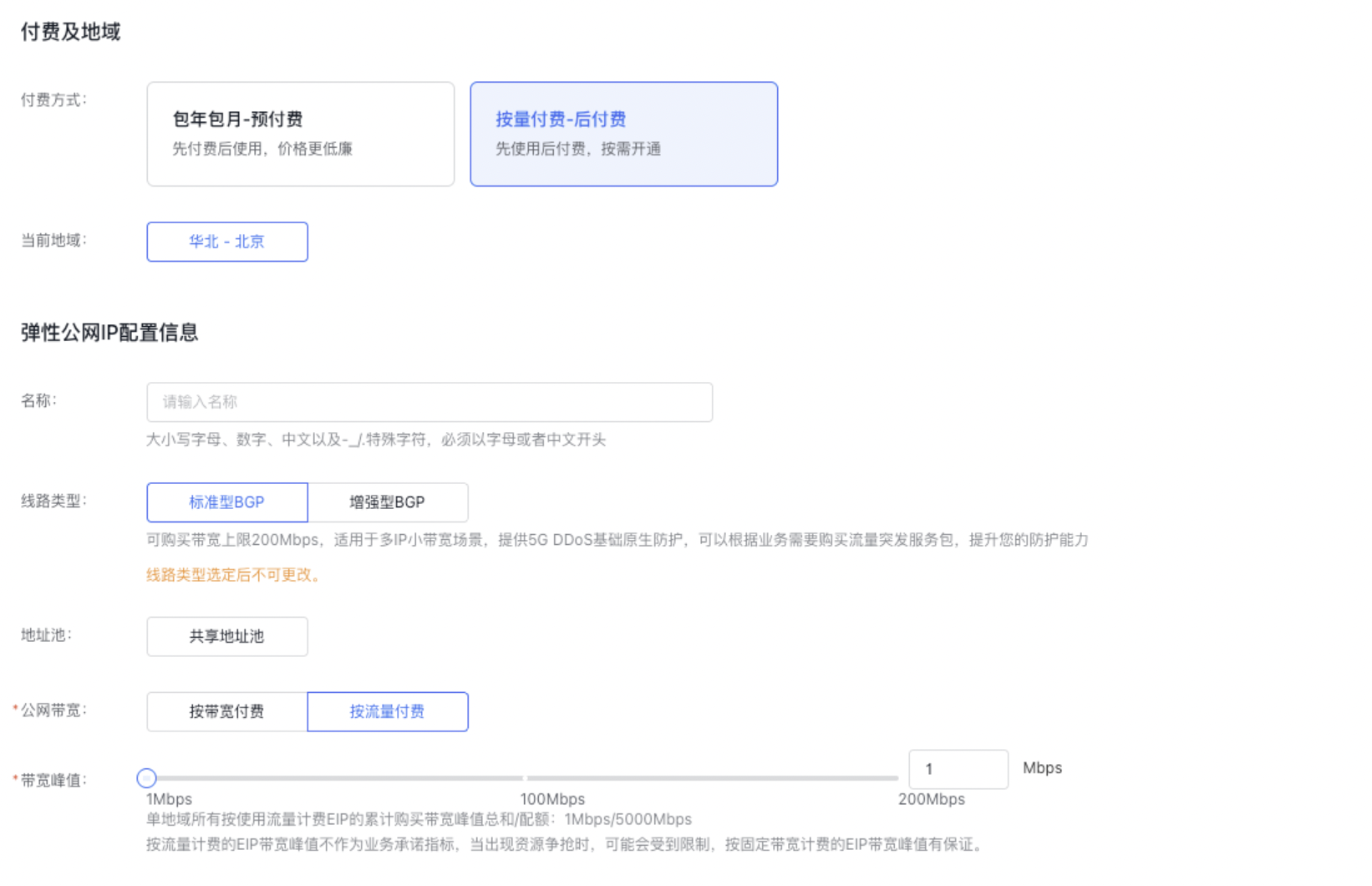
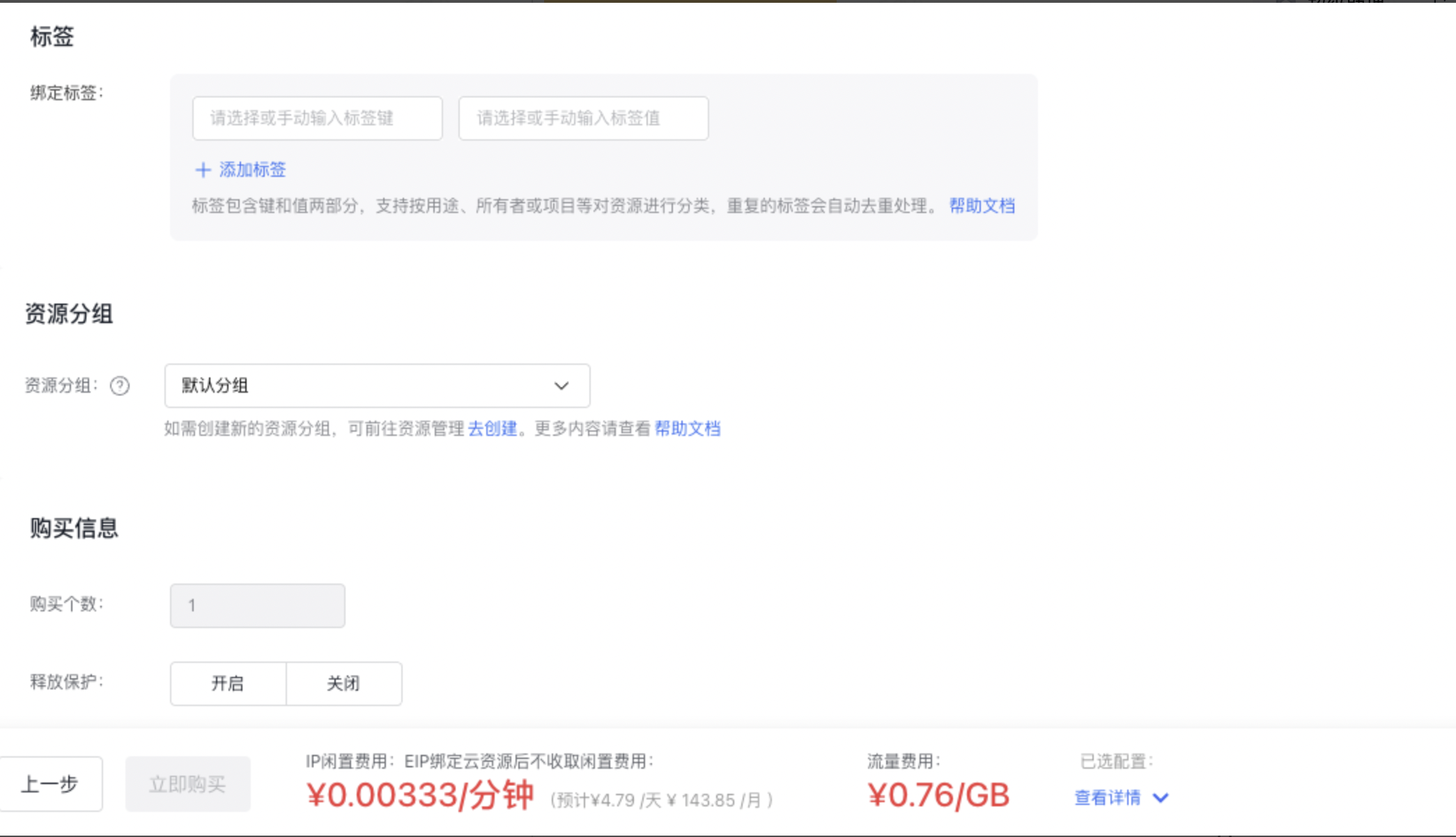
- Verify the configuration details and complete the order and payment by following the system prompts. You will receive an SMS notification upon successful creation.
Configure listener
Configure TCP listener
Operation step
The TCP listener configuration includes two parts: Configure Information and Set Health Check.
When health check is enabled, BLB will automatically block unhealthy real servers.
- Select Product Guide > Baidu Load Balancer (BLB) > General-purpose Instance to access the general-purpose instance list.
- Click the name link in the Instance Name/ID column to enter the Instance Details page.
- Click Listener Settings > Add Listener Settings to configure the basic settings and health check for the listener. Select TCP for BLB protocol [Port].
- Set configuration information.
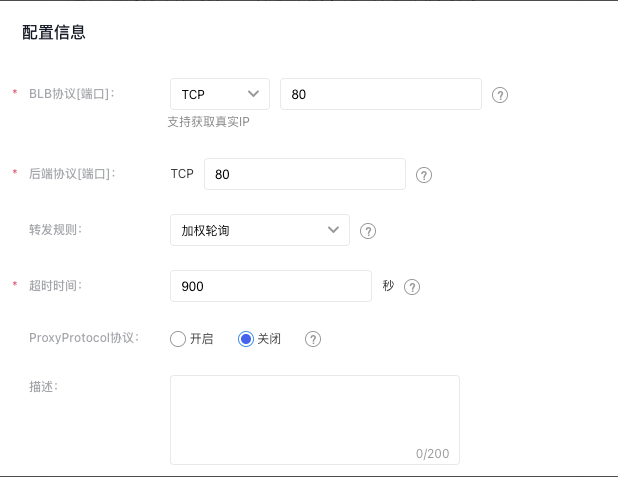
| Item | Description |
|---|---|
| BLB protocol[Port] | Specify the protocol and port that the BLB listener will use. The port range must be an integer between 1 and 65535, and the default is set to “80”. |
| Backend protocol[Port] | This refers to the protocol and port used by the real server to deliver services. The BLB forwards incoming requests to the target service, which listens on a port within the integer range of 1-65535. The default is set to “80”. |
| Forwarding rules | Weighted round robin: Requests are sent to the real server in turn according to the weight of the real server. It is often used for short-connection services, such as HTTP services. For weight configuration methods, refer to the Configure Real Server section. Weighted least connections: In addition to polling based on the weight values set for each real server, it also considers the connection count of the real servers. When the weight values are the same, requests are preferentially routed to the real server with the fewest connections. This is commonly used for long-connection services such as database connections. Source IP: After performing a hash operation on the source IP of the request, the request is dispatched to a matching server. This can ensure that requests from the same client IP are always dispatched to a specific server. The source IP algorithm provides a session persistence mechanism for TCP listeners. Under this algorithm, the server weight does not take effect. |
| Timeout duration | Specify the TCP connection timeout duration. The input range should be an integer between 10 and 4000, with the default set to 900 seconds. |
| ProxyProtocol protocol | Enable the ProxyProtocol feature to capture and pass details like the client's source IP, source port, destination IP, destination port, and protocol. Ensure that the real server is configured to support ProxyProtocol before enabling this feature. |
- Set up health checks.
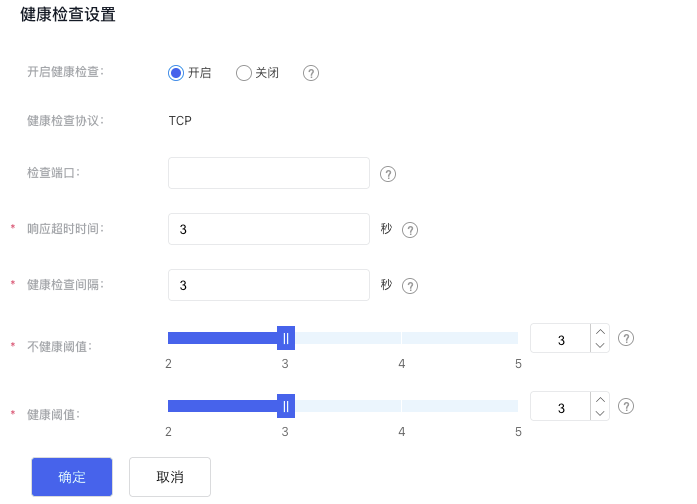
| Item | Description |
|---|---|
| Start health checks | When health checks are enabled, health probe requests are sent to the real servers, and their health status is reported based on the probe results. If disabled, the health check status will always appear as available. |
| Health check protocol | Specify the protocol type used to assess the real server's health status. |
| Response timeout | If the real server does not respond within the specified timeframe, it is considered a timeout. |
| Health check interval | Set the interval for checking the real servers. |
| Unhealthy threshold | If the number of consecutive health check failures for the real server surpasses the threshold, the server will be marked as unhealthy. |
| Health threshold | For an unhealthy server, if the number of successful consecutive health checks exceeds the threshold, the server will be marked as healthy. |
- After completing the above setup, click the OK button to finalize adding the TCP listener.
Configure UDP listener
Scenario overview
Typical use cases for UDP traffic include DNS services, Internet of Things applications, and scenarios where high reliability of data transmission is not critical.
UDP health check introduction
The UDP health check protocol supports both ICMP and UDP protocols. For the UDP protocol, BLB sends UDP packets to the real server for health checks. If the real server is functioning correctly, it will receive the packets and respond to BLB’s health checks. A real server is considered healthy if BLB receives a UDP packet in return. The user must specify the content carried in the UDP packet, also known as the check string.
For example: The user can send a UDP packet with the content of "DNS request to resolve www.abc.com" to the real server (assuming the real server is a DNS server), and the real server will return the UDP packet containing the DNS resolution result.
Check string
The check string is the data payload of the UDP packet used in health checks. Since the payload of a UDP packet is binary, it can be conveniently represented in hexadecimal format. If the payload contains ASCII characters, those characters can also be directly used.
There are two ways to configure the check string:
Method I: If the real server’s application can be modified, the check string can be set to a simple string like "hello." The application can then be adjusted to respond to UDP packets carrying "hello," with the response content arbitrarily filled. BLB will regard the server as healthy as long as a response packet is received.
Method II: If modifying the application on the real server is impractical, for example, when the real server provides general DNS resolution services, you can configure a normal service request for health checks.
Obtain the payload corresponding to a normal request: You can use the tcpdump command to capture UDP packets received by the local machine on the real server, or capture UDP packets sent by the local machine on the client machine.
Example: Assuming the real server needs to provide DNS resolution service, we capture packets on the real server:
tcpdump -i any udp and dst host $(hostname) and dst port 53 -X
This command captures all UDP packets sent to this machine through port 53.
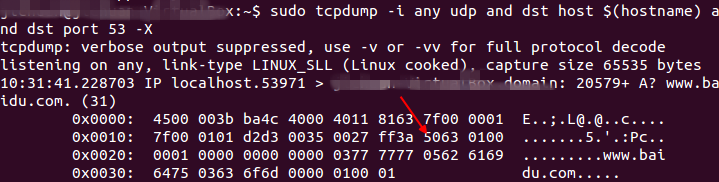
The first 28 bytes of the request are the IP header + UDP header, which must be skipped. Starting from the 29th byte (5063), it is the payload of the UDP packet. Therefore, the check string can be set as: "\50\63\01\00\00\01\00\00\00\00\00\00\03\77\77\77\05\62\61\69\64\75\03\63\6f\6d\00\00\01\00\01"; To facilitate the setup of the check string, the page is pre-filled with the DNS resolution request "\00\01\01\00\00\01\00\00\00\00\00\00\05baidu\03com\00\00\01\00\01" for baidu.com.
Notes The "\" in the string represents a hexadecimal byte. For example, "\77" represents the following byte: 01110111 (16-bit binary representation), which can also be substituted with its corresponding ASCII character "w".
Operation step
The UDP listener configuration includes two parts: Configure Information and Set Health Check.
When health check is enabled, BLB will automatically block unhealthy real servers.
- Select Product Guide > Baidu Load Balancer (BLB) > General-purpose Instance to access the general-purpose instance list.
- Click the name link in the Instance Name/ID column to enter the Instance Details page.
- Click Listener Settings > Add Listener Settings to configure the basic settings and health check for the listener. Select UDP for BLB protocol [Port].
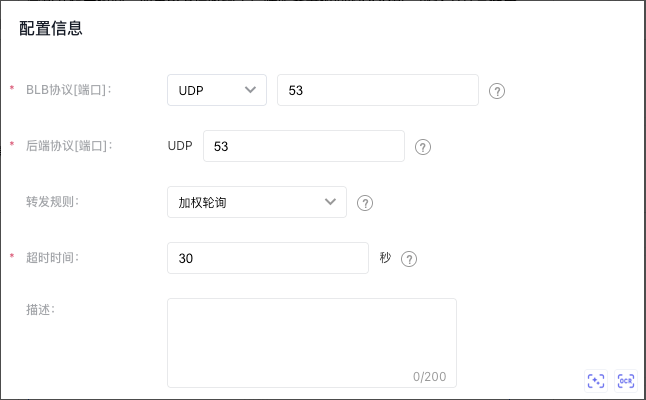
- Set configuration information.
| Item | Description |
|---|---|
| BLB protocol[Port] | Indicate the protocol and port the BLB listener will listen on. The port must be an integer from 1 to 65535 and defaults to "53." |
| Backend protocol[Port] | This refers to the protocol and port used by the real server to deliver services. The BLB forwards requests to the target service, which operates on a port within the integer range of 1–65535. The default is "53." |
| Forwarding rules | Weighted round robin: Requests are sent to the real servers in turn based on the weight of the real servers. For weight configuration methods, refer to the Configure Real Server section. Weighted least connections: In addition to polling based on the weight values set for each real server, it also considers the connection count of the real servers. When the weight values are the same, requests are preferentially routed to the real server with the fewest connections. This is commonly used for long-connection services such as database connections. Source IP: After performing a hash operation on the source IP of the request, the request is dispatched to a matching server. This can ensure that requests from the same client IP are always dispatched to a specific server. The source IP algorithm provides a session persistence mechanism for UDP listeners. Under this algorithm, the server weight does not take effect. |
| Timeout duration | Set the timeout duration for UDP connections. The value must be an integer between 5 and 4000, with a default of 30 seconds. |
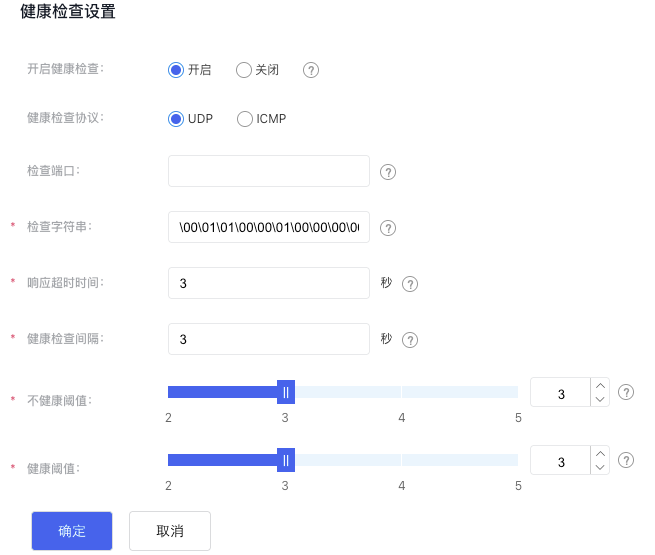
- Configure health checks.
| Item | Description |
|---|---|
| Start health checks | When health checks are enabled, health probe requests are sent to the real servers, and their health status is reported based on the probe results. If disabled, the health check status will always appear as available. |
| Health check protocol | Specify the protocol type used to assess the real server's health status. |
| Check string | BLB implements health checks by sending UDP packets containing user-specified strings to real servers. You need to configure the application to complete the response. When the real server is a DNS server, you can configure a DNS resolution request as the health check packet, with the default value being a DNS resolution request for baidu.com (00\01\01\00\01\00\00\00\00\00\00\05baidu\03com\00\00\01\00\01). |
| Response timeout | If no response is received from the real server within the specified time, it is considered that the real server's response has timed out. Enter an integer between 1 and 60. It is recommended to set it to 3 seconds |
| Health check interval | Specify the time interval for checking the health of real servers. Input an integer between 1 and 10; the recommended setting is 3 seconds. |
| Unhealthy threshold | If the number of consecutive health check failures for the real server surpasses the threshold, the server will be marked as unhealthy. |
| Health threshold | For an unhealthy server, if the number of successful consecutive health checks exceeds the threshold, the server will be marked as healthy. |
- After completing the above setup, click the OK button to finalize adding the UDP listener.
SSL listener
Scenario overview
Common use cases for SSL protocols include environments requiring ultra-high performance and large-scale TLS offload.
Operation step
When health checks are enabled, BLB automatically blocks backend members marked as unhealthy.
- Go to Product Guide > Baidu Load Balancer (BLB) > General-purpose Instance to access the Application instance list.
- Click on the name link under the Instance Name/ID column to navigate to the Instance Details page.
- Click Listener Settings > Add Listener Settings to configure basic listener settings. For BLB protocol [Port], select "SSL (secure TCP)".
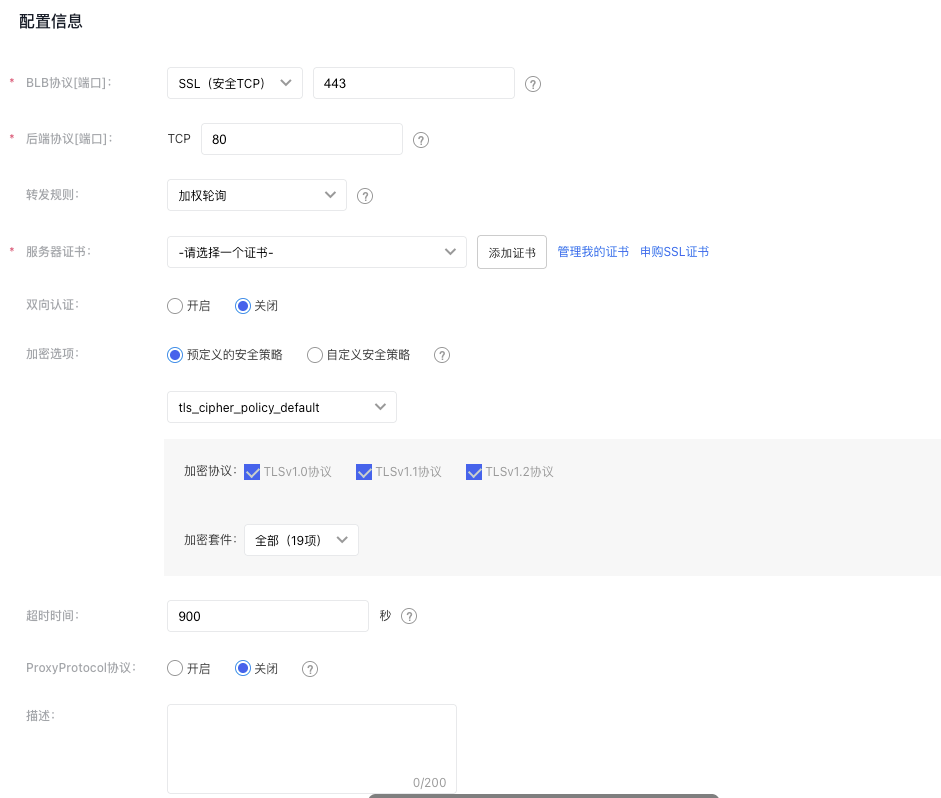
- Set configuration information.
| Item | Description |
|---|---|
| Listener protocol [port] | Indicate the protocol and port the BLB listener will listen on. The port must be an integer from 1 to 65535 and defaults to "443." |
| Backend protocol[Port] | This refers to the protocol and port used by the real server to deliver services. The BLB forwards incoming requests to the target service, which listens on a port within the integer range of 1-65535. The default is set to “80”. |
| Forwarding rules | Weighted round robin: Requests are sent to the backend members in turn according to the weight of the backend members. It is often used for short-connection services, such as HTTP services. For weight configuration methods, refer to the Configure Real Server section. Weighted least connections: In addition to polling based on the weight values set for each real server, it also considers the connection count of the real servers. When the weight values are the same, requests are preferentially routed to the real server with the fewest connections. This is commonly used for long-connection services such as database connections. Source IP: After performing a hash operation on the source IP of the request, the request is dispatched to a matching server. This can ensure that requests from the same client IP are always dispatched to a specific server. The source IP algorithm provides a session persistence mechanism for UDP listeners. Under this algorithm, the server weight does not take effect. |
| Server certificate | Before configuring an SSL listener, apply for a server certificate and upload it to the certificate management module. For details, refer to Certificate Management. Note: BLB instances in dedicated clusters support both international standard and national cryptographic (SM2) standard certificates, while BLB instances in shared clusters only support international standard certificates. |
| Mutual certification | Decide whether to enable mutual authentication. |
| Encryption options | The security policy includes optional TLS protocol versions and their respective encryption algorithm suites for HTTPS. |
| Timeout duration | The timeout duration for waiting for backend members to respond. If backend members need more time to handle requests, this value can be increased accordingly. The default is 900 seconds. |
| ProxyProtocol protocol | Enable the ProxyProtocol feature to capture and pass details like the client's source IP, source port, destination IP, destination port, and protocol. Ensure that the real server is configured to support ProxyProtocol before enabling this feature. |
| Description | The listener description must not exceed 200 characters in length. |
- Set up health checks.
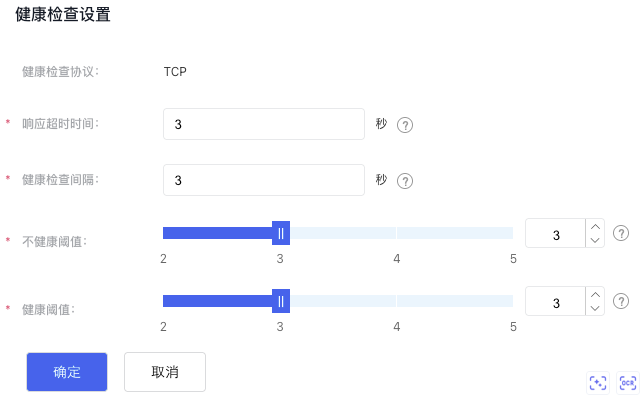
| Item | Description |
|---|---|
| Health check protocol | Specify the protocol type to check the health status of the real server. SSL listeners support only the TCP health check protocol. |
| Response timeout | If the real server does not respond within the specified timeframe, it is considered a timeout. |
| Health check interval | Set the interval for checking the real servers. |
| Unhealthy threshold | If the number of consecutive health check failures for the real server surpasses the threshold, the server will be marked as unhealthy. |
| Health threshold | For an unhealthy server, if the number of successful consecutive health checks exceeds the threshold, the server will be marked as healthy. |
- Once the above configurations are completed, click the OK button to add the SSL listener.
Configure HTTP listener
Operation step
When health check is enabled, BLB will automatically block unhealthy real servers.
- Select Product Guide > Baidu Load Balancer (BLB) > General-purpose Instance to access the Baidu Load Balancer (BLB) list.
- Click the ID link in the Instance Name/ID column to enter the Instance Details page.
- Click Listener Settings > Add Listener Settings to configure the basic settings and health check for the listener. Select HTTP for BLB protocol [Port].
- Set configuration information.
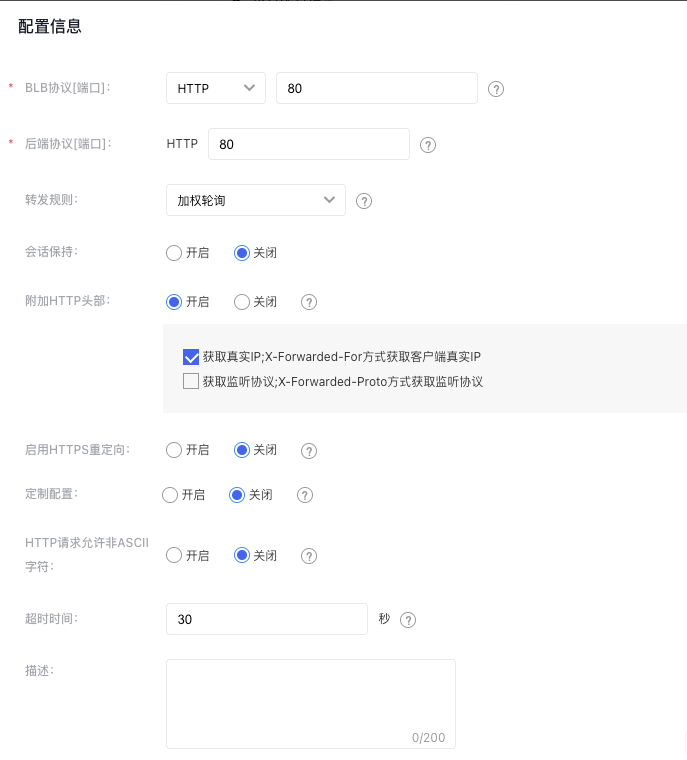
| Item | Description |
|---|---|
| BLB protocol[Port] | Specify the protocol and port that the BLB listener will use. The port range must be an integer between 1 and 65535, and the default is set to “80”. |
| Backend protocol[Port] | This refers to the protocol and port used by the real server to deliver services. The BLB forwards incoming requests to the target service, which listens on a port within the integer range of 1-65535. The default is set to “80”. |
| Forwarding rules | Weighted round robin: Requests are sent to the real server in turn according to the weight of the real server. It is often used for short-connection services, such as HTTP services. For weight configuration methods, refer to the Configure Real Server section. Weighted least connections: In addition to polling based on the weight values set for each real server, it also considers the connection count of the real servers. When the weight values are the same, requests are preferentially routed to the real server with the fewest connections. This is commonly used for long-connection services such as database connections. |
| Session persistence | TCP listeners enable session persistence through source IP forwarding rules, while Layer 7 listeners (HTTP, HTTPS) do so by inserting or modifying cookies. You can choose to "Enable" or "Disable" this feature. |
| Additional HTTP headers | Append header fields to HTTP requests to obtain the client's real IP or listener protocol information when the real server processes the messages. Obtain real IP: After enabling this function, the user's IP address can be recorded in the X-Forwarded-For header; Obtain listener protocol: After enabling this function, the listener protocol can be recorded in the X-Forwarded-Proto header. |
| Enable HTTPS redirection | Redirect HTTP requests from this listener to the BLB's HTTPS listener. Ensure the HTTPS listener at the relevant port is operating properly. You can choose to "Enable" or "Disable" this option. It is disabled by default. |
| Custom configuration | BLB Layer 7 listeners support custom configuration. For ConfigMap and descriptions, refer to Configuration Parameter Details. |
| HTTP requests allow non-ASCII characters | When this option is enabled, if the HTTP request contains non-ASCII characters, BLB forwards the request directly to the real server for processing. Enabling this option may introduce security risks. It is recommended to leave it disabled unless necessary for specific usage scenarios. Disabled by default. |
| Timeout duration | The timeout duration for waiting for the real server to respond. If the real server needs extra time to process requests, this value can be increased as needed. The default setting is 30 seconds. |
- Set up health check details.
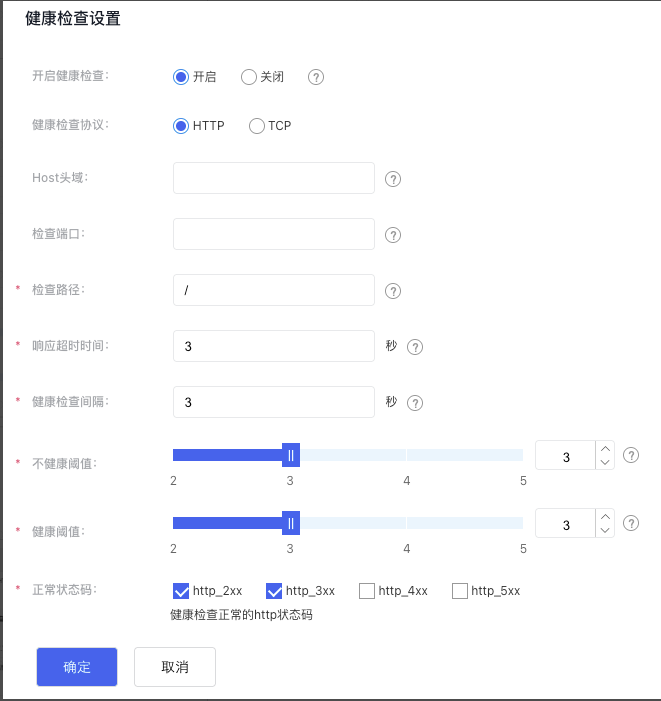
| Item | Description |
|---|---|
| Start health checks | When health checks are enabled, health probe requests are sent to the real servers, and their health status is reported based on the probe results. If disabled, the health check status will always appear as available. |
| Health check protocol | Specify the protocol type to check the health status of the real server. HTTP listeners support both HTTP and TCP health check protocols. |
| Host header | The Host header for health check requests sent to real servers is set to null by default. |
| Check port | This refers to the port used by the real server to deliver services. This field is valid only for HTTP health checks. |
| Check path | URI for the health check page file. It is recommended to check static pages. The length is limited to 1-80 characters. Only letters, digits, '-', '/', '.', '%', '?', '#', and '&' can be used. This field is only valid for HTTP health checks. |
| Response timeout | If the real server does not respond within the specified timeframe, it is considered a timeout. |
| Health check interval | Set the interval for checking the real servers. |
| Unhealthy threshold | If the number of consecutive health check failures for the real server surpasses the threshold, the server will be marked as unhealthy. |
| Health threshold | For an unhealthy server, if the number of successful consecutive health checks exceeds the threshold, the server will be marked as healthy. |
| Normal code status | HTTP status code of normal health check. The options include "HTTP_2xx", "HTTP_3xx", "HTTP_4xx" and "HTTP_5xx". This field is only valid for HTTP health check. |
- Once the above configurations are completed, click the OK button to add the HTTP listener.
Configure HTTPS listener
To safeguard information security, users can configure the BLB listener protocol as HTTPS. BLB decrypts HTTPS requests from users, forwards them to the real server, and re-encrypts the server's response before sending it back to the user. The entire process is illustrated in the diagram below:

Predecessor task
Before configuring an HTTPS listener, apply for a server certificate and upload it to the certificate management module. For details, refer to [Certificate Management](Reference/Certificate management/Introduction.md).
Operation step
The HTTPS listener configuration includes two parts: Configure Information and Set Health Check.
When health check is enabled, BLB will automatically block unhealthy real servers.
- Select Product Guide > Baidu Load Balancer (BLB) > General-purpose Instance to access the Baidu Load Balancer (BLB) list.
- Click the ID link in the Instance Name/ID column to enter the Instance Details page.
- Click Listener Settings > Add Listener Settings to configure the basic settings and health check for the listener. Select HTTPS for BLB protocol [Port].
- Set configuration information.
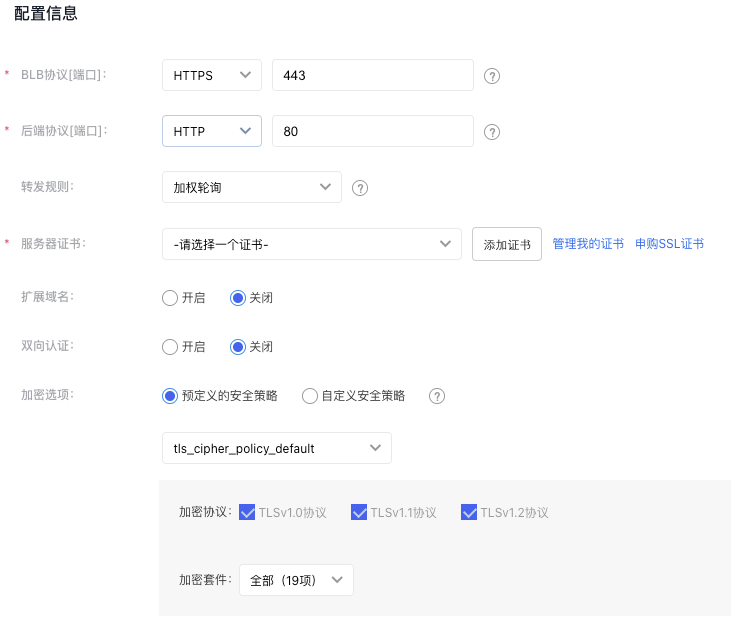
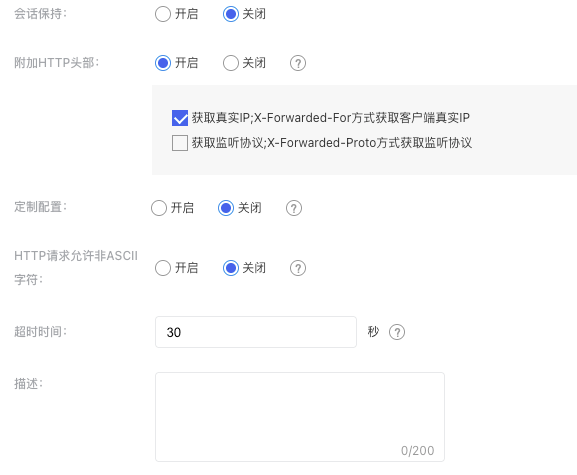
| Item | Description |
|---|---|
| BLB protocol[Port] | Indicate the protocol and port the BLB listener will listen on. The port must be an integer from 1 to 65535 and defaults to "443." |
| Backend protocol[Port] | This refers to the protocol and port used by the real server to deliver services. The BLB forwards incoming requests to the target service, which listens on a port within the integer range of 1-65535. The default is set to “80”. |
| Forwarding rules | Weighted round robin: Requests are sent to the real server in turn according to the weight of the real server. It is often used for short-connection services, such as HTTP services. For weight configuration methods, refer to the Configure Real Server section. Weighted least connections: In addition to polling based on the weight values set for each real server, it also considers the connection count of the real servers. When the weight values are the same, requests are preferentially routed to the real server with the fewest connections. This is commonly used for long-connection services such as database connections. |
| Server certificate | Before configuring an HTTPS listener, apply for a server certificate and upload it to the certificate management module. For details, refer to Certificate Management. |
| Extended domain name | Decide whether to enable extended domain names. |
| Mutual certification | Decide whether to enable mutual authentication. |
| Encryption options | The security policy includes optional TLS protocol versions and their respective encryption algorithm suites for HTTPS. |
| Session persistence | TCP listeners enable session persistence through source IP forwarding rules, while Layer 7 listeners (HTTP, HTTPS) achieve this by inserting or modifying cookies. You can choose to "Enable" or "Disable" this feature. Disabled by default. |
| Additional HTTP headers | Append header fields to HTTP requests to obtain the client's real IP or listener protocol information when the real server processes the messages. Obtain real IP: After enabling this function, the user's IP address can be recorded in the X-Forwarded-For header; Obtain listener protocol: After enabling this function, the listener protocol can be recorded in the X-Forwarded-Proto header. |
| Custom configuration | BLB Layer 7 listeners support custom configuration. For ConfigMap and descriptions, refer to Configuration Parameter Details. |
| HTTP requests allow non-ASCII characters | When this option is enabled, if the HTTP request contains non-ASCII characters, BLB forwards the request directly to the real server for processing. Enabling this option may introduce security risks. It is recommended to leave it disabled unless necessary for specific usage scenarios. Disabled by default. |
| Timeout duration | The timeout duration for waiting for the real server to respond. If the real server needs extra time to process requests, this value can be increased as needed. The default setting is 30 seconds. |
- Configure health check information.
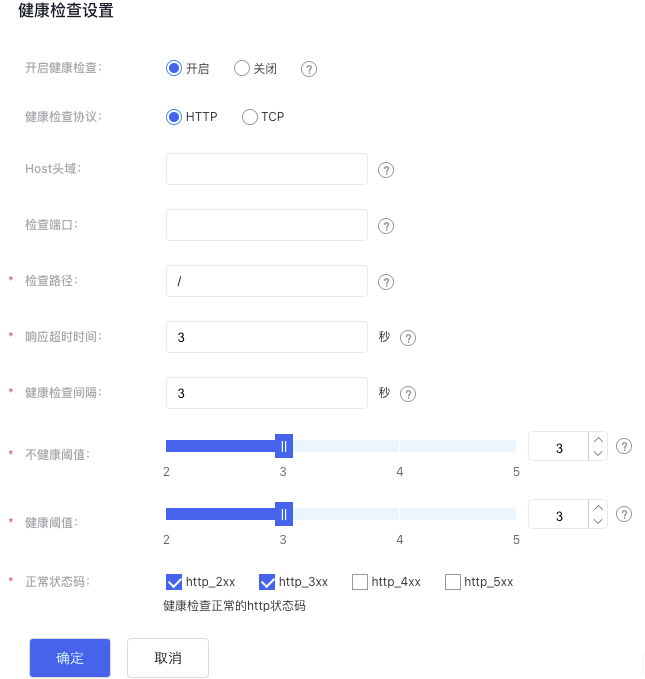
| Item | Description |
|---|---|
| Start health checks | When health checks are enabled, health probe requests are sent to the real servers, and their health status is reported based on the probe results. If disabled, the health check status will always appear as available. |
| Health check protocol | Specify the protocol type to check the health status of the real server. Select either "HTTP" or "TCP." |
| Host header | The Host header for health check requests sent to real servers is set to null by default. |
| Check port | This refers to the port used by the real server to deliver services. This field is valid only for HTTP health checks. |
| Check path | URI for the health check page file. It is recommended to check static pages. The length is limited to 1-80 characters. Only letters, digits, '-', '/', '.', '%', '?', '#', and '&' can be used. This field is only valid for HTTP health checks. |
| Response timeout | If the real server does not respond within the specified timeframe, it is considered a timeout. |
| Health check interval | Set the interval for checking the real servers. |
| Unhealthy threshold | If the number of consecutive health check failures for the real server surpasses the threshold, the server will be marked as unhealthy. |
| Health threshold | For an unhealthy server, if the number of successful consecutive health checks exceeds the threshold, the server will be marked as healthy. |
| Normal code status | HTTP status code of normal health check. The options include "HTTP_2xx", "HTTP_3xx", "HTTP_4xx" and "HTTP_5xx". This field is only valid for HTTP health check. |
- Once the above configurations are completed, click the OK button to add the HTTP listener.
Replace Certificate
For users who have added HTTPS listeners, certificate replacement can be completed through the following methods. The specific operations are as follows:
- To create a new server certificate, refer to [Certificate Management](Reference/Certificate management/Introduction.md) for certificate creation methods.
- Navigate to Product Guide > Baidu Load Balancer (BLB) > General-purpose Instance to view the Baidu Load Balancer (BLB) list.
- Click the ID link in the Instance Name/ID column to access the Instance Details page.
-
In the Listener Settings, find the configured HTTPS listener and click Edit to open the configuration page.

- Open the Certificate dropdown menu, find the server certificate created in Step 1 from the list, and click OK to finalize the certificate replacement.
Edit listener settings
Go to the Listener Settings tab, click Edit to enter the editing mode, make your changes, and then click OK to save.

Release listener settings
- On the Listener Settings tab, choose the listener settings you want to release and click the Release button.

- In the pop-up confirmation window, click OK to finalize the release process.
Configure real server
Add real server
- Navigate to Product Guide > Baidu Load Balancer (BLB) > General-purpose Instance to view the Baidu Load Balancer (BLB) list.
- Click the ID link in the Instance Name/ID column to access the Instance Details page.
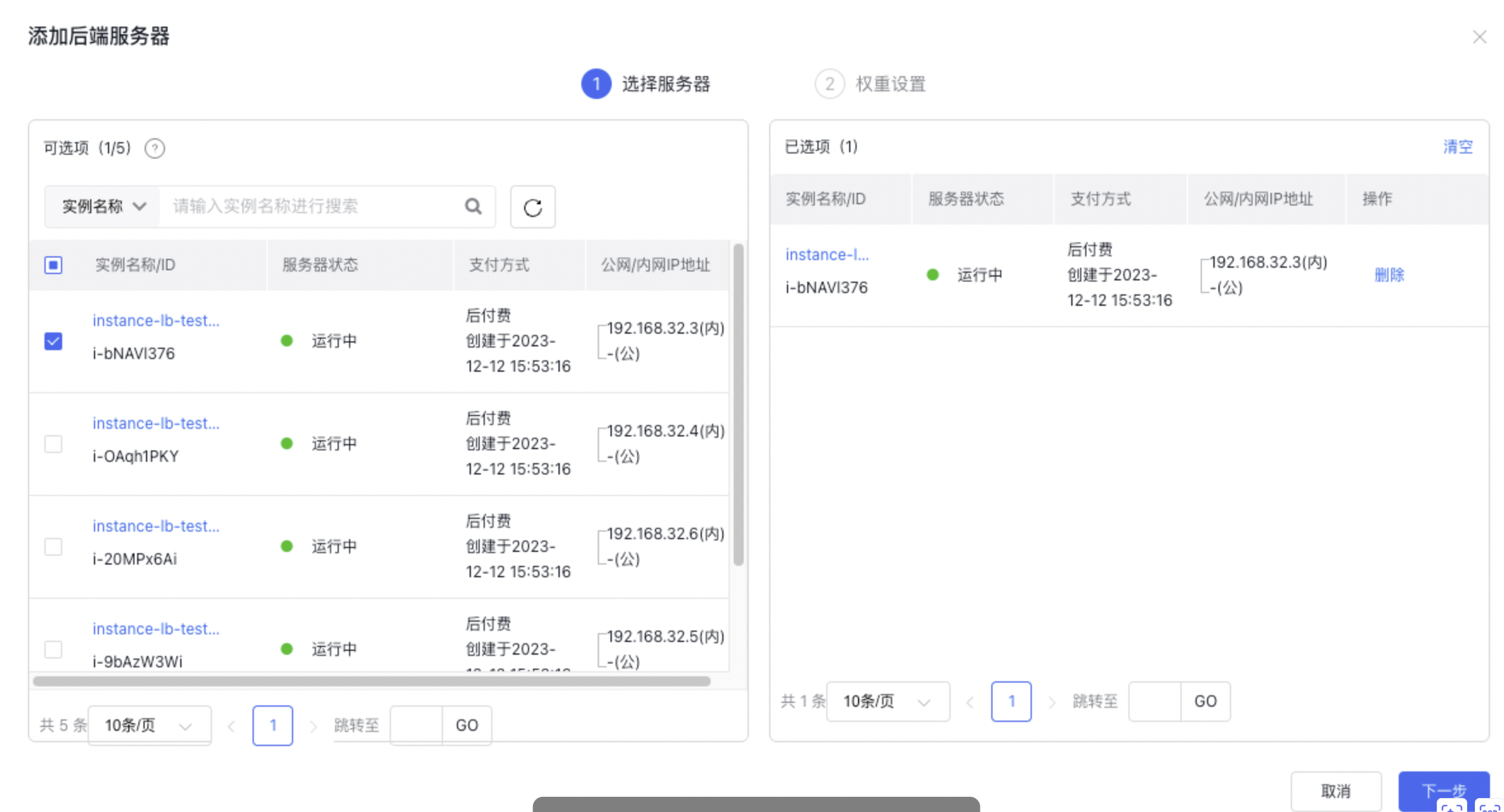
- Navigate to Real Server > Add Real Server to view the list of real servers. The list displays BCC instance names, statuses, and other details within the same Virtual Private Cloud (VPC) as the current BLB.
- Set the weight for the real servers. The weight determines the distribution of request forwarding among the server instances. For instance, if two servers have different configurations, the more powerful server can be assigned a higher weight to handle more incoming requests.
- The weight value is relative. If all servers have the same weight, their request forwarding ratios will be equal.
- Weights can range from 0 to 100. A higher weight means more requests will be forwarded to that server; if a weight is set to "0," the server will not receive any new requests.
- Non-zero weights are only applicable to weighted round-robin forwarding rules.
Set security group for real servers
By default, BCC security groups allow all traffic. To configure more granular security group rules, follow the guidelines below.
BLB checks the health status of servers by interacting with BCC through a specific intranet IP range. Therefore, when setting up BCC security groups, ensure these intranet IP ranges are allowed in the ingress rules.
For Layer 4 listeners (e.g., TCP protocol), the real IP function is enabled by default, meaning the source IP of packets is the client’s IP. In this case, the BCC security group ingress rule must allow the client’s IP address. For Layer 7 listeners (e.g., HTTP protocol), the real IP is included in the X-Forwarded-For header, so the BCC security group does not need to permit the client’s IP address.
The ingress rules of the BCC security group require the following configuration for the source IP:
| Listener type | Public BLB address | Internal BLB address |
|---|---|---|
| Layer-4 Listener (e.g., TCP protocol) | - Allow the public IP segment where the user's client is located - Permit 100.64.0.0/10 (health check) |
- Allow the 10.0.0.0/8 network segment (the IP address of the intranet BCC packet will be converted to the IP address of the 10.0.0.0/8 network segment, so it appears to the real server of BLB that the client request comes from 10.0.0.0/8 network segment) - Allow 100.64.0.0/10 network segment (health check) |
| Layer 7 Listener (e.g., HTTP protocol) | Allow 100.79.0.0/16 network segment | Allow 100.79.0.0/16 network segment |
The open ports in the security group must include at least the BLB real server port and the health check port.
Example
The BLB type is public network BLB, the network segment where the user Client is located is 7.0.0.0/8, and the rear service port is 80. The listener configuration is shown in the following figure:

According to the above scenario, the configuration of BCC security group is shown in the following figure. For the specific configuration of security group, please refer to Manage Security Group.

Edit real server
- Go to Real Server > Add Real Server to open the real server list.
- Users can reselect real servers and configure their weight values. For detailed configuration methods, refer to [Add Real Server](#Add real server).
Remove real server
- On the Real Server tab, select the server instance you want to remove.
- Click Batch Removal to complete the removal of the selected instances.
View monitor data
View via console
On the BLB Details page, select the Monitor tab to view various monitoring charts and data.
By default, the system gives the monitor information within the last hour. To view more information, click the dropdown list to switch the time range, as shown in the following figure:
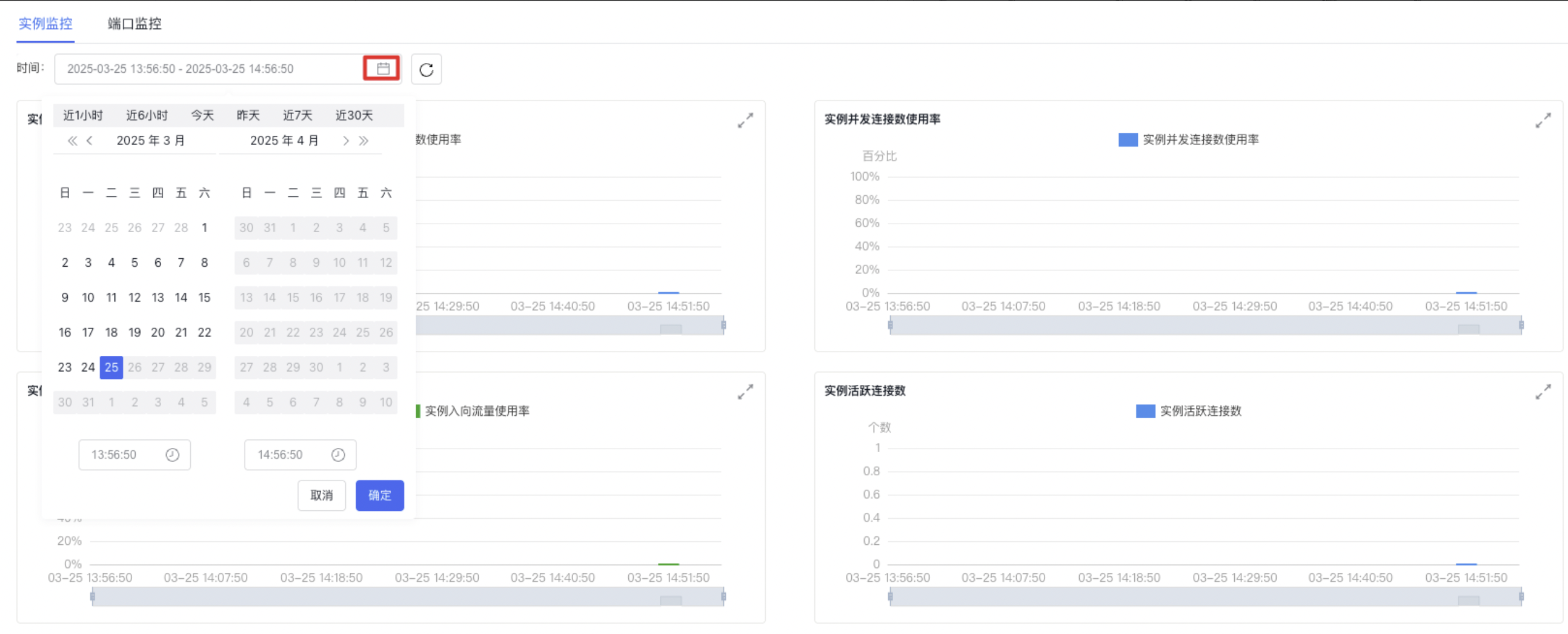
Instance monitor information represents the monitor information of the EIP instance bound to the BLB instance, including:
- Internet ingress traffic: The amount of traffic entering the site from users, measured in bytes per minute.
- Internet egress traffic: The amount of traffic sent from the site to users, measured in bytes per minute.
- Egress bandwidth: The instantaneous egress bandwidth of the EIP instance, in bits/second.
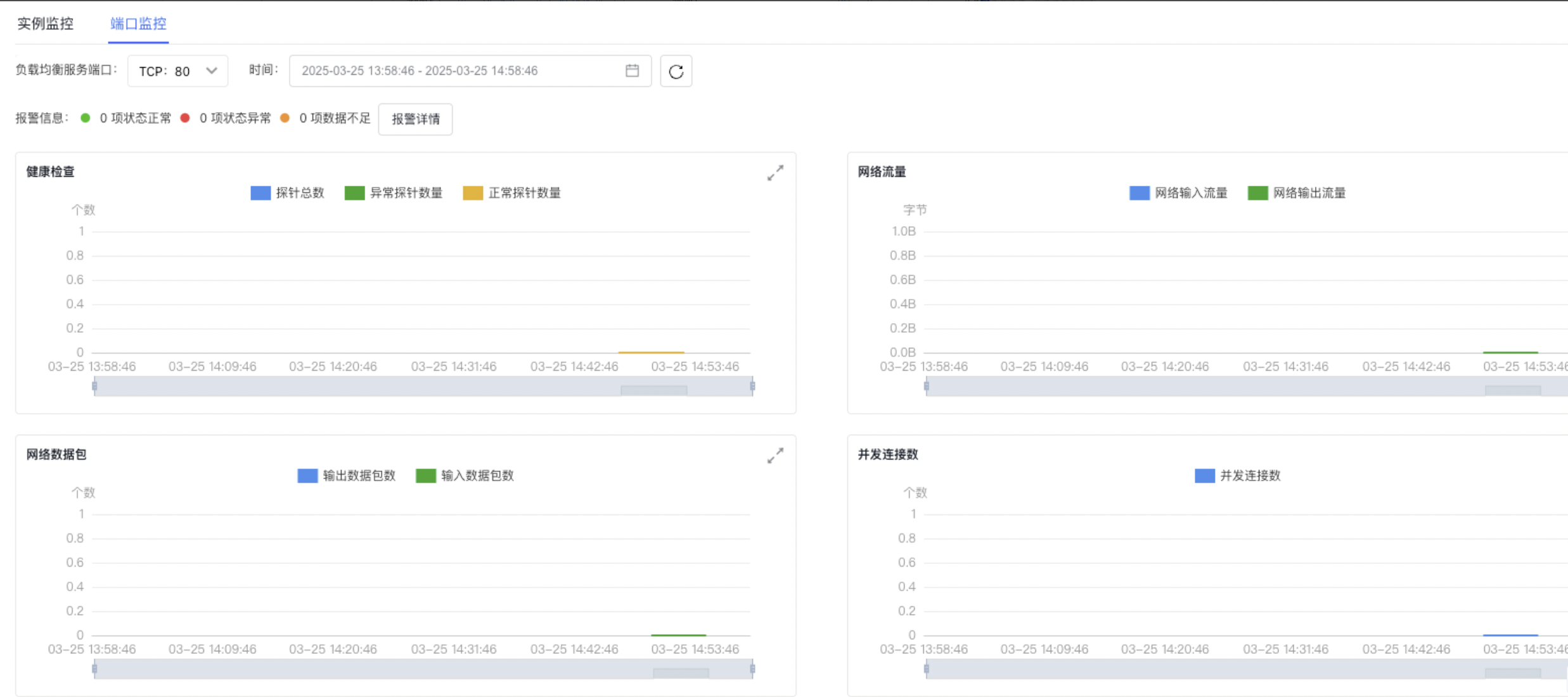
For Layer 4 Listeners, the port monitor information includes:
-
Health check
- Total probe count: The total number of real servers added.
- Normal probe count: The number of real servers that successfully passed health checks.
- Abnormal probe count: The number of real servers that failed health checks.
-
Network traffic
- Network ingress traffic: The amount of user traffic received by the listener, measured in bytes per minute.
- Network egress traffic: The amount of traffic sent from the listener to users, measured in bytes per minute.
-
Network packet
- Inbound packet count: The total number of data packets received by the listener from users, calculated per minute.
- Outbound packet count: The total number of packets sent by the listener to users, calculated per minute.
- Concurrent connections: The current number of active simultaneous connections.
-
Traffic dropped
- Ingress traffic dropped: The volume of inbound traffic dropped by the listener, measured in bytes per minute.
- Egress traffic dropped: The volume of outbound traffic dropped by the listener, measured in bytes per minute.
-
Packets dropped
- Inbound packets dropped: The number of inbound packets dropped by the listener, calculated per minute.
- Outbound packets dropped: The number of outbound packets dropped by the listener, calculated per minute.
- Connections dropped: The number of connections dropped by the listener, calculated per minute.
- New connections: The total number of new connections created by the listener per minute.
- Network inbound bandwidth: The bandwidth received by the listener from users, measured in bps.
- Network outbound bandwidth: The bandwidth sent by the listener to users, measured in bps.
-
Rate-limited traffic
- Pre-rate-limit ingress traffic: The user traffic received by the listener before any rate limiting, measured in bytes per minute.
- Pre-rate-limit egress traffic: The traffic sent to users by the listener before any rate limiting, measured in bytes per minute.
-
Rate-limited data packets
- Pre-rate-limit packet count: The number of user packets received by the listener before any rate limiting, calculated per minute.
- Pre-rate-limit packet count: The number of packets sent by the listener to users before any rate limiting, calculated per minute.
For Layer 7 listeners, the port monitor information, in addition to the above contents, also includes:
- Number of requests: The count of HTTP or HTTPS requests received by the listener, measured in requests per minute.
- Response time: The duration it takes for the client to send a request to the real server and receive a response, measured in milliseconds.
-
Response status codes:
- 2xx: The number of 2xx status codes returned by the listener per second, counted in requests per minute.
- 3xx: The number of 3xx status codes returned by the listener per second, counted in requests per minute.
- 4xx: The number of 4xx status codes returned by the listener per second, counted in requests per minute.
- 5xx: The number of 5xx status codes returned by the listener per second, counted in requests per minute.
- Other status codes: The number of status codes, excluding 2xx, 3xx, 4xx, and 5xx, returned by the listener per second, measured in requests per minute.
-
Response status code ratio:
- 2xx: The proportion of 2xx status codes returned by the listener.
- 3xx: The proportion of 3xx status codes returned by the listener.
- 4xx: The proportion of 4xx status codes returned by the listener.
- 5xx: The proportion of 5xx status codes returned by the listener.
- Other status codes: The proportion of status codes, excluding 2xx, 3xx, 4xx, and 5xx, returned by the listener.
-
Real server response status codes:
- 4xx: The number of 4xx status codes returned by the real server, calculated in requests per minute.
- 5xx: The number of 5xx status codes returned by the real server, calculated in requests per minute.
- Queries per second: The number of HTTP or HTTPS requests received by the listener each second, represented as QPS (queries per second).
- QPS Utilization: The percentage of the listener's current QPS usage compared to the configured limit.
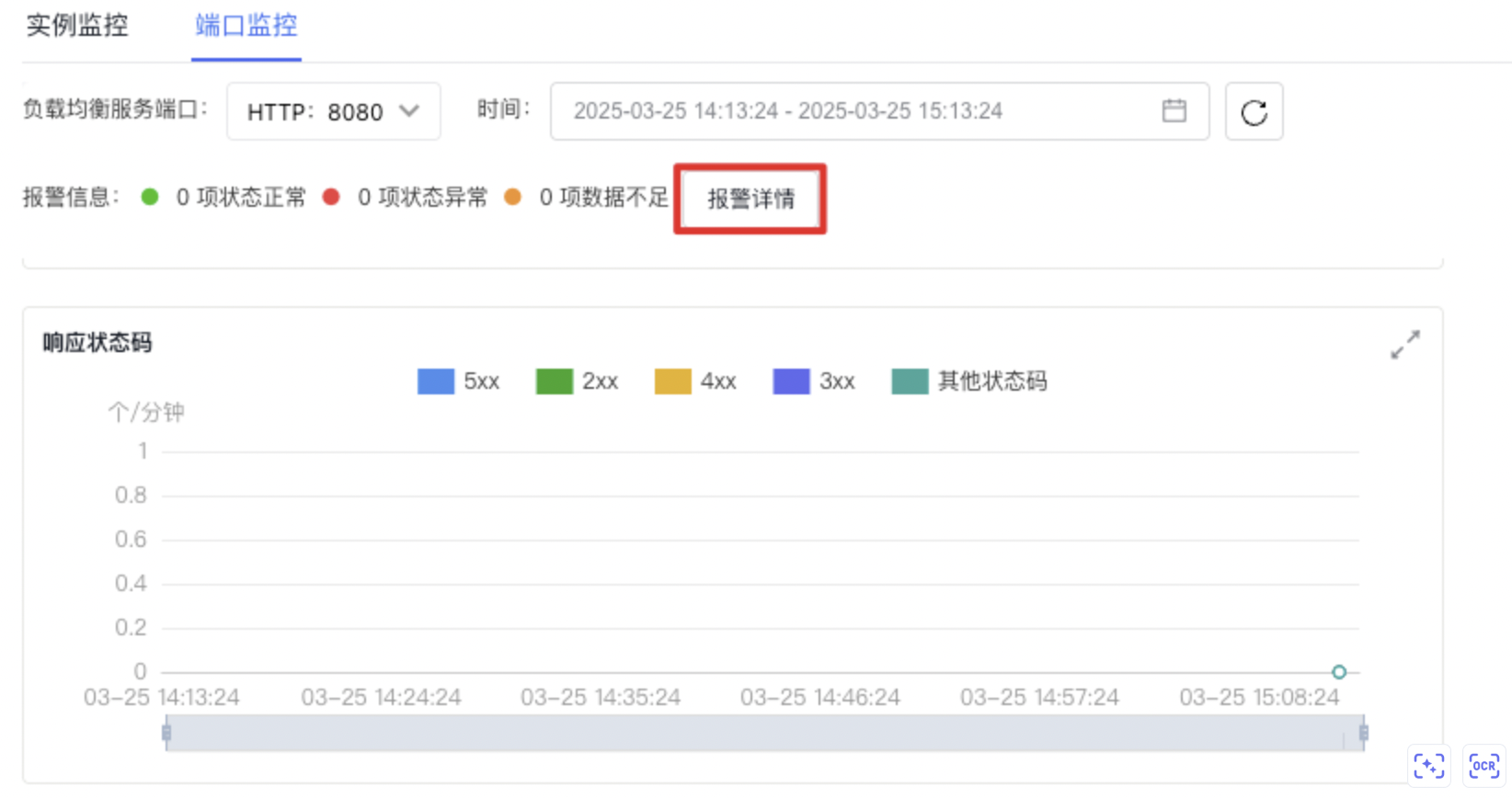
You can click the icon in the upper right corner of the chart to view detailed Monitor information, as shown in the following figure:
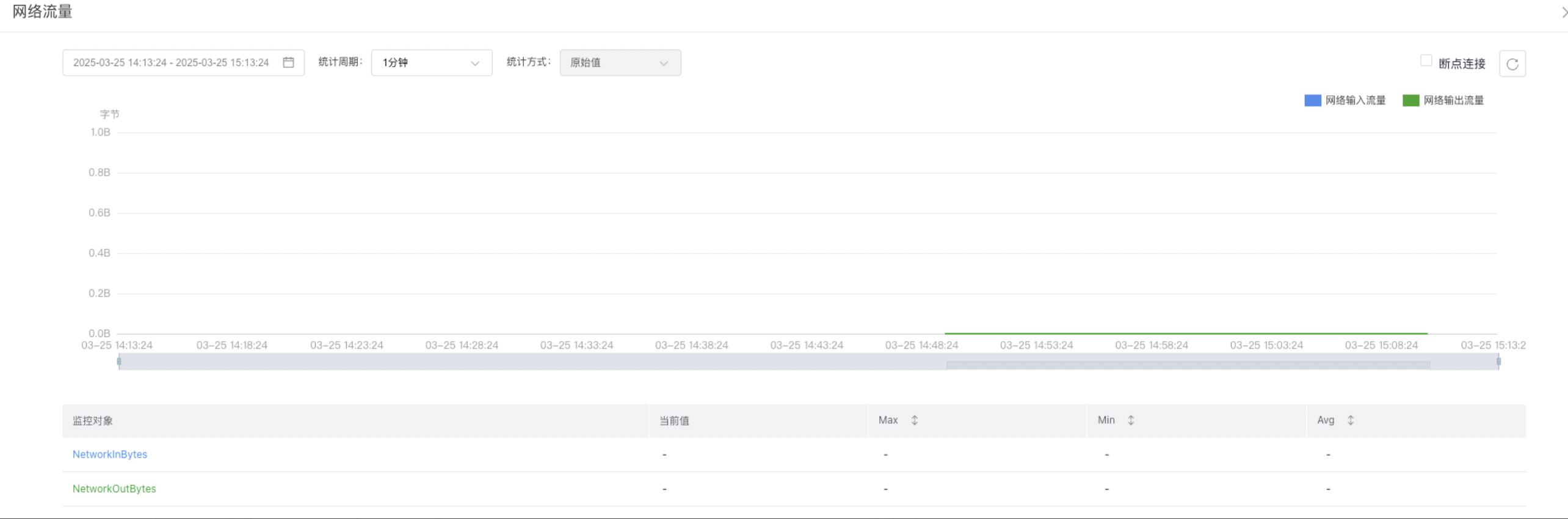
The system generates monitoring data every minute. Users can view statistical information across various dimensions by adjusting the "statistic items" and "sampling period." For instance, if the "sampling period" is set to 1 hour, the system will generate 60 monitoring data points for that period. If the "statistic" is set to an average, the average of those 60 data points will be displayed for the sampling period.
Sampling periods include: 1 minute, 5 minutes, 20 minutes, 1 hour, 6 hours, 12 hours, and 1 day.
Statistic items include:
- Average: The average value of all data points within the sampling period.
- Sum: The total value of all data points within the sampling period.
- Maximum: The highest value among all sampling points within the sampling period.
- Minimum: The lowest value among all sampling points within the sampling period.
- Sample count: The total number of samples recorded within the sampling period.
View via API
For detailed interfaces, refer to Baidu Cloud Monitor (BCM)[ Query Data Interface](BCM/API Reference/Query Data API.md)
For obtaining BLB monitor request parameters "scope", "metricName" and "dimensions", please refer to the following table:
| scope | metricName | dimensions |
|---|---|---|
| BCE_BLB | UnhealthyCount abnormal instance count TotalCount total instance count HealthyCount normal instance count RequestCount request count NetworkInBytes network ingress traffic NetworkOutBytes network egress traffic ActiveConnCount active connection count NetworkInPkgCount inbound packet count NetworkOutPkgCount outbound packet count |
BlbId + BlbPort are concatenated with a ".”, e.g., BlbId=lb-dd45e123, BlbPort=80 , then the instance is: lb-dd45e123.80 |
Manage Alarms
On the Instance Monitor tab, click the Alarm Details button to access the Alarm Management page, where you can manage alarm strategies for ports. For detailed steps, refer to [BCM Alarm Management](BCM/Operation guide/Alarm Service/Manage Alarms.md).